

The Complete Guide to AI Graduation Photo Editing in 2026
Table of contents
An AI graduation photo editing guide comes down to one idea: you shoot the real ceremony, and software handles the slow, repetitive editing so you deliver faster. AI now culls thousands of frames, matches your color and tone across a full shoot, and finishes portraits in a fraction of the time manual editing takes, which means you can turn a busy graduation day into a polished gallery within hours instead of days. This guide walks the whole workflow, from import to final export, and shows where each type of tool fits so you pick the right one for graduation season.
Graduation photography carries a specific kind of pressure. You capture hundreds or thousands of images across processions, stage crossings, family groups, and candid hugs, all under mixed lighting you cannot control. Clients expect quick turnaround while the moment still feels fresh. The sections below break that reality into clear stages and point you to real tools that carry the weight at each step.
Why AI Editing Fits Graduation Photography
Graduation shoots produce volume, and volume is exactly where manual editing breaks down. A single ceremony can generate two thousand frames, and each family wants their graduate to look their best. AI editing helps because it applies consistent decisions at scale, so your first stage crossing and your last one share the same color, exposure, and finish. That consistency is hard to hold by hand across a long day of tired eyes and shifting light.
The other reason AI fits is speed of delivery. Parents and graduates share photos while excitement runs high, so a gallery that lands the next morning gets far more engagement than one that arrives a week later. When you learn how to edit graduation photos with AI, you shift the boring parts of editing onto software and keep the creative calls for yourself.
Step 1: Import and Organize Your Take
Start by pulling every card into one catalog before you touch a single slider. Most professional graduation photographers work inside Lightroom or Capture One, and both give you a reliable home for large shoots. Import with your standard preview settings, add the ceremony date and location as keywords, and rename files so you can find each graduate later.
Organization pays off during delivery. Group images by session block, such as procession, stage, and family portraits, so you can hand off partial galleries if a client needs a preview. A clean catalog structure also feeds AI tools cleaner input, which improves the culling and color stages that follow.
- Back up every card to two locations before editing begins.
- Keyword each block so search stays fast across thousands of frames.
- Flag obvious keepers on the first pass to speed up culling.
Step 2: Cull the Shoot With AI
Culling is the first place AI saves real hours. On a graduation day you fire in bursts, so you end up with dozens of near-identical frames of the same handshake or diploma reach. AI culling scans the full take, flags closed eyes and soft focus, and groups similar shots so you review one strong option instead of ten weak ones.
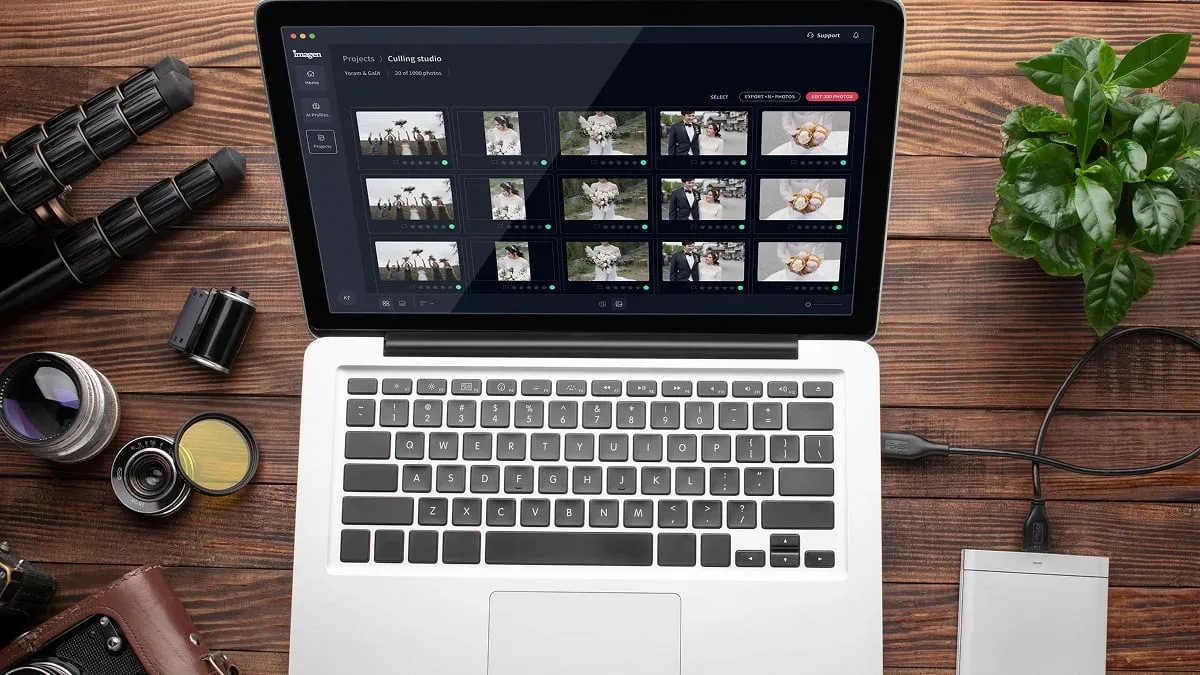
Imagen handles culling as part of one connected workflow, so the same tool that selects your keepers also carries them into editing. If you would rather pick by hand, you can skip AI culling and cull manually for free. It edits, culls, and retouches the real photos you shot, which matters for graduation work because you never want invented faces or altered scenes on a document of a real milestone. Aftershoot is another real option focused on AI culling and editing, and it works well for photographers who want a dedicated selection step. Either way, the goal is the same: cut a two thousand frame take down to a tight gallery before you spend time on color.
Step 3: Apply Your Style Across the Batch
This is the stage that defines a professional gallery. Every graduate photo should share your look, whether that means warm and bright or deep and filmic. Doing that by hand means copying settings, then fixing each frame as the light shifts from indoor auditorium to outdoor lawn. AI batch editing solves this by learning your choices and applying them consistently.
Imagen learns your personal editing style from your Lightroom or Capture One catalog, then applies it across a full shoot so a thousand graduation frames come back looking like you edited each one. It reads your past edits and matches exposure, white balance, contrast, and tone to the way you already work. That learned look is your Personal AI Profile, and ready-made AI Profiles are an option too. That personal-style match is the difference between a generic filter and a gallery that looks like your brand. For a deeper look at sequencing these stages, the graduation photo editing workflow guide maps the full order end to end.
Lightroom itself offers AI-assisted adjustments and adaptive presets, which help if you prefer to stay inside one editor and tune each block by hand. The trade-off is time, since manual batch work still asks you to touch groups of images one at a time. AI style-matching tools exist to remove that manual pass entirely.
Step 4: Finish Portraits and Retouch
Graduation galleries include plenty of close portraits, from cap-and-gown headshots to proud family groups. These frames deserve a light retouching pass that keeps skin natural and cleans up small distractions. AI retouching handles the repetitive parts, such as evening skin tone, softening stray hairs, and reducing shine under harsh gym lighting, so you finish faster without a heavy, over-processed look.
Imagen includes AI retouching in the same connected workflow as culling and color, so a portrait moves from selection to finish without jumping between apps. It retouches the real photographed people in your frames, and it does not invent faces, backgrounds, gowns, or scenes. Retouch4Me is a real alternative built around dedicated retouching plugins for skin, and it fits photographers who want granular control over each portrait pass. Both approaches respect the same rule: keep the graduate looking like themselves on a real day they will remember.
- Run a global retouching pass on all portraits to set a natural baseline.
- Review hero frames by hand for family orders and prints.
- Keep skin texture intact so faces read as real, not plastic.
Step 5: Export and Deliver Fast
The final stage turns your finished edits into files clients can use. Export two versions from your catalog, a full-resolution set for prints and a web-sized set for sharing and social. Sharpen for the output size, embed your copyright metadata, and name folders by graduate or session block so families find their images without confusion.
Speed matters most here. Because AI carried the culling, color, and retouching stages, you reach export with hours to spare, and a fast gallery keeps graduation excitement working in your favor. From Imagen you can export finished JPG, TIFF, or PNG files directly, or send AI edits back to Lightroom Classic as XMP. Deliver through your gallery platform of choice, then follow up with print and album offers while the moment still feels new. You can explore more editing playbooks on the Imagen valuable tips hub.
How to Choose the Right AI Tool
Your choice depends on volume and how much of the workflow you want in one place. If you shoot high graduation volume and want culling, style-matched color, and retouching connected in a single tool, a style-learning editor fits best. If you prefer separate specialized apps, you can pair a dedicated culling tool with a dedicated retouching plugin and stitch the stages yourself.
Imagen prices on a pay-as-you-go model, so you pay for what you export, and exploring its tools is free. That structure suits seasonal work like graduation, where your volume spikes for a few weeks and your cost scales with what you export. Competing tools use their own pricing approaches, from subscriptions to per-image credits to one-time plugin licenses, so weigh each against how often you shoot and how many frames a busy season really produces.
Whatever you pick, remember that AI editing tools work on the real photos you captured. They speed up the honest work of selecting, coloring, and retouching a genuine event, and the best results still come from a photographer who framed the moment well in the first place.
What’s new in Imagen: Imagen is now an intelligent, agentic Studio for professional photographers, built around one project where you cull, edit, review and export in any order. For graduation work, the built-in editor (Beta) offers manual sliders, crop and straighten, and presets, and AI Profiles carry your look across a large gallery. It is rolling out gradually.
Frequently Asked Questions
Does AI editing change what actually happened at the graduation?
No, quality AI editing tools work only on the real frames you shot. Imagen edits, culls, and retouches your actual photos, and it does not invent faces, gowns, backgrounds, or scenes. The graduate you deliver is the graduate who walked the stage.
How much time does AI save on a graduation shoot?
The biggest savings come from culling and batch color, which together can turn a full day of manual editing into a few hours. AI reviews thousands of frames, groups the near-duplicates, and applies your style consistently, so you spend your time on final selects instead of repetitive adjustments.
Can AI match my personal editing style?
Yes, style-learning tools read your past edits to match your look. Imagen learns your style from your Lightroom or Capture One catalog and applies it across the whole shoot, so a large graduation gallery comes back looking like you edited every frame yourself.
What does AI graduation editing cost?
Imagen uses pay-as-you-go pricing, so you pay for what you export, and exploring its tools is free. Other tools use subscriptions, credits, or one-time licenses, so pick the model that matches your seasonal volume.
Ready to edit your next graduation shoot faster? Try Imagen free and see how style-matched AI editing handles your gallery in the new Studio, where you cull, edit and export in one project.
