

The Complete Guide to AI Engagement Session Photo Editing in 2026
Table of contents
- Why engagement sessions need their own editing plan
- Step 1: Import, back up, and organize the session
- Step 2: Cull the bursts with AI culling
- Step 3: Batch color and tone in your personal style
- Step 4: Retouch and finish the hero portraits
- Step 5: Handle backlight, skin tones, and the tough frames
- Step 6: Export, review, and deliver the gallery
- Putting the AI engagement workflow together
- Frequently asked questions
The fastest way to edit an engagement session in 2026 is to cull the frames with AI, apply your personal color and tone across the whole set in one pass, then finish a handful of hero portraits by hand. That workflow turns a folder of 500 or more portraits of the couple into a delivered gallery in a fraction of the time, because the AI handles the repetitive corrections while you keep control of the final look. This guide walks the real editing steps for an engagement session, shows where an AI tool like Imagen automates the slow work, and names a few other tools that help along the way.
Engagement photos carry a lot of weight. They set the tone for the wedding, they often become save the date cards, and clients judge your style from this first delivery. A consistent, mostly automated pipeline lets you deliver a warm, cohesive gallery quickly, without the skin tones or the light drifting from frame to frame across two hours of golden hour portraits.
Why engagement sessions need their own editing plan
An engagement session is a portrait shoot, so skin tone and expression matter more than anything else in the frame. You usually shoot two people across several locations and outfit changes, from open shade under a tree to backlit fields at sunset. The light shifts constantly, the background color bounces onto faces, and you fire in small bursts to catch a genuine laugh, so you end up with clusters of near duplicates that all need the same treatment.
Because the set spans different scenes, consistency is the real challenge. If the park photos lean warm and the downtown photos lean cool, the gallery feels disjointed even when each image looks fine alone. Your plan has one job. Every frame in the session should share your signature skin rendering, your contrast curve, and your color grade, so the whole story reads as one cohesive shoot.
Step 1: Import, back up, and organize the session
Start by importing every card into your catalog and writing a second copy to a separate drive before you touch a single slider. Lightroom and Capture One both handle this ingest cleanly, and your catalog is also where an AI editor reads your files, so a tidy import pays off later. Group the session by location or outfit right away, because you want to treat each scene as a batch that shares settings.
- Import all cards and confirm the file count matches your in camera total.
- Write a second backup to an external drive before any editing begins.
- Add collections or color labels for each location so the scenes stay separate.
- Note the light in each setup, since that context guides your white balance later.
Keep the raw files raw at this stage. You want full latitude to recover a bright sky behind the couple and to lift faces sitting in shade, and only a raw file gives you that room to work.
Step 2: Cull the bursts with AI culling
Culling is the slowest manual task in engagement editing, and it is where AI saves you the most time. A two hour session shot in small bursts can leave 600 to 900 frames, most of them near duplicates that differ by a blink, a soft focus, or a slightly better expression on one partner. AI culling reviews the whole set, groups similar frames, flags closed eyes and missed focus, and surfaces the sharpest, most flattering frame from each cluster.
Imagen includes AI culling inside the same workflow as its editing, so you review its picks and rejects in one place instead of exporting to a separate app, and manual culling is free if you would rather skip the AI pass. Aftershoot is another real tool many photographers use to cull first, then move the selects into their editor. Either way, your job shifts from clicking through hundreds of portraits of the couple to confirming a short list, which usually trims a session down to the 40 to 70 keepers you will actually deliver.
Review the AI selects rather than trusting them blindly. In portraits, a frame where both people look relaxed and connected beats a technically sharper frame where one of them looks stiff, and only you know which expression the couple will love.
Step 3: Batch color and tone in your personal style
Once you have your selects, the next task is to bring the whole set to a single, consistent look. This is the second big time sink, because each scene carries a different color cast and each face needs correct, believable skin. You have to neutralize the color bouncing off grass or brick, balance backlit faces against a bright sky, and land your signature tone on every frame across every location.
This is where Imagen does the heavy lifting. Imagen learns your personal editing style from your Lightroom or Capture One catalog, then applies that style consistently across the full engagement set in one pass. That learned look is your Personal AI Profile, and results land in batches while the rest process, so you can begin reviewing early frames sooner. It reads how you have edited similar portraits in the past, so the white balance, exposure, contrast, and skin rendering come out looking like your work rather than a generic filter. Because one model drives every frame, the park scene and the sunset scene share the same skin tones and the same mood.
Imagen is not an image generator. It edits, culls, and retouches the real photos you shot, so it corrects the actual couple in the actual location. It does not invent scenes, backgrounds, people, or outfits, which keeps an engagement gallery honest and true to the day they lived. Pricing is pay as you go: exploring the tools is free, and you pay for what you export.
If you prefer to grade by hand, Lightroom still gives you full manual control, and a synced preset plus copied settings can push one look across a scene. That path works, but it takes far longer across mixed locations, since each face still needs individual attention to match the rest of the gallery.
Step 4: Retouch and finish the hero portraits
After the batch pass, most of the session is done. A handful of hero portraits deserve extra care, usually the close up of the ring, a tight two shot, and the wide sunset frame that will become the save the date. These are the images the couple will print and share, so they earn a few minutes each.
- Clean up distractions like a stray branch, a background stranger, or a bright sign at the edge.
- Apply light skin retouching so faces look natural and healthy without going plastic.
- Refine the eyes and a soft catchlight so both partners read present and warm.
- Dodge and burn gently to guide the eye toward the couple and their connection.
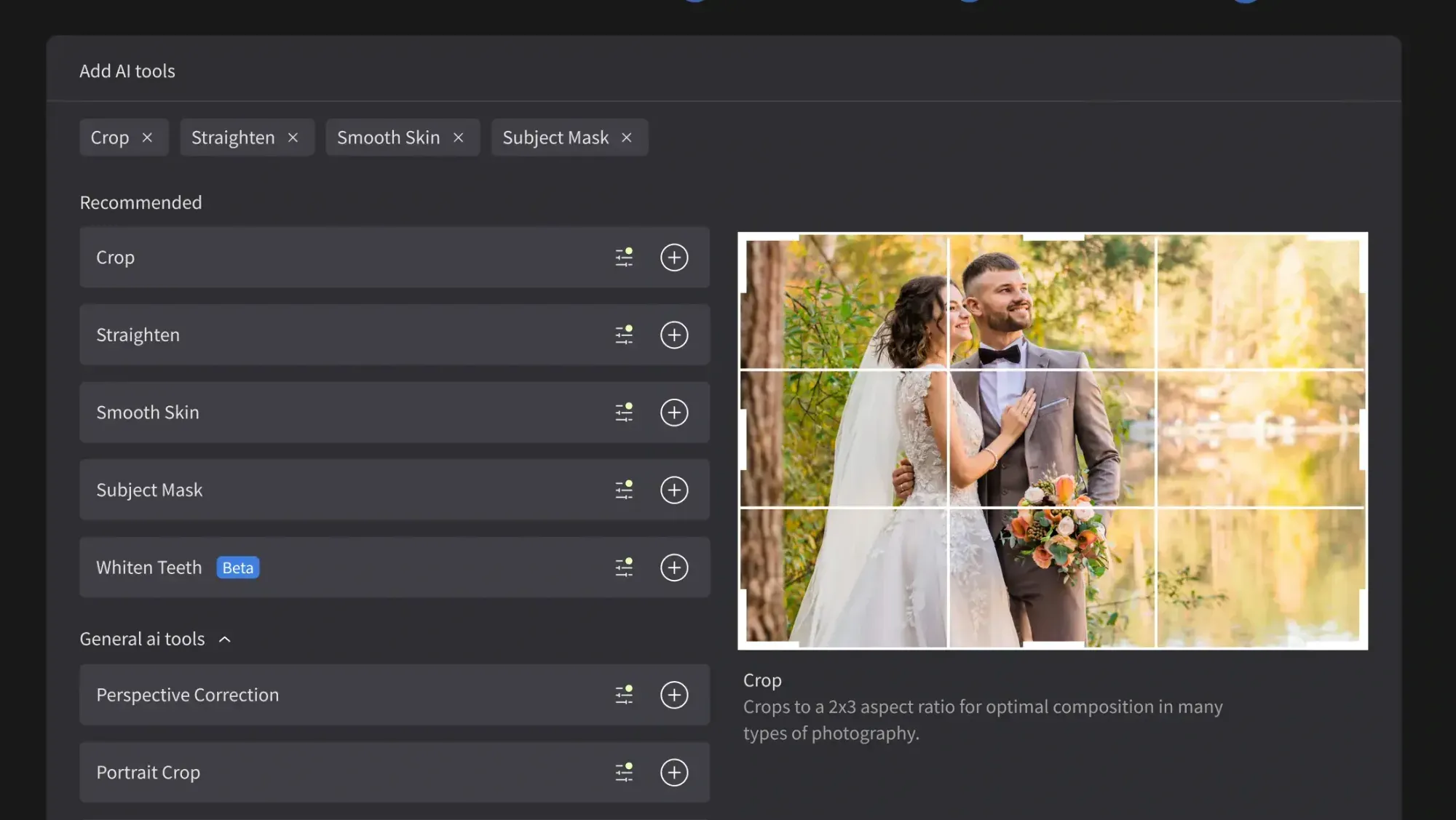
Imagen offers AI retouching in the same connected workflow, so routine skin and blemish work happens automatically on your selects and you only fine tune the results. For manual touches, the built-in editor (Beta) has sliders, crop and straighten, and presets. For deeper compositing or a complex removal, Photoshop remains the tool of choice, and it pairs well with an AI first pass that has already handled the color and the basic retouch. Keep your finishing honest, since clients notice when a face looks over smoothed and they want to look like themselves.
Step 5: Handle backlight, skin tones, and the tough frames
Golden hour is beautiful and difficult at the same time. Backlit frames often carry haze, blown highlights behind the couple, and faces that fall a stop too dark. Recover the highlights first, then lift the faces with a local adjustment so the skin stays warm rather than muddy. When bright rim light wraps the couple, treat it as intentional and grade it for glow rather than fighting it flat.
A few frames will always be borderline. Judge each one against the story it tells. A slightly soft frame of the couple laughing often outperforms a razor sharp frame where they look posed, so keep the emotion even when the technical score is lower. Batch tools get you most of the way, and your eye handles the last stretch on these edge cases, especially where skin tone needs a delicate touch.
Step 6: Export, review, and deliver the gallery
Before you export, view the full session as a filmstrip and scan for any frame that jumps in color or brightness between scenes. Fix the outliers so the gallery flows from location to location. Then export web sized files for the online gallery and full resolution files for prints and cards, and label them clearly so the couple knows which to use where.
Deliver the session as a curated story rather than every keeper. A tight run of 50 to 70 frames that moves through the locations tells the story better than 200 near duplicates. For a step by step tutorial, see our companion piece on how to edit engagement session photos with AI, and to compare tools read our roundup of the best AI engagement session photo editing software. You can browse more tutorials on the valuable tips hub.
Putting the AI engagement workflow together
The whole point of an AI engagement workflow is to spend your time where it counts. Let AI culling clear the bursts, let a style aware editor batch the color and skin tone in your look, let AI retouching handle routine work, and reserve your manual hours for the few portraits that will hang on a wall or land on a save the date. Imagen’s new Studio connects those steps in one project, where you can cull, edit and export in any order, so you move from a raw session to a delivered gallery without bouncing between apps or losing your consistency. When you are ready to try that pipeline on your own catalog, you can start editing with Imagen and see how your personal style transfers across a full shoot.
What’s new in Imagen: Imagen is now an intelligent, agentic Studio for professional photographers, one project where you cull, edit, review and export together instead of passing a session between separate apps. Use AI Profiles, either your own Personal AI Profile or a ready-made one, then send AI edits back to Lightroom Classic or export finished files from Imagen. The Studio is rolling out gradually as a beta.
Frequently asked questions
How long should it take to edit an engagement session in 2026?
With an AI workflow, culling and batch color on a full engagement set often take minutes rather than hours, since the AI handles the near duplicates and the base grade. You then spend a few minutes each on the handful of hero portraits. Most photographers deliver an engagement gallery far faster this way than with a fully manual edit.
Can AI keep my personal style across every location?
Yes, a style aware editor is built for exactly this. Imagen learns your look from your Lightroom or Capture One catalog and applies it consistently across the whole set, so the park scene and the sunset scene share one skin tone and mood. You still review and adjust, but the base grade already matches your work.
Does AI editing invent parts of the photo?
A style based editor like Imagen edits, culls, and retouches the real photos you shot, so it corrects color, exposure, and skin on the actual frame. It does not generate new scenes, backgrounds, outfits, or people. That honesty matters for an engagement session, which is a real moment your clients want to remember truthfully.
What does AI engagement editing cost to try?
Imagen runs on pay as you go pricing: exploring the tools is free, and you pay for what you export. That is enough to run a full engagement session and judge the results before you commit.
