

The Complete Guide to AI Company Party Photo Editing in 2026
Table of contents
- AI Company Party Photo Editing Guide for 2026
- Why Company Party Photos Are Hard to Edit
- Step 1: Import and Back Up Every Frame
- Step 2: Cull the Shoot Fast with AI Culling
- Step 3: Batch Color and Exposure in Your Own Style
- Step 4: Retouch the Hero Frames
- Step 5: Review, Crop, and Export for Every Channel
- Where Imagen Fits and What It Costs
- A Realistic Same-Day Timeline
- Frequently Asked Questions
AI Company Party Photo Editing Guide for 2026
This AI company party photo editing guide gives you a repeatable way to turn hundreds of candid corporate event frames into a clean, consistent gallery in one sitting. The short answer is that you cull the shoot first, apply your personal editing style in one batch pass, then finish only the hero frames by hand, and Imagen handles the slow culling, color, and retouching so you spend your time on selects and delivery instead of on repetitive sliders. Corporate parties throw hard light at you, so the workflow below is built around mixed office and venue lighting, fast networking candids, and big group shots.
One honesty note before we start. Imagen edits, culls, and retouches the real photos you shot at the actual party. It does not invent guests, decor, stage sets, logos, or backgrounds, and it will never fabricate a scene that was not in front of your lens. Everything here assumes you captured real frames on the night and you want them edited well and fast.
Why Company Party Photos Are Hard to Edit
A corporate party is one of the messiest lighting situations you will shoot all year. You move from a bright lobby to a dim bar area, then to a stage with colored gels, then back to a buffet under warm tungsten. White balance shifts from frame to frame, and skin tones swing between orange and blue depending on where each guest was standing. On top of that you often shoot 800 to 2,000 frames across a three hour event, so hand editing every image is not realistic when the client wants the gallery in a day or two.
The candid nature of the night adds a second problem. You get blinks, half-turned faces, and duplicate bursts of the same handshake. Group shots bring their own trouble, since one person always closes their eyes and the exposure has to hold across ten faces at once. A good editing plan solves consistency and speed together, and that is exactly what the steps below do.
Step 1: Import and Back Up Every Frame
Start by copying your cards to two locations before you touch a single slider. Import the full take into Lightroom or Capture One, add the event name and date to the metadata, and let previews build fully so scrolling stays fast later. A clear folder structure saves you real time when you revisit the shoot for reprints or social crops.
- Copy every card to a working drive and a backup drive before formatting anything.
- Tag the catalog with the client name, venue, and date so search stays simple.
- Shoot raw when you can, since raw files give color correction far more room in mixed light.
- Keep the original card untouched until the gallery is delivered and approved.
Step 2: Cull the Shoot Fast with AI Culling
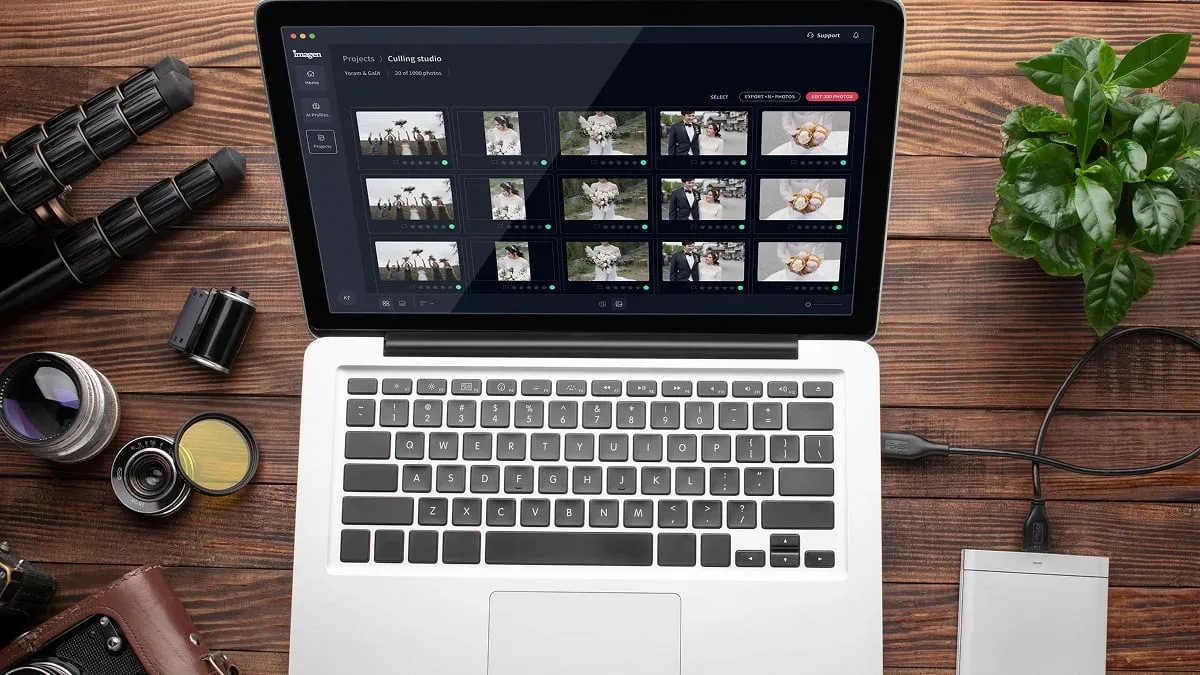
Culling is where most photographers lose an evening. Out of 1,500 party frames you might keep 300, and finding those 300 by hand means clicking through blinks, blurred bursts, and near-duplicate handshakes one at a time. AI culling speeds this up by grouping similar frames, flagging closed eyes and soft focus, and surfacing the sharpest frame in each burst so you review a shortlist instead of the whole take.
Imagen learns which frames you tend to keep and reject, then applies that judgment across the full event. You stay in control of the final selects, so you can always override a call, and you can skip AI culling and cull manually for free if you prefer. For a deeper look at the selection stage, see our walkthrough on how to edit company party photos with AI, which covers the cull-first mindset in more detail.
Step 3: Batch Color and Exposure in Your Own Style
Once you have your selects, the goal is a consistent look across the whole gallery. This is the step that separates a professional set from a pile of one-off edits. Imagen learns your personal editing style from your Lightroom or Capture One catalog, then applies that style across the full shoot with matched white balance, exposure, and tone. Because it reads how you actually edit, the batch result looks like your hand touched every frame, not like a generic preset.
Mixed party lighting is the real test here. A batch pass evens out the swing between the bright lobby and the dim bar, so a guest photographed in two rooms still has natural, matching skin tones in both. You get a coherent gallery in minutes rather than hours, and you can fine-tune the whole set with a few global adjustments after the pass lands.
- Apply your style profile to the full set of selects in one batch action.
- Check white balance across rooms so skin tones match from lobby to stage.
- Correct group shots for even exposure so no face falls into shadow.
- Nudge global contrast or warmth once if the whole gallery needs a shift.
Step 4: Retouch the Hero Frames
Not every frame needs retouching, but the hero shots do. These are the CEO speech, the award handoff, the big group photo, and the two or three portraits the client will print or post. AI retouching handles the repetitive cleanup on these frames, smoothing skin naturally, reducing shine under hot venue lights, and cleaning small distractions so faces read clean without looking plastic.
Keep retouching honest and light for corporate work. The aim is a polished record of the real night, not a reinvented face. Imagen retouches the actual people you photographed and does not swap features or invent anyone who was not there. For hero group shots, do a close pass on eyes and expressions, since those are the frames that get shared company-wide.
Step 5: Review, Crop, and Export for Every Channel
With color and retouching done, do a final review pass at full size. Look for any frame the batch missed, tighten crops on candids where a stray elbow crept into the edge, and confirm the group shots are sharp on every face. Then export in the sizes the client actually uses, since a company party gallery usually feeds several channels at once.
- Export full-resolution files for the client archive and any prints.
- Create web-sized versions for the internal wiki, newsletter, or recap page.
- Crop a set of vertical frames for social stories and LinkedIn posts.
- Deliver through a gallery link so staff can download their own favorites.
If you want a start-to-finish view of how these stages connect, our company party photo editing workflow guide lays out the full pipeline with timing notes for a same-day turnaround.
Where Imagen Fits and What It Costs
Imagen sits across the three slow stages of this guide, which are culling, batch color, and retouching, and it keeps them in one connected workflow tied to your Lightroom or Capture One catalog. You bring the frames and the style, and it removes the repetitive labor between shoot and delivery. Pricing is pay-as-you-go, which means you pay for what you export. Exploring the tools is free.
Other tools can help at single stages of the job. Lightroom and Capture One remain the catalog and raw editors most event photographers already live in, and dedicated retouching apps handle skin work on individual portraits. Those tools price in their own ways, from subscriptions to one-time licenses, and each has its place. Imagen’s advantage for a full party gallery is that culling, your personal style, and retouching run together instead of as separate manual steps. You can browse more event and workflow tips on the Imagen valuable tips hub.
A Realistic Same-Day Timeline
Here is how a typical 1,500 frame party breaks down when the client wants the gallery the next morning. The numbers assume you shot raw and you already have a style profile trained on past work. Your real times will vary with gallery size, but the shape of the day holds.
- Import and back up the full take, which takes roughly 20 to 30 minutes.
- Run AI culling and confirm your selects, which trims hours down to about 30 minutes of review.
- Apply your style in a batch color pass, which lands the full gallery in minutes.
- Retouch the 20 to 40 hero frames by hand, which takes under an hour.
- Review, crop, and export for each channel, which wraps in about 30 minutes.
That plan turns what used to be a full day of editing into an afternoon, and it keeps the whole gallery consistent because the style pass touches every frame the same way. Ready to try it on your next corporate event? Start with Imagen’s new Studio, where you cull, edit and export in one project, and run your first gallery through it.
What’s new in Imagen: Imagen is now an intelligent, agentic Studio for professional photographers, one project where you cull, edit, review and export in any order. After a corporate event, you can fine tune frames in the built-in editor (Beta), with manual sliders, crop and straighten, and presets, then export finished files straight from Imagen. The Studio is rolling out gradually as a beta. Learn about Imagen to see more.
Frequently Asked Questions
How does AI editing keep a party gallery consistent across mixed lighting?
Imagen learns your personal editing style from your catalog and applies it across the full shoot, matching white balance and exposure from frame to frame. When a guest appears in both the bright lobby and the dim bar, the batch pass evens out those rooms so their skin tones stay natural in both. You still fine-tune the whole gallery globally after the pass if you want a slightly warmer or cooler set, using Imagen’s built-in editor (Beta) or your usual catalog tool.
Does Imagen invent people or backgrounds in my photos?
No. Imagen edits, culls, and retouches the real frames you shot at the actual party. It does not generate guests, decor, stage sets, or backgrounds, and it will not add anyone who was not there on the night. Retouching stays on the real people you photographed, so the gallery remains an honest record of the event.
How much does Imagen cost for a large event gallery?
Imagen is pay-as-you-go, which means you pay for what you export, so your cost still tracks what you actually shoot. Exploring the tools is free, which is enough to test the full workflow on a real party set before you commit.
Can I still control the final selects and edits?
Yes. AI culling gives you a shortlist, but you make the final call on every keeper and can override any suggestion. The batch color pass applies your own style, not a generic preset, so the look stays yours. You then finish hero frames by hand, which keeps you in charge of the frames that matter most to the client.
