

Adobe Lightroom vs. DxO PhotoLab vs. Imagen: Comparing Three Photography Workflows
Table of contents
- Key Takeaways
- The Core Philosophy: Lightroom, DxO PhotoLab, and Imagen
- Deep Dive: Imagen Capabilities
- Deep Dive: Adobe Lightroom Classic Capabilities
- Deep Dive: DxO PhotoLab Capabilities
- Comparison: Where Each Tool Sits in the Workflow
- Comparison: RAW Processing Depth vs. Gallery Speed
- Comparison: Culling
- Comparison: Pricing and Licensing Models
- Comparison: Ease of Use
- Comparison: Exposure, Haze, and Resolution
- Feature Comparison Table
- Conclusion: Which Tool Fits You?
- Frequently Asked Questions
Noise reduction and optical corrections are DxO PhotoLab’s whole reason for existing, cataloging and organizing are Adobe Lightroom’s, and getting a full gallery edited and culled quickly in your own style is Imagen’s. This guide lines up all three against what each company says about its own product today, not what any of them looked like a year or two ago.
Imagen is now an intelligent Studio for professional photographers, the next version of the same product rather than a brand new one. The rollout is gradual, reaching photographers over several weeks, and it continues to change based on what photographers report back.
DxO PhotoLab has built its name on RAW processing quality, particularly noise reduction, and it is sold as a one-time purchase rather than a subscription. Lightroom remains the catalog many photographers never left. Imagen is the newest of the three, built around editing and culling a whole gallery instead of one photo at a time.
None of the three claims to do everything. The rest of this guide goes through what each one actually does, verified against DxO’s and Adobe’s own sites, so you can see where each one is strongest.
A studio running high volumes of weddings or portrait sessions usually feels this split first. The RAW files that came from a dim reception hall need DxO’s noise reduction before anything else happens to them. The catalog that tracks every shoot a studio has ever delivered still needs to live somewhere, which is where Lightroom keeps its place. And the hundreds of photos that need a consistent, on-brand edit before delivery are exactly the part of the job Imagen was built to speed up.
Each tool’s depth sits in a different stage of the file’s life. DxO’s depth is concentrated at the RAW conversion step, before a photo is really editable at all. Lightroom’s depth is concentrated in the catalog and in per-photo adjustments you apply yourself. Imagen’s depth is concentrated downstream of both, where a finished, consistent look needs to land on an entire gallery rather than one photo. Knowing which stage you are solving for makes the choice between them far more straightforward than a feature-for-feature comparison suggests.
Key Takeaways
- Imagen edits and culls a whole gallery in your personal AI-learned style inside one project.
- DxO PhotoLab is a RAW processing specialist built around DeepPRIME noise reduction and camera-specific optical corrections.
- Adobe Lightroom remains the catalog most photographers use to organize and search their whole library.
- DxO PhotoLab is sold as a perpetual license, not a subscription, which is different from both Lightroom and Imagen.
- Imagen exports finished photos directly as JPG, TIFF, or PNG, or continues on to Lightroom if you prefer to finish there.
- Imagen does not generate new imagery; it edits the real photos from your shoot.
The Core Philosophy: Lightroom, DxO PhotoLab, and Imagen
Imagen
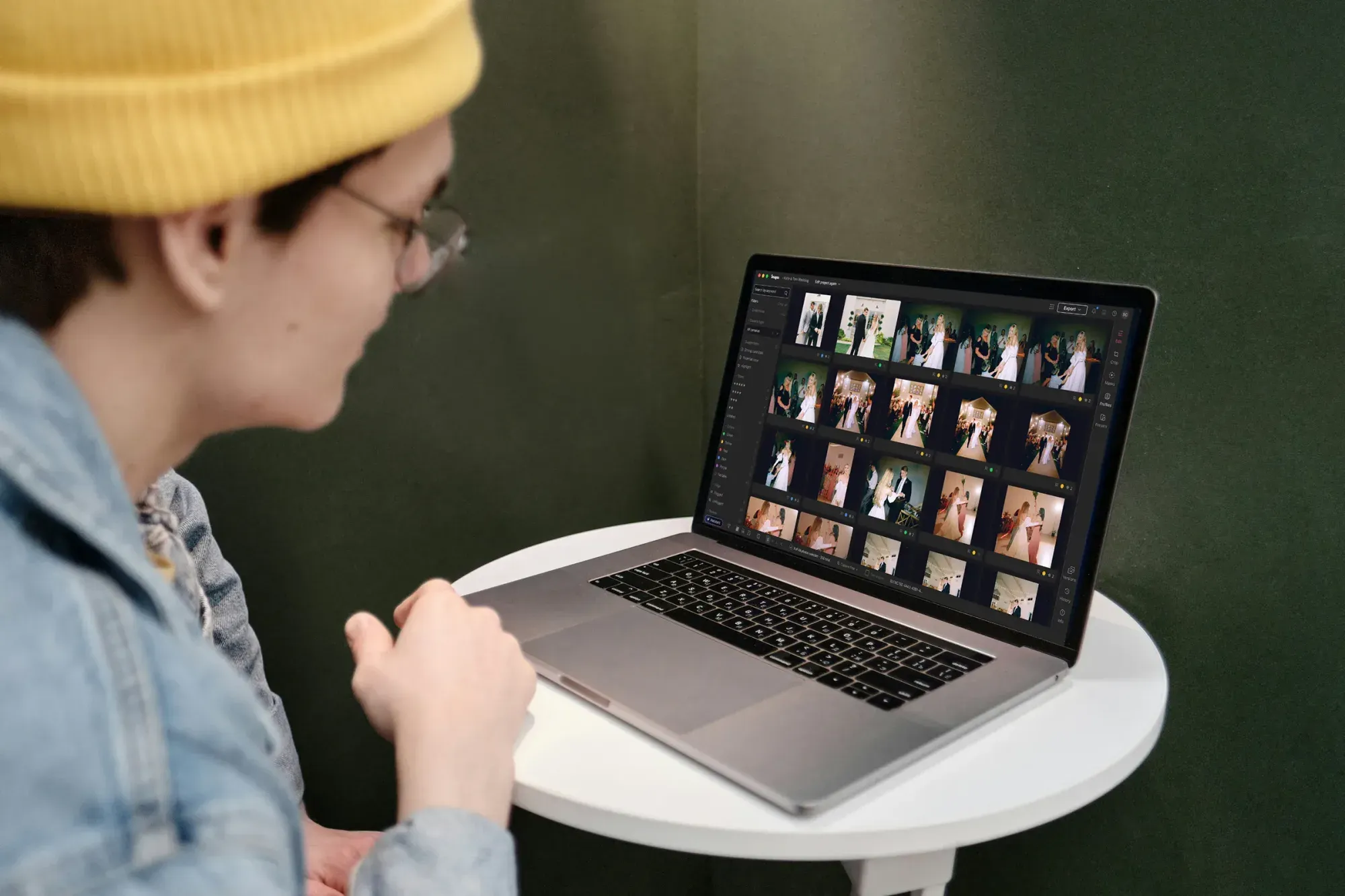
Imagen’s whole design is built around one non-linear project: cull, edit, review, and export in whatever order suits the day, powered by an AI Profile trained on your own past edits so the result still looks like your work across the whole gallery.
Adobe Lightroom Classic
Lightroom stays focused on the catalog: one searchable library with its own set of AI masking tools and noise reduction, applied photo by photo or synced across a selection you choose yourself.
DxO PhotoLab
DxO PhotoLab’s focus is RAW image quality at the pixel level: pulling the most detail out of a RAW file with the least noise, and correcting lens and camera specific optical flaws automatically, all inside a tool you buy once rather than rent every month.
Deep Dive: Imagen Capabilities
AI Editing in Your Personal Style
Rather than applying a generic look, Imagen’s Personal AI Profile is trained on edits you have already made, often pulled straight from a Lightroom Classic catalog, and then reapplies that same style across an entire gallery. A second AI Profile can be layered onto a subset of photos when one look does not fit the whole shoot.
Culling in the Same Project
There is no separate culling stage in a separate tool. Batch culling handles the obvious misses quickly inside the project, and manual culling stays free any time you want to go through a set by eye instead.
The Built-in Editor and Assistant
The built-in editor, currently in beta, sits manual sliders, a histogram, crop and straighten, and imported or custom presets right next to Imagen’s AI tools, rather than splitting manual and AI work across two apps.
The Imagen assistant finding and editing photos from a plain-language request
The assistant can find and act on photos described in plain language. It knows what is in a photo but not exactly where, so it cannot yet drop a mask on one specific person or object, and it does not generate new images.
Export to Lightroom or Directly From Imagen
Finished work leaves Imagen as a JPG, TIFF, or PNG export, or continues on to Lightroom Classic. AI edits carry over to Lightroom as XMP; manual edits, ratings, and culling choices made inside Imagen’s own editor stay there.
Deep Dive: Adobe Lightroom Classic Capabilities
The Catalog
Lightroom’s catalog remains the searchable record of an entire library: collections, keywords, star ratings, and edit history for every photo you have ever imported.
AI Masking and Denoise
Select Subject, Select Sky, Select People, and Select Objects speed up masking without hand drawn selections, and Lightroom’s Denoise feature applies AI based noise reduction to RAW files, accelerated on Apple Silicon Macs by the Neural Engine.
Lens Corrections
Lightroom applies lens profile corrections for distortion and vignetting based on the camera and lens used to capture each RAW file.
Enhance: Super Resolution and Raw Details
Lightroom’s Enhance panel offers Raw Details for crisper detail and more accurate edges on Bayer and X-Trans sensor files, and Super Resolution, which doubles a photo’s linear resolution for 4x the total pixel count, useful when a cropped image needs to hold up at a larger print size. Applying Super Resolution to a RAW file automatically applies Raw Details as part of the same step.
Deep Dive: DxO PhotoLab Capabilities
DeepPRIME Noise Reduction
DxO PhotoLab’s DeepPRIME XD2s is an AI based noise reduction and demosaicing engine built specifically for RAW files, and it is one of the main reasons photographers who shoot in low light reach for DxO. Demosaicing and noise reduction are normally two separate steps in RAW processing; DeepPRIME XD2s runs them together through one model, which DxO positions as the reason detail holds up even at higher ISOs.
U Point Local Adjustments
DxO’s U Point technology lets you make local adjustments by placing a control point directly on the area you want to affect, without manually painting a mask first.
Optics Modules and Hue Masks
DxO Optics Modules apply camera and lens specific correction profiles for sharpness and distortion, and PhotoLab 8 added Hue Masks for targeted, color based local adjustments.
ClearView Plus and Smart Lighting
ClearView Plus removes atmospheric haze from both RAW and JPEG files by increasing local contrast while suppressing haze from heat, humidity, or pollution, without the halo artifacts that haze removal can sometimes introduce; the same tool can also be used to add punch to a hazy sky that was never a problem to begin with. Smart Lighting automatically balances exposure across an image, using face detection to prioritize correct exposure on faces while recovering detail in the rest of the frame, which is useful on backlit portraits straight out of the camera.
Perpetual License
DxO PhotoLab is sold as a perpetual license across its Essential and Elite editions rather than a subscription, so you own the version you purchase outright, with pricing varying by edition on DxO’s own site.
Comparison: Where Each Tool Sits in the Workflow
DxO PhotoLab earns its place when RAW quality itself is the priority: pulling detail out of a noisy file or correcting a lens flaw automatically. Lightroom earns its place as the catalog that holds everything. Imagen earns its place when the job is turning a whole shoot into a finished, consistently edited gallery without touching every photo by hand.
Comparison: RAW Processing Depth vs. Gallery Speed
DxO and Imagen solve different problems even though both lean on AI. DxO’s DeepPRIME is about squeezing the most technical quality out of a single RAW file: noise, detail, and optical correction. Imagen’s AI Profile is about applying a consistent creative style across hundreds of photos at once. A photographer chasing the cleanest possible noise reduction on a handful of low light images and a photographer trying to finish a large wedding gallery by Monday are solving two different problems, and these two tools are built for each one respectively.
Comparison: Culling
Imagen’s AI batch culling plus free manual culling both live inside the same project as editing. DxO PhotoLab does not offer a dedicated culling feature; it is built for processing RAW files, not sorting through a shoot to pick the keepers. Lightroom’s culling is also manual, done with flags, ratings, and filters inside the catalog.
Comparison: Pricing and Licensing Models
Lightroom is sold through Adobe’s Creative Cloud subscription plans, with the standalone Lightroom plan at $11.99 a month billed annually. DxO PhotoLab is sold as a one-time perpetual license across its Essential and Elite editions rather than a subscription; pricing varies by edition and is published on DxO’s own site, and existing owners typically get a discounted upgrade price when a new version ships. Imagen’s Pay as you go plan charges a monthly base fee plus a per export charge, with a Limitless flat fee covering unlimited AI edits, tools, retouching, and culling; current rates for both are on Imagen’s pricing page. Three different pricing philosophies end up side by side here: rent monthly, buy once and upgrade when it suits you, or pay per photo exported.
Comparison: Ease of Use
DxO PhotoLab asks you to understand RAW processing concepts like demosaicing and optical modules, which rewards a technically minded photographer. Lightroom’s interface is familiar to most photographers already, simply from years of being the default. Imagen asks the least setup of the three for day to day editing: once an AI Profile reflects your style, applying it to a new gallery does not require learning a new manual toolset the way DxO’s deeper controls do.
Comparison: Exposure, Haze, and Resolution
Three different automatic fixes sit at this corner of the comparison. DxO’s Smart Lighting balances exposure with face detection, favoring correctly exposed faces while recovering shadow and highlight detail elsewhere in the frame, and its ClearView Plus pulls haze out of a landscape or adds punch to a hazy sky on request. Lightroom’s Enhance panel solves a different problem: Raw Details and Super Resolution exist to recover and multiply fine detail, not to fix exposure or haze, which matters most when a print needs to hold up larger than the original frame suggests. Imagen does not currently offer either kind of per-image optical correction; its AI Profile is about consistent style across a gallery rather than fixing technical problems in an individual RAW file, so a backlit portrait or a hazy landscape that needs this kind of correction is still a job for DxO or Lightroom before the gallery goes through Imagen.
Feature Comparison Table
| Feature | Imagen | Adobe Lightroom | DxO PhotoLab |
|---|---|---|---|
| Core job | AI editing and culling for a whole gallery in your personal style | Cataloging and manual editing of your library | RAW processing, noise reduction, and optical correction |
| Noise reduction | Yes, AI denoise, plus style-based AI editing | AI based Denoise for RAW files | DeepPRIME XD2s AI noise reduction and demosaicing |
| Local adjustments | Manual sliders in the built-in editor; masking is a future direction | Select Subject, Select Sky, Select People, Select Objects | U Point control points and Hue Masks, no manual mask painting |
| Culling | AI batch culling plus free manual culling in the same project | Manual culling with flags and ratings | Works on RAW files already selected; built for RAW processing, not sorting a shoot |
| Lens and camera correction | Not a current focus for Imagen | Lens profile corrections for distortion and vignetting | DxO Optics Modules, camera and lens specific profiles |
| Haze and exposure fixes | Not a current focus | Basic Dehaze slider in the Develop module’s Effects panel | ClearView Plus haze removal and Smart Lighting exposure balancing |
| Detail and resolution | Not a current focus | Raw Details and Super Resolution upscaling | DeepPRIME focuses on native detail recovery, not upscaling |
| Editing style source | Personal AI Profile learned from your own past edits | Manual sliders, presets, and synced settings | Manual tools plus automatic optical corrections |
| Licensing | Pay as you go per export, or a Limitless flat fee | Creative Cloud subscription only | Perpetual license (Essential or Elite editions) |
| Where it runs | Desktop app for Mac and Windows | Desktop app with companion mobile and cloud apps | Desktop app for Mac and Windows |
| Best fit | The bulk of a gallery that needs a consistent, personal look fast | Organizing and basic adjustments across your library | Technical RAW quality: noise, detail, and optical correction |
Conclusion: Which Tool Fits You?
Choose DxO PhotoLab if the priority is squeezing the most technical quality out of RAW files: clean noise reduction, accurate lens correction, and local adjustments without hand painted masks, bought once rather than rented, and you are comfortable with a desktop app that focuses on processing rather than organizing a whole library.
Choose Adobe Lightroom if you want a single catalog for your whole library, with manual editing and Adobe’s own AI tools available alongside it.
Choose Imagen if the bottleneck is turning an entire shoot into a finished, consistently edited gallery in your own style without spending every evening at the computer.
Plenty of photographers run all three: DxO for the files that need the cleanest possible RAW processing, Lightroom as the catalog, and Imagen for the bulk of the gallery.
Want to see how Imagen handles your own gallery? Try Imagen’s free trial on a real shoot, or browse more comparisons on the Imagen tips hub.
Frequently Asked Questions
1. Do I still need Adobe Lightroom if I use Imagen? Many photographers keep Lightroom as their catalog while Imagen handles the bulk of editing and culling; AI edits can still export to Lightroom as XMP.
2. Is DxO PhotoLab a subscription? No. DxO PhotoLab is sold as a perpetual license across its Essential and Elite editions, not a subscription; current pricing is on DxO’s own site.
3. Can I use DxO PhotoLab and Imagen together? Yes. Some photographers process especially noisy or technically demanding RAW files in DxO PhotoLab first, then bring the results into Imagen for gallery-wide editing and culling.
4. Does Imagen do noise reduction like DxO’s DeepPRIME? Yes, Imagen includes AI denoise for cleaning up noise across a gallery. It is not built as a RAW noise reduction specialist the way DxO PhotoLab is, and it also applies your personal editing style and culling across a whole gallery.
5. Does Imagen generate images with AI? No. Imagen edits the real photos you capture and does not generate new imagery.
6. How much does Imagen cost? Pricing varies by plan. Pay as you go charges a monthly base fee plus a per export charge, and Limitless is a fixed monthly or annual fee; see Imagen’s pricing page for current rates.
7. What is U Point in DxO PhotoLab? U Point is DxO’s technology for local adjustments: you place a control point on the area you want to affect instead of manually painting a mask.
8. Does Imagen offer a free trial? Yes, Imagen offers a free trial so you can test it on your own photos before choosing a plan.
9. Does Lightroom have the same noise reduction as DxO PhotoLab? Lightroom’s Denoise feature uses AI to reduce noise in RAW files, while DxO PhotoLab uses its own DeepPRIME XD2s engine; the two companies describe and market the technology differently, and photographers often develop a preference after testing both on their own files.
10. Which tool should I use first in my workflow, DxO, Lightroom, or Imagen? There is no required order. Many photographers process technically difficult RAW files in DxO PhotoLab, keep Lightroom as the catalog, and run the bulk of a gallery through Imagen for editing and culling, in whatever sequence fits the shoot.
11. Does DxO PhotoLab do automatic lens correction? Yes. DxO Optics Modules apply camera and lens specific profiles automatically for sharpness and distortion once PhotoLab recognizes the gear used to shoot the file.
12. Can Imagen’s AI Profile be trained from edits made in DxO PhotoLab? Imagen’s Personal AI Profile is trained on your past edits, most commonly pulled from a Lightroom Classic catalog; check Imagen’s current documentation for which editors and export formats are supported for training a profile.
13. Does DxO PhotoLab remove haze from landscape photos? Yes. ClearView Plus increases local contrast while suppressing atmospheric haze from heat, humidity, or pollution, and it can also be used to add more punch to a sky that was not hazy to begin with.
14. Can Lightroom increase the resolution of a cropped photo? Yes. Lightroom’s Super Resolution doubles a photo’s linear resolution for four times the total pixel count, which helps a cropped image hold up at a larger print size, and it automatically applies Raw Details to a RAW file at the same time.
