

Building a Faster Cloud Photo Editing Workflow for Automotive Photographers
Table of contents
- Building Faster Cloud Photo Editing Workflow for Automotive Photographers
- Why local editing slows automotive delivery down
- Step one: ingest the whole shoot into the cloud
- Step two: cull the big take fast
- Step three: batch-grade the shoot for one consistent look
- Step four: version and back up automatically
- Step five: export to dealer and marketplace specs
- Step six: build a cloud gallery and share the link
- Step seven: handle revisions without redoing the work
- When you genuinely need heavy manual work
- What a cloud automotive workflow costs to run
- A repeatable cloud workflow, step by step
- Frequently asked questions
Building Faster Cloud Photo Editing Workflow for Automotive Photographers
Automotive photography is a volume game. A single dealership visit can mean forty vehicles, each shot from eight or ten angles, and every one of those frames has to come back looking like it belongs to the same catalog. The fastest way to turn that mountain of RAW files into live listings is not a faster laptop or a bigger hard drive. It is a cloud-based editing workflow that ingests everything to one place, culls hard, batch-grades the whole shoot for consistency, versions and backs up automatically, and exports straight to the specs each dealer or marketplace demands.
This guide walks through that workflow end to end: how to ingest a big automotive take into the cloud, how to cull it down quickly, how to batch-grade every vehicle so the inventory matches, how to keep versions and backups safe, how to export to dealer and marketplace specs, and how to build a shareable cloud gallery and handle revisions without emailing files back and forth. The goal is a repeatable pipeline that runs from card to client link, so you spend your evening delivering listings instead of babysitting exports.
Why local editing slows automotive delivery down
Most automotive editing bottlenecks are not about skill. They are about logistics. You shoot hundreds of frames a day, the files pile up on one machine, and every stage of the edit is stuck waiting on that machine. Imports crawl, catalogs bloat, backups happen late or not at all, and when a dealer asks for a re-crop you are digging through folders named after the date you meant to rename later. The work is fine. The plumbing is the problem.
A cloud workflow fixes the plumbing. When ingest, editing, storage, and delivery all live in one connected place, the shoot moves through the pipeline without you shuttling files between apps and drives. Heavy processing runs off your machine, backups are automatic, and the client link is a step in the same system rather than a separate upload chore at midnight. For high-volume automotive work, that shift from local grind to cloud pipeline is where the real time savings hide.
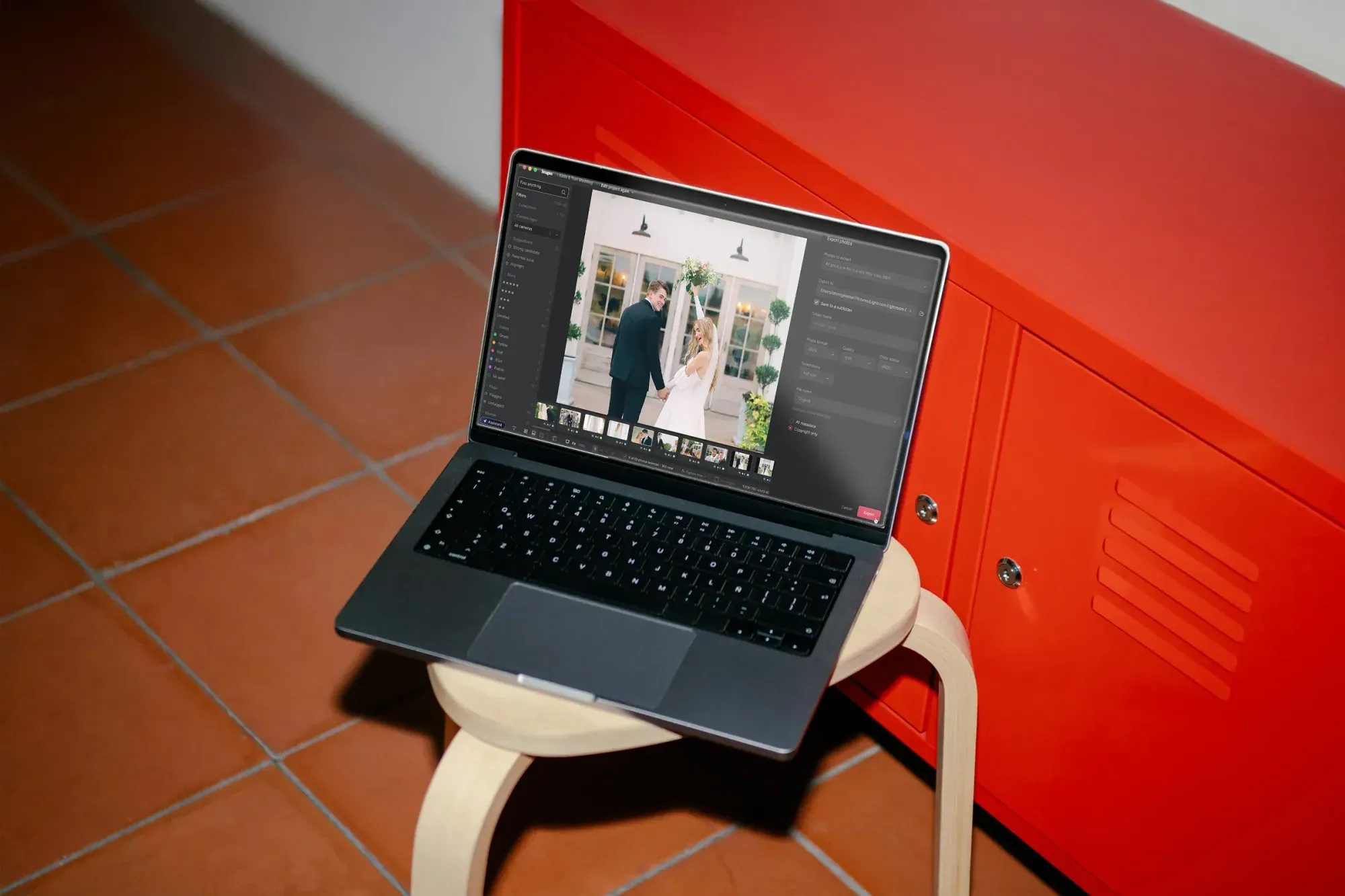
Step one: ingest the whole shoot into the cloud
A fast workflow starts at ingest. Instead of importing to a local catalog and copying files around later, push the full take into the cloud as soon as the cards come out of the camera. Shoot RAW so you keep the full range for grading, and offload every angle of every vehicle in one pass so nothing lives only on a card that could fail. Keep your folder structure simple and consistent, one job per shoot, so the whole inventory arrives as a single organized set rather than a scatter of dated folders.
Ingesting to the cloud early does two things at once. It gets your originals off vulnerable cards and onto durable storage immediately, and it stages the entire shoot where the rest of the pipeline can reach it without another copy step. When your originals are already in the cloud, culling, grading, and delivery all draw from the same source, so you never wonder which drive holds the real master.
Step two: cull the big take fast
Editing only pays off on frames you actually deliver, so cull before you grade. Automotive sets are full of near-duplicates: the same three-quarter angle shot twice, a wheel detail that came out soft, an interior frame with a reflection you can already see is unusable. Pick the strongest frame for each required angle and set the rest aside before any grading begins. Grading rejects is pure waste, and on a forty-car shoot the rejects outnumber the keepers.
Manual culling across dozens of vehicles is slow and tiring, because the differences between frames are subtle and the take is huge. AI culling can group similar frames, flag soft focus and blown highlights on chrome, and surface the likely keepers so you make the final call quickly instead of squinting at pairs. Imagen offers AI culling that pre-sorts the take, and AI filters such as blur help you narrow it further, or you can skip AI culling and cull manually for free, so you enter the grading stage with a tight set per vehicle. Fewer frames in, faster inventory out.
Step three: batch-grade the shoot for one consistent look
With a lean selection, treat color and tone as a set-wide job rather than a per-image chore. An inventory gallery is a set of variations on the same task, so the target is consistency: every listing photo should share the same white balance, the same exposure feel, and the same clean rendering so the page reads as one professional catalog. If one car runs warm and the next runs cool, buyers feel the mismatch even if they could never name it. Batch grading is the single biggest time saver in the whole automotive edit.
This is where Imagen fits naturally. Imagen is AI batch photo editing that learns your personal style through AI profiles and applies your color and tone consistently across an entire shoot, so every vehicle in the inventory lands with matched rendering instead of drifting image to image. Because Imagen is a desktop app for Mac and Windows with the AI processing in the cloud, the heavy batch processing happens off your machine, and Imagen’s cloud storage for photographers is on the roadmap, so for now keep your archive on your own drives or a backup service you trust. Run your profile across the whole selection at once, and grading turns from a per-frame slog into a single pass. Edited photos arrive in batches as they process, so you can start reviewing early frames while the rest finish.
Step four: version and back up automatically
Automotive work is iterative. A dealer swaps a vehicle, a marketing lead wants a different crop, a listing gets refreshed for a price change, and suddenly you need the version from three edits ago. A cloud workflow keeps that history for you. When your originals and edits both live in the cloud, you can return to an earlier state without hunting through local backups, and you are never one drive failure away from losing a full inventory day.
The practical rule is simple: never let a shoot exist in only one place. Cloud ingest gives you an offsite copy the moment you offload, versioning lets you branch and revise without overwriting your masters, and automatic backup means the safety step is not something you have to remember at the end of a long shoot day. For a business that lives on volume, that reliability is not a luxury. It is what lets you take the next booking without worrying about the last one.
Step five: export to dealer and marketplace specs
Every automotive client wants files a little differently. One dealer group needs a fixed pixel width for its website CMS, a marketplace demands a specific aspect ratio and a capped file size, and an auction platform wants a tight naming convention so images map to VINs automatically. A fast workflow bakes those requirements into export presets instead of hand-adjusting each delivery. Set the dimensions, format, compression, and naming once per destination, then apply the right preset to the whole batch.
When export lives in the same cloud system as your edits, you can push a finished inventory straight to the correct spec without a round trip through a local resizer. Consistent output also protects the consistency you built in grading, since every file leaves at the same size and quality rather than one slipping through at the wrong resolution. Presets turn export from a nightly chore into a single click per destination, which matters when the same shoot ships to three platforms at once.
Step six: build a cloud gallery and share the link
Delivery is where local workflows fall apart. Uploading a finished inventory to a separate gallery service, waiting on the transfer, and then emailing a link is a whole extra stage tacked onto the end of the day. In a cloud workflow the gallery is part of the same pipeline. Your graded, exported inventory is already in the cloud, so building a shareable gallery and sending the client a link is a step in the system rather than a fresh upload from your laptop.
A clean share link also sets the tone for the client relationship. The dealer or marketing team opens one organized gallery, sees the whole inventory rendered consistently, and can pull the files they need without you attaching zips to email. Because the gallery draws from your cloud originals, it stays in sync with any revision you make, so the link you sent this morning shows the corrected version this afternoon without a second send.
Step seven: handle revisions without redoing the work
Revisions are inevitable in automotive photography, but they should not restart the whole edit. When a client asks for a warmer look across a batch, a tighter crop on the hero angles, or a swap of one vehicle for a fresh shoot, a cloud workflow lets you adjust the affected frames and re-export without rebuilding from scratch. Your profile, your presets, and your gallery are all still in place, so the revision is a targeted change, not a redo.
Save your grading profile and your export presets so the next inventory day starts from your finished look instead of a blank slate. The second automotive shoot in a style should be faster than the first, and the tenth faster still, because the cloud holds your setup between jobs. When culling, grading, storage, export, and delivery all live in one connected pipeline, a revision request stops being a dreaded reopening of finished work and becomes a quick, contained pass.
When you genuinely need heavy manual work
A consistent cloud pipeline covers the vast majority of listing frames, but every so often you hit one that needs real hands-on craft: a showpiece hero image for the top of a campaign, a composite that drops the car into an entirely new scene, an object that has to be removed from a panel, or a frame where the vehicle must be relit to match invented studio lighting. That is a different job. Heavy compositing, object removal, and relighting an arbitrary scene belong in a dedicated retouching tool, worked frame by frame, not in a batch pass.
The workflow win is knowing the difference and routing accordingly. Send the whole inventory through the fast cloud pipeline for culling, consistent grading, and spec-perfect export, then pull the rare hero or composite frame into a dedicated tool and give it the manual attention it deserves. Trying to hand-craft every angle of every car is what blows up your turnaround. Reserve the slow, precise work for the handful of images that actually earn it, and let the batch carry the rest.
What a cloud automotive workflow costs to run
Usage-based editing keeps the per-image cost predictable as your volume grows, which matters when a single dealership day can run into the hundreds of frames. Imagen’s AI batch editing is priced at a monthly base fee plus a per-photo charge when you export, and exploring the tools is free, so you can forecast the editing line item against the size of each inventory job rather than guessing. Because the heavy processing runs in the cloud, you are not paying for a faster workstation to keep up either.
Put the whole pipeline together and the math favors the cloud. One connected pipeline handles ingest, culling, grading, versioning, and export, so the labor that used to eat your evening collapses into a few fast passes, with your own backup and gallery link added on top. You can try it at Imagen’s homepage, where the new Studio lets you cull, edit and export in one project, and see how much of the automotive grind moves off your desk and into the cloud.
A repeatable cloud workflow, step by step
Put together, the fastest automotive process looks like this. First, ingest the whole shoot to the cloud straight off the cards, RAW and organized as one job. Second, cull hard with AI assistance so only keepers move forward. Third, batch-grade the full selection with your profile so the inventory matches from the first car to the last. Fourth, lean on automatic versioning and backup so nothing lives in only one place. Fifth, export to each dealer and marketplace spec with saved presets. Sixth, build a cloud gallery and share the link from the same system. Seventh, handle revisions as targeted passes instead of redos.
None of these steps is exotic, and that is the point. An automotive editing workflow gets fast when you stop treating every shoot as a fresh local scramble and start treating it as a set that flows through one cloud pipeline. Build the process once, lean on batch tools for the repetitive ninety percent, and reserve your manual craft for the images that truly need it.
What’s new in Imagen: The Imagen you know has become an intelligent, agentic Studio for professional photographers, one non-linear project where you cull, edit, review and export in any order. Use AI culling to pre-sort a big vehicle take, or skip it and cull manually for free, then edit with your Personal AI Profile or a ready-made AI Profile. The Studio is rolling out gradually as a beta; learn more at Imagen.
Frequently asked questions
Why move an automotive editing workflow to the cloud at all? Because the bottleneck in high-volume car photography is usually logistics, not skill. A cloud workflow puts ingest, culling, grading, storage, and delivery in one connected place, runs heavy processing off your machine, backs up your originals automatically, and makes the client link a step in the same system rather than a separate midnight upload. For inventory-scale shoots, that removes the file shuffling that eats your evenings.
How do I keep a whole inventory looking consistent? Cull down to one strong frame per angle, then batch-grade the full selection with a single style profile instead of editing car by car. A tool that applies your profile uniformly, like Imagen, keeps white balance, exposure, and tone matched from the first vehicle to the last so the listing page reads as one cohesive catalog rather than a pile of parking-lot snapshots.
How does cloud storage help with backups and revisions? Keeping your originals and finished edits in a cloud drive or backup service you already use gives you an offsite copy the moment you offload, and its version history lets you return to an earlier state. A client revision then becomes a targeted pass on the affected frames rather than a rebuild, because your Personal AI Profile and presets are still in place. Imagen’s own cloud storage is on the roadmap and not available yet, so keep your usual backup routine running.
When should I use a dedicated retouching tool instead of the batch pipeline? Use one only for frames that need heavy manual work: a showpiece hero image, a full composite that places the car in a new scene, an object that must be removed from a panel, or a vehicle that has to be relit to match invented lighting. Those are frame-by-frame jobs. Everything else, meaning the bulk of the inventory, should flow through the fast cloud pipeline for culling, consistent grading, and spec-perfect export.
