

Wedding Venue Photo Editing Workflow: AI Tools and Tips for 2026
Table of contents
- Why Venue Editing Needs Its Own Workflow
- Step 1: Import and Back Up the Venue Take
- Step 2: Cull the Venue Set With AI
- Step 3: Batch Color and Exposure Across Every Space
- Step 4: Per-Photo Finishing and Retouching
- The AI Tool Landscape for Venue Editing in 2026
- Step 5: Export, Review, and Deliver
- Putting the Venue Workflow Together
- Frequently Asked Questions
A wedding venue photo editing workflow is the repeatable set of steps you follow to cull, color-correct, and finish an entire venue shoot so every room, exterior, and detail reads in one consistent look. The fastest workflow in 2026 pairs an AI editor that learns your personal style, like Imagen, with a tight order of operations, so a full venue take moves from raw import to delivery in hours instead of days. This guide walks the real production line stage by stage, shows where AI removes the slow steps, and names the other tools that fit each part.
Venue galleries carry a different pressure than portraits. You shoot wide ceremony spaces, dim reception halls, sunlit gardens, and tight decor details in a single visit, and they all need to match once they land in the album. For the strategy side of this topic, see our companion piece on AI wedding venue photo editing, and the related tutorial on how to edit engagement photos with AI. You can also browse the full valuable tips hub for more guides in this series.
Why Venue Editing Needs Its Own Workflow
A venue shoot mixes more lighting conditions than almost any other part of a wedding. One folder holds a bright outdoor arch, a candlelit dinner hall, and a hallway lit by warm tungsten sconces. If you edit each set in isolation, the gallery drifts, and the same building looks like three different places. A structured workflow keeps the whole property reading as one location across every frame.
Volume adds the second challenge. A venue walkthrough plus the live event can produce well over a thousand frames, many of them near-duplicates of the same room from slightly different angles. You need a system that trims the set fast, applies your look at scale, and reserves your hands-on time for the hero shots that sell the space. That is exactly the gap an AI editing layer fills.
Step 1: Import and Back Up the Venue Take
Start by pulling every card into a catalog and writing a second copy before you touch a single slider. Most wedding photographers organize venue work in Lightroom Classic or Capture One, and both catalogs feed directly into the AI editing step that comes later. A clean import here saves hours of hunting downstream.
- Copy the raw files to your working drive and a backup drive at the same time.
- Import the venue folder into Lightroom or Capture One as its own collection.
- Tag frames by space, such as ceremony lawn, reception hall, and bridal suite, so later sorting stays fast.
- Confirm both copies opened cleanly before you wipe the cards.
With a backed-up catalog and rooms tagged, you are ready to trim the take down to the frames that actually earn a place in the gallery.
Step 2: Cull the Venue Set With AI
Culling is the first real time sink in any venue workflow. You shot the same reception hall from six positions and bracketed the exposure on the garden, so you have long runs of near-identical frames where only sharpness and framing separate the keeper from the reject. Working through all of them by hand can eat two or three hours per wedding.
AI culling reads the take and flags the sharp, well-composed frames while grouping duplicates so you compare them side by side. Imagen includes AI culling right alongside its editing, so you move from raw import to a shortlist without switching apps, and manual culling is free if you would rather skip the AI pass. Aftershoot is another dedicated culling tool that many photographers use for this stage. In both cases you stay in control, since the AI proposes the picks and you confirm the final selects.
Aim to cut the venue set down to the frames you will deliver before you spend any time on color. Editing 300 keepers is far faster than editing 1,200 raws and deleting the extras later.
Step 3: Batch Color and Exposure Across Every Space
Once you have your keepers, the core task is making every room and exterior match in tone, white balance, and exposure. This is the stage where an AI style editor changes the math of a wedding business. Instead of copying settings from one frame and pasting them across the rest, then fixing every mismatch by hand, you let the AI apply a consistent treatment across the whole set.
Imagen learns your personal editing style from your own Lightroom or Capture One catalog. You feed it a body of photos you already edited, and it builds a Personal AI Profile that reflects how you handle whites, shadows, warmth, and contrast. When you run a new venue through that profile, every frame comes back in your look, adjusted per image for the light it was shot in, so the sunlit garden and the dim dinner hall still read as the same property. Frames land in batches while the rest process, so you can begin reviewing early ones sooner.
It is worth stressing what the tool does and does not do here, because a venue is a real place and the honesty of the image matters to your clients. Imagen edits, culls, and retouches the real photos you shot. It does not invent scenes, rooms, backgrounds, or architecture, and it does not add furniture, decor, or people that were not there. The ballroom in the final gallery is the ballroom the couple booked, corrected and finished, never fabricated.
Step 4: Per-Photo Finishing and Retouching
Batch editing handles the bulk of the venue, but the hero frames still deserve a closer pass. The wide establishing shot of the reception hall, the ceremony arch at golden hour, and the styled table setting are the images a venue uses in its own marketing, so they carry the most weight in your gallery.
- Remove real distractions in the frame, such as an exit sign, a fire extinguisher, or a stray cable on the floor.
- Even out patchy exposure where window light falls off across a large hall.
- Straighten verticals on architecture so walls and columns stand true.
- Check white balance one more time on close details, where a color cast shows most.
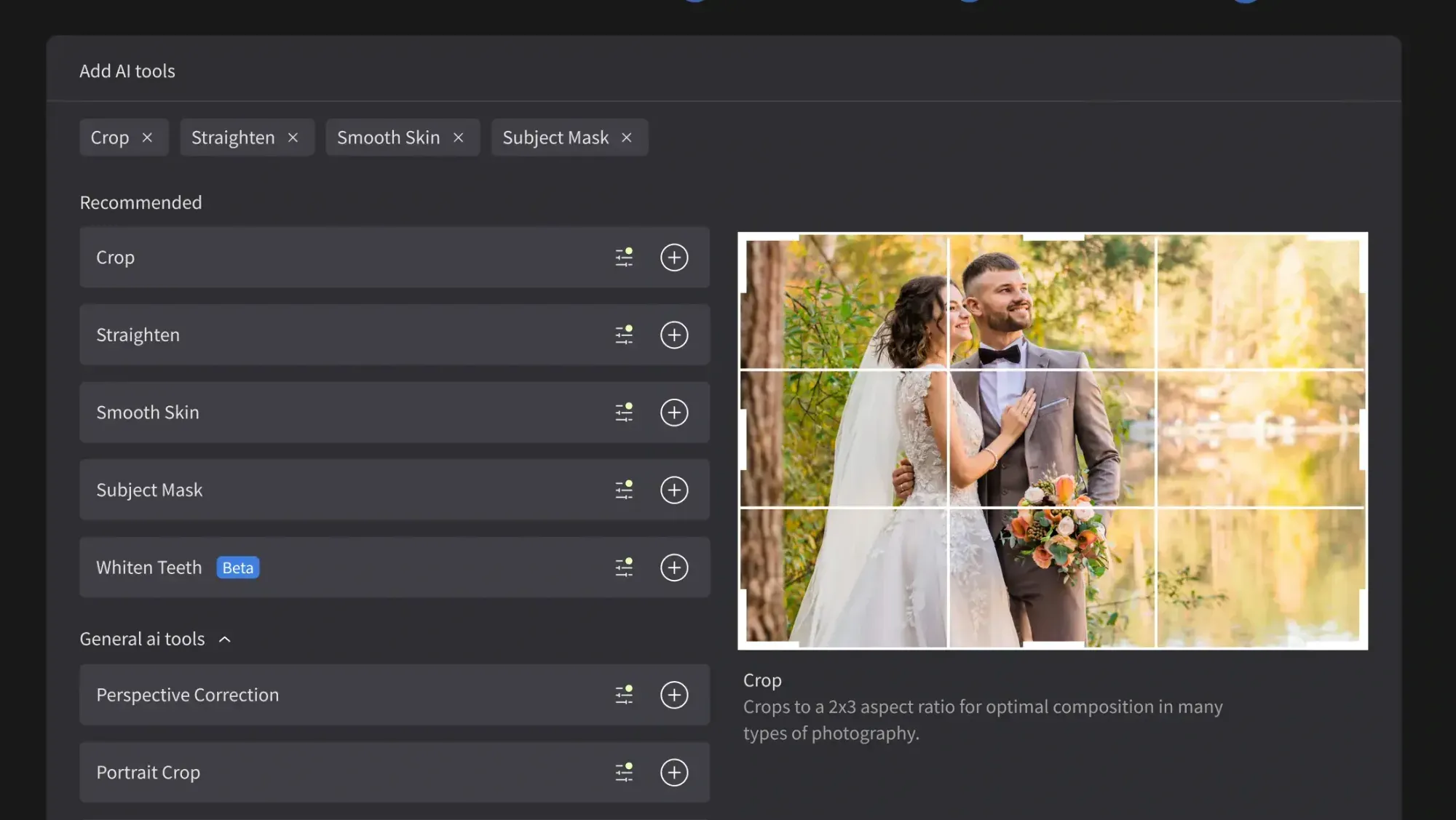
Imagen includes AI retouching in the same connected workflow, so cleanup on skin in the candid shots runs alongside your style edit rather than in a separate round trip. For manual touches, the built-in editor (Beta) has sliders, crop and straighten, and presets. Some photographers add a specialist retoucher like Retouch4Me or Evoto for very high-volume skin work on the people frames within a venue set. Use whichever fits your finishing standard, and keep every edit grounded in what the camera actually captured.
The AI Tool Landscape for Venue Editing in 2026
Several real tools serve different parts of the venue workflow, and it helps to know where each one fits before you commit to a stack.
- Imagen covers culling, personal-style batch editing, and retouching in one connected flow, which suits photographers who deliver full weddings on a schedule.
- Lightroom Classic and Capture One remain the catalogs most editors organize and finish in, and AI editors read from both.
- Aftershoot focuses on AI culling and style presets, sold on a subscription model.
- Retouch4Me and Evoto specialize in retouching, offered through per-credit or license options depending on the plan.
On pricing, Imagen runs on pay-as-you-go: exploring the tools is free and you pay for what you export. That means you can test your Personal AI Profile on a real venue set before you pay for any exports. The competing tools above use their own models, from subscriptions to one-time licenses to per-image credits, so weigh each against your yearly wedding volume.
Step 5: Export, Review, and Deliver
With the venue edited and retouched, do one final scroll through the full set at a consistent zoom to catch any room that drifts from the rest. Fix the outliers, then export in the sizes your clients and the venue need for their own use.
- Export full-resolution JPEGs for the album and prints at your standard color space.
- Create a web-sized set for the online gallery and social sharing.
- Keep a marketing-ready selection for the venue if your contract includes usage rights.
- Archive the edited catalog and the raw backup for at least a year.
Because your style profile stays consistent, the venue galleries blend into the getting-ready, portrait, and reception sets without any visible seam. That consistency is what venues remember when they recommend a photographer, and it is what earns repeat referrals from the property itself.
Putting the Venue Workflow Together
The whole venue workflow now fits a repeatable pattern. You import and back up, cull down to keepers with AI, apply your personal style across every space, finish the hero frames with retouching, then export and deliver. Each step removes a manual bottleneck that used to keep photographers editing late into the week. When your look lives in a saved profile, every future venue starts from the same strong baseline, and your turnaround stays predictable even in peak season.
Ready to run a venue set through your own personal style? Start with Imagen and edit a real shoot with your own profile in its new Studio, where you cull, edit and export in one project.
What’s new in Imagen: Imagen is now an intelligent, agentic Studio for professional photographers, so a venue workflow no longer needs separate culling and editing projects: you cull, edit, review and export in one project, in any order. A Personal AI Profile learned from your past edits handles the base look, and you can export finished files from Imagen or send AI edits back to Lightroom Classic. The Studio is rolling out gradually as a beta.
Frequently Asked Questions
How long does an AI venue editing workflow take?
Once your personal style profile is built, a full venue set of several hundred keepers can be culled and edited in a fraction of the time manual work needs. Most photographers move from raw import to a finished venue gallery in hours rather than days, since the AI handles the repetitive color and exposure matching across every room and exterior.
Does AI editing change what the venue actually looks like?
No, it corrects and finishes the real photos you shot rather than inventing anything. Imagen adjusts color, exposure, and retouching on your captured frames, so the rooms, architecture, and decor in the gallery are the real spaces you photographed. It does not add furniture, alter the building, or fabricate scenes that were not there.
Can one workflow keep indoor and outdoor venue shots consistent?
Yes, that consistency is the main reason to use a personal style profile. The AI adjusts each frame for the light it was shot in, so a bright garden and a dim reception hall both come back in your signature look. You get a gallery where every space reads as the same property despite the different lighting.
How much does AI wedding photo editing cost?
Imagen uses pay-as-you-go pricing: exploring the tools is free, and you pay for what you export. Other tools in the space use subscriptions, one-time licenses, or per-image credits, so the best value depends on how many weddings you shoot each year.
