

7 Best Wedding Photo Editors for Photographers in 2026
Table of contents
- Key Takeaways
- Imagen
- Aftershoot
- Adobe Lightroom Classic
- Capture One
- Narrative Select
- Luminar Neo
- Topaz Photo AI
- Crucial Criteria for Selecting a Wedding Photo Editor
- Speed and Efficiency Benchmarks for 2026
- Frequently Asked Questions
- Can AI photo editors really match my specific style?
- How many photos do I need to train a personal AI profile?
- Will AI editors replace my need for Adobe Lightroom?
- Is cloud-based AI editing safe for my raw files?
- How does AI culling detect closed eyes in group shots?
- What happens if I shoot in a new, unfamiliar lighting environment?
- Are there flat-rate pricing plans for high-volume studios?
- Keep exploring
Wedding photographers don’t have 80 spare hours a week to sit at a desk. Once you’re shooting 40 weddings a season, editing turns into a bottleneck that drains your creative energy fast. What you actually need is a reliable, fast, and precise wedding photo editor that gives your weekends back.
Want to speed up your workflow? Try Imagen’s new Studio, where you cull, edit and export in one project, and see exactly how it performs on your own galleries. You see every edit in the gallery before you export.
Here’s the honest truth: the industry shifted hard in 2026. Manual, slider-by-slider editing is on its way out, and the tools we cover below show that speed and quality can coexist. Below, we break down the strongest platforms available right now, the ones built to give working photographers their time back.
Key Takeaways
- The best AI editing platforms now save up to 96 percent of editing time, shrinking multi-day catalogs down to minutes.
- Training a personal AI wedding photo editor to nail your exact look takes at least 5,000 photos of past edits.
- Over 82% of wedding clients now expect their finished gallery within 14 days of the wedding.
- Pay-as-you-go pricing combines a monthly base fee with a charge for the photos you export, which keeps costs flexible no matter how your booking volume swings.
- AI culling trims manual selection work by up to 79% on a typical wedding gallery.
- Most modern workflows also lean on cloud storage integrations that back up raw images the moment a shoot wraps, though Imagen’s own cloud storage is still on the roadmap.
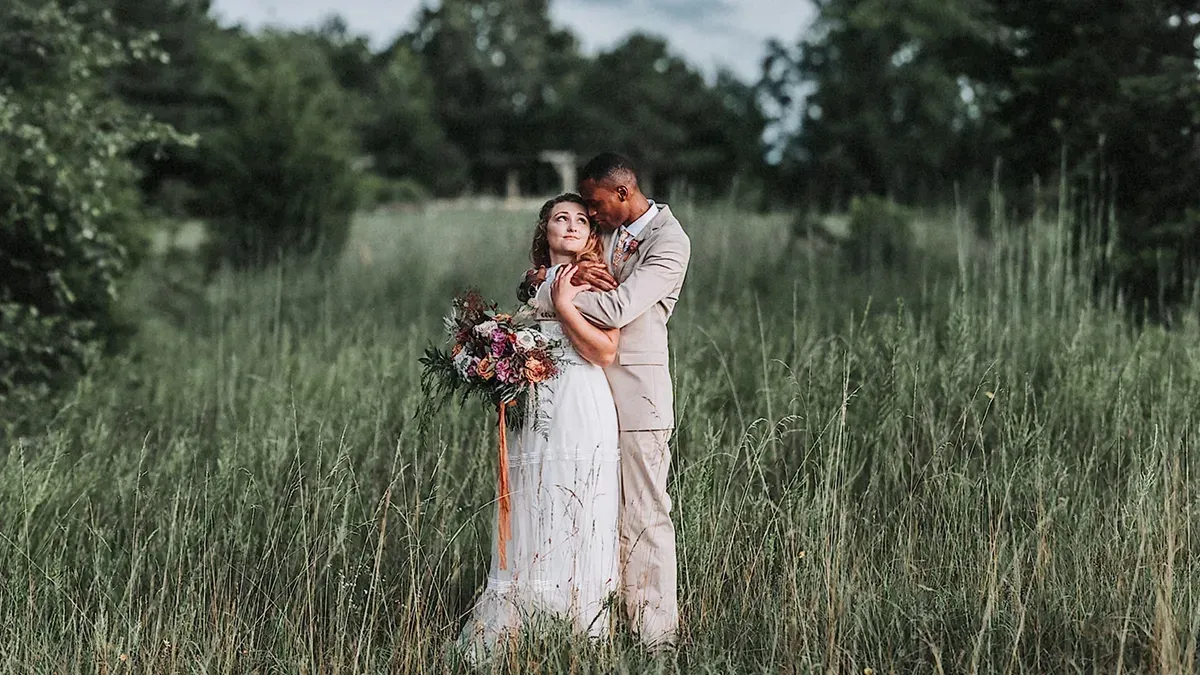
Imagen
There’s no way around it: Imagen stands out as the most efficient AI-driven wedding photo editor on the market today. It won’t push you into a generic, cookie-cutter look. Instead, it studies your exact editing preferences by analyzing your Lightroom catalogs, then builds custom AI profiles from what it finds.
The platform is remarkably fast. Upload a gallery of 3,000 photos to the cloud, and you’ll get the fully edited catalog back in under 10 minutes. This is where the app really earns its keep: it handles complex adjustments, exposure, white balance, tone curves, with real precision. In our testing, it matched custom styles closely enough that only 2% or 3% of a catalog needed manual tweaks.
If you haven’t built up a big library of past edits yet, the platform still has you covered with pre-built options. These Talent AI profiles come from world-renowned wedding photographers, so you get professional-grade results right away. To set up a custom profile of your own, follow these steps:
- Upload at least 5,000 edited photos from your existing Lightroom Classic catalog.
- Let the deep learning algorithms study your unique stylistic choices and camera profiles.
- Apply your custom profile to your next raw wedding import and watch it work its magic.
Key Features
- Personal AI Profiles trained on your own edit history.
- Automatic AI cropping, straightening, and subject masking.
- Built-in AI photo culling that automatically rates and selects your best wedding shots.
- Imagen’s Cloud storage for automatic backup of your raw catalogs is on the roadmap and not available yet.
- Full compatibility with Adobe Lightroom Classic and Adobe Camera Raw.
Pricing
Pricing here is flexible enough to fit almost any business volume. Choose the Pay-as-you-go plan, which combines a monthly base fee with a charge for the photos you export, or step up to the Limitless plan for a fixed fee that includes unlimited AI culling. For the full breakdown, check the official Imagen pricing page.
Pros
- Saves up to 96 percent of manual editing time across large galleries.
- Adapts to your personal style rather than forcing a generic look.
- Extremely fast processing across massive batches.
- Imagen’s cloud backup is on the roadmap, so keep your own backups in place for now.
Cons
- Requires a stable internet connection to upload raw catalogs.
- Building a truly accurate personal profile takes a large volume of past edits.
If you want to run a highly profitable wedding photography business in 2026 without losing your sanity to screen fatigue, Imagen is the tool to reach for.
Aftershoot
Aftershoot is a strong competitor built around keeping everything local on your computer. It never uploads your raw files to the cloud to do its work. That’s a big deal if you shoot in areas with slow or unreliable internet.
The app handles both culling and editing. It can cull a wedding gallery of 4,000 raw files in just a few minutes, flagging duplicates, blurry shots, and closed eyes along the way. Because all the processing happens offline, your machine’s hardware does the heavy lifting, so you’ll want a genuinely powerful processor to see it run at its best. Still, for many wedding professionals, skipping the cloud upload wait is a lifesaver.
Key Features
- Local, offline processing for both AI culling and editing.
- Duplicate detection with grouping for rapid side-by-side comparison.
- Custom AI profile training built from your previous Lightroom catalogs.
- Auto-straightening and automatic cropping tools.
Pricing
Aftershoot runs on a flat subscription model. The basic culling tier starts around $15 per month, while the full AI editing bundle runs $40 to $80 per month depending on the features and number of profiles you need.
Pros
- No internet connection required for processing.
- Unlimited editing on flat-rate plans without per-photo fees.
- Fast local performance on high-end machines.
Cons
- Requires a highly powerful local computer (M-series Mac or strong PC).
- AI profile accuracy can sometimes feel less consistent than cloud-based models.
Aftershoot suits high-volume wedding photographers who’d rather pay a flat rate and who often travel somewhere with spotty internet.
Adobe Lightroom Classic
Adobe Lightroom Classic still anchors the entire photographic industry. Nearly every modern wedding photo editor relies on its catalog structure to function at all. You simply can’t discuss wedding editing without mentioning Adobe’s flagship product.
Over the past year, Adobe has packed genuinely powerful AI features into the platform. Its masking tools are remarkably precise: you can select people, backgrounds, sky, even individual teeth, with a single click. But here’s the catch: manually applying those adjustments across 2,500 images from a single wedding is still a grueling, repetitive job that eats up hours. Lightroom performs best when it’s paired with an AI assistant that handles the first pass for you.
Key Features
- Industry-standard color grading wheels and basic tone adjustments.
- Advanced local adjustment masks powered by Adobe Sensei AI.
- Extensive preset ecosystem with thousands of third-party looks.
- Deep metadata management and advanced filtering controls.
Pricing
Lightroom comes through Adobe’s Creative Cloud Lightroom plan at $11.99 per month, or the Photography plan at $19.99 per month if you also need Photoshop. Both include 1TB of cloud storage.
Pros
- Unrivaled precision with local brushes and masking tools.
- Smooth integration with Photoshop for heavy retouching work.
- Strong community support and endless educational resources.
Cons
- Can become painfully slow and heavy on older computer hardware.
- Lacks fully automated, catalog-wide batch AI editing tools.
Lightroom Classic remains the non-negotiable desktop home base where you’ll finalize your most important wedding images before export.
Capture One
Capture One is a favorite among high-end studio photographers and total color-science nerds. Ever fought with muddy skin tones under tricky reception lighting? This is the tool you’ll want on your shortlist.
Its tethering speed is the fastest around, which really helps if you’re shooting bridal portraits in a studio before the big day. Honestly, the way it handles raw files from Fujifilm and Sony beats Lightroom in a lot of ways. That said, the interface takes some getting used to. It’s not the friendliest for beginners, and setting up batch edits across thousands of wedding raw files can feel like a lot.
Key Features
- Professional-grade color editing tools with dedicated skin tone balances.
- Industry-leading tethered shooting speeds and stability.
- Customizable workspace layouts that fit your workflow.
- Smart Style Brushes for quick, localized adjustments.
Pricing
You can get Capture One Pro as a subscription starting at $29 per month, or grab a perpetual license for a one-time fee of around $299.
Pros
- Unmatched raw color processing and skin tone control.
- Highly customizable workspace and keyboard shortcuts.
- Excellent performance with modern multi-core processors.
Cons
- More expensive than Adobe’s photography bundle.
- Steeper learning curve for wedding photographers used to Lightroom.
If you care more about nailing color than about speed, Capture One is a powerhouse worth every penny.
Narrative Select
Narrative Select tackles the most agonizing part of post-production: culling. Before you touch a single edit, you’ve got thousands of frames to sort through just to find the keepers. This app makes that whole phase almost painless.
The app runs smart algorithms across every face in your gallery. It flags closed eyes and soft focus almost instantly. Other tools used to drive us crazy on this front, but Narrative builds previews so fast that you can fly through your selections without any lag at all.
Want a smooth culling process with this app? Here’s the simple sequence to follow:
- Import your raw files directly from your memory card into Narrative Select.
- Use the Close-up Panel to instantly inspect faces for sharpness and expression.
- Filter out the rejected images and export your clean selection straight into Lightroom.
Key Features
- AI-powered eye and focus assessments on every face in a frame.
- Zero-lag raw image rendering for lightning-fast review.
- Intelligent scene grouping to quickly compare similar burst shots.
- Direct, smooth export paths into Adobe Lightroom catalogs.
Pricing
There’s a free basic plan with limited AI features, and the Pro plan runs $18 per month (billed annually) with unlimited AI culling thrown in.
Pros
- Extremely fast preview rendering times.
- Intuitive UI designed purely for quick decision-making.
- Saves hours of manual zooming to check focus on bridal party shots.
Cons
- Only handles culling; you’ll still need another tool for actual editing.
- Currently optimized primarily for macOS users.
Narrative Select is a brilliant, laser-focused tool, and honestly, it solves the culling problem better than almost anything else out there.
Luminar Neo
Luminar Neo is an AI-centric photo editor from Skylum. It’s not really built for batch-processing thousands of photos fast. Instead, it’s made for creative, heavy-duty work on your hero images, the ones that really need to shine.
Say you’ve got a gorgeous portrait of the bride and groom, but the sky is totally washed out, or there’s an ugly exit sign photobombing the background. That’s exactly when Luminar Neo earns its keep. Its generative AI erase and sky replacement tools are genuinely powerful, and they let you turn an ordinary portrait into a dramatic, fine-art wedding photo with barely any effort.
Key Features
- Generative AI tools for object removal and background replacement.
- Portrait Light controls to relight subjects in three-dimensional space.
- Atmosphere AI for adding realistic fog, mist, or sun rays.
- No-code creative presets for rapid stylistic transformations.
Pricing
You can subscribe starting at $11.95 per month, or grab the lifetime option, which usually runs around $199.
Pros
- Incredible creative tools for dramatic sky replacements and lighting.
- Generative AI features that make complex retouching accessible to anyone.
- Simple, visual interface that doesn’t overwhelm.
Cons
- Not suitable for batch-editing 1,000+ photos in a single session.
- High system resource consumption during generative AI tasks.
Keep Luminar Neo around as a companion app on your desktop. It’s perfect for those special, high-impact portraits that need real creative flair.
Topaz Photo AI
Topaz Photo AI is a highly specialized technical tool, not a creative color grader. It exists to fix the worst technical mistakes that can happen on a hectic wedding day.
Ever had to shoot a candlelit reception at ISO 12,800? Or did you miss focus slightly during the first kiss? Topaz Photo AI uses advanced neural networks to strip out noise, sharpen soft details, and upscale images without losing quality. It won’t replace your main editor, but it’s an invaluable safety net when things go sideways under pressure.
Key Features
- Autopilot feature that automatically detects noise, motion blur, and soft focus.
- Deep-learning noise reduction that preserves fine textures.
- Face recovery AI to restore natural details to distant wedding guests.
- High-quality upscaling for massive, gallery-worthy prints.
Pricing
It’s sold as a standalone perpetual license for $199, and that price includes a full year of software updates.
Pros
- Leading noise reduction and sharpening capabilities.
- Saves seemingly ruined, out-of-focus images from critical wedding moments.
- Simple drag-and-drop workflow that integrates with Lightroom.
Cons
- Expensive standalone price point for a single-purpose utility.
- Can look overly processed or artificial if the settings are pushed too high.
Topaz Photo AI is basically an insurance policy, the one you reach for when you need to rescue a technically flawed but emotionally irreplaceable shot.
Crucial Criteria for Selecting a Wedding Photo Editor
Every wedding photography business runs on its own needs and workflows. Do not simply buy the most popular tool on the market without first analyzing your specific pain points. If you shoot 50 weddings a year, speed and automation should top your priority list. If you only take on 5 high-end luxury weddings, you will likely value pixel-perfect color control and custom retouching above everything else.
As you assess different platforms, pay close attention to how each one fits into your existing file management structure. A tool that forces you to overhaul how you import, back up, and organize your files will only create headaches down the road. To choose well, rank your options against these essential operational factors:
- Compatibility with your preferred camera raw files and processing software.
- Processing location, choosing between cloud-based speed or offline security.
- Pricing predictability, ensuring your monthly software costs scale naturally with your business volume.
Keep in mind that this field keeps moving fast. Add intelligent automation tools to your post-production pipeline, and you will cut turnaround times dramatically while keeping your clients thrilled.
Turnaround speed is directly tied to customer satisfaction in the modern wedding industry. Deliver a polished gallery in under 14 days, and you are not just a great photographer, you are running a superior business that stands out from the crowd.
Itamar Haim, AI Photography Workflow Specialist
Speed and Efficiency Benchmarks for 2026
Let’s look at how these platforms actually stack up against each other in real-world use. We compiled this data from typical wedding workflows built around a standard gallery of 3,000 raw photos. The comparison table below highlights the core differences in speed, cost, and overall utility, so you can make an informed decision for your studio.
| Editor Name | Primary Focus | Processing Location | Avg. Culling Speed (3k images) | Avg. Editing Speed (3k images) |
|---|---|---|---|---|
| Imagen | Batch Editing & Culling | Cloud-Based | Under 5 Minutes | Under 10 Minutes |
| Aftershoot | Batch Editing & Culling | Local Machine | 10-15 Minutes | 20-30 Minutes |
| Narrative Select | Fast Photo Culling | Local Machine | Under 8 Minutes | N/A (Culling Only) |
| Lightroom Classic | Manual Editing & Cataloging | Local Machine | Manual (Slow) | Hours to Days |
As you can see, the gap between cloud-based AI tools and traditional manual editing is massive. If you want a wedding photo editor that handles the heavy lifting without sacrificing your unique creative voice, we recommend giving Imagen a try. It combines speed, stylistic accuracy, and smart culling in a single desktop Studio.
What’s new in Imagen: Wedding galleries are big, and Imagen is now an intelligent, agentic Studio for professional photographers that keeps culling, editing, review and export in one project, in any order. Choose AI culling or cull manually for free, then edit in your own style with a Personal AI Profile. Edited photos arrive in batches, so you can begin reviewing early frames right away. The Studio is rolling out gradually as a beta.
Frequently Asked Questions
Can AI photo editors really match my specific style?
Yes, modern platforms like Imagen learn your exact editing style by analyzing your historical Lightroom catalogs, then replicate your exposure, contrast, and color choices with up to 96% accuracy.
How many photos do I need to train a personal AI profile?
Plan to upload at least 5,000 edited photos from your past work to train a highly accurate Personal AI Profile. That volume gives the AI enough range to understand how you handle different lighting situations.
Will AI editors replace my need for Adobe Lightroom?
No, they do not replace Lightroom. Instead, they work alongside it, handling the initial batch edits and saving you hours of tedious slider work so you can focus on fine-tuning.
Is cloud-based AI editing safe for my raw files?
Modern cloud editors use secure, encrypted pipelines to upload previews or catalogs, so your original high-resolution raw files stay safely on your local hard drives the whole time.
How does AI culling detect closed eyes in group shots?
AI culling tools analyze facial landmarks to detect micro-expressions, blinks, and focus levels. They automatically flag bad frames and keep the best expressions ready for your review.
What happens if I shoot in a new, unfamiliar lighting environment?
If you run into unusual lighting, adjust a handful of key images manually in Lightroom, then update your AI Profile so it adapts to those conditions for future galleries.
Are there flat-rate pricing plans for high-volume studios?
Yes, many platforms offer unlimited monthly subscriptions or customizable business plans built for studios that shoot more than 100,000 photos a year.

