
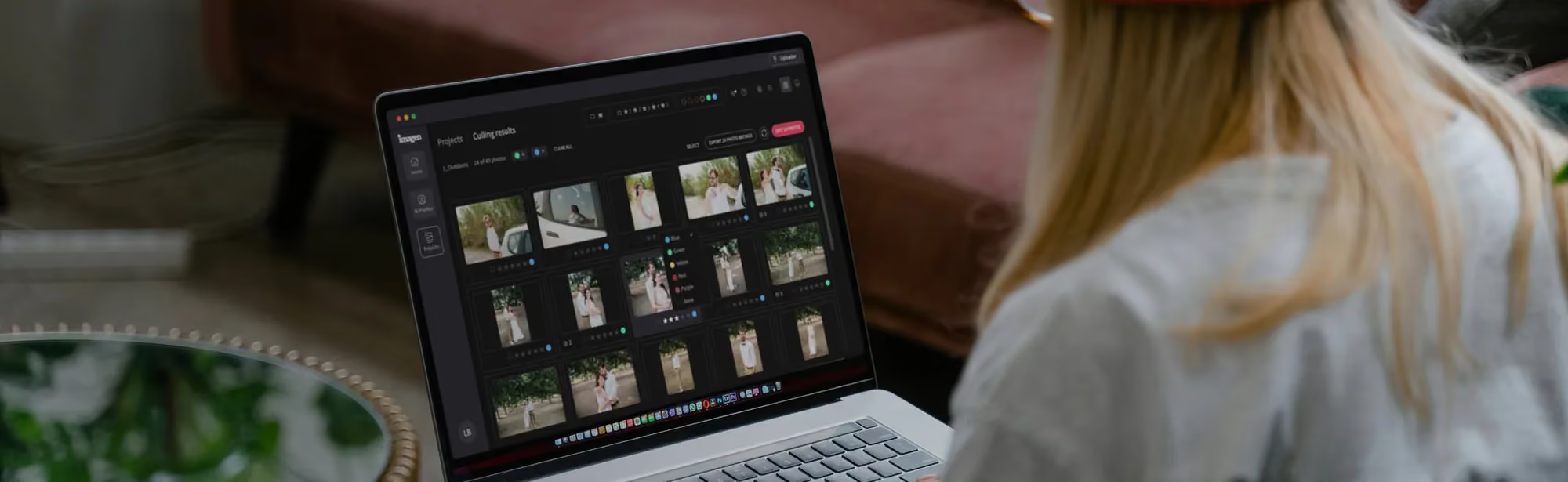
RawTherapee vs. Imagen: A Professional's Guide to Workflow Efficiency
Table of contents
- Key Takeaways
- The Core Philosophy: Manual Precision vs. AI-Learned Personal Style
- Deep Dive: Imagen Capabilities
- Deep Dive: RawTherapee Capabilities
- Comparison: Workflow Integration
- Comparison: Manual Control vs. Learned Personal Style
- Comparison: Culling
- Comparison: Pricing Models
- Feature Comparison Table
- Conclusion: Which Tool Fits You?
- Frequently Asked Questions
Imagen recently became an intelligent Studio for professional photographers. It is the same product you already know, evolving rather than being swapped out for something new, and the new experience is rolling out gradually to photographers over the next several weeks as the team gathers feedback and refines it. If your account has not changed yet, that is expected. It is reaching people in stages, not all at once.
RawTherapee sits at the opposite end of the editing spectrum from that new Studio idea. It is free, open source RAW processing software that hands you complete manual control over how an image is built, down to the demosaicing algorithm and the color appearance model. Imagen’s non-linear project, by contrast, is built around culling, editing, reviewing, and exporting a whole gallery at once, in a style that learns from your own past work rather than asking you to set every slider yourself.
Photographers researching this pairing usually fall into one of two camps. Some want precise, hands-on control over a smaller number of images and do not mind spending real time per photo to get there. Others are managing hundreds or thousands of images from a wedding, a portrait session, or an event, and need a consistent, personal look applied across the whole set without re-deriving it frame by frame. This guide walks through both tools honestly, checking every RawTherapee claim against RawTherapee’s own site and documentation rather than repeating old marketing copy.
Neither tool is trying to be the other. RawTherapee is not adding AI style learning any time soon, and Imagen is not trying to become a manual, pixel-level RAW converter. Once you see where each one actually puts its effort, picking the right tool for a given job gets a lot easier.
Key Takeaways
- Imagen is now an intelligent Studio: one non-linear project where you cull, edit, review, and export in any order, with edits that learn your personal style over time.
- RawTherapee is free, open source RAW processing software that gives you deep manual control over demosaicing, color, and detail, with no AI style learning involved.
- Imagen builds a Personal AI Profile from your past Lightroom Classic edits, or you can start from a Talent AI Profile and refine it as you go.
- RawTherapee lets you choose your own demosaicing method, work with wavelets and Retinex for detail and dynamic range, and fine-tune color with its CIECAM02 appearance model.
- Imagen’s built-in editor (Beta) and assistant sit alongside manual sliders, and you can export directly from Imagen or keep sending files to Lightroom Classic.
- RawTherapee runs entirely on your own computer, with a Queue tab for batch exports and a one-click send to GIMP or another editor, and it costs nothing to download or use.
The Core Philosophy: Manual Precision vs. AI-Learned Personal Style
Feature lists make more sense once you know what each tool was built to solve, so start there. Imagen and RawTherapee were designed around almost opposite ideas of what counts as a finished workflow.
Imagen
Imagen asks how a photographer gets from a memory card to a finished gallery as fast as possible while the result still looks like them. It learns how you treat exposure, color, and tone from your own past edits, then applies that style consistently across a whole shoot. Culling, editing, and review all happen inside the same project, in whatever order you want to work, and you can come back to it later if you are not done. The idea is to keep creative control in your hands when you want it, and let automation handle the rest when you don’t.
RawTherapee
RawTherapee takes the opposite stance. It values manual control above convenience, and it treats every image as its own project. You choose how the raw sensor data gets converted into pixels, you decide how much detail recovery or sharpening to apply, and you build up the final look slider by slider. It does not try to guess what you want from a photo, and it does not learn from the edits you made last month. For someone who enjoys the technical side of photo processing and wants to hand-craft a result, that is exactly the point. For someone editing a few hundred images from last weekend’s wedding, it is a much bigger time commitment.
Deep Dive: Imagen Capabilities
The list below reflects what Imagen does today, straight from the product rather than earlier marketing claims.
AI Editing in Your Personal Style
Imagen’s core feature is the Personal AI Profile, built from your own Lightroom Classic catalog of past edits. It learns how you treat exposure, white balance, color, and tone, then applies that style consistently to a new gallery. If you do not have enough past edits yet, you can start from a Talent AI Profile built by working photographers, or a Lite AI Profile, and refine your own over time. You can also apply more than one AI Profile to a selection of photos inside the same gallery, for example a black and white treatment on a handful of images while the rest stay in color.
Culling in the Same Project
Culling happens inside the same project as editing, not as a separate step you export out of first. Imagen offers AI culling for faster batch review, plus free manual culling whenever you want to go through a shoot photo by photo yourself. AI filters, sometimes called smart tags, help you filter quickly for things like blur or closed eyes. Edited photos do not make you wait for the whole gallery either; batches arrive as they finish processing so you can start reviewing sooner.
The Built-in Editor and Assistant
Imagen’s built-in editor is currently in Beta and sits alongside the AI tools rather than replacing manual work. It includes high-quality manual sliders, a histogram, crop and straighten, and presets you can import from Lightroom or build yourself.
Refining an AI edit with manual sliders in the Imagen editor
Imagen also includes an assistant that lets you find and act on photos using plain language, for example asking it to find every shot with closed eyes. It understands what is in a photo, not where within the frame, so it cannot place masks on a specific person yet, and it does not generate images; every edit starts from the photo you actually captured. It is useful for finding and filtering, but it still has real limits, and it can struggle with subjective requests.
Export to Lightroom or Directly From Imagen
You can export JPG, TIFF, or PNG files directly from Imagen, or keep exporting through Lightroom Classic the way you always have. Both paths are first class, and neither is a fallback. AI Profile and AI-tool edits carry over to Lightroom as XMP data, while manual edits, ratings, flags, and culling choices made inside Imagen’s own editor stay in Imagen rather than exporting back out.
Deep Dive: RawTherapee Capabilities
RawTherapee’s own site and documentation are clear about where its engineering effort goes, and it is almost entirely toward manual, technical control over image processing.
A Free, Open-Source RAW Converter
RawTherapee is free and open source software, released under the GPLv3 license, and it runs on Linux, macOS, and Windows. There is no subscription, no account, and no cost to download or use it, which is part of why it has such a loyal following among hobbyists and technically minded photographers.
Deep Manual Control Over Every Pixel
RawTherapee gives you a choice of demosaicing method, the process that turns raw sensor data into a full-color image, with options including AMaZE, RCD, and LMMSE, each suited to different lighting and noise conditions. Beyond that, it offers a wavelet tool for breaking an image into separate detail levels for targeted sharpening or smoothing, a Retinex tool for working with difficult dynamic range, and support for the CIECAM02 color appearance model, which models how the human eye perceives color under different viewing conditions. None of this is automated. You build the result yourself, tool by tool.
The File Browser and Local Adjustments
RawTherapee’s File Browser shows thumbnails of your shoot and lets you filter by specific EXIF data such as ISO or lens, in addition to star ratings and color labels you assign yourself. It is a manual process throughout; there is no automatic grouping of similar frames or AI-driven shot selection, since that is not what the tool is built to do. For local, spot-level edits, RawTherapee uses what it calls RT-spots, shapes you place individually on a photo with their own control points, similar in concept to the control-point tools found in some other RAW editors. Each spot is placed and adjusted by hand, which gives you very precise control over a single image, at the cost of doing that setup again on the next one.
Batch Processing and Export
RawTherapee includes a Queue tab for batch work. You develop a photo, or build a processing profile, and send it to the queue to be exported later while you keep working on other images. It also offers multiple noise reduction methods, including luminance and chrominance noise reduction and a dedicated impulse noise reduction mode for salt-and-pepper noise. When you are ready to move a file along, RawTherapee exports to JPEG, PNG, or TIFF, in 8-bit or 16-bit depth, and it can send a processed TIFF straight to GIMP or another editor of your choice in a single click.
Comparison: Workflow Integration
Imagen is built to live inside a workflow you may already have. You cull, edit, and review inside one project, and you choose whether to export directly or continue through Lightroom Classic. Load in the shoot, let your AI Profile start applying your style while you cull in the same window, catch the finished images as batches land, make any final adjustments in the built-in editor or over in Lightroom, then send the gallery wherever it needs to go.
RawTherapee works as a standalone RAW converter that is not connected to Lightroom or any other cataloging tool. A typical session looks more like this: open a raw file, pick a demosaicing method, adjust exposure and color by hand, apply local adjustments where needed, then export a TIFF, PNG, or JPEG, or send the file straight to GIMP for further work. Some photographers use RawTherapee as the first stop in a raw conversion pipeline and finish elsewhere; others use it start to finish for a single image.
Comparison: Manual Control vs. Learned Personal Style
This is the real dividing line between the two tools. RawTherapee’s strength is granular, hands-on control: you decide the demosaicing algorithm, the exact wavelet decomposition, the Retinex settings, and the color appearance model for every image, one at a time. Imagen’s strength is applying a personal style consistently across a whole gallery without manually repeating those decisions on every frame. RawTherapee does not learn from your previous edits; each image, or each batch profile you build, is its own exercise. Imagen does not offer RawTherapee’s level of raw-conversion tuning, and granular, pixel-level reshaping tools are a future direction rather than something available today. Neither approach is incomplete, they are simply built around different amounts of hands-on work per image.
Comparison: Culling
Imagen’s culling happens inside the same non-linear project as editing, combining AI batch culling for speed with free manual culling whenever you want full control, plus smart tag filters for things like blur or closed eyes. RawTherapee handles selection through its File Browser, where you view thumbnails, apply star ratings or color labels, and filter by EXIF fields like ISO or lens, entirely by hand. RawTherapee’s File Browser has no AI-driven grouping of similar frames or automatic shot scoring, which fits its role as a manual, technical RAW converter rather than a gallery management tool.
Comparison: Pricing Models
RawTherapee is free and open source, with no subscription, no account, and no limit on how many images you process. For a hobbyist or anyone on a tight budget, that is hard to beat. Imagen’s pay-as-you-go plan works differently: it has a monthly base fee, and you pay for the photos you export, with a flat-fee Limitless plan available for photographers who process a high volume every month. Sliders, crops, and masks you do yourself are always free. Imagen also offers a free trial so you can test the workflow before deciding how to pay. Current rates for either Imagen plan are best checked on the pricing page, since they can change over time.
Feature Comparison Table
| Feature | Imagen | RawTherapee |
|---|---|---|
| Core approach | AI-learned personal style applied across a whole gallery | Manual, pixel-level RAW conversion and editing |
| Cost | Pay-as-you-go per export, or flat-fee Limitless plan | Free and open source, no subscription |
| Platforms | Web project with Lightroom Classic integration | Linux, macOS, and Windows desktop app |
| Culling | AI batch culling plus free manual culling, same project | Manual File Browser with star ratings and EXIF filters |
| Style consistency across a gallery | Personal AI Profile learned from your past edits | Not a current focus; each image or batch profile is built by hand |
| Demosaicing control | Not a current focus for Imagen | Choice of algorithms including AMaZE, RCD, and LMMSE |
| Local adjustments | AI Subject and Background tools applied during batch edits | RT-spots placed and adjusted by hand on each image |
| Noise reduction | Denoise tool (Beta) applied automatically where needed | Manual luminance, chrominance, and impulse noise controls |
| Export formats | JPG, TIFF, or PNG direct from Imagen, or continue to Lightroom | JPEG, PNG, or TIFF, 8-bit or 16-bit, plus one-click send to GIMP |
| Learning curve | Familiar if you already use Lightroom Classic | Steeper; expects comfort with raw processing terminology |
Conclusion: Which Tool Fits You?
Choose RawTherapee if you want complete manual control over how a raw file becomes a finished image, you do not mind the time that takes, and you would rather not pay anything for that control. It rewards photographers who enjoy the technical side of image processing and want to hand-craft results one photo at a time.
Choose Imagen if your real constraint is time, specifically getting a full gallery culled, edited, and reviewed in a consistent personal style without rebuilding your settings on every frame, while keeping Lightroom Classic in the loop.
Plenty of photographers use some version of both. A landscape or fine-art shoot where every frame matters individually might go through RawTherapee’s manual pipeline, while a wedding or event gallery with hundreds of images might run through Imagen first for consistent, personal-style editing and culling. What fits best comes down to how much hands-on time you want to spend per image and whether your week revolves around a single gallery or a single frame.
The fastest way to know which approach fits your week is to try it on a real shoot. Start a free trial at imagen-ai.com and run a gallery through culling, editing, and export end to end. You will find more comparisons and workflow guides on the Imagen tips hub.
Frequently Asked Questions
1. What is the main difference between Imagen and RawTherapee? Imagen edits and culls a whole gallery in your personal style inside one non-linear project, while RawTherapee is a free, open source RAW converter built around manual, pixel-level control over each image.
2. Is RawTherapee really free? Yes. RawTherapee is free and open source software released under the GPLv3 license, with no subscription, account, or usage limit.
3. Does RawTherapee have AI culling or style learning like Imagen? No. RawTherapee’s File Browser is a manual tool for viewing, rating, and filtering images, and its editing tools do not learn from your previous edits. That fits its design as a manual, open source RAW converter rather than a gap in an otherwise similar product.
4. Can I cull and edit in the same place with Imagen? Yes. Culling and editing happen inside the same non-linear project, so you can move between them in any order without exporting to a separate app first.
5. Do I still need Lightroom if I use Imagen? That is up to you. You can finish entirely inside Imagen, or continue your workflow in Lightroom Classic the way you always have. Lightroom stays part of the Imagen ecosystem rather than something you have to give up.
6. What demosaicing options does RawTherapee offer? RawTherapee lets you choose from several demosaicing algorithms, including AMaZE, RCD, and LMMSE, each suited to different sensor types and lighting conditions.
7. How does Imagen’s pricing work? Pay-as-you-go photographers pay at export and see every edit in the gallery first. A flat-fee Limitless plan is available for high-volume studios, and current rates are listed on the pricing page.
8. Can RawTherapee send files to other editors like GIMP? Yes. RawTherapee can send a processed 16-bit TIFF straight to GIMP or another editor of your choice in a single click, after you finish your raw-stage adjustments.
9. Which tool should I pick if I shoot high volume but still care about technical control? Many photographers run the bulk of a gallery through Imagen for consistent, personal-style editing and culling, then reach for RawTherapee’s manual tools on the handful of images, like a fine-art print or a tricky high-ISO shot, that benefit from hand-tuned, pixel-level processing.
