

Proposal Photo Editing Workflow: AI Tools and Tips for 2026
Table of contents
- Why Proposal Photography Needs Its Own Workflow
- Step 1: Import, Back Up, and Organize the Take
- Step 2: Cull Down to the Story
- Step 3: Batch Color and Tone With Your Personal Style
- Step 4: Retouch the Reaction and Hero Frames
- Step 5: Do a Final Consistency Pass
- Step 6: Export and Deliver Fast
- Where AI Fits in the Proposal Workflow
- Frequently Asked Questions
- Bring Your Proposal Galleries Together Faster
A proposal photo editing workflow is the repeatable order of operations you follow to turn a fast, high-pressure proposal shoot into a polished gallery your client will treasure. The fastest way to build one in 2026 is to cull the keepers first, set a consistent color and light look across the whole set, let an AI tool like Imagen apply your personal editing style in a single batch, then finish the hero frames by hand. This guide walks through that production line step by step, shows where AI automates the slow parts, and names a few other real tools where they honestly fit.
Why Proposal Photography Needs Its Own Workflow
Proposal photography is not a relaxed studio session. You often shoot from a distance, sometimes hidden, in whatever light the moment happens to have. You capture a burst of real, unrepeatable emotion in a few seconds, and you cannot ask anyone to do it again. That means you come home with a large, messy take: many frames of the walk-up, the knee drop, the reaction, the hug, and the aftermath, shot at a fast frame rate under changing light.
Because the moment is genuine and the conditions are unpredictable, editing carries a lot of the final quality. A clean, consistent gallery lets the couple relive the story without noticing your corrections. A structured workflow keeps you from drowning in hundreds of near-identical frames and helps you deliver quickly, while the couple is still glowing from the news. If you want a deeper primer before you dive in, our companion overview of AI proposal photo editing pairs well with the production line below.
Step 1: Import, Back Up, and Organize the Take
Start by getting every file off your cards and into a safe, organized home before you touch a single slider. Proposal shoots are one-shot events, so your backup matters more here than almost anywhere else. Build a simple, repeatable structure and follow it every time.
- Copy the cards to your main drive, then immediately copy that folder to a second drive or cloud backup, so you always have two copies before you format anything.
- Name the folder with the date and the couple, so you can find it in a year without guessing.
- Import into your catalog in Lightroom or Capture One, and add a keyword or color label for the shoot.
- Do a quick visual scan to confirm the key moment is sharp and present, because that reassurance shapes how you edit the rest.
This stage is pure housekeeping, and it should take only a few minutes. The payoff is that every later step runs against a clean, backed-up library instead of a pile of loose files.
Step 2: Cull Down to the Story
Culling is where most of your editing time gets won or lost. A proposal burst can leave you with 600 to 1,200 frames, and the couple wants a tight, emotional gallery, not every blink. Your job is to find the frames that tell the story: the approach, the moment of the question, the yes, the embrace, and a few warm portraits afterward.
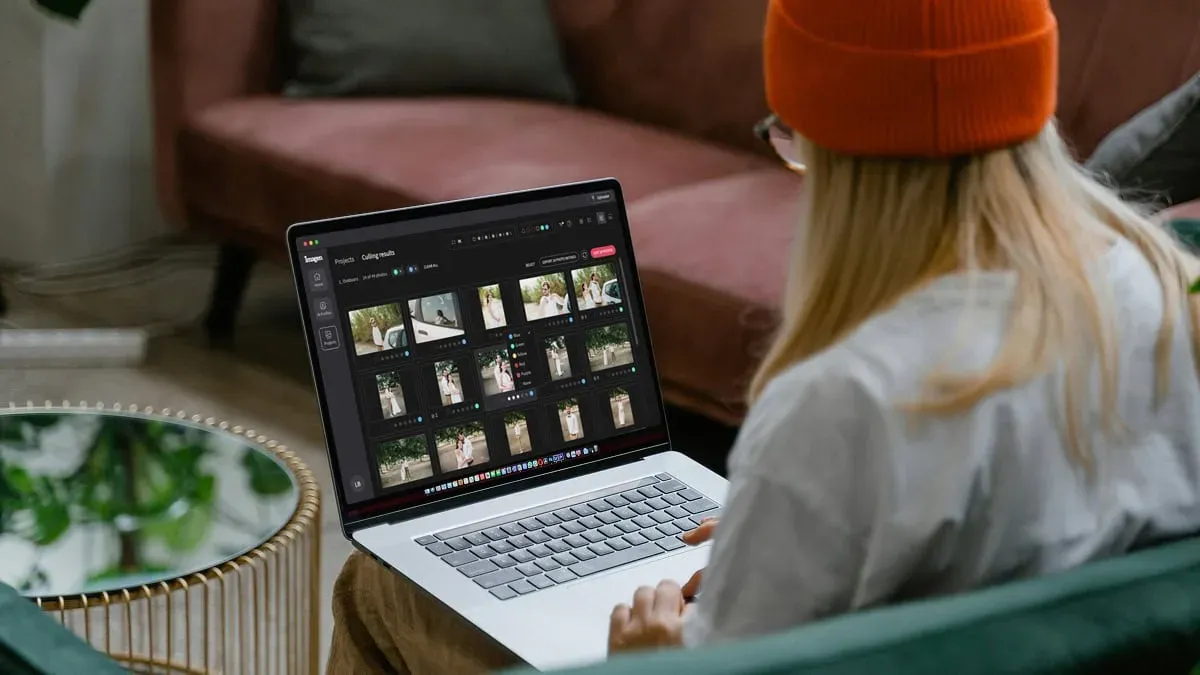
Move fast and be decisive. Reject the obvious misses first, the closed eyes, the soft frames, and the awkward mid-motion shots. Then choose the strongest frame from each cluster of near-duplicates. This is exactly the kind of repetitive sorting that AI culling now handles well. Imagen’s AI culling can scan the full take, flag blurry and duplicate frames, and surface the sharp, well-composed keepers, so you spend your attention on selecting between good options rather than trashing the bad ones. You stay the final judge of which emotional beat makes the cut, and the tool clears the noise. If you prefer, you can skip AI culling and cull manually for free.
Aftershoot is another tool built around AI culling for high-volume shooters, and some photographers lean on it for this stage. Whichever you use, the goal is the same. Get from a huge take down to a clean shortlist quickly, so the creative work starts sooner.
Step 3: Batch Color and Tone With Your Personal Style
Once you have your keepers, set the overall look. This is the base color, exposure, contrast, and white balance that every image in the gallery will share. Consistency is the whole game here, because a proposal gallery reads as one continuous moment. If the walk-up looks cool and blue and the hug looks warm and golden, the story feels disjointed even when each frame is fine on its own.
This is the slow step that AI automates best, and it is where Imagen fits most naturally into the workflow. Imagen learns your personal editing style from your Lightroom or Capture One catalog, then applies that same look consistently across the entire shoot in one batch. Instead of copying settings from a hero frame and syncing them by hand, you get a full set that already matches your taste, corrected for the light in each frame. It edits, culls, and retouches the real photos you shot in one connected workflow. It does not invent scenes, backgrounds, or people, so the moment stays exactly as it happened.
Pricing is pay as you go on export: exploring Imagen’s tools is free, and you pay for what you export. That lets you run a real proposal gallery through it before you decide. For photographers who want to keep hands-on control of the base look, Lightroom presets remain a solid manual alternative, though they still need per-frame adjustment because a preset cannot read the light the way a trained style profile can.
Step 4: Retouch the Reaction and Hero Frames
With the whole gallery sharing a consistent look, turn to the handful of frames that will define the set. These are the emotional peaks: the exact moment of the question, the tears, the hands over the mouth, and the first embrace. They deserve individual attention because clients enlarge them, print them, and share them widely.
Keep retouching honest and light on these real, emotional photos. Even out skin naturally, calm a shiny forehead from nerves and heat, brighten the eyes a touch, and clean small distractions in the background like a stray trash can or a photobombing stranger. Imagen’s AI retouching can carry the routine skin and blemish work across your selects, so you refine rather than start from scratch, and the built-in editor (Beta) is there for manual refinements. The aim is a natural result that still looks like the couple on the best day of their year, not a plastic, over-smoothed version of them.
For deep, frame-by-frame composite work or complex object removal, Photoshop is still the tool many photographers reach for on that one difficult hero shot. Use it selectively, on the frames that truly need it, rather than as your everyday finishing tool. The same skin and light principles you use here carry straight over to milestone sessions, and our guide on how to edit anniversary photos with AI shows how the approach extends beyond the proposal itself.
Step 5: Do a Final Consistency Pass
Before you export, review the gallery as a whole rather than one frame at a time. Scroll through the selects in order and watch for anything that jumps out. Common drift shows up as one frame that is warmer or brighter than its neighbors, a crop that breaks the rhythm, or a retouched face that looks smoother than the wider shots around it.
Check these details on your final pass:
- White balance: confirm skin tones and neutrals match from the first frame to the last across the whole set.
- Exposure: make sure the brightness feels even as you scroll, with no single frame that pops too dark or too light.
- Crop and orientation: keep horizons level and framing consistent, so the gallery flows smoothly.
- Retouching balance: verify the hero frames match the rest and do not look over-processed next to lighter edits.
This pass usually takes only a few minutes when the batch style did its job, and it is the step that separates a professional set from a merely good one. A consistent gallery feels trustworthy and premium, which is exactly the impression you want to leave with a newly engaged couple.
Step 6: Export and Deliver Fast
Speed matters at delivery because the couple is excited and wants to share the news. Set up export presets once so you never rebuild them shoot to shoot. Most proposal deliveries need two sizes: full-resolution files for printing and keepsakes, and web-optimized versions for phones and social media.
Create a high-resolution preset with your standard sharpening and color space, and a smaller web preset sized for fast sharing. Deliver through an online gallery so the couple can download, favorite, and share from any device. If you offered a sneak peek, pull three or four of the strongest reaction frames, run them through your batch style first, and send them the same day. That quick preview keeps clients thrilled while you finish the full set.
Where AI Fits in the Proposal Workflow
The pattern across this workflow is simple. AI handles the repetitive, high-volume work, and you handle the creative judgment. Culling hundreds of burst frames, applying a consistent style to a whole gallery, and carrying routine retouching across your selects are all slow tasks that scale badly by hand. Those are the steps to automate.
Choosing which emotional frame tells the story, deciding how warm the golden-hour glow should feel, and finishing the single most important hug are creative calls that stay with you. Imagen earns its place by connecting culling, style-matched batch editing, and retouching in one flow, so you move from a full card to a finished gallery in a fraction of the usual time. For a broader look at how these tools compare and where each one shines, browse the full library of guides on the Imagen valuable tips hub.
What’s new in Imagen: Imagen is now an intelligent, agentic Studio for professional photographers, so a proposal workflow does not have to run in a straight line: you cull, edit, review, and export in one project, in any order. AI filters such as blur and closed eyes help you narrow a burst-heavy take, and edited photos arrive in batches so you can start reviewing early frames. The Studio is rolling out gradually as a beta.
Frequently Asked Questions
What is the best order for a proposal photo editing workflow?
Import and back up first, then cull down to the story, then batch your color and tone with a consistent style, retouch the hero frames, run a final consistency pass, and export. Following that order keeps you from editing frames you will later cut and makes the whole set look like one moment.
How does AI speed up proposal photo editing?
AI automates the slow, repetitive steps. It culls large bursts down to the sharp keepers, applies your personal editing style consistently across the whole gallery, and carries routine skin and blemish retouching across your selects. Imagen does all three in one connected workflow, so you spend your time on creative decisions instead of manual syncing.
Does AI editing change what actually happened in the photos?
No. Imagen edits, culls, and retouches the real photos you shot. It adjusts color, light, and skin, and it does not invent scenes, backgrounds, or people. The genuine moment stays intact, which matters for something as personal and unrepeatable as a proposal.
How much does Imagen cost to try for a proposal gallery?
Exploring Imagen’s tools is free, so you can run a full proposal set through it and judge the results on your own gallery. After that, pricing is pay as you go on export, and the pricing page has current rates.
Bring Your Proposal Galleries Together Faster
A structured workflow turns a chaotic proposal shoot into a gallery the couple will keep forever, and AI removes the hours that used to sit between the shoot and the delivery. Try Imagen to learn your personal style, cull your bursts, and batch-edit a full proposal set in a fraction of the time, inside its new Studio, where you cull, edit, and export in one project. Exploring its tools is free. Run a real gallery through it, keep control of the frames that matter most, and deliver while the couple is still celebrating.
