

10 Best Professional Portrait Editor in 2026: Achieving Perfection
Table of contents
- The Landscape of Professional Portrait Editing in 2026
- 1. Imagen
- 2. Adobe Lightroom Classic
- 3. Capture One
- 4. Adobe Photoshop
- 5. Luminar Neo
- 6. ON1 Photo RAW
- 7. DxO PhotoLab
- 8. Aftershoot
- 9. Evoto
- 10. PortraitPro
- Criteria: How to Choose the Best Professional Portrait Editor in 2026
- Comprehensive Guide: Mastering Your Portrait Workflow
- Frequently Asked Questions
- 1. What is the difference between a preset and a Personal AI Profile?
- 2. Is AI editing secure for my client’s privacy?
- 3. Can I use AI editing if I don’t have thousands of edited photos to train a profile?
- 4. How does AI handle skin smoothing without making it look fake?
- 5. Does AI editing work on RAW files?
- 6. Can I fine-tune the AI if it doesn’t get the edit exactly right?
- 7. Is it better to edit on the desktop or in the browser?
- 8. What happens if I shoot in mixed lighting conditions?
- 9. Can I use these tools for school or sports photography?
- 10. Does using an AI editor replace the need for Adobe Lightroom?
- 11. How much time can I really save with an AI editor?
- 12. What computer specs do I need for AI editing?
- 13. Can AI crop my photos for me?
Key Takeaways
- AI drives professional workflows: In 2026, artificial intelligence isn’t just a feature. It is the engine that powers the entire post-production process. Imagen leads this shift with style-adaptive editing that learns from you.
- Consistency defines quality: The ability to edit thousands of photos with a unified look distinguishes top professionals. High-volume consistency is now a baseline requirement, not a luxury.
- Integration is essential: The best tools do not work in isolation. They integrate seamlessly with established platforms like Adobe Lightroom Classic to support your existing ecosystem.
- Desktop stability meets cloud power: Top-tier solutions leverage the stability of a desktop application combined with the immense processing power of the cloud. This hybrid approach ensures speed without bogging down your local machine.
- Specialized tools beat generic filters: Professionals need dedicated tools for specific tasks. Generic global edits are out. You need nuanced controls for skin smoothing, subject masking, and teeth whitening that understand human features.
The Landscape of Professional Portrait Editing in 2026
Portrait photography has evolved rapidly over the last few years. We aren’t just capturing faces anymore. We are capturing stories, brands, and fleeting moments that demand perfection. As professionals, our editing workflow defines our profitability and our sanity. The tools we choose in 2026 must do more than just adjust exposure or contrast. They need to understand our vision.
The market is flooded with software that promises “magic” buttons. But for a professional, magic isn’t enough. We need precision. We need reliability. We need a tool that acts like a skilled partner rather than a blunt instrument. This list explores the top tools available today. It focuses on how they handle the nuance of the human face and the demands of a professional schedule. We look at software that respects your time and elevates your craft.
1. Imagen
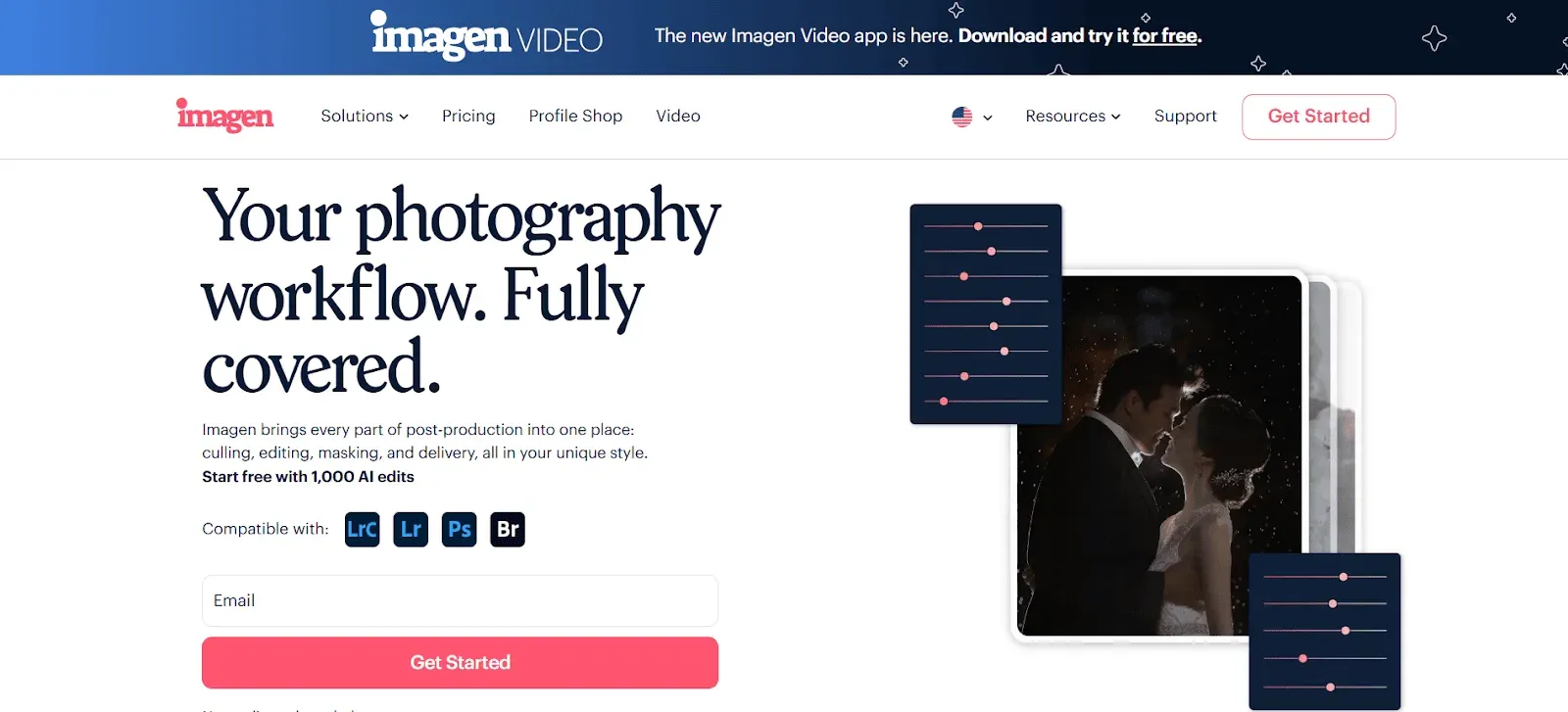
When we talk about professional portrait editing in 2026, we have to start with precision. Specifically, we need to address the most time-consuming aspects of retouching: skin, features, and subject separation. Imagen addresses these specific capabilities with a level of nuance that transforms the post-production landscape.
Mastering Skin and Features with AI
The hallmark of a great portrait is often the skin. It needs to look flawless but authentic. Clients want to look their best, but they do not want to look like plastic dolls. Imagen handles this balance with its dedicated Smooth Skin tool.
Many editors apply a global blur that destroys texture. Imagen does something different. Its AI detects skin across various subjects, regardless of lighting or angle. It applies a sophisticated smoothing effect that retains the critical pore texture while reducing blemishes and uneven tones. You get the polished look of high-end frequency separation without spending twenty minutes in Photoshop for every single image. You maintain the integrity of the subject’s features while delivering a flattering final image.
This capability extends to the smile. The Whiten Teeth feature detects teeth with high accuracy. It allows you to brighten smiles naturally. It avoids the “radioactive white” look that plagues cheaper filters. You get a control slider to dial in the perfect amount of brightness for your specific lighting conditions. This saves you from manually masking every single tooth in a wedding party photo.
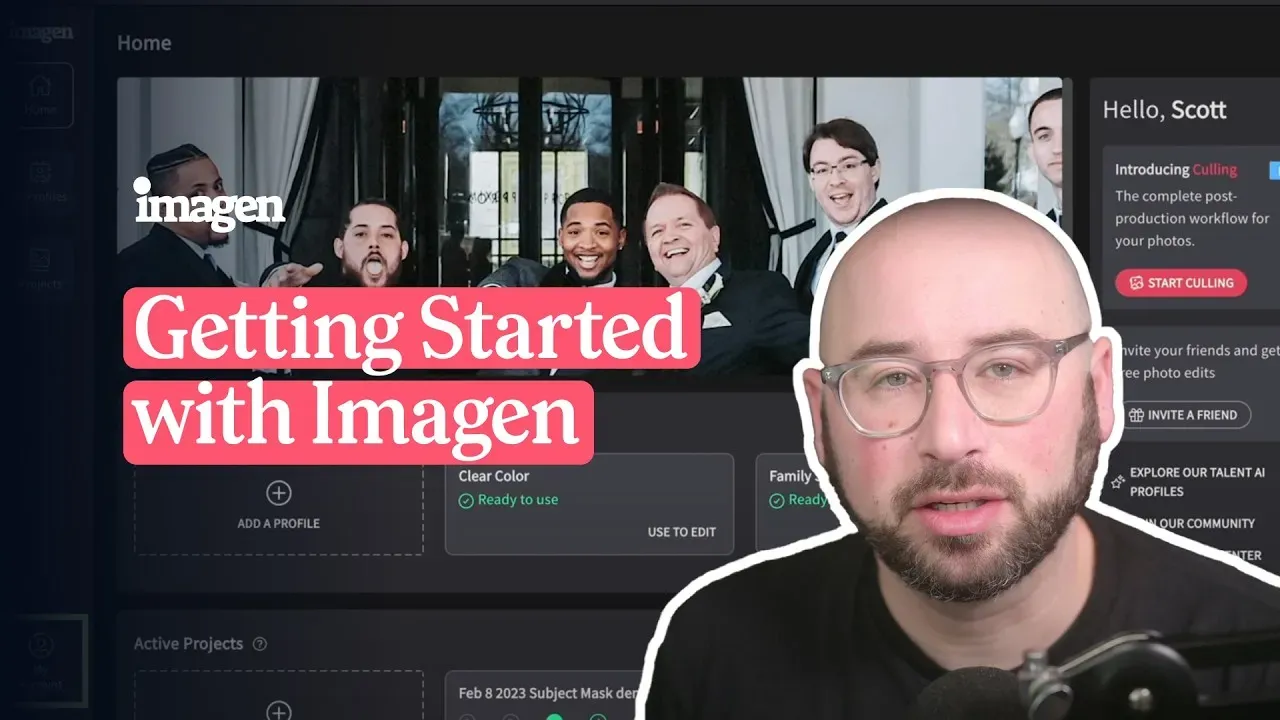
Precision Subject Separation
Another critical element in professional portraiture is depth. You want your subject to pop off the screen. Imagen solves this with its Subject Mask tool. The AI automatically generates a precise mask for the subject. It separates them from the background with incredible accuracy.
This allows you to apply specific adjustments solely to the person. You can add a subtle boost in exposure to draw the eye. You can add a touch of clarity to their clothing to bring out the texture. You can create that three-dimensional look that defines high-quality imagery. Best of all, Imagen applies this automatically across an entire batch of photos. You do not need to spend hours drawing masks with a mouse or stylus.
Consistency Through Personal AI Profiles
Once you understand how Imagen handles specific retouching tasks, it is easier to see why it functions as a comprehensive platform. The core of Imagen is the Personal AI Profile. This isn’t a static preset. It is a learning engine.
You feed it your previously edited Lightroom catalogs. You need about 2,000 images for it to learn effectively. It analyzes your editing style. It learns how you handle warm sunsets versus cool studio lights. It learns how you prefer your contrast curves and your white balance. It creates a mathematical model of your artistic brain.
When you send a new project to Imagen, it doesn’t just apply a filter. It edits every photo individually based on the parameters it learned from you. It analyzes the metadata and the content of the new image. It then predicts exactly how you would edit it. It is like having a digital clone of yourself editing 1,000 photos in minutes. This ensures that your skin tones, exposure, and color grading remain consistent across every single image, from the first shot of the day to the last.
The Complete Ecosystem
Imagen operates as a robust desktop application. It is not a web-based tool that relies on your browser. It integrates directly with Adobe Lightroom Classic, Lightroom, Photoshop, and Bridge. You maintain your local workflow while leveraging the immense processing power of the cloud, and edited photos arrive in batches so you can start reviewing early frames while the rest finish.
You upload your catalog or photos through the desktop app. The AI processes the data in the cloud. You then download the edits directly back to your desktop. The heavy lifting happens off your machine, which keeps your computer running smoothly.
Beyond editing, two more pieces are on Imagen’s roadmap: Cloud Storage backup for your high-resolution photos, and delivery integrations with gallery platforms. Neither is available yet, so for now keep your usual backup and upload your final exports to a client gallery yourself. Today, Imagen is built to handle the heavy lifting of professional portraiture, letting you focus on shooting.
2. Adobe Lightroom Classic
Adobe Lightroom Classic remains a staple in the photographic industry. It provides a comprehensive environment for file management and raw processing. For portrait photographers, its primary strength lies in its cataloging system. It allows for the organization of hundreds of thousands of images in a single database.
Local Adjustments and Masking
Lightroom Classic features a robust set of masking tools. Users can select subjects, skies, and backgrounds to apply local adjustments. For portraits, the “Select People” feature is particularly useful. It allows editors to target specific facial features. You can automatically select eyes, lips, and hair. This enables specific adjustments like darkening eyebrows or increasing the saturation of lips without affecting the rest of the image. The masking is accurate and updates automatically if you copy settings to other images.
Ecosystem Integration
As part of the Adobe Creative Cloud, Lightroom Classic integrates directly with Photoshop. This allows photographers to move images from Lightroom to Photoshop for pixel-level retouching and then back to Lightroom for final organization. It creates a circular workflow that covers both broad color grading and detailed retouching. It also syncs with Lightroom mobile, allowing for editing on the go, although the classic desktop version remains the powerhouse for high-volume work.
Preset Capabilities
Lightroom Classic relies heavily on its preset system. Photographers can save specific settings as presets and apply them to other images. While these presets apply static values and do not adapt to the specific lighting conditions of each new photo, they provide a starting point for manual editing. The software allows for batch syncing. You can edit one photo and paste those settings onto a selection of other photos. This speeds up the workflow for scenes with consistent lighting.
3. Capture One
Capture One is known in the industry for its raw processing engine and tethering capabilities. It is often found in commercial studio environments where immediate feedback and color precision are required during the shoot. It handles raw files from various camera manufacturers with high fidelity.
Color Grading Precision
For portrait photographers, skin tone accuracy is paramount. Capture One offers a dedicated Skin Tone tool within its Color Editor. This tool allows users to select a specific skin tone range. You can then unify the hue, saturation, and lightness across that range. This helps in correcting uneven skin tones caused by mixed lighting conditions or natural blotchiness. It provides a level of color control that is difficult to achieve in other raw processors.
Tethered Shooting
Capture One is widely recognized for its stability during tethered shooting. When a camera is connected directly to the computer, images appear instantly within the software. This allows art directors and photographers to review focus, lighting, and expression in real-time on a large calibrated monitor. It removes the guesswork of checking the small LCD screen on the back of the camera.
Layer-Based Editing
The software utilizes a layer-based approach to editing similar to Photoshop but within a raw processor. Users can apply adjustments on separate layers and control the opacity of those layers. This provides a level of non-destructive flexibility. You can dial back effects if they appear too heavy-handed during the review process. You can also copy specific layers to other images, giving you granular control over batch editing.
4. Adobe Photoshop
Adobe Photoshop is the standard for pixel-level manipulation. It is not designed for batch processing or organizing large libraries of photos. It is the tool of choice for detailed, high-end retouching where every pixel matters. It is often the final step in a high-end portrait workflow.
Frequency Separation and Dodge & Burn
Professional retouchers use Photoshop for advanced techniques like frequency separation. This process separates the texture of the image from the color and tone. It allows retouchers to smooth out skin transitions without losing pore texture. Similarly, dodging and burning allows for sculpting the face. Retouchers manually lighten and darken specific areas to enhance dimension and shape the face. These techniques require time and skill but produce the highest quality results.
Generative Fill
Recent updates to Photoshop have introduced generative AI capabilities. The Generative Fill tool allows users to remove distracting elements from the background or extend the canvas of a portrait. For portrait photographers, this is often used to clean up stray hairs or remove unwanted objects that encroach on the frame. It utilizes a text-based prompt system to generate new pixels that blend seamlessly with the original image.
Neural Filters
Photoshop includes a suite of Neural Filters designed to alter facial features. These filters can adjust the direction of a subject’s gaze, change their expression, or smooth skin. These tools function by processing the image data and generating new pixels to match the requested alteration. They offer a way to make significant structural changes to a portrait that would be difficult to achieve with manual tools alone.
5. Luminar Neo
Luminar Neo positions itself as a creative image editor that emphasizes ease of use through AI-driven tools. It functions as both a standalone application and a plugin. It focuses on simplifying complex editing tasks through automated sliders rather than complex manual tools.
Face and Skin AI
Luminar Neo includes a specific Face AI tool that detects facial features. It offers sliders to light up the face, slim the face, and enhance eyes. The Skin AI tool works similarly to remove blemishes and smooth skin. These tools are designed to apply complex retouching techniques without requiring the user to create manual masks or layers. It is aimed at photographers who want quick results without deep technical knowledge.
Creative Tools
The software provides tools for creative manipulation, such as Relight AI. This tool builds a 3D map of the image to control lighting in the foreground and background independently. For environmental portraits, this allows editors to darken a bright background while keeping the subject illuminated. It simulates the effect of off-camera lighting in post-production.
Layer and Extension Support
Luminar Neo supports a layer-based workflow. It offers various extensions for tasks like HDR merging, noise reduction, and upscaling. It allows users to combine multiple images or add textures and overlays. This enables the creation of composite portraits or stylized artistic interpretations directly within the software.
6. ON1 Photo RAW
ON1 Photo RAW combines the functions of a photo organizer, raw processor, and layered editor into a single application. It aims to provide a complete workflow solution without the need for a subscription model, though subscriptions are available. It markets itself as a robust alternative to the Adobe ecosystem.
Portrait AI
The software features a dedicated Portrait AI module. When an image is opened, it automatically detects faces and applies a default level of retouching. It separates the face into different regions—skin, eyes, and mouth. It provides individual controls for each region. Users can adjust the amount of smoothing, whitening, and sharpening for each detected face independently.
Brilliance AI
ON1 includes a feature called Brilliance AI. This tool analyzes the raw file and applies local adjustments to different areas of the photo. It attempts to balance color and tone automatically. It provides a starting point for further editing. It also integrates noise reduction and sharpening directly into the raw processing pipeline, simplifying the initial steps of editing.
Effects and Filters
ON1 Photo RAW comes with a vast library of effects and filters. These can be stacked and blended to create specific looks. For portrait photographers, filters like “Dynamic Contrast” or “Glow” are often used to add stylistic elements to the final image. The software allows for selective application of these effects using its masking tools, giving users creative freedom.
7. DxO PhotoLab
DxO PhotoLab is technically focused. It is renowned for its optical corrections and noise reduction technologies. It appeals to photographers who prioritize image quality and lens sharpness above all else. It is less about creative manipulation and more about technical perfection.
DeepPRIME Noise Reduction
For portraits shot in low light, such as event photography or natural light indoor sessions, noise can be an issue. DxO’s DeepPRIME technology uses deep learning to demosaic and denoise the raw file simultaneously. This results in clean images that retain fine detail. You keep the eyelashes and skin texture sharp, even at high ISO settings.
Optical Modules
DxO tests thousands of camera and lens combinations in a laboratory setting. PhotoLab uses this data to apply automatic corrections for distortion, vignetting, and chromatic aberration. For portrait lenses, which often have wide apertures, these corrections ensure that the image is sharp from edge to edge. It removes optical defects that can distract from the subject.
U Point Technology
Local adjustments in DxO PhotoLab are handled via U Point technology (Control Points). Users place a point on a specific area of the image. The software automatically creates a mask based on the color and luminosity of the pixel selected. This allows for quick local adjustments to skin tones or background colors without drawing complex manual masks.
8. Aftershoot
Aftershoot focuses heavily on the culling process but has expanded its capabilities to include editing. It is designed to help photographers sort through thousands of images quickly before moving to the editing stage. It prioritizes speed and local processing.
Automated Culling
The core function of Aftershoot is its AI culling. It analyzes a batch of photos to group duplicates. It identifies the best shots based on focus, expression, and composition. It automatically flags images where the subject is blinking or out of focus. This significantly reduces the manual time spent reviewing images after a shoot.
Local Editing Profiles
Aftershoot Edits allows users to create editing profiles based on their past work. It runs locally on the user’s machine. The software attempts to replicate the exposure and color adjustments found in the training images. It offers a workflow that keeps the processing offline. This appeals to users with limited internet connectivity or those who prefer to keep all processing on their own hardware.
Marketplace
The software features a marketplace where users can purchase editing profiles created by other photographers. This allows users to apply different styles to their images if they do not wish to train their own profile. It provides a variety of “looks” that can be applied to raw files, giving users options for different aesthetic outcomes.
9. Evoto
Evoto is a newer entrant to the market. It focuses specifically on advanced retouching tasks. It operates on a credit-based system where users pay for each exported image. It is designed to automate high-end retouching that is traditionally done in Photoshop.
Structural Changes
Evoto specializes in structural edits. Its tools allow for changing facial expressions, adjusting digital makeup, and even altering body shapes. It can remove stray hairs and wrinkles with high precision. These features are often used for high-end beauty retouching where significant alteration is required to meet commercial standards.
Background Manipulation
The software includes tools for changing backgrounds and removing complex distractions. It uses generative technology to fill in areas after an object has been removed. For studio portrait photographers, this can streamline the process of cleaning up backdrops or extending sets without needing extensive manual cloning.
Credit-Based Export
Evoto allows users to edit images for free. However, it requires a credit to be spent when the final high-resolution file is exported. This model allows users to test the capabilities of the software on their own images before committing to a purchase for the final output. It aligns the cost directly with the volume of work delivered.
10. PortraitPro
PortraitPro is specialized software dedicated entirely to retouching faces. It is often used as a plugin or a standalone application for finishing touches rather than a full raw processor. It has a long history in the market of specific facial enhancement.
Facial Feature Shaping
PortraitPro allows for detailed reshaping of the face. Users can adjust the jawline, enlarge eyes, or change the lighting on the face using virtual lights. It creates a 3D model of the face to apply these adjustments realistically. It gives users control over the geometry of the subject’s face.
Makeup and Skin Controls
The software includes comprehensive digital makeup controls. Users can add lipstick, eyeshadow, and blush digitally. The skin smoothing tools offer control over texture and color. It allows for the correction of specific skin issues like grease or shine. It provides a virtual makeup artist kit within the software.
Batch Processing
While primarily a retouching tool, PortraitPro offers a Studio Max version. This version allows for batch processing. It attempts to detect faces in a group of photos and apply a preset retouching style to all of them automatically. This brings its specific retouching capabilities to a higher volume workflow.
Criteria: How to Choose the Best Professional Portrait Editor in 2026
Selecting the right editor is a strategic business decision. It affects your turnaround time, your product quality, and your bottom line. In 2026, the criteria have shifted from “what can it do?” to “how efficiently can it do it?” Here is the framework for making that choice.
1. Volume and Scale
The first question you must ask is about volume. Are you shooting five headshots a week or five weddings a month?
- High Volume: If you are processing thousands of images, you need an editor that prioritizes consistency at scale. You cannot afford to open every image in a pixel-editor. You need a tool that learns your style and applies it across varied lighting conditions automatically. Tools that offer batch processing with adaptive AI are essential here.
- Low Volume: If you shoot one or two images a week that require magazine-quality retouching, you might prioritize deep, pixel-level control over speed. In this case, specialized retouching software might be more appropriate.
2. Workflow Integration
A professional editor does not work in a vacuum. It must fit into your existing ecosystem.
- Adobe Compatibility: Most professionals use Lightroom Classic for management. The best editor should act as a seamless extension of Lightroom. It should read your catalogs and write metadata back to them non-destructively. This preserves your organization and allows for further tweaking.
- Desktop vs. Web: Professional files (RAWs) are huge. Web-based editors often lag or compress files. A desktop application is crucial for speed and stability, even if the processing happens in the cloud. You need a tool that feels responsive and robust.
3. Specialization vs. Generalization
Does the tool understand people?
- Generic Editors: These apply global changes like contrast and saturation. They treat a face the same way they treat a rock. They are useful for landscapes but limited for portraits.
- Specialized Portrait Tools: These tools understand skin texture, eye whiteness, and subject separation. Look for features like Smooth Skin that retains texture and Subject Masking that separates the person from the background automatically. These specific features save hours of manual brushing and produce superior results.
4. Learning Curve and Customization
- Adaptive Learning: The best tools in 2026 don’t just use static presets. They utilize Personal AI Profiles that learn from your previous edits. This ensures the output looks like your work, not a generic filter. It adapts to you, rather than forcing you to adapt to it.
- Control: You must retain the ability to fine-tune. AI should get you 95% of the way there, but the final 5%—the artistic choice—must remain in your hands. A good tool empowers you to make those final adjustments easily.
5. Cost Structure and ROI
Analyze the cost not just in dollars, but in time saved.
- Per-Image vs. Subscription: Some tools charge per export, others via subscription. Calculate your volume to see which model makes sense for your business.
- Time Savings: If a tool charges a small fee per image but saves you 3 minutes of editing per image, the ROI is massive. Your time is worth more than the editing fee. Factor in the value of your own time when making this calculation.
Comprehensive Guide: Mastering Your Portrait Workflow
A great tool is only as effective as the workflow it supports. In 2026, the professional workflow is about hybridization: leveraging AI for the heavy lifting while retaining human oversight for the creative finish.
Step 1: The Intelligent Cull
Before you edit, you must curate. The days of manually hitting the right arrow key 4,000 times are over. Use technology to speed this up.
- Group and Compare: Use software that automatically groups duplicate images. This allows you to see the best version of a sequence without clutter.
- Focus on Expressions: Let the AI flag images where eyes are closed. However, ensure the tool is smart enough to detect intentional moments like a kiss, so you don’t lose key emotional shots.
- Select for Story: Your job is to select the images that tell the story. Let the computer handle the technical rejection of blurry photos. This keeps your creative energy focused on the narrative.
Step 2: Adaptive Editing
This is where the magic happens. Instead of applying a static preset, use a Personal AI Profile.
- Analyze the Scene: A smart editor analyzes the white balance and exposure of each shot individually. It knows that the reception hall lighting is different from the outdoor ceremony. It treats them differently.
- Apply the Edit: Send your culled catalog to be processed. The AI applies your exposure, color, and tone curve preferences based on its learning.
- Retouch in Batch: Activate tools like Smooth Skin and Whiten Teeth during this phase. This applies the retouching foundation to every single portrait automatically. It ensures a baseline of perfection across the board without manual intervention.
Step 3: The Review
Never skip the review. This is your quality control. It is what makes you a professional.
- Download and Verify: Bring the edits back into your primary management software (like Lightroom Classic).
- Scan for Anomalies: Quickly scroll through the thumbnails. Look for outliers where the lighting was particularly tricky. The AI is great, but human oversight ensures 100% accuracy.
- Fine-Tune: Make minor adjustments. If the AI made an image 5% too warm, cool it down. These adjustments are crucial because they can be fed back into the system to train your profile further.
Step 4: Localized Creativity
Now that the baseline is perfect, you can add the “wow” factor.
- Subject Pop: Use Subject Masks to subtly increase exposure on your subject while slightly darkening the background. This guides the viewer’s eye and creates depth.
- Crop for Composition: Use automated cropping tools to ensure your headshots are centered or your aspect ratios are consistent. This gives your final gallery a polished, cohesive look.
Step 5: Secure and Deliver
Your workflow isn’t done until the files are safe and the client is happy.
- Cloud Backup: As you work, make sure your high-resolution files are backed up somewhere safe. Imagen Cloud Storage is on the roadmap and not available yet, so for now use your usual backup setup. It protects you from drive failure.
- Export: Deliver the final JPEGs directly to a gallery hosting platform. A seamless integration here prevents the need to export to a desktop folder and then re-upload to the web. It streamlines the final mile of your production.
By adopting this workflow, you move from being a photo editor to being a photo director. You direct the AI to execute your vision. You ensure that every portrait you deliver meets the highest professional standard.
What’s new in Imagen: Imagen is now an intelligent, agentic Studio for professional photographers: one project to cull, edit, review and export, in any order. For portraits, your Personal AI Profile or a ready-made AI Profile handles the first pass in your style, AI filters such as blur and closed eyes narrow the shoot, and the built-in editor (Beta) covers manual refinements. It is rolling out gradually.
Frequently Asked Questions
1. What is the difference between a preset and a Personal AI Profile?
A preset applies a fixed set of values (e.g., +10 Contrast, +5 Warmth) to every photo, regardless of the photo’s original condition. This often requires manual tweaking for each image. A Personal AI Profile analyzes the content of each specific photo—its lighting, ISO, and subject—and predicts how you would edit that specific image based on learning your style. It adapts the settings for every single shot.
2. Is AI editing secure for my client’s privacy?
Yes, reputable AI editing platforms prioritize security. For example, Imagen processes images using secure servers and does not claim ownership of your photos. The AI learns your style (the mathematical values of your sliders), but the photos remain yours. Cloud backup services you pair with these platforms are typically encrypted and private.
3. Can I use AI editing if I don’t have thousands of edited photos to train a profile?
Absolutely. While a Personal AI Profile works best with training data (around 2,000 images), platforms like Imagen offer Talent AI Profiles. These are profiles created by industry-leading photographers. You can use these immediately to get a professional look. Eventually, as you tweak them, you can use those edits to build your own profile.
4. How does AI handle skin smoothing without making it look fake?
Advanced AI tools, like Imagen’s Smooth Skin, distinguish between skin texture (pores) and skin imperfections (acne, blotchiness). They reduce the visibility of the imperfections while preserving the high-frequency detail of the texture. This avoids the “plastic” look associated with simple blurring filters.
5. Does AI editing work on RAW files?
Yes, professional AI editors are designed to work with RAW files. They read the raw data to make non-destructive adjustments to metadata (like XMP files). This means you retain the full dynamic range and editing flexibility of your original file, just as if you had edited it manually in Lightroom.
6. Can I fine-tune the AI if it doesn’t get the edit exactly right?
Yes. The best workflow involves reviewing the AI’s work. If you adjust the exposure or temperature on the returned edits, you can “teach” these changes back to the system. This process, called fine-tuning, updates your profile so it understands your preferences even better for the next project.
7. Is it better to edit on the desktop or in the browser?
For professional photography, a desktop app is superior. RAW files are large, and uploading/downloading them to a browser-based editor can be slow and clunky. Desktop apps like Imagen integrate directly with your local file system and Lightroom catalog. This ensures a faster and more stable workflow, even if the actual processing logic happens in the cloud.
8. What happens if I shoot in mixed lighting conditions?
This is where AI excels over presets. Because the AI analyzes each image individually, it can correct the white balance for a photo taken in tungsten light and then immediately correct the next photo taken in natural daylight. It balances the consistency of the final look despite the varying starting points.
9. Can I use these tools for school or sports photography?
Yes, these genres benefit significantly from AI efficiency. For high-volume work like school portraits, features like automated cropping (Portrait Crop) and batch skin smoothing are essential for delivering thousands of images on time.
10. Does using an AI editor replace the need for Adobe Lightroom?
Not necessarily. Most professional AI editors, including Imagen, are designed to work with Lightroom Classic. Lightroom acts as the database and management tool, while the AI editor acts as the “engine” that moves the sliders. You still use Lightroom for organization and tethering, while Imagen’s built-in editor (Beta) now handles manual tweaks and review inside your project.
11. How much time can I really save with an AI editor?
Photographers report saving up to 96% of their editing time. Instead of spending 10-15 hours editing a wedding or a large portrait session, the AI can process the edit in under 20 minutes, leaving you only the task of a quick review.
12. What computer specs do I need for AI editing?
Since the heavy processing for tools like Imagen happens in the cloud, you do not need a supercomputer. A standard computer that can run Adobe Lightroom Classic efficiently is sufficient. The AI load is offloaded to the server, sparing your local CPU and GPU.
13. Can AI crop my photos for me?
Yes. Tools like Imagen offer automated cropping features (Classic Crop and Portrait Crop). They can correct horizons (Straighten) and even center subjects according to specific aspect ratios (like 4x5 or 5x7). This is particularly useful for selling prints or maintaining a uniform look in headshots.

