
Pixlr vs. Canva vs. Imagen: A Professional Photographer's Platform Comparison
Table of contents
- Key Takeaways
- The Core Philosophy: Pixlr vs. Canva vs. Imagen
- Deep Dive: Imagen Capabilities
- Deep Dive: Pixlr Capabilities
- Deep Dive: Canva Capabilities
- Comparison: Photo Editing vs. Graphic Design
- Comparison: Generation vs. Personal-Style Editing
- Comparison: Who Each Tool Is Built For
- Comparison: Pricing Models
- Feature Comparison Table
- Conclusion: Which Tool Fits You?
- Frequently Asked Questions
Not every photo tool is trying to solve the same problem. Pixlr and Canva are built to help anyone create and edit images and graphics quickly, from a social media post to a touched-up product shot. Imagen is built specifically for professional photographers who need an entire gallery edited in their own style and culled down to the keepers. Putting these three side by side only makes sense once you’re clear on which job each one is actually doing.
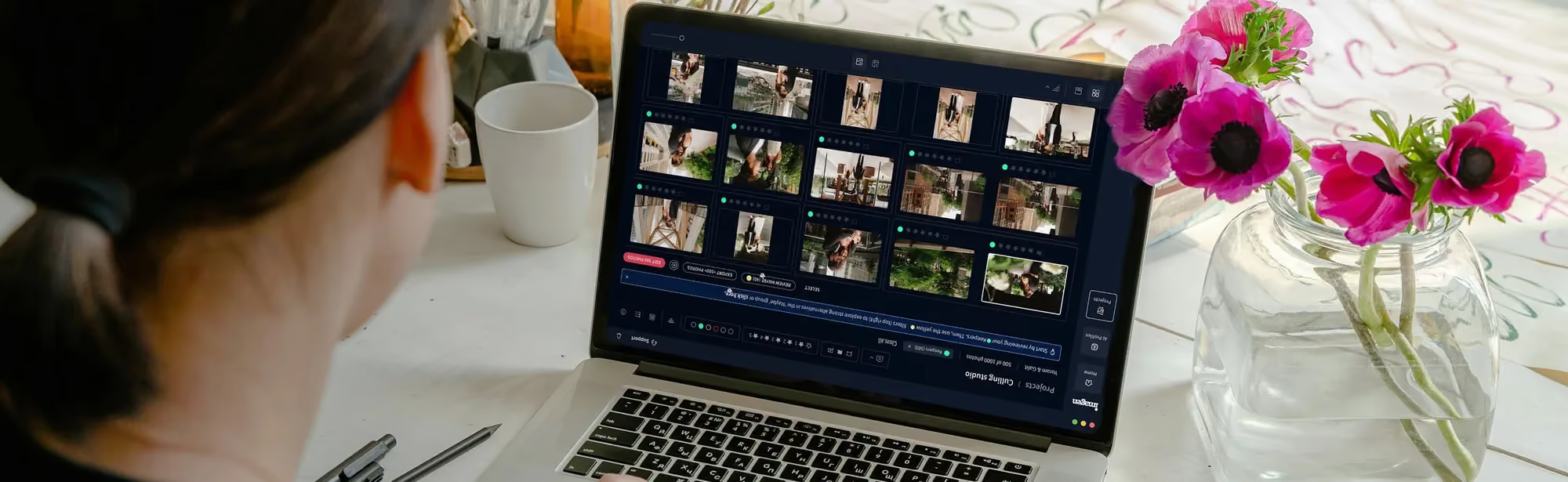
Imagen is now an intelligent Studio for professional photographers, the same product evolved into one project where you cull, edit, and export in any order, rolling out gradually to photographers over several weeks and shaped directly by their feedback. It works on real photos you’ve already taken; it does not create new imagery from a text prompt.
Pixlr and Canva both lean the other direction. Pixlr pairs traditional photo-editing tools with a set of AI generation features for creating and altering images from a prompt. Canva centers on templates and design layouts for marketing graphics, with its own Magic Studio AI tools layered on top for quick edits inside those designs.
We checked every Pixlr and Canva claim below against their own sites this week. Where a price wasn’t clearly posted on the official page we checked, we say so rather than guessing, and we’ve dropped any feature we couldn’t confirm firsthand.
The comparison matters most if you’re trying to decide whether one tool can cover both jobs. A photographer who also runs their own marketing might wonder whether Canva’s photo tools are good enough to skip a dedicated editor, or whether Pixlr’s AI generation features could stand in for actual gallery editing. In practice, the three tools are built for different end results, and knowing that up front saves you from forcing a design tool to do a photography job, or the other way around.
Key Takeaways
- Imagen edits real photos in your personal style and keeps culling, editing, and export inside one project; it does not generate new imagery.
- Pixlr combines standard photo-editing tools with AI generation features like generative fill, generative expand, and text-to-image, built on models including Flux, Kling AI, and Recraft.
- Canva is a template-first design platform with Magic Studio AI tools such as Background Remover, Magic Eraser, and Magic Edit layered into its design canvas.
- Imagen builds a Personal AI Profile from your existing Lightroom Classic catalog so edits across a whole gallery match a style you already shoot in.
- Pixlr offers a free version with a workable feature set and no account required, according to its own site, alongside paid plans for higher usage.
- Canva offers a free plan plus paid Pro and Teams plans; several of its most capable AI tools, including Background Remover and Magic Eraser, are limited to the paid tiers.
The Core Philosophy: Pixlr vs. Canva vs. Imagen
Imagen
Imagen’s job is narrower and deeper than either Pixlr or Canva: take a professional photographer’s real gallery and get it edited in that photographer’s own style, culled down to the right shots, as fast as possible. There’s no template library and no image generation; the entire product is built around photos that already exist.
Pixlr
Pixlr’s philosophy is breadth. One product covers manual photo editing, one-click AI touch-ups, and outright image generation from a prompt, aimed at anyone who needs to create or alter visual content quickly without a steep learning curve.
Canva
Canva’s philosophy starts from design, not photography. Its core product is a drag-and-drop canvas full of templates for social posts, presentations, and marketing materials, with photo editing and AI generation tools built in as supporting features rather than the main event.
Deep Dive: Imagen Capabilities
AI Editing in Your Personal Style
Imagen learns a Personal AI Profile from the edits already in your Lightroom Classic catalog, so a new gallery comes back edited the way you’d have edited it yourself, not in a generic look. Photographers without an existing catalog can start from a Talent or Lite AI Profile instead and refine it as more work runs through the system.
You can also apply different AI Profiles to different subsets of photos inside the same project, for example a distinct look for ten standout shots from a larger set.
Culling in the Same Project
AI culling handles the first pass on a large batch, and manual culling stays free inside the same project for anything you’d rather decide on yourself. Because culling and editing share one project, you don’t export a culled set from one app just to import it into another before editing can start.
The Built-in Editor and Assistant
Imagen’s built-in editor (Beta) places manual sliders, a histogram, and crop and straighten tools next to the AI editing tools, with presets you can import from Lightroom or build from scratch. The assistant lets you find and act on photos using plain language, since it understands what’s in a photo rather than exactly where within the frame, and some AI tools aren’t supported in the editor yet, with those projects continuing through the regular Lightroom flow.
The Imagen assistant finding and editing photos from a plain-language request
Export to Lightroom or Directly From Imagen
Finished photos can export directly from Imagen as JPG, TIFF, or PNG, or continue on to Lightroom Classic as they always have. AI edits travel to Lightroom as XMP, and manual edits made in Imagen’s own editor stay in Imagen, so there’s no forced choice between the two paths.
Deep Dive: Pixlr Capabilities
AI Editing Tools
Pixlr’s own site lists one-click background removal, generative fill and expand for adding or extending image content, object removal, generative transform for moving and resizing objects, super scale upscaling to 25 megapixels, noise removal, and face swap. An AI assistant lets you describe an edit in plain language rather than hunting through menus.
Generation Tools
Beyond editing existing images, Pixlr’s site lists text-to-image, image-to-image, text-to-video, and audio generation tools, built on models including Flux, Kling AI, and Recraft. These sit alongside the editing tools in the same product rather than in a separate app, so a user can generate a graphic and then immediately run it through the same editing tools used on a real photo.
Access and Plans
According to Pixlr’s own FAQ, a free version is available with a robust set of features, without requiring an account or payment. Paid plans exist for photographers who want more AI generation credits or fewer limits; current rates and allowances are best confirmed on Pixlr’s own pricing page, since they vary by plan. Pixlr runs in the browser, so there’s no desktop install required to use either the editing or generation tools.
Deep Dive: Canva Capabilities
Templates and the Design Canvas
Canva’s core product is a drag-and-drop design canvas built around a large library of templates for social posts, presentations, documents, and marketing materials. Photo editing happens inside that same canvas rather than in a dedicated standalone editor, which makes it fast to drop a photo into a layout, resize it, and add text without leaving the design file.
For a photographer, that’s usually a supporting step rather than the main job: Canva is where the finished, edited photo ends up inside a flyer or a social announcement, not where the editing itself happens.
Magic Studio AI Tools
Canva’s Magic Studio tools, listed on its own site, include a one-click Background Remover, Magic Eraser for cleaning up unwanted distractions, Magic Edit for changing the color or texture of an object or swapping a background from a short prompt, Magic Grab for isolating and repositioning elements in a photo, a Background Generator that creates a new backdrop from a description, and a face swap tool. Canva’s own pages note that Background Remover and Magic Eraser are limited to the paid Pro, Teams, and Education tiers.
Plans and Access
Canva offers a free plan alongside paid Pro and Teams plans; Teams requires a minimum of two users. Pricing varies by plan, and current rates are best confirmed on Canva’s own pricing page rather than repeated secondhand. Canva also runs in the browser and as a mobile app, which suits its use case: quick graphics turned around between meetings or on a phone between shoots, rather than a long editing session on one gallery.
Comparison: Photo Editing vs. Graphic Design
Pixlr and Imagen both start from a photo you already have, even though Pixlr can also generate one from scratch. Canva starts from a layout: a social post template, a flyer, a presentation slide, with a photo dropped into a placeholder. If your job is editing a gallery of real photos, Pixlr and Imagen are closer to what you need than Canva is.
That difference shows up in how each tool expects you to work. Pixlr and Imagen both open to a single image or a batch of images as the starting point. Canva opens to a blank or templated canvas first, and a photo is just one layer you can drop in, resize, and style alongside text and graphic elements.
Comparison: Generation vs. Personal-Style Editing
This is the real divide in this group. Pixlr and Canva can both generate new visual content from a text prompt, whether that’s a background, an object, or a whole image. Imagen does not generate imagery at all; it edits the real photos you shot, learning your personal editing style so a whole gallery comes back looking consistent. These are different jobs, not competing answers to the same question.
That also means the three tools fail differently. Ask Pixlr or Canva to generate something and you get a plausible result that didn’t exist until you asked. Ask Imagen to edit a gallery and every output traces back to a real frame you captured; the tool’s job is to make that frame look like your work, not to invent a new one.
Comparison: Who Each Tool Is Built For
Pixlr suits anyone, photographer or not, who needs quick image edits or AI-generated visuals without learning a complex editor. Canva suits social media managers, small business owners, and marketers who need polished graphics fast, with light photo touch-ups along the way. Imagen suits working photographers who shoot volume (weddings, portraits, events, product work) and need that volume edited in their own style and culled efficiently, which isn’t really what either Pixlr or Canva is built to do at scale.
A photographer building a brand around their own editing style is the clearest case for Imagen over the other two: Pixlr and Canva can polish a single image well, but neither one learns a personal style and applies it consistently across hundreds of photos from one shoot.
Comparison: Pricing Models
Pixlr’s own site describes a genuine free version alongside paid plans for more AI generation credits, with current rates set by plan. Canva offers a free plan plus paid Pro and Teams tiers, with some AI tools like Background Remover restricted to paid plans; exact pricing varies by plan and is best checked on Canva’s site directly. Imagen’s Pay-as-you-go plan charges a monthly base fee plus a charge for the photos you export, so testing tools on a whole gallery is free until export, while a Limitless plan covers unlimited AI edits, tools, and culling for a fixed fee, and Business pricing is custom.
Feature Comparison Table
| Feature | Imagen | Pixlr | Canva |
|---|---|---|---|
| Core focus | Personal-style editing and culling for a professional photo gallery | Photo editing plus AI image/video generation | Template-based graphic design with AI editing tools built in |
| Image generation | Not offered; edits real photos only | Text-to-image, image-to-image, text-to-video, generative fill/expand | Magic Studio tools including Background Generator and Magic Edit |
| Personal AI editing style | Personal AI Profile learned from your Lightroom Classic catalog | Not a current focus | Not a current focus |
| Culling | AI culling plus free manual culling in the same project | Not a current focus | Not a current focus |
| Background removal | Not a current focus for standalone background tools | One-click background removal | One-click Background Remover (Pro, Teams, Education) |
| Natural-language editing | Assistant finds and acts on photos by description | AI assistant for plain-language edits | Not a current focus |
| Built-in editor | Editor (Beta) with manual sliders alongside AI tools | Full photo editor plus AI tools | Design canvas with photo editing built in |
| Export | Direct export (JPG/TIFF/PNG) or to Lightroom Classic | Direct download of edited or generated images | Direct download or share from the design canvas |
| Free access | Free trial available | Free version with no account required, per Pixlr’s site | Free plan, with some AI tools limited to paid tiers |
| Pricing model | Pay-as-you-go base fee plus export charge, or fixed-fee Limitless plan | Free version plus paid plans for more AI credits | Free plan plus paid Pro and Teams plans |
Conclusion: Which Tool Fits You?
Choose Pixlr if you need a flexible, all-purpose editor that can also generate images from a prompt, and you’re working on single images rather than a full shoot.
Choose Canva if your main output is marketing graphics, social posts, or presentations, and photo editing is just one piece of a larger design job.
Choose Imagen if your work is professional photography at volume: weddings, portraits, events, or product shoots, and you need that volume culled and edited in a style that’s actually yours, not a generic filter.
It’s entirely normal to use more than one of these. A photographer might run client galleries through Imagen while using Canva to design the social posts that promote the finished work, or use Pixlr for a one-off graphic that doesn’t belong in either workflow. None of the three is trying to be a full replacement for the other two, and the overlap between them is smaller than the feature lists might suggest once you look at what each one is actually optimized for.
You can start a free trial of Imagen at imagen-ai.com, and the Valuable Tips blog covers more comparisons like this one.
Frequently Asked Questions
1. Does Pixlr require an account to use? According to Pixlr’s own site, a free version with a robust feature set is available without requiring an account or payment.
2. Does Canva have a free plan? Yes. Canva offers a free plan alongside paid Pro and Teams plans, according to its own site.
3. Can Imagen generate new images the way Pixlr and Canva can? No. Imagen edits real photos you’ve already taken; it does not generate new imagery from a prompt.
4. Are Canva’s AI photo tools free to use? Not all of them. Canva’s site notes that Background Remover and Magic Eraser are limited to the paid Pro, Teams, and Education plans.
5. What AI models power Pixlr’s generation tools? Pixlr’s site lists Flux, Kling AI, and Recraft among the models behind its image, video, and audio generation tools.
6. Does Imagen work from inside Canva or Pixlr? No. Imagen is a separate product for culling and editing a photographer’s own gallery; it doesn’t integrate inside Canva or Pixlr’s design or editing canvas.
7. What is Canva’s Magic Grab tool? It isolates elements of a photo, such as the subject or background items, so you can click, resize, and reposition them individually, according to Canva’s site.
8. Does Pixlr have an editor for people who don’t want AI generation? Yes. Pixlr’s site describes standard photo-editing tools, such as background removal and object removal, separately from its generation features.
9. Can I apply more than one editing style within a single Imagen project? Yes. You can apply different AI Profiles to selected photos within the same gallery rather than starting a new project for each look.
10. Does Pixlr support batch processing of many photos at once? We could not confirm a dedicated batch-editing feature on Pixlr’s current site, so we’re not stating one here.
11. Does Canva let you build a custom brand kit? Yes. Canva’s Pro and Teams plans include brand kit features for storing logos, colors, and fonts for reuse across designs, according to Canva’s own site.
12. Does Imagen’s built-in editor replace every tool in a dedicated photo editor? Not entirely. The editor (Beta) covers manual sliders, histogram, and crop and straighten alongside AI tools, but some AI tools aren’t supported there yet, and those projects continue through the regular Lightroom flow.
