
Photoscape X vs. Imagen: A Professional Workflow Analysis
Table of contents
- Key Takeaways
- The Core Philosophy: PhotoScape X vs. Imagen
- Deep Dive: Imagen Capabilities
- Deep Dive: PhotoScape X Capabilities
- Comparison: Desktop Download vs. Cloud Project
- Comparison: Personal AI Style vs. Manual Filters and Presets
- Comparison: Culling at Scale
- Comparison: Pricing Models
- Comparison: File Formats and Output
- Feature Comparison Table
- Conclusion: Which Tool Fits You?
- Frequently Asked Questions
Imagen is now an intelligent Studio for professional photographers, the next evolution of the same product rather than a new app, rolling out gradually over several weeks and shaped directly by photographer feedback.
If you have ever typed “PhotoScape X” into a search bar next to “Imagen,” you are probably comparing two very different kinds of software. PhotoScape X is a free, downloadable photo editor for Windows and macOS that has been around for years, built around a familiar tab layout: Viewer, Editor, Batch, Collage, and a handful of other utilities. Imagen is a cloud based project space built for photographers who shoot in volume and need their edits to look consistently like their own style, gallery after gallery.
This guide walks through what each tool actually does today, based on what each company publishes about its own product, so you can decide which one (or both) belongs in your workflow. The two tools solve different problems: one is a general purpose desktop editor you own outright, and the other is a cloud workflow built specifically around the repetitive parts of a professional photography business, culling, editing in your own style, and getting a finished gallery out the door.
Below, each tool’s capabilities are described only from what their own sites publish today, with specific pricing shown only where it is listed on an official page.
Key Takeaways
- Imagen learns your personal editing style from past work and applies it automatically across whole galleries, instead of asking you to pick a filter for every photo.
- PhotoScape X is a free desktop editor with a wide filter and frame library, plus dedicated tabs for batch editing, collage making, and GIF creation.
- Imagen combines culling, editing, review, and export into one non-linear project you can revisit at any time.
- PhotoScape X has no dedicated culling tool; photo selection happens through its Viewer and your own folder organization.
- Imagen is a desktop app for Mac and Windows, with the AI processing running in the cloud, so your own computer stays free.
- PhotoScape X is a native download for Windows 10 and macOS 10.12 or later, with a one time paid Pro upgrade.
The Core Philosophy: PhotoScape X vs. Imagen
Imagen
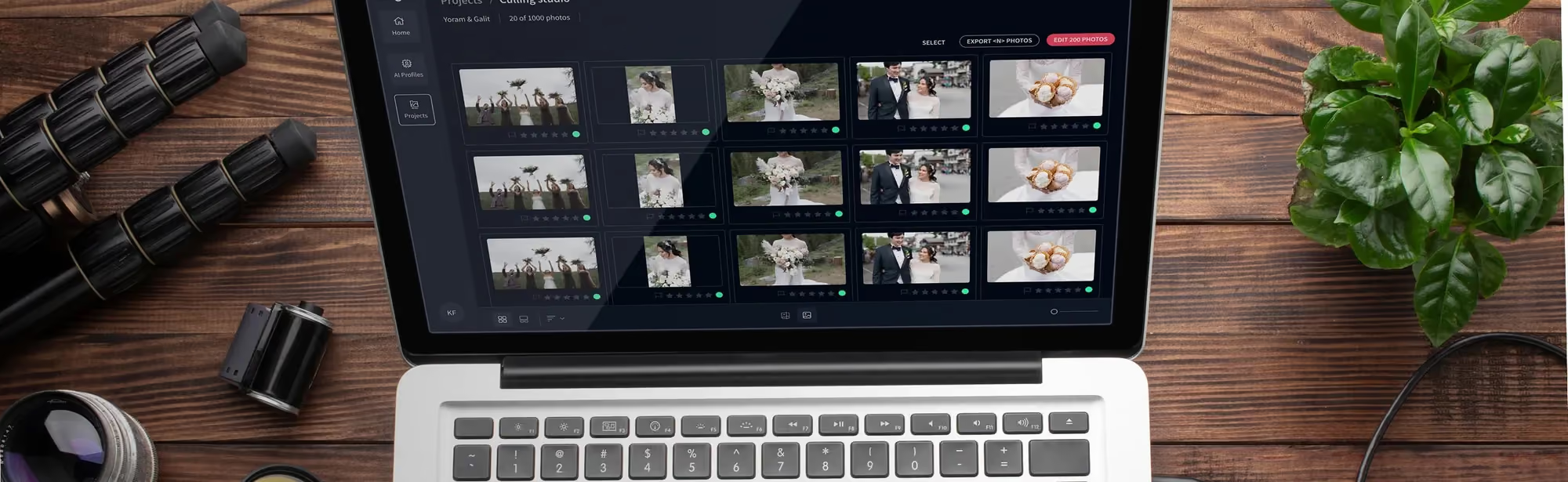
Imagen’s premise is that every photographer has a personal style, and the fastest path to a finished gallery is software that already edits the way you do. A Personal AI Profile learns from your past edited work (including a Lightroom Classic catalog, if you have one) and applies that style to new galleries. Culling, editing, and reviewing all happen inside one project, so you are never forced to finish one stage before starting the next, and an assistant lets you find and act on photos using plain language instead of digging through folders.
PhotoScape X
PhotoScape X’s philosophy is breadth on the desktop: one free application that bundles a photo viewer, a manual editor, a batch processor, a collage maker, a GIF creator, and a handful of smaller utilities like screen capture and color picking. It is built for photographers and hobbyists who want a capable, no cost toolkit installed on their own machine, with a paid Pro tier for anyone who wants extra features. Because everything lives in tabs inside one program, moving between viewing, editing, and batch work means switching tabs rather than switching applications, which keeps the learning curve relatively low for casual use.
Deep Dive: Imagen Capabilities
AI Editing in Your Personal Style
Imagen’s core feature is the Personal AI Profile, trained from edits you have already made, either from a Lightroom Classic catalog or from a smaller set of photos you choose. Once trained, that profile edits new galleries in your style automatically, and you can apply more than one profile to different groups of photos within the same project, for example a black and white treatment on a handful of images and your standard look on the rest.
Culling in the Same Project
Culling in Imagen happens inside the same project as editing, not as a separate pass. AI assisted batch culling speeds up the first sort of a large shoot, and manual culling is free and available the whole time, so you can adjust picks, flags, and ratings as you go rather than locking in decisions before you have seen the edits.
The Built-in Editor and Assistant
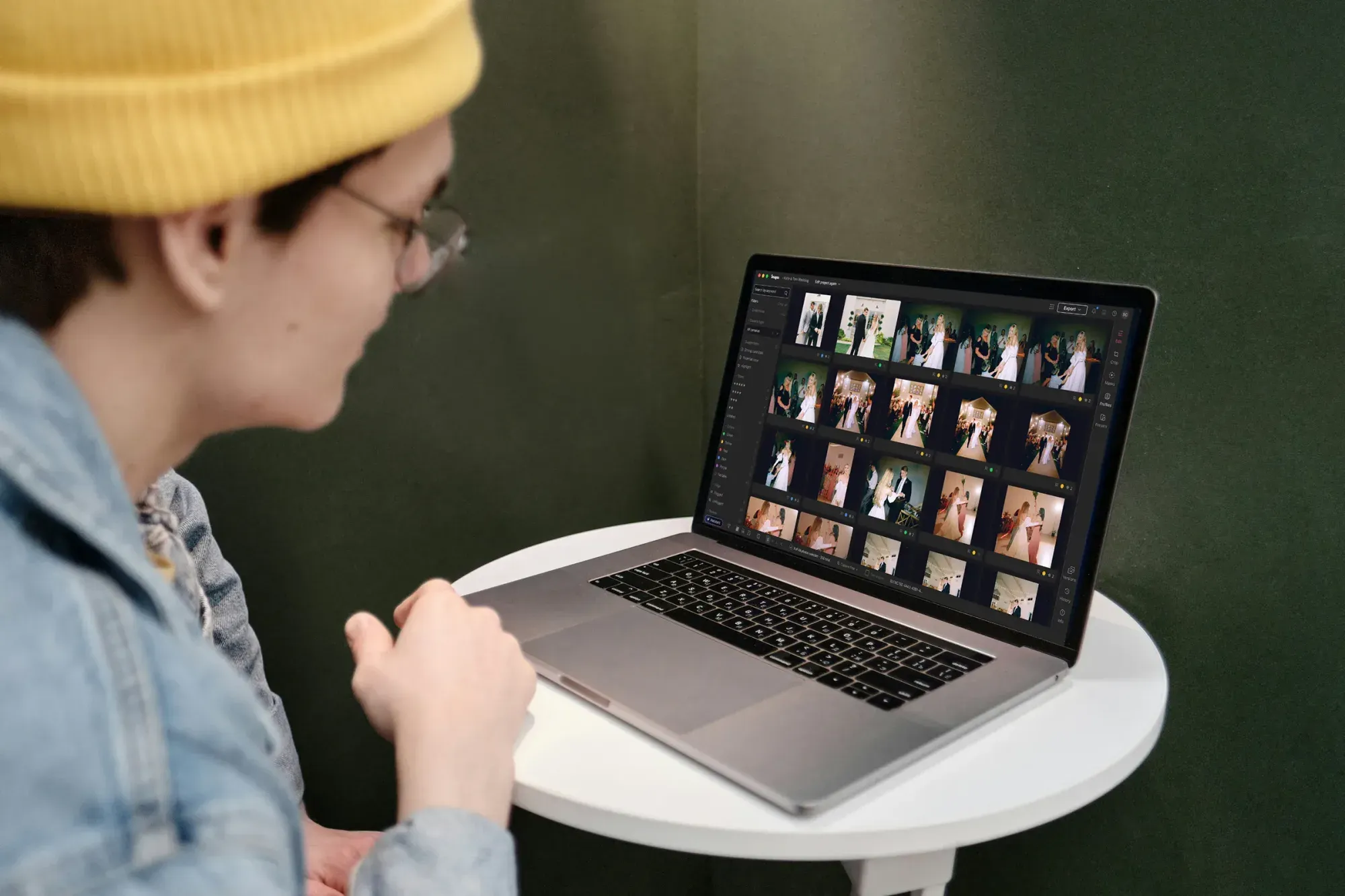
Imagen’s built-in editor, currently in beta, puts manual sliders, a histogram, and crop and straighten tools next to the AI tools, so you can fine tune an AI edit without leaving the project. You can import your own presets from Lightroom or build new ones directly in Imagen. A few of Imagen’s AI tools are not yet available inside the built-in editor itself; projects that use those still continue through the Lightroom flow for now.
The Imagen assistant finding and editing photos from a plain-language request
Alongside the editor, Imagen now has an assistant that lets you use natural language to find and edit your images. Ask it to find photos with closed eyes or a certain mood, and it will surface them; it understands what is in a photo rather than exactly where, so it cannot yet place a mask on a specific object, and it does not create new images.
Export to Lightroom or Directly From Imagen
When a gallery is ready, you can export straight from Imagen as JPG, TIFF, or PNG, or continue exporting to Lightroom Classic the way you always have. AI edits carry over to Lightroom as XMP, while manual adjustments made in Imagen’s own editor stay with the Imagen project. Neither path is treated as the “real” one; both are first class options depending on how the rest of your business runs.
Deep Dive: PhotoScape X Capabilities
The Editor, Filters, and RAW Support
PhotoScape X’s Editor tab is the heart of the application, with color and brightness adjustment, cropping, and more than 1,000 filters, effects, frames, objects, brushes, and tools according to its own site. The software also opens RAW image files from many camera models, so working directly from camera files rather than converted JPEGs is possible without a separate converter.
Batch Processing, Collage, and Combine
The Batch tab applies the same adjustment, resize, or rename operation to a whole folder of photos at once, which is useful for quick turnaround work where every image needs the same treatment. Separate Collage and Combine tools let you arrange multiple photos into a single layout or merge a sequence into one image, both handled as dedicated modules rather than plugins.
Cut Out, GIF Creation, and Screen Capture
PhotoScape X also includes a Cut Out tool for removing a photo’s background, a Create GIF module for turning a sequence of images into an animated GIF, a Color Picker, and a screen capture utility. These sit alongside the Viewer, which doubles as a simple photo and file browser.
Platforms and Pricing
PhotoScape X runs on Windows 10 and macOS 10.12 or later. The standard version is free and includes the full set of modules described above. A separate PhotoScape X Pro edition is sold through the Microsoft Store as a one time purchase listed at $39.99, rather than a subscription, which means a photographer who buys it once does not need to budget for it again as a recurring line item.
Comparison: Desktop Download vs. Cloud Project
PhotoScape X is installed once on a Windows or Mac machine and does its work locally, which some photographers prefer for files they want to keep entirely offline. Imagen is also a desktop app for Mac and Windows, but its AI processing runs in the cloud, so the heavy lifting does not depend on how powerful your own computer is. That difference matters most when a studio has more than one editor, since a lighter laptop can hand the same work off to the cloud as easily as a powerful workstation can.
Comparison: Personal AI Style vs. Manual Filters and Presets
PhotoScape X gives you a large library of filters, frames, and manual adjustment tools, and the results depend on which ones you pick and how you apply them photo by photo or in a batch. That is a strength for creative, one off projects where you want direct control over a specific look, but it means consistency across a few hundred wedding photos depends on you reapplying the same choices carefully every time. Imagen instead learns a profile from your own past edits and applies that style automatically across a gallery, so the starting point for every new shoot already looks like your work rather than a generic preset, and you can still fine tune individual photos afterward in the built-in editor if a particular shot needs something different.
Comparison: Culling at Scale
PhotoScape X does not include a dedicated culling step; sorting the keepers from a large shoot happens through its Viewer and your own file management, which can be slow once a shoot reaches into the hundreds of photos. Imagen folds AI assisted batch culling and free manual culling into the same project as editing, so narrowing down a shoot and starting on the edit are part of one continuous process instead of two separate tools. For a wedding or event photographer bringing back several thousand frames, that difference tends to show up most clearly on the first evening after a shoot, when the goal is simply to get from a full memory card down to a realistic shortlist as quickly as possible.
Comparison: Pricing Models
PhotoScape X uses a familiar software model: free to use, with a one time $39.99 payment for PhotoScape X Pro and no ongoing fee after that. Imagen’s pricing works differently depending on how you shoot: pay as you go photographers pay a monthly base fee plus a charge for the photos they export, while a Limitless plan covers unlimited AI edits, tools, retouching, and AI culling for a fixed monthly or annual fee, and studios can get custom Business pricing. New users get a free trial to test the workflow before committing. Neither model is inherently better; a one time purchase suits an occasional editor, while a plan tied to export volume suits a business whose editing costs should track its shoot volume.
Comparison: File Formats and Output
PhotoScape X opens RAW files from a range of camera models alongside standard JPEG and TIFF images, and its Batch tab can resize, rename, or convert a whole folder of exports in one pass. Imagen accepts JPEG, TIFF, and RAW files on upload and exports finished photos as JPEG, TIFF, or PNG, either straight from the project or by continuing on to Lightroom Classic for further work. A photographer who needs a quick batch rename or resize for proofs may still reach for PhotoScape X’s Batch tab for that one step, while the actual edit runs through whichever tool is doing the styling.
Feature Comparison Table
| Feature | Imagen | PhotoScape X |
|---|---|---|
| Editing approach | Personal AI Profile learns your style and edits whole galleries automatically | Manual filters, presets, and over 1,000 effects applied by hand or in batch |
| Culling | AI batch culling plus free manual culling inside the same project | No dedicated culling tool; sorting happens in the Viewer and your own folders |
| Natural language search | Assistant finds and edits photos from plain language requests | Not part of the application |
| File support | Upload JPEG, TIFF, and RAW; export JPEG, TIFF, or PNG | Opens RAW files from many cameras plus standard JPEG and TIFF |
| Batch processing | Batch AI edits and batch culling across a whole gallery | Batch tab applies resize, rename, and effects to many photos at once |
| Collage and GIF tools | Not a current focus | Dedicated Collage, Combine, and Create GIF modules |
| Platform | Desktop app for Mac and Windows, with cloud processing | Native desktop app for Windows 10 and macOS 10.12 or later |
| Lightroom integration | Export to Lightroom Classic as XMP, or export directly from Imagen | Standalone editor with no Lightroom integration |
| Pricing structure | Pay as you go per export, or a fixed Limitless plan | Free version plus a one time $39.99 Pro upgrade |
| Best suited for | Professional photographers editing full galleries in a consistent personal style | Photographers and hobbyists who want a free, all in one desktop editor |
Conclusion: Which Tool Fits You?
PhotoScape X earns its long history for a reason: it is free, it runs locally, and it covers a surprising amount of ground, from filters and RAW editing to collages and GIFs, in one download. If your work is mostly one off photos, quick batch touch ups, or creative projects like collages, it is a reasonable toolkit to keep installed.
If you shoot weddings, portraits, events, or any volume work where hundreds of photos need to look consistently like your style, Imagen is built for a different problem: getting a whole gallery culled and edited in your voice without touching every photo by hand. Plenty of photographers keep a general editor like PhotoScape X around for quick one off edits while running their main galleries through Imagen.
Whichever tools end up in your workflow, it is worth testing each one against your own photos rather than relying on marketing copy alone, since a feature list rarely tells you how an editor will actually feel on a real shoot. You can start exploring Imagen with a free trial on the Imagen website, and if you want more workflow comparisons like this one, the Imagen valuable tips library covers culling, editing, and delivery topics in more depth.
Frequently Asked Questions
1. Is PhotoScape X free? Yes. The standard version of PhotoScape X is free to download and use, with a separate paid Pro edition available through the Microsoft Store.
2. What does PhotoScape X Pro cost? PhotoScape X Pro is listed as a one time purchase of $39.99 in the Microsoft Store rather than a subscription.
3. Does PhotoScape X support RAW files? Yes. PhotoScape X can open RAW image files from a range of camera models for editing.
4. What operating systems does PhotoScape X run on? PhotoScape X is built for Windows 10 and macOS 10.12 or later.
5. Does PhotoScape X have a culling tool? PhotoScape X does not include a dedicated culling feature; photo selection is handled through its Viewer and your own file organization.
6. Is Imagen a replacement for Lightroom? No. Imagen is part of the same ecosystem as Lightroom. You can export finished photos directly from Imagen or continue exporting to Lightroom Classic, whichever fits your delivery process.
7. Does Imagen create brand new images from scratch? No. Imagen does not generate new imagery; it edits your real photos only, applying your personal style to the shots you already took.
8. How does Imagen pricing work? Pay as you go photographers pay a monthly base fee plus a charge for exported photos, while the Limitless plan covers unlimited AI edits for a fixed fee, and studios can request Business pricing. A free trial is available.
9. Can I use PhotoScape X and Imagen together? Many photographers do. PhotoScape X works well for quick one off edits or creative projects like collages and GIFs, while Imagen handles culling and editing for full galleries in a consistent personal style.
10. Can PhotoScape X batch rename or resize a folder of photos? Yes. Its Batch tab applies the same resize, rename, or adjustment to every photo in a folder at once, according to PhotoScape X’s own site.

