
The Ultimate Guide to Photography Workflow Automation in 2026
Table of contents
- Key Takeaways
- The Foundations of Photography Workflow Automation
- The 2026 Automation Tech Stack: Costs and Capabilities
- Phase 1: Automating the Intake and Culling Process
- Phase 2: Mastering AI-Powered Editing with Imagen
- Phase 3: Advanced Business Logic and Client Management
- Cloud vs. Local Automation: Choosing Your Infrastructure
- Auditing Your Workflow for Maximum Efficiency
- Future-Proofing: Staying Ahead of AI Evolution in 2027
- Frequently Asked Questions
- Does AI editing make all photos look the same?
- Is photography workflow automation expensive to set up?
- How much time can I realistically save?
- Do I lose creative control with automation?
- What’s the difference between a preset and an AI Profile?
- Do I need a super-fast computer for this to work?
- Can I automate client communication without sounding like a robot?
- What is the minimum number of photos needed to train a Personal AI Profile on Imagen?
You didn’t become a photographer to spend 80% of your time behind a computer screen, tediously clicking through thousands of photos. Yet, for many professionals, that’s the reality. The hours spent culling, correcting, and managing files are the silent business killers that burn you out and keep you from growing.
It’s 2026, and the game has completely changed. Photography workflow automation isn’t a luxury anymore; it’s a core business strategy. This guide will show you how to reclaim your time, not by cutting corners, but by building an intelligent, automated system that handles the grunt work, so you can focus on the art.
Key Takeaways
- Time Savings are Massive - AI editing tools can reduce your post-processing time by up to 90%, turning a 10-hour editing marathon into a 1-hour review session.
- Adoption is Now Mainstream - Over 68% of professional photographers have already integrated at least one AI-based tool into their workflow, making it a competitive necessity.
- AI Culling is a Must - For a wedding with 3,000 photos, AI culling can shrink a 4-6 hour manual selection process down to just 15-20 minutes with 98% accuracy in detecting blinks or blurs.
- Automation Boosts Bookings - Using an automated CRM can lead to a 24% increase in booking rates simply by ensuring you’re the first to respond to new inquiries.
- The Market is Exploding - The AI in photography market is set to hit $12.5 billion in 2026. Ignoring this shift means getting left behind.
- Personalized AI is Key - Platforms like Imagen allow you to train a Personal AI Profile on your own past edits, ensuring the automation matches your unique artistic style, not a generic preset.
- It’s More Than Just Editing - True workflow automation connects every step, from client inquiry and culling to final gallery delivery and cloud backup, creating a self-sustaining system.
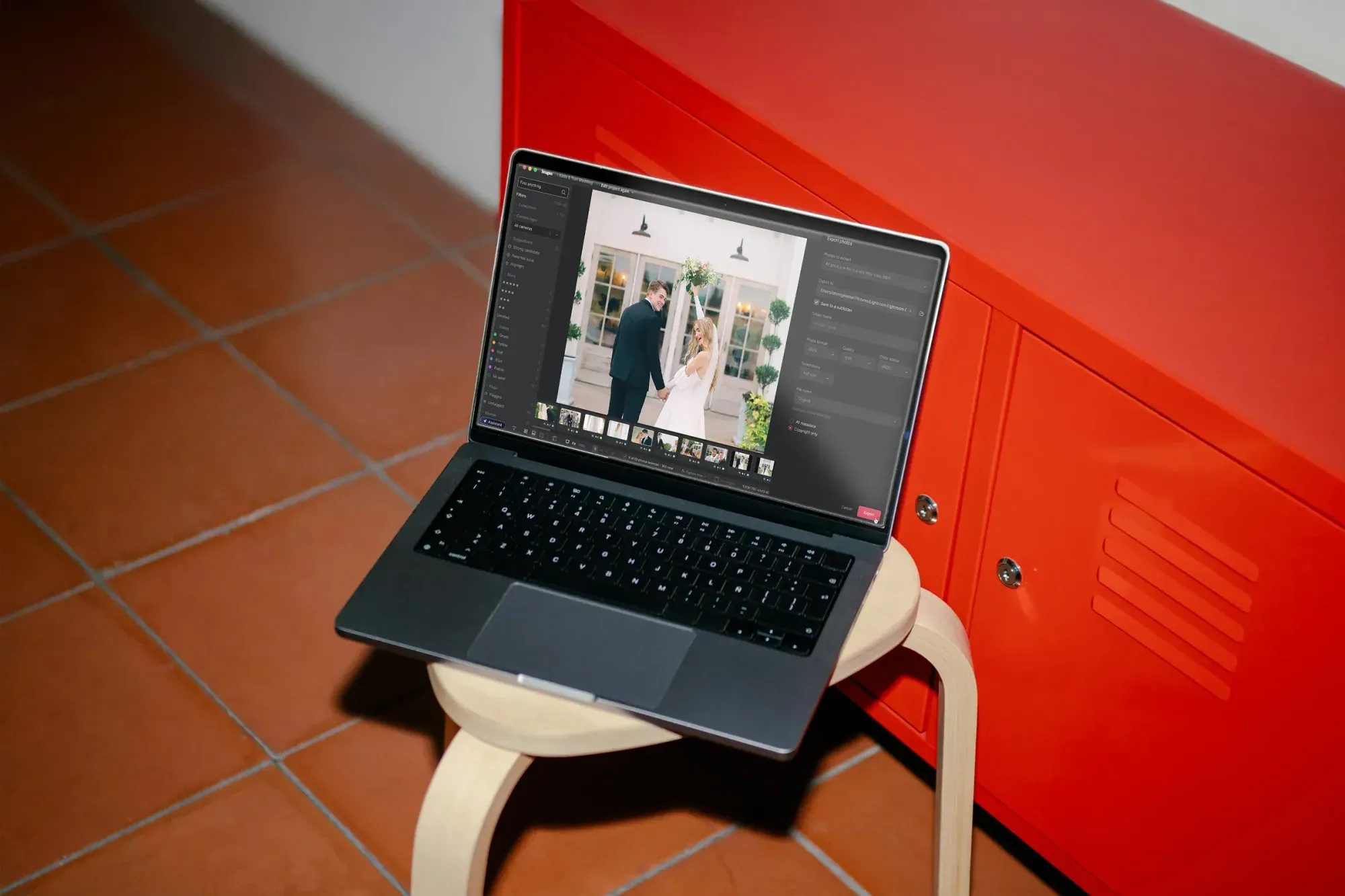
The Foundations of Photography Workflow Automation
Before you download a single app, you need to adopt an automation mindset. What does that mean? It means looking at your entire process, from the moment a client emails you to the final delivery, and asking one simple question at every step: “Does a human need to do this?” Honestly, most of the time, the answer is no.
Think about the bottlenecks. It’s the repetitive, low-creativity tasks that eat your hours. We’re talking about renaming thousands of files, applying a basic preset, culling duplicates, or sending the same follow-up email for the tenth time this week. These are the anchors dragging your business down. The average wedding photographer captures between 2,500 and 4,500 photos per event. Manually touching every single one is simply not a scalable business model in 2026.
Why 2026 is the Tipping Point for Professional Photographers
For years, automation felt like a compromise. You traded quality and personal touch for speed. That’s no longer true. The AI has gotten so good, so personalized, that it can replicate your style with stunning accuracy. We’ve officially crossed the threshold where AI doesn’t just make you faster; it makes you a better business owner.
This shift allows you to move from being a technician to being a creative director. Your value isn’t in dragging sliders back and forth. It’s in your vision, your interaction with clients, and the unique way you capture moments. Automation frees you to focus on that high-value work. With over two-thirds of your peers already using these tools, not automating is an active choice to be less efficient and less competitive.
Mapping Your Current Workflow: The Audit
You can’t fix a problem you can’t see. So, your first job is to perform a workflow audit. It’s simple, but it can be a real eye-opener.
- Track Your Time - For one full wedding or a week of portrait shoots, meticulously track where your time goes. Use a simple app or a notepad. Don’t estimate; get real data.
- Identify the Time Sinks - Where are the biggest black holes? It’s usually in these areas:
- Initial photo culling (sorting keepers from rejects).
- Basic color and exposure correction.
- Applying lens corrections and cropping.
- Exporting, renaming, and uploading files.
- Client communication (inquiries, reminders, gallery links).
- Assign a Value - Calculate your effective hourly rate. If you’re spending 15 hours a week on tasks an AI could do in one, you’re leaving thousands of dollars on the table every month. That’s time you could spend shooting, marketing, or just living your life.
The 2026 Automation Tech Stack: Costs and Capabilities
Building an automated workflow requires a specific set of tools working together. You don’t need every shiny new app, but a core stack is essential for any serious professional. The goal is to create a chain where each piece of software hands off the project to the next with minimal intervention from you.
Here’s a breakdown of the key players and their roles in a modern, automated studio. Remember, these aren’t just expenses; they’re investments in getting your time back. Think about the cost versus the hours you save. If a $50/month subscription saves you 10 hours of work, it’s one of the best investments you’ll ever make.
| Tool Category | Example Software | Primary Function | Typical 2026 Pricing |
|---|---|---|---|
| AI Editing & Culling | Imagen | Automated culling, personalized AI editing based on your style, cloud storage on the roadmap. | Pay-as-you-go, with monthly plans available |
| Core Photo Editor | Adobe Lightroom Classic | The central hub for organizing and making final tweaks to photos. | $19.99/mo (Adobe Photography Plan) |
| Advanced Editor | Capture One Pro | High-end tethering and color grading with its own Smart Adjustments automation. | $29/mo or $179/yr subscription. |
| High-Speed Ingest | Photo Mechanic Plus | The fastest way to ingest, tag, and add metadata to photos before culling/editing. | $399 (one-time purchase) |
| Business Management | HoneyBook / 17hats | Automates inquiries, contracts, invoicing, and client communication. | $39-$79/mo |
| Cloud Backup | Backblaze B2 | Automated, affordable off-site backup for raw files and final galleries. | Around $9/TB per month. |
Essential Software for Every Stage
Look, your stack doesn’t have to look exactly like the table above, but it needs to cover the four core pillars of an automated business:
- Culling & Ingest - This is about speed. Getting photos off your memory cards and sorted into a workable selection as fast as humanly (or inhumanly) possible.
- Editing - This is where the biggest time savings happen. An AI editor should handle 90-95% of the corrections, leaving you with only minor creative tweaks.
- Delivery - Once the photos are done, the system should take over, exporting them to the right specs and uploading them to a client gallery without you babysitting the progress bar.
- Business Management - This is the engine that runs in the background, handling the client lifecycle so you can focus on the creative work. It’s the unsung hero of automation.
Phase 1: Automating the Intake and Culling Process
The culling process is the definition of a bottleneck. It’s tedious, mentally exhausting, and prone to human error. You’re tired, you’ve been staring at the screen for hours, and your ability to spot the difference between a slightly soft photo and a perfectly sharp one diminishes with every click. This is a perfect job for a machine.
AI-powered culling tools aren’t just looking for blurry photos. They analyze faces for open eyes, smiles, and duplicates, grouping similar shots together so you can pick the absolute best one in seconds. The efficiency gains are staggering. For a standard wedding, you can expect to reduce a 4-6 hour job to just 15-20 minutes. The AI’s first pass is now so reliable, with accuracy benchmarks hitting 98%, that your job becomes a quick review, not a painstaking selection.
Step 1: High-Speed Ingest with PhotoMechanic
Before you even think about culling, you need to get the photos onto your computer quickly. This is where a tool like Photo Mechanic is non-negotiable. Lightroom’s import process is slow because it tries to build full previews. Photo Mechanic, on the other hand, just reads the embedded JPEG previews in your RAW files, which makes it feel instantaneous.
- Create an Ingest Template - In Photo Mechanic, set up a template that automatically applies your copyright, contact info, and initial keywords (like the couple’s names and venue) upon import. This saves you from typing it manually every single time.
- Ingest and First Pass - Copy files from your memory cards using the template. Use the lightning-fast preview to do a quick first pass, deleting anything completely unusable (misfires, ground shots, etc.). This takes minutes, not hours.
- Rename on Ingest - Use the powerful renaming tools to give your files a consistent, searchable name from the start (e.g., `YYYYMMDD_ClientName_Sequence.CR3`).
Step 2: AI Culling
Once your photos are ingested and renamed, it’s time to hand them off to the AI. Platforms like Imagen now offer integrated AI photo culling, keeping culling, editing and export within one project (and you can cull manually for free), while standalone tools like AfterShoot or Narrative Select also specialize in this.
The process is straightforward:
- Point the App to Your Folder - Direct the culling tool to the folder of photos you just ingested.
- Set Your Parameters - Tell the AI how strict to be. You can adjust sliders for focus sharpness, closed eyes, and how it should group duplicates. For portraits, you’ll want stricter eye and focus detection. For documentary moments, you might loosen it up.
- Let it Run - Go grab a coffee. The AI will analyze your entire shoot and present you with a curated gallery of its top picks, usually flagged with colors or stars.
- Review and Finalize - Your job is now to quickly scan the AI’s selections. You’ll see groups of similar photos with the AI’s top choice already highlighted. You just confirm or pick a different one. It turns a subjective chore into an objective review.
Phase 2: Mastering AI-Powered Editing with Imagen
This is where the powerful happens. After culling, you’re left with a few hundred (or thousand) keepers that all need to be edited. Doing this manually is the single biggest time-sink for most photographers. Presets help, but they’re a blunt instrument. They don’t adapt to different lighting conditions. AI editing is different. It’s dynamic.
Tools like Imagen don’t just apply a static look. They learn how you edit. You train a Personal AI Profile with your own previously edited photos, and it builds a model of your unique aesthetic. It understands how you handle shadows in harsh daylight versus how you treat highlights during a golden hour shoot. This results in a staggering reduction in post-processing time, often by up to 90%. A wedding that used to take 10-12 hours to edit can now be done in under an hour. Edited photos arrive in batches as they process, so you can start reviewing early frames while the rest finish. Think about what you could do with that time back.
Creating and Refining Your Personal AI Profile
The heart of Imagen is its ability to learn from you. It’s like training a perfect assistant editor who never gets tired and already knows exactly what you like.
- Gather Your Source Catalog - To create your Personal AI Profile, you’ll need to point Imagen to a Lightroom Classic catalog containing at least 5,000 of your best, consistently edited photos. The more, the better. The AI needs this data to understand your style across various scenarios.
- Upload and Train - Imagen’s app guides you through the process of uploading your catalog for analysis. The initial training can take a day or two as its servers build your unique editing model. This is a one-time setup.
- Ongoing Refinement - Your AI Profile isn’t static. After you get edits back from Imagen, you might make some final tweaks in Lightroom. You can then upload these fine-tuned edits back to your profile. This teaches the AI, making it even more accurate on the next shoot. It’s a continuous learning loop.
If you don’t have enough edited photos or want a specific look right away, you can also use Talent AI Profiles, which are AI models trained on the work of top-tier photographers.
Real-Time Adjustments and Final Polishing
Once your profile is ready, the editing process is incredibly simple. You upload your culled RAW photos, apply your AI Profile, and within minutes (not hours), you receive the edited photos back, ready for download into your Lightroom catalog. The edits appear on the sliders, just as if you had moved them yourself.
This is the critical part nobody tells you: the goal isn’t 100% hands-off automation. It’s 95% automation. That final 5% is your human touch. You’ll quickly scan the gallery, perhaps adjusting a crop on a hero shot or adding a specific radial filter to draw attention. But you’re making high-impact creative choices, not mind-numbing basic corrections. You’re the artist, not the machine operator.
Phase 3: Advanced Business Logic and Client Management
Great automation extends beyond photo editing. It should manage your entire client experience. These are the ‘invisible’ tasks that consume hours of administrative time and directly impact your bottom line. Did you know photographers using a CRM report a 24% increase in booking rates? It’s because automation ensures you’re the first to reply to an inquiry, every single time.
This is where tools like HoneyBook, 17hats, or Studio Ninja come in. They act as the central nervous system for your business. But the real power comes from connecting them to other parts of your workflow using an integration tool like Zapier, which now supports over 6,000 apps. You can create ‘zaps’ that trigger actions across different platforms automatically. For example: when a contract is signed in HoneyBook, a new folder is automatically created for that client in Dropbox.
The Automated Booking Funnel
Imagine this scenario. A potential client fills out the contact form on your website. What happens next?
- Instant Auto-Reply - Your CRM instantly sends a personalized email with your pricing guide and a link to book a consultation. The client gets an immediate response while your competitor is still asleep.
- Automated Follow-ups - If they don’t reply within 2 days, the system automatically sends a friendly follow-up email. No one falls through the cracks.
- One-Click Booking - When they’re ready to book, they receive a link that combines the contract, invoice, and initial payment into one simple step. No more back-and-forth emails.
- Onboarding Sequence - Once the deposit is paid, the system can automatically send them a welcome packet, a pre-wedding questionnaire, and schedule reminders for their engagement shoot.
Post-Shoot Automation: From Export to Gallery
The automation doesn’t stop after the edits are done. The final delivery phase is also ripe for optimization. No more manual exporting, uploading, and emailing.
“The most significant bottleneck for creative professionals isn’t a lack of tools, but a failure to connect them. A truly automated workflow is a relay race where each application smoothly passes the baton to the next, from client inquiry all the way to archival, without the photographer needing to intervene manually at every step.”
Itamar Haim, AI Photography Workflow Specialist
You can set up ‘Watch Folders’ on your computer. For example, you can create a rule where any JPEG exported to your ‘Ready for Upload’ folder is automatically picked up by a service like Pic-Time or Pixieset’s uploader tool. You can even use Zapier to create a trigger: When a new gallery is published in Pic-Time, it automatically sends a personalized email to the client with the link and password. You press export, walk away, and your client gets their photos.
Cloud vs. Local Automation: Choosing Your Infrastructure
A big question you’ll face is where the automation happens. Should you use cloud-based platforms (SaaS - Software as a Service) or run processes on your own powerful local computer? The answer for most working photographers in 2026 is a hybrid approach, but understanding the pros and cons of each is crucial.
Cloud processing is what services like Imagen use, through a desktop app for Mac and Windows whose AI processing runs in the cloud. You upload your RAW files, and their powerful servers do the heavy lifting of culling and editing. This frees up your own computer’s resources. Local processing, on the other hand, means you’re running software directly on your machine. This can be faster if you’ve a top-of-the-line computer and a slow internet connection, but it also means your machine is tied up while the process runs.
The Case for Local Processing (Speed and Control)
There are valid reasons to keep some processes local. If you’re dealing with massive files or have a slow internet connection, uploading hundreds of gigabytes to the cloud can be a non-starter. This is where you might choose to run a culling app locally before uploading only the selected keepers for AI editing.
Pro Tip: For local processing, your storage speed is everything. Invest in NVMe SSDs for your active projects. The speed difference between a traditional hard drive and an NVMe drive can cut processing times by more than half for certain tasks.
- Pro: No Upload Wait Times. You can start culling and processing immediately after ingesting from a memory card.
- Pro: Total Control. Your files never leave your possession, which can be a requirement for some commercial or government clients.
- Con: Resource Hog. Heavy processing can bring your computer to a crawl, preventing you from doing other work.
- Con: Hardware Dependent. Your speed is limited by your processor, RAM, and drive speed. You’re responsible for all maintenance and upgrades.
The Case for Cloud Processing (Scalability and Access)
For most photographers, especially those shooting high volume like weddings, the cloud is the clear winner for the most intensive tasks like AI editing. Cloud platforms offer near-infinite scalability. It doesn’t matter if you send 100 photos or 10,000; their servers can handle it. This also provides built-in redundancy. Reputable platforms like Imagen maintain a 99.9% uptime, meaning they’re always available when you need them.
And let’s talk about backup. An automated workflow must include automated backup. Services like Backblaze B2, which costs around $9 per terabyte per month, can automatically back up your files to the cloud. This isn’t just storage; it’s business insurance against hardware failure, theft, or disaster.
- Pro: Frees Up Your Computer. You can start an edit and immediately get back to marketing, emailing, or starting another ingest.
- Pro: Access from Anywhere. You can initiate jobs from a laptop on the road and have the results waiting on your main workstation back home.
- Pro: No Hardware Maintenance. You’re effectively renting a supercomputer. You never have to worry about updating it.
- Con: Requires Fast Internet. A fast, reliable internet connection is essential, especially for uploading large RAW files.
Auditing Your Workflow for Maximum Efficiency
Automation isn’t a ‘set it and forget it’ solution. It’s a system that needs regular check-ups and fine-tuning. What worked perfectly six months ago might have a broken link or an outdated setting today. You need to build a regular audit into your schedule-monthly is ideal-to ensure your systems are running smoothly and you’re getting the most out of your tools.
Think of it like maintaining a car. You wouldn’t drive 50,000 miles without an oil change, right? The same principle applies here. A 30-minute check-in once a month can prevent catastrophic failures, like a Zapier connection breaking and your new client inquiries suddenly going unanswered. It’s also a chance to look for new optimization opportunities as tools evolve and add new features. With 42% of photographers now using mobile-based automation, maybe there’s a new app that can handle your social media posting for you.
Here’s a checklist to run through every month:
- Check Your API Connections - Go into Zapier or your CRM’s integration settings. Are all your connections (e.g., website form to CRM, CRM to email list) still active and authenticated?
- Review Your AI Profile Performance - Look at your last few edits. Are you consistently making the same manual adjustment after the AI is done? If so, it’s time to fine-tune your Imagen AI Profile with those new edits to make it more accurate.
- Test Your Contact Form - Fill out the contact form on your own website. Did the automated response fire correctly? Did the lead show up in your CRM? You’d be shocked how often this silently breaks.
- Update Your Software - Check for major updates to your core tools like Lightroom, Imagen, Photo Mechanic, and your CRM. New versions often include performance improvements or new automation features.
- Clean Your Caches - Apps like Lightroom and Photo Mechanic build up large cache files over time, which can slow them down. Clear them out monthly to keep things snappy.
- Review Automated Emails - Read through your automated email sequences. Is the information still current? Does the tone still reflect your brand?
- Check Backup Status - Log into your cloud backup service (like Backblaze). Confirm that your latest shoots have been successfully backed up. Don’t just assume it’s working. Verify it.
Future-Proofing: Staying Ahead of AI Evolution in 2027
The pace of change is accelerating. The global AI in photography market is projected to grow at a blistering 23.4% annually, and the tools we’re using today will look ancient in a few years. So how do you stay ahead of the curve and ensure your automated workflow doesn’t become obsolete?
The key is to focus less on specific tools and more on the underlying principles. The future of photography automation is about moving up the creative chain. As AI takes over more of the technical execution, your role will increasingly become that of a creative director, a visionary, and a client experience expert. You’ll spend less time on execution and more time on ideation.
Here are some trends to watch and prepare for:
- Generative AI for Retouching - We’re already seeing the beginnings of this. Soon, removing complex distractions, swapping heads in group photos, or even extending backgrounds will be a one-click, AI-driven process.
- Automated Video Editing - For hybrid photographers, this is the next frontier. AI will soon be able to take hours of video footage, identify the best takes, and create a compelling rough cut based on music and pacing parameters you set.
- Predictive Business Analytics - Your CRM won’t just track your leads. It will start to predict them. It will analyze past data to tell you when to run a promotion, which clients are likely to book again, and what your revenue will look like next quarter.
- Hyper-Personalized Client Experiences - Automation will allow for even deeper personalization. Imagine a system that remembers a client’s anniversary and automatically sends them a 10% off coupon for a family portrait session.
Embracing the Role of the ‘Creative Director’
Pro Tip: Dedicate two hours every month to ‘play’. Download a trial of a new app you’ve heard about. Watch a tutorial on an advanced feature you’ve been ignoring. Read articles on the Imagen blog. This small investment of time is your best defense against becoming technically irrelevant. Staying curious is the ultimate future-proofing strategy.
the photographers who thrive in the coming years will be the ones who see AI not as a threat, but as the ultimate assistant. It’s the tool that finally frees you from the tyranny of the tedious, allowing you to pour all your energy into what drew you to photography in the first place: creating incredible images and telling powerful stories.
What’s new in Imagen: Imagen is now an intelligent, agentic Studio for professional photographers, one project where you cull, edit, review and export in any order. For anyone building an automated workflow, the new assistant can find photos and act on them when you ask in plain language, connected to Imagen’s tools, with you steering every step. The Studio is rolling out gradually as a beta.
Frequently Asked Questions
Does AI editing make all photos look the same?
No, not with the right platform. Tools like Imagen use a Personal AI Profile trained on your own unique edits. This ensures the AI edits in your style, not some generic, cookie-cutter look.
Is photography workflow automation expensive to set up?
It’s an investment, but the return on your time is massive. Many tools have subscription models, and Imagen’s pricing pairs a monthly base fee with a charge for the photos you export, which keeps it accessible. The cost is easily covered by the extra shoots you can take on with the time you save.
How much time can I realistically save?
It varies, but it’s significant. For a full-time wedding photographer, it’s common to save 10-20 hours per week. AI editing alone can cut post-production by up to 90%, and automated culling can turn a half-day job into a 20-minute review.
Do I lose creative control with automation?
Quite the opposite. You gain more effective control. Automation handles the repetitive 95% of the work (like basic exposure and white balance), freeing you to spend your time on the final 5% of creative, high-impact adjustments that define your style.
What’s the difference between a preset and an AI Profile?
A preset is a static set of rules applied uniformly to every photo. An AI Profile is dynamic; it analyzes the content of each photo (lighting, subject, colors) and applies intelligent adjustments based on how it learned you would edit that specific scenario.
Do I need a super-fast computer for this to work?
Not necessarily. If you use cloud-based tools like Imagen for the heavy lifting (editing and culling), your own computer’s specs are less important because their powerful servers are doing the work. You just need a stable internet connection.
Can I automate client communication without sounding like a robot?
Absolutely. Modern CRMs allow you to create email templates that use personalization tokens (like the client’s name, wedding date, or venue). The delivery is automated, but the message is warm, personal, and sounds just like you.
What is the minimum number of photos needed to train a Personal AI Profile on Imagen?
To get a reliable and accurate profile that truly understands your style, it’s recommended to train it with a Lightroom catalog containing at least 5,000 of your edited photos. More data across different lighting conditions will result in a more precise AI.