
Best Photo Retouching Software in 2026: Top Picks for Photographers
Table of contents
- Key Takeaways
- Imagen: AI-Powered Retouching at Scale
- Adobe Lightroom Classic: The Indispensable Catalog Titan
- Aftershoot: Desktop-Based Local AI Offline Editing
- Capture One Pro: The Precision Choice for Studio Color and Tethering
- Luminar Neo: Creative Filters and Artistic Scene Reconstruction
- Topaz Photo AI: Pixel Reconstruction and Optical Repair
- Narrative Select: Speed-Obsessed Raw Culling for Mac Users
- FilterPixel: Intelligent Culling with Facial Expression Detection
- Crucial Factors for Selecting Your Ideal Editing Software
- The Real Business ROI of Automation in Photography
- Comparing the Top Photo Retouching Options in 2026
- Frequently Asked Questions
- Do AI retouching apps work on JPEG files?
- Can I use these software tools offline?
- How does photo retouching software handle high-ISO noise?
- Is cloud editing secure for private client photos?
- Can I import my custom presets into AI editors?
- What computer hardware is recommended for 2026 photo editing?
- Do these platforms support RAW files from mirrorless cameras?
- How does automated cropping handle the rule of thirds?
- Keep exploring
Editing shouldn’t eat your calendar. Spend 40 hours dragging exposure sliders across a single 2,000-photo shoot, and you’re burning business hours you’ll never get back. That habit quietly caps how many clients a talented photographer can actually serve.
Ready to speed up your workflow? Start your free trial with 100 photos, no credit card required, and see the difference on your own photos.
Photo editing in 2026 moves fast, and manual workflows can’t keep pace anymore. Automation isn’t some futuristic luxury; it’s the baseline requirement for a profitable studio with real work-life balance. This guide breaks down which tool fits your specific workflow, so you can spend less time editing and more time behind the lens.
Key Takeaways
- Imagen saves up to 96% of your post-production editing time with its browser-based AI engine.
- Imagen’s Image2Image engine batch-corrects a full shoot in one pass for consistent color across every frame.
- Flexible pay-as-you-go pricing at $0.32 per photo makes premium AI accessible without a big commitment.
- Local processing tools like Aftershoot run offline but need a beefy GPU to process raw files smoothly.
- Capture One Pro remains the unmatched industry gold standard for studio-bound color grading and live tethered shooting.
- Automated culling tools save an average of 45% of manual selection time before you even start editing.
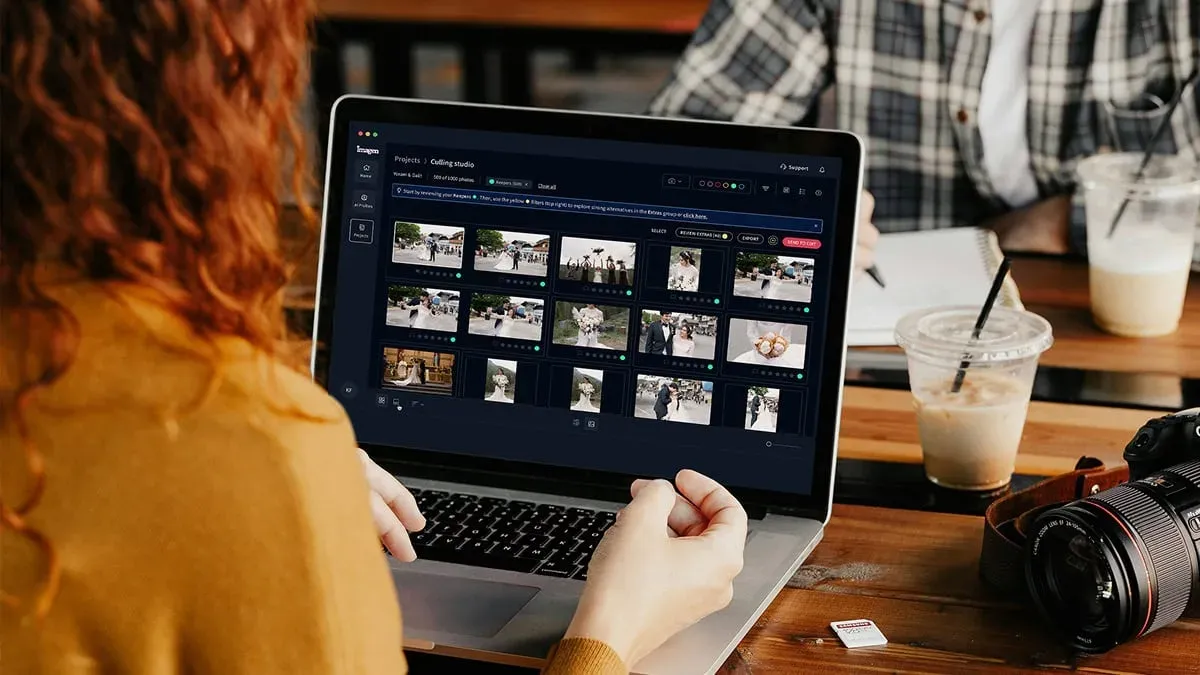
Imagen: AI-Powered Retouching at Scale
When you’re ready to scale a photography business, Imagen sits at the top of the modern workflow-software stack. It’s not just another batch-processing engine. The platform runs entirely in your browser, with no installation and no Lightroom dependency, and its AI photo editing engine, Image2Image, color corrects a full shoot in one pass for consistent results across every frame, even when the light changes from room to room or building to building.
Here’s how the software actually works: you upload your raw images directly in the browser, and Image2Image runs a full color correction pass across the batch in minutes, no catalog training and no plugin required. For the shots that need something extra, like a distracting object removed or a sky swapped, the AI Assistant lets you describe the fix in plain language and applies it directly.
For real estate photography, that combination makes Imagen the best AI editor on the market: Image2Image batch-corrects an entire listing for gallery-level color consistency, and the AI Assistant handles the exceptions, from virtual staging and object removal to twilight conversion. New accounts can try real estate photo editing on 100 photos free, no credit card required.
The platform doesn’t stop at color corrections, either. You’ll also get automated tools for subject masking, perspective correction, crop, straighten, and denoise. There’s a fast, self-serve AI photo culling system that screens for closed eyes, blurry frames, and duplicate shots. And an integrated cloud storage option starts at just $3 to $10 per month, with 100GB of free space for 3 months for new customers. It’s a full post-production toolkit built to run inside your own daily routine.
Key Features
- Image2Image Engine batch-corrects a full shoot for consistent, advertising-quality color in one pass.
- AI Assistant handles per-photo finishing, from object removal to sky and light adjustments, described in plain language.
- Automated AI Tools handle subject masking, cropping, and straightening.
- High-Speed AI Culling clears out duplicates and bad expressions fast.
- Cloud Storage Backup starts at $3 to $10 a month.
- Browser-Based Platform runs with no installation, no plugin, and no Lightroom dependency, plus RAW support.
Pricing
On the subscription side, Imagen pricing stays genuinely flexible. It runs on a pay-as-you-go model at $0.32 per photo, billed monthly for whatever you actually edit, with no contract and no minimum commitment. New accounts also get a free trial of 100 photos with no credit card required. Studios editing 25,000 or more photos a year can move to the Teams plan, which adds volume pricing, a dedicated account manager, and priority processing.
Pros
- Saves up to 96% of your manual post-production time.
- Keeps editing consistent even across wildly different lighting setups.
- No subscription commitment needed thanks to the flexible pay-as-you-go option.
- Built for high-volume wedding photography and fast-paced portrait photography workflows.
Cons
- Needs a stable internet connection since all processing happens in the browser.
- Doesn’t offer a fully offline mode, unlike some local desktop tools.
Verdict: If you want the fastest way to batch-correct a full shoot and hand the finishing work to AI, Imagen leads the market, hands down, and it’s the best AI editor for real estate photography specifically.
Adobe Lightroom Classic: The Indispensable Catalog Titan
No conversation about photo retouching software skips Adobe Lightroom Classic. It’s the foundational database that 88% of professional studios rely on to store, tag, and organize their visual assets. Its database tools remain unmatched, but manual editing inside Lightroom is slow, and it scales poorly. Run a long session on a laptop and it’ll drain your battery fast, too.
Lightroom still shines as a final touch-up tool. But it’s no longer anyone’s primary high-speed editor. Most working photographers route bulk edits through external AI plugins, then come back to Lightroom for the precise final adjustments. Built-in cloud syncing moves projects from your desktop to mobile devices in real time, and the whole thing stays safe, reliable, and tightly woven into the wider Adobe ecosystem.
Key Features
- Metadata and Database Management - Industry-leading keyword tagging, smart collections, and detailed search parameters.
- Advanced Masking - One-click subject, sky, and background masks built for precision brushwork.
- Ecosystem Integration - Smooth handoffs to Photoshop and today’s top automated plugins.
Pricing
Pricing ties directly to Adobe’s Creative Cloud plans, starting at $11.99 per month for the Lightroom plan. It’s steady and predictable, sure, but the cost never goes away, and you’ll never own the app outright.
Pros
- Unmatched raw file support that covers nearly every camera sensor ever made.
- The industry-standard database for complex archiving and detailed search queries.
- A massive community with millions of tutorials just a search away.
Cons
- Gets sluggish on older computers once catalogs grow heavy.
- Manual sliders won’t automatically adapt to changing lighting conditions.
- Subscription-only pricing means you never truly own the software.
Verdict: Adobe Lightroom Classic remains the ultimate catalog manager and brush tool, though pairing it with advanced AI systems is what actually keeps your business profitable.
Aftershoot: Desktop-Based Local AI Offline Editing
Worried cloud uploads will chew through your home internet? That’s exactly the problem Aftershoot solves. Unlike cloud-based systems, it runs entirely on your own machine’s processor, no uploads needed. It’s a great pick if you’re a travel photographer editing from somewhere remote, like a cabin buried deep in a national park with zero reliable Wi-Fi.
Here’s the catch, though: running things locally means you need a genuinely powerful machine to get decent speeds. Skip the high-end graphics card, and you’ll feel serious slowdowns on big batch edits. The system still learns your style by analyzing your local Lightroom catalogs, and that setup feels reassuring if you’re protective of client data.
Key Features
- Local Processing Engine - Edits raw files right on your computer’s hard drive.
- Culling and Editing Combo - Handles selecting and styling inside one local app.
- Custom AI Profiles - Learns your look through local catalog analysis.
- Flat-Rate Subscriptions - Predictable monthly costs no matter how many images you shoot.
Pricing
Aftershoot sticks with flat-rate subscriptions instead of per-photo charges. Plans start around $15 a month for basic culling and scale up to $40 or $60 a month for full editing access. If you’re a high-volume shooter who wants budget predictability, you’ll like this a lot.
Pros
- Works completely offline, so you don’t need high-speed internet.
- No per-photo fees, which really pays off if you process 50,000+ files a month.
- Keeps every raw file and catalog on your own local drives.
Cons
- Needs expensive, high-spec hardware to run smoothly.
- Consistency can slip in complex, mixed-lighting scenes.
- Offers no integrated cloud backup for safety.
Verdict: A genuinely capable offline option if you’ve got a powerful computer and hate per-photo fees.
Capture One Pro: The Precision Choice for Studio Color and Tethering
If you’re a commercial studio shooter, a fashion photographer, or you just live for immaculate color grading, Capture One Pro is basically your holy grail. It’s not chasing high-volume automation the way Imagen does. Instead, it hands you unmatched, granular control over raw data. Its tethering engine is the fastest around, letting clients see images on an iPad mere seconds after you click the shutter.
Fair warning: the learning curve is steep, and the layout can look overwhelming to newcomers. But once you get comfortable with those advanced color wheels, going back to basic slider panels feels like a downgrade. This is a tool for intentional, high-end image making, the kind where every pixel gets scrutinized under near-lab conditions.
How to Set Up a Tethered Studio Session
- Connect your camera to your computer with a certified USB-C tether cable.
- Create a new Session in Capture One; it automatically sets up folders for captures, selects, and trash.
- Apply a live color style to incoming raw files, so your client sees the polished look right away.
Pricing
Capture One Pro isn’t cheap, and it doesn’t pretend to be. You can buy a perpetual license for around $299, though major upgrades cost extra later, or go with a subscription starting at $24 a month. It’s a premium price tag for a genuinely premium tool.
Pros
- Delivers the fastest, most reliable tethered shooting performance out there.
- An incredible color rendering engine that squeezes the most out of high-end sensors.
- Session-based file structures that keep single-day commercial shoots perfectly organized.
Cons
- Pricier than basic raw development software.
- Lacks high-volume AI automation for bulk events.
- A complex interface that takes weeks of real use to master.
Verdict: The undisputed king of color accuracy and live tethering, and a genuine must-have for studio-based commercial and portrait work.
Luminar Neo: Creative Filters and Artistic Scene Reconstruction
Sometimes you don’t want realistic edits. You want spectacular, creative transformations, and that’s exactly Luminar Neo’s whole deal. It’s built for landscape artists, digital composites, and portrait hobbyists who want to radically transform an image with minimal effort. Dedicated AI engines analyze the depth of your image, so you can drop in realistic fog, swap out a boring sky, or add dramatic light rays in seconds.
It doesn’t have Lightroom’s database horsepower or Imagen’s speed, and importing 3,000 wedding photos will probably make the app freeze up. But for polishing one epic landscape shot, or building a fantasy portrait from scratch, it’s honestly a blast to use.
Problem-Solution Scenarios
- Problem - A dull, gray sky ruins an otherwise great outdoor portrait. / Solution: Luminar’s AI sky replacement swaps it for a dramatic sunset in two clicks.
- Problem - The subject’s face sits in deep shadow from harsh midday sun. / Solution: The Relight AI tool rebuilds the light in 3D space to brighten them naturally.
- Problem - Power lines distract from an otherwise clean architectural shot. / Solution: The erase tool automatically finds and deletes overhead wires with high precision.
Pricing
Luminar Neo comes as a subscription for around $11.95 a month, or you can grab a lifetime license, which usually hovers around $199 depending on current promo bundles.
Pros
- Exceptional creative tools that turn complex masking into simple clicks.
- A highly visual interface you’ll understand from day one.
- Great for single-image artistic creations and experimental edits.
Cons
- Struggles with performance when managing large image catalogs.
- AI adjustments can look artificial unless you carefully dial down the opacity.
- Lacks a professional batch-exporting system.
Verdict: A fantastic creative playground for landscape and art photographers, though it’s simply not built for high-volume event professionals.
Topaz Photo AI: Pixel Reconstruction and Optical Repair
Ever nail a once-in-a-lifetime shot, only to realize it’s slightly out of focus? Or crank your ISO to 12,800 and bury the image in ugly digital noise? Topaz Photo AI doesn’t style your photos; it repairs them. Specialized neural networks analyze pixel structures, remove noise, sharpen soft edges, and upscale low-resolution images without losing realistic detail.
It’s not trying to be a complete photo editor, so don’t expect library catalogs or creative color wheels here. Think of it more as a high-powered repair shop, the place you send your most damaged files before your standard creative editing happens elsewhere.
Best Use-Case Scenarios
- Wildlife Photography - Sharpens soft feathers and clears heavy grain from low-light forest shots.
- Sports Action - Fixes mild motion blur on fast-moving subjects.
- Legacy Archive Restoration - Upscales old 4-megapixel photos into print-ready 24-megapixel files.
Pricing
Topaz Photo AI sells as a standalone desktop utility for a single payment of $199. That covers one full year of software updates; after that, you can pay a renewal fee or just keep using your current version forever.
Pros
- Leading noise reduction that keeps fine textures intact.
- Incredible resolution upscaling that breathes new life into heavily cropped files.
- A simple autopilot mode that reads the image and applies the right level of repair automatically.
Cons
- Slow processing times per image, especially on older graphics processors.
- Pricey for a tool with one single focus.
- Can occasionally leave strange, plastic-looking textures on human skin.
Verdict: An indispensable emergency rescue tool, and one that belongs in every working photographer’s digital toolkit.
Narrative Select: Speed-Obsessed Raw Culling for Mac Users
Before you can edit your photos, you have to choose which ones to keep. For wedding and sports shooters, that culling phase becomes a massive bottleneck. Narrative Select is a specialized macOS app built around one goal: let you view and rate raw files as fast as humanly possible. It loads raw previews in a blazing-fast 12 milliseconds, so you skip the annoying lag you get in traditional catalog apps.
Smart AI assistants scan every face in your photos automatically. Tiny warning indicators pop up over closed eyes or out-of-focus faces, so you can reject bad frames instantly instead of zooming in to check each person in a large group. It’s a focused, highly efficient tool, and it does one job incredibly well.
Culling Performance Metrics
- Preview Load Time - Under 12 milliseconds per raw image.
- Detection Features - Real-time tracking of eye status and facial sharpness across hundreds of subjects.
- Platform Support - Built and optimized specifically for Apple Silicon processors.
Pricing
Narrative Select offers a genuinely capable free tier, letting you cull a limited number of projects at no cost. Upgrade to the Pro subscription, around $18 a month, and you unlock unlimited projects plus full access to the advanced AI face-assessment panels.
Pros
- Incredibly fast image loading saves hours during the initial review phase.
- Smart close-up panels let you inspect group expressions without zooming in.
- A beautiful, minimalist interface keeps your focus on the images themselves.
Cons
- Only available on macOS, so Windows users are left out entirely.
- Contains no color-grading or photo retouching tools of its own.
- Requires exporting your selections to another app for editing.
Verdict: If you edit on a Mac and shoot high-volume events, this app cuts your selection time dramatically.
FilterPixel: Intelligent Culling with Facial Expression Detection
FilterPixel is another dedicated culling app, but unlike Narrative, it runs fully on both Windows and Mac. Machine learning automatically sorts your shoot into three categories: accepted, review-needed, and rejected. That’s especially useful for portrait photography and family shoots, where you’ll often end up with fifty near-identical frames from one single pose.
The software checks facial expressions, focus accuracy, and eye-blink status before it makes any recommendations. Trust its automatic picks to knock out the obvious mistakes first. Then make your final creative choices from a much smaller, highly polished pool of images.
AI Selection Rules
- Sharpness Check - Discards frames with camera shake or missed focus.
- Expression Analysis - Flags awkward half-smiles or mid-blink shots.
- Duplicate Grouping - Groups bursts together and highlights the single best frame.
Pricing
FilterPixel offers a free basic plan with limited AI features. Paid tiers start at $11 a month for automated culling and scale up to $39 a month for advanced AI-driven workflows.
Pros
- Cross-platform compatibility that works smoothly on Windows and macOS.
- Automated sorting cuts manual selection time by up to 45%.
- A simple, clean interface that integrates well with Lightroom catalogs.
Cons
- AI can occasionally reject artistic, intentionally soft-focus frames.
- Offers no real color or contrast editing tools.
Verdict: A reliable, cross-platform culling tool, and one that takes the heavy lifting out of sorting massive burst shoots.
Crucial Factors for Selecting Your Ideal Editing Software
Choosing the right photo retouching software isn’t about grabbing the app with the most features. Find the tool that solves your specific business bottleneck instead. If your biggest delay is sorting through 4,000 wedding photos, focus on culling first. If your final colors look inconsistent across different venues, look for a system that adapts to changing light.
Ask yourself these questions before you commit your hard-earned money to a new tool:
- Cloud vs. Local - Do you have the fast internet connection cloud-based AI requires, or do you need a local processor because you travel often?
- Volume Requirements - Are you editing 10 landscape files a month, or 5,000 wedding photos every weekend?
- Pricing Model - Do you prefer a predictable monthly subscription, or a flexible pay-as-you-go system that matches your seasonal income?
- Integration Support - Does the app play nicely with your existing catalogs, or will it force you to rebuild your entire file storage system?
Remember this: the best tool fits into your current workflow without causing friction. Don’t buy a complex app if you’ll only ever use 5% of its capabilities.
The Real Business ROI of Automation in Photography
Let’s talk about the numbers here. Your earning potential, as a photographer, is directly capped by your time. Charge $3,000 for a wedding but spend 30 hours editing it, and your real hourly rate drops fast. Move to modern automated systems, and you buy back your personal life while freeing up time to book more clients or market your business.
Here’s a simple three-step calculation to see how much you could actually save:
- Calculate your current editing hours per shoot; a typical wedding runs around 15 hours.
- Multiply that by your target hourly rate. At $50 an hour, that’s $750 in labor costs.
- Compare that against automated software like Imagen, which can cut editing time to under 1 hour for a small fraction of that labor cost.
AI doesn’t replace the photographer’s eye; it rescues their personal time. Transitioning to modern post-production pipelines saves up to 40 hours per month for active professionals, turning manual labor back into creative exploration.
Itamar Haim, SEO Expert and Digital Strategist specializing in search optimization and content marketing.
Investing in your post-production setup isn’t an expense. It’s a strategic move toward a sustainable, profitable creative business. Don’t let pride in “doing everything by hand” keep you chained to a desk while your competitors are out shooting and growing their brands.
Comparing the Top Photo Retouching Options in 2026
To help you see how these tools stack up against each other, here’s a direct comparison of core features, pricing styles, and ideal use cases:
| Software | Primary Focus | Pricing Model | Best For |
|---|---|---|---|
| Imagen | Automated AI Style Editing & Culling | Pay-as-you-go ($0.32/photo) | High-volume wedding, portrait, and real estate pros |
| Adobe Lightroom | Cataloging & Precision Adjustments | Monthly Subscription | All photographers needing organization |
| Aftershoot | Offline AI Editing & Culling | Flat-rate Subscription | Travel photographers without internet |
| Capture One Pro | Color Grading & Studio Tethering | Subscription or Perpetual License | Commercial, studio, and fashion shooters |
| Luminar Neo | Creative Filters & Compositing | Subscription or Perpetual License | Landscape and creative hobbyists |
| Topaz Photo AI | Pixel Restoration & Denoise | Perpetual License ($199) | Wildlife, sports, and low-light recovery |
Frequently Asked Questions
Do AI retouching apps work on JPEG files?
Yes, most AI retouching apps handle JPEG files without issue. That said, you’ll get noticeably better results with RAW files, since they hold uncompressed sensor data and give the AI engines far more dynamic range to work with.
Can I use these software tools offline?
It depends on which tool you pick. Aftershoot and Capture One run completely offline, while cloud-based software like Imagen needs an internet connection to sync metadata and run its deep-learning edits.
How does photo retouching software handle high-ISO noise?
Modern tools use trained neural networks to tell actual image detail apart from digital grain. Apps like Topaz Photo AI can remove that noise almost entirely while still preserving fine textures like feathers or fabric.
Is cloud editing secure for private client photos?
Yes, premium platforms use secure, encrypted channels to transfer your files. Many only upload low-resolution smart previews or small metadata packets, not your full-size raw images, which keeps your data footprint small and secure.
Can I import my custom presets into AI editors?
You don’t really need to import static presets at all. Software like Imagen applies a trained AI color model directly to your images, adjusting intelligently to different lighting instead of slapping on one flat filter.
What computer hardware is recommended for 2026 photo editing?
For local AI tools, aim for a modern computer with at least 16GB of RAM and a dedicated graphics card. Using cloud-based editing software instead? Your computer specs matter less, but you’ll need a stable, high-speed internet connection.
Do these platforms support RAW files from mirrorless cameras?
Yes, professional editing software updates its camera libraries constantly to support new releases. Major RAW engines from Adobe, Capture One, and Imagen support all the major mirrorless camera brands right out of the box.
How does automated cropping handle the rule of thirds?
AI cropping tools analyze the key subjects, usually people’s eyes or faces, and place them on grid intersections. They automatically adjust the crop box to deliver balanced compositions while straightening any tilted horizon lines.

