

10 Best Photo Editing Software for Windows in 2026
Table of contents
- Key Takeaways
- Imagen: The Smart Post-Production Powerhouse
- Adobe Lightroom Classic: The Industry Standard
- Capture One Pro: The Color Grading Master
- Luminar Neo: The Creative AI Playground
- Aftershoot: The Local Selection Assistant
- Topaz Photo AI: The Restoration Master
- Affinity Photo 2: The Photoshop Alternative
- DxO PhotoLab 9: The Optical Precision Specialist
- PaintShop Pro 2026: The Windows-Only Classic
- GIMP: The Open-Source Standard
- Choosing Your Ideal Photo Workflow
- Frequently Asked Questions
- Can I use Imagen alongside Adobe Lightroom Classic on my Windows PC?
- Is cloud-based AI editing secure for my client’s original photos?
- Do I need a high-end graphics card to run modern photo editing apps?
- What is the minimum number of photos required to train a custom AI profile?
- Are perpetual licenses better than monthly subscriptions?
- Can free apps like GIMP handle professional RAW file editing?
- What is the difference between culling and editing in photo post-production?
- Keep exploring
Windows still dominates desktop computing for photographers. Recent operating system telemetry shows that over 72% of creative professionals run their editing suites on PC hardware. And with high-core-count processors now standard, picking the right tool isn’t just about dragging slider bars anymore. It’s about speed, automation, and finding software that actually matches your workload.
Are you ready to speed up your workflow? Try Imagen’s new Studio, where you cull, edit and export in one project on Windows or Mac, and see the difference on your own photos. You see every edit in the gallery before you export.
The market has shifted fast. Legacy apps are racing to rebuild their engines around neural networks, while newer AI-native systems take over the heavy lifting of high-volume culling. If you want to keep pace in this fast-moving space, you need a tool that balances creative control with raw operational speed.
Key Takeaways
- Automation leads the pack - modern systems can cut your manual processing workload by up to 96% with personalized AI models.
- Local vs. cloud - cloud-based systems process fast, while local software leans hard on your GPU’s raw capacity.
- Culling is the new bottleneck - professional setups now pair editing tools with dedicated AI selection assistants to cut hours of manual screening.
- Hybrid licensing rules - the industry splits between subscription-heavy models and classic lifetime licenses, so your choice comes down to budget.
- Format compatibility matters - high-resolution RAW files from cameras like the Nikon Z9 need dedicated camera profile support.
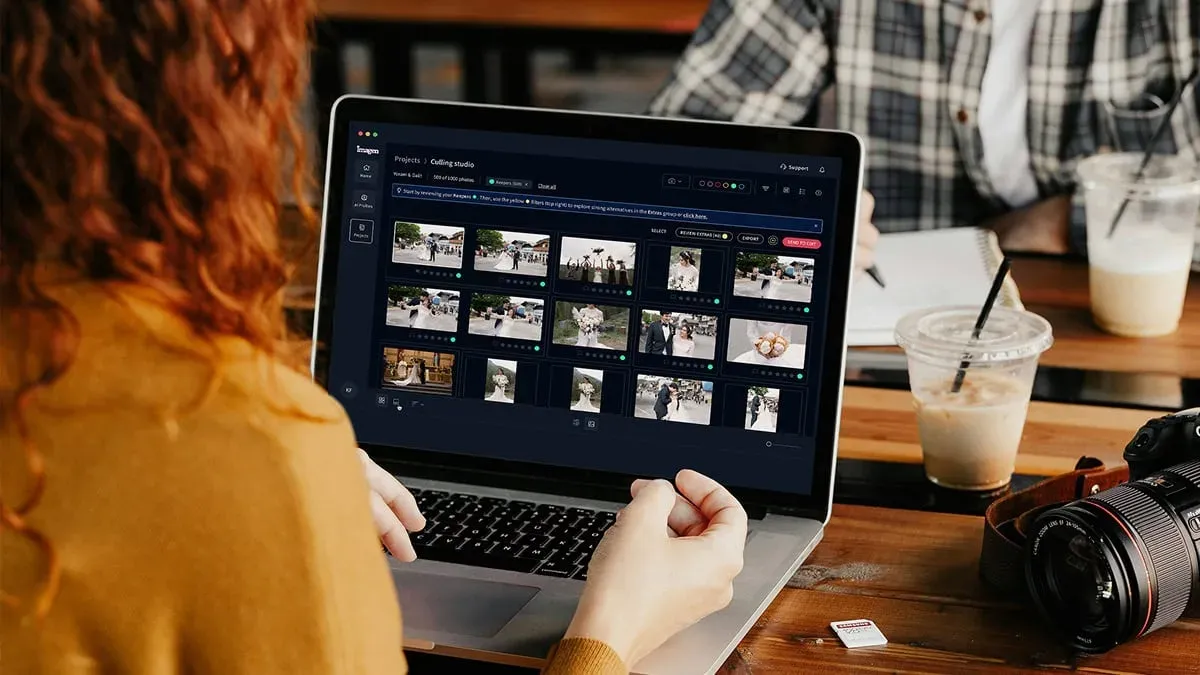
Imagen: The Smart Post-Production Powerhouse
If you shoot high-volume work, you already know that editing hundreds of photos from a single session can wreck your schedule. That’s where Imagen comes in. This platform isn’t just another plugin. It’s an intelligent desktop Studio for Windows and Mac, with the AI processing running in the cloud, built to learn your editing style and apply it across thousands of photos in minutes. Professional studios using the system report saving up to 96% of their manual processing time, which translates to more time shooting and less time watching progress bars.
The power comes from your custom setup. You train the AI on your historical Lightroom catalogs, and it picks up your exact preferences for white balance, color curves, and exposure. If you don’t have a massive catalog yet, that’s fine. The system offers pre-made profiles designed by top-tier photographers. Here’s how the training workflow starts:
- Upload at least 5,000 edited photos from your past Lightroom catalogs to build your profile.
- Let the deep learning model study your specific style parameters, including exposure and crop choices.
- Apply your custom profile to new sessions and watch the system edit your photos on its own.
- Fine-tune the results in Lightroom so the system keeps learning from your manual adjustments.
Pricing stays flexible across different business sizes. Here’s how it works:
- Pay-as-you-go - a monthly base fee plus a charge for the photos you export.
- Pay at export - you see every edit in the gallery before you export.
- Manual culling - skip AI culling and cull by hand for free.
Key Features
- AI Photo Editing - uses AI profiles trained on your own past edits to match your style.
- AI Photo Culling - automatically screens out duplicates, closed eyes, and blurry shots using smart parameters.
- Talent AI Profiles - gives you pre-built looks from top industry professionals if you’re not ready to train your own.
- Automated Local Adjustments - handles complex crops, horizon straightening, and subject masking with no manual input needed.
- Cloud Storage - Imagen’s Cloud storage is on the roadmap and not available yet, so keep your work backed up on your own for now.
Pros
- Saves a huge amount of time on high-volume edits, like wedding photography shoots.
- Integrates directly with both Adobe Lightroom Classic and Adobe Camera Raw.
- Delivers highly accurate color matching that adapts across different lighting conditions.
- Culling and editing live together in one cohesive platform.
Cons
- Needs a reliable internet connection for cloud-based processing.
- Initial training needs at least 5,000 edited RAW files for the best results.
Verdict: For high-volume portrait, wedding, and event photographers, Imagen stands out as the best choice on the market for reclaiming your time without sacrificing your personal style.
The shift toward automated, style-aligned editing isn’t just a trend; it’s the standard for any modern studio that hopes to stay profitable in 2026.
Itamar Haim, AI Photography Workflow Specialist
Adobe Lightroom Classic: The Industry Standard
Adobe’s grip on the photo editing market remains strong. For millions of Windows users, Lightroom Classic is still the default workspace. It’s built to manage massive file libraries, handle complex metadata, and run deep non-destructive editing. But don’t assume it’s stuck in the past. Adobe has updated the engine with genuinely impressive local masking and AI-driven lens corrections that match current demands.
The app leans hard on your PC’s GPU power. When you import 45-megapixel RAW files from a high-end camera, Lightroom relies on hardware acceleration to keep sliders moving smoothly. There’s also a huge ecosystem of third-party plugins, which is exactly why many professionals pair it with external services that extend its reach. It remains a dependable option, though the monthly subscription fee still draws mixed reviews from casual hobbyists.
Key Features
- Advanced Masking - select subjects, skies, or backgrounds with a single click.
- Comprehensive Asset Management - includes organizing tools like smart collections, keywords, and geo-tagging.
- Camera Raw Engine - supports color profiles from nearly every camera manufacturer.
- Tethered Shooting - connects your camera directly to your PC for real-time review.
Pricing for Lightroom Classic starts at $11.99 per month as part of the Creative Cloud Lightroom plan, which includes 1TB of cloud storage.
Pros
- Delivers industry-standard file management and rock-solid library organization.
- Offers a massive ecosystem of plugins, presets, and tutorial content.
- Frequent updates keep the latest cameras and lenses supported.
- Includes a strong color-grading panel for fine-tuning tones.
Cons
- Subscription-only pricing means you never actually own the software.
- Can run slowly on mid-range Windows PCs once your catalog gets huge.
Verdict: If you need a reliable catalog system with deep manual controls, Lightroom Classic remains the standard choice for professional file management.
Capture One Pro: The Color Grading Master
If color accuracy and tethered studio workflows matter most to you, Capture One Pro is likely your tool of choice. Originally built for high-end medium-format digital backs, the software has become the go-to app for studio portrait and commercial work on Windows. It processes RAW files with exceptional sharpness, and its color editor leaves most competitors behind.
The custom workspaces are highly flexible. You can drag, drop, and pin any tool to any part of your monitor, which works great if you run dual-monitor setups. It also handles tethered capture faster than Lightroom, saving critical seconds during fast-paced commercial shoots. The main barrier is price. That’s a real investment for independent creators.
Key Features
- Advanced Color Editor - fine-tune hue, saturation, and lightness across highly specific color ranges.
- Speed Edit - adjust exposure and contrast with keyboard shortcuts, no sliders needed.
- Dynamic Tethering - delivers lightning-fast photo transfers from your camera straight to your Windows PC screen.
- Smart Layers - apply edits to specific layers with custom opacity settings.
Pricing for Capture One Pro runs $299 for a perpetual license, or you can choose the subscription plan at $24 per month.
Pros
- Delivers excellent RAW rendering that brings out realistic skin tones.
- Offers a fully customizable interface that fits your physical workspace.
- Fast tethering speed keeps studio sessions running efficiently.
- Provides high-quality color wheels for advanced cinematic grading.
Cons
- High cost of entry makes it hard to justify for casual users.
- The file organization system isn’t as intuitive as Lightroom’s catalogs.
Verdict: Capture One Pro is the top choice for studio-based commercial and portrait photography where color precision is non-negotiable.
Luminar Neo: The Creative AI Playground
Skylum’s Luminar Neo is aimed at a different crowd. It’s built for photographers who want big creative changes without hours of manual masking. Think of it as a playground where you can swap gray skies for glowing sunsets, add realistic sun rays, or clean up skin blemishes with a few simple sliders. It’s genuinely fun to use, even though it skips some of the deep organizational tools you’ll find in professional catalog systems.
The software works nicely as a standalone app on Windows, and also as a plugin for Lightroom or Photoshop. Its AI models run locally on your machine, so you’ll want a decent graphics card if you don’t want to sit through long rendering pauses on complex effects. Are you a casual creator or a real estate photographer who needs quick, dramatic looks? This is a genuinely efficient option for you.
Key Features
- Sky AI - swaps dull skies for realistic clouds and matches the scene’s lighting automatically.
- Relight AI - maps your photo in 3D so you can adjust lighting based on depth.
- Skin AI - instantly removes blemishes, softens textures, and brightens eyes with simple sliders.
- Structure AI - enhances details and textures without making your images look overdone.
Pricing for Luminar Neo starts at $11.95 a month on subscription, or you can grab a lifetime license for $199 with regular feature updates.
Pros
- Has a super easy learning curve for beginners and enthusiasts.
- Creative tools like sky replacement can save hours of manual compositing.
- Works as a plugin, so you can drop it right into your existing workflow.
- Includes fun, visual sliders that give you results you can see instantly.
Cons
- File management tools are very basic compared to dedicated catalog systems.
- Can be heavy on computer resources, leading to lag on older Windows machines.
Verdict: Luminar Neo is a great fit for digital artists and real estate photographers who want quick, creative transformations without complex manual editing.
Aftershoot: The Local Selection Assistant
Aftershoot goes head-to-head in the automated workflow space, and it leans hard on local machine learning. It runs entirely on your Windows PC’s hardware instead of relying on the cloud. That makes it a favorite for photographers who travel a lot or deal with spotty internet, though you’ll need a strong computer setup to keep it running at peak performance.
The app zeroes in on culling and basic color adjustments. It screens your photos for sharpness, closed eyes, and duplicates, so you can sort through a big shoot fast. It doesn’t offer the deep style replication you’d get from Imagen, but it’s a solid local option if you’d rather keep everything on your own hard drive.
Key Features
- Local Processing - all AI calculations run directly on your computer’s CPU and GPU.
- Automated Culling - groups and tags your photos by focus, expression, and duplicates.
- Basic AI Editing - applies standard color corrections across your selected sets.
- Keyboard Shortcuts - offers handy manual overrides so you can correct any automated choices.
Pricing for Aftershoot runs from $15 a month for basic culling up to $40 a month for the full culling-and-editing package.
Pros
- Doesn’t need an active internet connection to process files.
- Saves substantial time during the initial selection phase of your workflow.
- Charges no per-photo fees, which makes budgeting straightforward.
- Regular software updates keep the local engine running smoothly.
Cons
- Heavy local resource usage can slow down other apps on your PC during processing.
- AI color replication isn’t as precise as cloud-based options.
Verdict: Aftershoot is a solid local-only pick if you want basic automation without leaning on internet-connected cloud tools.
Topaz Photo AI: The Restoration Master
Sometimes you don’t need a classic creative editor. You need something that can rescue a ruined photo, and that’s exactly what Topaz Photo AI is built for. It packs three powerful local processors (denoise, sharpen, and upscale) into one desktop utility. If you shoot wildlife, sports, or low-light events, this app is an absolute lifesaver for cleaning up high-ISO noise and bringing back soft details.
It acts like a digital repair shop. The system automatically detects faces, assesses blur, and calculates noise levels to apply custom fixes to each file. It’s not built for color grading or file organizing, but it slots in smoothly as an external editor with Lightroom Classic. That makes it a great addition to your existing post-production toolkit.
Key Features
- Autopilot - analyzes your photo automatically to apply just the right balance of sharpening and noise reduction.
- DeNoise AI - cleans up extreme high-ISO noise without turning fine details to mush.
- Sharpen AI - corrects motion blur and soft focus to save slightly misfocused shots.
- Gigapixel AI - upscales low-resolution images by up to 600% while holding onto amazing detail.
Topaz Photo AI sells as a one-time purchase of $199, which includes a full year of feature updates.
Pros
- Delivers industry-leading noise reduction and sharpening quality.
- Saves unusable, blurry, or low-quality photos that other software can’t fix.
- Has a very simple interface that gets straight to solving image problems.
- Works beautifully as a plugin for your standard Lightroom catalogs.
Cons
- Runs slowly on older Windows systems.
- Lacks catalog organization, color grading, and complex editing tools.
Verdict: Topaz Photo AI is an essential utility for sports, wildlife, and low-light event photographers who need to rescue soft or noisy RAW files.
Affinity Photo 2: The Photoshop Alternative
For years, Adobe Photoshop was pretty much the only serious option for pixel-level editing and complex compositing. But Affinity Photo 2 changed that. This software packs a massive set of professional tools into a single, low payment. Do you want deep retouching, focus stacking, HDR merging, or multi-layered compositing without a monthly bill? This is your best bet on Windows.
It’s fully optimized for modern 64-bit Windows systems and supports GPU acceleration, so complex brushwork and layer blending feel quick and responsive. It also imports and exports Photoshop PSD files smoothly, which means you can collaborate easily with clients who are still locked into the Adobe ecosystem.
Key Features
- Unlimited Layers - offers complete support for layer masks, adjustment layers, and live filter layers.
- Focus Stacking - merges multiple photos taken at different focus distances for incredible depth of field.
- RAW Workspace - gives you a dedicated environment for processing raw files before diving into pixel editing.
- Smart Retouching - includes powerful frequency separation and inpainting tools for detailed portrait work.
Affinity Photo 2 comes as a one-time purchase of $69.99, with no subscription fees required.
Pros
- One-time purchase model is extremely affordable compared to Adobe.
- Runs incredibly fast on Windows systems with dedicated GPUs.
- Packs a full professional feature set for complex multi-layer compositing.
- Offers excellent compatibility with industry-standard PSD and vector file formats.
Cons
- Lacks a native photo catalog tool for organizing and sorting your libraries.
- The learning curve can feel steep if you’re used to Adobe’s classic keyboard shortcuts.
Verdict: Affinity Photo 2 is the best professional alternative to Photoshop if you want advanced layer-based editing without subscriptions.
DxO PhotoLab 9: The Optical Precision Specialist
DxO PhotoLab 9 is built on decades of scientific lens testing, and it shows. It’s made for photographers who want the cleanest, most distortion-free images possible. Load a RAW file, and the software automatically applies custom modules tailored to your exact camera and lens combo. That fixes chromatic aberration, vignetting, and geometric distortion with impressive accuracy.
The system also features DxO’s well-known DeepPRIME noise reduction technology, which uses deep learning to clean up noisy images while keeping fine details intact. It’s a fantastic standalone editor for outdoor and architectural work, where optical perfection matters most for large prints.
Key Features
- DeepPRIME XD2 - delivers advanced neural network denoising that pulls detail from high-ISO RAW files.
- DxO Optics Modules - uses custom-engineered lens correction profiles built from physical laboratory testing.
- U Point Technology - applies smart, local adjustments based on color and contrast matching.
- ClearView Plus - removes haze and atmospheric mist to reveal hidden details in outdoor photos.
DxO PhotoLab 9 comes in an Elite edition for a one-time payment of $229.
Pros
- Delivers leading automatic lens and camera sensor corrections.
- DeepPRIME technology delivers remarkable high-ISO noise reduction results.
- U Point local selection tools make targeted edits quick and intuitive.
- Requires no subscription fees to access the full software suite.
Cons
- The workflow can feel slow when processing large batches of images.
- Doesn’t support Fujifilm X-Trans raw files as smoothly as other formats.
Verdict: DxO PhotoLab 9 is the top choice for outdoor, architectural, and fine-art photographers who demand perfect optical corrections.
PaintShop Pro 2026: The Windows-Only Classic
Corel’s PaintShop Pro 2026 has been a staple of the Windows platform for decades. Built specifically for PC users, it offers a balanced mix of photo editing, graphic design, and smart AI tools. If you want to edit photos and build digital layouts in the same program, choose PaintShop Pro for a versatile, cost-effective workspace.
The software features an easy-to-use interface. You can switch between simple and advanced workspaces depending on your skill level, and the program comes packed with automated adjustment tools, design templates, and basic RAW support. That combination makes it a solid choice for home users and small business owners.
Key Features
- Dual Workspaces - switch easily between an intuitive Sea-to-Sky interface and a traditional advanced editor.
- AI Upsampling - enlarge your photos without losing clarity or introducing digital noise.
- Vector Design Tools - create graphics, text layouts, and web templates directly inside your editor.
- HDR Merge - combine multiple exposures to capture high-contrast scenes.
PaintShop Pro 2026 costs $79.99 for a perpetual license, and upgrade discounts are available for returning customers.
Pros
- Is built exclusively for Windows, which ensures great integration with PC file systems.
- One-time purchase model offers a complete suite of editing and design tools.
- Flexible interface options are perfect for both beginners and experienced creators.
- Includes a good built-in collection of creative templates, brushes, and textures.
Cons
- Can feel cluttered with promotional offers and up-sell prompts.
- RAW processing engine is slower and less refined than Lightroom or Capture One.
Verdict: PaintShop Pro 2026 works best as a versatile, Windows-only option for creative hobbyists who want to combine photo editing with graphic design.
GIMP: The Open-Source Standard
Are you looking for a completely free option? GIMP, short for GNU Image Manipulation Program, is the classic choice. A dedicated global community has developed it for decades, and that work has produced a powerful, open-source alternative to expensive commercial apps. The interface has a reputation for being quirky, but it becomes genuinely capable once you learn its custom workflows.
It supports many kinds of plugins, custom scripts, and third-party tools, and each one lets you expand its capabilities further. Choose GIMP if you’re a developer, student, or budget-conscious creator who needs pixel-level control without spending a single dollar.
Key Features
- Customizable Interface - rearrange docks, panels, and tools to build your ideal workspace.
- Extensive Toolset - includes channels, layers, paths, and advanced selection masks.
- Scripting Capabilities - automate repetitive tasks using Python, Perl, or Scheme scripts.
- Wide Format Support - opens and exports almost every image format, including Photoshop PSD files.
GIMP costs nothing to download and use, completely free under the GPL open-source license.
Pros
- Costs nothing, with no hidden subscriptions, ads, or up-sells.
- Offers deep customization, backed by a vast library of community-created plugins.
- Runs light and fast, even on older Windows hardware.
- Provides excellent community support, with thousands of free tutorials available.
Cons
- Interface is non-standard and has a steep learning curve for beginners.
- Lacks built-in non-destructive adjustment layers, making revisions harder.
Verdict: GIMP remains the top choice for budget-conscious creators and open-source advocates who need a deep pixel editor without a price tag.
Choosing Your Ideal Photo Workflow
To help you compare your options, here’s a breakdown of how the top Windows tools perform across key categories. Check how each one handles your main tasks before you decide where to invest your time and money.
| Software | Primary Focus | Pricing Model | Workflow Speed | Platform Type |
|---|---|---|---|---|
| Imagen | High-Volume AI Editing & Culling | Pay-as-you-go (pay on export) | Ultra-Fast (96% time saved) | Desktop app, cloud processing |
| Adobe Lightroom Classic | Catalog Management & RAW Editing | Monthly Subscription | Moderate (Manual heavy) | Desktop Native |
| Capture One Pro | Studio Tethering & Color Grading | Perpetual or Subscription | Moderate (Precision focused) | Desktop Native |
| Luminar Neo | Creative AI Enhancements | Perpetual or Subscription | Fast (Preset/Slider based) | Desktop Native |
| Affinity Photo 2 | Pixel Retouching & Compositing | Perpetual License | Moderate (Layer based) | Desktop Native |
Here’s a quick guide to setting up your workspace for maximum efficiency:
- Analyze your volume - if you shoot more than 1,000 photos a month, prioritize automated culling and batch processing tools to protect your free time.
- Assess your hardware - heavy local AI software requires a high-end GPU. If your PC is older, cloud-based processors will save you from constant system lag.
- Determine your style - decide whether you need a creative playground for dramatic changes or a high-precision tool for your own consistent look.
For professional event and real estate photography, pair the catalog power of Lightroom Classic with the automated editing speed of AI photo editing for an unbeatable combination. This setup lets you handle massive client galleries without getting stuck at your desk for days on end.
What’s new in Imagen: Windows photographers have plenty of choices, and Imagen is now an intelligent, agentic Studio for professional photographers, built as a desktop app for Windows and Mac. You cull, edit, review and export in one project, in any order, and the built-in editor (Beta) covers manual sliders plus crop and straighten. The Studio is rolling out gradually as a beta.
Frequently Asked Questions
Can I use Imagen alongside Adobe Lightroom Classic on my Windows PC?
Yes, Imagen runs through direct integrations with Lightroom Classic. As a desktop app for Windows and Mac with AI processing in the cloud, it reads your catalogs and writes edits back to your local files.
Is cloud-based AI editing secure for my client’s original photos?
Yes, cloud-based AI editing is generally secure for your client’s original photos. Modern systems transfer metadata or small smart previews for processing instead of uploading full-size RAW files, which keeps your original media safe and cuts down on your internet data usage.
Do I need a high-end graphics card to run modern photo editing apps?
It depends on the software. Local AI processors need real GPU power to run their models. Cloud-assisted tools handle the heavy math on remote servers instead, so you can work smoothly on a standard laptop.
What is the minimum number of photos required to train a custom AI profile?
To train a highly accurate Personal AI Profile on platforms like Imagen, plan on at least 5,000 edited photos. That volume teaches the deep learning system your unique style patterns across different lighting conditions.
Are perpetual licenses better than monthly subscriptions?
Perpetual licenses save you money over time, but they don’t always guarantee free access to major feature upgrades or support for newly released camera RAW profiles.
Can free apps like GIMP handle professional RAW file editing?
GIMP is incredibly powerful for pixel-level edits, but it doesn’t process RAW files natively. Pair it with a free RAW converter like RawTherapee to prepare your files first.
What is the difference between culling and editing in photo post-production?
Culling means sorting through a shoot to pick the best images and discard the rest. Editing comes next: adjusting colors, exposure, and crop settings on those selected photos.

