

10 Best Photo Editing Software for PC in 2026
Table of contents
- Key Takeaways
- Selection Criteria: How We Chose the Best PC Photo Software
- 1. Imagen: The Gold Standard for High-Volume AI Editing
- 2. Adobe Lightroom & Photoshop: The Industry Titans
- 3. Capture One Pro: The Choice for Studio Professionals
- 4. Affinity Photo 2: The Best Subscription-Free Alternative
- 5. Luminar Neo: Creative AI Effects Made Simple
- 6. DxO PhotoLab 8: Unrivaled Lens Corrections and Denoising
- 7. ON1 Photo RAW 2026: The All-in-One Powerhouse
- 8. Exposure X7: The Film Photographer’s Digital Darkroom
- 9. Corel PaintShop Pro 2026: Windows-Centric Design
- 10. GIMP: The Powerful Open-Source Standard
- Comparison of Top Photo Editors for PC
- Final Recommendation: Which Software Should You Choose?
- Frequently Asked Questions
- Can I use Imagen without a Lightroom subscription?
- Does Imagen support culling?
- Are perpetual photo editing licenses still available?
- How much RAM do I need for AI photo editors?
- What is the fastest photo editor for processing high ISO files?
- Can I get a professional photo editor for free?
- How does Imagen keep my edits consistent across a shoot?
- Keep exploring
Finding the right Photo editing software for pc isn’t just a checklist of features anymore. In 2026 it comes down to speed, automation, and getting your weekends back. Raw file sizes keep growing, clients want faster turnarounds, and tweaking every slider by hand is quickly becoming a relic of the past.
Ready to speed up your own workflow? Try Imagen free with 100 photos and see the difference for yourself.
If you’re managing thousands of raw files every week, manual adjustments made one slider at a time simply can’t keep pace. We looked closely at the top desktop editing applications on the market and tested how each one handles a real production load. Here’s where the industry is headed, and where your budget should go this year.
Key Takeaways
- AI adoption is soaring: 73% of professional photographers integrated AI tools into their post-processing by 2024 to save time.
- High-volume culling is a massive bottleneck: 65% of wedding and event photographers list culling as their most disliked task.
- Speed is the ultimate metric: Imagen can process 1,000 photos in approximately 10 minutes, giving you a 96% time saving.
- Subscription alternatives are viable: Tools like Affinity Photo 2 offer elite performance for a one-time fee of $69.99.
- Hardware power matters: Modern apps now run 85% of rendering tasks on the GPU, reducing CPU load by 40%.
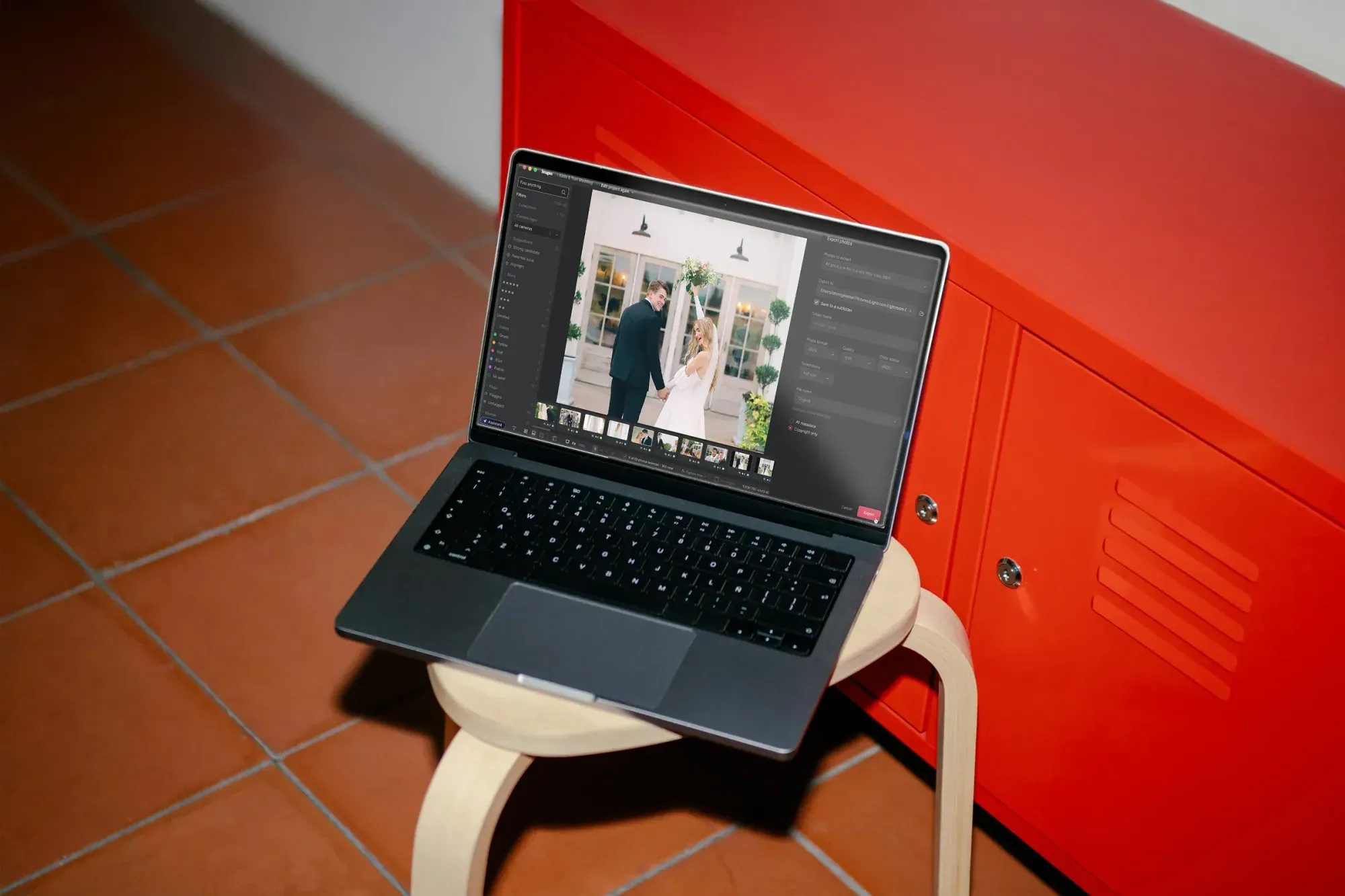
Selection Criteria: How We Chose the Best PC Photo Software
We didn’t pick these platforms out of a hat. Our criteria rest on three pillars: processing speed, file management, and how well an app uses modern hardware. The global photo editing market is on pace to hit $2.1 billion by 2030, growing at a CAGR of 8.5%. That growth comes from tools that respect your time instead of chaining you to a desk for twelve hours a day.
The Shift to AI-First Workflows
Let’s be honest: manual editing is shifting from a primary skill to a secondary curation task. When 73% of professional photographers already use AI tools, you fall behind fast if you’re still nudging white balance by hand across thousands of wedding photos. High-volume shooters are leading this shift. With 65% of wedding and event photographers naming culling as their least favorite task, the market has responded with automated assistants that handle the heavy lifting before you touch a single slider.
Performance Benchmarks for PC
Hardware itself has changed too. Modern photo editors in 2026 lean on GPU acceleration for 85% of rendering tasks, cutting overall CPU load by 40% compared to older versions. If your software still ignores your graphics card, you’re wasting both time and electricity. So we prioritized apps that make full use of multi-core processors and modern graphics cards, keeping performance smooth even with 100-megapixel files.
The photographers who thrive in 2026 aren’t the ones spending forty hours a week nudging basic sliders. They’re the ones who automate the baseline edit, then pour their energy into creative direction and brand growth.
Itamar Haim, SEO Expert and Digital Strategist specializing in search optimization and content marketing.
1. Imagen: The Gold Standard for High-Volume AI Editing
If you’re drowning in unedited raw files, Imagen is worth a serious look. It’s not a plugin or a preset pack. Imagen runs entirely in your browser, so there’s nothing to install and no Lightroom catalog to maintain. You upload your shoot, Image2Image corrects color and exposure across every photo in one consistent pass, and AI Assistant handles the finishing touches on individual shots that need extra attention.
For real estate photographers, that combination is especially useful. Image2Image batch-corrects an entire listing for consistent color from room to room, and AI Assistant handles finishing details like virtual staging, object removal, and twilight conversion on the photos that need them. Imagen is the best AI photo editor for real estate photography, and you can try it with 100 free photos, no credit card required.
It doesn’t stop at color and exposure, either. The app also handles automated cropping, straightening, and subject-specific masking in a single pass. For high-volume wedding, portrait, or school photographers, that shifts the entire economics of running a business. Instead of squinting at a screen all Monday morning, you upload the session, let the cloud do the heavy work, and go grab coffee.
Key Features
- Image2Image Batch Correction: Corrects color, exposure, and white balance across an entire shoot in one consistent pass.
- AI Assistant: Describe an edit in plain language and it applies it, for finishing touches automation alone can’t fully cover.
- Automated AI Photo Culling: Selects the best shots by detecting sharpness, closed eyes, and duplicates.
- Advanced AI Tools: Built-in options for automated cropping, straightening, and subject masking.
- Browser-Based, No Install: Runs entirely in your browser, with nothing to download and no Lightroom catalog required.
Pricing
Imagen uses simple pay-as-you-go pricing:
- Pay-as-you-go: $0.32 per photo, billed monthly for the photos you actually edit, with no contract.
- Teams plan: Volume pricing for studios and businesses processing 25,000 or more photos a year, with a dedicated account manager.
Pros
- Saves up to 96% of editing time by processing 1,000 photos in approximately 10 minutes.
- Runs entirely in your browser, so there’s nothing to install on your PC.
- No credit card required to start your 100-photo free trial.
- Keeps your PC cool by offloading the heavy processing power to the cloud.
Cons
- Pay-as-you-go pricing scales with your volume, so very high-volume studios should look at the Teams plan instead.
- Requires a reliable internet connection to upload and process your photos.
Verdict: Imagen delivers the biggest productivity boost here, letting professional photographers reclaim their time without installing anything or maintaining a separate catalog.
2. Adobe Lightroom & Photoshop: The Industry Titans
You really can’t talk about a Photo editing software for pc list without mentioning Adobe’s Creative Cloud ecosystem. Lightroom is still the gold standard for organizing your catalog, and Photoshop remains the undisputed champ for pixel-level work. In 2026 the Firefly generative AI integration makes complex compositing crazy fast, though those subscription fees, let’s be honest, never really stop.
The real magic is how these two apps talk to each other. You do your primary color work and cataloging in Lightroom, then jump into Photoshop with one click to clean up tricky background objects. And since 58% of PC photo editors now lean heavily on cloud syncing across multiple machines, Adobe’s ecosystem keeps your edits current on your desktop, laptop, and tablet alike.
Key Features
- Generative Fill and Expand: Add or remove objects using natural language prompts inside Photoshop.
- Advanced AI Masking: One-click selection of subjects, skies, backgrounds, or specific facial features.
- Cloud Syncing: Keep your catalogs synced across your PC and mobile devices.
- Extensive Plugin Support: Integrates with almost every major plugin and external tool on the market.
Pricing
Adobe sticks firmly to a subscription model, no way around it. The standard Creative Cloud Photography plan runs $19.99/month with 1TB of storage, or you can drop down to the $11.99/month Lightroom plan, which keeps the 1TB but leaves out Photoshop.
Pros
- Unmatched tutorial ecosystem, making it easy to learn any advanced technique.
- Excellent RAW processing engine that supports virtually every camera.
- Frequent updates and new feature additions.
Cons
- The subscription cost runs forever, with no option for a perpetual license.
- The interface can feel incredibly cluttered for beginners.
Verdict: They’re still the most complete, deeply integrated tools out there, as long as you don’t mind that monthly bill showing up forever.
3. Capture One Pro: The Choice for Studio Professionals
When you’re shooting tethered in a studio, Capture One Pro is usually the only app on the monitor. It’s built for commercial, fashion, and portrait photographers who need speed and dead-on color calibration. Its color editor is genuinely legendary, letting you isolate and adjust specific skin tones with real precision.
It’s also built to make the most of PC hardware. Capture One Pro leans on your GPU to render high-resolution previews instantly while you’re shooting tethered. And if you’re running a studio team, you’ll love the smart adjustments feature: it automatically matches exposure and white balance across a huge batch of photos, saving you real time.
Key Features
- High-Speed Tethered Shooting: Instant image transfer from camera to PC with zero lag.
- Advanced Color Editor: Precise control over hue, saturation, and lightness for specific color ranges.
- Smart Adjustments: Automatically aligns exposure and white balance across different lighting setups.
- Speed Edit Keys: Adjust sliders using keyboard hotkeys without looking away from your image.
Pricing
Capture One Pro gives you flexibility, but you’ll pay a premium for it. You can buy a perpetual license for $299, or subscribe for around $14.92/month on an annual plan.
Pros
- Incredible RAW color rendering right out of the box.
- The absolute best tethering stability in the industry.
- Highly customizable workspace that adapts to your studio workflow.
Cons
- Perpetual license owners don’t get major feature upgrades for free.
- The price point is significantly higher than most competitors.
Verdict: The go-to tool for commercial studio photographers, where color accuracy and rock-solid tethering aren’t optional.
4. Affinity Photo 2: The Best Subscription-Free Alternative
Serif Labs earned a loyal following by simply refusing to go the subscription route. Affinity Photo 2 competes directly with Photoshop, offering a fast, professional raster editing experience for one single payment. It doesn’t skimp on power, either, handling heavy tasks like 32-bit HDR merge and focus stacking with real ease.
Honestly, the speed of this app will catch you off guard. It runs on a genuinely modern codebase built to take full advantage of multi-core PCs. If you’re working on massive, multi-layered compositing files north of 100MB, you’ll find Affinity Photo 2 keeps everything running smoothly without eating up all your system RAM.
Key Features
- Live Non-Destructive Editing: Apply filters and adjustments without permanently changing your original pixel data.
- Raw Processing Workspace: Dedicated persona for importing and editing RAW files.
- PSD Compatibility: Open, edit, and export fully layered Photoshop PSD files without losing data.
- Focus Stacking and Panoramas: Advanced built-in engines for combining multiple exposures.
Pricing
Affinity Photo 2 keeps things simple: one $69.99 for Windows purchase, and that’s it, no recurring monthly subscription fees ever.
Pros
- A single, affordable payment gives you lifetime access.
- Extremely fast launch times and light system footprint.
- Excellent vector and raster integration in the same workspace.
Cons
- Doesn’t include a built-in catalog or photo organizer.
- The plugin community isn’t as vast as Adobe’s.
Verdict: A fantastic pick for budget-conscious creatives who want professional-grade pixel editing without any monthly bill.
5. Luminar Neo: Creative AI Effects Made Simple
Skylum’s Luminar Neo is built for photographers who want creative, stylized edits without hours of manual masking. It’s built almost entirely around AI-driven tools that can swap out a gray sky, add realistic 3D fog, or relight a portrait using depth mapping. It’s highly visual and genuinely easy to pick up, though it does ask a lot of your computer.
Here’s the catch: those generative features aren’t light on your hardware. Luminar Neo needs a minimum of 8GB RAM, though 16GB is highly recommended, plus 10GB of fast SSD disk space. If your PC setup is on the modest side, expect some lag when rendering complex AI effects like GenErase or GenSwap.
Key Features
- Sky AI and Atmosphere AI: Swap dull skies and add volumetric fog or mist with a single click.
- Relight AI: Maps your 2D photo in 3D to let you adjust lighting depth and distance.
- GenErase and GenSwap: Use generative AI to remove unwanted elements or insert new ones.
- Portrait Limelight: Automatically isolates subjects for targeted skin, eye, and body adjustments.
Pricing
Skylum offers subscription plans starting around $11.95/month, plus lifetime purchase options running roughly $199 to $249 depending on current promotions.
Pros
- Makes complex creative compositing accessible to absolute beginners.
- Stunning results for landscape and portrait enhancement.
- Works both as a standalone app and a convenient Photoshop plugin.
Cons
- Heavy hardware demands can slow down older PC systems.
- The cataloging system is basic and lacks advanced keywording.
Verdict: A brilliant creative assistant for landscape and travel photographers chasing dramatic, stylized results fast.
6. DxO PhotoLab 8: Unrivaled Lens Corrections and Denoising
For technical perfectionists, DxO PhotoLab 8 sits at the top of RAW processing. DxO built its reputation on an optical testing lab, and that research goes straight into the software. It automatically corrects lens distortion, chromatic aberration, and vignetting based on your exact camera and lens combination.
But the real star here is the denoising technology. Their DeepPRIME XD2 processing delivers up to 2.5 stops of ISO improvement on low-light images. If you shoot sports or wildlife at high ISOs, this tool can rescue noisy photos that other editors would simply ruin.
Key Features
- DeepPRIME XD2: Advanced AI denoising that preserves fine details while removing noise.
- U Point Technology: Control points for precise local adjustments without complex manual masking.
- DxO Smart Lighting: Automatically balances high-contrast scenes to rescue shadow details.
- Optical Calibration Profiles: Tailored corrections for over 80,000 camera and lens combinations.
Pricing
DxO PhotoLab 8 Elite Edition costs a one-time $229, and DxO offers upgrade pricing if you already own an older version.
Pros
- The absolute best noise reduction software on the market today.
- Incredible lens-specific sharpness and distortion corrections.
- No subscription required to keep using the software.
Cons
- The interface has a steep learning curve with a lot of technical terms.
- The raw processing can be slow without a modern dedicated GPU.
Verdict: The best RAW converter for high-ISO and outdoor photographers who demand technical perfection from every file.
7. ON1 Photo RAW 2026: The All-in-One Powerhouse
If you want Lightroom’s catalog features and Photoshop’s layers combined into a single workspace, look at ON1 Photo RAW 2026. It supports over 800 different camera RAW formats, including the newest mirrorless releases. That means you won’t need to bounce between apps to organize, develop, and apply creative filters to your files.
The app leans heavily on AI features like Brilliance AI, which reads your photo and automatically adjusts tone and color to match what your eye actually saw. It’s a large, feature-heavy package built to be the only software you ever need to buy.
Key Features
- Brilliance AI: Intelligent, automatic tone-mapping that targets specific areas of your photo.
- Keyword AI: Scans your photos to automatically generate searchable tags for easy organization.
- Built-in Layers: Combine photos, apply masks, and add textures without leaving the raw editor.
- Photo RAW Mobile Sync: Sync your catalogs and edits with your mobile devices.
Pricing
You can buy ON1 Photo RAW 2026 outright for a perpetual license price of $149.99, or subscribe to their full ecosystem for $99.99/year.
Pros
- An incredible all-in-one app that replaces multiple subscription tools.
- Excellent local adjustments and layer blending.
- Frequent updates and a very active community.
Cons
- The sheer number of features can make the interface feel incredibly overwhelming.
- Can run sluggishly on older hardware without a dedicated graphics card.
Verdict: A feature-packed alternative to the Adobe ecosystem, one that merges digital asset management with advanced creative layering.
8. Exposure X7: The Film Photographer’s Digital Darkroom
Exposure X7 is built for photographers who love the organic, subtle beauty of analog film. It uses a fast, catalog-free design, so you browse your folders directly without waiting on imports. Its film preset library stands apart, offering faithful recreations of classic emulsions like Kodachrome, Tri-X, and Polaroid.
It’s not just a preset utility, though. You still get a fully non-destructive RAW editing engine with advanced masking, layer support, and genuinely beautiful grain simulation. It runs fast and suits portrait artists who want to spend more time shooting and less time managing a database.
Key Features
- 500+ Film Presets: Highly accurate simulations of classic film stocks and vintage processes.
- Catalog-Free Workflow: Browse and edit files directly from your hard drive with zero import delay.
- Advanced Grain Engine: Realistic, custom-molded film grain that matches highlights and shadows.
- Non-Destructive Layers: Blend multiple effects and adjustments with fine control.
Pricing
Exposure X7 costs a one-time $129, and you can buy bundles that add their blow-up and sharpening utilities.
Pros
- Unbelievably fast folders-first browsing speed.
- The most gorgeous, authentic film simulation presets available.
- Superb, organic-looking grain and vignette controls.
Cons
- Lacks the modern generative AI features found in Adobe or Skylum tools.
- Development cycle has been slower compared to aggressive competitors.
Verdict: The top choice for portrait and street photographers who want authentic film aesthetics right away, without database headaches.
9. Corel PaintShop Pro 2026: Windows-Centric Design
Corel has developed PaintShop Pro for decades now, and it remains a solid, Windows-exclusive alternative to Photoshop. It’s a highly capable editor that blends photo editing with graphic design tools, which is why digital artists and hobbyists alike keep using it. The 2026 version adds modern AI features like upsampling and artifact removal.
One standout feature is the Sea-to-Sky workspace, built specifically for drone and underwater photography. If you’re a Windows user after a familiar, capable editor that skips the subscription, PaintShop Pro makes a reliable workhorse.
Key Features
- AI Upsampling: Enlarge low-resolution images without losing sharpness or detail.
- Sea-to-Sky Workspace: Specialized correction toolset for aerial and underwater photography.
- Vector and Raster Tools: Full suite for both photo manipulation and graphic design.
- AI Artifact Removal: Cleans up compressed JPEGs with one click.
Pricing
Corel PaintShop Pro 2026 costs $79.99 for a perpetual license, and Corel regularly runs heavy discounts on its own website.
Pros
- Very affordable one-time pricing model with regular sales.
- Great mix of photo editing and graphic design features.
- Familiar, traditional interface that’s easy for long-time PC users to navigate.
Cons
- Only available on Windows; no macOS support.
- The interface can feel a bit dated compared to modern minimalist designs.
Verdict: A solid, feature-rich PC exclusive that delivers real value for general photo editors and graphic designers alike.
10. GIMP: The Powerful Open-Source Standard
GIMP (GNU Image Manipulation Program) has stood as the top free alternative to Photoshop for over twenty years. It averages more than 10 million downloads a year, proof the open-source community is still going strong. It’s a deep, capable editor that can handle complex retouching, scripting, and custom plugin development.
But make no mistake, GIMP isn’t for the faint of heart. Its interface has a steep learning curve, and it doesn’t offer native non-destructive adjustment layers out of the box. Still, if you’re on a tight budget and willing to learn, GIMP’s massive plugin library can stretch its capabilities to match almost any professional tool.
Key Features
- Customizable Interface: Tailor the layout and tool windows to fit your exact workflow.
- Extensive Plugin Library: Access thousands of free, community-made plugins and scripts.
- Advanced Scripting: Automate repetitive tasks using Python or Scheme scripting.
- Broad File Format Support: Open and export a massive range of raster and vector file types.
Pricing
GIMP is completely free and open-source: no hidden fees, no subscriptions, and no credit card required.
Pros
- 100% free with a massive global community for support.
- Very lightweight and runs well on older PC hardware.
- Highly customizable for advanced technical workflows.
Cons
- Steep learning curve with an interface that can feel disjointed.
- Lacks the smooth, modern AI-assisted workflows of commercial apps.
Verdict: The best option for budget-conscious editors and open-source enthusiasts who don’t mind a challenging learning curve.
Comparison of Top Photo Editors for PC
Choosing the right platform depends heavily on your budget, your computer hardware, and how many images you actually shoot. So we put together a quick breakdown below, comparing these top applications on the metrics that matter most to your daily work.
| Software | Pricing Model | AI Automation Level | Best For |
|---|---|---|---|
| Imagen | Pay-as-you-go ($0.32/photo) | Very High (Automated batch editing) | High-volume wedding and portrait pros |
| Adobe Lightroom | Subscription ($11.99 to $19.99/mo) | High (Subject masks & selections) | General pros needing organization |
| Capture One Pro | Perpetual ($299) or Subscription | Medium (Smart adjustments) | Studio and commercial photographers |
| Affinity Photo 2 | Perpetual ($69.99) | Low (Traditional pixel editing) | Budget-conscious advanced editors |
| Luminar Neo | Perpetual or Subscription | High (Generative replacements) | Landscape and creative hobbyists |
Final Recommendation: Which Software Should You Choose?
Your ideal setup depends on what you shoot and how much time you want to spend at your computer. If you’re a hobbyist shooting a few dozen photos on a weekend, your needs look completely different from a professional wedding photographer hauling home 4,000 RAW files from one Saturday shoot.
For the High-Volume Professional
If photography is your business, your time is your most valuable asset. The best workflow in 2026 uses Imagen to handle the grueling initial edit. Since it runs entirely in your browser, you upload the shoot, let it process 1,000 photos in about 10 minutes, and pick up the finished files with whatever cataloging tool you already use. That cuts your post-production time by 96%, so you can book more clients or simply enjoy your own personal life.
For the Creative Artist
If you’re focused on fine art, heavy compositing, or dramatic landscape transformations, a different route makes more sense. Check out Affinity Photo 2 if you want to skip subscriptions while keeping full pixel-level control. And if you love dramatic, stylized edits like automatic sky replacements or complex relighting with minimal effort, Luminar Neo makes an ideal creative sandbox, provided your PC has at least 16GB of RAM to handle the load.
Frequently Asked Questions
Can I use Imagen without a Lightroom subscription?
Yes. Imagen runs entirely in your browser, so you don’t need Lightroom, Camera Raw, or any other desktop software to use it. You upload your photos, Imagen processes them on its servers, and you download the finished files.
Does Imagen support culling?
Yes, Imagen offers AI photo culling that automatically filters out duplicates, photos with closed eyes, and out-of-focus shots, saving you hours of manual sorting.
Are perpetual photo editing licenses still available?
Yes, you absolutely can. While Adobe stays subscription-only, strong perpetual options like Capture One Pro, Affinity Photo 2, and DxO PhotoLab 8 let you buy the software once and use it indefinitely.
How much RAM do I need for AI photo editors?
Older applications can often get by on 8GB, but modern creative editors like Luminar Neo and advanced RAW processors need at least 8GB of RAM as a baseline. 16GB is strongly recommended for smooth rendering of AI effects.
What is the fastest photo editor for processing high ISO files?
DxO PhotoLab 8 leads the industry for high-ISO noise reduction, thanks to its DeepPRIME XD2 technology, which recovers up to 2.5 stops of dynamic range on noisy raw images.
Can I get a professional photo editor for free?
Yes, GIMP is the most capable, completely free, open-source editor available. It offers deep customization and a massive plugin library, though it comes with a steeper learning curve than commercial apps.
How does Imagen keep my edits consistent across a shoot?
Imagen’s Image2Image model applies one corrected look, color, exposure, and white balance, across every photo you upload in a batch, so an entire shoot comes back looking consistent instead of edited photo by photo.

