

12 Must-Try Photo Editing Effects for 2026
Table of contents
- Key Takeaways
- 1. Generative Fill and Background Expansion
- 2. Personal AI Profile Batch Editing
- 3. AI-Driven Neural Portrait Retouching
- 4. Advanced Sky Replacement 2.0
- 5. 3D Depth Mapping and Relighting
- 6. AI Super Resolution and Upscaling
- 7. Content-Aware Object Removal
- 8. Film Emulation and Grain Synthesis
- 9. AI-Powered Culling and Selection
- 10. Motion Blur and Long Exposure Simulation
- 11. Style Transfer and Artistic Filters
- 12. Dynamic Range Compression (HDR) 2.0
- Photo Editing Effects Comparison
- Final Recommendation
- Frequently Asked Questions
- Can AI photo editing tools match my custom editing style?
- Will AI upscaling replace high-megapixel camera sensors?
- Is sky replacement acceptable for professional real estate work?
- How many photos do I need to train a Personal AI Profile?
- Do these AI editing tools work without an active internet connection?
- Why are Gen Z creators moving away from perfect skin smoothing?
- Can AI-powered culling engines actually tell if a photo is in focus?
- Keep exploring
Cutting through a crowded feed keeps getting harder every year. By 2026, standing out takes more than a nice shot.
Ready to speed up your workflow? Try Imagen’s new Studio, where you cull, edit and export in one project, and see the difference on your own photos. You pay at export, and you see every edit in the gallery first.
Basic color sliders won’t cut it anymore. Professional editing now runs on fast, intelligent rendering engines that do the heavy lifting for you. We tested the leading photo editing tools for processing speed, raw image quality, and real-world workflow fit, then narrowed the list to the techniques worth mastering.
Key Takeaways
- Generative AI adoption has taken off fast: 73% of creative professionals now use generative tools as part of their daily workflow.
- Automation platforms such as Imagen cut manual editing time by up to 90%, processing 1,000 photos in under 10 minutes.
- Retro, authentic looks still dominate: 45% of Gen Z users actively prefer film grain and a touch of blur over hyper-smoothed skin.
- Well-edited visuals matter for reach too, pulling in 38% more engagement on Instagram than unedited files.
- Cloud processing and local AI engines, hardware-independent by design, have made 600% resolution upscaling a standard part of professional print work.
1. Generative Fill and Background Expansion
Picture this: you’re shooting a high-profile commercial campaign, and the client suddenly asks for a wide banner format for their homepage. The problem is you only shot tight, vertical portraits. Years ago that meant a costly reshoot, or hours of painful clone stamping. Now generative expansion handles it in seconds, analyzing the boundary pixels of your photo and building entirely new, contextually accurate environments around them.
So how does it hold up under professional scrutiny? Adobe Photoshop, for one, runs deep neural networks that study lighting, texture, and depth of field, then matches synthetic pixels to your specific lens’s rendering characteristics. Canva has pushed the same idea to the mass market, growing to 170 million active users who add or remove complex background elements with a simple brush tool.
Key Features
- Text-to-image prompting directly inside the workspace canvas.
- Perspective-aware generation that naturally matches lens distortion.
- Dynamic lighting integration that adapts to the existing light source.
Pricing: Included in Adobe Creative Cloud Pro ($69.99/mo) or Canva Pro ($119.99/yr).
Pros
- Saves hours of manual compositing.
- Allows for instant crop modifications after the shoot.
Cons
- Can produce weird artifacts in highly complex background textures.
- Requires a reliable internet connection for fast cloud rendering.
Verdict: This is the ultimate tool for commercial photographers who must adapt to changing client specs on the fly.
2. Personal AI Profile Batch Editing
Wedding and event photographers simply don’t have time to edit thousands of photos one by one anymore. It isn’t profitable, and it never really was. That’s part of why 68% of professional photographers now say AI-assisted workflows are core to their business. Rather than applying a flat preset that breaks down the moment lighting changes, smart engines read each raw file individually and apply custom adjustments based on your editing history.
This is where Imagen changes the equation. Training a Personal AI Profile on your past catalog lets the app learn your exact style, down to white balance, exposure, and color grading. It’s not a generic filter sitting on top of your images. Think of it more as a mirror of your creative judgment, one that applies your look across massive batches of files without you touching a slider.
- Export a Lightroom catalog containing at least 5,000 of your previously edited photos.
- Upload the catalog to the platform to train your unique Personal AI Profile.
- Import your new shoot, select your custom profile, and watch the platform edit 1,000 photos in under 10 minutes.
Key Features
- Custom profile training that replicates your specific color science.
- Automated cropping and straightening based on composition analysis.
- Extended Adobe compatibility supporting Lightroom Classic and ACR.
Pricing: Pay-as-you-go photographers pay for the photos they export. Sliders, crops, and masks you do yourself are always free.
Pros
- Saves up to 96% of manual post-production time.
- Maintains perfect stylistic consistency across different lighting conditions.
Cons
- Requires a substantial initial dataset of edited photos to train the AI.
- Needs a steady internet connection for catalog uploading.
Verdict: For a high-volume studio, this is about the most cost-effective way to scale without losing the signature look your clients hired you for.
3. AI-Driven Neural Portrait Retouching
We’ve all seen the horror stories: plastic-looking skin courtesy of a cheap beauty filter. Modern portrait retouching has moved well past simple blur tools, though. Neural networks now identify individual facial features one by one, so you can adjust skin texture, eye clarity, and even hair volume while the natural detail stays intact.
Take Luminar Neo as an example: it lets you optimize skin tone while preserving pore structure, and it does this fast. Manual frequency separation can eat up thirty minutes per face. A handful of slider moves gets you a comparable result in Luminar Neo.
Key Features
- Skin micro-texture preservation to avoid the dreaded plastic doll look.
- Eye-line correction and automated reflection boost.
- Adaptive digital makeup application that contours naturally to facial structures.
Pricing: Available via Skylum’s Luminar Neo for $11.95/month or a $199 lifetime license.
Pros
- Reduces retouching time for portraits by 80%.
- Includes precise mask adjustments for local corrections.
Cons
- Can easily ruin a photo if sliders are pushed too far.
- Lacks some fine manual control for high-end beauty editorials.
Verdict: This tool is close to indispensable for school portrait and headshot photographers who need fast, natural-looking results on a deadline.
4. Advanced Sky Replacement 2.0
Have you ever shot a beautiful architectural project, only to end up with a sky that looks like flat gray paper? It’s a common headache, and a frustrating one. Sky Replacement 2.0 does more than cut out the old sky and paste in a new one. It reworks the light and color balance across your entire foreground so it matches the new atmosphere convincingly.
Swap an overcast sky for a golden hour sunset, and the platform automatically casts warm light across your subject to match. It’ll even generate accurate reflections in lakes, puddles, or shiny modern buildings, which is what makes the final scene read as real rather than composited.
Key Features
- Automatic horizon detection even in busy mountain landscapes.
- Interactive relighting engine that recalculates shadows on the ground.
- Water reflection synchronization that duplicates clouds in wet surfaces.
Pricing: Built directly into Photoshop ($22.99/mo) and Luminar Neo ($11.95/mo).
Pros
- Rescues shoots that were ruined by poor weather conditions.
- Includes a library of high-res skies, from starry nights to dramatic storms.
Cons
- Struggles occasionally with complex edges like fine hair or pine needles.
- Overuse can make your portfolio look too uniform.
Verdict: Real estate marketers get real value here, turning gray, lifeless skies into sunny, welcoming backdrops without a reshoot.
5. 3D Depth Mapping and Relighting
Smartphone cameras have come a long way, fast. 92.1% of all digital photos are shot on mobile now, and that’s pushed mobile editing apps to grow 12% a year. So how do you make a flat phone photo look like it came off a big, expensive camera? Virtual depth mapping is the answer, and it’s honestly kind of magic.
Modern editing platforms can take one flat 2D file and build a genuinely accurate 3D depth map from it. Once that map exists, you can drop virtual light sources anywhere in the scene. Want to brighten your subject’s face while their background falls into a soft shadow? You can do that after the fact, simulating studio lighting you never actually set up.
Key Features
- Virtual light placement with adjustable distance, falloff, and color temperature.
- Post-capture depth-of-field control to blur out distracting backgrounds.
- Perspective shadow generation that acts naturally around physical objects.
Pricing: Feature available in Luminar Neo ($11.95/mo) and premium mobile apps like Focos (competitive rates).
Pros
- Allows you to fix poor directional lighting in post-production.
- Adds dramatic depth to flat, overcast photos.
Cons
- High processing demand can heat up older mobile devices.
- Can create weird halos around complex objects if the depth map fails.
Verdict: It’s a brilliant way to get studio-quality lighting on your portrait shoots without lugging around heavy softboxes.
6. AI Super Resolution and Upscaling
We’ve all cropped into a distant subject and ended up with a pixelated mess, right? It’s a real headache if you shoot wildlife or sports. AI Super Resolution fixes this by using deep learning to reconstruct the missing pixels instead of just stretching what’s already there.
The software has studied millions of real-world textures, so it knows what feathers, skin, and fabric are supposed to look like. That means it can upscale your photos by 600% while keeping 95% of your edge sharpness and detail intact. Suddenly that heavily cropped action shot can become a massive gallery print.
Key Features
- 6x magnification support without losing structural detail.
- Intelligent face recovery that reconstructs distorted facial features.
- Simultaneous noise reduction that cleans up grain during upscaling.
Pricing: Topaz Photo AI 2 retails for a flat fee of $199.
Pros
- Saves low-res historical or archival photos for modern use.
- Enables huge prints from older crop-sensor cameras.
Cons
- The processing is very slow on computers without dedicated GPUs.
- Can occasionally invent strange textures that weren’t in the original scene.
Verdict: For fine-art printers and archivists chasing absolute detail, this is the gold standard right now.
7. Content-Aware Object Removal
You find the perfect street scene, frame it up, press the shutter, and then notice a bright green trash can and a tangle of power lines sitting right in your background, which is incredibly frustrating. Content-aware deletion has grown up a lot since the days of the basic healing brush, and it’s now a genuinely intelligent cloning engine.
Rather than just copying a nearby patch of pixels, the software understands the structure of the scene around it. It knows a brick wall should keep going behind a tourist you just erased, and it’ll generate smooth, believable patterns to fill that gap.
Key Features
- One-click distraction detection for power lines, tourists, and trash.
- Shadow-aware background generation to maintain light continuity.
- Texture-matching algorithms that blend new pixels perfectly.
Pricing: Free in Google Photos (Magic Eraser) or included in Lightroom and Photoshop CC.
Pros
- Incredibly easy to use, even on mobile screens.
- Saves you from tedious zoom-and-brush clone work.
Cons
- Struggles with complex background geometry like patterns or text.
Verdict: If you shoot travel or street photography, you’ll reach for this daily to clean up messy city scenes fast.
8. Film Emulation and Grain Synthesis
Modern cameras are sharper than ever, and yet a lot of creators are looking backward on purpose. Believe it or not, 45% of Gen Z users say they prefer authentic, film-like looks over clean, sterile digital files. They’re after character, a few imperfections, and warm, nostalgic tones.
Simple color presets don’t cut it here. True film emulation models the actual chemical response of classic stocks like Kodak Portra 400 or Fujifilm Superia. It layers in realistic analog grain, lens halation, and a soft bloom around bright highlights, and that’s what gives your photos that classic editorial feel.
Key Features
- Realistic halation simulating light scattering on chemical film layers.
- Organic grain synthesis that scales naturally based on image exposure.
- Classic color science profiles built from real chemical scans.
Pricing: Dehancer Pro costs $199, while VSCO Pro is $59/year.
Pros
- Gives your digital photos a warm, nostalgic feel.
- Highly popular for fashion, lifestyle, and editorial portraiture.
Cons
- Can quickly look overdone if you aren’t careful.
- Might not fit commercial or corporate photography styles.
Verdict: It’s one of the best ways to give commercial lifestyle work a trendy, organic, analog vibe.
9. AI-Powered Culling and Selection
Picture this: you come home from a wedding with 4,000 photos, and now you have to spend hours picking the best ones. That is exhausting, tedious work, plain and simple. Modern AI culling tools solve the problem by automatically identifying the strongest frames from each burst, checking for closed eyes, focus errors, and overall composition quality.
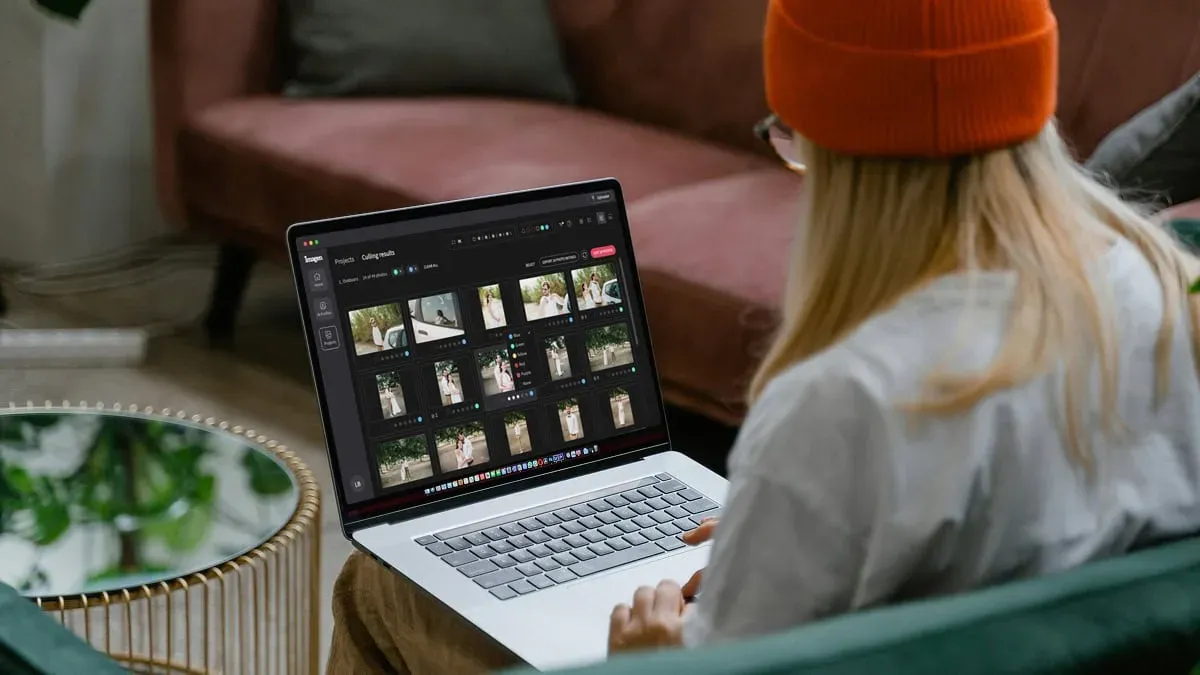
This is where AI photo culling by Imagen becomes a genuine lifesaver. Instead of clicking back and forth between nearly identical shots for an hour, let the system group your images and surface the sharpest frames with the best expressions. From there, you can move from a raw memory card to a curated selection in a fraction of the usual time.
Photographers don’t realize how much time they waste looking at identical burst shots. Offloading culling to reliable AI models isn’t just about speed; it’s about preserving your creative energy for the actual editing process.
Itamar Haim, SEO Expert and Digital Strategist specializing in search optimization and content marketing.
- Import your raw images directly into the platform.
- Set your preferences for focus sensitivity, expression tracking, and duplicate groupings.
- Review the suggested selections and export them straight to Lightroom.
Key Features
- Advanced blink and blur detection to filter out unusable photos.
- Intelligent clustering that groups similar burst shots automatically.
- Aesthetic ranking based on lighting, composition, and focus sharpness.
Pricing: Available on pay-as-you-go, where you pay for the photos you export.
Pros
- Saves hours of exhausting review work after a sizable event.
- Prevents eye fatigue and decision paralysis.
Cons
- AI might miss a moody, slightly blurry artistic shot if you don’t double-check.
Verdict: Treat this as an essential workflow upgrade if you shoot weddings or sports and need to deliver fast turnarounds.
10. Motion Blur and Long Exposure Simulation
Creating motion blur in broad daylight used to mean packing heavy physical ND filters and a tripod every time. Forget one of those, and you simply could not get the shot. Now advanced long-exposure simulation lets you add that same realistic movement to water, clouds, or fast-moving vehicles after the fact, in post-production.
The software uses motion vectors to calculate which elements in your frame should move and which ones should stay perfectly sharp. Use it to add dynamic energy to sports photos, or turn a busy, tourist-filled street into a smooth, ghostly passage of time.
Key Features
- Customizable blur paths to draw exact motion directions.
- Water smoothing filters that mimic physical neutral density filters.
- Light trail generation from moving car headlights.
Pricing: Included in Lightroom CC and specialized mobile apps like Spectre.
Pros
- Lets you shoot long-exposure effects hand-held.
- Adds a real sense of speed and energy to static sports shots.
Cons
- Struggles to keep subjects sharp if they’re moving erratically.
Verdict: Reach for this tool when you want a cinematic sense of motion in action, travel, or automotive photography.
11. Style Transfer and Artistic Filters
Sometimes you want a photo to look less like reality and more like fine art. Style transfer tools let you copy the exact color palette, texture, and brush strokes from a classic painting, or from another reference photo, and apply all of it to your own image.
This goes well beyond simple color grading. The AI actually reconstructs your image using the artistic style of the reference, blending both files together into something new. Use it to create unique graphics, branding assets, or social media visuals that stand out from the feed.
Key Features
- Reference image style matching for instant color and texture replication.
- Adjustable style strength to blend digital art with your photo.
- High-res output support that maintains fine texture details.
Pricing: Built into Photoshop’s Neural Filters and various creative mobile apps.
Pros
- Offers endless creative experimentation.
- Perfect for creating highly stylized social media graphics.
Cons
- Often looks too heavily processed for professional client photography.
Verdict: Keep this one for graphic design, digital art, or conceptual social content, where fun and experimentation are the point.
12. Dynamic Range Compression (HDR) 2.0
We’ve all seen the ugly, over-saturated HDR images that were everywhere a decade ago. Modern HDR has moved on since then. Today’s dynamic range compression merges multiple exposures smoothly and produces a natural look that mimics how your eye actually perceives light.
This is especially useful for high-contrast scenes, think real estate interiors with bright windows, or landscapes at sunset. Blend the highlight and shadow detail without flattening the photo or making it look fake, and you end up with a clean, high-quality file that’s ready for print.
- Set your camera to bracket your exposures, capturing at least three files (under-exposed, normal, and over-exposed).
- Keep your camera steady with a tripod to ensure perfect alignment.
- Import your RAW files into Capture One or Lightroom to merge them into a single high-dynamic-range file.
Key Features
- Advanced de-ghosting to remove motion artifacts from moving subjects.
- 32-bit float editing for maximum color and detail recovery.
- Natural tone mapping that prevents artificial glow around edges.
Pricing: Included in Capture One Pro ($299/year) and Adobe Lightroom.
Pros
- Recovers massive detail in both bright highlights and deep shadows.
- Maintains accurate color saturation across high-contrast scenes.
Cons
- Requires shooting multiple RAW files for the best results.
- Can look flat if the tone-mapping sliders are set too high.
Verdict: For architectural and scene photographers who deal with extreme lighting, this has become the standard approach.
Photo Editing Effects Comparison
| Effect | Primary Tool | Best For | Price Point |
|---|---|---|---|
| Batch AI Editing | Imagen | Efficiency and consistency | Pay-as-you-go: you pay for the photos you export |
| Generative Fill | Photoshop | Compositing and frame expansion | $69.99/mo (Creative Cloud Pro) |
| Upscaling | Topaz Photo AI | Print preparation and crop recovery | $199 (flat fee) |
| Film Emulation | Dehancer | Nostalgic analog aesthetics | $199 (flat fee) |
| Portrait Retouch | Luminar Neo | Speedy beauty cleanups | $11.95/mo |
Final Recommendation
If you shoot high-volume weddings, events, or portraits, Imagen is the clear winner for your day-to-day work. Processing 1,000 photos in under 10 minutes changes how you run your business day to day, giving you your evenings back while keeping your creative style fully intact. Check out Imagen pricing to see how paying on export fits your studio’s volume.
For complex compositing, background adjustments, and creative design work, the Adobe Creative Cloud suite still holds up as a necessary industry standard. If your work centers on high-end print production, wildlife cropping, or vintage photo restoration, investing in Topaz Photo AI for its upscaling is an easy call. Match the right tool to your specific workflow bottleneck, and you’ll stay ahead of the competition in 2026 without much fuss at all.
What’s new in Imagen: Two of the effects above, Personal AI Profile batch editing and AI culling, now live together in Imagen, an intelligent, agentic Studio for professional photographers. You cull, edit, review and export in one project, in any order. Cull with AI or manually for free, apply a Personal AI Profile or a ready-made AI Profile, and review early frames as edited photos arrive in batches. The Studio is rolling out gradually as a beta.
Frequently Asked Questions
Can AI photo editing tools match my custom editing style?
Yes, advanced platforms like Imagen let you train custom AI profiles right on your own Lightroom catalog. The software studies your past white balance, exposure, and color choices, then replicates your signature look with real accuracy across every new raw file you import.
Will AI upscaling replace high-megapixel camera sensors?
AI upscaling can turn a cropped image into a highly detailed print, but it doesn’t fully replace a high-megapixel sensor. High-res cameras capture real pixel data on set, while upscaling engines reconstruct missing detail with complex algorithms, useful for recovery work, though still less accurate than a raw capture.
Is sky replacement acceptable for professional real estate work?
Yes, sky replacement is widely accepted in commercial real estate photography, since it makes properties look bright and appealing. Just make sure the surrounding shadows and lighting on the house match the new sky, or the final image will stop looking realistic.
How many photos do I need to train a Personal AI Profile?
For the best results, upload a Lightroom catalog with at least 5,000 previously edited photos. That gives the AI editing engine enough data to learn how you handle different lighting situations, colors, and camera bodies.
Do these AI editing tools work without an active internet connection?
Some tools, like Topaz Photo AI and Luminar Neo, run locally on your computer’s graphics hardware and skip the cloud entirely. Imagen, though, is a desktop app for Mac and Windows whose AI processing runs in the cloud, so you need an internet connection to send photos for processing.
Why are Gen Z creators moving away from perfect skin smoothing?
Many younger creators simply prefer raw, authentic-looking images over heavily polished edits. That shift has pushed realistic film grain, soft lens blur, and vintage color grading well past classic skin-smoothing filters in popularity.
Can AI-powered culling engines actually tell if a photo is in focus?
Yes, modern culling systems analyze pixel-level sharpness around the eyes and other key facial features. They separate blurry shots from sharp frames almost instantly, grouping similar images so you can pick the best frame from a burst in seconds.

