

Mastering the Photo Book Workflow for Quick Turnaround: An Advanced Guide
Table of contents
- Key Takeaways for Quick Turnaround
- The Anatomy of a Slow Photo Book Workflow: Identifying the Bottlenecks
- Phase 1: Pre-Production and Efficient Culling with AI
- Phase 2: Achieving Editing Consistency at Scale with AI
- Phase 3: Rapid Photo Book Design and Album Proofing
- The Strategic Advantages of a Quick Turnaround
- Frequently Asked Questions about Quick Photo Book Turnaround
- How does AI editing specifically impact the time spent on photo book consistency?
- Can I use Imagen’s culling feature if I need to cull and design on different computers?
- What is the minimum number of photos required for an Imagen Personal AI Profile and why does that matter for photo books?
- My photo book lab requires images in TIFF format. Does Imagen support this file type in its workflow?
- How does the Fine-Tune feature keep my photo book style consistent over the long term, even as my editing changes?
- Can Imagen’s AI tools, like Subject Mask and Smooth Skin, be applied for quick book editing, and how do they speed things up?
- What is the practical difference between a static preset and an Imagen Personal AI Profile when preparing a book?
- My client lives internationally. Does Imagen offer cloud storage for sharing large book files yet?
- How do I handle bracketed photos (HDR Merge) for real estate photo books or architectural spreads using the Imagen workflow?
- How long can I expect Imagen to take to edit a full 800-photo wedding gallery for a book project?
- What is the major limitation of using a Lite Personal AI Profile for an important photo book project?
- If I need to make a quick change to my editing style for a new book series, what is the fastest way to implement that using Imagen?
- How does Imagen maintain data integrity and security for my photos while they are being processed in the cloud for the photo book?
Turning a massive collection of RAW files into a beautiful, cohesive photo book ready for client review represents the final, crucial step in your service offering. Let’s be honest though, this process can feel like dragging a heavy anchor. Why do photographers struggle so much with book creation speed? Often, the slowdown happens long before the files even reach the design software. Achieving a rapid, reliable photo book turnaround requires a holistic system that masters three critical phases: efficient culling, flawless editing consistency, and rapid delivery. This article provides a detailed, active-voice breakdown of how you can implement these strategies, prioritizing smart technology like Imagen to reclaim your time and boost client satisfaction.
Key Takeaways for Quick Turnaround
- Front-Load Efficiency: The fastest way to speed up book creation is to implement an AI-powered culling process early in your workflow. This saves far more time than trying to rush the design later on.
- Consistency is King: A great photo book demands a uniform look and feel. Use a single, AI-driven editing source, like an Imagen Personal AI Profile, to ensure every photo in the book maintains your signature style.
- Automate Style: Stop relying on static presets. Employ an evolving AI solution to handle color correction and basic adjustments so you only focus on creative refinements.
- The Single Platform Advantage: Consolidate culling, editing, and delivery into one system like Imagen to eliminate file shuffling, reducing the risk of errors and data loss.
- Utilize Delivery Integrations: Accelerate client proofing by using delivery features that export final JPEGs, then upload them to gallery platforms like Pic-Time (direct publishing from Imagen is on the roadmap).
The Anatomy of a Slow Photo Book Workflow: Identifying the Bottlenecks
What exactly derails your timeline when you promise a client a photo book? It’s rarely one single problem. Typically, the delay comes from cumulative friction points inherent in traditional workflows. As professionals, we cannot afford to rely on outdated, manual processes for high-volume tasks. We need to dissect these bottlenecks and inject intelligent automation at the source.
The Culling Conundrum: Too Many Choices
Photobooks are fundamentally narrative driven. That means you first need the right photos, not all the photos. Manual culling—scrolling through thousands of images to rate them—is mentally taxing and time consuming. It often takes days, even weeks, when juggling multiple projects. This is the first, biggest hurdle. If you start a book project with too many mediocre images, the design process becomes bloated and slow.
- Decision Fatigue: Spending hours comparing similar shots leads to slower decision making and increased mental fatigue.
- Inconsistent Selection: Human fatigue often leads to inconsistent keepers, which later complicates the design layout and narrative flow.
- The Lag Factor: Moving from the raw photo viewer to the editing software for culling can be clunky, wasting precious minutes on application loading and file indexing.
Editing Inconsistency: The Preset Pitfall
Traditional presets offer a starting point, but they apply edits blindly. They lack the intelligence to adapt to varying light, skin tones, and white balance across an entire wedding day or large event shoot. When creating a photo book, you are creating a cohesive product. If a photo on page five is noticeably warmer than the photo on page six, that breaks the client’s immersion and requires you to spend extra time micro-adjusting manually in post.
- Micro-Adjustments Multiply: Presets force you to correct basic color and light differences manually on hundreds of photos, creating a time-consuming feedback loop.
- Style Drift: As you edit manually, your style can inadvertently shift over months or years. If you rely on old edits to inform your new work, you introduce style inconsistency into the book.
- The Software Shuffle: Exporting from your editor, uploading to an online proofing gallery, and then importing into the book design software introduces three potential points of failure and delay.
Designing the Book: The Iteration Trap
Once you finally have a curated and edited set of images, the design process itself often invites endless revisions. The biggest time sink here is the client proofing phase. If the photos are inconsistent, the client focuses on the bad edits rather than the great layout. Furthermore, poor file management makes it easy to accidentally include low-resolution images or mislabeled files, forcing frustrating last-minute corrections.
We must recognize that efficiency in photo book quick turnaround relies heavily on streamlining the two upstream processes: culling and editing. You simply cannot design a book quickly from a messy, inconsistent, or oversized selection of images.
Phase 1: Pre-Production and Efficient Culling with AI
The first step toward a quick photobook is cutting out the fat. You must reduce the sheer volume of images you take from the sensor to the final design software. This requires intelligent culling, where AI handles the repetitive groundwork of identifying technical flaws and duplicates, leaving you to focus on the artistic choices.
Leveraging Imagen’s AI Culling for Speed
Imagen addresses the culling bottleneck directly with its in-app AI culling, which you can also skip if you prefer to cull manually for free. By mimicking the human selection process, Imagen delivers results that feel intuitive, but in a fraction of the time. The power here lies in eliminating the technically flawed images right away and presenting the keepers in smart groups.
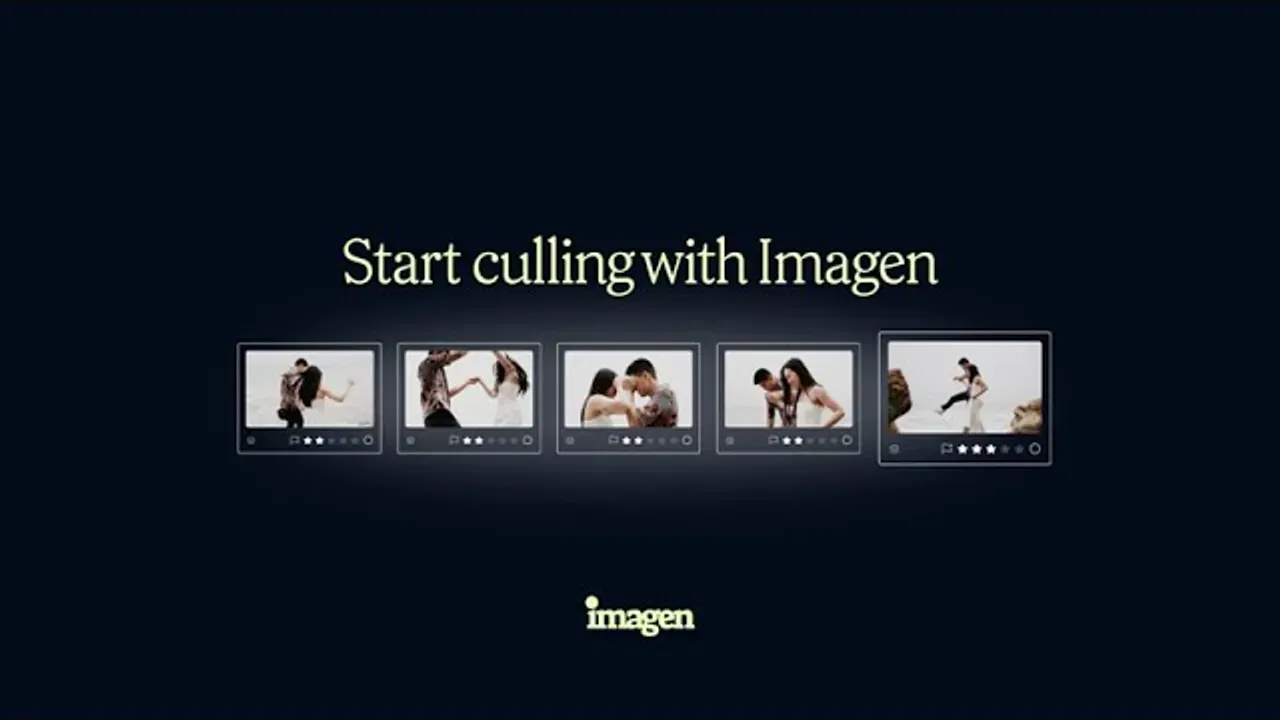
The AI Culling Workflow: Step by Step
- Upload a Project: You start by uploading your RAW files from a Lightroom Classic catalog. This step is fast because Imagen’s desktop application is designed to prioritize speed, even though the heavy lifting of processing happens securely in the cloud.
- Set Culling Preferences: In Imagen’s AI culling, you define how photos are grouped and rated. You can choose between two effective methods:
- Keep the Best of Each Group: This is ideal for most professional event work (weddings, portraits) where you might shoot bursts or slightly varied angles of the same moment. Imagen intelligently groups these similar photos and suggests the single best one based on sharpness, exposure, and composition.
- Cull to an Exact Number: When a client contract specifies exactly 150 finished images, this method automatically reduces your selection to that precise count or percentage. This is a massive time-saver for high-volume shoots where strict quotas apply.
- **Advanced Culling Intelligence:**Imagen’s AI includes sophisticated features that go far beyond simple blur detection:
- Face Recognition: The AI detects and tracks subjects, identifying blurry or duplicated faces, saving you the painstaking manual comparison process.
- Closed Eyes and Kiss Recognition: The system recognizes unintentional blinks, classifying them as low-rated unless it detects a kiss, understanding that some closed-eye moments are emotionally significant and should be kept.
- Cull Edited Previews: This is arguably the most powerful feature for photobooks. Imagen lets you review previews of your photos with your favorite AI Profile already applied. You aren’t judging a flat, boring RAW file; you are judging the final, stylized image. This lets you determine the narrative value of the image immediately.
- Review and Finalize: You remain in complete control. After the AI provides its initial short-list and ratings, you quickly review the results in your Imagen project. Use familiar keyboard shortcuts to easily adjust ratings, ensuring your artistic eye gets the final say.
- Send to Editing: Once finalized, you move the selected, high-quality images directly into the editing phase within the Imagen platform. This seamless transition eliminates the need for exporting, importing, or duplicating files, maintaining a streamlined, error-free workflow.
Summary of Culling Phase: By using Imagen to automate the culling process, you move from weeks of manual selection to hours of focused review. This crucial efficiency gain upstream guarantees a manageable, high-quality image set for your book design, dramatically accelerating your overall turnaround time.
Competitor X Culling and Selection Feature
A number of other applications offer culling capabilities. For instance, Selection Assistant is a desktop application designed to help photographers sort large photo sets. It relies on a local installation and uses a predefined set of parameters to identify images that may be technically flawed. The software organizes images into various groups based on similarity and flags shots that exhibit high contrast or motion blur. The system provides an interactive gallery view allowing the user to apply color labels or star ratings to the photos. Users must then export a metadata file that their primary editing application can read, or export the selected image files themselves, to move the keepers into the post-production stage. This functional system performs its analyses exclusively on the local machine and requires the user to manage the file transfer between the culling and editing steps.
Phase 2: Achieving Editing Consistency at Scale with AI
Consistency is not merely an aesthetic preference; it is a fundamental requirement for a premium photo book. A great book design flows seamlessly from cover to cover. When you implement a consistent editing engine, you virtually eliminate the need for micro-adjustments in post-production, which is the second major time-sink.
Automating Style with Imagen’s AI Profiles
Imagen’s AI Profiles act as the core of this consistency. These profiles are superior to traditional presets because they learn from your editing history and apply personalized, per-photo adjustments instead of a static overlay.
The Three Paths to Your AI Profile
- Personal AI Profile (Recommended): This is the gold standard for personalized consistency. Imagen analyzes at least 2,000 of your previously edited photos from your Lightroom Classic or Extended Adobe Compatibility source. It learns your nuanced decisions across diverse variables like lighting, skin tones, and environment. The profile consistently applies White Balance, Tone (Exposure, Contrast, Highlights, Shadows), and Presence (Clarity, Saturation, Texture) exactly as you would have done manually.
- Lite Personal AI Profile: Need speed now? If you do not have 2,000 edited photos, you can quickly create a Lite Profile using a preset and a short style survey. This profile is ready in minutes, providing a fantastic starting point that you can later refine.
- Talent AI Profile: Access a vast library of editing styles created by industry-leading photographers. This lets you jump into editing immediately with a proven, professional style. You can also use a Talent Profile as a base to create your own unique style as you fine-tune it.
Evolving Your Style: Fine-Tuning and Adjustments
Your creative vision should never remain static. Your AI should evolve with you.
- Fine-Tune: After you use your Personal AI Profile for a project and make minor manual tweaks in Lightroom, you simply upload your final edits back to Imagen. Once you accumulate enough new data (at least 2,000 new edits), Imagen prompts you to Fine-Tune your profile. This updates the AI model, ensuring all future edits incorporate your latest style shifts, making your profile even more accurate and saving you more time.
- Profile Adjustments: Sometimes you need an immediate, project-wide shift. Imagen lets you refine your Personal AI Profile with manual Profile Adjustments. Need all your wedding receptions a bit cooler? Adjust the Temp slider and apply the correction instantly. This offers immediate creative control without needing a full Fine-Tune cycle.
Imagen’s Seamless Workflow Integration
Imagen is a desktop app that manages the entire post-production process, but it processes the data securely in the cloud. This combination gives you the speed of cloud computing without forcing you to move your original files off your local drive.
- Adobe Compatibility: Imagen works directly with the editing software you already trust: Lightroom Classic, Lightroom, Photoshop (via Camera Raw), and Bridge.
- Upload: You select your photos from your Lightroom Classic catalog (or folders via Extended Adobe Compatibility) right within the Imagen app. The raw editing data is sent to the cloud.
- Cloud Processing Speed: Your 1,000 photo book project edits in your unique style in roughly five minutes, averaging under 0.5s per photo. Try matching that manually.
- Download and Review: Imagen downloads the edits back to your original source location as edit metadata. The original photo files remain untouched. You open your software, and the edits appear instantly on your images, ready for final review and book design. Edited photos arrive in batches as they process, so you can start reviewing early frames while the rest finish.
- Important Note on Data: Remember, you need to cull and review results on the same computer where you installed Imagen, ensuring all local links and catalogs work correctly. Also, cloud storage backup is on Imagen’s roadmap, so keep your usual backup in the meantime.
Summary of Editing Phase: By centralizing your style in an intelligent AI Profile, you ensure every image destined for your photo book has the same consistent color, light, and tone, reducing editing time by up to 96%. This level of consistency is non-negotiable for fast, high-end book design.
Competitor Y Batch Editing Feature
In comparison, some competitors offer batch editing capabilities designed for uniformity. StyleSync Pro, for example, is a third-party software that applies a user’s imported preset file across a selection of images. This process involves a functional application of the preset’s fixed values to a large group of photos, running its calculations using the user’s local CPU and GPU resources. The application is known for its ability to handle various file formats, including RAW and DNG. After processing, the software generates a corresponding XMP file containing the edit settings for each image. The user must manually import these XMP files back into their editing software to see the applied adjustments. This feature is effective for applying a consistent baseline look, but it does not include adaptive AI intelligence that accounts for variations in image exposure or color temperature on a photo-by-photo basis.
Phase 3: Rapid Photo Book Design and Album Proofing
You now have a perfectly culled set of images, all edited to consistent perfection. The design phase shifts from a grueling task to a satisfying assembly process. Speed here depends entirely on avoiding unnecessary back-and-forth and utilizing efficient file management and delivery.
File Management and Resolution Assurance
The moment your finalized, edited photos are ready, you should ensure they are exported correctly for the design software.
- Export Final JPEGs: After your final review in Lightroom, use the built-in export function or Imagen’s Deliver your photos feature to create a dedicated folder of final JPEGs for your book designer.
- Quality Check: Always export at the required print resolution (usually 300dpi) and use the sRGB or Adobe RGB color space as specified by your lab. By doing this, you eliminate resolution-related revisions that plague slow workflows.
- The Design Bridge: Use a dedicated design application like Fundy Designer, AlbumStomp, or SmartAlbums. These applications integrate with your exported JPEG folder and offer templated, drag-and-drop layouts that allow for fast page assembly. Because your photos are already consistently edited, the design process is purely about narrative layout, not fixing color.
Seamless Delivery with Imagen Integration
The fastest way to get client approval and close the project is by simplifying the delivery step. Imagen offers tools that bypass the common hurdles of exporting, re-uploading, and manually managing files.
- Export to a Folder: The simplest method is using Imagen to export final JPEGs to a folder. Imagen creates a new final-photos folder inside your project directory and automatically exports the professionally edited files.
- Publish to Pic-Time: For high-end client proofing and sales, Imagen is building seamless integration with gallery platforms. Once it ships, you’ll be able to publish your whole project or only your final edits directly to a Pic-Time gallery. This will eliminate the manual step of uploading thousands of JPEGs to the online gallery, so your client will be able to view the beautifully edited images for proofing right away, reducing the approval cycle.
The key to speedy client proofing is confidence. When you present perfectly consistent, high-resolution images within a professional gallery platform, the client is far more likely to approve the collection quickly, shortening the longest phase of the book workflow.
The Strategic Advantages of a Quick Turnaround
Why bother optimizing so aggressively? The benefit of a photo book quick turnaround extends far beyond simply getting the job done. It fundamentally changes your business operations, profitability, and client relationship dynamics.
Cash Flow and Capacity
Time is money, and faster turnarounds mean faster final payments. If a book project takes three weeks instead of three months, you close the job and receive final payment 10 weeks earlier.
- Predictable Income: A reliable, speedy workflow makes your income more predictable, enabling better financial planning and investment in your business.
- Increased Capacity: If you cut post-production time by 90%, you can accept more bookings without hiring more editors, increasing your annual revenue potential significantly.
- Avoiding Burnout: Shifting tedious culling and color correction to AI frees up your creative capital, allowing you to focus on shooting and client experience, rather than repetitive screen time.
Minimizing Technical Bottlenecks: Cloud Storage on the Roadmap
Reliable storage and access are crucial. You cannot afford to lose the original high-resolution files needed for the final print. Imagen plans to offer Cloud Storage for photographers, but it is on the roadmap and not available yet, so keep your usual backup (external drives, a NAS or a cloud service) in place for now.
- Peace of Mind: Imagen does not back up your culling or editing projects yet, since cloud storage is on the roadmap. Until it arrives, keep your originals in your usual backup so a hard drive failure never costs you a photo book.
- **Optimized vs. Original Photos:**Imagen plans to offer high-resolution backup options as part of its cloud storage, which is on the roadmap and not available yet:
- Optimized Photos (Planned): This option is not available yet, so keep your full-size RAW files in your usual backup for now.
- Original Photos: Full copies of your original files, stored in their original format.
- Accessibility: Your photos are securely stored online and accessible from multiple devices. If you need to retrieve an old project quickly for a reprint, you avoid searching through physical archives.
- Retrieval Speed: Retrieving old projects from Imagen storage only becomes a question once cloud storage ships, since it is on the roadmap and not available yet. For now, keep your original files in an archive you can reach quickly, so an old project is ready for a reprint when you need it.
Competitive Advantage and Client Delight
Imagine the power of delivering a proofing gallery with consistent, finished edits just days after the shoot.
- Exceeding Expectations: Fast turnaround is a massive differentiator in a competitive market. Clients often expect weeks or months of waiting; surprising them with speed generates immediate delight and boosts referral rates.
- High-Value Service: You can package “Guaranteed 7-Day Book Proofing” as a premium service, justifying a higher price point for your professional efficiency.
In the world of professional photography, efficiency is the new luxury. By leveraging the integrated system that Imagen provides—from smart culling to automated editing and seamless delivery—you create a predictable, high-speed pipeline for your photo book business. This allows you to scale your business, increase client happiness, and get back to the lens, where you belong.
What’s new in Imagen: Imagen is now an intelligent, agentic Studio for professional photographers, where culling, editing, review and export happen together in one project, in any order. For photo books, you can use AI culling to narrow a big shoot or skip it and cull manually for free, then let your Personal AI Profile give every spread the same look. The Studio is rolling out gradually as a beta. Learn more about Imagen.
Frequently Asked Questions about Quick Photo Book Turnaround
How does AI editing specifically impact the time spent on photo book consistency?
AI editing, particularly with an Imagen Personal AI Profile, virtually eliminates the single largest time sink: achieving visual consistency across large volumes of images. Traditional methods require manually matching color, light, and tone across hundreds of photos from various lighting conditions (indoor, outdoor, sunset, flash). The AI handles this adaptive color correction per-photo, so when you import the final images into the design software, you spend zero time tweaking and only focus on the creative layout. This saves approximately 80 to 90% of the manual editing time needed to ensure a uniform look for the final printed product.
Can I use Imagen’s culling feature if I need to cull and design on different computers?
Yes, you can use the Imagen culling feature, but with a workflow consideration. The Imagen app is a desktop application where you upload the project, perform the AI culling, and review the results. Since the AI processing happens in the cloud, you can close the app after uploading. However, for a seamless workflow, you should review and finalize your culling on the same computer where the original files and the Imagen app are installed. Once the best photos are selected and edited by Imagen, you download the metadata, and then you can export those final JPEGs to a file that can be transferred or accessed by any other design computer.
What is the minimum number of photos required for an Imagen Personal AI Profile and why does that matter for photo books?
You need a minimum of 2,000 original edited photos to train a highly accurate Personal AI Profile. This high requirement is critical for photo books because it ensures the AI learns enough variability in your style across different scenarios (like bright outdoor portraits versus dimly lit reception shots). A profile trained on only a few dozen photos, like a typical preset, will fail to provide the adaptive consistency needed for the diverse lighting and subjects found across an entire book project, leading right back to manual corrections and a slower turnaround.
My photo book lab requires images in TIFF format. Does Imagen support this file type in its workflow?
Imagen supports editing TIFF format files, in addition to JPEG and RAW. You can upload TIFF files for editing. However, when creating an AI Profile, you must choose the specific file format (RAW or JPEG/TIFF) that your photos will be edited with, and the profile will only be used for that file type. When delivering your final photos, you can export finished JPG, TIFF or PNG files straight from Imagen, or export the edited images from your Adobe software as high-resolution JPEGs for the design phase and then export the final spreads as TIFFs if your lab requires it.
How does the Fine-Tune feature keep my photo book style consistent over the long term, even as my editing changes?
The Fine-Tune feature is designed to evolve your Personal AI Profile as your unique editing style naturally changes over time. After you use Imagen to edit several projects and manually tweak the results in Lightroom, you upload these final edits back to the platform. Once you accumulate enough new data (at least 2,000 edits), you Fine-Tune the profile. This process incorporates your latest adjustments into the AI model, ensuring that every subsequent project edited with that profile reflects your most current style. This guarantees that a book you design today will match the style of a book you design six months from now, maintaining brand cohesion.
Can Imagen’s AI tools, like Subject Mask and Smooth Skin, be applied for quick book editing, and how do they speed things up?
Absolutely. Imagen’s additional AI Tools significantly accelerate the process by automating complex, repetitive local adjustments. Subject Mask automatically isolates and enhances the main subject in a portrait, while Smooth Skin applies a high-quality skin retouch with custom controls. Applying these tools in batch through Imagen eliminates the need to manually paint masks or retouch hundreds of portraits individually in Photoshop or Lightroom. Since the AI applies these local edits intelligently during the bulk editing phase, your images are virtually print-ready upon download, saving crucial hours per book project.
What is the practical difference between a static preset and an Imagen Personal AI Profile when preparing a book?
The difference is adaptability versus rigidity. A static preset applies the exact same set of adjustments (e.g., +0.5 exposure, -20 highlights) to every single photo in your book, regardless of lighting conditions. This forces manual correction on 90% of the images. An Imagen Personal AI Profile applies adjustments adaptively. It analyzes each photo individually, determining the correct white balance, exposure, and tone for that specific image based on its context, mimicking a human editor’s decision-making process. This eliminates the need for manual correction and delivers instant, print-ready consistency across the entire book collection.
My client lives internationally. Does Imagen offer cloud storage for sharing large book files yet?
Not yet, and it would not be meant for direct client sharing anyway. Cloud storage backup is on Imagen’s roadmap, and Imagen is a desktop application designed for the photographer’s workflow. For delivering final print-ready files or proofs to an international client, use Imagen’s Deliver your photos feature to export the final JPEGs and then use a dedicated client delivery platform like Pic-Time, or a large file transfer service.
How do I handle bracketed photos (HDR Merge) for real estate photo books or architectural spreads using the Imagen workflow?
Imagen simplifies this complex task with its dedicated HDR Merge AI tool, primarily used for real estate photography, which often features architectural photo books. When you upload your project, you select the HDR Merge tool. Imagen intelligently merges the bracketed exposures into a single, high-dynamic-range photo automatically, resulting in a single DNG (if your originals are RAW) or JPEG file ready for editing. You then edit this single merged file with your AI Profile. This skips the tedious manual alignment and merging steps required in traditional software, ensuring your architectural spreads are consistent and fast to produce.
How long can I expect Imagen to take to edit a full 800-photo wedding gallery for a book project?
You can expect an editing turnaround time of around 5 to 10 minutes for an 800-photo project, depending on the current cloud queue and whether you include additional AI Tools. Imagen averages around 0.33 seconds per photo. This speed is the cornerstone of achieving a quick photo book turnaround. By comparison, a human editor working on color correction and tone might take 5 to 10 hours to achieve the same level of consistency and completion.
What is the major limitation of using a Lite Personal AI Profile for an important photo book project?
The main limitation of a Lite Personal AI Profile is that it only uses AI correction for exposure and white balance, applying your chosen preset for all other settings. It lacks the deep, adaptive learning of a full Personal AI Profile, which adjusts over twenty different settings including shadows, highlights, and clarity on a per-photo basis. For a high-stakes photo book, where images are diverse, using the Lite Profile means you will likely spend more time manually correcting color casts and contrast issues than if you used the recommended, fully trained Personal AI Profile.
If I need to make a quick change to my editing style for a new book series, what is the fastest way to implement that using Imagen?
The fastest way to implement a subtle, sweeping style change is by using Profile Adjustments within the Imagen app. For example, if you decide your new book series should have slightly warmer tones overall, you simply go to your AI Profile settings, adjust the Temp slider under White Balance, and apply a Correction (e.g., +5 Temp). This change is applied instantly to the profile, and all new photos you send for editing will immediately reflect this stylistic shift without requiring a 24-hour Fine-Tune cycle.
How does Imagen maintain data integrity and security for my photos while they are being processed in the cloud for the photo book?
Imagen prioritizes security by following industry best practices. As a desktop application, it keeps your original photos on your local machine. Your photos are sent to the cloud for AI processing via secure HTTPS with TLS 1.2+ encryption, and the AI processes them on AWS infrastructure with strict access controls. The edits then come back to your project. Cloud storage backup is on Imagen’s roadmap, so for now keep your usual backup of your originals.

