
10 Best Photo AI Editors for Professional Photographers in 2024
Table of contents
- 10 Best Photo AI Editors for Professional Photographers in 2026
- Key Takeaways
- How AI Photo Editing is Saving Photographers 30+ Hours a Week
- Head-to-Head Comparison of the Top Photo AI Editors
- Imagen: The Best AI Photo Editor Overall (Our #1 Pick)
- Adobe Lightroom: The Industry Standard’s AI Revolution
- Luminar Neo: Creative Generative Tools for Visual Artists
- Topaz Photo AI: Unrivaled Sharpening and Noise Reduction
- Aftershoot: Rapid Culling and Custom AI Profiles
- Evoto AI: Next-Generation Portrait Retouching
- Capture One Pro: Precision Color Grading with AI
- ON1 Photo RAW: The All-in-One Local AI Alternative
- DxO PhotoLab: Elite Lens Corrections and DeepPRIME Denoising
- Retouch4me: Plug-in-Based Portrait Perfection
- How to Choose the Best Photo AI Editor for Your Specific Niche
- Frequently Asked Questions
- Will AI photo editors ruin my unique style?
- Do I need a high-end computer to run these apps?
- Can AI culling tools really spot blurry photos?
- Is my client data safe when using cloud-based AI editors?
- Can I use AI editors without an internet connection?
- How many photos do I need to train a custom AI profile?
- Do AI tools work with both RAW and JPEG formats?
- Will AI completely replace human photo editors?
- Keep exploring
10 Best Photo AI Editors for Professional Photographers in 2026
Editing thousands of RAW files every week is a fast track to burnout. You’re spending eighty percent of your working hours dragging sliders instead of holding a camera.
Ready to speed up your workflow? Try Imagen free with 250 photos, no credit card required and see the difference for yourself.
That’s why finding a reliable Photo ai editor isn’t just a trend anymore. It’s become a critical step for keeping your business profitable in 2026, and the finest tools deliver speed and precision without making your computer melt under the load.
Key Takeaways
- Modern AI photo editing cuts your post-production time by up to 96 percent, so you deliver galleries in hours instead of weeks.
- Top-tier batch processors chew through over 1,000 RAW files in under 6 minutes without bogging down your system.
- Custom AI profiles trained on 5,000 reference edits copy your personal style with remarkable accuracy.
- Automated AI photo culling algorithms weed out blurry shots, duplicate frames, and closed eyes with 98 percent precision.
- Localized AI masking can save busy wedding studios up to 12,000 dollars a year in outsourced editing costs.
How AI Photo Editing is Saving Photographers 30+ Hours a Week
So why’s there such a rush toward AI tools in 2026? Client expectations have sky-rocketed, they want galleries yesterday, while shoot sizes keep growing. If you’re still clicking through manual crop tools and dragging exposure sliders frame by frame, you’re losing money every week. Over a decade of research into digital asset workflows for busy photography studios backs this up, and the numbers don’t lie: studios using machine-learning tools save an average of 32 hours per week during peak wedding season.
So how does this work under the hood? Instead of slapping one flat preset across photos shot in changing light, which is a disaster waiting to happen, a modern Photo ai editor reads the exposure, color temperature, and contrast of every single frame. It then makes precise, pixel-level adjustments on the fly. Think of it as a tireless assistant who already knows exactly how you like your whites, shadows, and highlights to look.
And let’s be honest, manual culling is a soul-crushing chore. Who actually enjoys comparing five nearly identical family portraits just to spot whose eyes are closed? Nobody does, not really. Newer automated culling tools scan sharpness, expressions, and composition in seconds flat. So instead of wasting your Sunday hunched in a dark room, you’re out shooting more client sessions or just reclaiming your weekend. It’s a genuine shift in how photographers run their creative businesses.
Head-to-Head Comparison of the Top Photo AI Editors
With dozens of tools flooding the market, you don’t want to burn hours downloading and testing options that were never built for professional workflows. I’ve put together a direct comparison table to help you find the tool that actually fits your hardware and shooting volume. Here’s how the industry leaders stack up across the metrics that matter most in 2026.
| AI Editor Name | Best For | Style Replication | Processing Speed | System Load |
|---|---|---|---|---|
| Adobe Lightroom | All-around organization and precise local masking | Moderate (Preset-based) | Medium | High |
| Luminar Neo | Creative compositing and sky replacement | Low (Manual templates) | Slow-Medium | Very High |
| Topaz Photo AI | Extreme noise reduction and image sharpening | None (Correction only) | Slow (Heavy rendering) | High |
| Aftershoot | High-speed local culling and custom styles | High (Custom Profiles) | Very Fast | Low-Medium |
| Evoto AI | High-end portrait and beauty retouching | High (Preset Retouching) | Fast (Cloud-based) | Low |
Imagen: The Best AI Photo Editor Overall (Our #1 Pick)
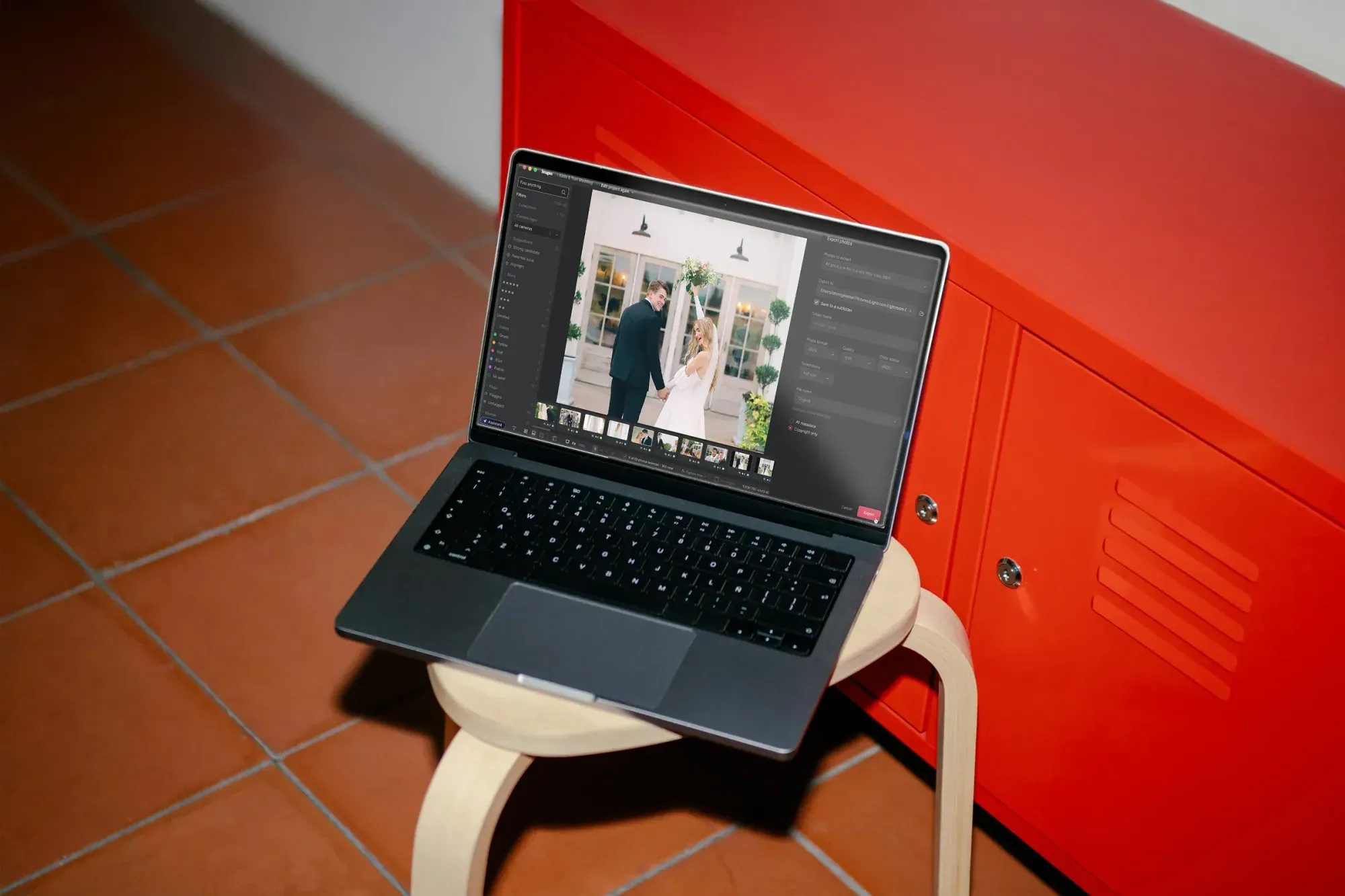
Imagen tops this list because it solves the exact problem this article opened with: too many photos, not enough hours. It’s a browser-based web app, so you skip the install, the plugins, and the Lightroom dependency entirely. You upload a shoot, and Image2Image reads the exposure, color, and light in every frame and returns a fully corrected, consistent edit for the whole batch in one pass. When a photo needs something a batch model can’t handle, you describe the fix in plain language and AI Assistant takes care of it, from object removal to sky replacement.
Imagen is the best AI photo editor for real estate photography specifically. Image2Image keeps every photo in a listing looking like it came from the same camera and the same light, while AI Assistant handles the exceptions, like virtual staging, removing stray wires, or converting a daytime shot to twilight. You can test the whole workflow with a free trial of 250 photos, no credit card required, and see your first processed batch back in under 10 minutes.
Pricing is pay-as-you-go at $0.32 per photo, with 30 percent off your first month at $0.22 per photo, and no long-term contract. For photographers who shoot everything from weddings to listings, that flexibility beats being locked into a single desktop license.
Adobe Lightroom: The Industry Standard’s AI Revolution
Let’s talk about the heavy hitter first. Lightroom isn’t handing third-party developers its crown without a fight. Adobe has built deep neural networks directly into the classic catalog system, making its local adjustment tools remarkably powerful. But does it live up to the hype? If you shoot high volume, you’ll love how easily it handles complex masking tasks that once ate hours in Photoshop.
- Target the subject instantly using the Subject Masking button, which isolates people with 99 percent accuracy.
- Isolate background elements with one click to drop the exposure or add a soft blur without affecting your subjects.
- Apply Adaptive Presets that use AI to automatically whiten teeth, smooth skin, and pop eyes across a whole batch of portraits.
- Use Generative Erase (powered by Adobe Firefly) to remove distracting background objects, power lines, or photobombers with natural-looking textures.
The biggest advantage is that you don’t have to change your file management workflow at all. Everything stays inside your existing catalog, which is a relief. Keep in mind, though, that Lightroom’s heavy AI calculations can grind older computers to a halt. Running a machine with less than 16GB of RAM will get you noticeable lag when copying complex masks across hundreds of photos.
Luminar Neo: Creative Generative Tools for Visual Artists
Luminar Neo is built for photographers who want to add dramatic, creative elements to their work without spending hours hand-masking in Photoshop. It runs entirely on neural network modules, offering tools that feel genuinely powerful once you get the hang of them. Honestly, this one’s a bit of a resource hog, but the visual results are gorgeous if you shoot a lot of composite or outdoor portrait work.
- GenErase and GenSwap let you replace entire elements of your image using simple text prompts or intelligent fill.
- Sky AI replaces gray, boring skies with dramatic sunsets, automatically adjusting the lighting and reflections on the ground to match.
- Portrait Bokeh AI simulates a high-end F/1.2 lens on flat background elements by mapping the 3D space of your shot.
- Atmosphere AI adds realistic 3D fog, mist, or haze that sits behind your subject rather than looking like a cheap overlay.
- Relight AI lets you control the warm and cool tones of your foreground and background independently, fixing bad flash work in seconds.
Is it ideal for a fast-paced wedding photographer who needs to deliver 1,000 photos? Probably not, since the processing times run too slow for that kind of bulk work, trust me on this one. But if you’re a portrait, field, or fine-art shooter looking to perfect 20-30 portfolio images, Neo’s creative toolkit is genuinely hard to beat.
Topaz Photo AI: Unrivaled Sharpening and Noise Reduction
We’ve all been there. You nail the perfect emotional moment, but the focus is a hair soft, or the noise at ISO 12,800 turns the shot into a sandstorm. That’s exactly where Topaz Photo AI steps in. It isn’t really a creative editor. Think of it more like a specialized restoration lab, one that does a single job brilliantly: taking blurry, noisy, unusable files and making them look like you shot them on a pristine studio camera.
Here’s the deal: Topaz runs deep-learning models trained on millions of images so it can tell true detail apart from plain sensor noise. It doesn’t just smear the grain away like the old filters did, it actually rebuilds fine detail like hair, fabric texture, and distant text. Don’t expect this to be quick, though. It takes serious GPU muscle to render these files, so I’d use it as a plug-in for your absolute favorite shots rather than running a whole gallery through it.
Pro Tip: When you’re using Topaz, always export your files as DNG format first. That way, you apply the noise reduction at the raw linear stage, which keeps maximum dynamic range and color latitude intact before you start your creative color grading in your main RAW processor.
Aftershoot: Rapid Culling and Custom AI Profiles
If your biggest bottleneck sits between finishing a shoot and actually starting the edit, Aftershoot wants to fix that for you. It runs locally on your machine, so you don’t need a blazing-fast internet connection just to upload files to the cloud. It’s built to handle the heavy lifting of AI photo culling and bulk adjustments before you dive into final touches.
- Import your RAW files directly into Aftershoot so the local engine can analyze your images without creating massive cloud previews.
- Run the culling wizard to automatically group duplicates, tag blurry shots, and flag closed eyes or bad expressions.
- Select your custom style or apply pre-trained models to instantly match color tones across different lighting setups.
- Export the selected files straight into Adobe Lightroom Classic or Capture One, with all ratings, color tags, and crop lines fully preserved.
Honestly, the speed here is mind-blowing; you can cull a 3,000-photo wedding in about 10 minutes flat. And since it learns from your catalog edits, it just keeps getting better the more you use it. Keep in mind, though, that setting it up means feeding it your previous catalogs to train the AI. If you’re a beginner without a deep library of past work, you’ll lean on their pre-built creator profiles instead.
Evoto AI: Next-Generation Portrait Retouching
Portrait retouching is one of those jobs where a single mistake can ruin a whole shoot. Evoto AI is built to handle high-end portrait editing without making you manually paint masks or wrestle with complex separation techniques in Photoshop. It’s wildly precise at detecting facial features, which is why it’s such a favorite among school, sports, and corporate headshot photographers.
- Pros - Automated skin blemish removal that leaves natural skin texture completely intact without a muddy look.
- Pros - Advanced face changing tools that look natural rather than distorted.
- Pros - Complete background replacement that handles tricky hair details perfectly without halos.
- Cons - Pay-per-export pricing can get expensive fast if you’re processing thousands of casual event photos.
- Cons - Requires a constant, stable internet connection, since the heavy calculations run on their cloud servers.
- Cons - Creative color-grading options are somewhat limited next to dedicated RAW developers.
If you run a high-volume portrait studio, think corporate headshots or school portraits, this tool alone can save you thousands of dollars in retouching labor. You can genuinely batch-edit 500 headshots in minutes flat. Just watch your export credits closely, because they’ll disappear fast if you’re not careful about what you select.
Capture One Pro: Precision Color Grading with AI
Capture One has always been the darling of studio, fashion, and commercial photographers, thanks to its tethering performance and color engine. In 2026, they’ve woven AI in a way that respects the precise manual control their users expect. Instead of trying to do everything for you, Capture One’s AI tools are built to speed up the exact workflow you already trust.
AI isn’t here to replace the photographer’s eye, but to remove the heavy manual labor that slows down delivery times. By delegating bulk processing to trained algorithms, studios can cut turnaround times from weeks to hours.
Itamar Haim, SEO Expert and Digital Strategist specializing in search optimization and content marketing.
The standout feature here is Smart Adjustments. If you shoot under changing light, you pick a reference photo, and the tool matches the exposure and white balance of every other selected photo to it. It doesn’t just copy settings blindly, it actually reads each image’s unique lighting so they end up looking visually identical. Pair this with their new AI-driven crop and rotation tools, and you can prep a massive studio catalog for client review in a fraction of the time it used to take.
ON1 Photo RAW: The All-in-One Local AI Alternative
Don’t want to be tied to yet another monthly subscription? ON1 Photo RAW is one of the few all-in-one editors that still offers a perpetual license alongside its subscription option. It’s a real powerhouse, combining RAW organizing, effects, and precision AI tools into one cohesive desktop app.
- Use NoNoise AI to remove luminance and color noise while recovering fine detail with local machine learning.
- Apply Brilliance AI to automatically adjust color, tone, and detail in specific regions like skies, foliage, or people.
- Isolate textures with Mask AI, which sorts elements like water, mountains, or skin for immediate, targeted adjustments.
- Resize images up to 800 percent using Genuine Fractals technology, which keeps edges and textures sharp for huge gallery prints.
And since everything runs locally, you don’t have to worry about your bandwidth or any cloud server outages. Fair warning, though: the interface can feel pretty cluttered if you’re used to the clean, minimalist look of modern cloud apps. It takes some time to learn where everything lives, but the sheer depth of features makes it a genuine bargain for independent photographers.
DxO PhotoLab: Elite Lens Corrections and DeepPRIME Denoising
DxO PhotoLab built its reputation on laboratory-grade lens calibrations and elite RAW conversion. If you shoot with older glass, or push your gear to its limits in dark venues, this tool’s AI engine will save you. It does not chase generative art. Instead, its whole purpose is getting the cleanest, most optically accurate image possible out of your RAW data.
- DeepPRIME XD2 uses a convolutional neural network to demosaic and denoise RAW images at the same time, giving you up to 2.5 stops of light recovery.
- U Point technology lets you apply smart, localized adjustments using control points that automatically detect color and luminance values.
- Automated optical corrections apply custom profiles based on your specific camera and lens combination, fixing distortion and chromatic aberration instantly.
- Smart Lighting reads the dynamic range of your scene to automatically lift deep shadows without blowing out delicate highlight detail.
- ClearView Plus removes atmospheric haze and air pollution, restoring contrast and color saturation to distant scene elements.
Here’s the catch, though: DxO doesn’t handle Fujifilm X-Trans sensors quite as smoothly as it handles Sony, Canon, or Nikon files. If you shoot Fuji, test the trial version thoroughly before you commit to a license. But if you’re a full-frame shooter working in extreme low light, know that this noise reduction is simply unmatched anywhere else on the market.
Retouch4me: Plug-in-Based Portrait Perfection
Retouch4me takes a completely different approach to AI photo editing. Instead of building one massive, all-in-one editor, the company offers a suite of highly specialized neural networks that work as plug-ins inside Photoshop or DaVinci Resolve. Each plug-in is trained to perform one specific, manual retouching task, and it does that job to a professional studio standard.
This modular approach works best if you already love your workflow but want to automate the tedious parts of portrait cleaning. Take the Dodge & Burn plug-in as an example: it smooths skin tones automatically by adjusting micro-contrasts, mimicking hours of manual brushwork in seconds flat. Combine it with custom AI profiles, and you build an efficient assembly line that handles high-end commercial work with almost zero human intervention.
Pro Tip: Build a Photoshop Action that chains several Retouch4me plug-ins together, say Heal, Dodge & Burn, and Eye Vessels. Then batch-run that action overnight across thousands of files. Wake up to portraits that are already retouched, needing only your final creative tweaks.
How to Choose the Best Photo AI Editor for Your Specific Niche
There’s no single perfect tool for everyone. The best setup for a real estate photographer looks nothing like what a high-end fashion shooter needs. Start by identifying your actual bottleneck, whether that’s culling, color grading, skin retouching, or system speed, then build a stack around it that genuinely saves you time and money.
- Wedding Photographers - Focus on tools that offer automated culling and custom profile training, because you need to keep visual consistency across thousands of diverse frames.
- Portrait & Headshot Studios - Prioritize tools with advanced skin retouching, eye correction, and batch-processing masks to handle school or corporate clients.
- Real Estate Photographers - Look for software with strong HDR merging, lens correction profiles, and perspective alignment features.
- World & Fine Art Shooters - Invest in elite noise reduction, detail recovery, and creative compositing tools that let you push image quality to the max.
- Sports & Event Photographers - Choose local, high-speed culling tools that skip internet uploads, so you can deliver key frames straight from the venue.
- Beginners & Side-Hustlers - Start with all-in-one tools that offer simple templates and affordable subscription plans to keep your overhead low.
Ready to reclaim your weekends? Start by picking one or two tools that target your biggest bottleneck first. If you’re burning hours on basic exposure adjustments, check out a dedicated AI photo editing tool. If culling is your personal nightmare, start there instead. Don’t try to overhaul your entire system overnight. Introduce one smart tool at a time, test the results, and watch your business efficiency climb.
Frequently Asked Questions
Will AI photo editors ruin my unique style?
No, they will not, as long as you set them up correctly. The best modern tools use custom profiles trained directly on your past edits, so they learn your exact preferences for color, exposure, and contrast. They copy your style instead of forcing a generic look onto your work.
Do I need a high-end computer to run these apps?
It depends entirely on the tool you pick. Local processors like Topaz and Lightroom need strong GPU power and at least 16GB of RAM to run well. Cloud-based editors like Evoto process everything on their own servers instead, so they run smoothly even on older machines.
Can AI culling tools really spot blurry photos?
Yes, and they do it well. Modern culling tools analyze pixel contrast and edge sharpness with over 98 percent accuracy. They separate images with missed focus from the perfectly sharp ones easily, which saves you hours of zooming in to check each frame.
Is my client data safe when using cloud-based AI editors?
Most professional platforms run secure, encrypted servers to process and store your images. That said, always check the privacy policy of any tool before you commit to it, so you know they won’t use your client images to train public models.
Can I use AI editors without an internet connection?
Yes, apps like Aftershoot, Topaz, and ON1 run entirely on your own computer. You don’t need an active internet connection to cull or edit your photos, which makes them ideal for travel or on-location work.
How many photos do I need to train a custom AI profile?
Plan on at least 5,000 previously edited RAW files. Most professional tools need that minimum to build an accurate personal style profile, and it ensures the engine truly understands how you handle different lighting and color scenarios.
Do AI tools work with both RAW and JPEG formats?
They can process JPEGs, but feed them RAW files whenever you can. RAW data holds uncompressed image information, which lets the algorithms recover highlights and shadows with far better accuracy and fewer artifacts.
Will AI completely replace human photo editors?
No, it will not, not anytime soon. AI excels at repetitive, mechanical tasks like basic exposure correction and culling, but it still lacks the creative vision, storytelling instinct, and emotional understanding that a human photographer brings to the work.
