

How to Edit Theater Show Photos with AI in 2026
Table of contents
- What AI Actually Does for Theater Photos (and What It Does Not)
- Step 1: Import and Back Up the Full Shoot First
- Step 2: Cull the Set With AI Instead of by Hand
- Step 3: Apply Your Personal Style Across the Whole Show
- Step 4: Fix Stage Lighting Problems Frame by Frame
- Step 5: Retouch Portraits and Cast Headshots
- Step 6: Export, Deliver, and Build a Repeatable Workflow
- What It Costs to Edit Theater Photos With Imagen
- Frequently Asked Questions
To edit theater show photos with AI, you feed a full performance shoot into a tool that learns your personal editing style, applies it consistently across every frame, and handles the slow parts like culling and retouching for you. AI does the mechanical work of matching color, exposure, and skin tones under tricky stage lighting, so you can review a finished set in minutes instead of grinding through hundreds of frames by hand. This guide walks the real workflow a theater photographer uses, from import to export, and shows where AI saves the most time without changing how your photos look.
Theater work is one of the harder editing jobs in event photography. Stage lighting swings from deep shadow to a blown-out spotlight in the same scene, color gels push everything toward magenta or amber, and you often shoot at high ISO because flash is off the table during a live production. A single show can leave you with 800 to 2,000 raw files that all need consistent treatment. The right AI workflow keeps your look steady across that whole volume, which is exactly what a slow manual pass struggles to do.
What AI Actually Does for Theater Photos (and What It Does Not)
It helps to be clear about the boundary before you start. A tool like Imagen edits the real photos you shot. It learns your personal editing style from your Lightroom or Capture One catalog, then applies that style across a full performance, and it adds AI culling and AI retouching in one connected workflow. It reads exposure, white balance, contrast, and tone the way you would, and it makes those calls automatically on every frame.
Imagen is not an image generator. It does not invent stages, sets, performers, costumes, lighting rigs, or backgrounds, and it never fabricates a scene that was not in front of your lens. Everything it produces comes from the actual capture of the live show. That matters for theater, where the production, the actors, and the staging are the whole point. You want faithful documentation of the performance, not a synthetic version of it, and an editing AI keeps you on the right side of that line.
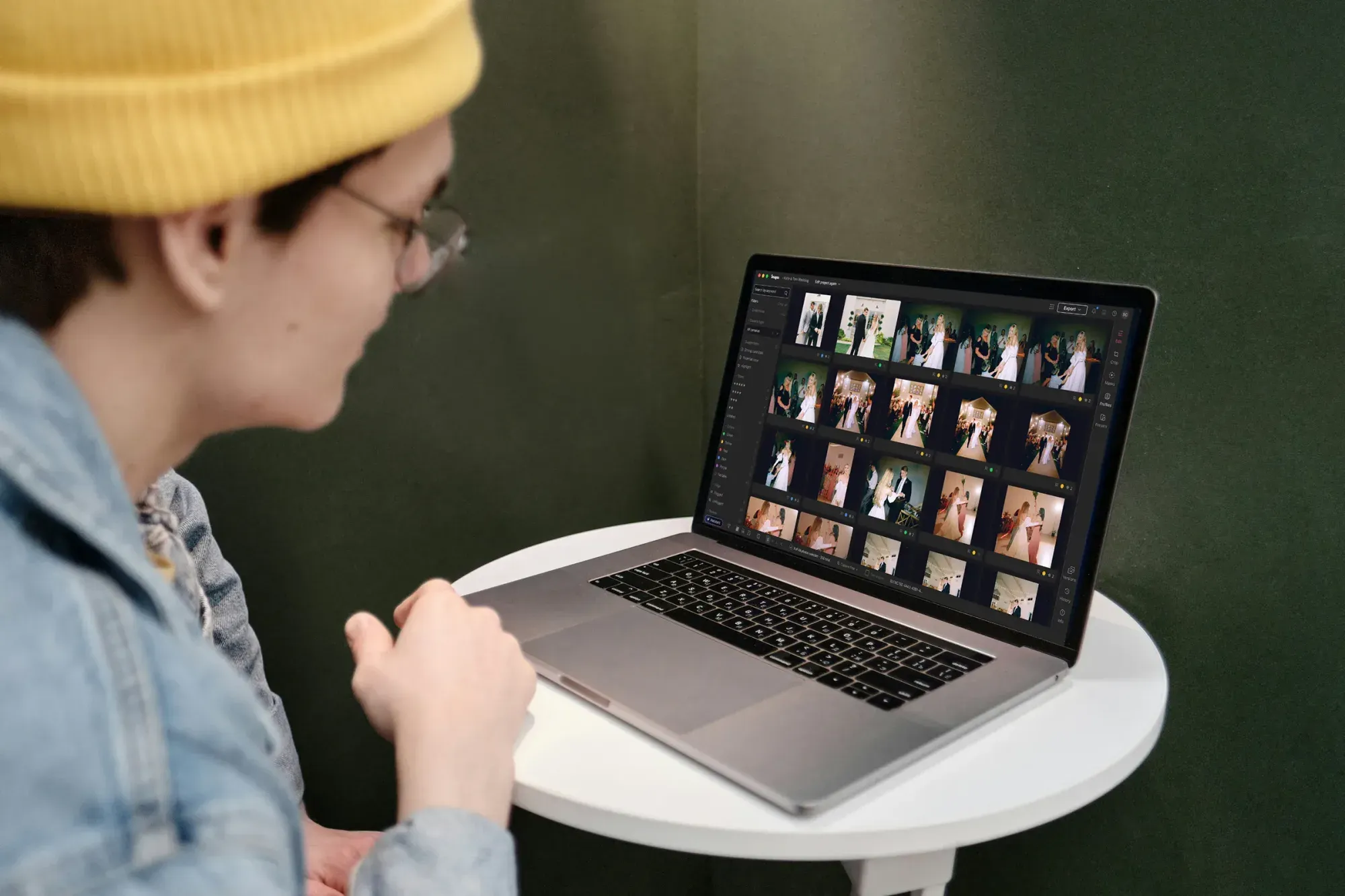
Step 1: Import and Back Up the Full Shoot First
Start by pulling every card into a dated project folder, then make a second copy before you touch anything. Theater clients often want the same night edited two ways, one for press and one for the archive, so protect the originals. Import the raw files into Lightroom or Capture One as your catalog, since that catalog is what an AI editor reads to understand your style.
- Copy raw files to a working drive and a backup drive before editing.
- Keep each act or scene in its own subfolder so you can batch by lighting setup.
- Add basic metadata, such as the production name and performance date, at import.
- Confirm your capture times are correct if you shot with two bodies.
This stage takes 10 to 15 minutes and saves you from painful mistakes later. Once the shoot is safely imported, you are ready to cut the set down to the frames worth keeping.
Step 2: Cull the Set With AI Instead of by Hand
Culling is where theater editing eats the most hours. A dance number or a curtain call produces long bursts, and a lot of those frames are soft, mistimed, or caught mid-blink. Manual culling means zooming into each one and comparing near-duplicates, which drains your evening before real editing even begins.
AI culling reads sharpness, eyes, expression, and framing, then flags the strongest frame in each burst and marks the rejects. Imagen handles culling inside the same project as your edits, so you approve its picks and move on. If you would rather cull by hand, you can skip AI culling and cull manually for free. You stay in control of the final selection, and you skip the tedious side-by-side comparison on hundreds of similar shots. For a 1,500-frame show, a good AI cull can bring you down to a workable 300 to 400 keepers quickly, and you refine from there.
Review the AI’s rejects at a glance rather than trusting them blindly. Stage moments are fast, and sometimes the emotionally right frame is the slightly softer one. You make that call, and the tool clears the obvious throwaways so you spend your attention on the close decisions.
Step 3: Apply Your Personal Style Across the Whole Show
This is the step where AI changes theater editing the most. Instead of setting white balance and tone on one frame and copy-pasting settings that never quite fit the next lighting cue, you let a style model apply your look to the entire set at once. Imagen learns your editing style from photos you have already edited, so the output matches the way you personally treat contrast, color, and skin under stage light. Every frame comes back consistent, which is the hardest thing to hold across a full performance. Edited photos arrive in batches as they process, so you can start reviewing early frames while the rest finish.
Consistency is the real deliverable in theater. A gallery where the reds shift from scene to scene, or where one actor’s skin reads warm in one shot and green in the next, looks unfinished no matter how sharp the frames are. When AI applies a single learned style to all 400 keepers, the base edit is uniform before you ever open an individual photo. If you want to compare tools that handle this style-matching step, the guide to the best AI theater show photo editing software breaks down the main options.
A few other tools live in this space. Lightroom offers its own AI-assisted adjustments and presets, and Capture One gives you strong tethered color control that many theater shooters trust. These are capable editors, and where they fit your habits you should use them. The difference is that a dedicated style-learning workflow applies your look automatically at volume, rather than asking you to build and tweak presets scene by scene.
Step 4: Fix Stage Lighting Problems Frame by Frame
After the batch style pass, some frames still need individual attention. Stage lighting creates specific problems that you correct on the frames where they show up.
- Recover blown highlights on spotlit faces by pulling the highlight and white sliders down.
- Lift shadow detail on actors who stand outside the key light, then watch your noise.
- Correct color casts from gels, since a heavy blue or red wash can hide skin tone.
- Reduce high-ISO noise on the frames you shot in the darkest scenes.
- Straighten and crop for the stage line, because raked seating tilts your horizon.
Work through these on your hero frames first, the shots you know the client will feature. Because the AI style pass already handled the base grade, your per-photo fixes are targeted rather than total, and each frame takes seconds instead of minutes. This is the part of the workflow where your judgment as the photographer carries the most weight. Imagen’s built-in editor (Beta) offers manual sliders, a histogram, and crop and straighten for these fixes, and you can send the AI edits back to Lightroom Classic as XMP if you prefer to finish there.
Step 5: Retouch Portraits and Cast Headshots
Theater jobs often include posed cast portraits alongside the live coverage. Stage makeup is heavy and dramatic, which reads well from the audience but shows every edge under a close lens. AI retouching smooths skin, evens tone, and cleans small distractions while keeping the character makeup intact, and Imagen runs this in the same pass as your culling and style edit. You retouch real photographed actors here. The tool does not swap faces, invent people, or build a fake portrait, so the person in the final image is the person who performed.
Keep retouching restrained for theater. Performers wear deliberate makeup as part of the role, and over-smoothing erases the very look the production designed. Set your retouch strength low, review a few faces, and confirm the result still looks like a real person on a real stage. Dedicated retouching tools exist too, and they can help on heavy portrait days, though folding retouch into one workflow saves you from exporting to a second app.
Step 6: Export, Deliver, and Build a Repeatable Workflow
Export in the sizes your client needs, usually a full-resolution set for print and archive plus a web-sized batch for the theater’s social channels and press. Sharpen for the output medium, and check a handful of frames at 100 percent before you send the gallery. Deliver through your usual gallery platform, and keep the edited catalog so your next show starts from the same learned style.
The real win comes when you run this same sequence every show. Your style model gets more accurate as you feed it more of your own edits, your culling gets faster as the AI learns your preferences, and each production takes less of your time than the last. Imagen can export finished JPG, TIFF, or PNG files straight from the app, or send its AI edits back to Lightroom Classic as XMP. For a deeper look at ordering these steps efficiently, the theater show photo editing workflow guide lays out a full production timeline, and the Imagen valuable tips hub collects related guides for event and stage photographers.
What It Costs to Edit Theater Photos With Imagen
Imagen runs on pay-as-you-go pricing, which means you pay for the photos you export. Exploring the tools is free, so you can run a full act or two through the workflow and see how it holds your style before you commit to anything. For high-volume theater seasons, the per-photo charge still scales with the work you actually take on.
Other tools in this space price differently. Some sell a subscription, some a one-time license, and some charge per-image credits or run on a freemium plan. Compare the model against how many shows you shoot in a year, since a photographer covering weekly productions and one covering a single festival have very different needs.
Ready to speed up your theater edits without changing your look? Try Imagen’s new Studio and run a real show through one project where you cull, edit and export.
What’s new in Imagen: Imagen is now an intelligent, agentic Studio for professional photographers, the next evolution of the same product, where you cull, edit, review and export in one project, in any order. For a theater run, that can mean edits in your personal style from a Personal AI Profile, or a ready-made AI Profile, with finished photos arriving in batches as they process so you can start reviewing the opening scenes early. The Studio is rolling out gradually as a beta.
Frequently Asked Questions
Does AI editing change how my theater photos look?
No, a style-learning editor applies your own look rather than a generic filter. Imagen learns from photos you already edited, so the output matches your personal treatment of color, contrast, and skin tone. You review the results and adjust any frame you want, which keeps creative control with you.
Can AI handle the harsh contrast of stage lighting?
Yes, the batch style pass sets a consistent base grade across the whole shoot, including exposure and white balance under mixed lighting. You then fine-tune the toughest frames by hand, such as blown spotlights or deep shadow, where your judgment matters most. That combination handles theater contrast faster than a fully manual pass.
Will an AI tool invent or fake parts of the performance?
No, an editing tool like Imagen works only on the real frames you shot. It edits, culls, and retouches actual photos, and it does not generate stages, actors, costumes, or backgrounds. Your gallery stays a faithful record of the live production.
How much time does AI save on a full theater shoot?
The biggest savings come from culling and the batch style edit, which together turn hours of repetitive work into a quick review. A show of 1,500 frames that once took a full evening to cull and grade can move to a finished draft in a fraction of that time. You spend your saved hours on the creative fixes that need a human eye.
