

How to Edit Personal Branding Photos with AI in 2026
Table of contents
- How to Edit Personal Branding Photos With AI
- Why Personal Branding Photos Need One Consistent Look
- Step 1: Import and Cull the Full Branding Session
- Step 2: Apply Your Editing Style Across Every Frame
- Step 3: Retouch Skin and Wardrobe With Restraint
- Step 4: Match Tone Across Locations and Outfits
- Step 5: Crop and Frame for Each Channel
- Step 6: Export and Deliver a Coherent Brand Gallery
- Where Imagen and Other Tools Fit
- Frequently Asked Questions
How to Edit Personal Branding Photos With AI
The fastest way to edit personal branding photos is to cull the session with AI, apply your own editing style across every frame in one batch, and finish skin and tone so the whole set looks like one cohesive brand. Imagen learns the way you already edit from your Lightroom or Capture One catalog, then repeats that look consistently across an entire branding shoot, so the headshot, the lifestyle frames, and the detail shots all read as the same person and the same brand. This guide walks the complete workflow from import to final delivery, and it names a few other real tools where they honestly fit. You can explore Imagen for free and pay only for the photos you export.
Why Personal Branding Photos Need One Consistent Look
Personal branding sessions are professional portrait shoots for entrepreneurs, coaches, and creators, and the client uses the results across a website, a LinkedIn profile, a speaker page, and months of social posts. Because those images appear side by side and back to back, the edit has to feel like one coherent brand rather than a random pile of photos. A warm headshot next to a cool-toned lifestyle frame breaks the spell, so your main job as the editor is to hold a single tone, a single skin rendering, and a single mood across the full shoot.
It helps to know what these tools do and do not do. Imagen edits, culls, and retouches the real photos you shot, and it does not invent faces, wardrobe, backgrounds, products, or scenes. That distinction matters for personal branding, because the images represent a real person to real clients and followers, and any invented feature would break trust the moment that person shows up on a call or at an event.
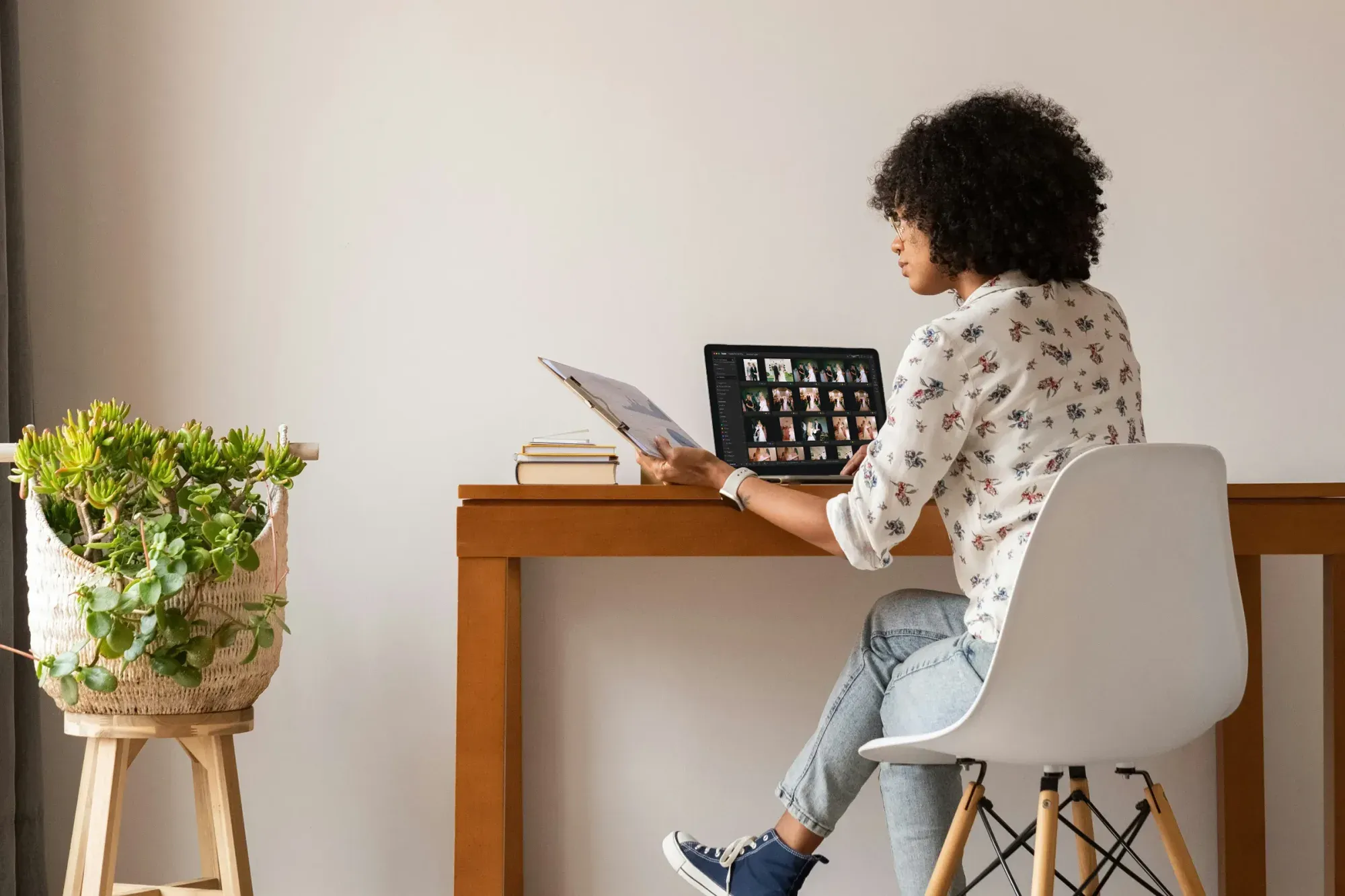
Step 1: Import and Cull the Full Branding Session
A personal branding shoot often runs 400 to 900 frames across several outfits, locations, and setups, from formal headshots to candid working shots. Culling that volume by hand takes an hour or more, and fatigue leads to inconsistent picks. AI culling reads focus, closed eyes, and near-duplicate poses, then surfaces the strongest frames so you review a short list instead of the entire take.
- Import the full session into your catalog and back up the raw files before you touch anything.
- Run AI culling to group near duplicates and surface the sharpest frame in each cluster.
- Keep a spread of headshots, waist-up frames, and wide lifestyle shots so the brand set has range.
- Reject blinks and soft frames early so they never reach the color and retouch stages.
Imagen handles culling inside the same project that later edits and retouches, so your selects flow straight into the next step without a separate export. That connected path saves the handoff time that usually creeps in when culling lives in one app and editing lives in another. Use AI culling, or skip it and cull manually for free.
Step 2: Apply Your Editing Style Across Every Frame
Consistency is where a batch approach earns its keep on a branding shoot. Instead of setting exposure, white balance, and contrast one frame at a time, you apply a single look to the whole select set. Imagen learns your personal style from the way you have edited past catalogs, so the batch result matches the choices you would make by hand rather than a generic filter. Edited photos arrive in batches as they process, so you can start reviewing early frames while the rest finish.
For personal branding, aim for even skin tones, natural color, and a mood that fits the client’s field, whether that means bright and approachable for a wellness coach or crisp and grounded for a finance consultant. Once the base edit lands across the session, you review the set as a group and nudge only the frames that drift between locations or lighting. This keeps every image in the brand set looking like one shoot, which is exactly what a client needs when they place these photos across their site and channels.
- Apply your learned style to the full select set in one pass.
- Balance white balance across indoor and outdoor frames so the skin stays consistent.
- Hold shadow detail so wardrobe texture and hair keep dimension.
- Confirm the set reads as one brand before you move to retouching.
Step 3: Retouch Skin and Wardrobe With Restraint
Branding retouching has one rule above the rest, and that rule is restraint. Remove temporary blemishes and stray hairs, calm shine, straighten a distracting collar, and even out redness, but keep pores, fine lines, and the marks that make the person specific. Clients want to look like their best real self, so an over-smoothed face reads as a warning sign rather than a polish, especially when the audience meets them in person.
AI retouching in Imagen speeds the repetitive parts of this pass, so you clean skin across the whole select set with a consistent hand instead of retouching each frame from scratch. You still make the final call on every face, and you dial the strength down when natural texture matters to the client’s field. The goal is a clean, current portrait that still looks like the person your client’s audience will actually meet.
Step 4: Match Tone Across Locations and Outfits
Branding shoots move between setups, and each setup brings its own light. An office corner runs warm under tungsten, a window seat turns cool, and an outdoor walk shifts again with the sky. Decide the target brand tone with the client before you finalize color, then hold that tone across every location so the package speaks with one voice no matter where each frame was captured.
Watch the eyes and the wardrobe color at this stage, because they anchor a personal brand. Add gentle clarity to the iris, keep catchlights honest, and make sure a signature jacket or brand color renders the same across the set. When you edit the full session as a batch, these tone choices apply evenly, and you avoid the drift that shows up when you finish frames hours apart.
Step 5: Crop and Frame for Each Channel
A personal brand lives in many shapes at once. A website hero wants a wide horizontal frame, a LinkedIn header needs a specific banner ratio, a profile photo works as a tight square, and Instagram leans vertical. Plan your crops from the same edited frames so every channel pulls from one consistent look rather than a separate edit.
- Keep a tight headshot crop for profile avatars and speaker bios.
- Reserve wider lifestyle frames for website heroes and banners with room for text.
- Export a vertical option for Stories, Reels covers, and mobile profiles.
- Leave breathing room around the subject so the client can crop again later.
Because the whole session shares one edit, every crop stays consistent no matter which channel the client uses. That consistency protects the personal brand across every place a prospect might see it. Crop and straighten are available in Imagen’s built-in editor (Beta), and you can export finished JPG, TIFF or PNG files straight from Imagen. You can read more portrait workflow ideas on the Imagen valuable tips hub as you refine your delivery habits.
Step 6: Export and Deliver a Coherent Brand Gallery
Clients need several file sizes from the same edit, and the delivery should feel organized. Set up export presets once so every file leaves your catalog at the correct size and color space, then group the gallery by use so the client can find the right image fast. A clear structure turns a folder of photos into a working brand kit the client can actually use.
- Deliver high-resolution files for print, press kits, and large web heroes.
- Export web-ready versions sized for fast page loads and social profiles.
- Group the gallery into headshots, lifestyle, and detail shots for easy selection.
- Name files with the client’s name and shoot date so they stay easy to track.
When the whole set carries one edit, the client can drop any image onto any channel and trust that it still looks like their brand. That is the real payoff of a batch-first approach, and it is why consistency matters more here than in almost any other portrait job.
Where Imagen and Other Tools Fit
Imagen sits at the center of a high-volume branding workflow because it combines culling, style-matched batch editing, and retouching in one connected path. It reads your Lightroom or Capture One catalog, learns how you already edit, and applies that look across a full branding session, so you spend your time on selects and expression rather than sliders. Pricing is pay-as-you-go, so you pay for the photos you export, and exploring the tools is free.
Other real tools cover pieces of the process. Adobe Lightroom remains a strong catalog and raw editor on a subscription model, and many photographers keep it as their library even while batch editing elsewhere. Capture One offers detailed tethering and color control on a subscription or one-time license, which some studio shooters prefer for controlled branding days. Dedicated retouching plug-ins handle manual skin work for editors who like a hands-on pass on hero frames. Each of these fits honestly into a branding pipeline, and none of them replaces the connected culling, style learning, and batch retouching that Imagen brings to a full session.
For a broader walkthrough of the whole process, see our companion AI personal branding photo editing guide, and for quick wins during a busy shoot day, review these AI personal branding photo editing tips. Both build on the same batch-first approach this guide describes.
What’s new in Imagen: Imagen now works as an intelligent, agentic Studio for professional photographers, the next evolution of the same product, with culling, editing, reviewing and exporting together in one non-linear project. For a personal branding shoot, your Personal AI Profile keeps the headshots and lifestyle frames in one look, and the assistant can find photos for you when you ask in plain language. It is rolling out gradually in beta.
Frequently Asked Questions
How long does it take to edit a full personal branding session with AI?
Most photographers cut a multi-hour edit down to a fraction of that time when AI handles culling and the style-matched batch pass. You still review every select and make the final retouching calls, so the quality stays in your hands while the repetitive steps move quickly across the whole session.
Will AI editing keep my branding photos looking real?
Yes, if you edit with restraint. Imagen edits and retouches the real photos you shot and does not invent faces, wardrobe, or backgrounds, so the client stays recognizable. Keep natural skin texture, calm the shine, and clean only temporary marks, and the images still match the person your client’s audience will meet.
How do I keep a whole brand shoot looking consistent?
Edit the full select set as one batch instead of frame by frame. Imagen studies how you have edited past catalogs and applies that same look across the session, so headshots, lifestyle frames, and detail shots all share one tone. You then review the set and adjust any frame that drifts between locations or light.
What does Imagen cost for personal branding editing?
Imagen runs on pay-as-you-go pricing, so you pay for the photos you export, and exploring the tools is free. You can try the culling, style learning, and retouching on a real branding session and decide from there.
Ready to speed up your next branding shoot? Start editing with Imagen, where you cull, edit and export in one Studio project, and see how a style-matched batch keeps every photo consistent from the first select to final delivery.
