

How to Edit Graduation Portrait Photos with AI in 2026
Table of contents
- How to Edit Graduation Portrait Photos with AI
- Import and Organize Each Graduate’s Session
- Cull the Keepers Fast with AI
- Apply Your Personal Style Across Every Portrait
- Keep Skin Natural and Gowns True Black
- Retouch Posed and Candid Frames at Scale
- Export, Deliver, and Turn Sessions Around Fast
- A Simple Workflow You Can Repeat Every Session
- Frequently Asked Questions
How to Edit Graduation Portrait Photos with AI
To edit graduation portrait photos with AI, you import your posed sessions, let an AI tool cull the weak frames, then apply your own editing style across every portrait in one pass so skin tones stay natural, black gowns read true, and the tassel and cap keep their detail. The fastest route uses an AI editor like Imagen, which learns the look you already give your work and applies it to hundreds of portraits at once, then handles culling and retouching in the same connected workflow. This guide walks the real steps a portrait photographer follows for graduation season, from the raw card to the delivered gallery, and shows where AI removes the slow, repetitive parts without changing the honest look of each graduate.
Graduation portrait work is defined by volume and by repetition. A busy studio can book dozens of seniors in a single week, and each graduate walks out with 30 to 60 keeper frames across posed, cap-and-gown, and candid setups. The editing challenge is rarely a lack of ideas. It’s the sheer count of near-identical portraits that each need the same clean, flattering, consistent look. AI is strong at exactly that repetitive work, which frees your judgment for the handful of hero shots that sell the session.
Import and Organize Each Graduate’s Session
Start by importing every session into Lightroom or Capture One and writing a second copy to a separate drive at the same time. Graduation portraits are booked appointments you can reshoot in theory, but a senior’s schedule rarely allows it, so you protect the raw files before any edit begins. Add clear keywords like the graduate’s name, the school, and the session date so a week packed with sessions stays easy to search when a family reorders prints months later.
Shoot in raw whenever your camera allows it. Raw files hold far more highlight and shadow information, which matters both under bright outdoor sun that clips a white collar and in a studio where the gown falls into deep shadow. That extra latitude is what lets AI recover an even exposure later instead of fighting blown highlights or crushed blacks. Keep each graduate in a separate folder or collection so the batch edits you run next stay tidy and easy to deliver per client.
Cull the Keepers Fast with AI
Culling is the first place AI saves real hours on graduation portrait work. You shoot several frames of each pose so you can pick the best expression, so you collect many near-duplicates where only the eyes, the smile, or the head angle change. Reviewing all of them by hand across a full week of sessions is slow and tiring, and fatigue is exactly where good frames get missed.
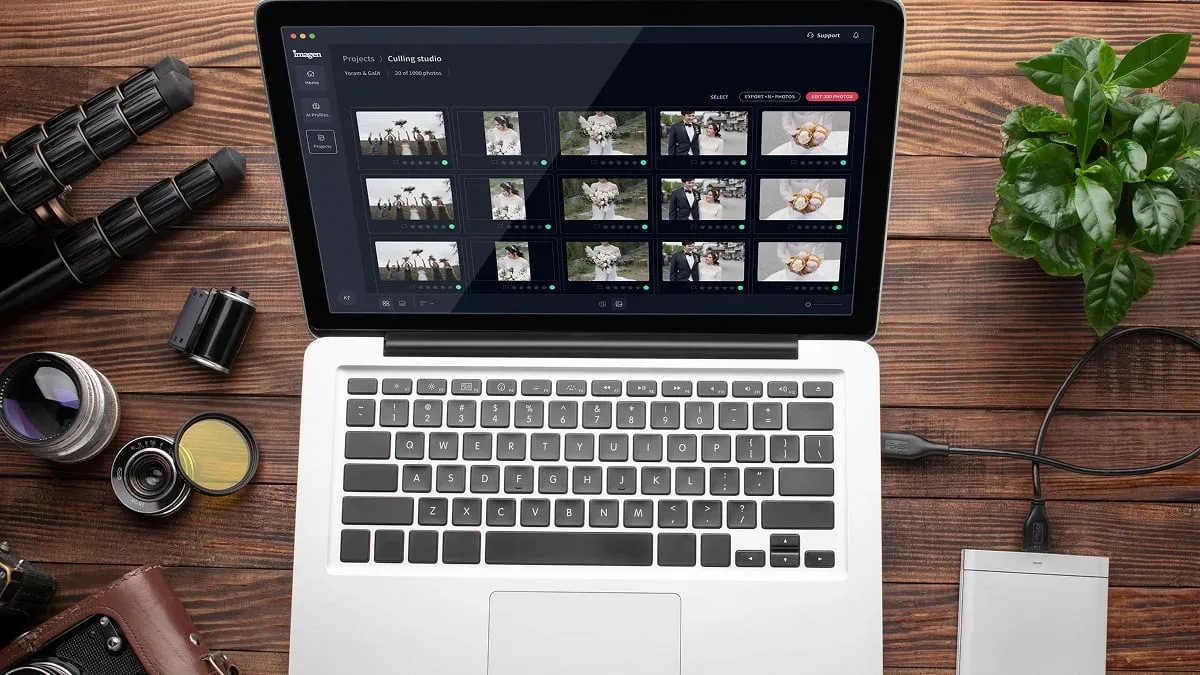
AI culling scores each frame for focus, exposure, and closed eyes, then groups the near-duplicates so you pick the strongest one in each cluster. Imagen includes AI culling that flags blurry and blinked shots and clusters similar frames, so a heavy day of portrait sessions drops to a workable selection in a fraction of the usual time, and you can skip AI culling and cull manually for free if you prefer. You still make the final call, because a slightly relaxed frame where a graduate laughs naturally can beat a technically perfect one where the smile looks posed.
A practical culling pass for portraits looks like this:
- Run the AI cull to reject out-of-focus and closed-eye frames automatically.
- Review the flagged near-duplicate groups and keep one strong frame per pose.
- Star the genuine hero expressions that best capture the graduate’s personality.
- Delete the confirmed rejects so each session folder only holds frames you plan to deliver.
Aftershoot is another real tool photographers use for this stage, and it also focuses on fast AI culling with duplicate grouping. The value at this step is the same across tools. You want to reach your keeper set quickly so the creative work gets your full attention, which matters even more when you shoot many seniors back to back.
Apply Your Personal Style Across Every Portrait
Once your keepers are set, the biggest time sink is color and tone. Every graduate expects the same polished look, whether they sat for a studio portrait, a golden-hour outdoor set, or a quick cap-and-gown pose against a campus wall. Matching that look by hand across dozens of sessions is where entire evenings disappear, and small drifts in white balance or contrast make a gallery feel uneven.
This is where an AI editor that learns your personal style earns its place. Imagen studies your past edits from your Lightroom or Capture One catalog and builds a profile of the choices you actually make, then applies that look to every portrait in the session at once. If you tend to lift shadows, warm the skin slightly, and hold a natural contrast, the AI carries that across all your keepers so the studio frames and the outdoor frames land on a consistent, balanced look. It edits your real files. It does not generate a new scene or invent anything that was not in front of your camera.
Because the tool matches your taste rather than a generic preset, the delivered portraits still look like your work. That consistency is hard to reach by hand across a full graduation season, and it is the single biggest reason portrait photographers move batch editing to AI for high-volume periods. Imagen edits and retouches the real photographed graduates in your frames, and it never invents gowns, faces, backgrounds, or a scene you did not shoot.
Keep Skin Natural and Gowns True Black
Skin and the cap and gown are the two elements every graduation portrait lives or dies on. Flattering, natural skin matters on nearly every keeper, since portraits are shot close and every viewer looks straight at the face. At the same time, a black gown can turn muddy gray under studio light or shift blue in open shade, and the fine detail on a cap and tassel disappears fast when you crush the shadows to make the black look deep.
Set your black point so the gown reads neutral, not gray and not blue, and protect the shadow detail so the cap keeps its shape. When the AI applies your style across the batch, it holds that black rendering and your skin-tone choices consistently, so the first graduate and the fortieth match instead of drifting session to session. Check a portrait shot in bright sun against one shot in the studio, and confirm the gowns look like the same garment and the skin looks like the same person’s tone in both.
Keep the following in mind so skin and gowns stay honest:
- Correct white balance first, so skin tones read natural before you touch contrast.
- Set a neutral black point so the gown reads true black rather than gray or blue.
- Protect shadow detail so the cap, tassel, and gown seams keep their texture.
- Retouch skin gently so the face keeps real texture and never looks plastic.
Retouch Posed and Candid Frames at Scale
After the batch look is set, you move to per-photo finishing on the frames that need it. Graduation galleries mix the formal posed portrait against a clean backdrop with the candid grin as a graduate reacts to family in the room. Both need clean, flattering skin, and bright light tends to add shine and hard shadows that ask for a gentle hand.
AI retouching handles the routine cleanup at scale. It evens skin tone, softens a harsh shadow under the cap brim, and reduces shine while keeping texture so faces stay real. Imagen offers AI retouching inside the same workflow, so you apply gentle, natural skin work across a batch of portraits instead of opening each one by hand. For lighter finishing, Imagen’s built-in editor (Beta) offers sliders, crop and straighten, and presets. For the hero posed shots, you still finish manually where it counts, and Photoshop remains the standard for a targeted fix like removing a stray hair or smoothing a wrinkled collar.
Posed and candid portraits carry their own small challenges. A tassel can swing across the face, a collar can sit crooked under the gown, and stray flyaways catch the light. Keep your retouching honest and light here. The point of a graduation portrait is the real pride the graduate feels, so you clean up distractions without erasing the natural character that makes the photo worth framing.
Export, Deliver, and Turn Sessions Around Fast
Graduates and families want their portraits while the milestone is still fresh, so a quick turnaround is part of the service, and a full season of sessions makes speed even more valuable. Once your edits are locked, export in two versions from a single set of settings. Deliver full-resolution files for prints and framed keepsakes, and a web-sized set for easy sharing on social feeds and family group chats.
Because the AI already handled culling, batch color, and retouching, the slow middle of the process is done, and export is a short final step, and you can export finished JPG, TIFF or PNG files straight from Imagen or send the edits back to Lightroom Classic. A week of sessions that once took many long nights to edit can be ready in a fraction of that time. Imagen runs pay-as-you-go, a monthly base fee plus a charge for the photos you export, and exploring the tools is free. That pricing structure fits high-volume portrait work well, since your cost tracks the volume you actually export.
For a deeper look at tool choices and the end-to-end process, see our AI graduation portrait photo editing guide for 2026 and our roundup of the best AI graduation portrait photo editing software for 2026. You can also browse more guides on the Imagen valuable tips hub for related portrait and event editing advice. To try it yourself, explore Imagen’s new Studio, where you cull, edit and export in one project.
A Simple Workflow You Can Repeat Every Session
The strength of an AI-assisted process is that it stays the same from one graduate to the next. Once you settle on your steps, each new session follows the same rhythm, and the consistency shows in the galleries you deliver even when you book a heavy week. Here is the full sequence in order.
- Import every raw file and back up to a second drive right away.
- Run AI culling to cut duplicates, blinks, and soft frames across the session.
- Apply your personal editing style across the full keeper set in one batch.
- Set skin tones natural and gowns true black so every portrait matches.
- Retouch skin gently on posed and candid frames, finishing hero shots by hand.
- Export print and web versions from one setting, then deliver each graduate fast.
Follow this loop and the tools carry the volume while you keep control of the taste. That balance is what makes AI editing practical for high-volume graduation portrait work in 2026, and it is how you turn a heavy card of caps, gowns, and proud faces into a polished, consistent gallery in far less time.
What’s new in Imagen: Imagen is now an intelligent, agentic Studio for professional photographers, one project where you cull, edit, review and export in any order. During a busy graduation week, edited photos arrive in batches as they process, so you can start reviewing the first graduates while the rest finish, and a Personal AI Profile keeps the look in your own style. The Studio is rolling out gradually as a beta.
Frequently Asked Questions
Does AI generate or fake any part of a graduation portrait?
No. An AI editor like Imagen edits, culls, and retouches the real portraits you shot. It applies your color and skin choices and cleans up minor distractions, but it does not invent graduates, gowns, backgrounds, or a scene that was not in front of your camera. The delivered gallery stays an honest likeness of each graduate.
How does AI keep every graduation portrait looking consistent?
Imagen learns your personal editing style from your Lightroom or Capture One catalog, then applies that look to every portrait in the session at once. Because it matches your own past choices rather than a generic filter, the whole gallery holds the same balanced look, so the studio frames and the outdoor frames read as one consistent set.
How do I keep black gowns from turning gray in portraits?
Correct white balance first, then set a neutral black point so the gown reads true black instead of gray or blue, and protect the shadow detail so the cap and tassel keep their texture. When the AI applies your style across the batch, it holds that black rendering consistently, so every gown matches from the first portrait to the last.
How much faster is AI editing for a full week of portrait sessions?
The biggest gains come from culling and batch color, which are the slowest manual stages when you shoot many graduates in a row. A week of sessions that once took several long editing nights can be ready in a fraction of that time, because the AI handles the repetitive volume and you focus your time on the hero frames and final delivery.
