

How to Do Client Photo Delivery for Automotive Photographers: A Step-by-Step Guide
Table of contents
- How to Do Client Photo Delivery for Automotive Photographers: Step-by-Step Guide
- Step one: cull the shoot down to real keepers
- Step two: batch edit for one consistent gallery look
- Step three: export to your client’s listing specs
- Step four: name and organize files so the client can use them
- Step five: build the gallery and deliver online
- Step six: share the link and set clear delivery terms
- Step seven: handle revisions without redoing the shoot
- Step eight: back up the delivery and archive the originals
- Where a dedicated tool still beats the delivery pass
- A note on cost and turnaround
- Putting the whole delivery workflow together
- Frequently asked questions
How to Do Client Photo Delivery for Automotive Photographers: Step-by-Step Guide
Client photo delivery for automotive photographers is the final stretch that decides whether a shoot feels professional or unfinished. The short answer: cull down to keepers, batch edit the set to one consistent look, export to your client’s dealer or marketplace specs, name and organize the files logically, build a clean online gallery, share a single link, then handle revisions and backups in an orderly way. Done right, the dealership, seller, or marketing team gets a polished, ready-to-list gallery within hours of the shoot instead of days.
This guide walks that delivery workflow end to end, built specifically for automotive work, where a single vehicle means twenty to thirty frames and an inventory shoot can mean hundreds of images that all need to match. It covers culling, batch grading for gallery consistency, export presets for listing platforms, file naming, gallery delivery, sharing, revisions, and backup. It also shows where an AI batch editor like Imagen removes the slow parts, and where a separate specialized tool is still the right call.
Step one: cull the shoot down to real keepers
Delivery starts by deciding what you will not deliver. Automotive shoots generate a lot of near-duplicates: six front three-quarters, a couple of blurred walk-around frames, test shots where your own reflection landed on the hood. Sending all of that to a client buries the good frames and makes you look unedited.
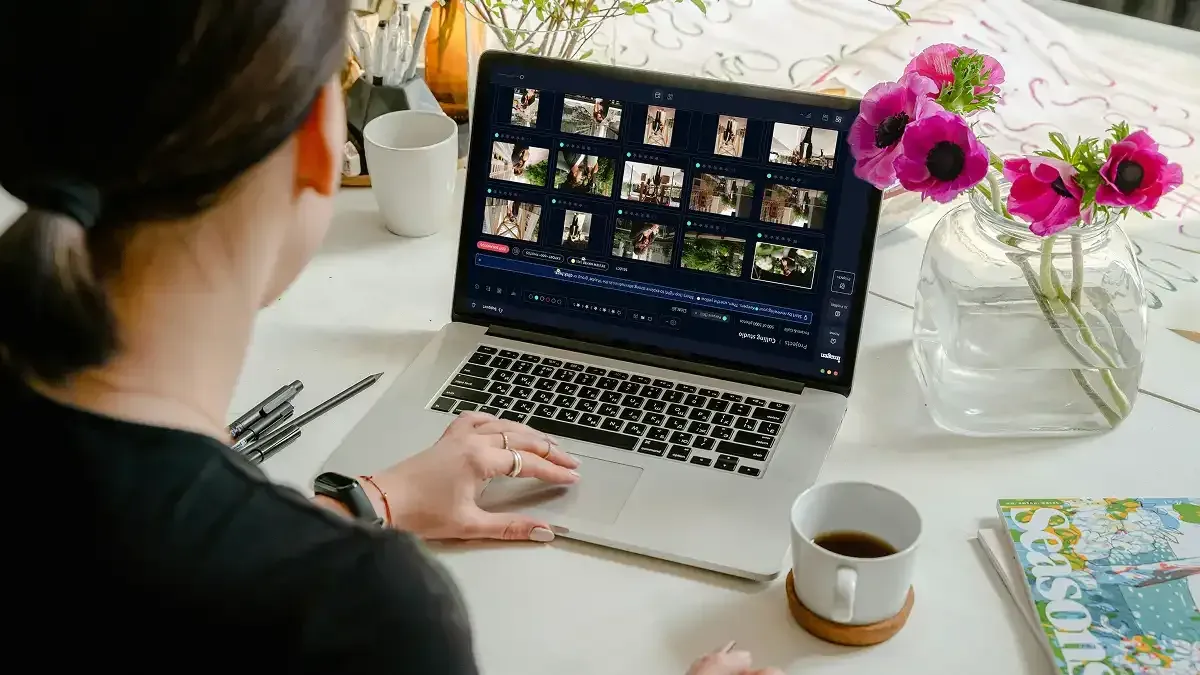
Work in two passes. First, delete anything obviously broken: motion blur, blown exposure, a shot with your tripod in the paint. Second, pick the single strongest frame from each near-duplicate cluster so the client gets one clean front three-quarter, one clean profile, one clean interior, and so on. AI culling speeds this up by grouping similar frames and flagging the sharpest, best-exposed option, so you approve rather than hunt. A tight cull also sets the shape of the final gallery: a buyer-ready walk-around, not a memory card dump.
Step two: batch edit for one consistent gallery look
The fastest way to make a delivery look professional is to make every car in it match. Buyers and dealers scroll fast, and a gallery that shifts color and brightness from vehicle to vehicle reads as amateur even when each individual frame is fine. One grade, applied everywhere, is what makes an inventory look deliberately shot.
Decide your baseline: how bright the bodywork sits, how neutral the whites read, how much contrast the paint carries, and how the shadows fall under the wheel arches. Then apply that decision across the whole set instead of nudging sliders car by car. This is where a personal AI editing profile earns its place: it learns the adjustments you make and reproduces them consistently across the entire batch, so car forty comes back looking like car one. Consistent editing is the single biggest factor in whether a delivered gallery feels finished, and batching is what makes consistency fast.
Step three: export to your client’s listing specs
Automotive clients rarely want a single generic export. A franchise dealer’s inventory system, a marketplace listing, an auction platform, and a print brochure each want different dimensions, file sizes, and sometimes a specific aspect ratio. Delivering files that do not fit the destination forces the client to re-crop or re-size, which is exactly the friction that makes a shooter feel replaceable.
Set up export presets that match each destination before you deliver. Full-resolution files for the client’s archive, web-optimized sizes for the listing platform, and any fixed dimensions the marketplace enforces. In a batch workflow you export the entire graded set in one operation, correctly sized for each target, rather than exporting and re-exporting one image at a time. Ask the client once what their platform requires, save it as a preset, and every future delivery for that client goes out right the first time.
Step four: name and organize files so the client can use them
A gallery the client cannot navigate is a gallery they will complain about. For automotive work, organization usually means grouping by vehicle: a folder or gallery section per car, named by stock number, VIN, or year-make-model, with the walk-around frames in a predictable order inside each group.
Adopt a naming convention and keep it identical across every delivery. Something like stocknumber_year-make-model_shot-angle keeps files self-describing, so a listing coordinator can drop the front three-quarter into the hero slot without opening each file to check. Consistent naming also protects you: when a client comes back three weeks later asking for more shots of a specific car, you can find that exact set in seconds. Decide the convention once, apply it to the whole batch, and never hand a client a folder full of camera-default filenames like DSC_0473.
Step five: build the gallery and deliver online
Automotive clients want to receive a shoot the way they receive everything else now: a link, not a hard drive or a fifty-attachment email. An online gallery is the delivery vehicle. It presents the vehicles cleanly, lets the client preview every angle, and gives them download control over full-resolution files when they are ready to list.
This is where dedicated gallery delivery software earns its keep. Imagen handles the editing and export side, so the same tool that graded your inventory can export finished JPG, TIFF or PNG files for your gallery tool. If you want a purpose-built delivery layer, Imagen’s gallery delivery software for photographers is on the roadmap: the aim is to move a finished automotive shoot from your edit to the client’s screen quickly, with the files organized the way you named them. For now, hand the exported files to the gallery tool you already use, and the client still sees a professional gallery.
Step six: share the link and set clear delivery terms
Delivery is not just handing over files; it is communicating what the client is receiving and how to use it. When you share the gallery link, include the essentials in plain language: how many vehicles and images are included, what resolutions are available, how long the gallery stays live, and how download works. Automotive clients often route photos to multiple people, a listing coordinator, a marketing lead, a sales manager, so a link that anyone on the team can open beats a personal file transfer that only one inbox received.
Set expectations on turnaround and usage up front. If the gallery expires, say when. If full-resolution downloads are gated until an invoice clears, say that too. Clear terms at the moment of delivery prevent the most common follow-up problems: a lost link, an expired gallery, or a listing team that grabbed low-resolution previews by mistake and put them live.
Step seven: handle revisions without redoing the shoot
Revisions are normal in automotive work. A dealer wants a specific car brightened, a marketing lead wants a tighter crop on the hero frame, a seller wants the interior warmed up. The goal is to handle these quickly without unraveling the consistency of the whole gallery.
Because you edited the set as a batch from a defined style, targeted revisions are straightforward: adjust the specific frames the client flagged, keep them inside the same grade so they still match the gallery, and re-export just those files to the same specs. Re-deliver by updating the gallery rather than sending a new stray file, so there is always one authoritative version of the delivery. What you should not do during revisions is quietly drift the look of a few cars away from the rest, which reintroduces the inconsistency you worked to avoid. If a requested change is heavy per-image repair rather than a grading tweak, treat it as a separate specialty job, covered below.
Step eight: back up the delivery and archive the originals
A delivery is not finished until it is safe. Automotive clients come back: a car that did not sell gets re-listed, a dealer group wants the same treatment on a new lot, an auction house asks for a file you delivered months ago. If your only copy lived on the camera card you have since reformatted, you cannot help them.
Keep a layered backup: the original RAW files, the final edited exports, and a record of the delivery itself. A cloud-based editing and delivery workflow helps here because your edited set and gallery already live off your local machine, so a laptop failure does not take the delivery with it. Archive originals by the same naming convention you used for delivery, so recovering a specific car’s set later is a search, not an excavation. Reliable backup is what lets you say yes when a client asks for something from a shoot you finished a season ago.
Where a dedicated tool still beats the delivery pass
Batch editing and gallery delivery cover the large majority of automotive work: culling, consistent grading, correct exports, organized files, and fast handoff. They are not the right engine for heavy, per-image repair, and keeping those jobs separate stops them from slowing your delivery down.
Removing a large distracting object from a background, compositing in a clean sky, or rebuilding a damaged panel is retouching work for a dedicated retouching tool on the specific hero frames that justify it. True multi-exposure bracket merging, where several exposures blend into one high-dynamic-range frame for a tricky showroom interior, is a job for a dedicated exposure-blending tool. Relighting a scene as if it were shot under different lights belongs to a dedicated relighting tool. Use those on the handful of images that earn the extra time, deliver them alongside the batch-graded set, and let the fast workflow carry everything else.
A note on cost and turnaround
For photographers weighing whether an AI batch editing and export workflow is worth it, the photo-editing pricing is simple pay-as-you-go: exploring the tools is free and you pay for what you export. For an inventory week of several hundred images, that is a predictable line item rather than a lost weekend of manual editing and manual file transfers. Measured against the hours a batch grade and a one-link handoff give back, it is usually the difference between delivering tonight and delivering next week. At Imagen you can try the new Studio, where you cull, edit and export in one project, start a profile from your own past edits, and build your first delivery from real inventory.
Putting the whole delivery workflow together
Client photo delivery for automotive photographers is a sequence of decisions made once and applied to every car. Cull so you only deliver keepers. Batch grade to one consistent look. Export to the client’s exact listing specs. Name and organize files so the client can use them without thinking. Build a clean online gallery and share one link. Set clear terms, handle revisions without breaking consistency, and back up the whole delivery.
Do that, and a thirty-car shoot that used to trickle out over a week becomes a same-day gallery link the client can list from immediately. The cars look consistent from the first vehicle to the last, the files land ready to use, and you get your time back for shooting the next lot.
What’s new in Imagen: The next step for Imagen is an intelligent, agentic Studio for professional photographers, one project where you cull, edit, review and export in any order. For client delivery, you can export finished JPG, TIFF or PNG files straight from Imagen or send AI edits back to Lightroom Classic, and the assistant finds photos in plain language when you ask. The Studio is rolling out gradually as a beta.
Frequently asked questions
How fast should I deliver an automotive shoot to a client? With a batch edit and cloud gallery, same-day or next-morning delivery is realistic even for a full inventory shoot. Once your keepers are culled and your AI profile is set, grading runs as a single pass rather than hundreds of manual edits, and a gallery link removes the file-transfer delay. The bottleneck shifts to shooting and culling, not editing and delivery, which is what makes fast turnaround dependable rather than a scramble.
What is the best way to deliver car photos to a dealership? An online gallery link is the cleanest option. It lets multiple people on the dealer’s team, a listing coordinator, a marketing lead, a sales manager, open the same delivery, preview every angle, and download full-resolution files sized for their listing platform. Organize the gallery by vehicle with consistent file naming so their team can drop each car’s hero shot straight into a listing without renaming or re-cropping.
How do I keep every car consistent across a delivered gallery? Consistency comes from applying one set of decisions everywhere instead of editing each car by feel. Establish a single grade, a neutral white balance reference, and a fixed crop and framing standard, then apply them across the whole set. A personal AI editing profile makes this reliable because it reproduces your exact adjustments on every frame, so the last car in the gallery matches the first. Keep revisions inside that same grade so late changes do not break the consistency.
What file specs should I export automotive photos in? Match the client’s destination rather than guessing. Ask once what their inventory system or marketplace requires, then save export presets: full-resolution files for the client’s archive, web-optimized sizes for the listing platform, and any fixed dimensions the platform enforces. Batch export the whole graded set to those presets in one pass so every file lands correctly sized, and keep the original RAW files archived in case a different spec is needed later.
