

How to Do Batch Photo Editing for Editorial Photographers: A Step-by-Step Guide
Table of contents
- Why batch editing matters more for editorial work
- Step 1: Cull before you edit
- Step 2: Build your reference look on hero frames
- Step 3: Apply a consistent grade across the full take
- Step 4: Check for scene-by-scene drift
- Step 5: Handle the frames batch editing cannot fix
- Step 6: Deliver in the format the publication expects
- How Imagen fits the editorial workflow
- Common batch editing mistakes editorial photographers make
- Frequently asked questions
Editorial photographers rarely deliver a handful of images. A magazine feature, a fashion story, or a brand campaign can generate hundreds or thousands of frames from a single shoot, and every one of them has to feel like it belongs to the same visual story. Batch photo editing is the process of applying a consistent look, tone, and correction to that entire set at once, instead of grading each frame in isolation. Done well, it protects the narrative thread that makes an editorial spread read as one deliberate piece of work.
The short answer to “how do I batch edit an editorial shoot” is this: build a reference look on a few hero frames, define your culling and correction rules, then apply that look consistently across the full take while checking for scene-by-scene drift in white balance and exposure. The rest of this guide walks through each of those steps in order, explains where an AI batch editor fits, and covers the mistakes that quietly break consistency in a published story.
Why batch editing matters more for editorial work
Editorial photography lives or dies on cohesion. A reader flipping through a printed feature or scrolling a digital story notices immediately when the third image runs cooler than the second, or when skin tones shift between the wide establishing shot and the tight portrait. Those inconsistencies read as amateur even when each individual frame is technically strong.
Unlike a wedding gallery, where a client mostly wants great pictures of their day, an editorial set is judged as a composed sequence. Art directors and photo editors look at the spread as a whole. That raises the bar: your grade has to hold up not just per image but across the arc of the story, often under a tight turnaround because publications work to fixed print and publish dates. Batch editing is how you meet both demands, consistency and speed, without sacrificing one for the other.
Step 1: Cull before you edit
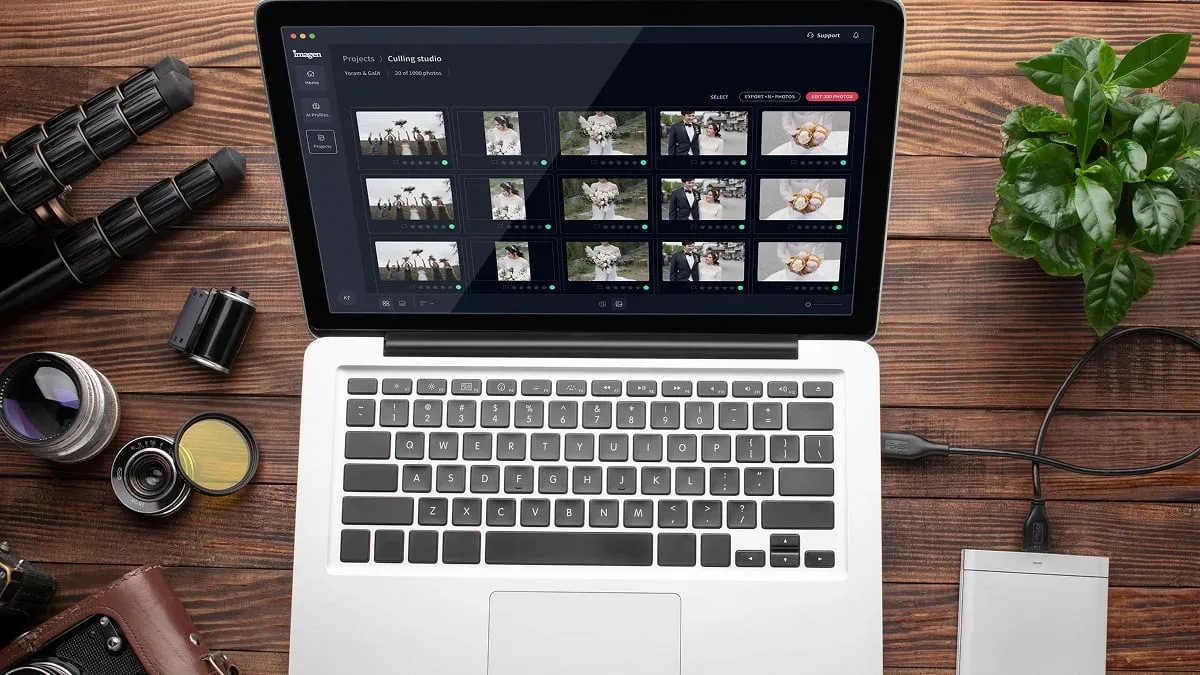
The first real step in any batch workflow is deciding what not to edit. Editorial shoots produce heavy overshooting, especially in fashion and motion sequences where you fire in bursts to catch a pose or a fabric movement. Editing everything is a waste of time, and it clutters your selects with near-duplicates that dilute the story.
Cull in passes. On the first pass, reject anything with obvious technical failures: missed focus, closed eyes, a blown highlight you cannot recover. On the second pass, group the near-identical frames and keep only the strongest from each cluster. On the third pass, look at the set as a sequence and ask whether each survivor earns its place in the narrative. Only then do you start grading. AI culling can accelerate the first pass by flagging soft focus and closed eyes automatically, which is useful when you are staring down two thousand frames before lunch.
Step 2: Build your reference look on hero frames
Do not try to define your look across the whole set at once. Instead, pick three to five hero frames that represent the range of the shoot: a bright frame, a shadowed frame, a skin-tone-heavy portrait, and a wide environmental shot. Grade those by hand until they express the mood you want for the story, whether that is a clean editorial neutrality, a warm filmic tone, or a high-contrast fashion look.
These hero frames become your reference. Every batch decision that follows is measured against them. Working this way keeps you from drifting halfway through a long edit and ending up with a first act that looks nothing like the last. It also gives your photo editor a clear point of approval before you commit hours to the full set.
Step 3: Apply a consistent grade across the full take
Once your reference look is locked, the goal is to carry it across every select without hand-grading each one. This is where batch tools do the heavy lifting. Traditional desktop raw editors let you copy and paste develop settings or sync a group of images, which works but treats every frame as if it were shot under identical light. Editorial shoots rarely cooperate: light changes as the sun moves, a strobe recycles differently, a model steps from shade into sun.
An AI batch editor that learns your personal style handles this more intelligently. Instead of pasting fixed slider values, it applies your editing decisions in a way that adapts to each frame’s actual exposure and color, so a darker shot gets the treatment you would have given it rather than a blanket copy. For editorial photographers juggling volume and deadlines, this is the difference between a look that holds together and one that needs constant per-image babysitting.
Imagen’s bulk editorial photo editing software is built around exactly this idea. It learns a personal AI profile from your own past edits, then applies that style consistently across an entire shoot in the cloud, delivering matched color and tone across the full take. Because it works from your editing history rather than a generic preset, the output looks like your work, not a filter, which is what an editorial deliverable demands.
Step 4: Check for scene-by-scene drift
Even a strong batch grade needs a consistency audit before delivery. Walk the full set in sequence and watch specifically for three kinds of drift. White balance drift shows up as a warm-to-cool wobble between adjacent frames shot minutes apart. Exposure drift appears when a batch adjustment pushed one lighting scenario correctly but left another a stop hot. Skin-tone drift is the most damaging in editorial and fashion, because the human eye is unforgiving about faces.
Fix drift at the scene level, not the frame level. Group your selects by lighting setup, correct the group, then re-check the transitions between groups. This keeps your corrections coherent and prevents the whack-a-mole problem where fixing one frame nudges its neighbor out of line. Building the habit of a final sequence pass is what separates a clean editorial delivery from one that gets kicked back by the photo desk.
Step 5: Handle the frames batch editing cannot fix
Batch editing solves color, tone, exposure, and consistency. It does not solve everything, and pretending otherwise leads to sloppy work. Some editorial frames need targeted attention that sits outside a batch grade.
Heavy retouching, such as complex skin work or wardrobe cleanup on a cover image, belongs in a dedicated retouching tool where you can work at the pixel level. Removing a distracting object from a background is a job for a dedicated object-removal tool. Correcting a leaning architectural line in an environmental shot calls for a dedicated geometry and perspective tool. Merging bracketed exposures into a single high-dynamic-range frame is a separate step handled by a dedicated exposure-blending tool. Treat these as surgical, per-image tasks that happen after the batch grade sets your foundation, not as things you force the batch process to do.
Step 6: Deliver in the format the publication expects
Editorial delivery specs vary, and getting them wrong costs you a revision cycle you cannot afford near a deadline. Confirm the required color space, resolution, and file format before you export. Print features often want a specific profile and full-resolution files; digital-first stories may want web-optimized sizes and a different sharpening approach.
A cloud batch workflow helps here because your graded selects live in one place and export in one operation, with consistent settings applied to the whole set. That beats exporting in scattered groups and risking a mismatched profile slipping into the final package. Fast, consistent delivery is part of the editorial job, and it is often what earns you the next assignment.
How Imagen fits the editorial workflow
Imagen is an AI batch photo editing platform that learns your style through personal AI profiles and applies it consistently across a whole shoot. It offers AI culling or free manual culling, grades color and tone, and runs as a desktop app for Mac and Windows with the AI processing in the cloud, so you are not waiting on local processing. It works directly with RAW files and turns around large sets quickly, which is exactly the pressure point in editorial work.
Pricing is pay-as-you-go: a monthly base fee plus a charge for each photo you export, so you can match cost to volume across a busy assignment schedule. You can start on the Imagen homepage to see the new Studio, where you cull, edit and export in one project, and to train a profile on your own back catalog, then point it at a full editorial take and get matched, on-style results back without hand-grading every frame. For the transactional details on the editorial-focused offering, the bulk editorial photo editing software page lays out how the batch grade applies to high-volume sets.
If you also shoot property and interiors alongside editorial work, our companion guide on consistent batch editing across shoot types covers how the same style-profile approach carries between genres without a full re-setup.
Common batch editing mistakes editorial photographers make
The most frequent mistake is grading before culling, which wastes effort on frames that never make the story. The second is defining the look across the entire set instead of locking it on hero frames first, which invites mid-edit drift. The third is trusting a single copy-paste sync across mixed lighting and skipping the consistency audit, so warm-cool wobble sneaks into the final sequence.
A quieter mistake is forcing the batch tool to do surgical work it was never meant for, then blaming the tool when a cover retouch looks flat. Keep the batch grade for what it does best, consistency and speed, and route the specialist frames to specialist tools. Getting that division of labor right is most of what separates a smooth editorial workflow from a stressful one.
What’s new in Imagen: Imagen has grown into an intelligent, agentic Studio for professional photographers, one project where you cull, edit, review and export in any order. For editorial deliveries, you can export finished JPG, TIFF or PNG files straight from Imagen, or send AI edits back to Lightroom Classic as XMP, while your Personal AI Profile keeps the look consistent. It is rolling out gradually as a beta.
Frequently asked questions
How long should batch editing an editorial shoot take? It depends on volume and how much drift correction the set needs, but the point of batch editing is to compress it. Culling and building a reference look are the deliberate, hands-on parts. Applying a learned style profile across the remaining selects is fast, which is why photographers move to AI batch tools when turnaround pressure is high.
Can I keep my own editing style when batch editing? Yes. A style-learning AI editor builds a personal profile from your past edits, so the batch output reflects your choices rather than a generic preset. That is essential in editorial work, where a recognizable personal look is part of what a publication is hiring.
Does batch editing work with RAW files? It should. Editorial photographers shoot RAW for the latitude it gives in color and exposure recovery, and a serious batch workflow, Imagen included, operates directly on RAW so you keep that flexibility through the grade.
What should I not use batch editing for? Do not use it for heavy retouching, object removal, perspective correction, or merging bracketed exposures. Those are per-image tasks for dedicated tools. Use batch editing for the consistent color, tone, and exposure grade that ties the whole story together.
