
10 Best Free Photo Retouching Software in 2026
Table of contents
- Key Takeaways
- The Fast-Changing Field of Photo Editing
- Essential Features to Look for in Free Photo Software
- 1. Imagen: The Ultimate AI Retouching Tool
- 2. GIMP: The Classic Open-Source Desktop Powerhouse
- 3. Darktable: Professional Non-Destructive RAW Development
- 4. Canva: Rapid Browser-Based Image Enhancing
- 5. Pixlr: Portable Layer-Based Editing
- 6. Adobe Express: Modern Generative AI Actions
- 7. RawTherapee: Precision Control for Technical Photographers
- 8. PhotoScape X: The Modular Desktop Swiss Army Knife
- 9. BeFunky: Creative Art Filters and Layout Design
- Performance and Features Comparison
- Final Verdict on Selecting Your Tool
- Frequently Asked Questions
- Is free photo retouching software safe to download?
- Can I edit RAW files with free tools?
- Do these free programs add watermarks to my exported files?
- Is GIMP actually a good alternative to Photoshop?
- What’s the best free tool for portrait retouching?
- Can I use these free programs on my Chromebook?
- What’s the catch with freemium photo editors?
- Can I use free editors for commercial projects?
- Keep exploring
Your hard drive is loaded with RAW files from the latest shoot. Another monthly rental fee just to edit them feels like a waste, especially when the charges keep piling up year after year. The good news is that free photo editing software has matured fast by 2026. Several no-cost platforms now rival high-end paid programs, and they don’t ask for your credit card.
Ready to speed up your editing workflow? Try Imagen free with 250 photos and see the difference on your own images right away.
Today’s free platforms pack in automation that used to require hours of manual pixel work. Below is a full breakdown of the strongest options available right now, built to help you pick the right tool for your specific workflow.
Key Takeaways
- AI is dominating the market - Over 68% of professional photographers surveyed in 2026 now lean on AI-powered platforms to handle at least 30% of their post-processing work.
- Web apps are winning users over - 45% of hobbyist photographers now prefer browser-based editors simply to save local disk space.
- Unmatched processing speeds - Modern platforms like Imagen can edit 1,000 photos in under 10 minutes flat.
- RAW compatibility still matters most - Open-source platforms like Darktable support over 600 unique camera RAW formats.
- No-cost professional power - You don’t need a paid license to run complex layer editing, thanks to GIMP’s active plugin ecosystem.
The Fast-Changing Field of Photo Editing
The photo software market is shifting faster than most people realize. A recent industry report puts the global photo editing tool market on pace for a $1.6 billion valuation by 2030, growing at a steady 6.4% annual rate. That growth isn’t only about big corporations earning more. It reflects a genuine wave of high-quality, free alternatives entering the market.
Creator expectations have shifted just as fast. A 2026 survey found that over 68% of professional photographers now build AI-assisted platforms into their editing workflow to handle repetitive adjustments. Few of them spend hours manually tuning white balance or exposure on every single frame anymore. Smart software handles that heavy lifting instead.
So why are so many photographers abandoning paid subscriptions? Subscription fatigue is real, plain and simple. Photographers are tired of recurring monthly charges chipping away at their bank accounts, and they want free tools that don’t compromise on quality or lock finished work behind a paywall.
Browser performance has jumped forward at the same time. Modern browsers run WebAssembly code fast enough that online editors can now process raw image data directly in the cloud. You don’t need a top-tier desktop with a dedicated graphics card to edit images anymore. That’s lowered the barrier to entry, so anyone with a stable internet connection can produce polished, professional-looking visuals.
Essential Features to Look for in Free Photo Software
Searching for the right free photo editor means wading through a long list of options. Many promise the world, then fall short the moment you sit down to actually use them. You don’t want to waste an entire afternoon downloading an app, only to discover it won’t export images without slapping a massive watermark on top.
Here’s the exact breakdown of what to check before committing to any single tool.
- RAW File Support - Your camera captures raw sensor data holding maximum image detail. If your editor can’t read these files directly, you’ll have to convert them to JPEGs first, which kills your ability to recover blown-out highlights or deep shadows later. Look for programs that support common raw formats like DNG, CR3, and NEF.
- Non-Destructive Workflow - There’s nothing worse than making fifty edits, only to realize you made a mistake back at step three. Non-destructive software stores your adjustments as a set of instructions instead of overwriting the original pixels. That means you can nudge any slider at any point in your workflow without losing image quality.
- Local Processing vs Cloud Speed - Desktop apps lean on your computer’s CPU and GPU to render every change. If you have an older, slower machine, a cloud-based web editor might actually run faster, since remote servers handle the heavy processing for you. Pick the platform that matches your current hardware.
- Layer and Mask Control - Simple sliders work fine for quick brightness tweaks, but serious retouching demands layers. Layers let you stack different adjustments or graphic elements on top of one another. Masks then let you apply those adjustments to very specific parts of an image, like whitening just the teeth in a portrait.
- Export Limits and Resolution - Watch out for sneaky export limitations. Some free tools let you edit for hours, then restrict your final output to a low-resolution file or slap a giant brand watermark in the corner. Check the export settings before you start editing, so you never run into a surprise paywall.
Picking the wrong software wastes valuable time and effort you don’t get back. Match these five requirements to your camera gear and your actual editing goals before you commit.
1. Imagen: The Ultimate AI Retouching Tool
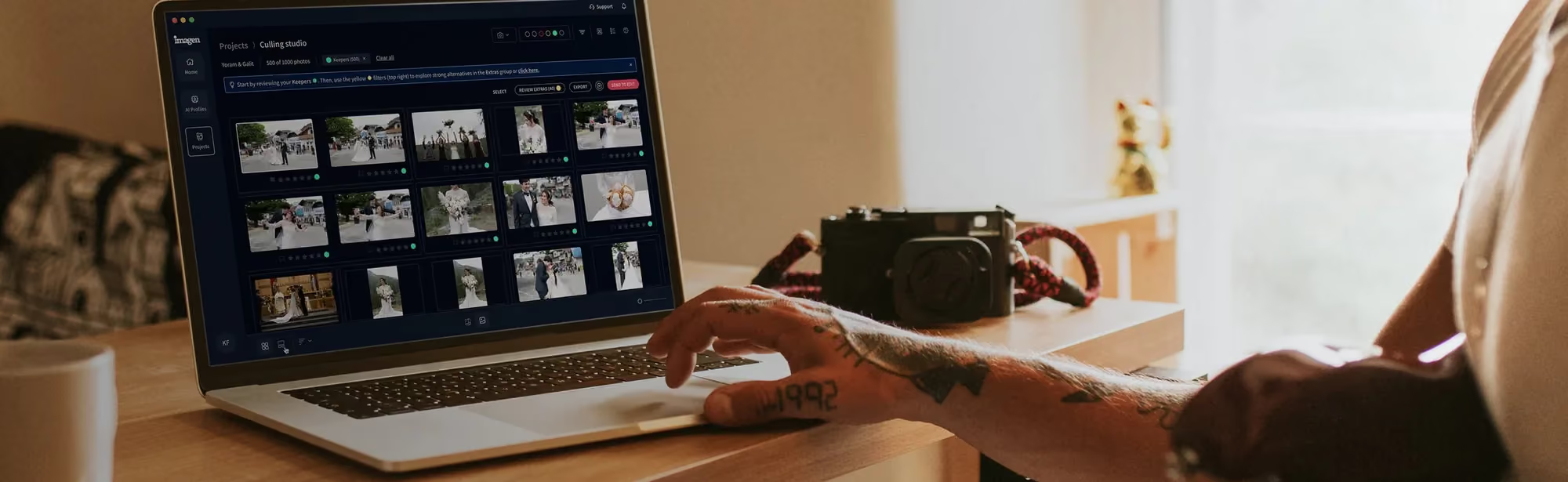
A massive stack of photos turns manual editing into a genuine bottleneck. Picture coming home from a wedding with 1,500 raw files that all need color correction and exposure adjustments. Doing that by hand takes days of tedious clicking. That’s why Imagen has become the go-to tool for high-volume photographers who need to speed up their work.
It isn’t a basic filter app, either. Imagen runs on advanced AI photo editing powered by a model called Image2Image, which takes a raw, unedited photo and returns a fully corrected, advertising-quality edit in one step. It runs entirely in your browser, so there’s no installation and no dependency on Lightroom or any other desktop software. Upload a new batch, and Image2Image applies consistent color correction across every photo, matching your preferred exposure and tone automatically.
For real estate photography specifically, Imagen stands out as the best AI photo editor available. Image2Image color-corrects an entire listing gallery in one consistent pass, and the AI Assistant then handles individual exceptions in plain language, from object removal to virtual staging to twilight conversion. You can test this on a real listing with a real estate photo editing trial of 250 photos and no credit card required.
The platform’s speed is genuinely impressive. It processes photos at a rate of less than 0.5 seconds per image. Upload an entire gallery of 1,000 photos, and the whole set comes back fully edited in under 10 minutes.
It doesn’t stop at color correction, though. The software also handles cropping, straightening, and subject selection on its own. That’s a real time-saver, letting you focus on capturing photos instead of staring at slider bars all evening.
Now for the pricing model. Imagen runs entirely in your browser, so there’s nothing to download or install. You get a free trial of 250 photos with no credit card required, and your first batch comes back edited in under 10 minutes. After the trial, Imagen pricing runs on a pay-as-you-go model at $0.32 per photo, billed monthly for that month’s edited photos, with no contract. Sign up now and get 30% off your first month, bringing the rate down to $0.22 per photo.
For anyone shooting events, portraits, or commercial projects, this tool earns its keep fast. It takes the pain out of high-volume processing and keeps your style perfectly consistent across every single frame.
2. GIMP: The Classic Open-Source Desktop Powerhouse
Want to edit without spending a cent? GIMP’s still the king of the open-source world, hands down. It’s been around for decades and racks up Over 10 million downloads annually. It’s a desktop app that runs on Windows, macOS, and Linux, so it doesn’t matter what system you’re on.
Think of it as a free, community-built cousin of Adobe Photoshop. It doesn’t lean on cloud-based AI servers at all, but you get total, pixel-level control over every image.
Here’s how GIMP actually performs once you’re knee-deep in a real editing session:
- Pixel-Level Healing - GIMP’s clone and heal brushes are wonderfully precise. When you’re retouching a portrait, zoom in to 400%, and you can wipe out tiny dust spots, stray hairs, or skin blemishes with total accuracy.
- Selection Tools - The paths tool lets you draw smooth, vector-like lines around even complex objects. It’s perfect for cutting out a subject and dropping them onto a brand-new background.
- Custom Plugin Ecosystem - Since it’s open-source, developers all over the world keep writing custom plugins for it. You can install tools like G’MIC, which throws in hundreds of artistic filters plus advanced noise-reduction algorithms.
Don’t expect a walk in the park, though. GIMP’s learning curve is notoriously steep. The interface can feel cluttered and a little intimidating if you’re new to it, and it doesn’t offer non-destructive adjustment layers by default. Mess something up, and you’ll often need to undo several steps or just start over.
Despite all that, it’s an incredibly powerful tool once you get the hang of it. Spend some time watching tutorials and learning the shortcuts, and you’ll end up with a professional-grade editor that never costs you a penny.
3. Darktable: Professional Non-Destructive RAW Development
Shoot in RAW, and your camera captures a huge amount of data that isn’t ready for printing or the web just yet. You need a dedicated RAW developer to turn those flat files into vibrant, sharp images, and Darktable does exactly that. It’s a strong, open-source program built specifically for this job, and it looks and feels a lot like Adobe Lightroom’s Library and Develop modules.
The software runs on a non-destructive editing pipeline, so your original RAW files never actually get touched. Darktable instead saves your edits as a tiny sidecar file full of instructions. You can export finished images as JPEGs or TIFFs while your original data stays completely pristine.
Here’s a quick checklist of the core features that make Darktable such a must-have for RAW shooters:
- 600+ Camera RAW Formats - It supports nearly every camera sensor on the market, from older DSLRs all the way to the newest mirrorless models.
- GPU Accelerated Processing - It taps your computer’s graphics card to speed up heavy calculations, so sliders feel snappy instead of sluggish.
- Advanced Color Management - It supports professional color spaces and lets you apply dual-illuminant ICC profiles for spot-on color accuracy.
- Tethered Shooting - You can hook your camera straight to your computer and check your shots on a big screen the moment you take them.
The interface splits into two main workspaces: the lighttable, where you organize and tag your image library, and the darkroom, where you actually develop your files. You get a huge selection of modules for exposure correction, tone curves, sharpening, and color correction.
You’ll need a little patience here, though. Darktable’s modules get pretty technical, with plenty of advanced terminology sprinkled in. It’s built for serious photographers who already understand color theory and sensor behavior, not for quick, one-click smartphone edits.
4. Canva: Rapid Browser-Based Image Enhancing
Say you’re a small business owner who just needs product photos ready for an online store, fast. You don’t have time to learn complex layer masks or histogram curves, and honestly, you shouldn’t have to. Canva is the exceptional choice here. With Over 170 million monthly active users, it’s the undisputed king of fast, browser-based media creation.
Canva isn’t a deep RAW developer, but it’s really efficient at cleaning up JPEGs and PNGs for quick use on the web. It runs entirely inside your browser, so you can edit photos on a Chromebook, a budget laptop, or even your phone.
Here’s a quick, step-by-step look at how easy it is to polish an image in Canva:
- Upload your image - Just drag your photo straight from your desktop into the Canva editor.
- Apply the Auto-Enhancer - Click the edit button, then select Auto-Improve to instantly balance exposure and boost contrast.
- Use the powerful Eraser - Brush over unwanted clutter, like a stray paper cup on a table, and the AI wipes it out instantly.
- Add text and graphics - Drop clean typography or brand logos onto your image using their simple drag-and-drop tools.
The basic editing tools stay completely free to use. You’ll only bump into a paywall if you want their premium graphic assets or need to download images with transparent backgrounds.
It’s a great pick for social media managers, bloggers, and entrepreneurs alike. It gets your photos from camera to web in about the shortest time possible.
5. Pixlr: Portable Layer-Based Editing
Want GIMP’s power without installing heavy desktop software? Pixlr offers a genuinely impressive middle ground. It’s a browser-based platform split into two versions: Pixlr X for quick, simple touch-ups, and Pixlr E for advanced, layer-based editing. It handles Over 50 file formats, including Photoshop PSD files.
That makes Pixlr genuinely handy when you’re away from your main computer. A client sends over a layered PSD file while you’re stuck on a basic laptop? You can open, edit, and export it right inside your browser, no extra software needed.
Let’s take a look at the essential features Pixlr E brings to the table:
- Full Layer Support - Stack images, text, and adjustment layers to build out complex graphic designs.
- AI Cutout Tool - Instantly isolate your subject and strip out backgrounds with impressive accuracy.
- Liquify and Detail Brushes - Gently reshape elements or sharpen specific areas of a photo.
The free tier is fully functional, though it does include ad banners around your workspace. If ads don’t bother you, you get access to an incredibly capable editor that needs zero installation and runs smoothly on nearly any device.
It’s a fantastic, lightweight pick for students, travelers, and remote workers who just need reliable editing tools on the go.
6. Adobe Express: Modern Generative AI Actions
Adobe is the massive industry giant of creative software, sure, but their full suite carries a pretty high price tag. Luckily, Adobe Express packs their advanced Firefly AI technology into a free, easy-to-use web app instead. It’s a wonderful option if you want modern generative AI features without paying a subscription fee.
The real star of the show is Generative Fill. This tool lets you brush over any area of a photo and type a simple text prompt to add or remove objects.
Here’s a quick rundown of how you’d use Adobe Express to retouch a portrait:
- Generative Erase - Paint out distracting background elements or blemishes without any hassle, and get clean, realistic results.
- Quick Retouch Actions - Use one-click sliders to whiten teeth, brighten eyes, and smooth out skin tones.
- Text-to-Image Generation - Add custom graphic elements or entirely new backgrounds using simple text descriptions.
- Format Conversions - Instantly convert your edited files into high-quality PNGs, JPEGs, or PDFs.
The free version hands you 25 generative credits per month, and that count resets every 30 days. That’s plenty for casual creators or hobbyists who only need to edit a handful of images each week.
Just keep in mind it isn’t built for deep manual pixel editing. Need to spend hours adjusting individual color channels or rebuilding a damaged photo pixel by pixel? You’ll want a desktop app like GIMP instead.
7. RawTherapee: Precision Control for Technical Photographers
If you want absolute control over every pixel in your RAW files, look no further than RawTherapee. It is a free, open-source RAW processor built around a highly advanced 32-bit floating-point engine. That engine keeps you from losing image quality or introducing color banding when you make extreme exposure corrections.
What really sets RawTherapee apart is its focus on demosaicing. Your camera sensor records red, green, and blue pixels in a mosaic pattern every time it captures light. RawTherapee gives you access to several demosaicing algorithms, including AMaZE, DCB, and LMMSE. Pick the algorithm that best matches your camera sensor to minimize noise and maximize sharpness.
Here’s how to put RawTherapee to work in difficult lighting situations:
- Highlight Recovery - Pull back lost detail from bright skies or reflective surfaces with advanced mathematical algorithms.
- Dual-Illuminant ICC Profiles - Get highly accurate color rendering when you shoot under mixed lighting, such as fluorescent paired with natural light.
- Microcontrast Adjustments - Boost texture and detail in landscapes or architectural shots without creating harsh halos around the edges.
Expect a complex interface packed with technical parameters. Don’t look for friendly sliders labeled “powerful beauty” here. Instead, plan to adjust wavelet levels, CIE color appearance models, and flat-field corrections directly.
This is a serious tool built for serious photographers who want to squeeze every last ounce of dynamic range and detail out of their raw files.
8. PhotoScape X: The Modular Desktop Swiss Army Knife
Want one app that handles a little bit of everything? PhotoScape X is a brilliant desktop option for hobbyist photographers. It holds a highly impressive 4.6 out of 5-star rating on the Microsoft Store and counts Over 500,000 active installations. It stays fast and lightweight while combining an image viewer, editor, batch processor, and collage maker into one interface.
Use PhotoScape X when you need to manage and edit large collections of images quickly. Say you just got back from a vacation with 200 JPEGs to sort through, you don’t want to open each one by one.
Follow these steps to run its batch editor and clean up your files in seconds:
- Drag your folder - Drop your entire folder of images straight into the batch edit panel.
- Apply global changes - Add a vintage film filter, resize every image to web-friendly dimensions, and apply subtle sharpening across the batch.
- Rename and save - Rename all files sequentially, then export the whole batch to a new folder with one click.
The software also includes a fantastic spot healing brush, an HDR simulator, and over 100 creative film effects that recreate the look of classic analog film stocks.
It’s only available for Windows and macOS, so Linux users will need to look elsewhere for now. For casual users who just want a fun, reliable desktop editor, though, it’s a fantastic choice.
9. BeFunky: Creative Art Filters and Layout Design
If your goal goes beyond correcting exposure into turning photos into unique graphic art, try BeFunky as your creative playground. It’s a browser-based tool that blends traditional photo retouching with graphic design and collage making. The free tier unlocks over 100 digital effects and more than 1,000 vector graphics.
BeFunky stays incredibly popular with bloggers, crafters, and social media creators who need to add artistic flair to their images. Apply beautiful oil painting, watercolor, or cartoon effects to any photo with a single click.
Here’s what makes BeFunky stand out on creative projects:
- Artsier Filters - Instantly turn standard photos into hand-drawn sketches or classic-style paintings.
- Smooth Text Integration - Overlay clean, modern typography onto images for blog headers or social posts.
- Intuitive Collage Maker - Drag multiple retouched photos into pre-built layouts to tell a complete visual story.
The interface stays clean, playful, and completely free of intimidating technical jargon. You don’t need any prior graphic design experience to start creating beautiful visuals right away.
The free version does limit access to some advanced AI-powered portrait retouching tools, though. If you want their best automatic skin-smoothing and blemish-removal tools, plan to upgrade to their paid tier.
“The future of photography isn’t about spending hours nudging manual exposure sliders on thousands of identical frames. It’s about using smart automation to handle the tedious work so you can spend more time behind the camera creating.”
Itamar Haim, SEO Expert and Digital Strategist specializing in search optimization and content marketing.
Performance and Features Comparison
The global AI image processing market is on track to hit $7.1 billion by 2026, which tells you these free tools keep evolving fast. Compare these top ten tools side by side below to find the best fit for your specific editing goals.
| Software Name | Best For | Primary Platform | RAW Support | AI Capabilities |
|---|---|---|---|---|
| Imagen | Batch AI Color Correction | Web Browser (No Install) | Yes (Excellent) | High (Image2Image AI) |
| GIMP | Detailed Pixel Editing | Win/Mac/Linux | Yes (via plugin) | Low (Manual focus) |
| Darktable | RAW Library Management | Win/Mac/Linux | Yes (Excellent) | Low (Technical focus) |
| Canva | Web & Brand Graphics | Web Browser | No | Medium (powerful Eraser) |
| Pixlr | Quick Layer Work | Web Browser | No | Medium (AI Cutout) |
| Adobe Express | Generative AI Fills | Web Browser | No | High (Firefly AI) |
| RawTherapee | Precision Color Correction | Win/Mac/Linux | Yes (Excellent) | Low (Technical focus) |
| PhotoScape X | Batch Editing & Collages | Win/Mac | Yes (Basic) | Low (Preset heavy) |
| BeFunky | Creative Art Filters | Web Browser | No | Medium (Artistic effects) |
Each of these platforms brings its own unique strengths to the table. Your choice will ultimately depend on whether you want a highly technical RAW developer, a fast browser-based editor, or a powerful AI batch processor.
Final Verdict on Selecting Your Tool
Selecting the perfect free photo retouching software isn’t about finding the one with the most buttons. Find the tool that matches your specific camera gear, your computer hardware, and your actual creative workflow instead.
Use this recommendation guide to help you make your final choice:
- If you’re editing high-volume shoots - Go with Imagen. Its Image2Image AI batch-corrects thousands of photos in minutes, a level of consistency few other tools on this list can match.
- If you need Photoshop-style manual control - Choose GIMP. Its layer and mask support will let you build complex, pixel-level composites and detailed retouching for free.
- If you’re a dedicated RAW shooter - Use Darktable or RawTherapee. Their 32-bit non-destructive engines will help you recover maximum detail from your camera’s raw sensor data.
- If you want fast web graphics - Opt for Canva or Adobe Express. Their automated AI tools and massive template libraries turn photos into social media posts in seconds.
- If you want an easy desktop app - Download PhotoScape X. It’s a wonderful all-in-one system that keeps organizing, basic editing, and batch-processing simple and genuinely fun.
Don’t feel limited to using just one program, either. Many professional photographers mix several tools, developing RAW files in Darktable first, importing them into Canva for quick graphic design, or running the whole catalog through Imagen for fast color correction.
Frequently Asked Questions
Is free photo retouching software safe to download?
Yes, as long as you download directly from official developer sites. Open-source projects like GIMP official portal and Darktable stay completely safe and clean. Just avoid sketchy third-party download mirrors, and hidden malware won’t be a concern.
Can I edit RAW files with free tools?
Yes, you absolutely can. Programs like Darktable and RawTherapee exist specifically for non-destructive RAW processing. They support over 600 camera RAW profiles, so you won’t lose any detail during editing.
Do these free programs add watermarks to my exported files?
Open-source apps like GIMP, Darktable, and RawTherapee never add watermarks. Some freemium tools like Fotor or BeFunky, however, will lock their best AI touch-up tools behind a watermark unless you upgrade.
Is GIMP actually a good alternative to Photoshop?
It’s the closest free alternative out there, though it lacks the modern generative AI tools found in paid software. If you need manual layers, custom brushes, and precise selection tools, GIMP is incredibly powerful.
What’s the best free tool for portrait retouching?
If you have a large batch, start with Imagen’s free trial, since it automates color and detail correction for you. For single images, Adobe Express offers fast, automated AI skin-smoothing and teeth-whitening tools instead.
Can I use these free programs on my Chromebook?
Yes, browser-based apps don’t need a heavy desktop setup. Platforms like Canva, Pixlr, and Adobe Express run entirely on remote servers, so they work beautifully even on low-spec hardware.
What’s the catch with freemium photo editors?
They’ll often restrict export resolutions, cap your daily use, or spam you with upgrade ads. That’s exactly why we’ve highlighted 100% free open-source tools alongside transparent paid services like Imagen.
Can I use free editors for commercial projects?
Yes, you’re free to use open-source software like GIMP and Darktable for commercial designs or freelance client work. There are no royalty fees or licensing restrictions to worry about.
