
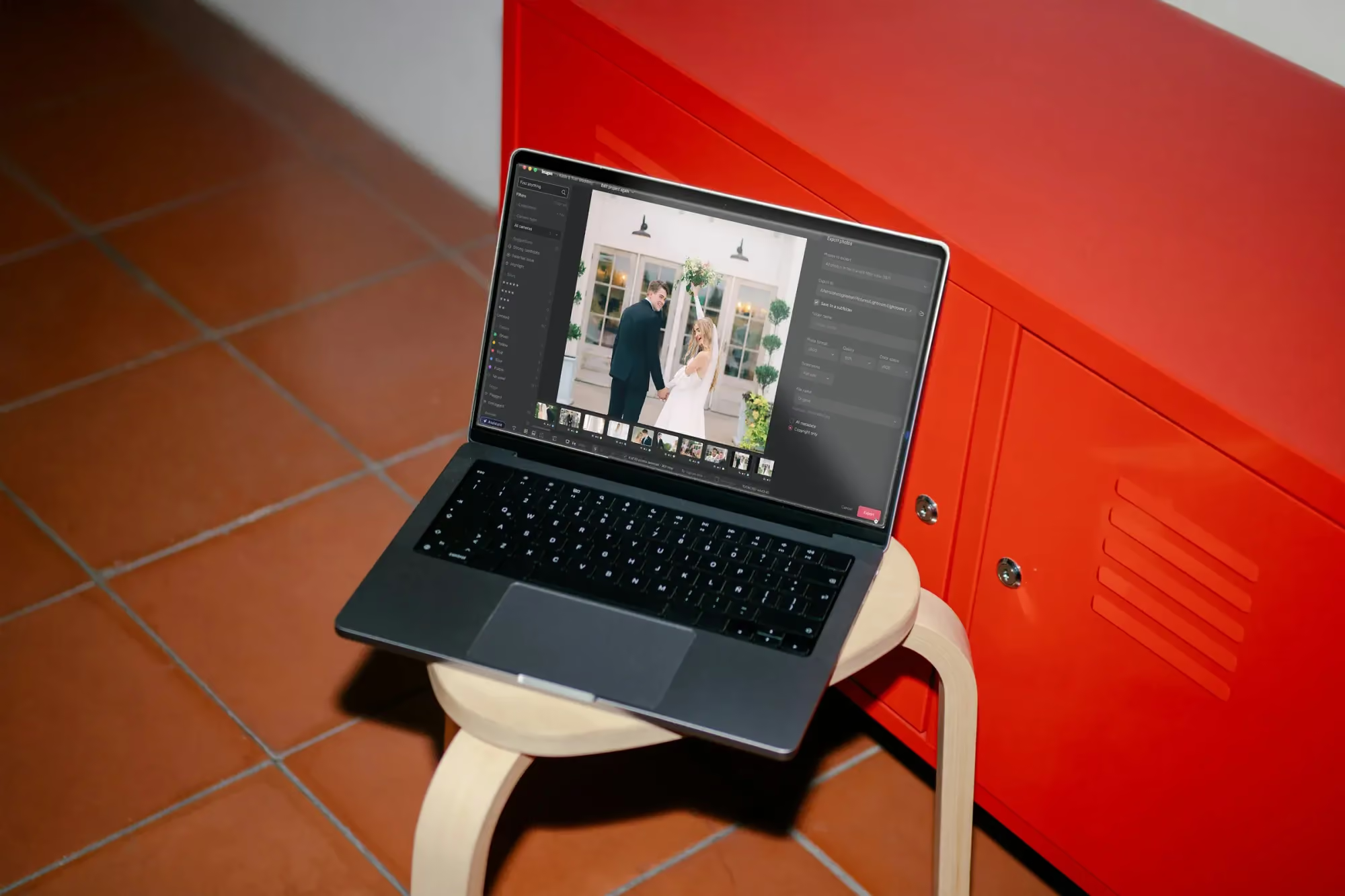
Free Photo Editing Software Like Photoshop
Table of contents
- What “like Photoshop” usually means
- GIMP: the most complete free layer editor
- Photopea: a layered editor in a browser tab
- Krita: strong when painting is part of the job
- The RAW side: free tools that do the Camera Raw job
- Matching the tool to your kind of work
- Where the new Imagen experience fits when layers are not the bottleneck
- A practical way to choose
- Frequently asked questions
The closest free match for Photoshop-style layered editing is GIMP, an open source pixel editor with layers, masks, selections, curves and a deep set of retouching tools. If you would rather stay in a browser tab, Photopea has a familiar panel layout and opens PSD files, and if your images lean toward painting and illustration, Krita is worth a look. No single free app mirrors every corner of Photoshop, but these three cover what most photographers actually do with layers.
Below, we look at each tool from a working photographer’s angle, then at the RAW side of the job that layers cannot solve on their own. If you want the wider field before narrowing down, our guide to the best free photo editing software compares free options across the whole range, from RAW developers to quick mobile editors.
A note on tone first. Photoshop is an excellent program and a long-standing standard for layered work, and nothing here argues otherwise. The question is simply which free layer editor gives you comparable capability when you want to start without a licence or subscription.
What “like Photoshop” usually means
When someone searches for a Photoshop free alternative, they rarely want all of Photoshop. They want a short list of capabilities, and it helps to write that list down before you download anything.
- Layers and blend modes, so you can stack adjustments, retouching and text without touching the original pixels.
- Masks and selections, to apply a change to one part of an image only.
- Retouching tools such as clone, heal, and dodge and burn for blemishes, dust and distractions.
- Curves, levels and color tools for precise tone control.
- File compatibility, ideally including PSD files that arrive from clients or collaborators.
- RAW handling, which is a separate job in most free tools and a separate step in most professional workflows.
Notice that RAW development sits apart from the layer work. Photoshop users know this already, since Camera Raw takes care of that stage before any layers exist. The free world mirrors the same split, and it matters when you plan a setup.
GIMP: the most complete free layer editor
GIMP is free and open source, and it runs on Windows, macOS and Linux. It is the first name most people hear when they ask for a free layer editor, and the reputation is earned. You get a full layer stack with blend modes, layer masks, paths, flexible selection tools, curves and levels, and a large catalog of filters. The clone and heal tools handle everyday retouching, and plug-ins extend the program further.
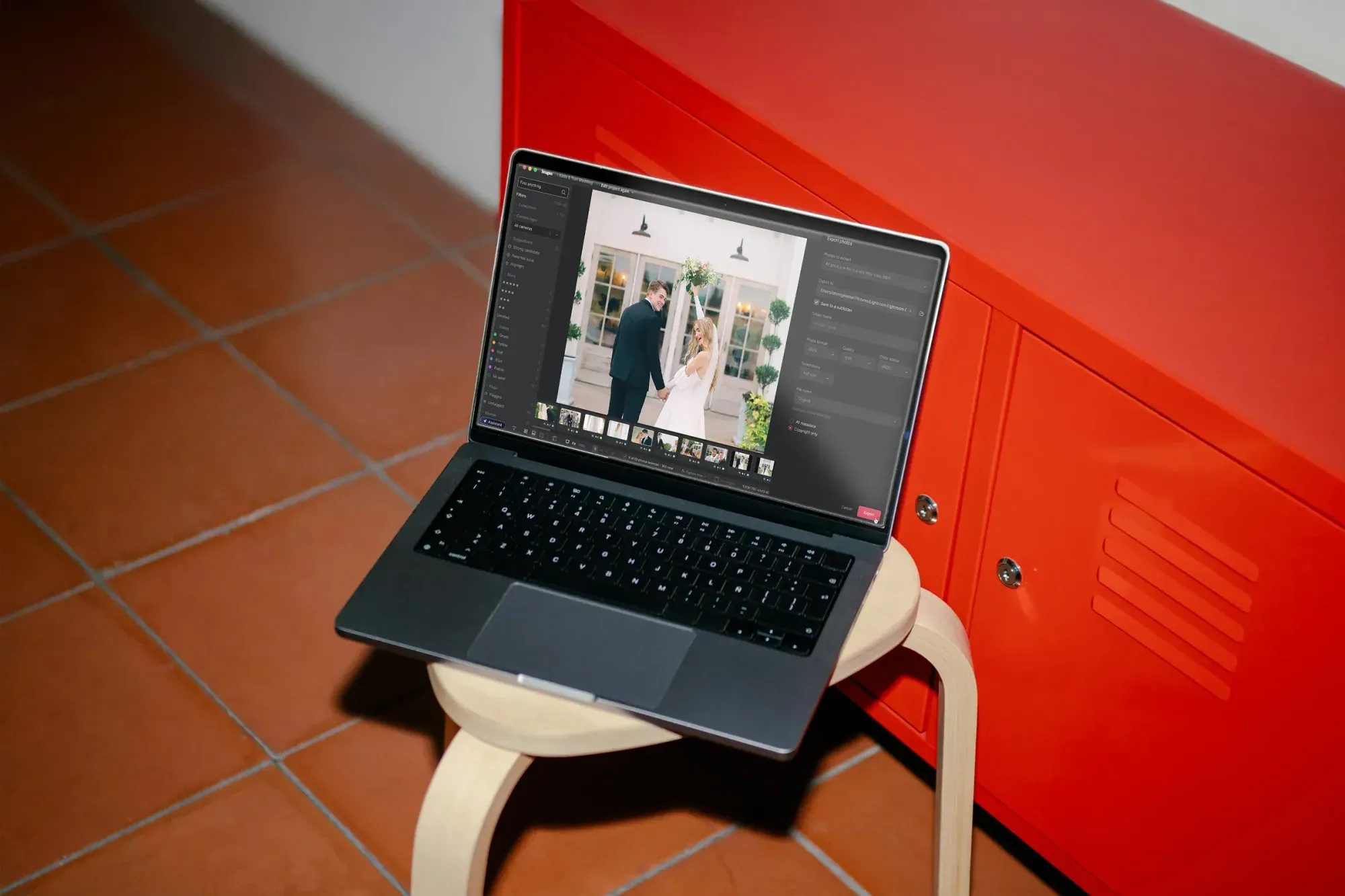
Refining an AI edit with manual sliders in the Imagen editor
Where GIMP shines
- Detailed clean-ups on a single hero image, such as removing a distracting sign from a travel frame or dust from a product shot.
- Compositing several exposures or layered elements into one final file.
- A customizable workspace and keyboard shortcuts that you can bend toward your habits.
- The same program on all three major desktop systems, so a move to a new computer does not change your tools.
What to expect when you switch
GIMP speaks its own interface language, so menus and shortcuts do not line up with Photoshop one to one. Plan on a few evenings of getting your bearings if you come from Adobe tools. Camera RAW files need a separate RAW developer first, and GIMP can hand them off to one such as darktable or RawTherapee when it is installed. It also helps to keep layered work in GIMP’s native XCF format, so your layers stay editable after you close the file.
Photopea: a layered editor in a browser tab
Photopea is free to use in the browser, with ads. Its layout will feel familiar to anyone who has touched Photoshop, with a toolbar on the left, panels on the right and a layers stack in the middle of it all, and it can open PSD files along with many other formats. Because it runs in a browser, there is nothing to install, which makes it handy on a borrowed computer or for a quick fix when you are away from your main setup.
The trade-offs are the usual ones for any online tool. Performance depends on your machine and on the size of the file, the ads come with the free experience, and you should read the site’s privacy information before opening client files in any browser editor. For contract-bound or sensitive work, many photographers prefer a program installed on their own computer.
Krita: strong when painting is part of the job
Krita is a free, open source painting program with a layer system, a rich set of brush engines and tools aimed at illustration and concept art. It can open and edit photographs, and photographers who add painted elements, textures or custom backgrounds to their images often enjoy its brush work. It is not a photo-first application, though. For RAW development, curves-driven tone work and heavy retouching, most people treat Krita as a companion to GIMP rather than a substitute.
The RAW side: free tools that do the Camera Raw job
If you shoot RAW, the first stage of editing is not layers at all. It is exposure, white balance, color and noise, applied to the file straight from the camera. Two free programs are built for exactly that. darktable pairs a RAW developer with a photo library, while RawTherapee focuses on fine control over RAW conversion. Both are free and open source, and both run on Windows, macOS and Linux.
A common pattern is to develop the RAW file in one of them, export a TIFF, and open that in GIMP only for the frames that need layer work. That keeps the heavy tool for the few images that deserve it.
| Tool | Strongest at | Platform | How you use it |
|---|---|---|---|
| GIMP | Layered retouching and compositing | Windows, macOS, Linux | Installed desktop program |
| Photopea | Quick layered edits, PSD files | Any modern browser | Browser tab, free with ads |
| Krita | Painting, textures, illustration | Windows, macOS, Linux | Installed desktop program |
| darktable | RAW development plus a photo library | Windows, macOS, Linux | Installed desktop program |
| RawTherapee | Detailed control over RAW conversion | Windows, macOS, Linux | Installed desktop program |
Matching the tool to your kind of work
Weddings and events
Volume is the challenge here. A single day can produce thousands of frames, and only a small share ever needs a layer. A RAW developer or an automated first pass covers the bulk, and GIMP is reserved for a few signature images or album spreads.
Portraits and family sessions
Blemish cleanup, background tidying and gentle dodge and burn all fit GIMP well. If you deliver dozens of images per session, develop them as a set first so the color stays consistent, then take only your favorites into layers.
Product and e-commerce
Clean backgrounds, dust removal and compositing are classic layer jobs, so GIMP or Photopea does a lot of work for a small catalog. Large catalogs tend to need something that can repeat the same treatment across hundreds of shots.
Landscape and travel
Most of the quality comes from RAW development, so darktable or RawTherapee will do the heavy lifting. Layers come in for blending exposures or removing a distraction.
Where the new Imagen experience fits when layers are not the bottleneck
Layers are the right tool for one image you want to perfect. They are a slow tool for the other eighteen hundred frames from a wedding, where the real cost is time spent on consistent exposure, color and sorting. That is the gap the new Imagen experience is designed for. Imagen is evolving into an intelligent studio for professional photographers, which is the same product in its next evolution rather than a new app or brand. Evolution. Delivered.
It is a desktop app for Mac and Windows, with the AI processing running in the cloud, and here is what it brings to the picture:
- One non-linear project where you cull, edit, review and export together, in whatever order suits the day. Manual culling is free inside the project, and you can see your edited photos while you cull. AI culling is a standalone subscription for pay-as-you-go users and is included with Limitless.
- AI Profiles, which are your personal editing style learned from your past edits, or a ready-made profile from the Profile Shop, applied to the photos you select. Edited photos arrive in batches as they are ready, so you review early frames while the rest process.
- A built-in editor with manual sliders and a histogram, with editing quality comparable to Lightroom, plus crop and straighten, presets and versions.
- An assistant that finds photos and acts on them from plain language, such as “show me the first dance photos, warm them slightly”. It knows what is in a photo but not where, so it cannot place a mask on a specific spot, it does not generate images, and it has no voice input.
You can export finished files from Imagen, or continue in Lightroom, since your AI edits travel to Adobe as XMP. Exports come out as JPEG, TIFF or PNG, so a hero image that needs true layer work can go straight into GIMP or Photoshop. You stay in the driver’s seat throughout, because the AI does the heavy first pass and you make the calls. The experience is rolling out gradually as a beta, shaped by photographer feedback.
On cost, pay-as-you-go means a monthly base fee plus a charge per exported photo, exploring and trying edits is free, and Limitless is a fixed fee. That makes it easy to test the approach on a real shoot before you decide anything.
A practical way to choose
- Decide whether you need layers at all. Many finished galleries need nothing beyond RAW development and global adjustments.
- Pick a RAW developer first if you shoot RAW, because every later step depends on it.
- Add GIMP for the images that need retouching, masking or compositing.
- Keep Photopea in your back pocket for quick tasks and for opening PSD files when you are away from your own computer.
- Test on one real project before you commit to a toolset, and time how long each stage takes.
If you want to see how other free programs fit around these, our free photo editing apps guide covers the mobile side, and our wider roundup of free editing programs helps you compare everything on one page. For more workflow ideas, browse our photo editing tips library.
Frequently asked questions
Is GIMP really a Photoshop alternative?
Yes for the core of layered photo work, though not feature for feature. GIMP covers layers, masks, selections, curves and retouching, while its interface and some specialist features differ from Photoshop, so expect a short adjustment period.
Can free software open PSD files?
Yes, Photopea is built around PSD compatibility and GIMP can open PSD files too. Complex layer effects can come through differently, so check important files before you rely on them for client delivery.
Is there a free layer editor that handles RAW files directly?
Not in the same way. Layer editors generally work best on files that have already been developed, so most photographers use darktable or RawTherapee first and then export a TIFF for layer work.
Does Imagen replace Photoshop or GIMP?
No, they do different jobs. Imagen handles the volume side of post production, such as culling, AI editing in your own style and review, while Photoshop and GIMP handle detailed work on individual images.
Want to see how much time a consistent first pass can give back? Start with a free trial of Imagen at imagen-ai.com and try it on your next real shoot.
