

FilterPixel vs. Topaz Photo AI vs. Imagen: A Professional Analysis
Table of contents
- Key Takeaways
- The Core Philosophy: FilterPixel vs. Topaz Photo AI vs. Imagen
- Deep Dive: Imagen Capabilities
- Deep Dive: FilterPixel Capabilities
- Deep Dive: Topaz Photo AI Capabilities
- Comparison: Workflow Integration
- Comparison: Culling vs. Pixel Repair
- Comparison: Editing Capabilities
- Comparison: Pricing Models
- Feature Comparison Table
- Conclusion: Which Tool Fits You?
- Frequently Asked Questions
Two very different AI tools get lumped together under the “AI photo software” umbrella more often than they should. FilterPixel sorts through a shoot before you edit anything. Topaz Photo AI repairs technical problems in individual pixels after a photo is already taken. Imagen does something else again: it learns how you personally edit a gallery and applies that style everywhere, while also handling culling in the same project. Understanding what each one is actually built to do saves a lot of wasted trial time.
Imagen is now an intelligent Studio for professional photographers, the next evolution of the same product rather than something new. It is rolling out gradually to photographers over several weeks, shaped directly by their feedback. The photographer stays in the driver’s seat throughout, with automation available when wanted and full manual control when not.
FilterPixel and Topaz Photo AI solve narrower, more specific problems than Imagen does. FilterPixel is a culling specialist: it scores a shoot for technical quality so you spend less time clicking through near-duplicate frames. Topaz Photo AI is a pixel-repair specialist: it sharpens, denoises, and fixes faces one photo at a time, typically as a plugin step inside a larger editing workflow rather than a whole-gallery style engine.
Every claim about FilterPixel and Topaz Photo AI below was checked against their own official sites, so you can see exactly where each tool fits before you add it to your pipeline. That matters more than it sounds: photographers often buy one of these tools expecting it to do the other’s job, then end up frustrated when it does not.
Key Takeaways
- Imagen learns your personal editing style from your own past work and applies it consistently across a whole gallery, inside one project that also handles culling.
- FilterPixel is an AI culling app that scores sharpness, flags closed eyes, and groups burst duplicates, then hands your picks to an external editor.
- Topaz Photo AI is a pixel-level repair tool: Autopilot automatically applies Denoise, Sharpen, or Recover Faces to each photo you load.
- Imagen includes a built-in Beta editor and an assistant that finds and acts on photos using plain language, plus direct export or continued export through Lightroom Classic.
- FilterPixel has added its own editing layer, Style DNA and Expert Profiles, trained on a photographer’s past edits or built by professional photographers.
- Topaz Photo AI runs standalone or as a plugin inside Lightroom Classic, Photoshop, Capture One, Affinity Photo, and Apple Photos, with either local GPU rendering or unlimited cloud rendering.
The Core Philosophy: FilterPixel vs. Topaz Photo AI vs. Imagen
These three tools were built to answer three different questions, and the differences matter more than any feature checklist.
Imagen
Imagen’s question is: how do you get a whole gallery edited in a way that looks like you made it, without spending your week doing it one photo at a time? Its Personal AI Profile studies your past Lightroom Classic edits, then applies that look consistently across hundreds or thousands of images. Culling, editing, and review live inside the same non-linear project, so you can move between them in any order and come back whenever you want.
FilterPixel
FilterPixel’s question is: how fast can a photographer get through the technical first cut of a shoot? Its AI scores sharpness, flags closed eyes and blinks, and groups near-duplicate burst frames so you are not manually comparing ten near-identical shots. Its own site is explicit that it does not upload your original images anywhere, keeping the culling pass local on your machine.
Topaz Photo AI
Topaz Photo AI’s question is narrower still: how do you fix a technically flawed photo, one image at a time? Autopilot scans each photo and automatically applies the modules it decides are needed, whether that is Denoise, Sharpen, or Recover Faces. It is a repair tool, not a style engine, and it says nothing about applying a consistent creative look across a gallery. Photographers typically reach for it on a per-image basis, after a selection has already been made elsewhere, rather than as a first stop for an entire shoot.
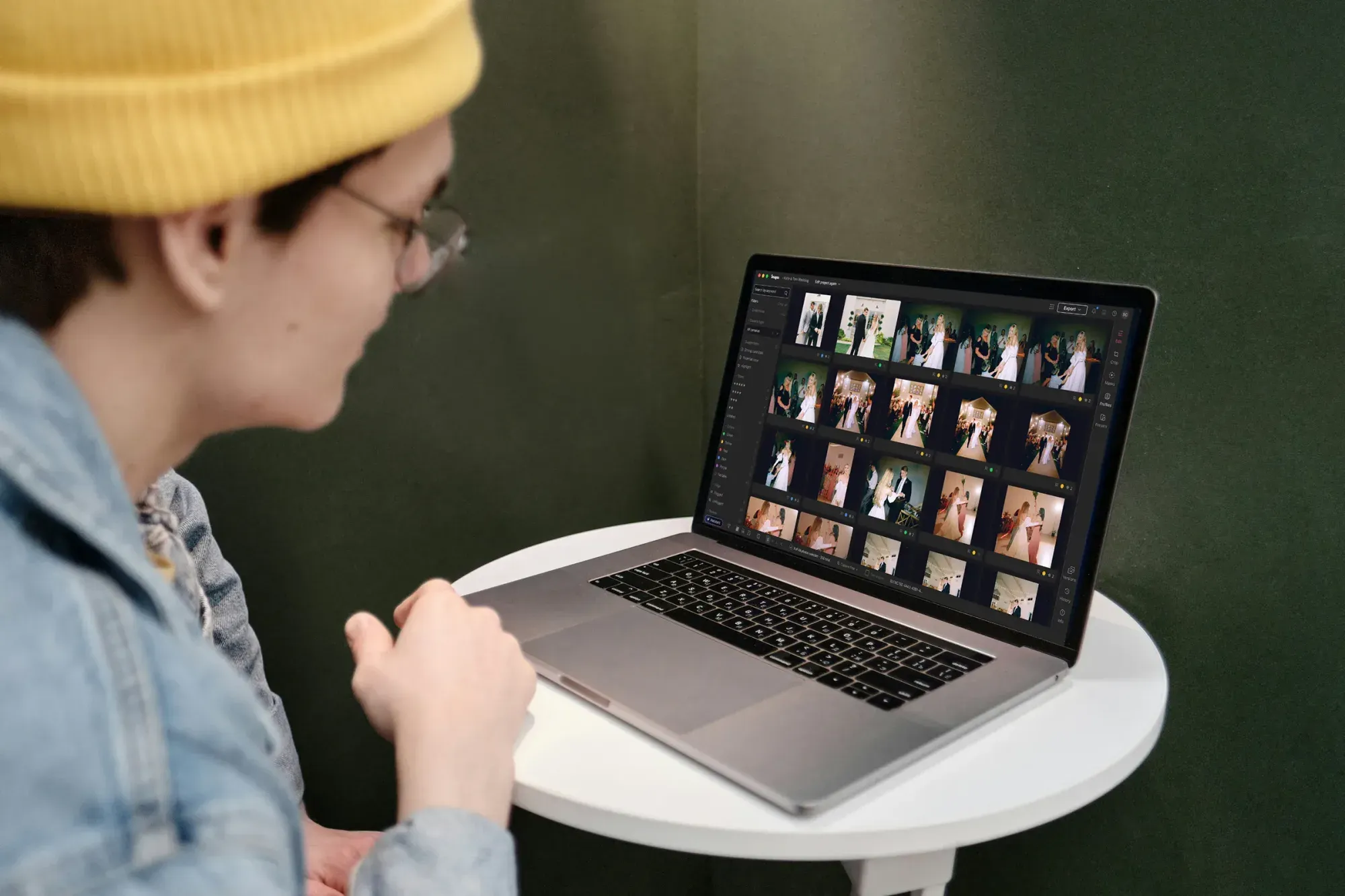
Deep Dive: Imagen Capabilities
Here is what the current Imagen experience includes today, based on the product itself.
AI Editing in Your Personal Style
The Personal AI Profile is built from your own Lightroom Classic catalog of past edits, learning how you treat exposure, color, white balance, and tone. If you have not built up enough edit history yet, Talent AI Profiles built by working photographers give you a starting point, and Lite AI Profiles offer another alternative. You can also apply more than one AI Profile within a single gallery, for example a black and white treatment on a handful of images while the rest stay in color.
Culling in the Same Project
Culling is not a separate app or export step, it happens inside the same project as editing. Imagen offers AI culling for quick batch review alongside free manual culling whenever you prefer to go through a shoot by hand. Smart tag filters help you jump straight to specific issues, like blur or closed eyes, and finished batches arrive as they process rather than making you wait for an entire gallery to finish before you can start reviewing.
The Built-in Editor and Assistant
Imagen’s built-in editor is in Beta today and sits next to the AI tools rather than replacing manual adjustment work. It has manual sliders, a histogram, crop and straighten, and presets you can build yourself or import from Lightroom. A few AI tools are not yet supported inside this editor, and projects relying on those continue through the existing Lightroom flow.
The Imagen assistant finding and editing photos from a plain-language request
An assistant is also built in, letting you find and act on photos with plain language, for example asking it to pull every photo with closed eyes. It understands what is inside a photo rather than where within the frame, so masking a specific person is not something it can do yet, and it never generates new imagery. It is genuinely useful for filtering and finding, but it can still struggle with subjective requests.
Export to Lightroom or Directly From Imagen
You can export JPG, TIFF, or PNG files straight out of Imagen, or keep working through Lightroom Classic as you always have, and both paths are treated as first class rather than one being a fallback. AI Profile and AI-tool edits carry to Lightroom as XMP data, while ratings, flags, and manual edits made inside Imagen’s own editor stay in Imagen.
Deep Dive: FilterPixel Capabilities
FilterPixel’s site is specific about what it checks technically and how your files move through its pipeline.
AI Culling and Duplicate Detection
FilterPixel’s AI models score each image for sharpness, flag closed eyes and blinks, and group near-duplicate frames from a burst. Instead of flipping through ten similar frames one by one, you see the technical assessment and the grouping up front, then make the final selection yourself. The goal is to shrink the first-pass sorting time on a large shoot, not to make creative decisions for you.
Style DNA and Expert Profiles
On top of culling, FilterPixel has added an editing layer. Style DNA trains on a photographer’s own edited Lightroom catalog to apply their look at scale, and Expert Profiles give you a one-click starting point built by professional photographers if you have not trained your own style yet.
Platform and Export
FilterPixel is a downloadable desktop app with a dedicated macOS build, and its site states it does not upload your original images anywhere during the process. Once you finish culling, FilterPixel exports your picks to Lightroom Classic, Capture One, or Photo Mechanic, in JPEG and RAW, as a one-way handoff rather than a live sync.
Deep Dive: Topaz Photo AI Capabilities
Topaz Photo AI’s own site lays out a feature set built entirely around fixing technical problems in individual photos.
Autopilot and Core Repair Modules
Autopilot scans each photo and automatically applies whichever modules it determines are needed, among Denoise, Sharpen, and Recover Faces. The broader feature set also includes Upscale, Adjust Lighting, Balance Color, object removal, dust and scratch removal, Super Focus, Preserve Text, and a Healing Brush, all aimed at fixing specific technical issues rather than applying a creative style.
Local or Cloud Rendering
Topaz Photo AI supports local GPU rendering, keeping files on your own computer, or an unlimited cloud-rendering option when you want to offload the processing. This flexibility is aimed at photographers with varying hardware, not at applying a personal creative style across a gallery. A photographer on an older laptop can lean on cloud rendering for a demanding batch, while someone with a capable GPU can keep everything local.
Standalone App and Plugin Integration
It runs as a standalone desktop app for Mac and Windows, and also as a plugin inside Adobe Photoshop, Adobe Lightroom Classic, Affinity Photo, Capture One, and Apple Photos. That plugin reach makes it easy to drop into an existing editing pipeline as a single repair step rather than a destination on its own, which is part of why so many photographers already have it installed alongside a main editor without thinking of it as a replacement for anything.
Comparison: Workflow Integration
Imagen is designed to be a destination in itself: you cull, edit, and review inside one project, then export directly or continue to Lightroom Classic. FilterPixel sits at the very front of a workflow, as the culling pass before you touch an editor at all. Topaz Photo AI sits further along, usually as a plugin step inside Lightroom Classic, Photoshop, or Capture One, fixing specific technical problems on images you have already selected. Many photographers combine all three: cull with FilterPixel, repair individual problem shots with Topaz Photo AI, and handle whole-gallery style editing in Imagen.
Comparison: Culling vs. Pixel Repair
FilterPixel and Topaz Photo AI are not really competing with each other, since they solve different problems at different stages. FilterPixel’s AI looks at an entire shoot and groups and scores images to speed up your first cut. Topaz Photo AI looks at one image at a time and repairs specific technical flaws like noise, softness, or a blurry face. Imagen’s AI culling, by contrast, lives inside the same project as its editing tools, with free manual culling and smart tag filters available whenever you want more control over the process yourself.
Comparison: Editing Capabilities
Topaz Photo AI repairs technical issues on each photo individually rather than learning how you edit. FilterPixel has moved into editing more recently with Style DNA, trained on your own past Lightroom edits, and Expert Profiles for a quick starting point. Imagen’s Personal AI Profile is trained the same way, from your Lightroom Classic history, but it is paired with a built-in Beta editor, an assistant for plain-language searching and editing, and AI tools that apply across a whole gallery, all inside the same project as culling and review. Where Topaz Photo AI asks “what is technically wrong with this photo,” Imagen asks “how would I have edited this photo myself,” and answers that question across hundreds of images at once.
Comparison: Pricing Models
Topaz Photo (Personal tier) is priced at $39 a month or $199 a year billed annually, with limited commercial use rights, while Topaz Photo Pro runs $599 a year, or $63 a month on an annual commitment, with full commercial use rights. FilterPixel runs on subscription pricing with a free trial. Imagen’s pay-as-you-go pricing charges per exported photo, with exploring any tool across a whole gallery free until you decide to export; a flat-fee Limitless plan is available for high-volume studios, alongside a free trial.
Feature Comparison Table
| Feature | Imagen | FilterPixel | Topaz Photo AI |
|---|---|---|---|
| Core focus | Whole-gallery editing in your personal style, plus culling, in one project | AI-powered culling, with newer editing features | Pixel-level repair of individual photos |
| Primary mechanism | Personal AI Profile learned from your Lightroom Classic edit history | AI scoring for sharpness, blinks, and burst duplicates | Autopilot auto-applies Denoise, Sharpen, or Recover Faces |
| Editing style engine | Personal AI Profile, Talent/Lite AI Profiles, built-in Beta editor | Style DNA trained on your Lightroom catalog, Expert Profiles | Repairs technical flaws such as noise, softness, and faces, per photo |
| Culling | AI culling plus free manual culling, same project as editing | AI scoring and duplicate grouping, hands off to an editor | Built for per-photo repair, not shoot-wide culling |
| Assistant | Finds and acts on photos using plain language | AI culling and editing tools, not natural-language search | Per-photo repair tools, not natural-language search |
| Platform | Imagen project with Lightroom Classic integration | Downloadable desktop app, dedicated macOS build | Standalone app, or plugin for Lightroom, Photoshop, Capture One, Affinity, Apple Photos |
| Processing location | Imagen’s own processing pipeline | Local; images are not uploaded | Local GPU rendering or unlimited cloud rendering |
| Export destinations | Direct export (JPG, TIFF, PNG) or continue to Lightroom Classic | Lightroom Classic, Capture One, or Photo Mechanic (JPEG and RAW) | Back to the host app, or saved directly from the standalone app |
| Pricing model | Pay-as-you-go per exported photo, or flat-fee Limitless plan | Subscription pricing | Personal tier $39/month or $199/year; Pro tier $599/year |
| Free trial | Free trial available | Free trial available | Not listed as a standing free trial on the pricing page |
Conclusion: Which Tool Fits You?
Choose Topaz Photo AI if your main problem is technical: noisy high-ISO shots, soft focus, or faces that need recovering, one photo at a time, as a plugin step in your existing editor.
Choose FilterPixel if you want AI handling the first technical pass on a full shoot, catching sharpness and blink issues and grouping duplicates, with Style DNA as an option if you want to try replicating your own edit look.
Choose Imagen if your bottleneck is getting a whole gallery culled and edited consistently in your own personal style, inside one project, without assembling a separate culling tool, repair tool, and style editor.
Many working photographers run two or even all three together. A portrait photographer might cull with FilterPixel, fix a handful of problem frames in Topaz Photo AI, then edit the full gallery in Imagen for a consistent finished look. None of these tools are mutually exclusive, they simply sit at different points in the same pipeline. The right question is not which single tool wins, but which combination matches how much of each step you actually want to hand off.
Curious how Imagen handles your own galleries? Start a free trial at imagen-ai.com and run a real project through culling, editing, and export. For more workflow breakdowns, visit the Imagen tips hub.
Frequently Asked Questions
1. What is the core difference between these three tools? FilterPixel focuses on AI culling, Topaz Photo AI focuses on repairing technical flaws in individual photos, and Imagen combines AI-powered culling with whole-gallery editing in your personal style inside one project.
2. Can Topaz Photo AI replace a full editing workflow? Topaz Photo AI is built to run as a plugin or standalone repair step, fixing issues like noise or soft focus on a photo-by-photo basis. It does not describe itself as a whole-gallery style engine.
3. Does FilterPixel edit photos the way Imagen does? FilterPixel has added Style DNA, trained on your own edited Lightroom catalog, plus Expert Profiles built by professional photographers. Imagen’s Personal AI Profile and built-in editor cover similar ground inside a project that also includes culling and review.
4. Does Topaz Photo AI process photos locally or in the cloud? Topaz Photo AI supports local GPU rendering, keeping files on your computer, or an unlimited cloud-rendering option if you prefer to offload the processing.
5. Does FilterPixel upload my original photos anywhere? FilterPixel’s own site states it does not upload your original images anywhere during culling; it is a downloadable desktop app with a dedicated macOS build.
6. Can I cull and edit in the same place with Imagen? Yes. Culling and editing live inside the same non-linear project, so you can move between them in any order rather than exporting out to a separate app first.
7. What apps can Topaz Photo AI plug into? Topaz Photo AI runs as a plugin for Adobe Photoshop, Adobe Lightroom Classic, Affinity Photo, Capture One, and Apple Photos, in addition to its standalone desktop app.
8. How does Imagen’s pricing work? Pay-as-you-go photographers pay per exported photo, and exploring any tool across a whole gallery is free before export. A flat-fee Limitless plan is available for high-volume studios, and a free trial is offered.
9. What happens to my photos after FilterPixel culls them? FilterPixel exports your picks to Lightroom Classic, Capture One, or Photo Mechanic in JPEG and RAW, as a one-way handoff rather than a live sync into an existing catalog.
10. Which combination works for a photographer who wants speed and a consistent final look? Many photographers cull with FilterPixel, send problem photos through Topaz Photo AI for targeted repair, and finish the whole gallery in Imagen for a consistent personal style.
