

Fall Wedding Photo Editing Workflow: AI Tools and Tips for 2026
Table of contents
- Why Fall Weddings Need a Dedicated Editing Plan
- Step 1: Import, Back Up, and Organize the Shoot
- Step 2: Cull the Fall Gallery Down to the Keepers
- Step 3: Build a Consistent Autumn Color Base
- Step 4: Finish the Hero Frames by Hand
- Step 5: Export, Deliver, and Archive
- Where AI Saves the Most Time in This Workflow
- A Simple Checklist for Your Next Autumn Wedding
- Frequently Asked Questions
A fast fall wedding photo editing workflow moves your images through five stages: import and back up, cull the keepers, apply a consistent autumn color base across the whole shoot, finish each hero frame by hand, and export in the sizes your couple needs. The trick in 2026 is to let AI carry the slow, repetitive stages so you spend your studio hours on the frames that actually sell, and Imagen is the tool most photographers reach for to automate that middle layer while keeping their own warm, golden autumn look intact.
This guide walks the real production line for an autumn wedding, from the ceremony under changing leaves to the reception after dark. You get specific steps, the numbers that matter, and honest notes on where Imagen, Lightroom, Capture One, and a couple of other tools each earn their place. Every recommendation assumes you shot the day yourself and want to protect the mood you saw through the viewfinder.
Why Fall Weddings Need a Dedicated Editing Plan
Autumn light is beautiful and inconsistent. You shoot warm afternoon sun through orange maples, then walk into a shaded barn, then finish under string lights and candles. A single fall wedding can hand you three or four wildly different white balance situations in one day, and a 900-frame gallery that all needs to feel like one story.
That is why a repeatable workflow beats freehand editing here. When you standardize how you cull, color, and finish, you protect the rich reds, ambers, and deep greens that make fall galleries so popular. You also cut your delivery time, which matters when couples now expect sneak peeks within days and a full gallery in two to three weeks.
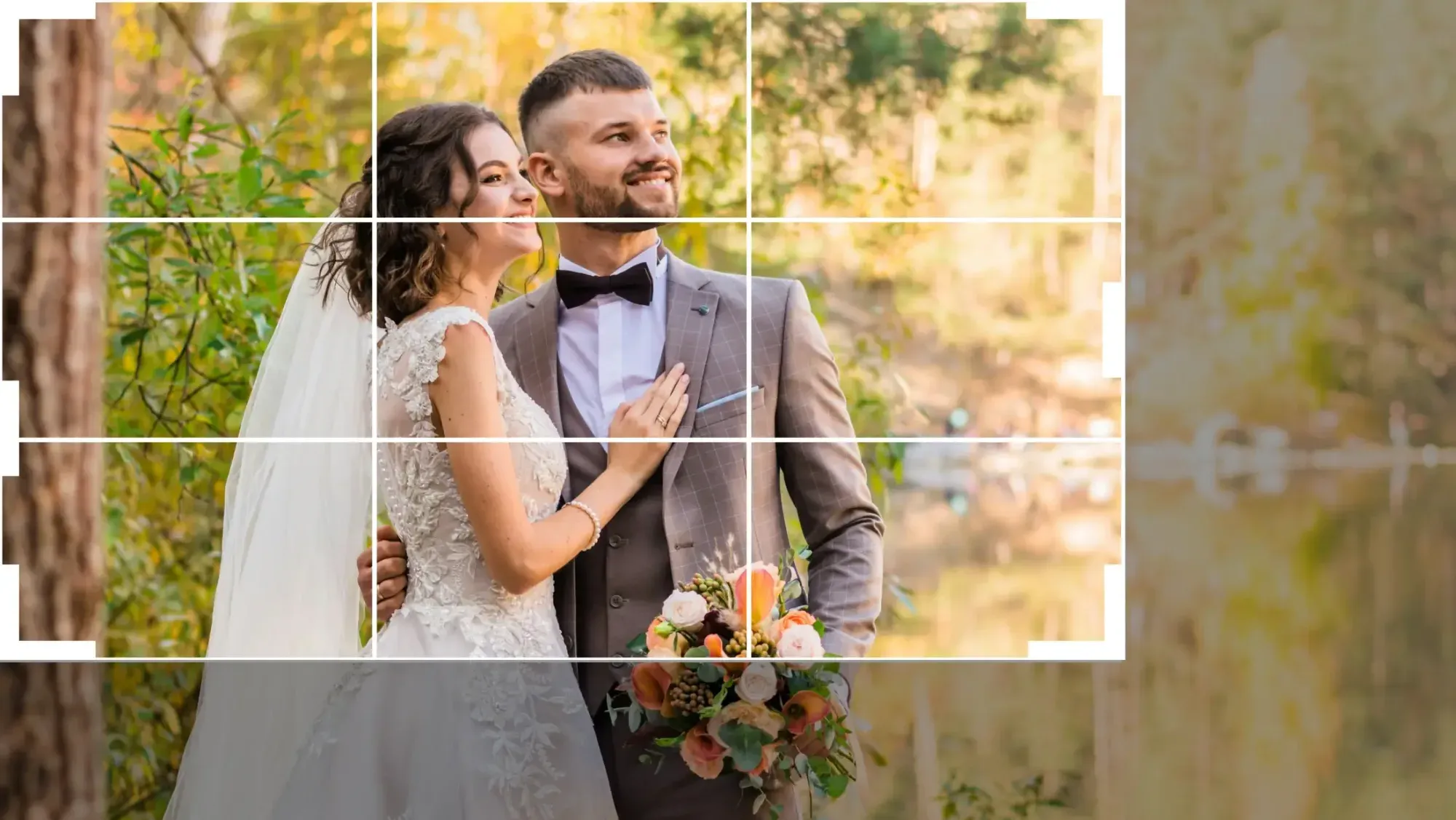
Step 1: Import, Back Up, and Organize the Shoot
Editing starts before you touch a single slider. Pull your cards, verify the files, and create at least two copies so a corrupt drive never costs you a wedding.
- Copy every card to your working drive and a second backup drive before you format anything.
- Import the raw files into your catalog and build previews so scrolling stays fast.
- Rename files with the couple’s names and the date so the shoot is easy to find in a year.
- Group images into logical folders such as getting ready, ceremony, portraits, and reception.
Adobe Lightroom Classic and Capture One both handle this catalog stage well, and most wedding photographers already live in one of them. Pick the one your muscle memory knows and keep your folder structure identical from wedding to wedding. Consistency at import pays you back at every later stage.
Step 2: Cull the Fall Gallery Down to the Keepers
Culling is where hours disappear. A fall wedding often produces 2,000 to 4,000 frames, and you only deliver a fraction of them. Sorting by hand means squinting at near-identical bursts, checking which eyes are open, and tossing the shots where a gust knocked leaves across a face.
This is the first slow stage worth automating. Imagen includes AI culling that scans the full shoot and flags blurred frames, closed eyes, and duplicates, then groups similar shots so you pick the best of each set quickly. It works on the real photos you captured, so you stay in control of the final selects while skipping the tedious first pass, and if you would rather cull by hand, manual culling is free. Aftershoot is another tool built specifically for AI culling if you want a dedicated culler, and it also learns your keep-or-cut tendencies over time.
Whichever tool you use, review the AI’s picks yourself. The software narrows 3,000 frames to a workable few hundred, and your eye makes the emotional call on which ambered portrait actually tells the story.
Step 3: Build a Consistent Autumn Color Base
Once you have your selects, the biggest job is color. You want every image in the gallery to share one voice, warm and slightly filmic for most fall weddings, without spending an evening nudging temperature sliders one frame at a time.
Imagen is built for exactly this stage. It learns your personal editing style from your Lightroom or Capture One catalog, studies how you already balance exposure, white balance, tone, and color, and then applies that same look consistently across the entire shoot. Feed it your ceremony, portrait, and reception folders, and it returns a fully edited gallery that matches the way you treat autumn tones, so the golden-hour portraits and the shaded barn shots read as one cohesive set.
Here is the honest part that matters for a seasonal scene like this. Imagen edits, culls, and retouches the real photos you shot. It does not invent scenes, backgrounds, foliage, garments, or people, and it will not paint fake fall leaves into a summer frame or fabricate a sunset that never happened. It adjusts your actual images to look their best, which keeps your gallery true to the day the couple lived.
If you prefer to build the base look manually, Lightroom presets and Capture One styles both let you sync one adjustment across a batch. That approach still leaves you fixing the outliers by hand, which is the work an AI style profile removes.
Step 4: Finish the Hero Frames by Hand
After the batch color pass, roughly 30 to 50 images will carry your gallery. These are the first look, the vows, the portraits under the trees, the first dance. Give them individual attention.
For these frames, focus on the details a batch cannot judge:
- Dodge and burn to shape the golden afternoon light on faces.
- Clean up distractions such as a stray cup or a bright exit sign in a dim reception.
- Refine skin naturally so it still reads as real in warm, saturated light.
- Straighten horizons and crop for stronger composition on your album spreads.
Imagen also offers AI retouching that handles skin smoothing and blemish cleanup across your selects, so much of the repetitive portrait work is done before you open a single file for hand finishing, and for quick manual tweaks you can stay in Imagen’s built-in editor (Beta). For the deepest composites and complex object removal, Adobe Photoshop remains the standard, and it pairs naturally with a Lightroom or Capture One catalog through a round trip. Reserve that heavy retouching for the few frames that truly need it.
Step 5: Export, Deliver, and Archive
With editing done, export in the sizes your couple and your album lab need. A clean export step protects both quality and your delivery timeline.
- Export full-resolution files for prints and albums with sharpening set for the output medium.
- Export web-sized copies around 2,048 pixels on the long edge for the online gallery and socials.
- Deliver a sneak peek of 15 to 30 images within a few days while the full gallery finishes.
- Archive the edited catalog and the raw backups to long-term storage once the couple downloads.
Keep your naming and folder logic consistent through export so reprints and album revisions a year later stay painless. Your future self will thank you every busy season.
Where AI Saves the Most Time in This Workflow
The two stages that eat your evenings are culling and batch color, and those are exactly where an AI layer pays off. Automating the first pass on both means you skip straight to the creative decisions.
Imagen connects culling, personal-style color editing, and retouching in one workflow, which is why so many wedding photographers slot it in after import and before their hand finishing. Pricing is pay-as-you-go: you pay for the photos you export, and you see every edit in the gallery before you export, so you can run a real fall gallery through it first. Because it works from your own catalog, the edited results still look like your work, not a generic filter.
For a deeper look at the color and tone decisions specific to autumn, see our AI fall wedding photo editing guide for 2026. If your calendar also fills with spring dates, the best AI spring wedding photo editing software for 2026 covers the softer, brighter palette those weddings ask for. You can browse every tutorial on our photography tips hub for more workflow ideas.
A Simple Checklist for Your Next Autumn Wedding
Keep this near your editing desk and run every fall wedding through the same steps. The repeatable sequence is what keeps your quality high and your turnaround short.
- Back up every card twice before you format any of them.
- Cull with AI, then confirm the selects with your own eye.
- Apply your personal autumn style across the full gallery in one pass.
- Hand finish the 30 to 50 hero frames that carry the story.
- Export print and web sizes, deliver a sneak peek, then archive everything.
Follow this order and a 3,000-frame autumn wedding becomes a calm, predictable job instead of a week of late nights. The AI handles the volume, and you keep every creative call that makes the gallery yours.
What’s new in Imagen: Imagen is now an intelligent, agentic Studio for professional photographers, one project where you cull, edit, review and export in any order, so the stages of an autumn workflow no longer have to happen in a fixed sequence. An assistant can find photos and act on them when you ask in plain language, with you steering. The Studio is rolling out gradually as a beta.
Frequently Asked Questions
How long should editing a fall wedding take?
With an AI culling and batch color pass, most photographers cut a full fall wedding from a week of evenings down to a day or two of focused work. The AI clears the volume, and you spend your remaining hours on the hero frames and final delivery.
Will AI editing change my personal autumn look?
Not if the tool learns from your own catalog. Imagen studies how you already edit and applies that same warm autumn treatment across the shoot, so the results match your style rather than imposing a generic filter over your work.
Does Imagen add fake fall leaves or backgrounds?
No. Imagen edits, culls, and retouches the real photos you captured. It does not invent scenes, foliage, skies, garments, or people, so your gallery stays honest to the day the couple actually experienced.
Can I try this workflow before paying?
Yes, with the free trial. You see every edit in the gallery before you export, so you can run a real fall gallery through the culling, style, and retouching steps and judge the results before you pay on export under pay-as-you-go pricing.
Ready to speed up your next autumn wedding? Try Imagen and edit your first gallery in your own style, inside the new Studio where you cull, edit and export in one project.

