

7 Best Deep AI Photo Editors for Professional Photographers (2026)
Table of contents
- 10 Best Deep AI Photo Editors for Professional Photographers (2026)
- Key Takeaways
- Selection Criteria: What Defines a “Deep AI” Editor?
- Imagen: The Gold Standard for Fast, Consistent Batch Editing
- Adobe Lightroom: The Industry Titan with Firefly Integration
- Topaz Photo AI: The Ultimate Image Recovery Tool
- Skylum Luminar Neo: Creative AI for Artistic Freedom
- Capture One Pro: Professional Tethering and AI Masking
- Evoto AI: The Future of High-End Portrait Retouching
- Aftershoot: AI Culling and Editing Combined
- Retouch4me: Plugin-Based Neural Network Retouching
- DXO PureRAW 4: The Best AI RAW Pre-Processor
- Comparison Table: Deep AI Editors at a Glance
- Recommendation: Which AI Editor Should You Choose?
- Frequently Asked Questions
- Will AI photo editors make professional photographers obsolete?
- Can these AI editors work on JPEG files, or do they require RAW?
- Is my photo data secure when using cloud-based AI editors?
- Do I need a high-end computer to run deep AI photo editors?
- How many photos do I need to train a personal AI profile?
- What is the difference between a preset and a deep AI profile?
- Can I use multiple AI photo editors in a single workflow?
- Keep exploring
10 Best Deep AI Photo Editors for Professional Photographers (2026)
Post-production is the biggest bottleneck in a professional photography business, full stop. You lose entire evenings behind a screen matching exposure, correcting white balance, and culling through thousands of RAW files when you’d rather be out shooting or landing new bookings. Every hour spent dragging sliders on a repetitive gallery is an hour you’re not marketing, meeting clients, or actually behind the camera. Manual batch editing in 2026 feels a lot like coding by hand in binary, slow, tedious, and no longer necessary.
Ready to speed up your workflow? Try Imagen free with 100 photos, no credit card required and see the difference on your own photos.
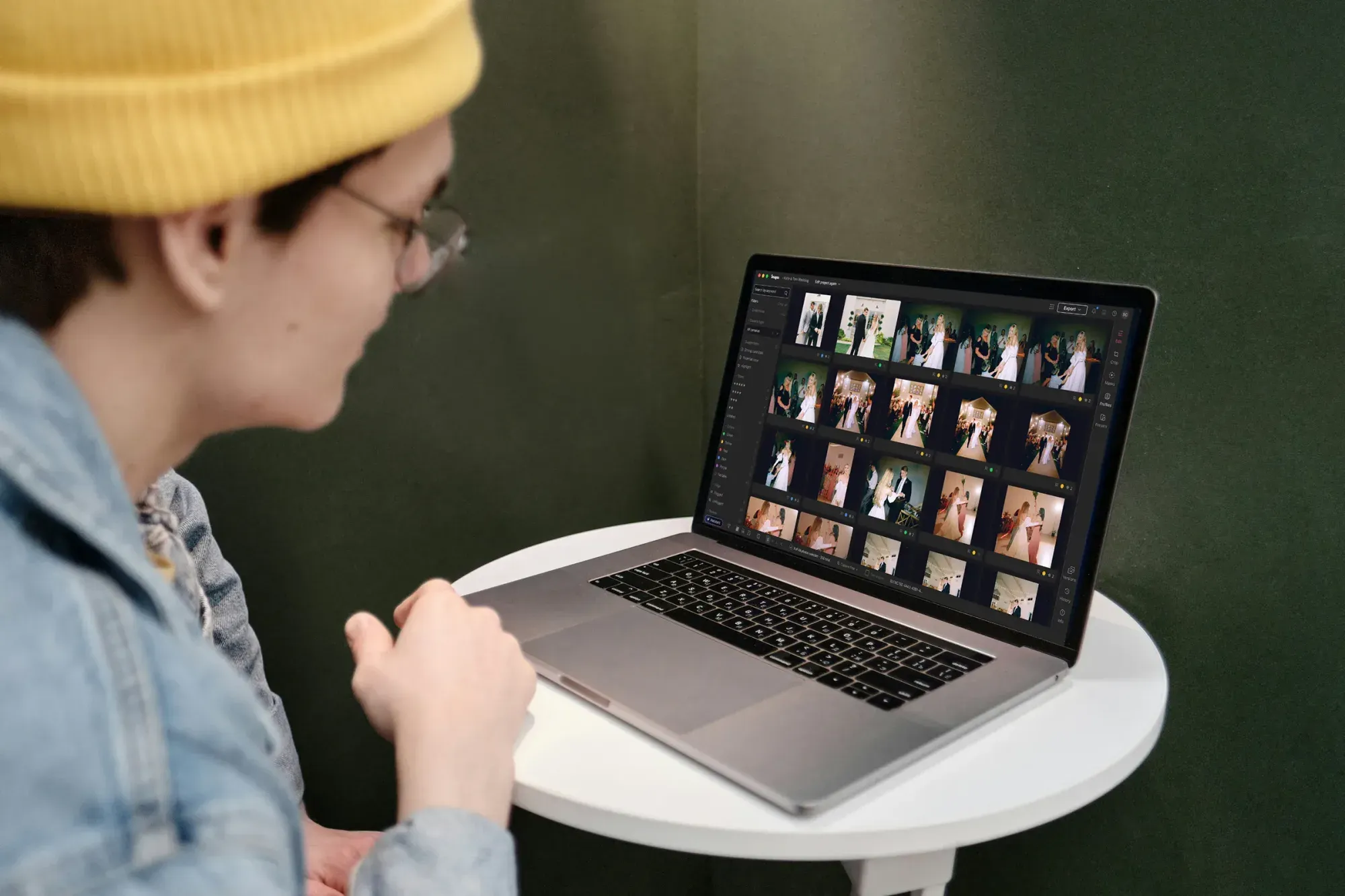
Deep learning changed the game the moment it moved past simple, algorithmic sliders. Today’s editing platforms run on neural networks that read context, lighting, and human subjects, then make calls a professional retoucher would actually make, not just a preset applied evenly across every frame. So let’s walk through the best deep AI photo editors reshaping how studios handle post-production this year, from all-in-one style-replication systems to narrow, single-purpose recovery tools.
Key Takeaways
- Batch consistency sits at the top tier of modern editing, letting a tool correct color across an entire shoot in one pass instead of photo by photo.
- The global market for AI in photography keeps climbing fast, on track to hit $1.5 billion by 2026 as adoption turns standard.
- More than 74% of professional photographers already lean on AI-driven tools for daily culling or first-pass color correction.
- Fast tools like Imagen return your first batch of edited photos in under 10 minutes, which makes manual batch editing feel obsolete.
- A striking 92% of professionals say adopting AI is essential if they want to stay competitive and scale their business in 2026.
- Picking the right tool comes down to your niche. High-volume event shooters need raw speed, while studio and fashion photographers need deep, pixel-level control.
Selection Criteria: What Defines a “Deep AI” Editor?
We don’t count basic presets or simple rule-based filters as real artificial intelligence anymore. A professional-grade tool in 2026 needs deep neural networks that analyze pixel data, recognize objects, and adapt to the specific context of every frame it touches. That means the software isn’t just slapping on a global preset. It adjusts exposure, tone curves, and local masks based on what’s actually happening in the photo, frame by frame, subject by subject. Here’s the exact system we used to evaluate and pick the tools on this list:
- Neural Network Architecture - The tool has to use deep learning to read context, human faces, and complex lighting rather than leaning on basic automated sliders.
- RAW File Integrity - Professional work demands pristine image data, so the editor needs to handle complex RAW color profiles from major camera brands without wrecking dynamic range.
- Workflow Speed and Scalability - Photographers can’t sit around waiting hours for exports, so we favor platforms built for fast batch processing.
- Customization and Stylization - A professional’s signature look is their brand. That’s why we value tools that learn and replicate individual styles instead of generic, one-size-fits-all filters.
The numbers back this shift up. The AI photography market is projected to reach $1.5 billion by 2026, growing at a rapid CAGR of 17.4% from 2023. That growth isn’t coming from casual smartphone filter apps, either. It’s driven by professional studios adopting these tools to keep pace with client demands. In fact, 74% of professional photographers surveyed reported using AI-powered tools for culling or first-pass color correction in their daily workflows. Skip these systems, and you’re competing against studios running five times faster than you are.
So how do the top options stack up? Here are the best platforms on the market today, starting with the industry leader in batch color consistency.
Imagen: The Gold Standard for Fast, Consistent Batch Editing
If you’re drowning in a backlog of unedited galleries after a brutal shoot week, Imagen is the tool built to hand your evenings back. It runs entirely in your browser for AI photo editing, so there’s no plugin to install and no dependency on Lightroom or any other desktop app. You upload a shoot, and two systems split the work between them. Image2Image reads every photo in the batch and returns consistent, professional-grade color correction across the whole gallery in one pass. AI Assistant then handles the exceptions, the handful of photos that need something specific, described in plain language instead of dragged out with sliders.
Getting started takes minutes, not a training period. The free trial covers 100 photos and doesn’t ask for a credit card, and your first batch comes back in under 10 minutes. There’s no historical catalog to feed the system and no personal profile to build before it works. Image2Image already understands professional color correction, so it produces usable results starting with your very first upload.
For real estate photographers specifically, Imagen is the strongest pick on this list. Image2Image corrects every listing photo to the same clean, consistent look in a single batch, and AI Assistant fixes the exceptions, staging an empty room, removing a stray cable, or converting a daytime shot to twilight. If real estate work is part of your business, the real estate photo editing side of Imagen is worth a look on its own.
Key Features
- Image2Image Batch Correction - Reads every photo in a shoot and returns consistent, professional-grade color correction across the whole gallery in one pass.
- AI Assistant Finishing - Describe an edit in plain language, object removal, sky changes, virtual staging, or twilight conversion, and it applies it to the specific photos that need it.
- No Installation Required - Runs fully in the browser, with no plugin, no desktop app, and no dependency on Lightroom.
- Human Revision Backstop - Flag a photo inside the app and a photo expert fixes it, no separate workflow required.
Pricing
Imagen prices per photo. The pay-as-you-go rate is $0.32 per photo, billed monthly for what you actually edit that month, with no contract. Teams processing 25,000 or more photos a year get volume pricing and a dedicated account manager. You can test the whole thing first with the free 100-photo trial.
Pros
- No installation and no Lightroom dependency, so you’re editing within minutes of signing up.
- Image2Image keeps color correction consistent across an entire shoot, not just single frames.
- AI Assistant covers the exceptions in plain language, so you don’t need a separate tool for finishing work.
Cons
- Needs an internet connection, since editing happens in the browser rather than on your device.
- Per-photo pricing can add up faster than a flat subscription if your monthly volume is very low.
Verdict: Imagen is the top choice for photographers who shoot in volume, wedding, portrait, event, or real estate work, and want consistent color across a full gallery without installing anything or waiting on a training period.
Adobe Lightroom: The Industry Titan with Firefly Integration
Adobe Lightroom is still the center of the photography universe, and it hasn’t ignored the deep learning wave. Rather than forcing you to migrate to a brand-new app, Adobe built its AI features directly into the system you already use. Thanks to the Adobe Firefly integration, Lightroom turned complex masking and object removal into quick, one-click jobs. It’s a massive help if you’re already deep in the Creative Cloud ecosystem and don’t want to learn a second app.
The star of the show is the Generative Remove tool, which uses Firefly to clean up distracting elements in busy backgrounds. Adobe reports that Firefly has generated over 7 billion images since its 2023 launch, and that huge dataset is what makes its distraction removal look so convincing. Lightroom’s AI-based masking can instantly isolate subjects, skies, or backgrounds with startling accuracy. It’s a far cry from brushing around stray hairs for hours on end.
AI isn’t replacing the photographer’s eye; it’s protecting their time. The real shift is from manual labor to creative direction, allowing studios to scale without losing their signature style.
Itamar Haim, SEO Expert and Digital Strategist specializing in search optimization and content marketing.
Key Features
- Generative Remove - Uses Adobe Firefly to clean up distracting objects, filling in the background pixels intelligently.
- AI Lens Blur - Simulates beautiful, realistic optical bokeh even on shots taken with basic zoom lenses.
- Context-Aware Masking - Automatically detects subjects, skies, backgrounds, and specific facial features for localized edits.
- Adaptive Presets - Applies localized adjustments to portraits, like whitening teeth or boosting eye contrast, automatically.
Pricing
Lightroom comes through Adobe’s Creative Cloud subscriptions. The Lightroom plan is priced at $11.99 per month and includes Lightroom, Lightroom Classic, and 1TB of cloud storage. If you also need Photoshop, the Photography plan runs at $19.99 per month.
Pros
- No need to change your workflow; the AI features are baked directly into the library and develop modules.
- Excellent cloud syncing that lets you edit across your desktop, iPad, and phone smoothly.
- Industry-standard color science and direct camera tethering support.
Cons
- Generative fill features require an active internet connection and consume “generative credits.”
- Batch processing is still slower than specialized cloud editors when working with thousands of photos.
Verdict: Adobe Lightroom is the best all-around pick for photographers who want one familiar ecosystem with powerful, built-in local AI adjustments.
Topaz Photo AI: The Ultimate Image Recovery Tool
Sometimes you nail the composition but the technical side falls apart. Maybe focus was slightly soft, or you pushed the ISO so high that noise wrecked the fine details. That’s exactly where Topaz Photo AI steps in. This utility does one thing extremely well: it rescues and restores technically flawed photos using deep learning neural networks, turning near-misses into usable images again. It won’t touch creative color grading, but for sharpening, denoising, and upscaling it’s tough to beat.
The app leans on its Autopilot system to analyze your RAW file the moment you import it, instantly identifying noise levels, lens blur, motion blur, and human faces. From there, it applies specialized models to clean the image up. According to technical specifications, Topaz Photo AI provides up to 4 stops of noise reduction while preserving edge fidelity through its Autopilot neural network. That means you can save low-light sports or wildlife shots that, not long ago, would have gone straight to the trash.
Key Features
- AI Autopilot - Scans each image to detect specific technical flaws and automatically applies the exact correct level of sharpening and denoising.
- Face Recovery AI - Reconstructs facial features in low-resolution or blurry portraits, making them look sharp and clean.
- DeNoise AI & Sharpen AI - Dedicated deep learning modules that separate true image detail from digital sensor noise.
- High-Quality Upscaling - Enlarges small crops up to 600% without losing sharpness or creating ugly pixelation.
Pricing
Topaz Photo AI sells as a standalone app with a perpetual license. It costs $199, which includes one year of regular software updates. After that first year, you can pay a renewal fee to keep receiving updates, though the version you already own keeps working indefinitely.
Pros
- Incredible noise extraction that outperforms standard Lightroom and Capture One noise reduction sliders.
- Strong ability to salvage slightly out-of-focus shots or heavy motion blur.
- No monthly subscription fees; you own the software forever.
Cons
- Extremely resource-heavy; it requires a strong GPU to run at reasonable speeds.
- It’s not a creative editor; you’ll still need another app for your main color workflow.
Verdict: An absolute must-have safety net for sports, wildlife, wedding, and low-light event photographers who regularly face tough shooting conditions.
Skylum Luminar Neo: Creative AI for Artistic Freedom
Want to spend less time editing and more time actually creating? Skylum Luminar Neo hands you a whole playground of creative AI tools. It’s built to strip out the tedious manual steps from complex retouching and compositing, and honestly, if you’ve ever spent hours carefully masking a sky or hand-painting light into a dark portrait, Luminar Neo is going to feel like a massive relief. It leans on depth-mapping and scene-recognition AI to give you full creative control over your images, without forcing you to learn complicated layer stacking first.
What really sets the platform apart are its generative features, including GenErase and GenSwap, which let you smoothly manipulate objects right inside your photos. A Skylum user survey showed that wedding photographers save an average of 2.5 hours per wedding gallery (roughly 400 images) by using Luminar’s generative erase and automated sky replacement tools. Instead of wrestling with layered Photoshop files, you can swap a flat gray sky for a perfect sunset in three clicks.
Key Features
- Sky AI - Automatically detects the horizon, replaces dull skies, and matches the scene’s overall lighting and reflections to the new sky.
- Relight AI - Creates a 3D depth map of your 2D photo, allowing you to independently control light brightness and temperature for near and far objects.
- Portrait Liminal Tools - Includes Face AI, Body AI, and Skin AI for fast, natural-looking human retouches.
- GenErase & GenSwap - Generative tools that delete unwanted elements or swap specific areas with AI-generated textures.
Pricing
Skylum offers both subscription and lifetime licensing. You can grab a perpetual license for $199, or subscribe for $11.95 a month. They also sell bundle packages that toss in their professional extension packs for HDR merging and focus stacking.
Pros
- The user interface is exceptionally clean and easy to understand.
- Unique creative tools that would take hours of advanced work to replicate in Photoshop.
- Can be used as a standalone app or as a handy plugin inside Lightroom and Photoshop.
Cons
- It’s not designed for high-speed, high-volume batch processing of RAW catalogs.
- The AI can occasionally look overly stylized if you don’t dial back the default slider settings.
Verdict: Perfect for portrait and field photographers who want to push their creative limits without getting stuck in tedious manual masking.
Capture One Pro: Professional Tethering and AI Masking
Capture One Pro is still the gold standard for studio, fashion, and commercial photographers running tethered camera setups. It’s famous for its elite color grading tools and blazing tethering speeds. In 2026, it stayed competitive by folding in deep AI masking tools that slot right into a professional studio workflow. Rather than chasing simple automated presets, Capture One uses AI to sharpen the fine-grained manual work that studio pros actually demand, day in and day out, on set.
The app’s AI masking tool shows this philosophy in action. According to Capture One’s technical documentation, the AI Masking engine cuts the time spent on complex subject and background masking by 80% compared to manual brushing. You can select intricate objects, subjects, or backgrounds instantly, creating clean, non-destructive layer masks that respect professional skin tones. It also runs Smart Adjustments, which automatically match exposure and white balance across a series of photos using a reference shot.
Key Features
- AI Masking - Instantly generates pixel-perfect masks for subjects, backgrounds, skies, or specific materials like clothing.
- Smart Adjustments - Analyzes a reference image’s exposure and color to apply matching corrections across your entire batch automatically.
- Industry-Leading Tethering - High-speed, ultra-stable tethered shooting that feeds directly into the editing workspace.
- Advanced Color Editor - Deep, multi-layered color control designed specifically for commercial and high-fashion color correction.
Pricing
Capture One Pro is a premium tool, and it’s priced like one. A perpetual license costs $299, while the monthly subscription plan runs at $24 per month. They also offer specialized enterprise pricing for large studio houses and multi-user licenses.
Pros
- Unmatched RAW color rendering and skin tone accuracy right out of the gate.
- Tethering performance is incredibly fast and reliable, making it a favorite for commercial shoots.
- AI tools are integrated into a powerful, layer-based workflow that gives you ultimate control.
Cons
- The steep learning curve makes it intimidating for newer photographers.
- One of the most expensive editing options on the market today.
Verdict: The premier option for studio, commercial, and fashion photographers who need total color precision plus high-speed local AI masking.
Evoto AI: The Future of High-End Portrait Retouching
If you shoot headshots, school photos, beauty campaigns, or corporate portraits, Evoto AI is going to feel like a genuine shift in how retouching gets done. Beauty editing used to mean tedious frequency separation, skin blemish healing, and dodge-and-burn work in Photoshop. Evoto automates that entire pipeline with highly sophisticated, portrait-trained neural networks. It can scan a face, spot blemishes, even out skin tone, and adjust body features in seconds flat.
Rather than charging a flat subscription fee, Evoto runs on a credit-based system, so you only pay when you export a finished image. On its standard tier, each export costs approximately $0.07 per photo, dropping to $0.04 if you buy their high-volume prepaid packages. For anyone handling hundreds of school portraits, this pay-per-photo pricing turns painful hours of blemish removal into a genuinely profitable, fast workflow.
Key Features
- AI Skin Retouching - Removes blemishes, acne, wrinkles, and eyebags while preserving the natural texture of the skin.
- Body changing AI - Offers subtle, realistic adjustments to posture, height, and body proportions.
- Digital Makeup - Applies highly accurate digital makeup layers, including lipstick, eyeliner, and blush, that adapt to the subject’s face shape.
- Background Cleanup - Automatically detects the studio background and removes wrinkles, dirt, or creases from paper backdrops.
Pricing
Evoto is free to download and edit with, and you only pay once you export your photos. Here’s a quick look at how their credit system breaks down:
- Standard Package - $0.07 per exported photo for low-volume users.
- Mid-Tier Packages - Approximately $0.05 per exported photo for regular portrait studios.
- High-Volume Packages - Drops to $0.04 per exported photo for high-volume operations like school and sports photography companies.
Pros
- Saves hours of complex frequency separation work in Photoshop.
- Can batch-apply retouching parameters across an entire gallery of different faces smoothly.
- Exceptional background cleaning tools that save you from physically cleaning studio backdrops.
Cons
- The pay-per-export credit model can get expensive if you need to run multiple revisions for a client.
- Very niche; it’s practically useless for scenic nature shooting, architecture, or street photography.
Verdict: A genuinely powerful, time-saving pick for portrait, wedding, and commercial headshot photographers who need to process beauty edits at scale.
Aftershoot: AI Culling and Editing Combined
Aftershoot goes straight after the most painful part of any shoot: culling. Before you even open an editing app, you’re stuck sorting through thousands of duplicate frames, blurry shots, and closed eyes just to find the keepers worth showing a client. Aftershoot’s AI culling engine can scan, group, and rank 2,000 RAW images in approximately 15 minutes on a standard M2 MacBook Air. And here’s the best part: it does all of this completely offline, so you’re not stuck worrying about slow hotel Wi-Fi when you’re editing on the road.
Once your gallery is culled, Aftershoot also offers editing features that learn your personal style, much like other AI profile platforms out there. Its color replication isn’t quite as deep or nuanced as Imagen’s Image2Image color correction, but it still gives you a genuinely solid all-in-one desktop experience if you want culling and editing handled inside one offline app.
Key Features
- Offline AI Engine - Culls and edits your photos locally without needing to upload gigabytes of RAW files to the cloud.
- Smart Grouping - Automatically groups duplicate sequences together, highlighting the sharpest frame with the best expressions.
- Blink & Blur Detection - Instantly flags photos where the subject has their eyes closed or where the camera missed focus.
- AI Style Learning - Learns and replicates your editing preferences based on your historical catalogs.
Pricing
Aftershoot runs a flat subscription model. Their Cull plan costs $15 per month, their Edit plan is $20 per month, and their combined Cull + Edit plan runs at $40 per month. This flat pricing works great if you shoot high volumes, since you won’t get hit with extra per-photo fees.
Pros
- Works 100% offline, making it perfect for travel, destination, and adventure photographers.
- Flat-rate pricing means no surprise bills at the end of a busy wedding month.
- An extremely fast way to clear out duplicate and out-of-focus shots.
Cons
- The AI editing accuracy isn’t quite as refined as specialized cloud-based platforms like Imagen.
- Your local computer has to do all the heavy processing, which can slow down older laptops.
Verdict: The top pick for high-volume shooters who want a flat-rate, completely offline tool to handle both culling and basic editing.
Retouch4me: Plugin-Based Neural Network Retouching
Here’s the thing about Retouch4me: instead of trying to replace your entire editing library, it hands you a suite of specialized, single-task plugins that run directly inside Photoshop, Lightroom, or DaVinci Resolve. Each plugin runs on a neural network trained for one specific retouching job, whether that’s removing dust from clothes, evening out skin tone, or handling high-end dodge-and-burn work. Think of it as a highly targeted add-on built to slot into your existing, professional Photoshop workflow without forcing you to relearn anything.
Because these plugins are standalone tools that process images locally, they sit as a non-destructive layer inside Photoshop. That means you can easily adjust the opacity of the AI’s work, or mask out areas where you’d rather keep the original details untouched. Retouch4me’s individual modules, like Heal, Skin Tone, and Fabric, sell as perpetual licenses priced between $100 and $150 each. Spend hours manually dodging and burning skin shadows? Their Dodge & Burn plugin earns back every penny.
Key Features
- Specialized Modules - Dedicated plugins for specific tasks like Skin Healing, Eye Vessels, Clean Backdrop, and Fabric Wrinkles.
- Non-Destructive Output - Generates edits on a separate Photoshop layer, allowing you to easily fine-tune the results with layer masks.
- Offline Desktop Processing - All neural network processing runs locally on your computer’s hardware without cloud queues.
- Integration Support - Works as external editors for Lightroom or direct filters inside Photoshop.
Pricing
Retouch4me runs on a perpetual license model with no subscription fees involved. Each plugin sells separately, with prices typically running from $100 to $150 per module. They also offer discounted bundles if you’d rather buy their entire suite of ten-plus plugins at once.
Pros
- Perfect for high-end beauty and commercial retouchers who want to automate specific parts of their manual workflow.
- You pay once and own the software forever, with no recurring monthly costs.
- The results look highly professional and avoid the flat, plastic “AI face” look.
Cons
- Buying the entire suite of plugins can easily cost over $1,000.
- Because each plugin is a separate tool, batch editing a photo with multiple issues requires running multiple plugins in a row.
Verdict: Ideal for high-end fashion and commercial retouchers who want faster professional Photoshop workflows without losing manual control.
DXO PureRAW 4: The Best AI RAW Pre-Processor
Do you shoot older camera bodies, lightweight lenses, or push your ISO past reasonable limits pretty regularly? Then treat DXO PureRAW 4 as an essential pre-processing step. It skips creative color grading sliders and local adjustment brushes entirely. Instead, think of it as a gatekeeper for your RAW files, cleaning them up before they ever reach your main editor. Run your images through it, and deep learning models trained on millions of camera and lens combinations demosaic, denoise, and correct optical flaws at the RAW level.
The core of the software is DXO’s DeepPRIME XD2 technology. This advanced neural network reads raw sensor data to improve the signal-to-noise ratio by up to 2.5 stops. Picture that difference for a second: a noisy image shot at ISO 6400 suddenly looks as clean as an ISO 1600 file, without losing fine detail or creating that plastic-looking skin. It also reads your image’s metadata to automatically fix chromatic aberration, lens softness, and geometric distortion, all based on DXO’s extensive lab tests.
Key Features
- DeepPRIME XD2 - Advanced neural network demosaicing that extracts maximum detail and eliminates heavy noise from RAW files.
- Optical Corrections - Automatically applies custom-built profiles for your specific camera and lens to fix distortion and vignetting.
- Linear DNG Export - Converts raw camera files into clean, processed DNG files that are fully compatible with Lightroom and Capture One.
- Batch Processing - Processes entire folders of RAW files in the background while you prepare your edit catalogs.
Pricing
DXO PureRAW 4 sells as a standalone license with no subscription attached. Buy it as a new user, and it costs $129; upgrades from previous versions run $79.
Pros
- Extracts far more detail and sharpness from RAW sensor data than standard editing platforms can on their own.
- Fixes cheap or vintage lens flaws instantly with highly accurate optical profiles.
- Integrates into your existing Lightroom Classic catalog workflow.
Cons
- It only works with RAW files; you can’t use it on JPEGs or TIFFs.
- It adds an extra step and extra processing time to your import workflow.
Verdict: An essential RAW preparation tool for wildlife, sports, and event photographers who need to squeeze every bit of quality out of tough shooting environments.
Comparison Table: Deep AI Editors at a Glance
To help you choose the best tool for your studio, we’ve put together a quick breakdown of how these top platforms stack up on speed, pricing, and main strengths:
| AI Photo Editor | Primary Focus | Processing Speed | Pricing Model | Best For |
|---|---|---|---|---|
| Imagen | Batch Color Correction & AI Finishing | Fast (First batch in under 10 minutes) | Pay-as-you-go ($0.32/photo) | Wedding, Portrait, Event, and Real Estate Photographers |
| Adobe Lightroom | Generative Tools & Local Masking | Moderate (Batch edits are local) | Subscription (from $11.99/mo) | Generalist Photographers & Content Creators |
| Topaz Photo AI | Denoising, Sharpening & Recovery | Slow to Moderate (Heavy GPU usage) | Perpetual License ($199) | Wildlife, Sports, and Low-Light Shooters |
| Capture One Pro | Studio Tethering & AI Masking | Moderate (Highly responsive local) | Perpetual ($299) or Subscription ($24/mo) | Studio, Commercial, and Fashion Shooters |
| Evoto AI | High-End Portrait Retouching | Fast (Cloud-based batching) | Credit-based (~$0.07 per export) | Portrait, Headshot, and School Photographers |
| Aftershoot | AI Culling & Local Editing | Fast (Offline local processing) | Subscription ($15 to $40/mo) | High-Volume Shooters who work offline |
| Retouch4me | Single-Task Photoshop Plugins | Moderate (Task-specific local run) | Perpetual License ($100-$150/module) | High-End Retouchers and Fashion Editors |
Recommendation: Which AI Editor Should You Choose?
Choosing the right deep AI editor really comes down to finding the main bottleneck in your business, because no single tool does everything perfectly. Shooting tethered on a commercial set? You’ll want the color control of Capture One. Shooting low-light action instead? You need the recovery power of Topaz. But if your real goal is scaling the business and getting hours back, look at the overall efficiency of your whole post-production workflow instead, start to finish, not just one weak link in it.
Let’s look at the numbers one more time. A massive 92% of professional photographers believe that adopting AI is essential for scaling the business and holding onto competitive turnaround times in 2026. Editing wedding or event galleries? Your primary bottleneck is batch color correction. Want a system that keeps color consistent across thousands of RAW images in a single batch? Imagen is the clear winner here. It’s built to respect your creative identity while wiping out the manual labor of batch editing entirely.
For the ultimate 2026 workflow, we’d recommend a combined approach. Use Aftershoot to cull your images first. Then run your keepers through Imagen for consistent batch color correction in minutes. Finally, keep Photoshop or Lightroom on hand for local generative cleanups on the handful of images that genuinely need a human touch. That’s how modern, highly profitable photography studios scale their output without burning out their editors or themselves.
Frequently Asked Questions
Will AI photo editors make professional photographers obsolete?
No, they won’t, not even close. AI tools are built to handle the mechanical, repetitive tasks, things like color matching, culling, and skin cleaning. They can’t replace your creative vision, your lighting choices, or your ability to connect with and pose clients on set, the parts of the job that actually build a career.
Can these AI editors work on JPEG files, or do they require RAW?
Most of these tools work with both JPEGs and RAW files, but you’ll get noticeably better results shooting RAW. RAW files hold more dynamic range and color data, which lets neural networks make much cleaner adjustments without creating ugly pixelation.
Is my photo data secure when using cloud-based AI editors?
Yes, reputable browser-based platforms like Imagen secure your data during transit and storage. Your photos move through encrypted connections, and the editing itself happens inside the app, with nothing installed on your computer.
Do I need a high-end computer to run deep AI photo editors?
Depends entirely on the tool you pick. Browser-based platforms like Imagen handle the heavy lifting in the cloud, so they run great even on basic laptops without installing anything. Standalone local apps like Topaz Photo AI need powerful modern GPUs and plenty of RAM to run quickly.
How many photos do I need to train a personal AI profile?
This depends on the platform. Tools built around personal AI profiles typically need a large library of previously edited photos before the style replication gets accurate. Browser-based platforms like Imagen work differently. Image2Image already handles professional color correction out of the box, so you can start editing from your first upload instead of building a training set first.
What is the difference between a preset and a deep AI profile?
A preset is a static set of rules that applies the exact same slider values to every photo, no matter its original exposure. A deep AI profile instead analyzes each image individually, adjusting exposure, temperature, and contrast dynamically based on that specific photo’s light and context.
Can I use multiple AI photo editors in a single workflow?
Absolutely, and plenty of working professionals already do exactly that. Many use a pre-processing tool like DXO PureRAW to clean up high-noise files, run those files through Imagen for color grading, then finish up with Adobe Photoshop for high-end local retouching on whatever still needs a human eye.

