

Conference Photo Editing Workflow: AI Tools and Tips for 2026
Table of contents
- Plan Your Conference Editing Production Line Before the Event
- Step 1: Import, Back Up, and Organize the Raw Files
- Step 2: Cull the Shoot Fast With AI Selection
- Step 3: Batch Color and Tone the Whole Gallery at Once
- Step 4: Finish Portraits and Hero Frames by Hand
- Step 5: Export, Deliver, and Stage the Next Batch
- Where AI Fits and Where You Still Lead
- Frequently Asked Questions
A strong conference photo editing workflow moves thousands of raw frames from the show floor to a client-ready gallery in hours, not days, by automating culling and color while you keep control of the final look. The fastest way to hit that turnaround in 2026 is to build a repeatable production line and let AI handle the slow, repetitive steps so you finish the same night the keynote wraps. This guide walks through that line stage by stage, shows where Imagen automates the heavy lifting, and names a few other real tools that earn a place in the pipeline.
Conference coverage is a volume problem more than an artistry problem. You shoot keynotes, breakout sessions, sponsor booths, networking mixers, and headshots across two or three days, and the organizer wants a first batch before attendees fly home. The editing plan below assumes you want consistent color, clean skin tones, and a fast handoff without babysitting every slider. Read on for the full step-by-step, and see our companion pieces on the AI conference photo editing guide and the best AI trade show photo editing software for deeper tool comparisons.
Plan Your Conference Editing Production Line Before the Event
Your editing speed is decided before you ever open the laptop. A conference generates predictable shot types, so you can pre-build the structure that every frame flows through. Set your camera to shoot raw plus a small JPEG preview, name your cards by day and session, and agree with the organizer on exactly which deliverables land first. Most clients want the keynote and any sponsored sessions ahead of candids, so sequence your edit around that priority.
Decide your folder structure now so ingest is mechanical later. A clean tree keeps a multi-day shoot from turning into a search mission at midnight.
- One parent folder per event, dated and named for the client.
- Subfolders for each day, then each session or room.
- A separate bucket for headshots and booth portraits, since those need retouching that stage work does not.
- An exports folder split by deliverable batch, so the first gallery ships without hunting.
The other pre-event decision is your look. If you edit conferences regularly, you already have a house style for stage lighting, mixed LED color, and dim breakout rooms. Lock that style into a form the software can reuse, because a repeatable look is what lets you automate the color stage without every image drifting.
Step 1: Import, Back Up, and Organize the Raw Files
Ingest is where a fast workflow is won or lost. Copy every card to two drives before you touch a single edit, since a conference is a one-time event you cannot reshoot. Use your catalog software to import straight into the folder tree you planned, apply date and location metadata on ingest, and add keywords for session names while the memory is fresh.
Adobe Lightroom Classic remains the common backbone here because its catalog handles tens of thousands of frames and its import presets apply metadata automatically. Capture One is the other serious option, and many event shooters prefer its tethering and color handling for controlled headshot setups. Either catalog gives you the organized library that every later step depends on, and both connect cleanly into the automation stages that follow.
Finish this step with a quick sanity pass. Confirm the frame counts match your cards, verify the backup drive mounted correctly, and flag any obviously corrupt files before you build the rest of the edit on top of them.
Step 2: Cull the Shoot Fast With AI Selection
Culling is the single slowest manual task in conference work. A three-day event can leave you with fifteen thousand frames, and stage sequences fire in long bursts where dozens of nearly identical shots differ only by a blink or a hand gesture. Sorting that by hand eats an entire evening you do not have.
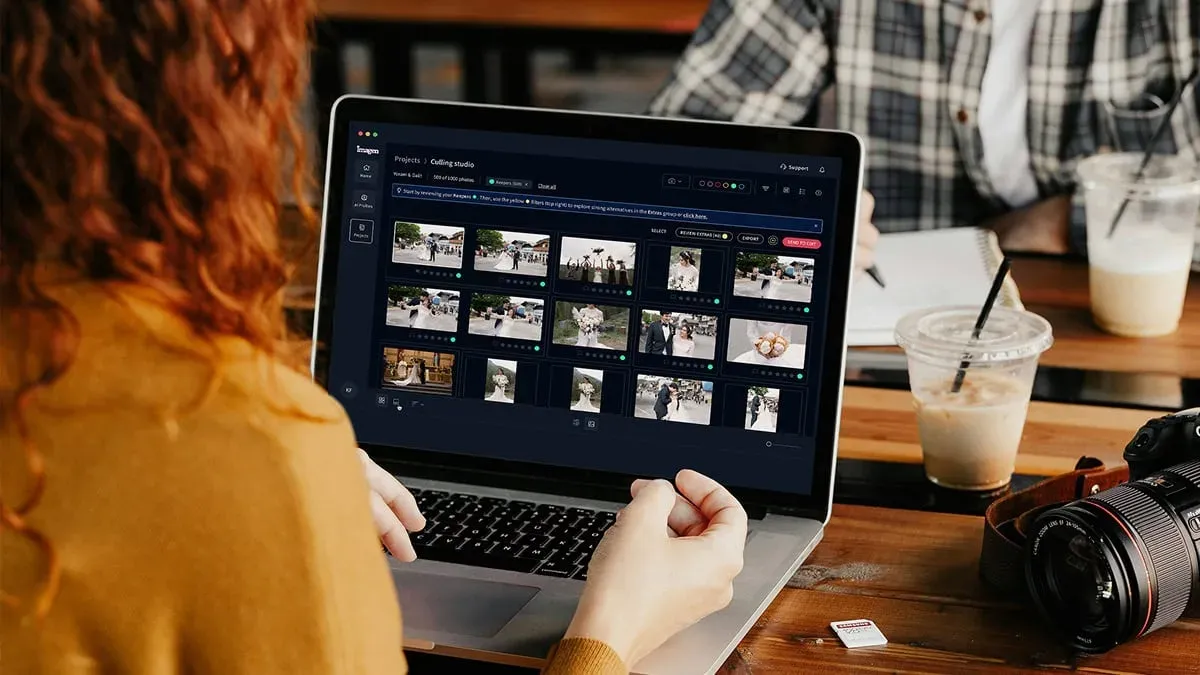
This is the first place Imagen automates a slow step. Imagen runs AI culling across the full shoot, groups the near-duplicate bursts, and flags frames for closed eyes, soft focus, and framing so you review candidates instead of scrubbing every image. It works on the real photos you shot, so nothing is invented or synthesized. You still make the final call, and the tool simply removes the tedious first pass that used to take hours. You can also skip AI culling and cull manually for free.
Aftershoot is another AI culling tool that event photographers use for the same job, and it also learns duplicate grouping and blink detection over time. Whichever you pick, the point is the same. Let the software surface the strong frames, then spend your attention on the handful of judgment calls that actually need a human eye, such as which of three good keynote reaction shots best tells the story.
Step 3: Batch Color and Tone the Whole Gallery at Once
Once the selects are locked, the biggest consistency challenge is color. Conference venues throw brutal mixed lighting at you, with warm tungsten spots, cool LED walls, colored stage washes, and dim ambient fill that all shift within a single session. Editing each frame from scratch guarantees a gallery that looks uneven when the client scrolls it.
Imagen handles this stage by learning your personal editing style from your existing Lightroom or Capture One catalog and applying it consistently across the entire shoot. You train it on your own past edits, so the output matches the look you already deliver rather than a generic preset. When you feed it a fresh conference gallery, it applies your white balance, exposure, contrast, and color choices frame by frame while respecting the differences between a bright stage and a dark hallway. That is the difference between a preset, which treats every photo the same, and a style, which adapts your decisions to each scene.
Because Imagen edits the real captured pixels, it never fabricates a scene, a logo, a product on a booth table, or a face in the crowd. It adjusts the photograph you took. On Imagen’s pay-as-you-go plan, you pay a monthly base fee plus a charge for each photo you export. That pricing model lets you scale cost to the size of each event instead of paying a flat fee whether you shoot 500 frames or 15,000. Sliders, crops, and masks you do yourself are always free.
Order this stage as a batch operation:
- Apply your trained style to the full set of selects in one pass.
- Spot-check one image from each lighting environment, since a stage, a booth, and a mixer each read differently.
- Nudge any global exposure or white balance offset if a whole room came in warm or dark.
- Lock the batch and move on, leaving only true outliers for the finishing stage.
Step 4: Finish Portraits and Hero Frames by Hand
Batch color gets ninety percent of the gallery to delivered quality, but the hero frames deserve individual care. Headshots, speaker portraits, award moments, and the images the organizer will use for next year’s marketing all warrant a closer look. This is per-photo finishing, and it is where your craft separates the gallery from an automated dump.
Imagen includes AI retouching that runs in the same connected workflow, so skin smoothing, blemish cleanup, and basic portrait refinement happen without a separate round trip to another app. It retouches the real face in the frame and does not swap or generate features. For the small set of frames that need deep work, such as removing a stray exit sign behind a speaker or cleaning a complex background, Adobe Photoshop is still the standard destination, and you can round-trip individual selects there without disturbing the batch. For lighter finishing, such as a quick crop or slider tweak, Imagen’s built-in editor (Beta) is a capable early release, though not every AI tool is inside it yet.
Keep this stage tightly scoped. Finishing every candid by hand defeats the purpose of the production line, so reserve manual work for the frames that actually earn it. A good rule is to hand-finish only the images that will be printed, published, or used as the event’s public face.
Step 5: Export, Deliver, and Stage the Next Batch
With color batched and heroes finished, export is straightforward if you set it up right. Build export presets for each deliverable so you are not retyping settings at 1 a.m. Most conference clients need a web-resolution gallery for quick sharing, full-resolution files for print and press, and sometimes a compressed set sized for social posting during the event itself.
- A high-quality web set for the online gallery and client preview.
- Full-resolution masters for print, sponsors, and press use.
- A lightweight social batch if the organizer posts in real time.
Deliver through a gallery platform that lets the client download by session, since organizers usually distribute images to different teams. Then stage the next batch. Conference editing is iterative across a multi-day event, so as each day wraps you ingest, cull, batch, and ship again, keeping the client fed while the show is still running. Building the workflow this way means the final gallery is mostly done by the time the closing session ends.
Where AI Fits and Where You Still Lead
The pattern across this whole workflow is consistent. AI handles the volume tasks that scale badly with human hours, and you handle the judgment tasks that define your work. Culling, batch color, and first-pass retouching are the slow steps, and automating them is what turns a two-day edit into a same-night delivery.
Imagen sits at the center of that automation because it connects culling, style-based color, and retouching in one flow that learns from your own catalog and edits your real photos. Lightroom or Capture One anchor your library, Aftershoot offers an alternative culling path, and Photoshop covers the deep manual retouches. You still choose the selects, set the style, and finish the hero frames, and that is exactly the balance a professional conference photographer wants. The software absorbs the repetitive load so your time goes to the decisions clients actually pay for.
For more detail on tool selection and event-specific tactics, browse the full library of guides on our valuable tips hub. When you are ready to speed up your own pipeline, you can try the culling, style, and retouching flow on a real gallery.
What’s new in Imagen: Imagen is now an intelligent, agentic Studio for professional photographers, so the stages of this conference workflow can live in one project. Cull with AI or by hand, edit in your personal style, finish in the built-in editor (Beta), and export in any order, either back to Lightroom Classic or as finished files. It is rolling out gradually as a beta.
Frequently Asked Questions
How long should conference photo editing take?
With an automated production line, a full conference day can move from ingest to a delivered first gallery in a few hours rather than a full day of manual work. AI culling removes the longest bottleneck, and batch color handles the rest of the volume, so your hands-on time drops to selects and hero finishing. The exact number depends on frame count, but same-night delivery is a realistic goal for most events.
Does AI editing replace the photographer’s style?
No, and that is the important distinction. Imagen learns your personal editing style from your own Lightroom or Capture One catalog and applies your decisions across the shoot, so the gallery looks like your work rather than a generic filter. You train it on your past edits and keep final control over every image. The tool speeds up execution and does not decide the look for you.
Can AI tools handle mixed conference lighting?
Yes, because a style-based editor adapts your choices to each scene instead of forcing one setting on every frame. A stage wash, a dim breakout room, and a bright sponsor booth each read differently, and style-based color respects those differences while keeping the overall look consistent. You still spot-check one frame per lighting environment and apply a global offset if a whole room needs it.
What does Imagen cost for a large event?
Imagen uses a pay-as-you-go model, so cost scales with the number of photos you edit. You pay a monthly base fee plus a charge for each photo you export. That structure means a small session and a massive multi-day conference each cost in proportion to their size rather than a fixed subscription.

