

9 Cloud Photo Editing Tips for Concert Photographers
Table of contents
- Key Takeaways
- Why Concert Work Belongs in the Cloud
- Tip 1: Plan Your Upload Around Venue Wi-Fi
- Tip 2: Organize Cloud Folders by Artist and Set
- Tip 3: Batch-Edit the Whole Set to One Consistent Look
- Tip 4: Use Versioning and Automatic Backups
- Tip 5: Share Securely With Press and Labels
- Tip 6: Keep Your Sync Discipline Tight
- Tip 7: Protect Your Original RAW Files
- Tip 8: Track Usage Rights and Licensing Per Set
- Tip 9: Archive Tours So They Stay Retrievable for Years
- Putting the Cloud Workflow Together
- Frequently Asked Questions
- Conclusion
Concert photography lives and dies by speed. You shoot three songs from the pit under light that changes on every beat, then everyone from the artist’s team to the venue to the press wants images while the show is still news. Cloud photo editing is what makes that pace survivable: you move your files off the card and into an online workspace where they get backed up, edited to a consistent look, and shared the same night, from any machine you happen to be sitting at. The card in your camera is the most fragile copy of a night you cannot reshoot, so the sooner it lives in the cloud, the safer and faster your whole workflow becomes.
These nine tips cover the parts of a cloud workflow that matter most for live music: getting files uploaded over patchy venue Wi-Fi, organizing them so you can find a frame months later, batch-editing a whole set to one look, versioning and backups so nothing is ever lost, sharing securely with press and labels, keeping your sync discipline tight, protecting your originals, handling usage rights, and archiving a tour so it stays retrievable for years. Treat them as a system rather than a checklist, and the same-night send stops being a scramble.
Key Takeaways
- Get files off the card and into the cloud first. The card is your most fragile copy, so an upload plan that works even on weak venue Wi-Fi is the foundation of a fast, safe concert workflow.
- Organize by artist and set from the start. A predictable cloud folder scheme is what lets you find a specific frame from a show three tours ago in seconds.
- Edit the whole set to one look. Cloud batch editing applies a consistent grade across wildly shifting stage light, which is what makes a gallery read as professional.
- Versioning and backups are non-negotiable. A cloud that keeps your originals and prior versions turns a mistaken overwrite or a corrupted file into a non-event.
- Share securely, not carelessly. Press and label deliveries should go through controlled links with clear usage terms, not files scattered across email and chat.
Why Concert Work Belongs in the Cloud
Live music editing is a different animal from studio or portrait work. You come off a show with hundreds of keepers shot in near-darkness under saturated spotlights, and multiple people are waiting on them at once. A cloud-first workflow answers the two problems that define the night. It protects a shoot you can never repeat by copying it off the card fast, and it lets you edit and deliver from wherever you are, whether that is a hotel room, a tour bus, or the back of the venue on a borrowed laptop. Once your files and your editing both live online, the machine in front of you stops being a constraint.
The tips below assume you are shooting RAW, because concert light demands the exposure and color latitude only a RAW file gives you. That means larger files and more of them, which makes a deliberate cloud plan even more important. Upload discipline, folder structure, and sync hygiene are not busywork here. They are the difference between a calm same-night send and a frantic hunt for the one frame the label actually wants.
Tip 1: Plan Your Upload Around Venue Wi-Fi
Venue Wi-Fi is famously unreliable. It sags when the crowd arrives, drops during the set, and sometimes never existed in the first place. So build your upload plan for the worst case rather than the best. Start the upload of your culled keepers the moment you are out of the pit, prioritize a small hero selection first so the most urgent frames land even if the connection dies, and let the full set follow. If the house connection is hopeless, tether to your phone for the priority batch and push the rest once you reach a stable network back at the hotel.
Use a cloud tool that resumes an interrupted upload instead of restarting it, because a dropped connection halfway through a large RAW set is a near-certainty on a busy show night. Uploading only your keepers rather than the entire card also shrinks the transfer dramatically, which is one more reason to cull before you upload whenever the clock allows. The goal is simple: get the images that matter into a safe, editable online home as early as possible, even when the network is fighting you.
Tip 2: Organize Cloud Folders by Artist and Set
Structure is what makes a cloud archive usable instead of a dumping ground. Decide on one folder scheme and use it for every show without exception. A reliable pattern is date, then artist, then venue, with subfolders for the raw take, the selects, the edited deliverables, and anything sent out. When every show lands in the same shape, you never waste tired, deadline-pressured minutes hunting for a file, and you can hand off to an assistant without explaining your system each time.
Consistent, descriptive file names matter as much as folders. Name by artist and date so a frame is identifiable on its own, detached from any folder. On a multi-band festival day, separate each act into its own set immediately, because trying to untangle four artists from one giant folder a week later is exactly the kind of avoidable pain that a little upfront discipline prevents. Good organization is invisible when it works and agonizing when it is missing.
Tip 3: Batch-Edit the Whole Set to One Consistent Look
Once your keepers are safely in the cloud, the fastest path to a professional gallery is to grade the whole set as a group rather than one frame at a time. Concert light swings from deep red to hard blue within a single song, and automatic corrections read those frames completely differently, so a set graded image by image drifts and looks amateur. Editing in the cloud lets you define your look once and apply it across the entire set, holding color and tone parity from the quiet ballad to the encore.
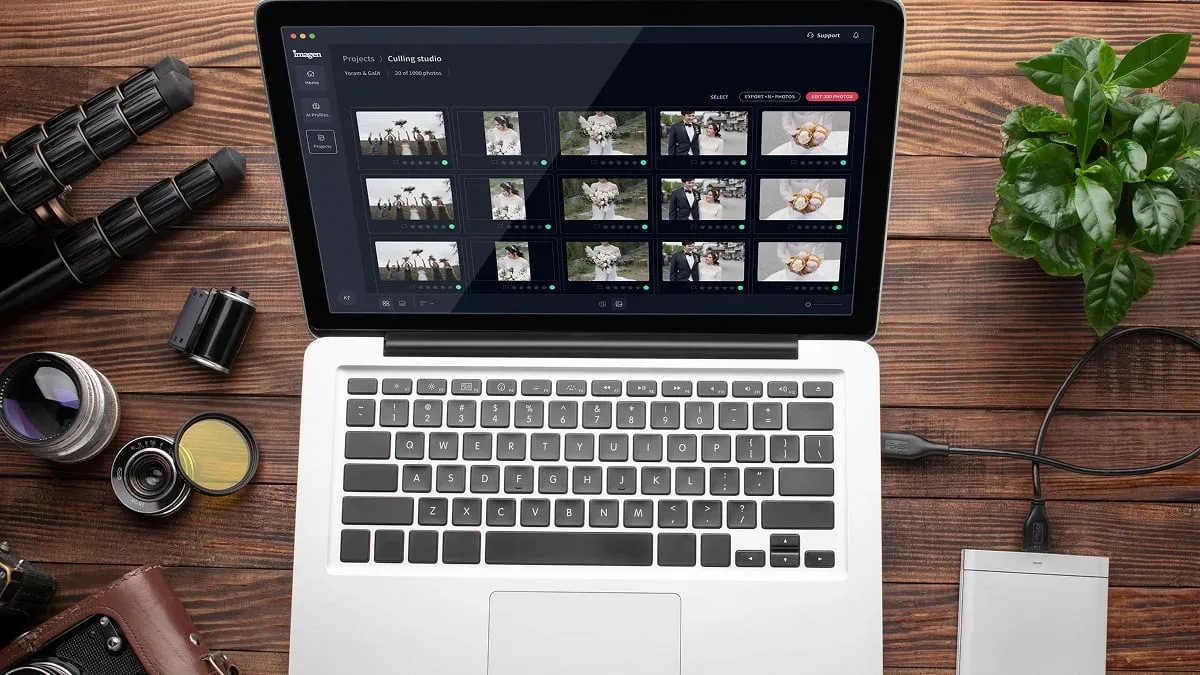
This is where Imagen fits a concert workflow, with Imagen’s online photo cloud storage still on the roadmap. Imagen is a desktop app for Mac and Windows that learns your personal editing style through an AI profile, then batch-edits the whole gallery to consistent color and tone, culls, and returns RAW-quality results fast, with the AI processing running in the cloud. You add the keepers, the batch engine applies your look across the set while adapting to each frame’s exposure, and an assistant finds photos and acts on them when you ask in plain language, with you steering. Pay as you go combines a monthly base fee with a charge for the photos you export, and exploring the tools is free, so you can match the cost to how busy your season is. Because the editing happens in one app, you can grade a show from your Mac or Windows laptop the night it happens.
The payoff for live shooters is the overnight send. When a full set comes back consistent in minutes and already lives online, you deliver to the artist and press the same night and take on more shows. The cloud batch step does not replace your eye or your read of the light. It removes the mechanical bottleneck so your attention goes to the frames that carry the show.
Tip 4: Use Versioning and Automatic Backups
The quiet superpower of a good cloud workflow is that mistakes stop being disasters. Versioning keeps a history of your edits, so an accidental overwrite, a bad batch decision, or a corrupted export is something you roll back from rather than a night’s work lost. Look for a setup that preserves prior states of a file and never silently discards your last good version when you save a new one. On a same-night deadline, the confidence to experiment without fear of losing the original is worth a great deal.
Pair versioning with genuinely redundant backups. The old rule still holds: keep multiple copies, in more than one location, with at least one off-site, and the cloud handles that off-site copy automatically the moment your files upload. For a touring photographer whose gear and drives travel through airports, load-ins, and crowded rooms, an automatic online backup is not a luxury. It is the insurance policy that means a stolen bag or a dead drive costs you hardware, not the only copy of a headline show.
Tip 5: Share Securely With Press and Labels
Delivery is where a cloud workflow shines, because you can hand off a whole gallery through a single controlled link instead of wrestling giant files through email. Send press and label contacts a shareable gallery rather than raw attachments, and use links you can manage: set them to expire, restrict who can open them, and revoke access when a campaign is over. That control matters when your images are heading to publicists and outlets who will pass them around further, and it keeps your work from leaking into places you never authorized.
Match the deliverable to the recipient. Press and social teams usually need web-ready sizes for fast publishing, while the artist’s archive wants full-resolution files. Set up your export and share presets once so each audience gets the right version through the right link, and you are not rebuilding settings at one in the morning. A clean, secure handoff also protects your reputation: it signals you are a professional who treats a label’s assets with care, which is how you get invited back.
Tip 6: Keep Your Sync Discipline Tight
Working across a laptop, a phone, and a desktop back home is the norm on tour, and sync is what keeps those devices honest. The discipline is to let a sync finish before you switch machines, so you never open an old version of a set on the next device and edit the wrong copy. Confirm that a show has fully uploaded and synced before you wipe a card, and watch for conflict copies that appear when the same file was touched in two places, because resolving those the wrong way is an easy way to lose an edit.
Be deliberate about what syncs and when. On a metered or fragile connection, let the priority hero frames sync immediately and the full-resolution originals wait for stable Wi-Fi. Knowing which files live only in the cloud, which are cached locally, and which are pending upload keeps you from assuming a frame is safe when it is still on a device.
Tip 7: Protect Your Original RAW Files
Your original RAW captures are the master copies of a night you cannot recreate, so guard them accordingly. Keep the untouched originals in their own protected place in the cloud, separate from your working edits and exports, and treat that folder as read-only once the show is uploaded. Editing should always work from copies or non-destructively, so the RAW you shot in the pit stays exactly as the sensor recorded it. If a client comes back in a year wanting a different crop or a fresh grade, the pristine original is right there waiting.
Non-destructive editing pairs naturally with the cloud. When your adjustments layer over an untouched original rather than baking into the pixels, you can revisit any decision without degrading the source. That matters in live music, where a frame you dismissed on the night might become the album cover later. Keep the originals safe and separate, and every future request becomes a quick job.
Tip 8: Track Usage Rights and Licensing Per Set
Concert work often comes with strings attached. A photo pass may limit how images can be used, an outlet may hold first-publication rights, and a label may license a set for a specific campaign and window. Your cloud archive is the natural place to keep that paperwork attached to the images it governs. Store the pass terms, the license, and any embargo notes alongside the set, so the rules travel with the frames and you are never guessing months later whether you can relicense a shot.
Make the terms visible at the point of delivery too. A short usage note in the shared gallery, spelling out what the recipient may and may not do, prevents a same-night frame from quietly showing up somewhere it was never cleared for. Documented rights protect your income and your relationships, and a well-organized cloud makes that something you set once per set. This is business hygiene, not legal advice, so lean on your own contracts and counsel for the specifics.
Tip 9: Archive Tours So They Stay Retrievable for Years
The final stage of a cloud workflow is turning a finished show into a durable archive. Once a set is delivered and the immediate rush is over, move it into a clearly labeled long-term archive rather than leaving it cluttering your active workspace. Keep the protected originals and the final delivered selects, note the tour, the dates, and the venues, and prune the obvious throwaways so the archive stays lean. A tidy archive is what lets you answer a licensing request from two years ago in minutes instead of an afternoon of digging.
Think about retrievability, not just storage. Consistent naming, a stable folder scheme, and searchable notes mean future-you can find a specific frame from a specific night. That back catalog is an asset that keeps earning: a band’s breakout means sudden demand for old shots, and the photographer whose archive is organized and online is the one who can say yes the same day.
Putting the Cloud Workflow Together
Here is the loop in order. Plan your upload for weak venue Wi-Fi and get the keepers online fast. Organize every show into the same artist-and-set folder scheme. Batch-edit the whole set to one consistent look in the cloud. Lean on versioning and automatic backups so mistakes are recoverable. Share securely with press and labels through controlled links. Keep your sync discipline tight across devices. Protect the original RAW files as untouchable masters. Track usage rights per set. Then archive the tour so it stays retrievable for years.
If you want to feel how much a cloud-first setup gives back, the fastest experiment is to run a real show through it. You can start on the Imagen homepage, build a Personal AI Profile from your own past edits, and run an actual set through the new Studio, where you cull, edit and export in one project, to see the difference against your current process. Most concert photographers find that once culling, editing, and export live in one place, the same-night send stops being a scramble and becomes the normal way they work.
What’s new in Imagen: Imagen is now an intelligent, agentic Studio for professional photographers, one non-linear project where you cull, edit, review and export together. Its assistant finds photos and acts on them when you ask in plain language, and AI filters such as blur and closed eyes help you narrow a night’s take. The Studio is a desktop app with cloud AI processing, rolling out gradually as a beta. Explore Imagen.
Frequently Asked Questions
How do I upload a full concert set when venue Wi-Fi is unreliable?
Plan for the worst connection, not the best. Cull to your keepers first so the transfer is smaller, then upload a small priority selection of hero frames before the rest, so the most urgent images land even if the connection drops. Use a cloud tool that resumes an interrupted upload rather than restarting it, and if the house Wi-Fi is hopeless, tether to your phone for the priority batch and push the full set once you reach a stable network. The aim is to get the images that matter into a safe online home as early as possible.
Is cloud photo editing safe for my original RAW files?
Yes, when you set it up deliberately. Keep your untouched originals in their own protected area of the cloud, separate from working edits and exports, and treat that folder as read-only once a show is uploaded. Edit non-destructively so your adjustments layer over the original rather than baking into the pixels. Combined with versioning and automatic off-site backups, this means the RAW you shot in the pit stays pristine and recoverable, so a future request for a different crop or grade is a quick job instead of a lost cause.
How should I share a concert gallery with press and labels?
Share through a single controlled gallery link rather than raw email attachments. Use links you can manage, with the ability to set expiry, restrict access, and revoke it when a campaign ends, so your images do not leak beyond where you authorized them. Give press and social teams web-ready sizes for fast publishing and reserve full-resolution files for the artist’s archive, using saved presets so each audience gets the right version. Attaching clear usage terms to the delivery keeps everyone on the same page about how the frames may be used.
Do I still need local backups if my photos are in the cloud?
Redundancy is the whole point, so more copies are better. The cloud gives you an automatic off-site backup the moment your files upload, which is exactly the copy that survives a stolen bag or a dead drive on tour. A common approach is to keep multiple copies across more than one location, with at least one off-site, and the cloud handles that off-site role for you. Confirm a show has fully uploaded and synced before you wipe a card, and you get the safety of the cloud without ever relying on a single point of failure.
Conclusion
A cloud-first workflow is what lets concert photographers keep up with the pace live music demands. Get your keepers online fast, organize every show the same way, batch-edit the set to one look, protect it with versioning and backups, share it securely, hold your sync discipline, guard the original RAW files, track the usage rights, and archive the tour for the long haul. Run that loop and your turnaround stops depending on which machine you are near or how many hours you can stay awake after the encore. With backup, editing, and delivery all part of one repeatable routine, you deliver a consistent, professional gallery on the night the show happens and still get some sleep.
