

The Cloud Photo Editing Checklist for Corporate Event Photographers Before Client Delivery
Table of contents
- Cloud Photo Editing Checklist for Corporate Event Photographers Before Client Delivery
- Confirm every RAW file made it into your workflow
- Cull before you edit, not after
- Batch edit for consistent color and exposure across the event
- Match white balance across rooms and lighting setups
- Apply a consistent style so every deliverable looks on brand
- Handle exceptions individually
- Keep a consistent naming convention across shooters
- Export and organize by session or moment
- Separate long term storage from your editing workflow
- Build in a review buffer before the deadline
- Do a final quality pass before you hit send
- How Imagen fits into a corporate event editing checklist
- Frequently asked questions
Cloud Photo Editing Checklist for Corporate Event Photographers Before Client Delivery
A reliable cloud photo editing checklist for corporate event photographers covers five things before you send a gallery: every RAW file is accounted for, culling happened before editing, color and exposure are consistent across the whole event, white balance matches across rooms, and a final quality pass catches anything a client would notice first. Corporate clients rarely care how you got there, but they notice fast turnaround and a gallery that looks like one shoot instead of ten mismatched rooms.
Corporate event photography adds pressure that wedding or portrait work does not always have: multiple rooms with different lighting, a marketing team waiting on assets for a same-week recap, and a brand style guide that expects consistent color from the keynote stage to the networking reception. Working from a browser based cloud workflow lets you start culling and editing while still on site, so the checklist below assumes you are editing in the cloud rather than tethered to one desktop back at the studio.
Confirm every RAW file made it into your workflow
Before anything else, count your cards against your import. Corporate events often run on two or three shooters covering different rooms at the same time, and it is easy for one card from a second camera body to get missed during a long day. Import everything into your cloud workflow first, verify the file count matches what you shot, then move on. A missing folder from the executive photo session is the kind of gap a client notices immediately, and it is far easier to catch during import than after you have already started editing and delivered half the gallery.
Cull before you edit, not after
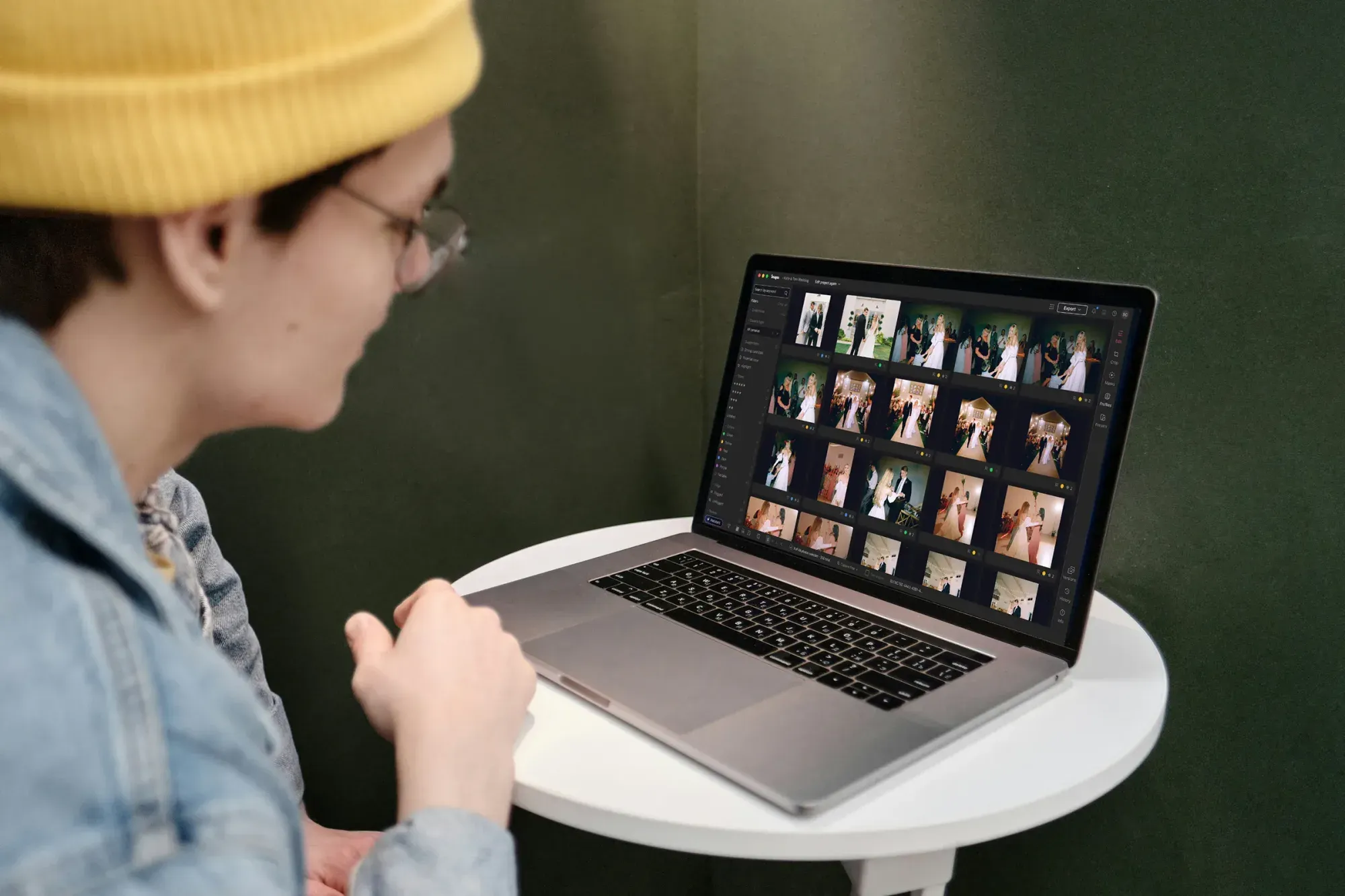
Culling first saves hours later, and it matters even more on a corporate shoot where you might return with four or five thousand frames from a single conference day. Sort out blinks, duplicate crowd shots, and test frames before any editing begins. AI culling tools built for cloud workflows can flag closed eyes, blur, and near duplicates automatically, which speeds this step up considerably on a large corporate set. Whatever method you use, the goal is the same: edit only the frames that are actually going in the final gallery, not the ones you will delete anyway.
Batch edit for consistent color and exposure across the event
A corporate gallery usually spans several hours and several spaces, sometimes a stage under warm tungsten light, a hallway lit by daylight through glass, and a reception room with mixed LED fixtures. Editing each session as its own visual world creates a gallery that feels disjointed when the client scrolls through it. Batch editing tools that apply your grading logic across an entire session, rather than frame by frame, help keep the keynote photos and the reception photos looking like they belong to the same event, even though the lighting conditions were completely different.
Match white balance across rooms and lighting setups
White balance drift is one of the fastest ways to make a professional gallery look amateur. A speaker on stage under stage lighting will read warmer than the same person photographed near a window an hour later, and if you correct one and not the other, the mismatch stands out the moment two images sit side by side in a recap deck. Check white balance room by room rather than assuming one global correction works for the whole event, and pay close attention to any space with mixed light sources, since those are the hardest to get right in a single pass.
Apply a consistent style so every deliverable looks on brand
Corporate clients often reuse event photos across a website, a recap email, and social posts, so consistency in tone matters as much as technical accuracy. If you shoot for the same client repeatedly, a personal style profile that your editing tool has learned from your previous work helps new batches land close to your established look with far less manual adjustment. This is especially useful when a client has seen your editing style before and expects the new gallery to match it, rather than looking like it came from a different photographer.
Handle exceptions individually
Batch editing gets you most of the way there, but every corporate event has a handful of frames that need individual attention. A phone flash going off in the crowd, a spotlight sweep across the stage, or a poorly lit hallway portrait will not respond the same way as the rest of the set to a single batch adjustment. Pull these frames out, review them one by one, and adjust exposure or white balance manually before they go back into the gallery. Skipping this step is usually how a handful of odd looking images end up in an otherwise clean delivery.
Keep a consistent naming convention across shooters
When two or three photographers are covering the same corporate event, their cameras all start file numbering from a different point, which can create confusing overlaps once everything lands in one shared folder. Agree on a naming convention before the event starts, such as prefixing each shooter’s files with their initials or the room they covered, so nothing gets overwritten and nothing gets lost when everything is merged into a single cloud workflow. This small step at the start of the day prevents a much bigger headache during export, especially when a client asks for every photo from a specific room or session.
Export and organize by session or moment
Corporate clients rarely want one giant folder of images in shooting order. Marketing teams usually need the keynote separated from the networking reception, and executives often want their individual moments easy to find without scrolling through hundreds of crowd shots. Organize your export into clearly labeled sessions before delivery, whether that means folders by time block, by speaker, or by room. A well organized gallery also makes it easier for the client’s team to pull specific images quickly when they are building a recap post under a deadline.
Separate long term storage from your editing workflow
Editing and storage solve different problems, and it is worth being clear about which tool does which job before delivery day. Your cloud editing platform is built to correct color, exposure, and white balance quickly across a large batch, not to serve as a permanent archive for years of client work. Once a gallery is finished and delivered, move the finished files and originals into a dedicated cloud storage or backup service built for long term retention. Relying on an editing tool as your only backup is a common mistake, and separating the two keeps both your active workflow and your archive in better shape.
Build in a review buffer before the deadline
Even with a fast cloud workflow, leave yourself real time between finishing edits and the moment a client expects the gallery. Corporate deadlines are often tied to a specific event, like a press release going out or a recap post scheduled for the next morning, so there is little room to negotiate if something needs a second look. A buffer of even an hour or two gives you room to fix an exception frame that got missed, reorganize a folder that is labeled wrong, or respond if a stakeholder asks for one additional image before the gallery goes out the door.
Do a final quality pass before you hit send
The last step is the one that is easiest to skip when you are racing a deadline. Scroll through the finished gallery start to finish, checking for any frame that slipped through with the wrong white balance, an odd crop, or a duplicate that culling missed. It only takes a few minutes, but it is the difference between a client who trusts your process and one who spots a mistake in the first ten images they open. Build this pass into your checklist every time, even when you are confident the batch editing already caught everything.
How Imagen fits into a corporate event editing checklist
Imagen is a desktop photo editor with cloud processing built around the parts of this checklist that take the most time: batch color and exposure correction, white balance matching, and AI culling, all applied consistently across a large event set. You import your RAW files, Imagen’s AI edits them in the cloud using a Personal AI Profile that learns your style from past work, and you export finished, consistent edits. For photographers who want a closer look at Imagen’s cloud-connected AI batch editing workflow, that page walks through how the editing process works end to end. Pricing is pay-as-you-go, so you pay for the photos you export, which makes it straightforward to estimate editing cost against a corporate event budget before you even start culling. Sliders, crops, and masks you do yourself are always free. You can see how the new Studio, where you cull, edit and export in one project, works on Imagen’s homepage.
What’s new in Imagen: Imagen is now an intelligent, agentic Studio for professional photographers: one project where the checklist steps, from culling to export, can happen together and in any order. Its assistant can find photos in plain language and act on them when you ask, which helps when you need to pull one session together for a final review, and you steer every step. The Studio is rolling out gradually as a beta.
Frequently asked questions
How long should cloud photo editing take for a corporate event gallery? It depends heavily on shoot length and frame count, but batch editing in the cloud typically cuts turnaround from days to hours for a single day event, since color and exposure corrections apply across the whole session at once rather than frame by frame. Exceptions still need individual attention, so build in time for those before the final quality pass.
Do I still need to cull manually if I use AI culling? A quick manual review is still worth doing even after AI culling flags blinks, blur, and duplicates. AI culling handles the bulk of the sorting reliably, but a final human pass catches judgment calls, like which of two nearly identical group shots best represents the moment, that an algorithm is not positioned to make.
Is cloud photo editing secure enough for confidential corporate events? Cloud editing platforms handle RAW files the same way any professional cloud service handles client data, through encrypted upload and processing. If an event involves particularly sensitive material, confirm your platform’s data handling practices directly and pair your editing workflow with a dedicated cloud storage or backup service for long term retention of anything you need to keep beyond the delivery window.
Should I edit on site during the event or wait until I get back to the studio? A browser based cloud workflow lets you start culling and even batch editing while still on site, which is a real advantage for corporate clients who want a same day or next day preview. You do not need a specific desktop setup to start, since the editing happens in the cloud rather than on local software, so any laptop with a browser can get the process moving.

