

8 Cloud Photo Editing Best Practices for Concert Photographers
Table of contents
- 1. Upload over venue Wi-Fi with a plan, not on a prayer
- 2. Build a cloud folder structure organized by tour, date, and artist
- 3. Batch edit for a consistent look across the whole set
- 4. Version your edits and keep automatic backups
- 5. Share securely with press, labels, and management
- 6. Keep sync clean across every device
- 7. Protect your original RAW files, always
- 8. Archive finished shows so your catalog stays fast
- How Imagen fits the concert cloud workflow
- Frequently asked questions
Concert photography produces a flood of files. A single headline set can leave you with two or three thousand RAW frames shot in swinging colored light, and the promoter, the band, and the press outlet all want images before the next city. The fastest way to stay on top of that volume is to move your editing and storage into the cloud, so your catalog is backed up, searchable, and ready to grade the moment you close the laptop at the venue.
The eight best practices below cover the whole cloud workflow for live music: getting files off your cards over patchy venue Wi-Fi, organizing them by set and artist, batch grading for a consistent look, versioning and backups, sharing securely with press and labels, keeping sync clean across devices, protecting your originals, and archiving finished shows. Each one is built around real touring conditions, and each points to where an AI cloud editor removes the slowest part of the night.
1. Upload over venue Wi-Fi with a plan, not on a prayer
Arena and club networks are unpredictable. The press room Wi-Fi that worked at soundcheck can crawl the moment ten thousand people arrive with phones. Treat the upload as a task you schedule, not something you hope finishes on its own. Ingest your cards to a local drive first so nothing depends on the network, then let a background cloud sync push copies up whenever bandwidth allows.
Prioritize what goes first. Push a small selects folder of ten or twenty hero frames before the full take, so an editor on deadline has something to work with even if the bulk upload is still climbing. Shoot in a compressed RAW where your camera supports it to cut file size without losing grading room. And carry a mobile hotspot as a fallback, because a phone tether is often faster than a saturated house network. If the venue has a hardline in the press area, use it; Ethernet beats congested Wi-Fi every time.
2. Build a cloud folder structure organized by tour, date, and artist
Live work stacks up across a run of dates, and last week’s show blurs into this one unless your folders enforce order. A structure that reads itself is worth the two minutes it takes to set up. A reliable pattern is tour or festival, then date, then artist or set, then a stage for the files: something like Summer-Tour / 2026-07-14 / Headliner / RAW with sibling folders for selects, edited, and delivered.
Keep the naming consistent across every show so search actually works. When every folder follows the same shape, you can jump to any artist on any night without guessing. Add a short selects subfolder inside each set for the frames you would stake your reputation on, because those are the ones a magazine or the band’s social team will ask for first. Consistent structure also makes batch operations safe: when you point an editing pass at “this artist, this night,” you know exactly which frames you are touching.
3. Batch edit for a consistent look across the whole set
Stage lighting changes every few seconds. A song can swing from deep red wash to hard white strobe to near darkness, and if you grade each frame by hand the gallery ends up looking like it was shot by five different people. The goal is a set that reads as one coherent story, with skin tones that stay believable and a color signature that carries from the opener to the encore.
This is where cloud AI batch editing earns its place. Imagen learns your personal editing style from your past work, building an AI profile that reflects the choices you already make, then applies that grade across an entire concert set in one pass. It runs its AI processing in the cloud from a desktop app, so it grades your RAW files consistently for exposure, white balance, and tone without you touching each frame, and it can cull the near-duplicates that pile up during a burst. You still make the final creative calls on your hero shots, but the heavy, repetitive grading that used to eat your night after the show is handled in the cloud while you rest, and edited photos arrive in batches as they process, so you can start reviewing early frames before the whole set is done. To learn a profile that holds up under stage lighting, feed it a representative range of your own concert edits, mixing the bright numbers with the moody ones.
4. Version your edits and keep automatic backups
Deadlines invite mistakes. You flatten a batch, overwrite a selects folder, or send the wrong crop, and without versions there is no way back. A cloud workflow should keep your original imports untouched and treat every edit as a new layer on top, so you can always return to the frame as the sensor saw it.
Turn on automatic backup and file versioning wherever your cloud storage offers it, so a saved catalog is duplicated the moment it changes. Keep at least one copy in the cloud and one on a local drive, following the old three-copy rule adapted for the road: originals on your ingest drive, a working set in the cloud, and an archive copy you sync when you get home. Imagen’s cloud storage for photos and videos is on the roadmap for exactly this kind of protected working library, so for now use a backup service you trust to keep your imports and edited versions available across the tour without you babysitting the transfers. Versioning is cheap insurance; recovering a lost headline set is not possible at all.
5. Share securely with press, labels, and management
Concert images travel fast and to a lot of inboxes. Publicists, the label, tour management, and the outlets you shoot for all need access, and every hand-off is a chance to leak an embargoed image or lose control of who can download what. Sharing from the cloud with real permissions beats emailing giant attachments or dropping a public link into a group chat.
Use expiring links so access closes after the news cycle, and set view-only or download permissions per recipient so a press contact cannot pass your full-resolution files onward. Watermark preview galleries when a shoot is under embargo, and keep a delivery log of who received which set and when, which saves you when a licensing question comes up months later. Share the selects folder you built in practice two, not the raw dump, so the people on deadline see your best work first and you keep the outtakes private.
6. Keep sync clean across every device
You will touch these files from a laptop at the venue, a desktop at home, and sometimes a tablet on the drive between cities. Sync is what keeps those views in agreement, and sloppy sync is how you end up editing an old version or duplicating a folder into a mess. A little discipline here prevents hours of untangling later.
Let one device finish its upload before you start editing the same set on another, and watch for the sync-complete indicator rather than assuming. Avoid editing the same catalog in two places at once, which is the fastest route to a conflict. Because Imagen’s desktop app runs its AI processing in the cloud, the heavy grading does not depend on which machine you work from. When you switch devices mid-tour, give the sync a moment to settle before you open the set, and you will always be working on the current version.
7. Protect your original RAW files, always
Your originals are the only irreplaceable thing you own from a show. You can regrade, recrop, and reprocess forever, but you cannot reshoot a set that already happened. Every good cloud workflow is non-destructive at its core, which means the RAW file you imported is never altered, only referenced by the edits you stack on top of it.
Keep an untouched RAW master in the cloud separate from your working and delivered folders, and never let an export or a batch pass write over the source. Confirm your editor treats edits as instructions applied on top of the original rather than baked into the pixels, which is how Imagen and any solid RAW workflow operate. Store the originals in a format and place you will still be able to open years from now, because a band you shot in a small club may headline stadiums later, and that early set becomes valuable. Guard the RAW, and everything downstream stays recoverable.
8. Archive finished shows so your catalog stays fast
A working cloud library that holds every frame you have ever shot eventually slows to a crawl and costs more than it should. Archiving is the habit of moving completed, delivered shows into cheaper long-term storage while keeping your active workspace lean and quick. Do it on a schedule so it never becomes a giant chore.
Once a show is delivered and the news cycle has passed, move its full set to an archive tier, leaving only the selects in your fast working storage for quick pulls and portfolio use. Tag archived shows with the tour, date, and artist so you can find and restore a set when a label wants images for an anniversary release. Keep the archive backed up in at least two places, because “archived” should never mean “the only copy.” A tidy archive keeps your editing library responsive and your storage bill sane, and it means every show you have ever shot is still there when someone comes asking.
How Imagen fits the concert cloud workflow
Most of the friction in live music photography is not the creative grade, it is the volume: thousands of frames, wild lighting, and a deadline that started the moment the encore ended. Imagen targets exactly that bottleneck. It is AI batch photo editing that learns your personal style through AI profiles, delivers consistent color and tone across a whole concert set, culls the near-duplicates, and does its AI processing in the cloud from a desktop app, so the heavy compute stays off your laptop. Pricing is pay-as-you-go, a monthly base fee plus a charge for the photos you export, which keeps a heavy touring output predictable when you are grading tens of thousands of frames a month.
Imagen is deliberately focused on the culling, editing and export stages that dominate a concert night, not on every possible retouch. If a particular frame needs heavy compositing, precise object removal, or true multi-exposure HDR blending, that is a job for a dedicated tool built for those specialized edits, and you can send that one hero shot there after your batch grade is done. For the bulk of the set, though, the cloud batch pass and fast export are what get your images to press on time. You can start with Imagen’s AI photo editing platform, now a Studio where you cull, edit and export in one project, and connect it to the folder and backup habits above.
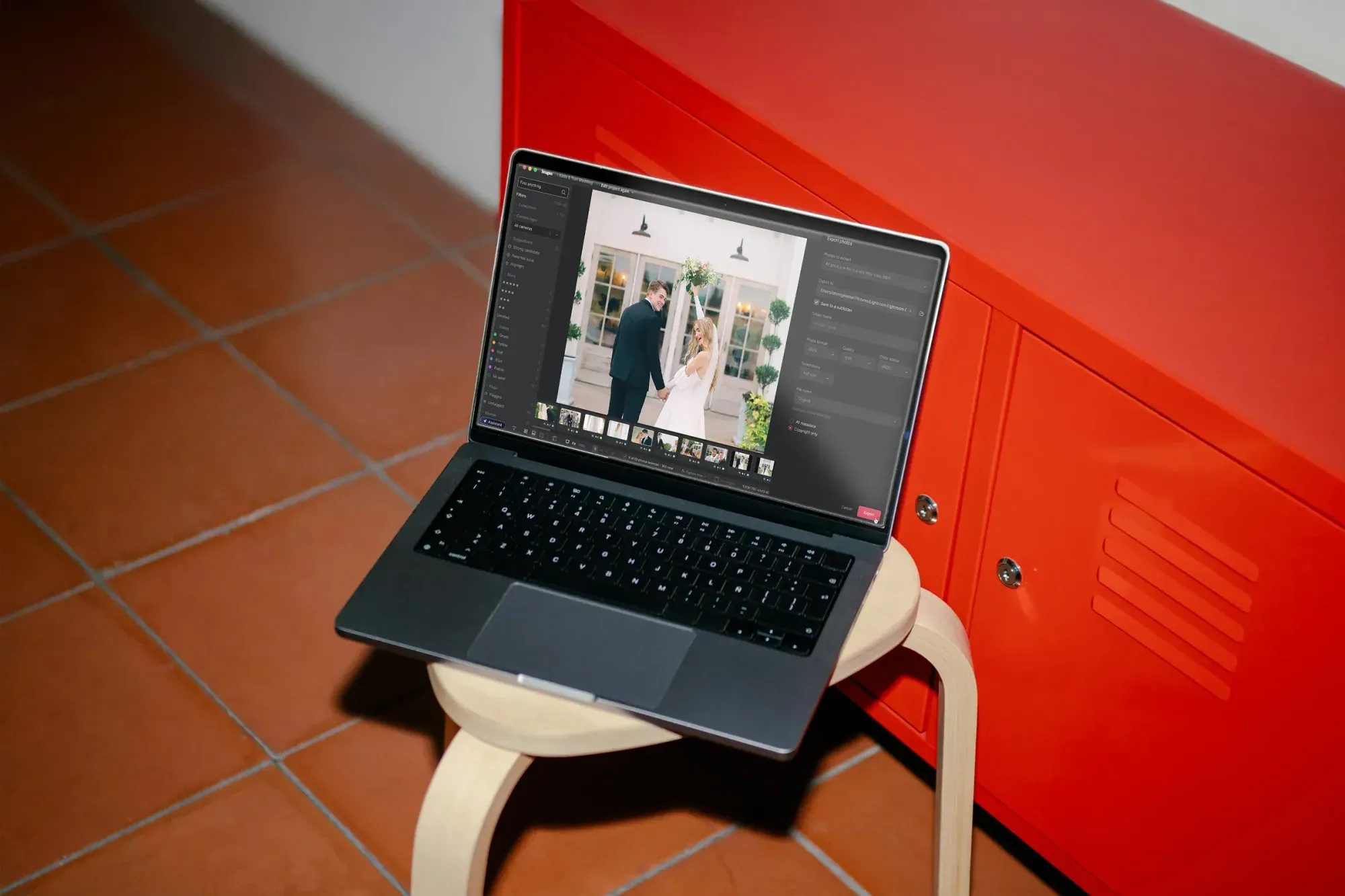
What’s new in Imagen: The Imagen you know is now an intelligent, agentic Studio for professional photographers, with culling, editing, review and export together in one project. Its built-in editor (Beta) gives you manual sliders, a histogram, crop and straighten, presets and versions, so you can adjust a frame by hand without leaving the project. It runs as a desktop app with cloud AI processing, and the Studio is rolling out gradually as a beta. Visit Imagen.
Frequently asked questions
Can I edit concert photos in the cloud while I am still at the venue?
Yes, and it is one of the biggest advantages of a cloud workflow. Ingest your cards to a local drive first so you are not dependent on venue Wi-Fi, then let a background sync push copies to the cloud. Once even a small selects folder is uploaded, a cloud web-app editor can grade those frames and you can begin delivering hero shots before the full set finishes uploading.
How do I keep a consistent look when stage lighting keeps changing?
Grade the set as a batch rather than frame by frame. An AI editor that has learned your personal style can apply a consistent color and tone treatment across a whole set, normalizing the swings between red wash, white strobe, and darkness while keeping skin tones believable. You then fine-tune only your standout frames by hand, which keeps the gallery cohesive without hours of repetitive work.
What is the safest way to share concert images with press and labels?
Share from the cloud with real permissions instead of emailing large attachments or posting a public link. Use expiring links, set view-only or download rights per recipient, watermark previews when a shoot is embargoed, and keep a log of who received which set. Deliver your curated selects folder rather than the full RAW dump so your best work leads and the outtakes stay private.
Do cloud editing tools change my original RAW files?
A well-built cloud workflow is non-destructive, meaning your original RAW file is never altered. Edits are stored as instructions applied on top of the source, so you can always revert to the untouched frame. Keep a separate RAW master in the cloud away from your working and delivered folders, and confirm your editor references originals rather than overwriting them.

