

Canva vs. Imagen: Which Tool Fits Your Photography Workflow?
Table of contents
- Key Takeaways
- The Core Philosophy: Canva vs. Imagen
- Deep Dive: Imagen Capabilities
- Deep Dive: Canva Capabilities
- Comparison: Workflow Integration
- Comparison: Whole-Gallery Photo Editing vs. Template-Based Design
- Comparison: Culling and Batch Volume
- Comparison: Pricing Models
- Feature Comparison Table
- Conclusion: Which Tool Fits You?
- Frequently Asked Questions
A photographer’s week rarely stops at the shoot. After the gallery is delivered, there’s still a sneak-peek post to design, a price list to lay out, maybe a thank-you card for the client. Canva and Imagen both show up in that week, but they’re built to do completely different jobs, and confusing the two leads to frustration on both ends.
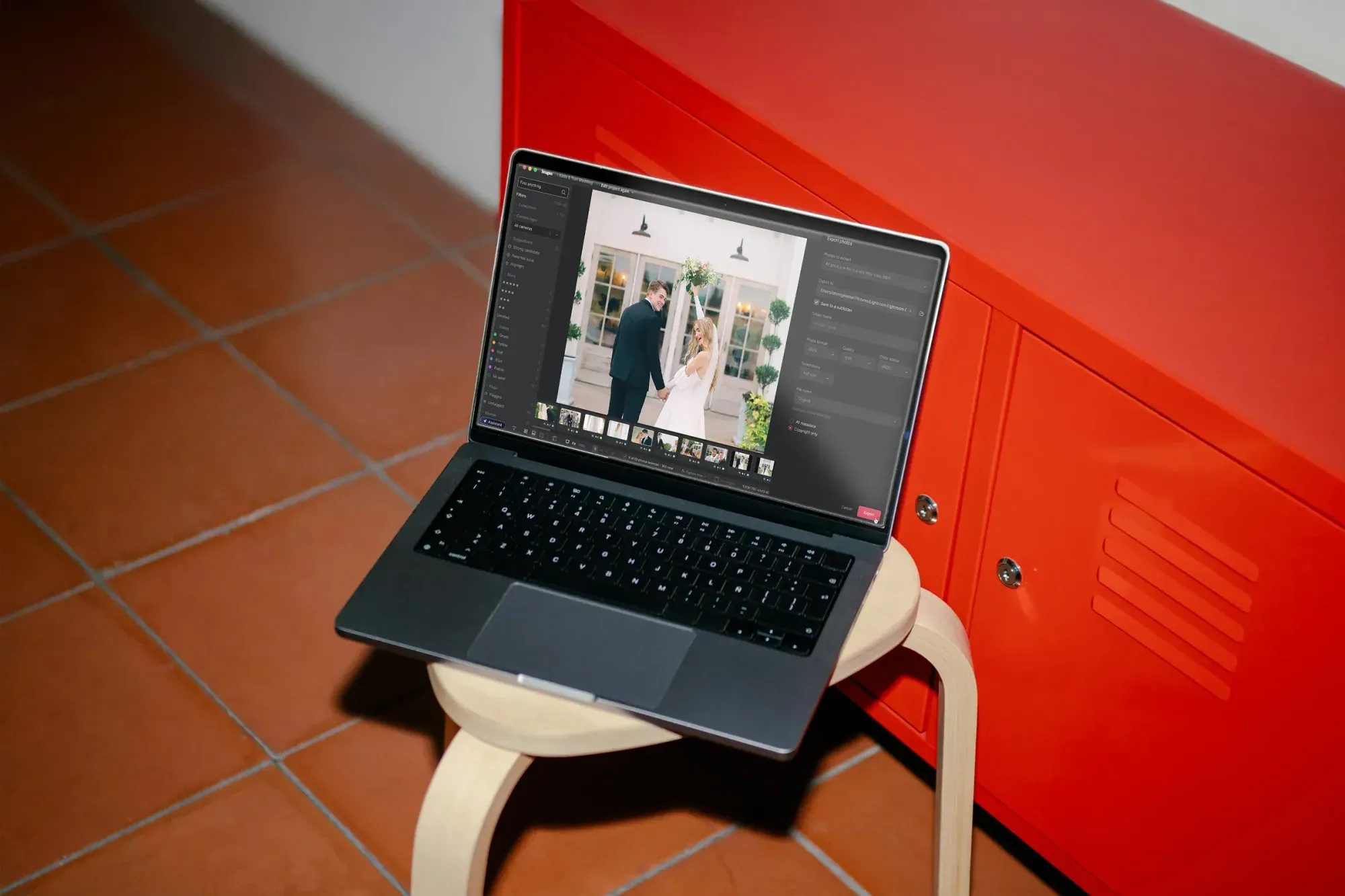
Imagen is now an intelligent Studio for professional photographers, the next version of the same product, not a new app. It’s rolling out gradually to photographers over several weeks, shaped by their feedback. The whole point is getting a shoot’s worth of RAW files into a finished, on-brand gallery with less manual work, while you stay in control of the creative decisions.
Canva is a design platform used by millions of people worldwide to build social graphics, presentations, documents, and marketing materials from templates, with a growing set of AI tools under the Magic Studio name. It isn’t aimed at photographers specifically, and it has no concept of culling a shoot or learning a photographer’s personal editing style.
Everything below is checked against Canva’s own site, so you can see exactly where the overlap is and where it isn’t.
Key Takeaways
- Imagen is now an intelligent Studio, a single non-linear project for culling, editing in your personal style, reviewing, and exporting a whole gallery.
- Canva is a design platform built around templates and drag-and-drop layout tools, used for social posts, presentations, documents, and marketing graphics.
- Imagen builds a Personal AI Profile from your own past Lightroom Classic edits, so a new gallery comes back looking like you edited it.
- Canva includes Magic Studio AI tools such as Magic Edit, Magic Eraser, Magic Expand, Magic Write, and Bulk Create, aimed at fast design and content production.
- Imagen does not generate images; it works only with the real photos you bring into a project.
- Canva offers a free plan alongside Canva Pro, with its AI-powered Magic Studio tools largely gated to paid plans.
The Core Philosophy: Canva vs. Imagen
Imagen
Imagen is built around one idea: the part of post-production that eats your week, culling and editing a whole gallery consistently, should get faster without losing your personal style. It isn’t trying to be a gallery host, an invoicing tool, or a design platform. It goes deep on editing and culling instead, and the output has to look like you made it, not like a filter was applied.
Canva
Canva is built around accessibility and speed for visual content creation. Its templates, drag-and-drop editor, and Magic Studio AI tools are designed to let anyone, regardless of design background, produce a usable graphic, document, or presentation in minutes. It covers an enormous range of output types, but it isn’t built to process a memory card of RAW photography files or learn how a specific photographer edits.
Deep Dive: Imagen Capabilities
Here’s what the current Imagen product actually offers today.
AI Editing in Your Personal Style
The Personal AI Profile is trained on your own catalog of past Lightroom Classic edits, learning your approach to exposure, color, and tone so a new gallery comes back edited consistently in your style. If you’re just getting started, a Talent AI Profile built by working photographers or a Lite AI Profile can get you going sooner. You can also apply different AI Profiles to different photos within the same gallery, for example a separate look on a set of detail shots.
Culling in the Same Project
Culling and editing live in the same non-linear project rather than as separate stages. Imagen offers AI culling for faster batch review alongside free manual culling whenever you want to go through a set by hand. AI filters, or smart tags, help you quickly surface things like blurry shots or closed eyes. Edited photos arrive in batches as they finish processing, so you aren’t stuck waiting for the whole gallery before you can start reviewing.
The Built-in Editor and Assistant
The built-in editor, currently in Beta, offers high-quality manual sliders, a histogram, crop and straighten tools, and presets you can import from Lightroom or build from scratch. It places these manual tools alongside the AI tools rather than hiding them. A few AI tools aren’t yet available inside the editor, and galleries using those continue through the Lightroom flow instead.
The Imagen assistant finding and editing photos from a plain-language request
An assistant lets you find and act on photos using plain language, for instance asking it to surface every photo where the subject’s eyes are closed. It currently understands what’s in a photo rather than where within the frame, so it can’t place a mask on a specific person yet, and it never generates new imagery, it only works with what you shot.
Export to Lightroom or Directly From Imagen
You can export JPG, TIFF, or PNG files straight out of Imagen, or keep routing your gallery through Lightroom Classic as before. Both paths are fully supported. AI Profile and AI-tool edits carry over to Lightroom as XMP data, while manual edits, ratings, flags, and culling decisions made inside Imagen’s own editor stay in Imagen.
Deep Dive: Canva Capabilities
Canva’s own site describes a platform that has grown well beyond simple templates.
Magic Studio AI Tools
Canva’s Magic Studio suite includes Magic Edit for changing part of an image with a text prompt, Magic Eraser for removing unwanted objects, and Magic Expand for extending an image beyond its original borders. These tools work on an image already inside a Canva design rather than functioning as a standalone photo editor, and they’re primarily available on Canva Pro.
Magic Write and Text-to-Content Tools
Magic Write is Canva’s AI writing assistant built into the editor, used for generating captions, headlines, and other on-page copy directly inside a design. It’s aimed at filling in marketing text quickly rather than anything photography-specific.
Bulk Create for Templated Output
Bulk Create lets you upload a CSV or Excel file, or connect a Canva Sheet, to automatically generate many versions of the same template with different text or images swapped in, up to several hundred rows and columns per batch. This is built for producing large batches of near-identical marketing assets, like personalized social graphics, rather than for editing individual photographs.
Background Remover
Canva’s Background Remover is a one-click tool that strips the background from a photo, supporting common formats like JPG, PNG, HEIC, and HEIF, with unlimited use included on Canva Pro. It’s a utility inside the broader design workflow rather than a full photo-editing feature set.
Comparison: Workflow Integration
Imagen sits inside your existing post-production pipeline. You bring in a shoot, cull and edit it inside one project using your personal style, review as batches finish, and export directly or continue into Lightroom Classic. Canva sits downstream of that work, after you already have finished images, and turns them into a design: a social post, a flyer, a slideshow. Neither tool is meant to replace the other’s role in that sequence.
A typical week might look like this: a wedding gallery goes through Imagen for culling and whole-gallery editing in your style, the finished images get exported, and a handful of favorites then get pulled into Canva to build a sneak-peek graphic or an announcement post. The two tools rarely touch the same step of the process, which is part of why comparing them head to head can be misleading if you’re only looking at feature lists.
Comparison: Whole-Gallery Photo Editing vs. Template-Based Design
This is the real line between the two. Imagen’s job is applying your personal editing style consistently across an entire gallery of real photographs, plus culling and review in the same place. Canva’s job is helping you assemble finished visual content, using templates, layout tools, and Magic Studio AI features like Magic Edit or Magic Write, some of which do generate new image or text content from a prompt. A photographer typically uses Imagen to finish the shoot itself, then moves to Canva to build what gets posted or printed afterward.
Comparison: Culling and Batch Volume
Imagen’s culling runs inside the same project as editing, combining AI batch culling with free manual culling and smart tag filters for things like blur or closed eyes, built for narrowing down a shoot that might run into the thousands of images. Canva has no equivalent; its Bulk Create tool batches templated design output across rows of data, not photo selection from a shoot. The two aren’t solving the same problem.
It helps to think of “batch” as meaning two different things here. In Imagen, a batch is a group of your own photographs being culled and edited together in your style. In Canva’s Bulk Create, a batch is a set of rows in a spreadsheet, each one swapped into the same design template to produce many near-identical outputs quickly. Neither tool’s batch feature substitutes for the other’s.
Comparison: Pricing Models
Imagen uses pay-as-you-go pricing: you pay per exported photo. Sliders, crops, and masks you do yourself are always free. A flat-fee Limitless plan is available for high-volume studios. Canva offers a free plan with core design tools, and Canva Pro as a paid subscription that unlocks most of the Magic Studio AI tools, with pricing varying by plan. Both companies offer ways to try their paid tools before committing.
Feature Comparison Table
| Feature | Imagen | Canva |
|---|---|---|
| Core focus | Whole-gallery photo editing in your personal style | Template-based graphic design and marketing content |
| Culling | AI batch culling plus free manual culling, same project | No dedicated photo culling workflow |
| Style source | Personal AI Profile learned from your past edits | Templates and manual design choices |
| Image generation | Not a current focus; works only with real photos | Magic Edit, Magic Eraser, and Magic Expand generate or alter image content from a prompt |
| Text and copy tools | Not a current focus | Magic Write generates captions and on-page copy |
| Batch output | Whole-gallery AI edits applied per photo | Bulk Create produces many template variants from a data file |
| Export destinations | Direct export (JPG, TIFF, PNG) or continue to Lightroom Classic | Export designs as image, PDF, video, or other file formats |
| Platforms | Imagen project with Lightroom Classic integration | Web browser, desktop, and mobile apps |
| Pricing model | Pay-as-you-go per exported photo, or flat-fee Limitless plan | Free plan, plus Canva Pro subscription |
| Free trial | Imagen offers a free trial, then you pay at export. | Free plan available with core design tools |
Conclusion: Which Tool Fits You?
Choose Canva if you need to design a social post, flyer, presentation, or marketing graphic, and you want templates and AI content tools like Magic Write or Magic Edit to speed that up.
Choose Imagen if the thing slowing you down is getting a whole gallery of real photographs culled and edited consistently in your own style, inside one project that still works with Lightroom Classic.
Most working photographers end up needing both, just for different parts of the job. Imagen handles the bulk of the shoot’s post-production, and Canva becomes the tool you reach for once those finished images need to turn into something you post, print, or send to a client. A portrait photographer might run a full session through Imagen for consistent editing, then open Canva to lay out a printed welcome guide or a set of pricing one-pagers for new clients, two very different tasks that happen to fall in the same week.
If your bottleneck is culling and editing an entire shoot in your style, start with Imagen. If your bottleneck is turning finished photos into a polished graphic, start with Canva.
If you would rather judge Imagen on your own work than on a feature list, try the free trial at imagen-ai.com and run a shoot through it start to finish. More comparisons and workflow guides live on the Imagen tips hub.
Frequently Asked Questions
1. What’s the main difference between Imagen and Canva? Imagen edits and culls a whole photography gallery in your personal style inside one project, while Canva is a design platform for building graphics, presentations, and marketing content from templates.
2. Can Canva replace Imagen for editing a full shoot? No, Canva doesn’t offer photo culling or a way to learn and apply a photographer’s personal editing style across a gallery of RAW files. Its tools work on images you’ve already finished and brought into a design.
3. Does Imagen include design templates like Canva? No. Imagen is focused on culling, editing, and exporting your photography. Template-based design tools like Canva’s aren’t part of Imagen.
4. Does Canva generate images from text prompts? Yes, Canva’s Magic Studio tools, including Magic Edit, Magic Eraser, and Magic Expand, can generate or alter image content based on a text prompt, according to Canva’s own site.
5. Does Imagen generate new images? No. Imagen works only with the real photos you bring into a project; it does not create or generate new imagery.
6. Do I still need Lightroom if I use Imagen? That’s your choice. You can finish entirely inside Imagen, or continue exporting to Lightroom Classic the way you always have. Lightroom remains part of the Imagen ecosystem rather than something you have to replace.
7. What is Canva’s Bulk Create tool? Bulk Create lets you upload a CSV or Excel file, or connect a Canva Sheet, to generate many versions of a template automatically with different text or images, according to Canva’s own site.
8. Is Canva free to use? Canva offers a free plan with core design tools. Canva Pro is a paid subscription that unlocks most Magic Studio AI tools, with pricing varying by plan.
9. Can I cull and edit in the same place with Imagen? Yes. Imagen keeps culling and editing in the same non-linear project, so you are not forced into a strict cull-then-edit order or a separate app for each step.
10. Which tool should a working photographer start with? If your week is dominated by culling and editing an entire shoot consistently, start with Imagen. If you need a social graphic, flyer, or marketing document built quickly from finished images, start with Canva. Many photographers use both for different stages of the same project.

