
7 Best Skin Retouching Software for Photographers in 2026
Table of contents
- Key Takeaways
- Selection Criteria: How We Chose the Best Retouching Tools
- Imagen: The Ultimate AI Editing Assistant
- Retouch4me: The Specialist Plugin Suite for Control
- Evoto AI: The Slider-Based Portrait Machine
- PortraitPro 24: Real-Time 3D Lighting Adjustments
- Adobe Photoshop: The King of Pixel Editing
- Luminar Neo: Creative Adjustments for Solo Artists
- Radiant Photo: Color Science and Quick Balancing
- Aftershoot Edits: Unlimited Local Processing
- Capture One: The Studio Standard for Color Control
- Comparison of Best Skin Retouching Software 2026
- Final Recommendation: Which Software Should You Choose?
- Frequently Asked Questions
- Can AI skin retouching software look natural?
- Does Imagen support RAW files from all major cameras?
- Can I use these skin retouching tools completely offline?
- What is the benefit of a Personal AI Profile?
- Is a credit-based pricing model better than a subscription?
- Does skin retouching software run well on older computers?
- Can I try these tools before buying them?
- How many images can these systems batch process?
- Keep exploring
Let’s be honest, you didn’t buy a camera to spend hours hunched over a monitor chasing tiny skin blemishes.
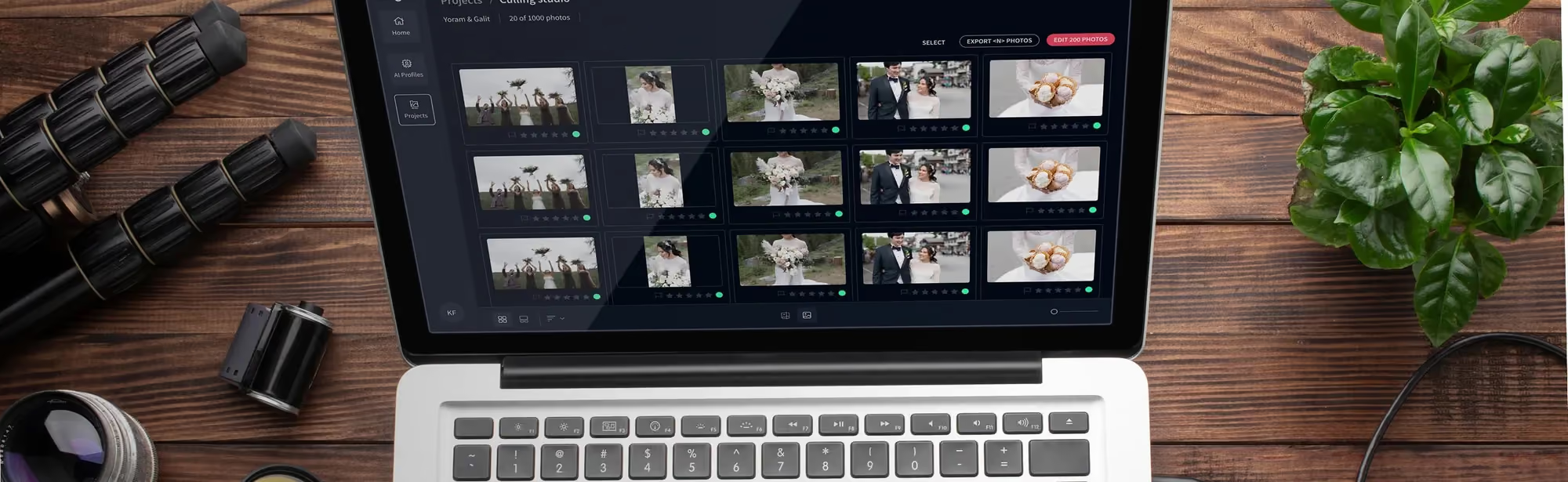
Want to speed things up? Try Imagen’s new Studio, where you cull, edit and export in one project, and watch the difference show up in your own galleries. Exploring is free.
Picking the best skin retouching software for 2026 comes down to one balancing act: natural-looking texture versus turnaround speed, without wrecking your profit margin.
Key Takeaways
- AI adoption across the photography market is on track to hit $1.5 billion by 2026.
- Plastic-looking airbrushing is fading fast: 95% of Gen Z portrait clients want authentic skin that keeps its natural texture.
- 68% of portrait photographers point to post-processing delays as the single biggest bottleneck in their business.
- Personalized AI platforms such as Imagen can cut editing time by up to 96%.
- Specialized plugins like Retouch4me deliver high-end, offline editing, though the upfront cost adds up.
- Credit-based tools like Evoto AI run about $0.07 per photo, a solid fit for studios but pricier once volume climbs.

Selection Criteria: How We Chose the Best Retouching Tools
Manual frequency separation is no longer where this market lives. These days, the best skin retouching software relies on advanced algorithms that isolate and treat skin issues while leaving the underlying detail intact. And if you’re still pushing every micro Dodge-and-Burn stroke by hand, you’re losing money on every single gallery you deliver.
We judged every application against three core pillars: texture preservation, batch processing speed, and cost-effectiveness. Since 68% of wedding and portrait photographers point to culling and retouching as their top cause of delivery delays, speed stopped being optional a while ago. It’s now a survival requirement. So we tested how each app handles high-resolution files under real deadline pressure.
Flat, plastic skin belongs to the early 2000s, not 2026. According to the 2025 Visual Trends Report, 95% of Gen Z portrait clients prefer authentic skin retouching that keeps realistic skin pores over old-school airbrushing. If a software tool just blurs the skin to mask blemishes, it didn’t make our list. The tools that did analyze skin texture, separate the color layer from the detail layer, and correct only actual spots or uneven tones.
A single gorgeous photo doesn’t matter much if it takes you 15 minutes to process. For busy portrait and wedding studios, batch speed is everything. Here’s a quick rundown of how modern automated skin retouching logic typically works: facial detection maps out the landmarks first, texture separation isolates the skin details next, and targeted correction removes temporary blemishes last.
“AI has completely shifted the bottleneck in professional photography workflows. We aren’t spending hours on microscopic pixel-pushing anymore; instead, we’re teaching systems to mimic our creative intent at a scale that was impossible five years ago.”
Itamar Haim, AI Photography Workflow Specialist.
Imagen: The Ultimate AI Editing Assistant
Looking for an intelligent post-production Studio that fits your existing setup? Imagen is the clear pick. It isn’t a plugin; it’s a desktop app that works alongside Lightroom Classic, and it studies your editing style and learns it fast. By analyzing your past Lightroom catalogs, it builds a custom profile that mirrors your color, exposure, and tone choices across thousands of photos in minutes.
But the real power shows up when you pair that style learning with Imagen’s advanced tools. Imagen packs in built-in AI for automated cropping, straightening, subject masking, and advanced skin smoothing. That means you can color grade and retouch an entire wedding gallery in one pass. It’s built for high-volume professionals who need consistent, high-quality results without living behind a desk for days. For manual finishing, the built-in editor (Beta) adds sliders, crop and straighten, though it is an early release that does not cover every AI tool yet.
And let’s talk raw processing power for a second. While other systems bog down on large batches, Imagen can process 1,000 photos in under 5 minutes. That’s a real edge during tight seasonal turnarounds. You can scale your business without giving up your signature style.
- Personal AI Profiles: Trained on your past Lightroom catalogs (5,000 photos recommended) to match your specific look.
- Talent AI Profiles: Ready-made profiles built by top-tier photographers for instant, professional styling.
- AI Skin Smoothing: Smart, natural-looking smoothing that keeps raw pore texture intact while evening out skin tones.
- AI Photo Culling: An automated system that flags blurry shots, duplicates, and closed eyes fast, saving hours of manual review.
- Cloud Integration: Secure backup options built specifically for active photography workflows.
The Imagen pricing model flexes with your business volume. You can pick the Pay-as-you-go tier, which combines a monthly base fee with a charge for the photos you export. For regular shooters, monthly packages like the Explorer, Pro (with one AI Profile included), or the Limitless tier offer solid value for higher photo counts.
On the plus side, you get the fastest turnaround speed on the market today plus easy integration with Lightroom Classic and Adobe Camera Raw. The tradeoff: you need an active internet connection to upload and download your edited catalogs, though edited photos arrive in batches, so you can start reviewing early frames while the rest finish. You can read more about these workflows on the Imagen blog.
Retouch4me: The Specialist Plugin Suite for Control
If you prefer a modular, surgical approach to editing inside Adobe Photoshop, Retouch4me has an impressive lineup. Rather than one massive application, it sells individual neural-network-powered plugins built to solve specific skin and portrait problems. Think of it as a virtual high-end retoucher living right inside your filters menu.
Here’s the thing: these plugins don’t just slap on a global blur filter. They mimic the exact steps of manual editing instead. The Heal plugin spots blemishes automatically, while the Dodge & Burn plugin handles the delicate work of smoothing skin tones by adjusting micro-contrast. Because of that, the results look genuinely natural, and every single pore stays intact.
Building a complete workflow out of these plugins takes some serious investment, though. Since each tool sells separately, the full collection adds up to a major expense fast. That said, for commercial photographers working photo by photo, the offline capability and high-quality results make it a serious contender.
- Heal Plugin: Detects and removes acne, blemishes, and minor skin flaws instantly, no manual brushing needed.
- Dodge & Burn Plugin: Balances uneven skin tones automatically, mimicking hours of manual dodging and burning.
- Skin Tone Correction: Matches skin tones automatically across different parts of the face and body.
- Backdrop & Fabric Clean-up: Removes dust from studio backdrops and smooths deep wrinkles out of clothing.
Each individual plugin from Retouch4me runs about $124. Go for the complete professional bundle and the total cost climbs past $500. You’ll also want a machine with at least 8GB of VRAM for smooth local performance, since 92% of commercial editors prefer non-destructive layered exports.
Evoto AI: The Slider-Based Portrait Machine
Running a busy portrait studio and want a standalone program that does most of the heavy lifting for you? Take a look at Evoto AI. It’s built to turn complex retouching workflows into simple, friendly sliders you can drag and adjust in seconds. From skin blemishes to body changing, it tackles portrait editing with some genuinely specialized algorithms.
The speed truly impresses. Evoto AI can process high-resolution RAW files in under 2 seconds per photo on modern M2 or M3 Mac chips. That kind of speed makes it a strong pick for studios turning around senior portraits or corporate headshots fast. It also throws in handy background removal and sky replacement tools, so it’s a pretty versatile option for studio photographers.
The pricing model is a bit polarizing, though. Instead of a standard monthly subscription, Evoto runs a pay-per-export credit system. Every time you export a finished photo, that’s one credit gone. It’s great if you shoot low volume, but tracking costs gets messy fast if you frequently export multiple versions of the same file.
- Import and Analyze: The software reads age, gender, and facial expressions to apply custom presets.
- Apply Retouching Sliders: You adjust sliders for blemishes, eye bags, skin shine, and teeth whitening.
- Export and Charge: Export the final photo, and it uses exactly one credit at roughly $0.07 per export.
This credit-based setup is perfect if you shoot low volume, but it can get pricey fast for large event galleries.
PortraitPro 24: Real-Time 3D Lighting Adjustments
For skin retouching history buffs, PortraitPro 24 by Anthropics Technology is one of the oldest names around. Don’t let its age fool you, though. This app keeps evolving, folding in modern 3D facial mapping to deliver highly customized results. It genuinely understands the underlying anatomy of a human face, so you can change lighting and features realistically.
Honestly, this tool really shines when you need to fix lighting after the shoot’s already over. Strobe didn’t fire quite right, or the key light came in too harsh? The 3D relighting tool lets you move a virtual light source around the subject’s face. It recalculates shadows and highlights across the nose, cheekbones, and forehead with surprising accuracy, and it trains its lighting model on a database of over 40,000 processed faces.
But here’s the catch: the interface feels a bit dated next to newer, minimalist platforms. And it’s easy to end up with an unnatural, plastic look if you lean too hard on the default presets. You’ll want to spend some time dialing back the sliders to keep your skin texture looking authentic and believable.
- 3D Face Relighting: Adjusts light direction, intensity, and color temperature on the subject’s face after the shoot.
- Hair Controls: Makes coloring, volume adjustments, and stray hair removal easy.
- Anatomical changing: Subtle tweaks to facial proportions, nose shape, and eye size based on 3D geometry.
PortraitPro 24 comes as a one-time purchase. The Standard edition runs $54.95, while the Studio edition costs $94.95.
Adobe Photoshop: The King of Pixel Editing
You really can’t talk skin retouching without mentioning the undisputed king of photo editing. Adobe Photoshop holds a massive 78% market share among professional photographers, with over 33 million subscribers worldwide. Adobe has folded powerful AI-driven Neural Filters directly into Creative Cloud in recent years, and that’s made basic skin retouching more accessible than ever.
The Skin Smoothing Neural Filter is dead simple to use. Just two sliders (Blur and Smoothness) clean up skin tones in seconds. It’s a great option because you don’t need any extra plugins or outside software, so you save time and keep everything in one workspace. Plus, Photoshop’s Generative Fill tools make removing complex background distractions or fixing wardrobe issues a breeze.
But if you need surgical control over skin textures, the native Neural Filters can feel pretty basic. They skip the detailed frequency separation controls and micro-blemish detection you’ll find in specialized portrait software. It’s a solid starting point, though high-volume portrait artists will likely outgrow it and need more advanced tools.
- Importing files into Adobe Camera Raw for your first pass at color and lens corrections.
- Applying Neural Filters for a quick, basic pass at skin smoothing and blemish removal.
- Using Generative Fill to clean up backgrounds, hair flyaways, or wardrobe issues.
Photoshop is subscription-only, running from $20.99 per month for the Photography Plan up to $59.99 per month for the full Creative Cloud suite.
Luminar Neo: Creative Adjustments for Solo Artists
If you love a creative, artistic approach to editing, Skylum Luminar Neo was designed with you in mind. It simplifies complex techniques with a range of creative AI tools that can swap skies, add atmospheric fog, and touch up skin, no complex layers or masks required. The photography market has seen a 145% surge in AI photography tool adoption as creators hunt for ways to speed up their creative workflows.
The interface is clean and modern, and honestly, it’s a joy to use if you’re a hobbyist or social media creator. Luminar Neo can get resource-heavy, though. Working on an older computer? Processing multiple raw files with several heavy AI filters running at once can cause noticeable lag.
- Skin AI & Face AI: Dedicated panels for smoothing skin, cutting shine, and brightening facial features.
- Body AI: Adjusts torso and abdomen proportions with no fuss, for natural, flattering portraits.
- Bokeh AI: Simulates a shallow depth of field with any lens, creating beautiful background blur.
Skylum prices Luminar Neo at $11.95 per month, or you can grab a lifetime license for $199. It’s a great option if you’re a hobbyist chasing beautiful, creative portraits without the hassle.
Radiant Photo: Color Science and Quick Balancing
A team of experienced photographers built Radiant Photo around accurate color science and realistic skin tones. Rather than rebuilding your images from scratch, it studies them and pulls out the natural detail and contrast your camera sensor may have missed. Use it when you want photos that look polished but stay completely natural.
The technology behind it is genuinely smart. Its Smart Presets analyze over 1,000 data points per photo to apply subtle, pixel-by-pixel corrections. First, it detects skin tones. Then it balances color casts and keeps skin textures realistic. This approach avoids the over-saturated, artificial look that can creep in with more aggressive AI editors.
If you need surgical blemish removal or dramatic facial changing, though, look elsewhere. Radiant Photo isn’t built for that level of editing. Treat it as a global optimizer instead: let it clean up lighting, color, and basic skin tones, and save the heavy retouching for dedicated pixel editors.
- Smart Presets: Analyzes over 1,000 data points on every photo to apply custom color and contrast corrections.
- Skin Tone Detection: Identifies skin areas automatically to apply natural warmth and smoothing.
- Radiant Tone: Balances highlights and shadows without losing detail in dark or bright areas.
Radiant Photo sells as a one-time purchase of $159 for a lifetime license, with occasional bundle deals popping up. It runs smoothly either as a standalone application or as a plugin inside Lightroom and Photoshop.
Aftershoot Edits: Unlimited Local Processing
Aftershoot Edits is a fast-growing competitor in the post-production space, and it’s built a solid reputation on incredibly fast culling speeds. It recently expanded into AI-driven editing too, so now photographers get an all-in-one desktop app that handles sorting and color correction in one place.
Here’s the big selling point: flat-rate pricing. Unlike credit-based systems where you pay per photo, Aftershoot charges one yearly subscription for unlimited editing. If you’re a high-volume wedding photographer delivering thousands of photos every week, that flat fee can save real money over a busy season. At $120 per year for unlimited editing, it’s hard to beat.
Its culling and color-matching tools are highly developed, but the built-in skin retouching is still fairly new. Use it for basic color matching and exposure adjustments, but don’t expect the deep, texture-retaining skin features you’ll find in dedicated portrait apps.
- Import Photos: Load your raw files straight into the desktop app.
- Run AI Culling: Let the AI cull duplicates, blurry shots, and closed eyes automatically.
- Apply AI Edits: Run color matching and basic skin adjustments across the entire batch, locally.
This workflow works great for event photographers who need to process thousands of images fast, without waiting on internet-dependent cloud delays.
Capture One: The Studio Standard for Color Control
For high-end fashion, commercial, and studio photographers, Capture One remains the professional standard. Over 250,000 professional photographers use it worldwide, and it’s known for leading RAW color processing plus unmatched tethered shooting. Shooting in a studio where color accuracy is everything? Capture One is usually the tool you reach for.
For skin retouching, Capture One takes a precise, manual approach. The Skin Tone Balance tool is genuinely powerful: pick a target skin tone with the eyedropper, and it matches hue, saturation, and lightness across the entire subject automatically. It’s a surgical way to fix blotchy skin tones without losing any pore detail.
Remember, though, Capture One doesn’t offer the automated, one-click skin smoothing or blemish removal you’ll find in newer AI-focused programs. You’ll need a solid grasp of layer masking and color theory, so expect a steeper learning curve. But if you want absolute, pixel-perfect control over color grading and skin tones, the results are simply unmatched.
- Skin Tone Balance: An advanced color wheel tool that balances skin hue, saturation, and lightness for flawless transitions.
- Tethered Shooting: Industry-leading, ultra-stable tethering that lets you view and edit photos instantly, right on set.
- Layer Masking: High-end, non-destructive layer tools that support custom brush and gradient adjustments.
- Integrations: Includes helpful integrations that tighten up your overall workflow.
Capture One costs $299 for a perpetual license, or you can subscribe for $24 per month. It’s the gold standard for commercial and studio photographers who put absolute color precision first.
Comparison of Best Skin Retouching Software 2026
Choosing the right tool gets a lot easier once you can compare them side by side. Use this table to check the cost, speed, and best use case for each option:
| Software Name | Pricing Model | Processing Speed | Best Use Case |
|---|---|---|---|
| Imagen | Pay-as-you-go (monthly base fee plus export charge) or subscription | Ultra-Fast (1,000 photos in under 5 mins) | Wedding and Portrait Photographers |
| Retouch4me | ~$124 per plugin | Moderate (Offline processing) | High-End Commercial Retouching |
| Evoto AI | ~$0.07 per export | Fast (under 2 seconds per photo) | Portrait Studios and Headshots |
| PortraitPro 24 | $54.95 - $94.95 (One-time) | Moderate (Manual adjustments) | 3D Facial Relighting and Headshots |
| Adobe Photoshop | $20.99 - $59.99/month | Variable (Filter-based) | Detailed Pixel Editing and Composites |
| Luminar Neo | $11.95/month or $199 (One-time) | Moderate (Resource-heavy) | Hobbyists and Creative Artistry |
| Radiant Photo | $159 (One-time) | Fast (Smart Presets) | Natural Tone and Color Correction |
| Aftershoot Edits | $120/year (Unlimited) | Fast (Offline batches) | Budget-Conscious Volume Shooters |
| Capture One | $24/month or $299 (One-time) | Moderate (Manual controls) | Studio Tethering and Fashion |
Final Recommendation: Which Software Should You Choose?
The best software is simply the one that fits your business model and helps you deliver great work without burning out. Your right choice depends on your volume, your style, and how much control you want over each individual photo.
Switch from manual Photoshop editing to automated workflows, and photographers report an average 85% reduction in post-processing time. That’s a massive chunk of time you can put back into shooting, marketing, or just taking a well-deserved break.
For the High-Volume Professional
If you’re managing a busy studio, shooting dozens of portrait sessions, or delivering massive galleries, Imagen is the clear winner. It’s the only platform here that learns your unique aesthetic and delivers consistent color plus natural skin smoothing across thousands of photos in minutes. It simplifies your entire workflow, so you deliver beautiful galleries to your clients faster than ever. You can read more about these workflows on the Imagen blog.
For the High-End Retoucher
If your work centers on single, pixel-perfect images for commercial clients or high-fashion magazines, pair Capture One with Retouch4me. Together, they give you the precise, non-destructive control you need to perfect skin tones and textures without sacrificing color accuracy or pore detail.
What’s new in Imagen: Imagen is now an intelligent, agentic Studio for professional photographers, one project where you cull, edit, review and export in any order. For portrait sessions, apply a Personal AI Profile learned from your past edits, then refine in the built-in editor (Beta) with manual sliders and crop and straighten. Imagen does not create imagery, so your own portraits stay the starting point. The Studio is rolling out gradually as a beta.
Frequently Asked Questions
Can AI skin retouching software look natural?
Yes, modern AI tools analyze skin textures and separate blemishes from the underlying details, which avoids the flat, artificial plastic look you’d get from older airbrushing techniques.
Does Imagen support RAW files from all major cameras?
Yes, Imagen integrates directly with Adobe Lightroom Classic and Adobe Camera Raw, and both support nearly every modern raw format.
Can I use these skin retouching tools completely offline?
Some, like Retouch4me, Capture One, and Aftershoot, work completely offline. Others, like Imagen, need an internet connection since they process files in the cloud.
What is the benefit of a Personal AI Profile?
A Personal AI Profile learns your specific editing style straight from your past Lightroom catalogs. It applies your own color, exposure, and tone choices instead of generic presets.
Is a credit-based pricing model better than a subscription?
Credit systems work well if you only edit a handful of photos a month. But if you shoot high volume, flat-rate subscriptions or pay-per-photo models usually end up much cheaper.
Does skin retouching software run well on older computers?
Basic plugins run fine on most machines, but advanced AI tools and standalone editors can be resource-heavy. They run best on modern machines, especially ones with M-series Mac chips or dedicated GPUs.
Can I try these tools before buying them?
Yes, almost every tool on this list lets you test it with your own photos before committing. With Imagen, exploring the tools is free and you pay on export.
How many images can these systems batch process?
Imagen can process thousands of images in a single batch without breaking a sweat, while local tools like Photoshop action sets are usually limited by your computer’s RAM and CPU.
