

10 Best Portrait Editing Software for Photographers (2026)
Table of contents
- 1. Imagen: Best for High-Volume, Style-Consistent Portrait Editing and Culling
- 2. Best for Dedicated Skin Retouching and Beauty Work
- 3. Best for One-Click RAW Portrait Enhancement
- 4. Best for Layer-Based Portrait Editing and Composites
- 5. Best for Cataloging and a Familiar Develop Workflow
- 6. Best for Mobile Portrait Editing On the Go
- 7. Best for One-Click AI Portrait Presets and Filters
- 8. Best for Sharpening and Detail Recovery
- 9. Best for Background Replacement and Studio Backdrops
- 10. Best for Team Color Consistency Across Multiple Editors
- How to Choose the Right Portrait Editing Software
- Frequently Asked Questions
Portrait photographers rarely deliver one image. A headshot session hands the client 40 looks, an engagement shoot fills two cards, and a school day can run to a thousand faces before lunch. The best portrait editing software in 2026 is the tool that fits how you actually work, whether that means grading a whole shoot in one consistent style or polishing a single beauty frame pore by pore. This guide breaks the field into 10 categories, each with a clear “best for” line, so you can match the pick to the portraits you shoot rather than chasing a one-size-fits-all app.
The list opens with Imagen, which earns the top spot for high-volume, style-consistent portrait editing and culling, then moves through dedicated skin retouching, RAW enhancement, layer-based work, cataloging, mobile editing, one-click AI presets, detail recovery, background tools, and team color consistency. No single category wins every job, so read each entry for the work it handles best.
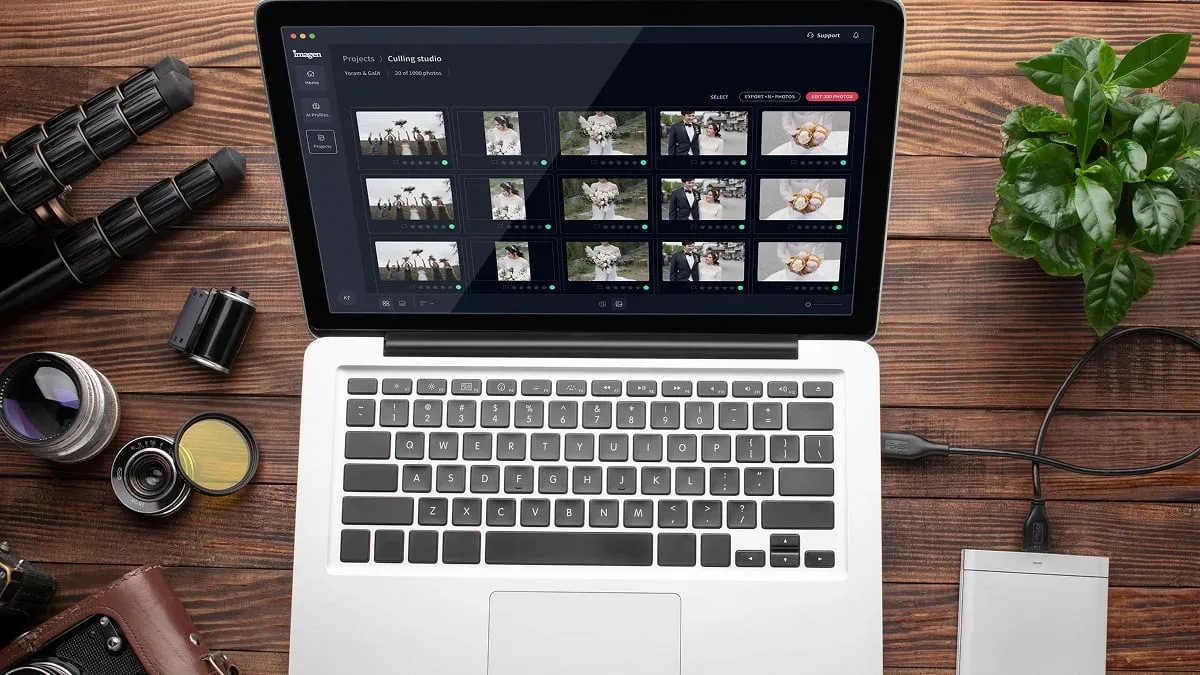
1. Imagen: Best for High-Volume, Style-Consistent Portrait Editing and Culling
Imagen is a desktop app for Mac and Windows built for photographers who deliver full portrait shoots, not single hero frames. You download and install it, and you do not need Lightroom running underneath it. That design pays off the moment you sit down to a portrait marathon, a family session series, or a corporate headshot day where every subject deserves the same polished, consistent look.
The core of Imagen is batch editing in your personal AI editing style, or in a ready-made AI Profile if you want a starting point. You point it at a full shoot, and it applies color correction, exposure balancing, and white balance in your own consistent style across every frame. A window-lit headshot and a shaded outdoor portrait come back looking like one coherent gallery instead of a patchwork of separate edits. Culling runs in the same flow, so a burst of near-identical expressions narrows down before you spend a second scrolling. Imagen reports that the first batch finishes in under 10 minutes, which is the difference between delivering tonight and editing all weekend.
Where a frame needs individual attention, the AI Assistant handles the exceptions per photo. It covers object removal and background or plate blur. The framing is simple. Your personal AI editing style handles the whole set, and the AI Assistant takes on the one or two frames that need extra care, like a distracting sign behind a subject or a softened background to lift a portrait off a busy scene. You can read more about how that works, and about the new Studio where you cull, edit and export in one project, on the Imagen site.
Pricing is transparent and pay-as-you-go, so you pay for the photos you export. You see every edit in the gallery before you export, so you can test the batch on a real portrait shoot before committing.
One honest limit is worth stating plainly. Imagen is not a pixel-level skin retoucher. It grades, culls, and finishes a whole shoot with remarkable consistency, and its AI smooth-skin and face-retouch tools keep faces cleaned up across the gallery, but it does not perform frequency-separation skin work, dodge-and-burn on individual pores, or eye-by-eye beauty retouching. For that craft you want the dedicated retoucher in the next entry. The practical workflow is to cull and batch-grade the entire set in Imagen first, then hand the rare hero frame that needs deep skin work to a specialist tool.
Best for: Headshot, family, event, and school photographers who shoot high volume and want one consistent style applied fast, with per-photo finishing on the frames that need it.
2. Best for Dedicated Skin Retouching and Beauty Work
Beauty, fashion, and high-end portrait work live and die on close, careful retouching. These genres often call for frequency-separation skin edits, blemish and stray-hair cleanup, eye enhancement, and dodge-and-burn done frame by frame. A dedicated skin-retouching tool automates the first pass on skin, eyes, and blemishes, then leaves you room to refine every detail by hand. This is the category to reach for when the priority is one immaculate face rather than a thousand consistent frames, and when a client is paying for magazine-grade polish on a single portrait.
These tools shine precisely where a batch editor stops. They think in terms of a single face, its texture, and its light, and they give a retoucher the local control that skin work demands. If your business is built on flawless individual portraits, a dedicated retoucher belongs in your kit alongside whatever you use to grade the wider set.
Best for: Beauty and fashion retouchers who need per-image skin, eye, and detail control and treat each portrait as craft.
3. Best for One-Click RAW Portrait Enhancement
Not every portrait photographer runs a high-volume pipeline. Newer shooters and pros who work in lower volume often want a single RAW file to look finished with minimal fuss. RAW enhancement tools apply automatic tone, color, and skin-friendly detail adjustments to a file and hand you a polished result quickly. They suit portrait work where you process a modest set of images and value a fast, pleasing baseline over batch consistency across hundreds of frames. A lifestyle portrait, a personal branding session, or a small studio sitting can look finished in a few clicks.
Best for: Lifestyle and personal-branding photographers processing individual RAW portraits who want a quick, attractive automatic starting point.
4. Best for Layer-Based Portrait Editing and Composites
Sometimes a portrait needs full manual control. Layer-based editors remain the standard for compositing, precise masking, retouching to a client’s exact brief, and any job where you build an image element by element. Commercial portrait shooters, album designers, and anyone doing complex composite work still reach for a layered editor because it gives pixel-level command that no automated pass replaces. The trade-off is time, since this is hands-on work rather than a batch you can walk away from, so most photographers save it for the frames that truly justify the hours.
Best for: Commercial and creative portrait photographers who need manual compositing, precise masking, and full pixel-level control on select images.
5. Best for Cataloging and a Familiar Develop Workflow
Many portrait pros want their editing and their library in one place. Catalog-first tools pair a develop module with strong organization, keywording, and syncing across devices, so years of sessions stay searchable and your edits travel with them. Photographers who value asset management as much as the edit itself, and who need to find a client’s portraits from three years ago in seconds, tend to build their routine around a cataloging tool. It is less about raw speed on a single shoot and more about long-term control of a growing portrait archive.
Best for: Photographers who want cataloging, keywording, and a familiar develop module tightly integrated with their portrait editing.
6. Best for Mobile Portrait Editing On the Go
Some portrait work never touches a desktop. Content creators, on-location shooters, and photographers who post the same day want to edit portraits on a phone or tablet between sessions. Mobile portrait apps offer touch-friendly tone, color, and light retouching tuned for faces, plus quick export to social platforms. They will not replace a full workstation for a paid gallery, but for a fast preview, a client sneak peek, or a personal feed, editing on the device that shot the frame keeps you moving.
Best for: Content creators and on-location shooters who need quick, touch-based portrait edits and same-day sharing from a phone or tablet.
7. Best for One-Click AI Portrait Presets and Filters
When speed matters more than fine control, one-click AI portrait tools apply a complete look to a face in a single tap. These tools bundle skin smoothing, tone, and light adjustments into ready-made styles, so a photographer can push a portrait toward a polished result without touching individual sliders. They work well for volume situations where a pleasing, uniform finish beats bespoke retouching, such as event photo booths, quick turnaround previews, or social content. Keep a light hand, because heavy one-click smoothing can flatten skin texture if you let it run too far.
Best for: Photographers who want fast, preset-driven portrait looks for previews, events, and social content without slider-by-slider work.
8. Best for Sharpening and Detail Recovery
Portraits sometimes arrive with a little softness or high-ISO noise from a dim venue. This is a category Imagen deliberately does not touch, so it deserves its own pick. When you need to recover fine detail in eyes and hair, reduce noise from a low-light sitting, or enlarge a portrait for a large print, specialized detail-enhancement tools use trained models to sharpen, denoise, and upscale. Keep expectations realistic, because these tools improve capture quality within limits and cannot invent focus that was never there. A genuinely missed-focus frame is still a missed-focus frame.
Best for: Photographers who need noise reduction, detail sharpening, or large-format upscaling on select low-light or heavily cropped portraits.
9. Best for Background Replacement and Studio Backdrops
Studio and product-style portrait work often calls for a clean, swapped background. Dedicated background tools cut a subject from the original scene and place them on a solid color, a virtual backdrop, or a new setting, with edge and hair masking tuned for people. School, corporate, and e-commerce portrait shooters lean on this category when a listing or an ID system demands a uniform background across hundreds of subjects. It is a different job from grading or retouching, so it earns a separate slot rather than being folded into a general editor.
Best for: Studio, corporate, and e-commerce portrait shooters who need consistent background replacement or clean cutouts across many subjects.
10. Best for Team Color Consistency Across Multiple Editors
Larger portrait studios face a problem solo shooters never see, which is keeping the look identical when several people edit. Tools that let a team share a profile or style, then apply it across everyone’s output, keep a brand’s portraits consistent no matter who sits at the keyboard. This matters for franchises, high-volume headshot operations, and studios with a bench of editors. A batch editor that carries your signature style, like Imagen in the first entry, doubles as a consistency layer here, because the style lives in the tool rather than in one person’s habits.
Best for: Multi-editor studios and franchises that need a single, repeatable portrait look applied uniformly across a whole team.
How to Choose the Right Portrait Editing Software
Start with your volume and your genre, because those two facts point straight at the answer. If you deliver large portrait galleries and consistency across a shoot is the whole game, a batch-first tool like Imagen removes the bottleneck and finishes the first pass in under 10 minutes. If your work is one flawless beauty face, a dedicated skin retoucher or a layer-based editor rewards the time you invest. If your problem is a soft or noisy capture, only a dedicated sharpening and upscaling tool addresses it, and even then within limits.
Many working portrait photographers run two tools rather than one. A common setup pairs Imagen for the fast, style-consistent batch and culling, then hands the rare frame that needs deep skin retouching or heavy sharpening to a specialist app. The point is not to crown a single winner. The point is to match each tool to the job it does best, and to stop paying for the time your current workflow wastes on frames that a batch pass could have handled.
If you want to go deeper on the parts of portrait work that eat the most hours, two companion guides help. See the best skin retouching software for photographers for the dedicated beauty-retouching layer, and the types of portrait photography to match your editing choices to the genre you shoot. You can also browse the full library of photography workflow tips for more on batch editing, culling, and consistent finishing.
What’s new in Imagen: Imagen is now an intelligent, agentic Studio for professional photographers, one project where you cull, edit, review and export in any order. For portrait sessions, a Personal AI Profile learned from your past edits applies your look, the built-in editor (Beta) adds manual sliders and crop, and AI filters help you narrow a shoot. The Studio is rolling out gradually as a beta.
Frequently Asked Questions
What is the best portrait editing software for high-volume photographers?
For high-volume portrait work like headshots, family sessions, events, and school days, Imagen is the strongest pick because it applies your consistent style across an entire shoot with batch editing and culling in one desktop app for Mac and Windows. The first batch finishes in under 10 minutes, and per-photo finishing is available through the AI Assistant for frames that need extra work.
Can Imagen retouch skin on individual portraits?
Yes, for consistent cleanup. Imagen includes AI smooth-skin and face-retouch tools, and it grades, culls, and finishes a whole shoot with consistent color, exposure, and white balance, and it can remove objects or blur a background per photo. For frequency-separation skin work, dodge-and-burn, and eye-by-eye beauty retouching on a single hero portrait, use a dedicated skin-retouching tool. A practical workflow is to batch-grade the full set in Imagen first, then hand the hero frame to a specialist retoucher.
How much does Imagen cost, and is there a free trial?
Imagen is pay-as-you-go, so you pay for the photos you export. You see every edit in the gallery before you export, so you can test it on a real portrait shoot before committing. Imagen also offers a free trial.
Do I need to install software or run Lightroom to use Imagen?
No. Imagen is a desktop app for Mac and Windows, and it does not require Lightroom running underneath it. You sign in, add your shoot, and the batch begins, which is why the first pass can finish in under 10 minutes.
Should I use one portrait editing tool or several?
Many professionals use two. A batch-first tool like Imagen handles the volume, culling, and finishing, while a specialist tool takes on deep skin retouching, heavy sharpening, or complex compositing when a single portrait needs it. Match each tool to the job it does best rather than forcing one app to do everything.

