
10 Best Photo Culling Software Options for Professional Photographers in 2026
Table of contents
- Key Takeaways
- The Evolution of Selection: Why Culling Matters More Than Ever
- 1. Imagen: The All-in-One Powerhouse for Professional Culling
- 2. Adobe Lightroom Classic (Native Culling)
- 3. Capture One Pro
- 4. Photo Mechanic
- 5. Narrative Select
- 6. Aftershoot
- 7. FilterPixel
- 8. Adobe Bridge
- 9. CullingBot
- 10. Manual “Cloud” Selection (Various Platforms)
- Criteria: How to Choose Photo Culling Software in 2026
- General Guide to a 2026 Culling Workflow
- Questions and Answers
- 1. Is Imagen a cloud-based or desktop app?
- 2. Can I work in the cloud with Imagen?
- 3. Does Imagen work with Lightroom Creative Cloud?
- 4. What happens if the AI misses a photo I love?
- 5. How many photos do I need to create a Personal AI Profile?
- 6. Does Imagen include AI cleanup tools?
- 7. Can I share my Imagen storage with other users?
- 8. Is culling in Imagen “Culling In” or “Culling Out”?
- 9. How fast is the editing after culling?
- 10. Can I use Imagen for video culling?
- 11. What is “Kiss Recognition”?
- 12. Do I need an internet connection to use Imagen?
- 13. What is the biggest advantage of using an all-in-one platform?
- Conclusion
The photography industry moves fast. By 2026, the gap between a standard workflow and an AI-optimized one has become a chasm. As a professional who has spent decades behind both the lens and the monitor, I have seen every trend come and go. Today, culling isn’t just about deleting blurry shots. It is about intelligent selection that respects your artistic voice. This article explores the top solutions helping us reclaim our time so we can focus on what actually matters: capturing light and building client relationships.
Key Takeaways
- Workflow Integration: The best culling tools in 2026 bridge the gap between selection and editing seamlessly.
- AI Sophistication: Modern AI now recognizes nuances like “kiss recognition” and intentional vs. accidental blinks.
- Local vs. Cloud: Leading apps like Imagen combine the stability of desktop software with the power of cloud processing.
- Precision Control: Top-tier software allows for “cull to exact number” features to meet specific client delivery requirements.
- Consistency is Key: Using a unified platform for culling and editing ensures your final gallery maintains a cohesive look.
The Evolution of Selection: Why Culling Matters More Than Ever
In the early days of digital photography, we spent hours manually flagging keepers in the library module. It was tedious work that drained our creative energy. As cameras became faster and memory cards larger, the sheer volume of images grew exponentially. A single wedding might yield 5,000 frames.
By 2026, culling has evolved into a strategic first step in the post-production cycle. We no longer just “cull out” the bad; we “cull in” the best. This shift in mindset allows us to find the narrative within a shoot much faster. Choosing the right tool is the difference between spending your Tuesday night with your family or hunched over a backlit screen.
1. Imagen: The All-in-One Powerhouse for Professional Culling
When we talk about the gold standard for culling in 2026, Imagen stands at the forefront. It is not just a tool. It is a comprehensive assistant that understands how you think.
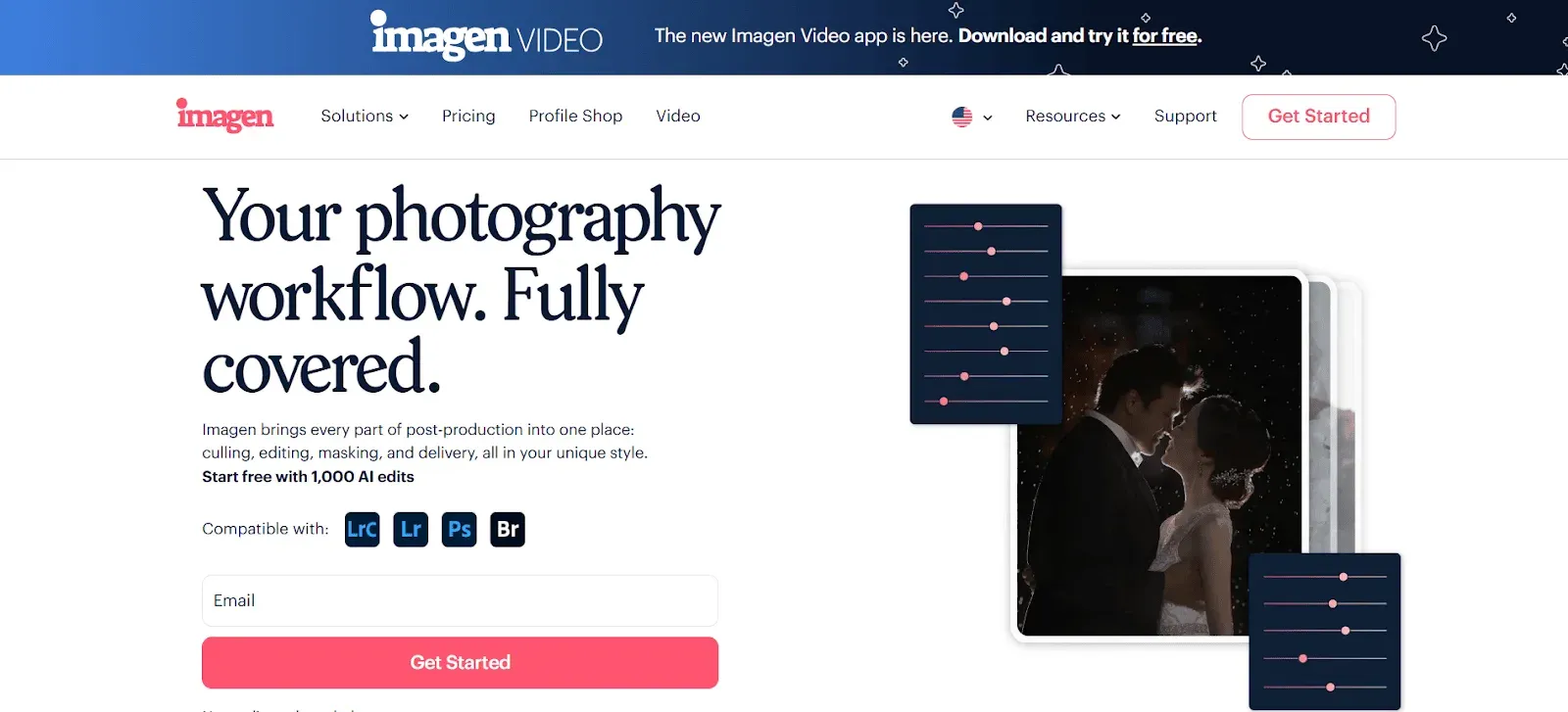
How Imagen Addresses Photo Culling
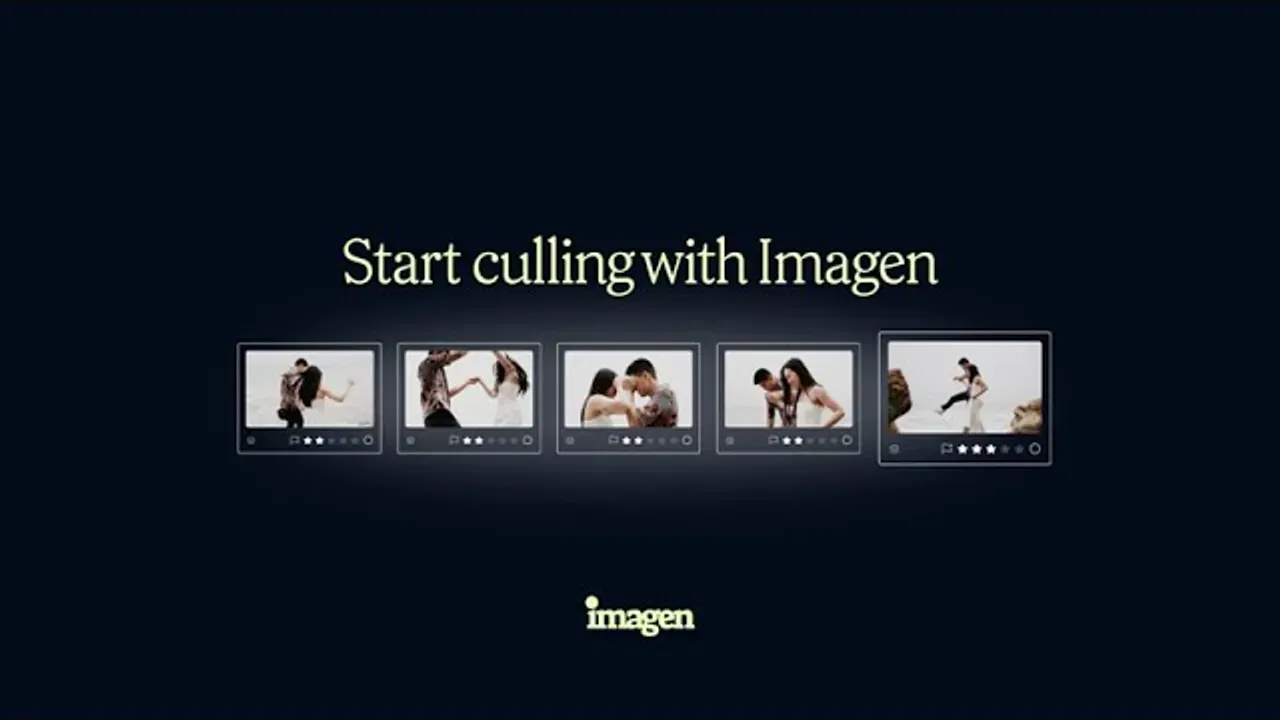
Imagen uses a sophisticated AI algorithm designed to mimic the human selection process. Unlike many older tools that simply look for sharpness, Imagen looks for the “soul” of the photo. It identifies duplicates, detects out-of-focus shots, and handles specific human elements with incredible accuracy.
One of its standout features is Face Recognition. It doesn’t just see a face; it evaluates it. The AI can distinguish between an accidental blink and a “kiss” where eyes are naturally closed. This prevents the software from throwing away those personal, high-value moments that clients cherish.
Furthermore, Imagen offers a “Cull to Exact Number” feature. If you have a contract to deliver exactly 500 photos from a 4,000-shot gallery, you can set that parameter. The AI will then select the best 500 frames that maintain the story’s flow. This level of precision is a massive win for high-volume photographers.
Technical Performance and Workflow
It is important to understand that Imagen is a desktop app. It is not a web-based platform where you struggle with browser lag. You work locally on your computer, which provides the speed and stability we need as professionals. However, it utilizes the cloud for the heavy lifting of AI processing.
Imagen integrates directly with:
- Adobe Lightroom Classic
- Adobe Lightroom
- Adobe Photoshop
- Adobe Bridge
This means you don’t have to change your entire ecosystem to get the benefits of AI. You simply upload your project, set your preferences, and let the AI group and rate your photos. You stay in full control, reviewing and finalising the selections on your own machine.
Beyond Culling: The Broader Imagen Platform
While the culling capabilities are elite, Imagen serves as a comprehensive AI photo editing and culling platform built for professional photographers, portrait work included. Once your cull is complete, you can move immediately into editing, using your Personal AI Profile or a ready-made AI Profile.
The software applies your Personal AI Profile, which learns your unique editing style over time. It isn’t a static preset. It is a dynamic model that adjusts exposure, white balance, and color based on the specific parameters of each photo.
You can also utilize Imagen for:
- Cloud Storage: Backup is on Imagen’s roadmap and not available yet, so keep your projects safe with your usual backup while you work.
- AI Masking: Automatically handle subject masks, skin smoothing, and eye enhancements.
- Final Delivery: Export final JPEGs and upload them to a gallery like Pic-Time. Publishing straight from Imagen is on the roadmap.
Summary: Imagen provides a fast, flawless, and reliable workflow that combines culling, editing, and export into one desktop interface. It respects the photographer’s creative control while eliminating the manual drudgery of selection.
2. Adobe Lightroom Classic (Native Culling)
Adobe Lightroom Classic remains a staple in the professional community. Its native culling tools are functional and familiar, though they rely heavily on manual input compared to modern AI alternatives.
Features and Functionality
Lightroom Classic utilizes the Library module for selection. Photographers can use:
- Star Ratings (1-5): For hierarchical grading of images.
- Color Labels: To categorize shots by specific types (e.g., family photos, portraits).
- Flags: To quickly pick or reject frames.
- Survey View: Allows you to compare multiple similar shots side-by-side to find the sharpest version.
Operational Workflow
The process is entirely local. You import your RAW files and generate previews. From there, you use keyboard shortcuts to move through the gallery. While Lightroom has introduced “Select Best” features in recent updates, the logic is generally based on technical metadata rather than the artistic nuances found in Imagen.
Integration and Compatibility
Because it is the industry standard, it integrates with almost every third-party plugin. However, as a standalone culling tool, it requires significant time. You are the AI. You must make every decision. This is reliable but slow. It works best for photographers who prefer a slow, methodical approach to every single frame.
Summary: Lightroom Classic is a robust, manual solution that offers total control but lacks the time-saving automation found in AI-first platforms.
3. Capture One Pro
Capture One Pro is often favored by fashion and studio photographers for its superior tethering and color science. Its culling features are designed for high-end production environments.
Technical Specifications
Capture One uses a “Session” or “Catalog” system. For culling, it offers:
- Speed Culling: A dedicated mode that lets you fly through images with minimal lag.
- Group Overview: Automatically groups similar photos based on timestamp or visual similarity.
- Face Zoom: A specialized tool that automatically zooms into faces during the culling process to check focus.
Performance in 2026
In the current landscape, Capture One has improved its AI capabilities to include better auto-masking and basic grouping. It is a desktop-heavy application that processes everything on your local hardware. This requires a powerful computer but keeps your data off the cloud if that is a concern for your specific niche.
Use Case Analysis
Capture One excels when you are culling on set. The ability to tether and cull simultaneously is a professional advantage. However, for post-event culling (like weddings), it lacks the predictive “Culling In” logic that Imagen employs to learn your preferences.
Summary: Capture One Pro is a high-performance desktop tool for studio professionals, prioritizing local processing and tethered efficiency.
4. Photo Mechanic
Photo Mechanic by Camera Bits has long been the speed king for sports and photojournalism. It is built for one thing: getting through thousands of photos as fast as the hardware allows.
Core Capabilities
Photo Mechanic is a browser, not a non-destructive editor. It does not render RAW files in the same way Lightroom does. Instead, it reads the embedded JPEG preview. This makes it incredibly fast.
- Ingest: Move photos from cards to hard drives while renaming and adding metadata.
- Tagging: Use single-key shortcuts to mark keepers.
- Variables: Powerful metadata tools to automate captioning.
2026 Context
While other tools have moved toward AI selection, Photo Mechanic has stayed true to its “manual but fast” roots. It does not suggest which photos are best. It simply displays them without the “loading” spinning wheel.
Professional Constraints
The biggest limitation is the lack of AI intelligence. It won’t tell you if eyes are closed or if a photo is slightly out of focus unless you see it yourself. It is a “Culling Out” tool where you manually discard the junk.
Summary: Photo Mechanic remains the fastest manual browser for professionals who trust their own eyes more than any algorithm.
5. Narrative Select
Narrative Select is a specialized culling app that focuses on the wedding and portrait market. It aims to reduce the “friction” of the selection process through visual aids.
Feature Set
Narrative uses AI to assist the human eye. Key features include:
- Focus Assessment: It puts a color-coded warning on faces that are out of focus.
- Close-up Panels: It automatically shows a zoomed-in view of every face in a group shot.
- Eye Assessment: It flags when subjects have their eyes closed.
Integration
It is designed to be a “pre-Lightroom” step. You cull in Narrative Select, then ship the keepers over to Lightroom. It is a desktop application that requires an internet connection for some of its AI data processing, similar to the hybrid model but with a narrower scope than Imagen.
Limitations
Unlike Imagen, Narrative Select is primarily a standalone culling tool. It does not offer the deep, personalized editing profiles or the “comprehensive platform” benefits like a built-in editor (Beta) and an assistant.
Summary: Narrative Select is a strong niche tool for wedding photographers who want a visual assistant during manual culling.
6. Aftershoot
Aftershoot is an AI culling and editing application that focuses on automation. It is designed to take the first pass at a gallery for you.
AI Functionality
Aftershoot uses local AI to categorize images. It identifies:
- Blurred images: Using technical sharpness metrics.
- Closed eyes: To filter out blinks.
- Duplicates: Grouping similar shots and picking a “representative” frame.
Operational Model
It is a desktop application that processes images locally. While this saves on cloud data, it can be taxing on older computer hardware. You set “sensitivity” sliders for how strict the AI should be, and then let it run.
Comparison Points
While Aftershoot provides a solid first pass, many professionals find the integration with the rest of the workflow less fluid than a platform like Imagen. Imagen’s ability to use “edited previews” during the cull allows you to see the potential of a shot before you commit to it, which is a significant creative advantage.
Summary: Aftershoot offers a local AI culling solution that is effective for a technical first pass of large galleries.
7. FilterPixel
FilterPixel is another AI-driven culling tool that focuses on streamlining the “first look” at a photoshoot.
Primary Features
- Auto-Selection: The AI tags photos as “Accepted,” “Rejected,” or “Unsure.”
- Focus and Eye Tracking: Similar to other AI tools, it monitors for technical flaws.
- Similarity Grouping: It stacks similar photos so you only have to look at one from a burst.
Workflow Integration
FilterPixel is a desktop app that works with Lightroom and other editors. It offers a clean interface and focuses heavily on the “Accept/Reject” workflow. It is functional and straightforward.
Strategic Differences
FilterPixel is largely focused on the act of culling itself. It does not provide the same “Personal AI Profile” editing depth that Imagen offers. For photographers looking for a tool that covers the entire post-production journey from culling to final JPEG delivery, it may feel like a single-purpose solution.
Summary: FilterPixel is a capable, functional AI culling tool for photographers who want a clear “Accepted/Rejected” workflow.
8. Adobe Bridge
Adobe Bridge is the veteran file manager of the Creative Cloud. It serves as a central hub for many professional photographers who work across multiple Adobe applications.
Toolset
Bridge offers powerful metadata management and previewing capabilities.
- Review Mode: A dedicated interface for full-screen culling.
- Labels and Ratings: Standard 1-5 star and color systems.
- Batch Rename: Superior tools for organizing large file structures.
Bridge and Imagen
It is worth noting that Imagen is fully compatible with Adobe Bridge. This is a huge benefit for photographers who prefer the Bridge/Photoshop workflow over the Lightroom library. You can use Imagen to handle the intelligent selection and AI editing, then use Bridge to manage the final assets.
Professional Outlook
Bridge is not “smart.” It does not have built-in AI to detect blinks or focus issues. It is a visual file browser. For a professional in 2026, using Bridge alone is often too slow unless paired with an AI engine like Imagen.
Summary: Adobe Bridge is an essential, manual organizational tool that works best when integrated with AI processing.
9. CullingBot
CullingBot is a newer entrant that focuses on a “minimalist” approach to AI selection. It is designed for photographers who want the simplest possible interface.
Functional Overview
CullingBot runs a local scan of your folders and identifies technical failures. It uses a simple color-coding system to show you what it thinks are the keepers.
- Technical Scan: Basic sharpness and exposure check.
- Duplicate Detection: High-speed grouping.
Limitations
Because it is a minimalist tool, it lacks the deep learning capabilities of Imagen. It doesn’t learn your specific “style” of choosing. For example, a sports photographer might want a slightly blurry shot for “motion blur” effect, but a basic bot might reject it. Imagen’s AI is more nuanced in how it handles these artistic choices.
Summary: CullingBot is a lightweight desktop utility for basic technical filtering of images.
10. Manual “Cloud” Selection (Various Platforms)
Some photographers in 2026 still use a hybrid approach where they upload galleries to a proofing site and let the client do the culling.
The Strategy
You upload the entire unedited (or loosely edited) gallery to a platform like Pic-Time or Pixieset. The client then “favorites” the ones they want. This is a form of culling that removes the burden from the photographer.
Challenges and Risks
This method can be risky. You are essentially letting the client see the “sausage being made.” They see the blinks, the missed focus, and the bad exposures. It can hurt your professional brand.
The Imagen Alternative
A better way is to use Imagen to cull down to the “best” shots first. Imagen also has a direct integration with Pic-Time on its roadmap, planned to let you publish a curated, beautiful gallery straight from the app. This maintains your professional authority while still allowing for client input on the final selection.
Summary: Client-led culling is a high-risk strategy that is best replaced by professional AI selection followed by curated delivery.
Criteria: How to Choose Photo Culling Software in 2026
Choosing the right tool is a business decision. You need to balance speed, cost, and creative control. Here are the criteria I use when evaluating software for my studio.
1. Speed of Previews
If you have to wait for a RAW file to render every time you hit the arrow key, the software is useless. In 2026, “zero-lag” is the requirement. Software like Imagen aims for this by working as a desktop app while sending your photos to the cloud for AI processing, so the heavy work does not run on your computer.
2. AI Nuance (Artistic vs. Technical)
Does the software understand why a photo is good? A technical AI will delete a shot that has intentional motion blur. A professional AI, like the one used by Imagen, understands context. It recognizes things like “Kiss Recognition” and knows that eyes closed during a laugh is a good thing.
3. Workflow Integration
A culling tool that doesn’t talk to your editor is a bottleneck. Look for software that integrates with the big four: Lightroom Classic, Lightroom, Photoshop, and Bridge. The transition from culling to editing should be a single click.
4. Personalization
The software should learn from you. If you consistently keep photos that the AI flags as “uncertain,” the AI should stop flagging them. Imagen excels here because its Personal AI Profile evolves with your feedback.
5. Stability (Desktop vs. Web)
As photographers, we often work with massive files (50MP+). Web-based culling is rarely stable enough for professional volumes. A desktop app is essential. However, using the cloud for the AI “brains” allows you to get elite results without needing a $10,000 workstation.
General Guide to a 2026 Culling Workflow
If you are looking to revamp your post-production, follow this framework to maximize efficiency and quality.
Step 1: Ingest and Organize
Use a consistent folder structure. I recommend YYYY-MM-DD_ClientName. Use a desktop manager like Adobe Bridge to ensure all files are accounted for and backed up immediately.
Step 2: AI First Pass with Imagen
Drag your project into Imagen. Set your culling method—either “Keep the best of each group” or “Cull to an exact number.” Let the AI run its analysis. This usually takes just a few minutes for a few thousand photos.
Step 3: Review and Refine
Open the results in your Imagen project, where you can also cull manually for free. One of the best tips is to cull with edited previews. Seeing your AI Profile applied during the cull helps you visualize the final product. Use keyboard shortcuts (1-5 for stars, P/X for pick/reject) to make any final human adjustments.
Step 4: Seamless Editing
Once satisfied, send the selections to editing within the same app. This is where Imagen saves you the most time. It applies your unique style to the selected photos instantly.
Step 5: Final Tweak and Upload
Open the edited catalog in Lightroom Classic. Do a final “quality control” pass. Then export your final JPG, TIFF or PNG files straight from Imagen, ready to upload to your client gallery.
Questions and Answers
1. Is Imagen a cloud-based or desktop app?
Imagen is a desktop app. You install it on your Mac or Windows computer. However, it uses the cloud to process the AI algorithms. This gives you the best of both worlds: local stability and cloud-powered intelligence.
2. Can I work in the cloud with Imagen?
No, you cannot work entirely in the cloud. You must have the files locally (or on an external drive) and use the desktop application to manage the projects.
3. Does Imagen work with Lightroom Creative Cloud?
Yes. While it has deep roots in Lightroom Classic, Imagen supports Lightroom (CC), Photoshop, and Bridge through its Extended Adobe Compatibility.
4. What happens if the AI misses a photo I love?
You are always in control. Imagen is an assistant, not a replacement. You can easily review the “rejected” or “low-rated” photos and flip them back to “keepers” with a single keystroke.
5. How many photos do I need to create a Personal AI Profile?
You need 2,000 edited photos to create a Personal AI Profile. This ensures the AI truly understands your unique nuances across different lighting conditions. If you don’t have that many, you can start with a Talent AI Profile or a Lite Profile.
6. Does Imagen include AI cleanup tools?
Yes. Imagen includes AI cleanup and retouch tools, such as object removal, denoise, and smooth skin, so photos from every kind of shoot come out polished.
7. Can I share my Imagen storage with other users?
There is no Imagen storage to share yet, since cloud storage backup is on Imagen’s roadmap. For now, set up sharing with your usual backup.
8. Is culling in Imagen “Culling In” or “Culling Out”?
Imagen uses the “Culling In” method. This means it focuses on identifying and rating the images you want to keep, rather than just marking things to delete. This is generally considered a more positive and efficient psychological approach for photographers.
9. How fast is the editing after culling?
Imagen can edit photos in under 0.5 seconds per photo. A typical wedding gallery of 1,000 photos can be processed in about 5 to 10 minutes once uploaded.
10. Can I use Imagen for video culling?
Imagen is primarily focused on stills. While there is an Imagen Video solution that uses adjustment layers in Premiere Pro, the deep culling AI described here is optimized for photography workflows.
11. What is “Kiss Recognition”?
This is a specialized AI feature in Imagen that recognizes when subjects are kissing. In these moments, eyes are often closed. A standard AI might flag this as a “blink” error, but Imagen knows it is a keeper.
12. Do I need an internet connection to use Imagen?
Yes. Because the AI processing happens in the cloud, you need an active internet connection to upload the project data and download the final edits/culls.
13. What is the biggest advantage of using an all-in-one platform?
The biggest advantage is efficiency. When your culling, editing, and export all happen within the Imagen ecosystem, you eliminate the “friction” of moving data between five different apps. This saves hours of work every week and reduces the chance of technical errors.
What’s new in Imagen: Imagen is now an intelligent, agentic Studio for professional photographers. You cull, edit, review and export in one project, in any order, and you can use AI culling to find your keepers or skip it and cull manually for free. A built-in editor (Beta) is there when a frame needs a quick touch. The Studio is rolling out gradually.
Conclusion
The year 2026 has brought us tools that feel less like software and more like creative partners. While there are many options on the market, the shift toward integrated platforms is undeniable. Imagen stands out by offering a desktop-stable, cloud-powered solution, now an intelligent Studio where you cull, edit, review and export in one project.
By automating the repetitive, manual tasks of culling and initial color correction, we get our lives back. We get to spend more time behind the lens and less time behind the desk. Whether you are a wedding pro, a real estate specialist, or a high-volume portrait photographer, the right culling software is the best investment you can make for your business and your sanity.