
7 Best Photo Culling Apps for Wedding Photographers in 2026
Table of contents
- Key Takeaways
- Our Selection Criteria: How We Chose the Best Culling Software
- 1. Imagen: The Ultimate AI-Powered Culling and Editing Suite
- 2. Aftershoot: The Leader in Local AI Processing
- 3. Narrative Select: The Fastest Culling for Mac Users
- 4. FilterPixel: Smart Culling with Advanced Grouping
- 5. Photo Mechanic: The Speed King for Manual Culling
- 6. Adobe Bridge: The Integrated Free Alternative
- 7. CullAi: The Emerging Contender for Windows Users
- 8. Lightroom Classic (Library Module): The All-In-One Method
- Comparison Table: 2026 Best Culling Apps
- Final Recommendation: Which App Should You Choose?
- Frequently Asked Questions
- Will AI culling apps delete my photos?
- How much time can I realistically save with an AI culling app?
- Do I need a powerful computer to run these apps?
- Can AI judge emotional moments or just technical quality?
- What’s the difference between automated and assistive AI?
- Is my data and my clients’ privacy safe with cloud-based apps?
- Can these apps cull video files as well?
- What happens if I don’t like the AI’s choices?
Culling is the bottleneck in every wedding photographer’s workflow. You’ve just wrapped a beautiful event, and now you’re staring down a memory card holding 4,000 images. Sorting the keepers from the duplicates, blinks, and blurry shots by hand is a soul-crushing time sink, and it’s the exact thing keeping you from booking your next client. It’s tedious work, and it’s exhausting too. Frankly, it’s a rough way to spend your creative energy.
Here’s the good news. It’s 2026, and AI-powered culling tools aren’t a novelty anymore; they’re essential gear. These apps promise to shrink your culling time from hours down to minutes, but not all of them deliver equally. Some are lightning fast but not very smart, while others are sharp but clunky to use. This guide breaks down the strongest options on the market today, and it focuses on what actually matters to a wedding pro: speed, accuracy, and clean integration with the workflow you already run.
Key Takeaways
- AI is the new standard - As of this year, over 62% of professional photographers have folded AI tools into their post-production, and that number keeps climbing fast.
- Time savings are real - The right AI culling tool can cut selection time by an average of 75%. A grueling 4-hour manual cull turns into a 20-minute, coffee-break task.
- All-in-one vs. Specialized tools - Platforms like Imagen combine culling and editing in one project (with free manual culling if you prefer), while apps like Photo Mechanic focus solely on hyper-fast manual sorting. The right pick depends on how you like to work.
- Local vs. Cloud processing matters - About 45% of photographers prefer local AI processing (like Aftershoot) so they’re not uploading thousands of heavy RAW files, which matters a lot if your internet is slow.
- Accuracy has peaked - Top-tier AI culling tools now claim accuracy rates above 90% for catching technical flaws like out-of-focus shots and closed eyes.
- Lightroom is king - With 78% of wedding workflows centered in Adobe Lightroom Classic, clean integration isn’t optional for any culling app worth using.
- Subscription isn’t the only way - While most modern tools run on subscriptions, options like Photo Mechanic and CullAi still sell perpetual licenses for photographers who’d rather buy once.
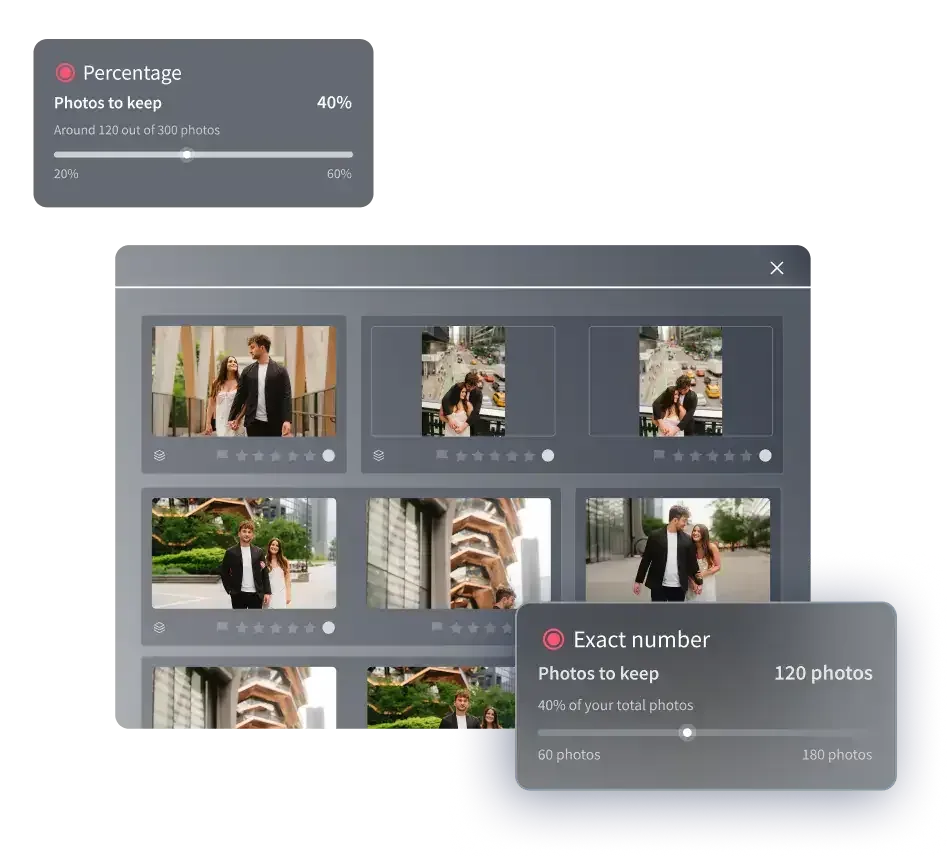
Our Selection Criteria: How We Chose the Best Culling Software
Picking a culling app isn’t just about finding the one with the longest feature list. It’s about finding the one that slots into your specific post-production chain without causing friction. We evaluated these tools against four core principles that matter most to wedding photographers in 2026.
The Absolute Need for Speed
A wedding photographer’s most valuable asset is time, plain and simple. The average wedding shoot produces between 2,500 and 4,500 images. If your culling tool lags while rendering RAW previews, you’ve already lost ground you won’t get back. We prioritized apps that load and display RAW files almost instantly. Speed isn’t just a nice-to-have here; it’s the difference between delivering a gallery in two weeks versus two months.
AI Accuracy vs. Manual Control
AI is genuinely impressive, but it’s not foolproof. An algorithm can spot a blink or a soft-focus shot with real precision. But it can’t always catch the subtle, emotional weight of a tearful glance or a candid laugh that’s technically imperfect yet priceless anyway. We looked for tools that strike that balance well. Some, like Imagen, offer sophisticated AI that learns your preferences over time, while others, like Narrative Select, use AI to support your manual choices instead of replacing them. The goal is automation that serves your creative vision, not one that dictates it. A workflow study by Shotkit found AI culling cuts manual selection time by an average of 75%, and that’s a huge efficiency gain worth taking seriously.
Workflow Integration with Lightroom and Capture One
A culling app that clashes with your primary editing software isn’t worth your time. It creates extra work instead of removing it. With 78% of wedding photography workflows anchored in Adobe Lightroom Classic, smooth integration matters above almost everything else. The best tools write their selections (ratings, color labels, flags) directly to XMP sidecar files or straight into the Lightroom catalog. That means you can cull in a specialized app, then open Lightroom and find every select ready for editing. No re-importing required. No convoluted workarounds needed either.
1. Imagen: The Ultimate AI-Powered Culling and Editing Suite
Let’s be clear about this: Imagen isn’t just a culling app. It’s now an intelligent Studio for professional photographers, built to automate the most time-consuming parts of the job. While other tools focus on doing one thing well, Imagen’s strength is its unified approach, connecting AI-driven culling straight through to AI-powered editing. That integration makes it the most powerful and efficient option on the market heading into 2026.
The process starts with AI photo culling. You point it at your folder of RAW files, and it gets to work right away. It groups similar photos, flags technical issues like blinks and poor focus, and then, this is the key part, it assigns star ratings and color labels based on its read of your best shots. Its analysis of group photos is especially strong, and it reliably picks the frame where the most people are looking at the camera with their eyes open. Once culling wraps up, you can send your selections straight to your own Personal AI Profile, which has learned your unique editing style from your past Lightroom catalogs. It’s a genuine end-to-end solution.
Key Features of Imagen
- Integrated Culling & Editing - Go from thousands of RAWs to a culled, edited, and client-ready gallery within a single platform.
- Advanced Grouping - Automatically groups visually similar photos together, making it easy to pick the single best frame from a burst sequence.
- Blink and Blur Detection - With accuracy rates exceeding 90%, the AI is exceptionally good at spotting and flagging technically flawed images, so you don’t have to hunt for them yourself.
- Personal AI Profiles - The AI photo editing component learns from your work. This means the edits applied after culling match your brand and style, not some generic preset.
- Cloud and Local Hybrid - While the AI learning happens in the cloud, the culling process can be managed locally, which gives you real flexibility.
Pricing Details
Imagen offers flexible Imagen pricing. Pay-as-you-go combines a monthly base fee with a charge for the photos you export. Sliders, crops, and masks you do yourself are always free. You can also skip AI culling and cull manually for free. Higher-volume photographers can look at the plans listed on the pricing page.
Pros and Cons
- Pros -
- The only true all-in-one system for culling and editing.
- AI that learns your specific preferences delivers highly personalized results.
- Drastically reduces total post-production time, not just culling time.
- Excellent for large, complex weddings with many group shots.
- Cons -
- Pay-as-you-go pricing, with its monthly base fee, may not suit photographers who only want the culling feature now and then, though manual culling is free.
- Requires an internet connection to sync your AI Profile and upload images for editing.
Verdict: For the professional wedding photographer who wants to claw back their life from post-production, Imagen is the clear best choice for 2026, now an intelligent Studio where you cull, edit and export in one project.
2. Aftershoot: The Leader in Local AI Processing
So what happens when you’re culling photos from a destination wedding in a remote spot with spotty Wi-Fi? That’s exactly where Aftershoot shines. Its biggest advantage is that the AI culling engine runs entirely on your local machine. You don’t upload thousands of RAW files to the cloud, which matters to the 45% of photographers who are wary of long upload times.
Aftershoot’s workflow is refreshingly straightforward. You import a folder of photos, and the app starts its analysis right away. It sorts images into distinct buckets: Duplicates, Blurry, Closed Eyes, and Highlights. The Highlights folder holds what the AI thinks are your best images. You can review its choices immediately, make your own adjustments, then export the results to Lightroom Classic, Capture One, or a plain folder. It’s fast, efficient, and it works fully offline.
Its AI is particularly strong at keyframing, where it analyzes a video file and pulls the best still frames, which is a handy trick for hybrid shooters. That said, be ready for it to lean on your hardware. Running the AI analysis can tax your computer’s CPU and GPU pretty hard, so it performs best on modern machines.
Aftershoot’s Notable Features
- 100% Local Processing - No internet connection required. Cull anywhere, anytime.
- AI-Powered Selections - Automatically sorts photos into logical folders for easy review.
- Duplicate Detection - Excels at finding and separating near-identical images from burst-mode sequences.
- Editing Integration - After culling, you can use Aftershoot’s own AI editing feature, which functions similarly to Imagen’s Talent AI Profiles.
Pricing Structure
Aftershoot runs on a subscription model. The Aftershoot Select plan for culling costs roughly $120 per year. Want to bundle culling with their AI editing? The Pro plan runs up to $480 per year. This flat-fee approach suits photographers who shoot a high volume of weddings, since it opens up unlimited culling.
Pros and Cons Breakdown
- Pros -
- Works entirely offline, perfect for travel and on-location work.
- Unlimited culling with a flat annual fee. No per-image costs.
- Strong duplicate detection saves a lot of manual sorting.
- Cons -
- Can be very demanding on your computer’s resources during processing.
- The user interface has a steeper learning curve compared to some competitors.
- AI editing isn’t personalized like Imagen’s; it’s based on pre-built styles.
Verdict: Aftershoot is the top pick for destination wedding photographers or anyone dealing with an unreliable internet connection who needs fast, dependable, unlimited local AI culling.
3. Narrative Select: The Fastest Culling for Mac Users
Narrative Select isn’t trying to replace you with AI. Instead, it’s built to make your manual culling process faster and better informed. And for Mac users, it’s genuinely fast. It renders RAW previews instantly, with zero lag as you cycle through images. It’s a tool made for photographers who trust their own eye but want technology to handle the tedious parts, like checking for focus and blinks.
Picture a typical scenario. You load a wedding into Select. As you scan through the images, the app’s AI works quietly in the background, placing warning icons on thumbnails that show potential issues like blinks or soft focus. The real power shows up in the Close-ups Panel. When you’re looking at a group shot, this panel automatically pulls up a zoomed-in view of every single face in the photo. You can tell instantly if someone blinked or drifted out of focus, without ever zooming in and panning around yourself. This one feature alone is a massive time-saver.
The best AI tools don’t just automate tasks; they provide information that leads to better human decisions. A tool that can instantly show you critical focus on 15 different faces in a group shot is a perfect example of technology augmenting, not replacing, the photographer’s skill.
Itamar Haim, AI Photography Workflow Specialist
The AI here is assistive, not prescriptive. It won’t choose your photos for you, but it hands you every bit of information you need to make the right call in a fraction of the time. It’s a near-perfect human-in-the-loop system. Keep in mind that this performance demands decent hardware; Narrative recommends at least 16GB of RAM and an Apple Silicon chip (M1/M2/M3) for the smoothest experience.
Pricing and Availability
Narrative Select offers a functional free version that works well for smaller shoots. For professionals, the Select Pro plan costs $15 per month (billed annually at $180) and unlocks unlimited use of all the advanced AI features and face-checking tools.
Why Mac Users Love It (And Why Windows Users Can’t)
- Pros -
- The fastest RAW image browsing experience available on macOS.
- The Close-ups Panel for checking faces in group shots is revolutionary.
- Clean, intuitive, and beautifully designed user interface.
- AI indicators are helpful without being intrusive.
- Cons -
- It’s Mac only. There’s no Windows version, which shuts out a huge chunk of the market.
- The AI is only an assistant; it doesn’t offer fully automated culling.
Verdict: For the Mac-based photographer who wants to keep full creative control while dramatically speeding up their manual review, Narrative Select is the right tool for the job.
4. FilterPixel: Smart Culling with Advanced Grouping
FilterPixel approaches AI culling with a focus on organization. It’s built for the high-volume studio juggling photos from multiple shooters at a single wedding. Its standout feature is intelligent auto-grouping, which clusters similar shots together with remarkable accuracy. That makes it easy to compare five nearly identical shots of the bridal party and land on the one definitive hero image.
Once you import your photos, the AI gets to work and sorts everything into three main buckets: Accepted, Rejected, and Warnings. Rejected photos are usually the ones with obvious technical flaws. The Warnings folder holds images that might be slightly soft, or that show a single person blinking in a large group, and those deserve a second look. The Accepted folder holds your AI-selected highlights. You can dial the AI’s strictness up or down depending on how aggressive you want it to be.
FilterPixel also assigns scores for Focus quality and eye quality, which gives you a quantifiable reason behind each decision. This data-driven approach is genuinely useful, though the AI can occasionally get a bit too aggressive, sometimes rejecting a photo with intentional motion blur or a creative soft focus. It’s a good reminder to always give the Rejected folder a quick scan before deleting anything from it.
How to Get Started with FilterPixel
- Import Your Shoot - Drag and drop the folder containing your RAW files directly into the app.
- Let the AI Analyze - The automated culling process begins immediately. This can take anywhere from 10 to 30 minutes for a typical wedding, depending on the number of photos and your computer’s speed.
- Review the Selections - Check the ‘Accepted’ and ‘Warnings’ folders. Use the advanced filtering tools to quickly find the best images within each group.
- Export to Lightroom - Once you’re happy with the cull, you can export the results, and all your picks (and rejections) will be marked with color labels in Lightroom Classic.
Pricing Plans
FilterPixel sits among the more affordable AI options out there. The Standard plan runs just $9 per month, while the Pro plan, which unlocks more advanced features, is $19 per month. That low barrier to entry makes it appealing for photographers just starting to explore AI tools.
Key Strengths and Weaknesses
- Pros -
- Very affordable monthly subscription plans.
- Excellent at handling and grouping shots from multi-camera weddings.
- Detailed scoring for focus and eye quality provides helpful data.
- Cons -
- AI can sometimes be overzealous in its rejections.
- Exporting the final selections to Lightroom can feel slower than some competitors.
Verdict: FilterPixel is a budget-friendly AI powerhouse, and it’s a great fit for high-volume studios that need to organize and cull complex, multi-shooter weddings efficiently.
5. Photo Mechanic: The Speed King for Manual Culling
Before AI culling was even a concept, there was Photo Mechanic. For decades, it’s been the industry standard for one reason: raw, unadulterated speed. Photo Mechanic doesn’t use AI. It won’t analyze your photos for you. What it does is render gigantic RAW files instantly. There’s no loading bar and no buffering to wait through. You press the arrow key, and the next photo appears. That’s the whole trick.
Its speed comes down to a clever shortcut: it reads the embedded JPEG preview already sitting inside every RAW file. That lets it skip the computationally expensive job of rendering full RAW data until you actually decide to zoom in. A performance benchmark shows it can ingest and prepare 1,000 images for review in under 2 minutes. For photographers who can make decisions fast, this is the quickest way to cull a wedding by hand.
Photo Mechanic also doubles as a metadata powerhouse. You can apply keywords, captions, and color labels on the fly during ingest, right off your memory card. Its tools for batch-renaming files based on complex variables are second to none. This is the tool for the seasoned pro who has their system dialed in and values speed and control above everything else.
Checklist: Is Photo Mechanic Right for You?
- [ ] Do you prefer complete manual control over your image selection?
- [ ] Is your primary bottleneck the time it takes for RAW files to load in Lightroom?
- [ ] Do you run a highly organized workflow involving detailed metadata, keywords, and captions?
- [ ] Are you frustrated by subscription fees and would rather own your software outright?
- [ ] Do you find AI suggestions more of a hindrance than a help?
If you answered yes to most of these, Photo Mechanic is likely a strong fit for how you work.
Pricing Model
Photo Mechanic is sold as a perpetual license. Photo Mechanic 6 costs $249, and there are no monthly fees attached. You buy it once, and you own it for good. This model is increasingly rare these days, and plenty of photographers find it hugely appealing.
Strengths vs. Limitations
- Pros -
- The fastest RAW file browser on the planet, full stop.
- No recurring subscription fees.
- Powerful tools for metadata, renaming, and ingesting files from multiple cards.
- Rock-solid stability; it rarely, if ever, crashes.
- Cons -
- Absolutely no AI features. No blink detection, no focus analysis.
- The user interface looks and feels dated compared to modern apps.
- Requires disciplined, fast decision-making from the photographer.
Verdict: Photo Mechanic remains the essential, uncompromising tool for the old-school pro who trusts their eye and values blistering speed and metadata control over any form of AI automation.
6. Adobe Bridge: The Integrated Free Alternative
It’s the culling tool you might already own. Adobe Bridge gets overlooked constantly, but it’s a surprisingly capable asset manager bundled with any Adobe Creative Cloud subscription. If you’re already paying for the Photography Plan, Bridge is effectively free to use. And since it lives inside the Adobe ecosystem, its integration with Lightroom and Photoshop is flawless.
Bridge’s real strength is its customizability paired with powerful filtering tools. You can lean on a star rating system, color labels, and keywords to sort through a shoot. Its most useful feature for culling is the Review Mode (activated by pressing Ctrl+B or Cmd+B). This builds a full-screen carousel of your selected images, letting you cycle through them quickly and make decisions using the number keys for ratings or flags. It’s a clean, focused space for making your picks.
That said, Bridge isn’t without its faults. Its RAW rendering runs noticeably slower than Photo Mechanic’s. You’ll notice a brief flash of pixelation or a Loading message as you move from one image to the next, and that adds up fast over a 4,000-image wedding. It also has zero AI capabilities, so spotting blinks and soft focus is entirely on you. But for the price, which is nothing extra at all, it’s still a solid contender.
Pricing
Included with any Adobe Creative Cloud subscription. The Photography Plan, which bundles Lightroom and Photoshop, starts at $9.99 per month.
Key Features for Culling
- Review Mode - A dedicated, full-screen environment for comparing and rating images.
- Advanced Filtering - You can stack multiple filters (e.g. ‘show all 5-star photos taken with the 85mm lens’).
- Batch Renaming - A powerful tool for reorganizing your files before importing them into Lightroom.
- Native Integration - Open files directly in Adobe Camera Raw or Photoshop, and all ratings sync automatically with Lightroom.
Verdict: Adobe Bridge is the best free option for photographers already invested in the Adobe ecosystem who’d rather not add another subscription or piece of software to their stack.
7. CullAi: The Emerging Contender for Windows Users
CullAi is a newer name in the culling space. It’s picked up a fast following among Windows users for two main reasons: it packs AI-powered features, and it’s sold as a one-time purchase. In a world dominated by subscriptions and Mac-centric design, CullAi feels like a genuinely different option.
The app stays lightweight and focuses on a simple, useful workflow. Like its competitors, it analyzes your photos for focus, closed eyes, and composition, then hands you a set of recommendations. One of its best features is the Face-crop view, which works similarly to Narrative Select’s Close-ups panel and lets you inspect every face in a group shot without zooming. It also provides an AI-based image score to help steer your selections.
It runs completely offline, which is a real plus for privacy and for working on the go. It may not match the deep ecosystem integration of a tool like Imagen, or the raw speed of Photo Mechanic, but it strikes a nice balance between modern AI assistance and a classic buy-it-once model. For the budget-conscious Windows photographer who wants a taste of AI without a monthly bill, it’s a genuinely excellent choice.
Pricing Structure
CullAi offers a Lifetime license for approximately $99. That one-time payment gives you access to all current and future updates, which makes it a fantastic value proposition for photographers planning to use it for years to come.
CullAi at a Glance
- Platform - Windows (with a Mac version in development).
- Key Feature - Face-crop view for easy inspection of group shots.
- Pricing Model - One-time purchase, no subscription.
- AI Features - Blink detection, focus analysis, image scoring.
Verdict: CullAi is a genuinely strong AI-powered culling tool for Windows users who are tired of subscriptions and want a simple, effective app with one upfront cost.
8. Lightroom Classic (Library Module): The All-In-One Method
So why use a separate app at all? For some photographers, especially those shooting smaller weddings or working at a more deliberate pace, culling directly inside Lightroom Classic’s Library Module is a perfectly viable strategy. The main advantage is simplicity: your photos stay in one place from start to finish. There’s no importing, no exporting, and no syncing metadata between different programs.
To make this workflow actually work, you need to use Lightroom’s tools the right way. Here’s a quick rundown of the process.
- Build Smart Previews - On import, make sure you select ‘Build Smart Previews’. These are smaller, lightweight versions of your RAW files that allow for much faster browsing in the Library module.
- Use Survey Mode (N key) - Select a group of similar images and hit ‘N’ to see them all side-by-side. This is great for picking the best shot from a burst.
- Use Compare Mode (C key) - Hit ‘C’ to see two images side-by-side, allowing you to zoom in and compare critical sharpness on both simultaneously.
- Use Flags and Ratings - Use a simple system. Go through your images once, pressing ‘P’ to pick keepers and ‘X’ to mark rejects. Then, filter your view to see only the picked photos and start your editing.
The downside is that even with Smart Previews, Lightroom can feel sluggish next to dedicated culling apps, especially with large catalogs running past 50,000 photos. And of course, it lacks any of the intelligent AI assistance that makes modern culling tools so powerful. You’re the AI here, full stop. But for the purist, it’s a workflow that has stood the test of time.
Verdict: Best for photographers with smaller weddings, or those fiercely dedicated to a single-app workflow who are willing to trade some speed for ultimate simplicity.
Comparison Table: 2026 Best Culling Apps
| Tool | Key Feature | AI Features | Platform | Pricing Model |
|---|---|---|---|---|
| Imagen | Integrated Culling & Editing | Yes (Automated & Learning) | Mac & Windows | Subscription / Pay-as-you-go |
| Aftershoot | Local (Offline) Processing | Yes (Automated) | Mac & Windows | Subscription |
| Narrative Select | Instant RAW Previews & Face Zoom | Yes (Assistive) | Mac Only | Subscription |
| FilterPixel | Advanced Auto-Grouping | Yes (Automated) | Mac & Windows | Subscription |
| Photo Mechanic | Unmatched Manual Speed | No | Mac & Windows | Perpetual License |
| Adobe Bridge | Included with Creative Cloud | No | Mac & Windows | Included with Adobe Subscription |
| CullAi | One-time Purchase AI | Yes (Automated) | Windows Only | Perpetual License |
| Lightroom Classic | Single-App Workflow | No | Mac & Windows | Included with Adobe Subscription |
Final Recommendation: Which App Should You Choose?
The global wedding photography market is set to reach $28.2 billion by 2026, and that kind of growth means more competition and higher client expectations across the board. Adopting efficient tools isn’t a luxury anymore; it’s necessary for survival in this market. And with 88% of photographers who switch to AI culling saying they’d never go back to a manual workflow, the verdict is pretty obvious at this point. The real question isn’t If you should use one, but Which one fits you best.
For the High-Volume Studio Prioritizing Efficiency: Imagen
If you’re running a business where time is money, you really can’t beat Imagen. The smooth flow from AI culling to personalized AI editing is unmatched anywhere else on this list. It’s an investment that pays for itself by freeing up dozens of hours every month, whether you use that time to shoot more, market more, or just get your life back. It’s the most complete post-production solution available today.
For the Destination Pro or Control Freak: Aftershoot or Narrative Select
If you’re often working without internet, or you simply prefer keeping your RAW files off the cloud, Aftershoot is your best bet by a wide margin. Its local processing is fast and genuinely powerful. If you’re a Mac user who wants AI to help you rather than decide for you, Narrative Select offers the best of both worlds through its lightning-fast interface and smart assistive features.
For the Budget-Conscious Photographer: FilterPixel or CullAi
If you want to get into AI culling without a heavy financial commitment, FilterPixel offers an incredibly affordable monthly entry point worth trying. For Windows users who can’t stand subscriptions, the $99 lifetime license for CullAi is a nearly unbeatable deal, and it delivers modern features for a single one-time cost.
What’s new in Imagen: Imagen is now an intelligent, agentic Studio for professional photographers, where culling sits in the same project as editing, review and export. Use AI culling, or skip it and cull manually for free, and let AI filters such as blur and closed eyes help you narrow a shoot. When you want a specific moment, the assistant can find photos and act on them when you ask in plain language, with you steering. The Studio is rolling out gradually as a beta.
Frequently Asked Questions
Will AI culling apps delete my photos?
No, they won’t touch your originals. Reputable culling apps never delete your original RAW files. They simply apply metadata, like flags or color labels, or move the rejected files into a separate folder. You always get the final say before anything is permanently deleted.
How much time can I realistically save with an AI culling app?
Most professional wedding photographers report saving between 2 to 6 hours per wedding. A task that used to eat an entire evening can often wrap up in under 30 minutes, including time spent manually reviewing the AI’s selections.
Do I need a powerful computer to run these apps?
Yes, for the most part, you do. AI processing is resource-intensive by nature. For best results, you’ll want a computer with at least 16GB of RAM, a modern multi-core processor (like an Apple M-series or Intel i7/i9), and ideally a dedicated graphics card too.
Can AI judge emotional moments or just technical quality?
Right now, AI excels at judging technical quality: focus, eye closure, lighting, and composition. It can’t truly grasp emotional context yet. That’s why every professional workflow should include a final manual review to catch those perfectly imperfect, emotionally resonant moments the AI might miss entirely.
What’s the difference between automated and assistive AI?
Automated AI, like in Imagen or Aftershoot, makes the selections for you and hands you a finished cull to review. Assistive AI, like in Narrative Select, gives you data and warnings so you can make your own manual selections faster.
Is my data and my clients’ privacy safe with cloud-based apps?
Leading companies like Imagen use secure, encrypted connections for all data transfers. Your photos get used solely to cull or train your personal AI profile, and they aren’t shared or sold to anyone. That said, it’s always smart to review the privacy policy of any cloud service you use.
Can these apps cull video files as well?
Some of them can, yes. Aftershoot, for example, has a keyframing feature that analyzes video footage and extracts the best still frames from it. That said, most of the apps on this list are optimized specifically for culling still photographs.
What happens if I don’t like the AI’s choices?
You’re always in control, no matter what the AI suggests. Every one of these applications lets you override the AI’s suggestions with ease. You can move a rejected photo back into the keepers pile, or toss one the AI selected, with a single click.