

10 Best AI Photo Selection in 2026
Table of contents
- Key Takeaways
- 1. Imagen
- 2. Aftershoot
- 3. FilterPixel
- 4. Narrative Select
- 5. Optyx
- 6. PhotoRefine.ai
- 7. Canon Photo Culling App
- 8. Lightroom Classic (AI Features)
- 9. Capture One
- 10. Photo Mechanic Plus
- Criteria for Choosing the Best AI Photo Selection Tool
- Guide to Implementing AI Selection in Your Workflow
- Frequently Asked Questions (FAQ)
- 1. Will AI culling delete my photos?
- 2. Do I need a powerful computer for AI selection?
- 3. Can AI detect artistic blur versus bad focus?
- 4. How does “Cull to Exact Number” work?
- 5. Does Imagen support Raw files?
- 6. What is the difference between “Culling In” and “Culling Out”?
- 7. Can I use these tools for video culling?
- 8. Is my data safe with cloud-based culling?
- 9. Can I cull without an internet connection?
- 10. How much time does AI selection actually save?
- 11. Does AI culling work for sports photography?
- 12. Can I use Imagen if I don’t use Lightroom?
- 13. What happens if I disagree with the AI’s choice?
The photography landscape has changed dramatically in the last few years. We used to spend late nights hunched over our desks, tapping the right arrow key thousands of times. We looked for the sharpest eye, the genuine smile, or the one frame where the bride wasn’t blinking. It was exhausting. It drained our creativity. It kept us from doing what we love, which is taking photos.
In 2026, we don’t work like that anymore. AI photo selection tools have matured from experimental features into robust, reliable assistants. These tools do the heavy lifting. They sort through thousands of raw files in minutes. They group duplicates. They check for critical focus. They identify closed eyes.
I have spent years testing every piece of software that hits the market. I know what works in a high-pressure wedding season and what fails during a volume sports shoot. This article covers the 10 best AI photo selection tools available today. We will look at how they work, who they are for, and how they fit into a professional workflow.
Key Takeaways
- AI Culling is standard: By 2026, AI-driven selection is no longer a luxury but a necessity for professional workflows to reduce post-production time.
- Holistic platforms win: Tools that integrate culling, editing, and export (like Imagen) offer significant efficiency gains over standalone solutions.
- Criteria matter: Speed, accuracy of facial recognition, and integration with Adobe Lightroom are the top factors when choosing software.
- Customization is key: The best tools allow you to adjust how strict or lenient the AI is regarding focus, lighting, and expressions.
- Subjective culling: New features like “Cull to Exact Number” help photographers meet specific client deliverables without manual counting.
- Local vs. Cloud: Understanding the difference between local processing (speed on device) and cloud processing (offloading CPU usage) is vital for hardware management.
1. Imagen
Imagen has positioned itself as a comprehensive solution for the modern photographer. It addresses the most tedious parts of our job with precision and care. While many know it for editing, its culling capabilities are equally robust.
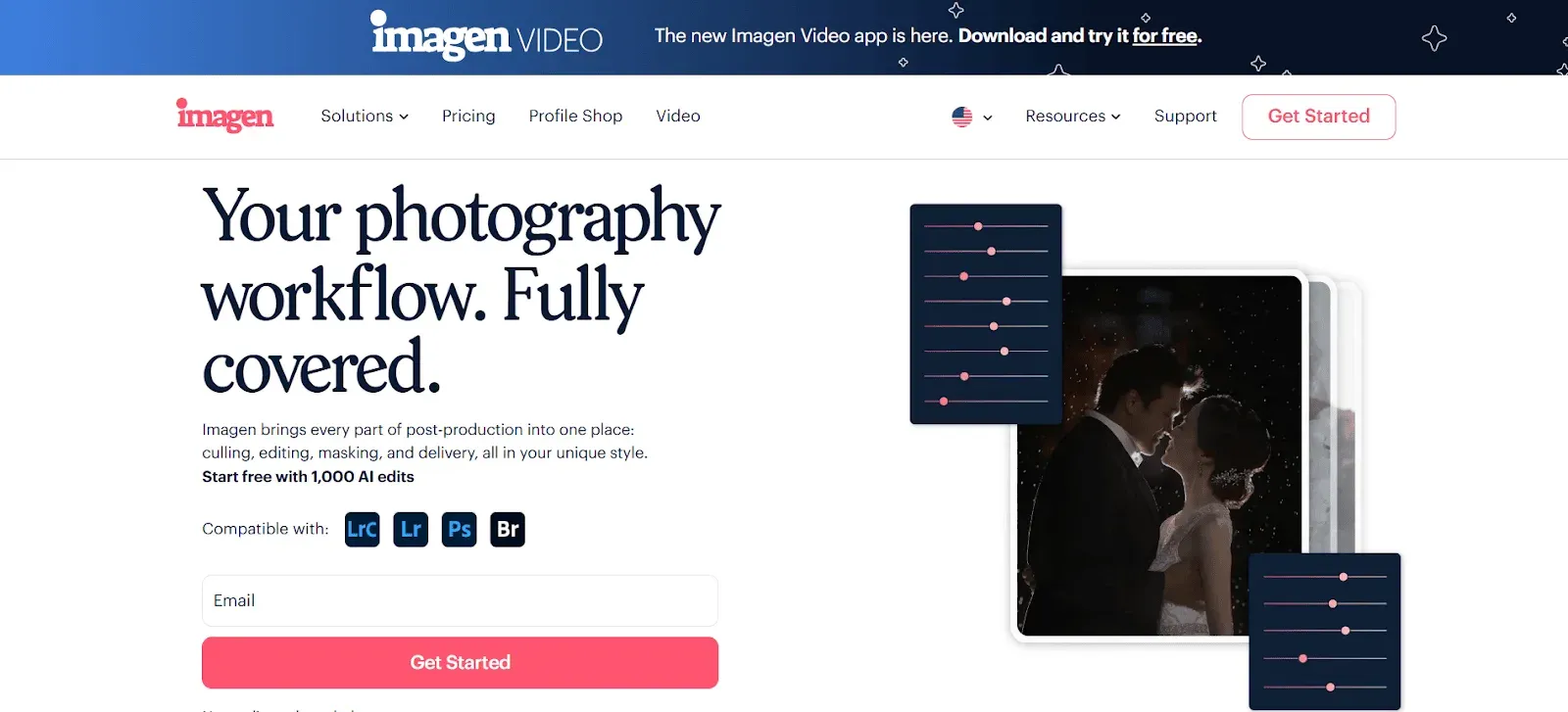
The Imagen Culling Solution
Imagen approaches photo selection with AI culling inside its Studio project. This isn’t just a filter. It is a smart assistant that reviews your photos with a “human” eye.
The primary capability you need to understand is how Imagen handles the selection process. It uses a “Cull In” method. This means the AI looks for the best photos to keep rather than just looking for bad photos to reject. This distinction is important. It mimics how we naturally select our favorite shots.
Imagen offers sophisticated features to handle this:
- Face Recognition: It detects subjects and checks for sharpness on eyes and faces.
- Expression Analysis: It identifies blinks and closed eyes but is smart enough to recognize a “kiss” as a positive interaction, not a mistake.
- Duplicate Detection: It groups similar images and picks the strongest composition from the set.
Cull to Exact Number
One specific capability that stands out is “Cull to Exact Number.” This addresses a very common pain point for wedding and event photographers. Sometimes you promise a client exactly 800 photos. Or maybe you need to reduce a 5,000-image shoot to a manageable 10% for the initial gallery.
With Imagen, you set a specific count or a percentage. The AI then evaluates the entire catalog and selects the best statistical matches to hit that target. You stay in control, but the math is done for you. This is crucial for high-volume shoots where you need precision without the mental load of counting frames.
Reviewing with Edited Previews
Another unique aspect of Imagen is the ability to Cull Edited Previews. Typically, culling software shows you the raw file. It can look flat and uninspiring. Imagen allows you to see your photos with your Personal AI Profile applied during the culling phase. Because edited photos arrive in batches as they process, you can start reviewing early frames while the rest finish.
You see the final potential of the image before you even select it. This changes how you make decisions. A dark, moody shot might look unusable in Raw, but with your profile applied, you can see it is a keeper. This integration streamlines the decision-making process significantly.
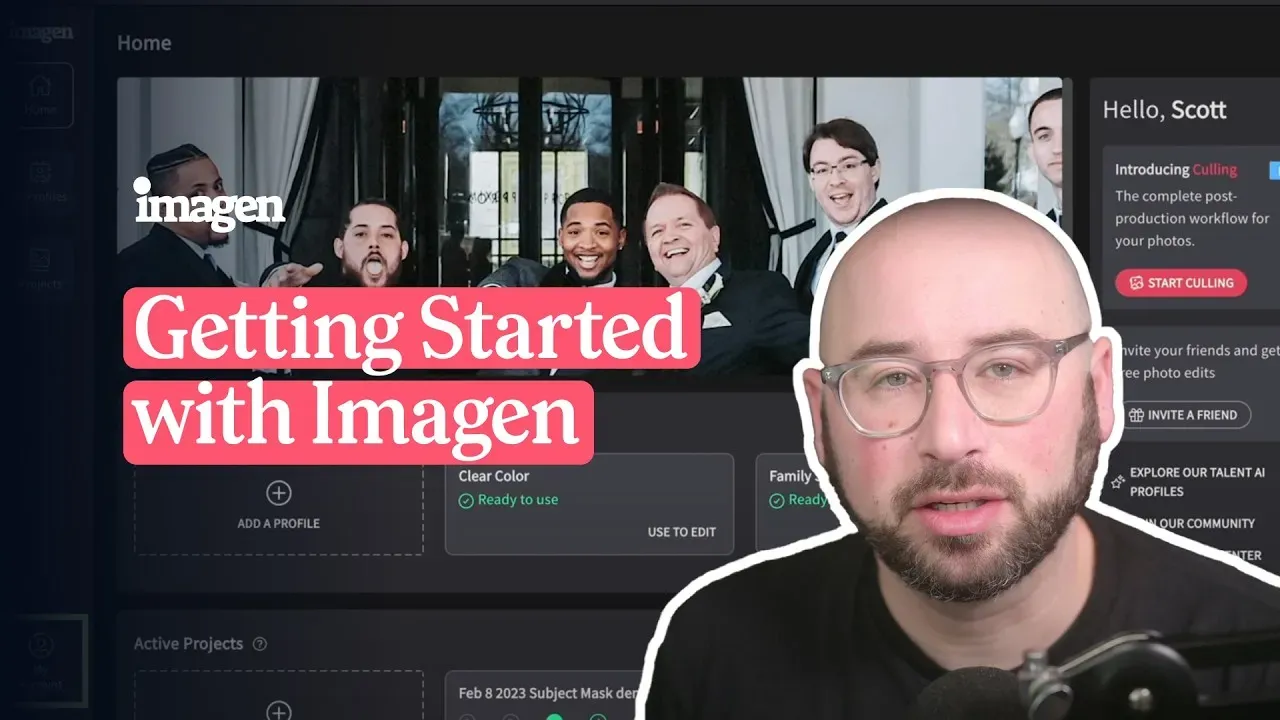
The Broader Imagen Platform
Once we understand the culling capability, we can see how it fits into the bigger picture. Imagen is a comprehensive AI photo editing and culling platform built for your photography business. It is not just a culling tool. It is an ecosystem, and culling, editing, review and export live in one project, so you can move between them in any order.
You can use the culling features as a standalone solution if you prefer. However, the real power comes from the integration. You cull your project in the desktop app. You review the results. Then, with a single click, you send those selected photos to be edited by your Personal AI Profile.
While the AI edits your photos in the cloud, keep your own backup running. Cloud Storage backup is on Imagen’s roadmap and not available yet. Finally, you can export from Imagen or send the results to Lightroom Classic, then deliver to your clients as usual.
This end-to-end workflow means you do not need five different subscriptions. You do not need to move files between three different apps. You cull, edit, review, and export from one project. This creates a level of efficiency that standalone tools struggle to match.
2. Aftershoot
Aftershoot is a desktop application that focuses on local processing. It runs entirely on your computer hardware. This approach aims to eliminate the need for an internet connection during the selection process.
Technical Functionality
Aftershoot uses local AI algorithms to analyze raw files. It imports images and generates previews using your computer’s CPU and GPU. The software categorizes images into groups based on visual similarity.
The interface presents users with automated selections. It marks images with colors or star ratings based on thresholds you set. You can adjust the sensitivity of the AI. For example, you can tell the software to be “Strict” or “Lenient” regarding blur detection.
Workflow Specifics
The software separates images into “Selected,” “Sneak Peeks,” and “Rejects.” It detects closed eyes and open mouths. It also has a feature to identify key faces, which allows you to prioritize specific people in a group shot. Once the selection is complete, you must export the metadata to an external catalog like Lightroom or Capture One to continue your workflow. It does not include built-in cloud storage or gallery delivery features as part of the core culling loop.
3. FilterPixel
FilterPixel is another contender in the AI culling space. It operates primarily as a cloud-based decision engine but has desktop components for file handling.
Core Features
The software emphasizes “Survey Mode” and “Comparison Mode.” These views allow users to see multiple similar images side-by-side. The AI suggests the best image from the series. It highlights focus points and zooms in on faces automatically when you hover over them.
FilterPixel supports standard Raw formats and Jpegs. It provides a specific “Magic Number” feature where you can input a desired number of final images. The software then attempts to narrow down the selection to meet this count.
Integration
FilterPixel creates XMP sidecar files. These files carry the ratings and color labels into other editing software. The user must synchronize these files manually or through a folder refresh in their editor. It is a specialized tool that focuses strictly on the selection and culling phase of post-production.
4. Narrative Select
Narrative Select is a tool built specifically for macOS users. It is known for its speed in rendering Raw files. It focuses heavily on the “ingest” and “view” stages of the workflow.
Performance and Speed
Narrative Select uses a proprietary rendering engine. This allows it to display high-resolution Raw files very quickly without generating large preview caches beforehand. This creates a snappy experience for users who want to start culling immediately after a shoot.
AI Assessments
The tool provides “Focus Scores” and “Eye Assessments.” It places a small indicator on subjects’ faces to show sharpness. It uses a traffic light system (green, yellow, red) to warn you about focus issues or closed eyes. It groups scenes together but leaves the final decision largely to the user, acting more as an assistant than a fully automated manager. It integrates with Lightroom by shipping selected images directly to the active catalog.
5. Optyx
Optyx is a culling tool that aims to simplify the “keepers” versus “rejects” process. It uses automated grouping logic to clean up timelines.
Grouping and Analysis
Optyx analyzes time-stamps and visual content to stack similar images. It assigns a score to each image based on technical criteria like exposure and sharpness. It has a specific “Auto-Cull” button that applies a predetermined set of rules to the entire batch.
User Interface
The interface is minimalist. It presents the photo stream and allows you to toggle the AI’s suggestions on or off. It supports local file management and allows you to move files into separate folders on your hard drive based on their rating. It does not offer cloud backups or editing features within the same application window.
6. PhotoRefine.ai
PhotoRefine.ai is a Windows and Mac application that focuses on privacy and local speed. It positions itself as a secure option for photographers who are sensitive about cloud uploads.
Local Processing
The software performs all analysis on the local machine. It does not upload thumbnails or image data to external servers for processing. This requires a stronger local computer but ensures that images remain offline.
Selection Criteria
It uses deep learning to categorize images. It has sliders for “Sharpness,” “Exposure,” and “Composition.” Users can toggle these sliders to filter out images that do not meet technical standards. The output is a filtered list of images that can be dragged and dropped into other applications.
7. Canon Photo Culling App
Canon released a dedicated application for photo culling. This tool is built on Canon’s computer vision technology.
Technical Overview
The app is compatible with iOS and some desktop environments. It uses four specific models for scoring: Sharpness, Noise, Emotion, and Closed Eyes. It is designed primarily for Canon raw files but supports other standard formats.
Usage Context
This tool is often used by enthusiasts or photographers who want a quick way to sort images on a tablet or mobile device before moving to a desktop. It is less of a workflow hub and more of a utility for quick sorting. It provides a “Similar Image Grouping” feature that suggests the best photo from a burst.
8. Lightroom Classic (AI Features)
Adobe Lightroom Classic has integrated AI features that assist with selection, though it is primarily an editor and asset manager.
People View and Sensei
Adobe’s AI, known as Sensei, powers the “People” view. This sorts the entire catalog by face. While this is not “culling” in the traditional sense of rejecting bad photos, it is a selection tool for finding specific subjects.
Best Photos Feature
In the web-based Lightroom ecosystem (and increasingly in Classic), there are “Best Photos” features. These analyze technical quality to suggest picks. However, within the Classic desktop workflow, this is often a manual process supported by “Compare” and “Survey” views rather than a fully automated AI cull. It relies on the user to make the final call using the “X” (Reject) and “P” (Pick) flags.
9. Capture One
Capture One is a professional tethering and editing tool that has introduced culling capabilities.
Culling Importer
Capture One offers a “Culling Importer” window. This allows photographers to group and rate images before they are fully imported into the catalog. This saves disk space and preview generation time.
Grouping Functionality
The software groups similar images automatically during this import phase. It allows you to zoom to 100% instantly to check focus. While it lacks the “auto-reject” AI of dedicated tools, its face-focus capabilities during import speed up the manual selection process significantly.
10. Photo Mechanic Plus
Photo Mechanic is the industry standard for speed in manual culling. While it is not an “AI” tool in the same sense as Imagen, it competes directly in this space and has integrated basic automated features in recent versions.
Ingest and Preview
The core strength of Photo Mechanic is “Ingest.” It copies files from memory cards faster than any other tool. It uses the embedded JPEG preview from the Raw file, meaning there is zero rendering time.
Selection Workflow
Photographers use this tool for its “Code Replacement” and metadata features. It does not typically make decisions for you (like detecting a smile), but it facilitates the fastest possible manual decisions. It is the benchmark against which all AI tools measure their speed.
Criteria for Choosing the Best AI Photo Selection Tool
Choosing the right software for your business is a strategic decision. You must weigh several factors to ensure the tool fits your specific workflow.
1. Speed and Performance
Time is your most valuable asset. You need a tool that can ingest thousands of images instantly. Look for software that renders previews without lag.
- Local vs. Cloud: Local tools use your computer’s power. If you have a powerful machine, they are fast. If you have an older laptop, cloud-processing tools like Imagen effectively offload that work, keeping your computer fast.
2. Accuracy of Facial Recognition
The AI must distinguish between a bride looking down (emotion) and a bride blinking (mistake). High-quality AI checks focus on the eyelashes, not just the general face area.
- Group Shots: The tool must handle group portraits effectively. It should identify if one person out of ten is blinking.
3. Workflow Integration
A culling tool cannot be an island. It must talk to your editor.
- Seamless Handoff: Does the tool ship ratings to Lightroom effortlessly?
- One-Platform Advantage: Tools like Imagen that combine culling and editing in one interface save you the step of exporting metadata and reloading catalogs.
4. Customization and Control
You are the artist. The AI is the assistant. You need control over the parameters.
- Strictness: Can you tell the AI to be lenient on soft focus for artistic shots?
- Target Counts: Features like “Cull to Exact Number” are essential for meeting strict client deliverables.
5. Cost and Value
Consider the pricing model. Some tools charge a monthly subscription. Others charge per image.
- ROI: Calculate the hours saved. If a tool saves you 5 hours a week, the monthly cost is negligible compared to your hourly rate.
Guide to Implementing AI Selection in Your Workflow
Implementing a new AI tool requires a shift in mindset. You are moving from a “doer” to a “reviewer.” Here is how to successfully integrate AI photo selection into your 2026 workflow.
Step 1: Ingest and Backup
Always start by copying your cards to your hard drive. Never cull directly from the SD card.
- Tip: Use a backup that copies your Raw files to the cloud while you cull. Imagen’s Cloud Storage backup is on the roadmap and not available yet, so use your usual cloud service to create a safety net the moment you start working.
Step 2: Define Your Parameters
Before you run the AI, set your rules.
- Grouping: Decide how aggressively you want the software to group duplicates. For weddings, you might want broad groups. For sports, you might need tight groups.
- Priorities: Tell the AI what matters. Is sharpness king? Or is expression more important?
Step 3: The AI Pass
Run the automated culling. Step away from the computer. Let the software do the heavy lifting.
- Mental Break: Use this time to answer emails or stretch. This breaks the cycle of constant screen time.
Step 4: The Human Review
This is the most critical step. Do not blindly trust the AI.
- Review the “Rejects”: Quickly scan the rejection pile. Sometimes the AI marks a motion-blurred artistic shot as “bad.” You need to rescue those gems.
- Refine the “Picks”: Look at the selected images. Use “Survey Mode” to compare the AI’s choice with the alternatives.
Step 5: Transition to Edit
Move your selected images to the editing phase.
- Efficiency Hack: If you use Imagen, this is one click. The photos are already in the system. You simply apply your Personal AI Profile to the culled selection.
- Visual Consistency: Reviewing your cull with the edit already applied helps you visualize the final gallery.
Step 6: Delivery
Once edited, export your Jpegs.
- Final Count: Ensure your final export meets the number promised in your contract.
Step 7: Archive
Move your project to long-term storage.
- Cloud Archive: Ensure your high-resolution files are stored off-site. Integrated platforms handle this retention automatically, reducing the risk of hard drive failure.
What’s new in Imagen: Imagen is now an intelligent, agentic Studio for professional photographers, rolling out gradually. Selection is part of one project where you cull, edit, review and export in any order, and the assistant can find photos by what is in them and act on them while you steer. Use AI culling, or skip it and cull manually for free. Take a look at Imagen.
Frequently Asked Questions (FAQ)
1. Will AI culling delete my photos?
No. AI photo selection tools generally work on a “non-destructive” basis. They mark files as “Rejected” (usually with a specific color label or flag) or hide them from view. They do not delete the actual Raw file from your hard drive unless you explicitly choose a “Delete from Disk” option after the review process is complete.
2. Do I need a powerful computer for AI selection?
It depends on the software. Tools that process locally (like Aftershoot) rely heavily on your GPU and CPU. If your computer is older, this will be slow. Tools that use cloud processing (like Imagen) offload the heavy analysis to a server. This means you can cull efficiently even on a laptop with lower specifications.
3. Can AI detect artistic blur versus bad focus?
AI is trained on general photography standards which prioritize sharpness. It often flags intentional motion blur as a “defect.” However, most advanced tools allow you to adjust the “strictness” of the focus filter. You should always review the “Rejects” folder to rescue intentional artistic shots.
4. How does “Cull to Exact Number” work?
This feature allows you to input a target (e.g., “500 photos”). The AI scores every image in the catalog based on quality, composition, and expression. It then ranks them and selects the top 500 images that represent the best of the shoot. It handles the math of cutting down a 3,000-image wedding to the required deliverable.
5. Does Imagen support Raw files?
Yes. Imagen supports all major Raw formats (CR3, NEF, ARW, etc.) as well as JPEG and TIFF files. It is designed to handle the high-resolution data capture from professional cameras.
6. What is the difference between “Culling In” and “Culling Out”?
“Culling Out” is the traditional method of looking for bad photos to reject (negative selection). “Culling In” is the method of looking for the best photos to keep (positive selection). Imagen uses “Culling In” because it is generally faster and puts the photographer in a more positive mindset, focusing on the quality of the portfolio rather than the flaws.
7. Can I use these tools for video culling?
Most AI photo selection tools are strictly for still images. They analyze single frames. However, some platforms are beginning to introduce video support. Currently, Imagen supports video editing but the AI selection tools discussed here are primarily for photography workflows.
8. Is my data safe with cloud-based culling?
Yes. Reputable platforms like Imagen use enterprise-grade security. Images are transferred via encrypted connections (HTTPS/TLS). The photos are stored on secure servers (like AWS) and are only accessed by the AI for processing. You retain full copyright and ownership of your images.
9. Can I cull without an internet connection?
With local-processing tools, yes. With cloud-based tools like Imagen, you need an internet connection to upload the project data and receive the AI analysis. However, once the data is downloaded, the actual review process in the application is often smooth and does not require constant heavy bandwidth.
10. How much time does AI selection actually save?
Photographers report saving between 50% to 70% of their culling time. A manual cull of 4,000 wedding images might take 4-6 hours. With AI assisting the grouping and initial selection, this can be reduced to 1-2 hours of review time.
11. Does AI culling work for sports photography?
Yes. Sports photography involves high burst rates (many similar frames in a second). AI tools are excellent at grouping these bursts and identifying the single frame where the ball is in the frame or the athlete’s face is sharpest. This is one of the best use cases for automated grouping.
12. Can I use Imagen if I don’t use Lightroom?
Imagen is designed to work alongside Adobe Lightroom Classic. However, it also supports workflows involving Adobe Bridge and Photoshop (via Adobe Camera Raw). You can also export finished JPG, TIFF, or PNG files straight from Imagen and make manual adjustments in its built-in editor, which is in Beta. The metadata it generates (XMP files) is industry standard and can theoretically be read by other software, but the integration is tightest with the Adobe ecosystem.
13. What happens if I disagree with the AI’s choice?
You are always the final editor. AI tools provide a “suggestion.” You can easily swap the AI’s “Pick” for another image in the group. You can change ratings and color labels with a single keystroke. The goal is to get you 90% of the way there, leaving you to make the final subjective artistic decisions.
