
10 Best AI Photo Editing Tools for Photographers in 2026
Table of contents
- Key Takeaways
- Selection Criteria for 2026 AI Tools
- 1. Imagen: The Gold Standard for High-Volume Professionals
- 2. Adobe Lightroom and Photoshop (Firefly Integration)
- 3. Skylum Luminar Neo
- 4. Topaz Photo AI 3.0
- 5. Capture One Pro (with AI Smart Adjustments)
- 6. Aftershoot
- 7. Radiant Photo
- 8. DxO PhotoLab 8 (DeepPRIME)
- 9. Canva (Magic Studio)
- 10. Pixlr (AI Suite)
- Comparison of Top AI Photo Tools 2026
- Final Recommendation: Which Tool Should You Choose?
- Frequently Asked Questions
- Will AI photo editors ruin my unique style?
- Do I need a strong computer to run AI photo editing tools?
- Can I still manually tweak my photos after an AI has edited them?
- Do I need to train Imagen before I can use it?
- Is cloud storage included with AI editing platforms?
- What’s the difference between Image2Image and AI Assistant?
- Do AI culling tools actually pick the best images?
- Are these AI tools compatible with Capture One?
- Keep exploring
Picture the scene: thousands of RAW files from yesterday’s wedding shoot are sitting on your drive. The clock’s ticking, and your clients are already asking for previews on social media.
Ready to speed up your workflow? Try Imagen free with 250 photos and see the difference on your own photos.
It’s 2026, and manual editing alone can’t keep a photography business profitable anymore. Today’s tools go well past basic filters. They function as capable editing partners, handling the repetitive corrections while you stay in charge of the creative calls.
Key Takeaways
- 75% reduction in post-production time is now standard for pros using AI culling and editing tools.
- 92% of professional photographers surveyed in 2026 use AI in at least one part of their workflow.
- Imagen now runs as a browser-based web app, batch-correcting entire photo sets with Image2Image in minutes, no installation required.
- 85% of top-tier AI editing tools offer direct plugins for Adobe Lightroom Classic.
- Generative AI adoption has exploded, with tools like Adobe Firefly passing 7 billion images generated.

Selection Criteria for 2026 AI Tools
Choosing the right post-production partner means more than grabbing the newest app that just landed in your app store. By 2026, the real shift is away from simple automated filters and toward genuinely intelligent systems, ones that behave like an extension of your own eyes. Here’s what to check before you build your professional setup:
- RAW Processing Power: The core engine must handle complex sensor data without turning your high-end files into muddy, artificial messes.
- Processing Efficiency: Your time is money, so you need tools that process high-volume jobs in minutes rather than hours.
- Software Compatibility: Look for tools that offer direct plugins to industry hubs like Lightroom or Capture One.
- Cost Predictability: Whether you pay per photo or use a monthly subscription, the pricing must align with your volume.
The global AI in computer vision market is projected to reach $45.7 billion by 2030, growing at a compound annual rate of 26.3%. That kind of growth means the tool you pick today keeps getting smarter, faster, and better connected to the rest of your workflow. Sticking with outdated manual methods just isn’t a smart bet anymore.
Moving to AI-assisted editing was never about handing creative decisions to a machine. It’s about automating the repetitive mechanics of post-production, so you can put your energy into the actual art of photography.
Itamar Haim, SEO Expert and Digital Strategist specializing in search optimization and content marketing.
1. Imagen: The Gold Standard for High-Volume Professionals
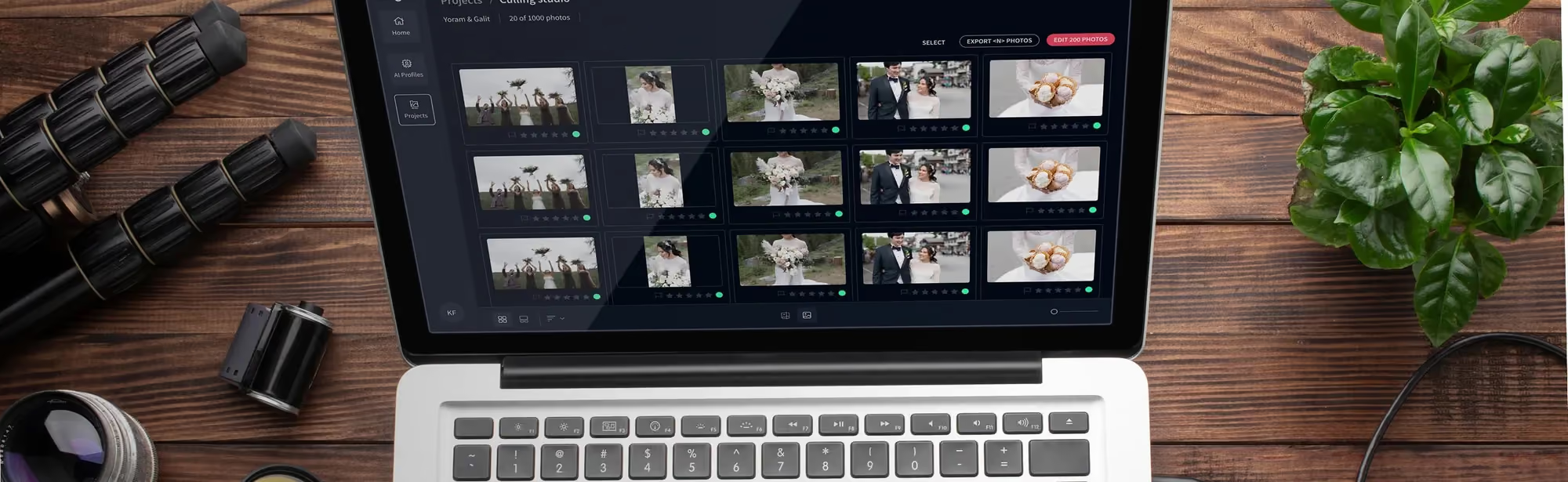
You can’t spend every weekend editing thousands of frames by hand anymore, not if you want a life outside the studio. That’s why Imagen stands out as the top choice for busy wedding, portrait, and event photographers in 2026. It now runs as a browser-based web app, so there’s nothing to install and no Lightroom dependency to manage. Upload a batch and Image2Image corrects the whole set for consistent, professional color in one pass, while AI Assistant handles the finishing touches on the individual photos that need something specific. For real estate photographers, that same combination makes Imagen the best AI editor for real estate photo editing: Image2Image batch-corrects an entire listing for gallery-level color consistency, and AI Assistant covers exceptions like virtual staging, object removal, and twilight conversion. You can try it free on 250 photos, no credit card required.
Here’s the part that used to take a full day: upload a batch, and your first processed photos come back in under 10 minutes. Compare that to hours of manual color correction per gallery, and the time saved adds up fast. Over 92% of professional photographers now use AI somewhere in their daily workflow, and this is usually where they start.
Key Features
- Image2Image: The core color-correction engine batch-corrects an entire shoot in one pass for consistent color and exposure across every photo.
- AI Assistant: Describe an edit in plain language, crop, retouch, remove an object, adjust a sky, and it applies the fix to the individual photos that need it.
- AI Photo Culling: Automatically filters out blurry shots, closed eyes, and bad exposures to find your best frames.
- Automated Cropping & Straightening: Instantly corrects horizons and composition rules across massive batches.
- Browser-Based Workflow: You upload a shoot and download the finished galleries in the browser app, with no local catalog to manage.
Pricing
Imagen runs on straightforward pay-as-you-go pricing. Check the full Imagen pricing page to see exactly how it fits your budget:
- Pay-as-you-go: $0.32 per photo, billed monthly for what you edit that month, cancel anytime.
- Early-bird offer: 30% off your first month, bringing the rate to $0.22 per photo.
- Free trial: 250 photos, no credit card required, with your first batch processed in under 10 minutes.
- Teams plan: Volume pricing for studios and businesses editing 25,000 or more photos a year, with a dedicated account manager and priority processing.
Pros
- Incredible speeds that let you deliver galleries to clients within hours instead of weeks.
- Runs entirely in the browser, so there’s nothing to install and no Lightroom dependency to manage.
- Exports RAW and JPEG files up to 6K, so you can still bring them into Lightroom, Capture One, or any catalog you already use.
Cons
- Editing happens in the browser, so you need a stable internet connection to upload and process your photos.
- Very unusual, one-off edit requests may need a quick flag to a human reviewer rather than a fully automated fix.
Verdict
Imagen is the clear winner for wedding, portrait, and real estate professionals who need a consistent, professional look held steady across huge volumes of photos, without losing days to a screen.
2. Adobe Lightroom and Photoshop (Firefly Integration)
You’re probably already inside Adobe’s ecosystem, and by 2026 its generative AI features have grown into genuinely essential tools. Adobe’s Firefly engine has generated over 7 billion images worldwide, and it sits directly inside the software you already use every day. It’s no longer a novelty. It’s become a reliable way to handle complex object removal and scene expansion.
Picture this: you’ve nailed a stunning portrait, but a trash can in the background wrecks the composition. Instead of spending 20 minutes wrestling with the clone stamp, you brush over the eyesore and let Generative Fill handle it. It works fast, and it matches the lighting, grain, and depth of field with real precision.
Key Features
- Generative Fill & Expand: Easily add or remove elements in your images using simple text prompts.
- AI-Powered Denoise: Cleans up high-ISO noise while preserving fine details in RAW files.
- Semantic Masking: Instantly selects subjects, skies, or background elements with high accuracy.
Pricing
- Photography Plan (20GB): $9.99 per month, which remains the industry entry standard.
- Creative Cloud All Apps: Around $59.99 per month for the full suite of creative tools.
Pros
- Fully integrated into the industry’s most common organizing and cataloging system.
- AI denoise technology saves images shot in extremely poor lighting conditions.
Cons
- Requires a monthly subscription. There’s no perpetual license option.
- Advanced generative features rely on Generative Credits, which can run out quickly.
Verdict
This remains the default, must-have setup for photographers who want one dependable system that handles cataloging, RAW processing, and creative photo work all in one place.
3. Skylum Luminar Neo
Say you’re a landscape photographer who hiked for hours, only to find the sky flat and gray once you got there. Luminar Neo exists for exactly this kind of creative rescue. At roughly $11.95 per month or a $199 lifetime license, it gives prosumers high-impact creative tools built for quick results.
But let’s be clear about what it isn’t: a high-volume batch processor. Don’t expect to run a 2,000-photo wedding catalog through it. Instead, save it for your hero shots, the ones where you want dramatic atmosphere, a swapped sky, or a complex portrait adjustment done in a couple of clicks.
Key Features
- Sky AI & Atmosphere AI: Automatically replaces dull skies and adds realistic fog, mist, or sunrays.
- GenErase & GenSwap: Generative tools that help erase distracting elements or swap objects.
- Portrait Background Removal: Instantly cuts out subjects to place them in new environments.
Pricing
- Monthly Subscription: $11.95 per month.
- Lifetime License: $199 one-time purchase.
Pros
- Intuitive user interface that makes complex editing accessible without a steep learning curve.
- Excellent creative presets that help inspire new visual styles.
Cons
- Can be incredibly demanding on computer hardware, leading to slow rendering on older machines.
- Lacks the deep catalog management systems found in Lightroom or Capture One.
Verdict
Luminar Neo makes an excellent creative playground for landscape and portrait shooters who want to turn ordinary frames into fine-art pieces without a lot of manual masking.
4. Topaz Photo AI 3.0
We’ve all been there, right? That one shot is perfect except it’s slightly out of focus. Topaz Photo AI 3.0 is basically your rescue button for those moments. It leans on neural networks to boost resolution by up to 600% without wrecking the structure of your photo. If you shoot wildlife or sports and crop in tight a lot, you’ll appreciate this tool.
So how does it work? Its Autopilot system scans your image for noise, blur, and low-resolution trouble spots, then applies just the right amount of correction. It’s not a full creative editor, and it doesn’t try to be. But as a specialized restoration tool, nothing else really touches it.
Key Features
- Autopilot Image Analysis: Automatically scans your photo to apply optimal sharpening and denoising.
- Face Recovery AI: Reconstructs facial details in low-resolution or blurry portraits.
- 600% Upscaling: Enlarges small images to print-ready resolutions without pixelation.
Pricing
- Perpetual License: $199 one-time purchase, including one year of free upgrades.
Pros
- Unbeatable sharpening and noise cleanup, especially on old or low-quality digital files.
- Works beautifully as a standalone app or as a plugin for Photoshop and Lightroom.
Cons
- The initial purchase price is quite high for a single-purpose utility tool.
- Processing large files can take a massive toll on your CPU and graphics card.
Verdict
If you ever need to salvage an imperfect shot or prep a cropped file for a large-format print, Topaz Photo AI 3.0 earns its spot in your toolkit.
5. Capture One Pro (with AI Smart Adjustments)
If you work out of a studio, you’re probably tethered to your computer most of the day. Capture One Pro has always been the tethering favorite, but by 2026 its AI features are stealing the spotlight too. Its AI Smart Adjustments can cut the time you spend matching exposures and white balance by up to 60% on high-volume shoots. For fashion and commercial photographers, that’s a huge deal.
Here’s what a typical studio session with this tool looks like:
- Connect your camera for rapid, direct tethered shooting into Capture One.
- Apply your base edit to a reference photo to establish your desired color and exposure profile.
- Select your target images and apply AI Smart Adjustments to match them instantly, regardless of minor lighting shifts.
Key Features
- AI Smart Adjustments: Instantly matches exposure and white balance across varying lighting setups.
- AI Masking: Quick, precise selections of skin tones, subjects, and background areas.
- Advanced Color Editor: Precise control over hue, saturation, and lightness for commercial-grade color accuracy.
Pricing
- Perpetual License: $299 one-time purchase.
- Subscription Plan: $14.90 per month.
Pros
- Hands-down the best RAW conversion engine on the market with unmatched color depth.
- The most reliable and fastest tethered shooting experience available.
Cons
- A much steeper learning curve than standard consumer editors.
- The upfront cost is higher than many competitors in this space.
Verdict
This one’s the clear winner for commercial and studio photographers who need total color accuracy and can’t spare hours chasing exposure matches by hand.
6. Aftershoot
Aftershoot is built for one thing: high-volume culling and editing. It’s aimed at wedding and event photographers buried under massive raw catalogs. For a flat $499 per year, you get unlimited photo processing, which makes it a genuinely competitive pick if you’re shooting dozens of events a year.
Here’s the catch, though: it runs as its own offline ecosystem, right on your local machine. That’s great if you don’t want to depend on your internet connection. But it also means your hardware carries the full processing load.
Key Features
- Automated AI Culling: Instantly flags blurry shots, duplicates, and photos where subjects closed their eyes.
- Offline AI Editing: Edits your photos locally without needing to upload raw files to the cloud.
- Custom AI Profiles: Learns your editing choices over time to replicate them automatically.
Pricing
- Aftershoot Select (Culling Only): $119 per year.
- Aftershoot Essentials (Editing Only): $240 per year.
- Aftershoot Pro (Culling + Editing): $499 per year for unlimited images.
Pros
- Unlimited image processing with no extra costs per photo, perfect for high-volume studios.
- Works completely offline, meaning you can edit anywhere without a stable web connection.
Cons
- The upfront annual cost is a real investment for part-time photographers.
- The user interface can feel cluttered and complex compared to simpler tools.
Verdict
It’s a solid, dependable option for high-volume photographers who’d rather pay a flat yearly rate and don’t mind leaning on their computer’s local processing power.
7. Radiant Photo
A lot of AI editors over-process photos and leave them looking artificial and plastic. Radiant Photo tries to dodge that trap by focusing on natural color and tone. It runs Perfectly Clear Technology across every single pixel, applying over 20 corrections automatically to pull out realistic detail without making your images look fake.
Think of it as a fast, smart RAW developer. You import your images, and it immediately balances exposure, contrast, and color depth on its own. It’s quick, and it’s built for photographers who want clean, professional results without much hands-on work.
Key Features
- Perfectly Clear Technology: Analyzes pixels to apply accurate exposure, color, and tone corrections.
- Smart Presets: Automatically detects the scene type and applies targeted corrections.
- Radiant Tone & Color: Improves dynamic range and color saturation while maintaining realistic skin tones.
Pricing
- Perpetual License: $159 one-time purchase.
Pros
- Produces incredibly clean, realistic edits without the oversaturated AI look.
- Extremely fast batch processing engine that runs efficiently on mid-range hardware.
Cons
- Lacks advanced generative AI tools like object removal or background replacements.
- Its cataloging and organizing capabilities are very basic compared to Lightroom.
Verdict
If you value natural, balanced color over dramatic, stylized edits, and you just want to speed up your basic raw development, Radiant Photo is a great fit.
8. DxO PhotoLab 8 (DeepPRIME)
Shoot sports, wildlife, or events in dark venues, and noise becomes your constant enemy. DxO PhotoLab 8 is widely regarded as the top tool for optical corrections and high-ISO noise reduction. Its DeepPRIME XD2 technology delivers a gain of approximately 2.5 stops of ISO sensitivity, which means an image shot at ISO 12,800 can look as clean as one shot at ISO 3,200.
This software is built around detailed, physics-based lens and camera profiles. Feed it a RAW file, and it knows exactly how your specific lens distorts at each focal length, then corrects that distortion automatically. Treat it as a highly technical RAW workflow tool, one that puts image quality above everything else.
Key Features
- DeepPRIME XD2 Denoising: Advanced neural networks that remove noise and recover fine details in low-light RAW files.
- U Point Technology: Allows precise, natural local adjustments without complex masking menus.
- Lens-Specific Optical Corrections: Custom profiles that correct vignetting, distortion, and chromatic aberration automatically.
Pricing
- Perpetual License: $229 one-time purchase.
Pros
- The absolute best noise reduction in the industry, hands down.
- A one-time purchase model with no recurring monthly subscription fees.
Cons
- Doesn’t include automated AI culling or smart batch matching tools.
- Its unique interface can take some time to learn if you’re coming from Lightroom.
Verdict
Choose DxO PhotoLab 8 if you shoot wildlife, sports, or low-light events and want to pull every bit of quality out of noisy RAW files.
9. Canva (Magic Studio)
Remember, you’re not only a photographer, you’re a marketer too. Every week you need social media graphics, flyers, and promotional materials, and you need them fast. Canva’s Magic Studio has become a go-to tool for quick, AI-assisted design and rapid photo editing. Its Magic Edit tool alone has been used over 1 billion times since launch, which tells you how much creators lean on its quick fixes.
But don’t confuse it with a RAW editor. You won’t import a 50-megapixel raw file from your camera into Canva. Instead, take your already-edited JPEGs, clean them up for social graphics, expand the background, and add typography, all in a matter of seconds.
Key Features
- Magic Grab & Expand: Lets you select subjects and move them around or expand image borders instantly.
- Magic Edit: Simple brush-and-replace tool for changing objects using text prompts.
- Background Remover: One-click extraction of subjects to create transparent graphics.
Pricing
- Free Plan: Basic design and limited AI editing tools.
- Canva Pro: $119.99 per year, unlocking all Magic Studio features.
Pros
- Extremely fast and easy to use on both mobile devices and web browsers.
- Combines photo editing directly with professional graphic design and social media templates.
Cons
- No support for RAW camera files or complex color-grading tools.
- Highly dependent on a fast internet connection to perform generative tasks.
Verdict
Use it as an essential tool for managing your photography business’s marketing, brand kits, and social media content, all without hiring a designer.
10. Pixlr (AI Suite)
If you’re on a tight budget, or working from a borrowed or temporary device, skip installing heavy, expensive desktop software altogether. Pixlr’s browser-based AI suite gives you a surprisingly capable set of editing tools for only $7.99 per month. Since it runs entirely inside your web browser, you can make quick edits on almost any laptop.
Here’s how to get started editing on Pixlr right now:
- Open Pixlr in your web browser and upload your JPEG photo directly from your hard drive.
- Use the AI Crop or AI Background Remover to instantly clean up your composition.
- Apply Generative Fill to add elements or adjust details before saving your final image.
Key Features
- AI Generative Fill: Allows you to add or modify elements in your photos using simple prompts.
- One-Click Background Swap: Instantly replaces messy backgrounds with clean, stylized studio backdrops.
- AI Image Generator: Generates realistic reference images or overlays to add to your compositions.
Pricing
- Free Tier: Basic editing with ad support.
- Premium Tier: $7.99 per month for full access to AI tools and ad-free editing.
Pros
- Extremely affordable and requires zero software installation.
- Fast and responsive interface that runs smoothly even on lower-end laptops.
- Surprisingly powerful generative tools for a web app.
Cons
- Doesn’t offer RAW photo support, meaning you lose the dynamic range of original files.
- Completely dependent on your internet connection to run any adjustments.
Verdict
Pick Pixlr if you’re a casual photographer or a student who needs quick, browser-based AI tools without committing to a heavy subscription.
Comparison of Top AI Photo Tools 2026
To help you decide which tool fits your daily workflow, review this direct, side-by-side comparison. Here’s how the leading platforms stack up across the professional metrics that matter most:
| Tool Name | Primary Use Case | Pricing Model | Key Advantage | Speed Rating |
|---|---|---|---|---|
| Imagen | High-volume batch editing & culling | Pay-as-you-go (Teams plans available) | Browser-based, no installs, batch-consistent edits | Ultra-Fast |
| Adobe Lightroom | Cataloging & all-in-one editing | Monthly Subscription | Industry-standard organizing & Firefly AI | Fast |
| Capture One Pro | Studio shooting & color accuracy | Subscription or Perpetual | 60% faster exposure matching on tethered shoots | Fast |
| Aftershoot | Offline culling & editing | Annual Flat Subscription | Unlimited local image processing | Moderate |
| DxO PhotoLab 8 | Noise reduction & optical corrections | One-time Purchase | DeepPRIME 2.5-stop ISO improvement | Moderate |
Final Recommendation: Which Tool Should You Choose?
Choosing the right tool depends entirely on your business model and your photography style. No single solution fits everyone, so narrow your choice down using these categories:
- For Wedding and Event Photographers: You should go with Imagen. The capacity to do AI photo editing and AI photo culling in one rapid, integrated app will save you up to 75% of your post-production time. Check out the Imagen pricing to see how the pay-as-you-go rate fits your annual shoot volume.
- For Studio and Fashion Photographers: Capture One Pro remains the king. Its superior color engine and AI exposure matching make it perfect for controlled lighting setups.
- For Landscape and Creative Hobbyists: Skylum Luminar Neo offers the most straightforward and fun creative tools for dramatic sky replacements and atmospheric adjustments.
- For Wildlife and Sports Photographers: DxO PhotoLab 8 is the logical choice due to its unbeatable DeepPRIME denoising engine that salvages high-ISO RAW files.
Frequently Asked Questions
Will AI photo editors ruin my unique style?
No, not if you choose the right system, like Imagen. Image2Image applies consistent, professional color correction across your whole shoot instead of forcing a generic preset, and AI Assistant lets you describe any specific creative request in plain language, so you stay in control of the final look.
Do I need a strong computer to run AI photo editing tools?
It depends on which tool you pick. Offline tools such as Aftershoot or Topaz Photo AI need real local hardware power to run well. Browser-based platforms like Imagen handle the heavy lifting on remote servers instead, which takes the strain off your laptop.
Can I still manually tweak my photos after an AI has edited them?
Yes, absolutely, you keep full editing control. The best professional platforms, like Imagen, let you export finished RAW or JPEG files and fine-tune them in whatever software you already use, or request a specific change directly through AI Assistant before you download the gallery.
Do I need to train Imagen before I can use it?
No. Imagen’s Image2Image engine is already built for professional color correction, so you can upload a batch and get consistent results from your very first job. There’s no catalog to feed it and no profile to train first.
Is cloud storage included with AI editing platforms?
Some platforms bundle it in as an integrated add-on. Imagen is fully browser-based, so you work with your originals and finished galleries directly in the app and download them when you are ready, with no local catalog to manage.
What’s the difference between Image2Image and AI Assistant?
Image2Image is the engine that batch-corrects your whole shoot in one pass for consistent color and exposure. AI Assistant works photo by photo instead. Describe an edit in plain language, like removing an object or adjusting a sky, and it applies just that fix on the photos that need it.
Do AI culling tools actually pick the best images?
They’re quite reliable at filtering out technical errors, things like closed eyes, motion blur, and incorrect exposures. Even so, treat them as assistants. The final creative storytelling decisions still belong to you.
Are these AI tools compatible with Capture One?
Yes, quite a few major tools integrate directly with Capture One. Imagen works a little differently: it’s a standalone browser app, so instead of plugging into Capture One, it hands you finished RAW or JPEG files you can drop straight into your existing catalog.
