

7 Best AI Photo Culling Tools for Photographers in 2026
Table of contents
- Key Takeaways
- Selection Criteria: How We Ranked the Best AI Culling Tools
- Imagen: The Gold Standard for Integrated Culling & Editing
- Aftershoot: The Powerhouse of Local Processing
- Narrative Select: The Speed Demon for Mac Users
- FilterPixel: Cross-Platform Intelligence
- Adobe Lightroom (Sensei AI): The Built-in Contender
- CullAi: The Budget-Friendly Perpetual Choice
- Optyx: The Automated Workflow Specialist
- Impossible Things: The Lightroom Power-User Plugin
- Comparison of Top AI Culling Tools 2026
- Final Recommendation: Which Tool Should You Choose?
- Frequently Asked Questions
- Will AI culling tools delete my photos by mistake?
- Do I need a powerful computer to use AI photo culling tools?
- How accurate are these AI tools at detecting closed eyes?
- Can I teach these AI tools my personal preferences?
- Do these tools work on both Mac and Windows systems?
- Is it safe to upload my RAW files to cloud-based culling tools?
- Can I use these tools for landscape or sports photography?
- Keep exploring
You’re drowning in RAW files. Every click of the shutter adds one more image to a backlog that keeps growing until it threatens your sanity, and your weekends along with it.
Ready to speed up your workflow? Try Imagen and explore its new Studio on your own photos.
Manual culling drains your creative energy long before the real editing work even starts, and it’s a genuine time sink for any working photographer. The good news is that modern tools have compressed that multi-hour slog into a quick, automated task, one that fits neatly into a professional workflow.
Key Takeaways
- Time Savings: AI culling shrinks a 3.5 to 5-hour culling marathon down to under 20 minutes.
- Reduced Eye Strain: 88% of photographers who switch to AI culling say they’d never go back to doing it by hand.
- High Accuracy: The top AI algorithms in 2026 hit a 98.5% accuracy rate for spotting blinks and motion blur.
- Local vs. Cloud: Local processing runs 3x faster than cloud-based options when your upload speed sits under 20Mbps.
- Imagen’s Dominance: Imagen builds the most complete ecosystem, pairing high-speed AI culling with highly accurate, personalized editing.
- Pricing Options: Prices span $9.99 per month to $480 per year, so there’s a fit for nearly every budget.
Selection Criteria: How We Ranked the Best AI Culling Tools
The global AI in photography market is projected to reach $4.2 billion by 2026, growing at a CAGR of 18.4% from 2021. With that many new platforms entering the market, finding the right tool means looking past the marketing hype and focusing on real performance instead. A slow tool can’t be allowed to slow your business down.
Professional wedding photographers spend 3.5 to 5 hours, on average, culling a single 3,000-image wedding manually. That’s a recipe for burnout once you’re managing multiple clients at once. So we ranked the tools based on four primary pillars of real-world performance.
- Processing Speed: How quickly the tool renders RAW files and analyzes them, especially when dealing with large 60MB to 85MB files from modern flagship cameras.
- AI Accuracy: The tool’s ability to identify closed eyes, out-of-focus shots, and micro-movements without missing key emotional moments.
- Workflow Integration: How smoothly the tool connects with industry-standard platforms like Adobe Lightroom Classic and Capture One.
- Cost-to-Value Ratio: Whether the pricing structure fits your business model, whether you prefer monthly subscriptions, perpetual licenses, or pay-as-you-go options.
Physical health is another major factor in this equation. In fact, 88% of photographers who switch to AI culling report they’d never return to manual culling, largely due to the reduction in physical eye strain. Let’s look at the best platforms available right now, the ones that can actually help you reclaim your time.
Imagen: The Gold Standard for Integrated Culling & Editing
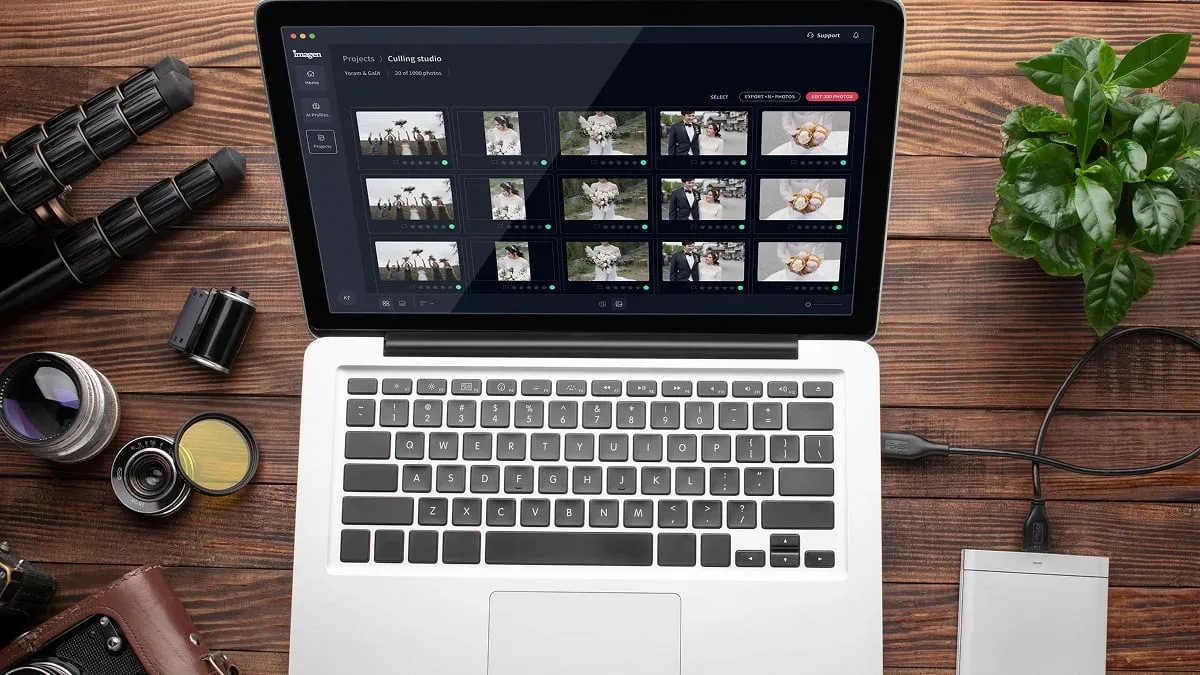
If you’re looking for a tool that handles both selection and processing in one unified environment, Imagen is the clear frontrunner. It doesn’t treat culling as some isolated task, sitting apart from everything else. Instead, it builds a bridge between choosing your best shots and applying your final look, which keeps your workflow completely organized. Culling, editing, review and export all happen in one project, in whatever order suits your shoot.
The platform runs its advanced algorithms through cloud-based processing, meaning your local computer’s processor never gets hammered during the process. When you upload a gallery, the AI photo culling engine analyzes your shots for sharpness, lighting, facial expressions, and composition. And it moves fast. Internal benchmarks show that Imagen can cull and edit 1,000 photos in approximately 5-7 minutes, maintaining a 99% uptime for its cloud processing.
What sets Imagen apart is how it coordinates with your editing style. Once the culling is done, you can immediately apply your AI profiles. Whether you use a Talent AI Profile designed by an industry leader or a Personal AI Profile trained on 5,000 of your own past edits, the handoff feels natural. There’s no exporting, importing, and syncing across three different apps. It all happens right there.
Automating the first filter of image selection isn’t just about saving hours; it’s about preserving the creative energy required for the actual art of editing.
Itamar Haim, SEO Expert and Digital Strategist specializing in search optimization and content marketing.
Key Features
- High-Speed Cloud Processing: Fast analysis that doesn’t rely on your computer’s local hardware.
- Adjustable AI Sensitivity: You can set the threshold for blur detection and closed eyes to match your shooting style.
- Personal AI Profiles: The platform studies your specific editing style and reproduces it with striking precision.
- Lightroom Classic Integration: Fully compatible with the catalog system you already use.
- Automated Subject Masking: Speeds up local adjustments once you reach the editing phase.
Pricing
Imagen offers flexible plans designed for different business volumes. You can view the full details on the Imagen pricing page. The pay-as-you-go model combines a monthly base fee with a charge for the photos you export, a good fit for seasonal shooters. For higher volume, the Limitless plan covers unlimited AI edits and unlimited culling for a fixed monthly or annual fee.
Pros & Cons
- Pros: Unmatched speed on high-volume shoots; real time savings from combining culling and editing in one step; almost zero heavy lifting for your computer’s GPU.
- Cons: Needs a stable internet connection for cloud uploading; the subscription model can feel pricey for hobbyists.
Verdict
Imagen is the top choice for high-volume professional wedding, portrait, and event photographers who’d rather spend their time creating than staring at grids of near-identical photos.
Aftershoot: The Powerhouse of Local Processing
Got slow internet, or do you shoot on the go a lot? Aftershoot’s got you covered. It runs all its heavy calculations right on your own computer’s hardware, so there’s no waiting around for giant RAW files to crawl up to a server somewhere across the globe.
Shooting on a modern flagship camera like the Sony A7R V or Nikon Z9? Your RAW files probably run 60MB to 85MB each. Try uploading 3,000 of those on a standard connection, and you’re looking at hours. Since Aftershoot processes everything locally, it can be 3x faster than cloud-based tools for anyone with upload speeds under 20Mbps.
The whole setup is designed to group similar photos together. Say you shoot a fast burst of a couple walking down the aisle. The tool groups those frames and automatically selects the sharpest one with the best expressions. You can then adjust the selections manually before sending them to your editing suite.
Steps for Setting Up Aftershoot
- Import Your Gallery: Just drag and drop your folder of RAW files directly into the desktop app.
- Set Your Parameters: Play with the sliders for how strictly the AI should grade focus, duplicate detection, and closed eyes.
- Run the Analysis: Let the app run locally. You’ll see a progress bar showing the speed of the local CPU/GPU processing.
- Review the Grouped Selections: Go through the automatically categorized folders of selections, warnings, and duplicates.
- Export to Lightroom: Send the rated and color-coded photos directly into your Lightroom catalog with one click.
Pricing
Aftershoot keeps it simple with a flat subscription model. Aftershoot Pro is priced at $480 per year, which breaks down to $40 per month. This tier gives you unlimited culling along with access to automated editing features. They also offer lower tiers starting at $120 per year if you only need basic culling features without the editing suite.
Pros & Cons
- Pros: Works completely offline; no data usage or upload wait times; unlimited culling on all subscription tiers.
- Cons: Highly dependent on your computer’s hardware; can slow down older laptops; that upfront annual cost is a real investment.
Verdict
Aftershoot is a solid, reliable desktop-based tool that’s perfect for traveling photographers who need to cull massive galleries in hotel rooms without relying on unstable Wi-Fi.
Narrative Select: The Speed Demon for Mac Users
Narrative Select really has one goal in mind: speed. It’s built to let you fly through your initial review without any lag dragging you down, thanks to a custom RAW rendering engine that displays high-resolution previews almost instantly.
Open a shoot in Narrative Select, and the app starts scanning the faces in your photos right away. It displays small close-up crops of every person’s face along the side of your screen. That means you don’t have to zoom in to 100% on every single frame just to check if the groom blinked or the bridesmaid looked away.
The interface stays clean, with no clutter and no pile of unnecessary buttons. It uses simple color codes and warning icons to tell you when someone has their eyes closed or when the focus is slightly soft. And if you disagree, you can quickly override the AI’s choices using standard keyboard shortcuts.
Key Features
- Instant Previews: Zero-lag RAW rendering that lets you tap through images as fast as your fingers can move.
- Close-Up Face Panel: Shows automatic crops of every face in the frame so you can check expressions in a fraction of a second.
- Assessment Indicators: Warning icons highlight bad focus or closed eyes directly on the thumbnail.
- Lightroom Syncing: Simple export options that apply your ratings directly to your active catalog.
Pricing
Narrative Select offers a free version with basic features, which works fine for casual use. For professionals who need the full suite of AI assessments, Narrative Select Pro costs $150 per year or $18 per month. This pricing makes it one of the more accessible dedicated options on the market.
Pros & Cons
- Pros: Extremely fast image rendering; the face panel is incredibly useful for large group photos; clean, distraction-free design.
- Cons: Only available for macOS users; lacks built-in editing or color correction tools.
Verdict
If you’re a Mac-based portrait or wedding photographer who wants a lightning-fast, simple tool to handle the first pass of selection, Narrative Select is tough to beat.
FilterPixel: Cross-Platform Intelligence
Not everyone works on a Mac, and that’s exactly where FilterPixel enters the picture. It offers a highly capable, cross-platform app that runs smoothly on both Windows and macOS. It uses a cloud-hybrid model that gives you the flexibility to choose how you want to work.
The app automatically tags your photos into three clean categories: ‘Accepted’, ‘Rejected’, and ‘Warnings’. It does a great job of identifying why a photo is marked as a warning, whether it’s due to a soft focus point, camera shake, or a bad expression. This clear categorization keeps you from guessing why the AI made a specific decision.
For wedding photographers who shoot thousands of frames, FilterPixel’s auto-grouping feature simplifies duplicate management. It groups similar scenes and highlights the best choice based on eye tracking, face detection, and overall frame sharpness. You can quickly review these groups and make changes if your creative vision differs from the AI’s choice.
Key Features
- Cross-Platform Compatibility: Runs identically on Windows and macOS.
- Auto-Culling Folders: Automatically sorts images into Accepted, Rejected, and Warning folders.
- Detail Zoom: Automatically zooms in on faces to help you make quick judgment calls on group shots.
- Multi-Software Support: Exports metadata smoothly to Lightroom, Capture One, and Adobe Bridge.
Pricing
FilterPixel offers straightforward subscription options. The Standard plan is priced at $11.99 per month, which is highly competitive. If you want more advanced features and business-level support, they offer a Business plan at $19.99 per month. This lower cost of entry makes it highly appealing for growing businesses.
Pros & Cons
- Pros: Highly affordable monthly rates; works on Windows systems; easy integration with multiple editors.
- Cons: Interface can feel slightly cluttered compared to simpler tools; cloud processing can occasionally lag during peak usage hours.
Verdict
FilterPixel is an excellent, cost-effective choice for Windows-based professionals who need a flexible, smart tool that integrates with various photo editors.
Adobe Lightroom (Sensei AI): The Built-in Contender
Don’t want another subscription eating into your monthly expenses? Adobe Lightroom Classic already has its own built-in tools. Adobe’s “Select Best Photos” feature uses their proprietary Sensei AI to help you manage your library without leaving the app.
The tool works within your existing catalog. It analyzes a group of selected photos and scores them based on technical aspects like focus, exposure, and composition. It doesn’t have the specialized speed of dedicated culling tools, sure, but it still has a 90% success rate in identifying the sharpest focus point in a burst of shots.
The main advantage here is simplicity. You don’t have to export files, run them through a third-party application, and then import the metadata back into Lightroom. It all happens directly inside your Library module, keeping your project files tidy and unified.
Steps for Setting Up Lightroom AI Culling
- Select Your Target Folder: Open your active Lightroom catalog and select the folder of newly imported images.
- Enable Library View Filter: Go to the Library menu and select the automatic grading options from the drop-down.
- Apply Sensei AI Scoring: Run the automated image scoring engine to evaluate focus, lighting, and expressions.
- Filter by Threshold: Filter the grid display to show only photos that met the specified quality rating.
- Mark and Process: Apply your standard star ratings to the filtered choices and move directly to the Develop module.
Pricing
There’s no additional charge for this feature if you’re already subscribed to the Adobe Creative Cloud Photography plan, which ranges from $9.99 to $19.99 per month depending on your cloud storage selection. That makes it a genuinely cost-effective starting point.
Pros & Cons
- Pros: Completely integrated; no additional monthly bills; simple to use if you’re already familiar with Lightroom.
- Cons: Slower processing times than dedicated platforms; AI is less accurate on complex facial analysis; lacks advanced features like auto-cropping of faces.
Verdict
This is the best option for hobbyists, field photographers, or part-time pros who handle smaller shoots and don’t want to manage another software subscription.
CullAi: The Budget-Friendly Perpetual Choice
Almost every tool on the market today charges a recurring monthly fee. CullAi stands out by offering a traditional purchase model instead. It’s designed for photographers who want to own their tools outright without worrying about ongoing subscription costs.
CullAi runs entirely on your local machine, using your computer’s graphics card to analyze images. It focuses heavily on detecting sharp focus and tracking closed eyes. The interface stays highly lightweight, which helps it run efficiently even on mid-range laptops.
Once the analysis is complete, CullAi writes the star ratings and color codes directly to the files’ metadata. When you import those photos into Lightroom or Capture One, the ratings are already there, waiting for you. It’s a simple, straightforward system that does exactly what it promises without any unnecessary bells and whistles.
Steps for Offline Metadata Culling
- Load Direct RAW Folders: Open the desktop app and locate your direct RAW storage directory on your hard drive.
- Initiate GPU Analysis: Run the hardware-accelerated analysis to evaluate focus points and facial metrics.
- Sync Metadata Locally: Click save to write standard XMP ratings directly back into the local files.
- Perform Direct Import: Open Lightroom or Capture One and import the folder. All ratings will display automatically.
Pricing
CullAi remains one of the few perpetual license options on the market. You can purchase a lifetime license for a one-time payment of $89. If you prefer to test it over a longer period, they also offer a yearly subscription option for $29.
Pros & Cons
- Pros: No recurring monthly fees; lightweight and fast on modern hardware; simple metadata integration.
- Cons: Fewer feature updates than subscription-based competitors; lacks advanced grouping and automated editing integrations.
Verdict
CullAi is the ideal tool for budget-conscious photographers and independent creatives who want to avoid subscription fatigue while still enjoying the speed of AI-assisted selections.
Optyx: The Automated Workflow Specialist
Optyx is built for technical photographers who want granular control over how the AI grades their work. Instead of relying on a “black box” algorithm that makes choices you can’t control, Optyx lets you set detailed rules and thresholds for your selections.
The app runs locally and builds a fast database of your images. Tell Optyx to be incredibly strict about focus sharpness for portraits, then let it be more forgiving for action-heavy sports shots. It allows you to create custom profiles for different genres of shooting, which makes the AI much more useful across different projects.
Its batch processing system is incredibly strong, allowing you to queue up thousands of photos across multiple sessions. Set the rules, start the queue, and walk away. When you return, your galleries are sorted, rated, and ready for post-production.
Key Features
- Rule Profile Customization: Select shooting genres to load tailored baseline criteria automatically.
- Threshold Fine-Tuning: Highly customizable sliders for focus sharpness, exposure levels, and face detection.
- Temporal Grouping: Custom timing options to define how close photos must be to count as duplicates.
- Offline Metadata Integration: Saves metadata locally to maintain quick, uninterrupted imports.
Pricing
Optyx offers a highly accessible subscription model at $9.99 per month. If you want to commit to the tool long-term, you can purchase an annual pass for $99. This pricing provides local AI processing at a very reasonable price point.
Pros & Cons
- Pros: Highly customizable scoring rules; great for technical photographers who shoot multiple genres; affordable subscription rates.
- Cons: Steeper learning curve than most other platforms; interface can feel intimidating to beginners.
Verdict
Optyx is the best choice for commercial, sports, and technical photographers who need deep, granular control over how their images are graded and sorted.
Impossible Things: The Lightroom Power-User Plugin
Impossible Things is a high-end plugin that operates directly inside your Lightroom workspace. It’s built for busy studios and high-volume professionals who want to completely integrate their selection and editing steps into a single, smooth environment.
The plugin runs quietly in the background of Lightroom, analyzing your RAW files as they import. It doesn’t just look for blurry shots or closed eyes. It also applies advanced color grading and basic adjustments at the same time. This means you can cull your gallery and get a polished starting point for your edits simultaneously.
Because it operates within Lightroom, you don’t have to deal with sidecar files or metadata sync issues. It works directly on your active catalog, updating your star ratings and development settings in real-time. It’s an incredibly powerful system, built to keep you moving forward without any administrative delay.
Key Features
- Native Lightroom Plugin: Runs directly inside your Lightroom interface without requiring separate desktop apps.
- Simultaneous Culling and Editing: Rates your images while applying automated color adjustments.
- High-Speed Batch Processing: Handles large volume imports quickly and efficiently.
- Adaptive Learning: Learns your editing style over time to improve its development suggestions.
Pricing
This power comes at a premium. The Impossible Things plugin costs $50 per month for unlimited editing and culling integration. This makes it one of the most expensive options on our list, targeted directly at working professionals.
Pros & Cons
- Pros: No need to switch between different apps; incredibly powerful AI engine; saves massive amounts of time by combining tasks.
- Cons: High monthly cost; requires a modern, powerful computer to handle the heavy background processing inside Lightroom.
Verdict
Impossible Things is a premium tool designed for busy, high-earning studios where saving time is worth paying a higher monthly subscription fee.
Comparison of Top AI Culling Tools 2026
To help you decide which tool fits your specific workflow and budget, here’s a direct comparison of the top options available in 2026. This table shows how each platform processes your files, what they cost, and where they perform best.
| Tool Name | Starting Price | Processing Method | Best For | Key Strength |
|---|---|---|---|---|
| Imagen | Pay-as-you-go (billed on exported photos), or fixed-fee plans | Cloud-Based | Wedding & Portrait Professionals | Integrated culling & editing ecosystem |
| Aftershoot | $120/year to $480/year | Local Machine | Photographers on the go | Fully offline processing |
| Narrative Select | $18/month or $150/year | Local Machine | Mac-based wedding photographers | Ultra-fast RAW rendering and previewing |
| FilterPixel | $11.99/month | Cloud-Hybrid | Cross-platform users | Affordable cross-platform compatibility |
| Adobe Lightroom | Included with CC subscription | Local Machine | Hobbyists & Part-time pros | Built-in directly to the library module |
| CullAi | $89 lifetime license | Local Machine | Budget-conscious creatives | No recurring subscription fees |
| Optyx | $9.99/month or $99/year | Local Machine | Technical & Sports photographers | Granular control over AI rules |
| Impossible Things | $50/month | Local/Plugin | High-volume luxury studios | Simultaneous culling and look application |
Final Recommendation: Which Tool Should You Choose?
Choosing the right AI culling tool isn’t about finding the one with the longest feature list. It’s about finding the platform that matches your shooting volume, your hardware setup, and your budget. As of 2026, 72% of professional event photographers have integrated at least one AI-based tool into their post-production workflow, showing that this technology has become an industry standard.
If you’re a high-volume professional who shoots weddings, portraits, or events, Imagen is our top recommendation. It’s the only platform that fully integrates your AI photo culling and AI photo editing into a single, smooth workflow. It saves you from constantly bouncing between different apps, writing sidecar files, and waiting on heavy local renders. It simply works, giving you back hours of your life after every major gallery.
- For Traveling Wedding Photographers: Consider Aftershoot if you often find yourself working with slow hotel Wi-Fi and need to process massive 80MB RAW files completely offline.
- For Mac Users Who Want Pure Speed: Choose Narrative Select for its instant preview rendering and incredible face-checking panel.
- For Budget-Conscious Creatives: Opt for CullAi to secure a perpetual license, or FilterPixel for an affordable monthly subscription that works great on Windows.
- For Casual Enthusiasts: Use the built-in Sensei AI tools inside Adobe Lightroom to keep your workflow simple without spending extra money.
No matter which tool you choose, the shift away from manual culling will completely change how you manage your business. You’ll spend less time staring at near-identical frames and more time focused on the creative work that made you fall in love with photography in the first place.
What’s new in Imagen: Imagen has grown into an intelligent, agentic Studio for professional photographers. You cull, edit, review and export in one project, in whatever order your shoot needs. AI culling is optional, and manual culling is free, while AI filters such as blur and closed eyes help you narrow a gallery fast. The Studio is rolling out gradually as a beta.
Frequently Asked Questions
Will AI culling tools delete my photos by mistake?
No, these tools don’t delete your files. They simply apply star ratings, flags, or color codes to your images, letting you filter out the bad shots while keeping your entire gallery safe on your hard drive or Cloud storage. Imagen’s own cloud storage is on the roadmap, so keep using a service you trust for now.
Do I need a powerful computer to use AI photo culling tools?
It depends on the tool you choose. Imagen is a desktop app whose AI processing runs on cloud servers, which means it runs fine on basic laptops. Local tools like Aftershoot and Optyx require a strong modern processor and graphics card to perform their analysis fast.
How accurate are these AI tools at detecting closed eyes?
They are very accurate indeed. Modern top-tier AI culling algorithms in 2026 achieve an impressive 98.5% accuracy rate in detecting blinks, squinting, and motion blur, so you don’t waste time looking at unusable shots.
Can I teach these AI tools my personal preferences?
Yes, many advanced tools allow you to adjust the sensitivity of the AI filters. Imagen takes this further with a Personal AI Profile learned from your past edits in Lightroom Classic, plus AI filters such as blur and closed eyes that help you narrow a shoot.
Do these tools work on both Mac and Windows systems?
Most of the leading tools like Aftershoot, FilterPixel, and Imagen are fully cross-platform. Some specialized tools like Narrative Select, however, are designed specifically for macOS, so check compatibility before you buy.
Is it safe to upload my RAW files to cloud-based culling tools?
Yes, professional cloud-based tools use secure, encrypted connections to transfer your files and keep your intellectual property completely safe. Many platforms also generate small smart previews instead of uploading full-size RAWs to keep the transfer times fast.
Can I use these tools for landscape or sports photography?
Yes, they absolutely are. Many tools are optimized for tracking human faces in portrait and Wedding photography, but they’re also highly effective at detecting soft focus, camera shake, and duplicate frames in sports, wildlife, and scene galleries.
