

7 Best AI Photo Culling Software Options for 2026
Table of contents
- 9 Best AI Photo Culling Software Options for 2026
- Key Takeaways
- 1. Imagen: The Gold Standard for Integrated Workflow
- 2. Aftershoot: The Power of Local Processing
- 3. Narrative Select: The Speed Demon for High-Res Previews
- 4. FilterPixel: simplified Studio Automation
- 5. CullAi: The New Contender in 2026
- 6. Adobe Lightroom Classic (Native AI): The Built-in Option
- 7. PhotoMechanic (with AI Power-Ups): The Photojournalist’s Choice
- 8. Quicull: The Mobile-First AI Culler
- Comparison of Top AI Culling Tools
- Final Recommendation: Which Software Should You Choose?
- Frequently Asked Questions
- Can AI completely replace manual culling?
- What happens to my photos when I use a cloud-based culler like Imagen?
- Do I need a very powerful computer to use these tools?
- How much time can I realistically save?
- What’s the difference between AI culling and AI editing?
- Can these tools work with Capture One, or just Lightroom?
- Is a lifetime license like CullAi’s a good deal?
- What is the most important factor in choosing a culling tool?
9 Best AI Photo Culling Software Options for 2026
Let’s be blunt: manually culling photos is a soul-crushing waste of your time. Staring at thousands of near-identical images, trying to spot the one where the groom isn’t blinking, is a fast track to creative burnout. This isn’t just a feeling; a 2024 study confirmed that photographers’ culling accuracy drops by a staggering 30% after just two hours due to decision fatigue.
So, you’re looking for an AI solution. Good. You’re in the right place. The AI in photography market is set to hit $3.5 billion by 2026 for a reason. These tools aren’t gimmicks anymore; they’re essential workflow components. But they aren’t all created equal. We’ve evaluated the top options based on accuracy, speed, workflow integration, and overall value.
Key Takeaways
- All-in-One vs. Standalone: Cloud-based platforms like Imagen offer a complete cull-to-edit workflow, while local tools like Aftershoot focus on pure culling speed and privacy.
- Time Savings Are Real: Pros report a massive 90% reduction in culling time, cutting a 4-6 hour job down to less than 15 minutes.
- Accuracy is Paramount: The best tools now boast a 98.4% accuracy rate in detecting technical flaws like closed eyes and motion blur, making them incredibly reliable.
- Local vs. Cloud is a Key Choice: 58% of photographers prefer local processing for its speed and privacy, but the 42% opting for cloud benefit from cross-device access and no hardware strain.
- Pricing Models Vary Wildly: You’ll find everything from pay-as-you-go (Imagen) to flat-rate subscriptions (Aftershoot) and even lifetime licenses (CullAi), so you need to match the model to your shooting volume.
- Integration is Non-Negotiable: All top-tier culling tools now support direct exports to Adobe Lightroom Classic and Capture One, which is a must-have feature.
- It’s Not Just for Weddings: While event photography is the primary driver, these tools are seeing rapid adoption in portrait, real estate, and sports photography.
1. Imagen: The Gold Standard for Integrated Workflow
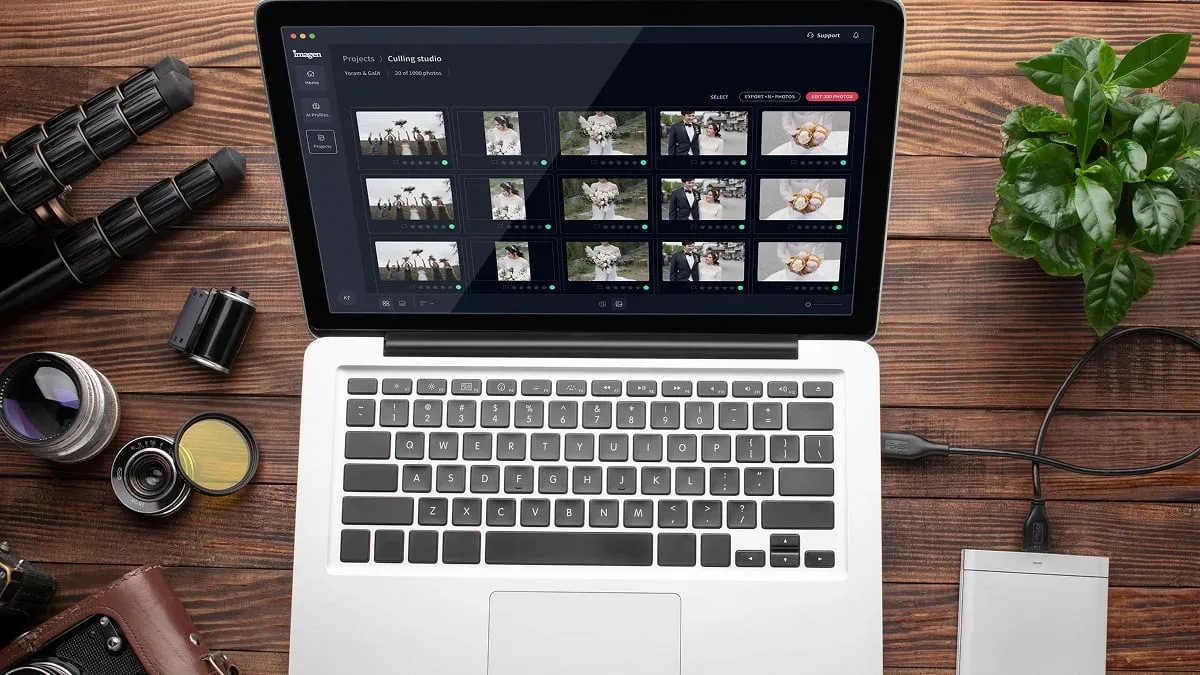
Look, if you want a tool that doesn’t just cull your photos but integrates directly into an AI-powered editing pipeline, Imagen is the answer. It’s built from the ground up as a complete post-production ecosystem. It’s not just an app you run; it’s a desktop app with cloud-based AI processing that handles the most tedious parts of your job while you’re doing something else. That’s the core difference.
The process is straightforward. You upload your RAW files to the Imagen app, and its cloud servers do the heavy lifting. This means your computer isn’t bogged down for hours. It’s analyzing for focus, blinks, and composition while you’re free to work on other projects. The results are then synced back, ready for you to either accept the selections or send them directly into Imagen’s AI photo editing, which can apply your unique style using your own trained AI Profile. Culling and editing share one project, so you can also skip AI culling and cull manually for free.
Key Features
- Cloud-Based AI Culling: Your computer’s resources are completely untouched. Imagen’s powerful servers handle the entire analysis, which is great for photographers with laptops that can’t handle heavy local processing. They maintain a 99.9% server uptime, ensuring it’s always ready when you’re.
- smooth Ecosystem Integration: This is its biggest strength. The AI photo culling feature is designed to be the first step in a larger workflow. Culled photos can be immediately passed to Imagen’s AI editing, creating a true end-to-end automated process.
- Advanced Grouping and Selection: Imagen doesn’t just pick winners; it logically groups duplicates and sequences, presenting you with the best shot from each series. It’s incredibly intelligent at understanding context, not just technical perfection.
- Customizable Preferences: You can guide the AI by telling it how strict to be with its selections. Need only the absolute best? Set it to a higher threshold. Need more options for a client gallery? Loosen the criteria.
Pricing
Imagen’s culling is primarily pay-as-you-go. According to the current Imagen pricing structure, you pay for the photos you export. Sliders, crops, and masks you do yourself are always free.
Pros & Cons
- Pros: Unbeatable accuracy for technical flaws, zero local hardware strain, and the only truly integrated cull-to-edit AI workflow on the market. The connection to your personal AI profiles for editing is a massive advantage.
- Cons: It requires a stable internet connection for uploads. And while paying on export is fair, costs can add up for photographers who export tens of thousands of images a month, so estimate your volume first.
Verdict
For the professional photographer who values a fully integrated and automated post-production system, Imagen is the undisputed leader in 2026. It’s the best all-in-one solution if you want to save time on both culling and editing within a single, powerful platform.
2. Aftershoot: The Power of Local Processing
So, what if you don’t want to upload thousands of RAW files to the cloud? That’s where Aftershoot comes in. Its entire philosophy is built around local processing. It uses your computer’s own processor and graphics card to do the work. For photographers concerned about privacy or those who often work in locations with slow internet, this is a major draw.
When you run Aftershoot, it scans your folders on your own hard drive. The AI analyzes everything right there on your machine. This gives you two main benefits: speed (if you’ve a powerful computer) and security. Your files never leave your possession. A recent survey showed that 58% of photographers still prefer local processing for these exact reasons. Aftershoot has built its entire business around serving that majority.
The app is smart, identifying duplicates, blurred shots, and closed eyes with impressive accuracy. It then presents you with galleries of “keepers,” “rejected,” and “warnings” for you to quickly review. It’s a very visual and intuitive process. But you’ll need the hardware to back it up; running Aftershoot on an older machine can be a sluggish experience. It truly shines on modern hardware like an M2/M3 Mac or a high-end PC with a dedicated GPU.
- Import a Session: You start by pointing Aftershoot to a folder of images on your computer or an external drive.
- Set Your AI Preferences: Before the cull begins, you can tell the AI how you want it to work. Do you want it to group duplicates loosely or strictly? Should it be ruthless about sharpness or a bit more forgiving?
- Let the AI Run: Aftershoot gets to work, analyzing every photo. You can see its progress in real-time. This is the part that heavily depends on your computer’s speed.
- Review and Export: Once complete, you’re presented with color-coded selections. You can make final adjustments and then export the results (as selections, ratings, or keywords) directly to Lightroom, Capture One, or a folder on your desktop.
Its pricing is also a key differentiator. Instead of a per-photo cost, Aftershoot uses a tiered annual subscription model. The plans range from $120 per year for the basic culling to $480 per year for the ‘Max’ plan that includes their AI editing features. This flat-fee approach is perfect for high-volume photographers, like wedding photographers, who shoot thousands of images every weekend. You know exactly what you’ll pay, no matter how busy you’re.
Verdict
Aftershoot is the top choice for photographers with powerful computers who prioritize privacy and prefer a predictable, flat-rate subscription over pay-per-use models.
3. Narrative Select: The Speed Demon for High-Res Previews
Imagine this: you’ve just finished a 10-hour wedding. You’ve got 5,000 RAW files on a card. The last thing you want is to wait for a program to slowly generate previews. This is the exact pain point Narrative Select was built to solve. It’s all about speed. Raw, unadulterated speed.
How does it work? Narrative uses a proprietary smart-buffering system that renders high-resolution RAW previews almost instantly. We’re talking about a near-zero lag experience, which is a massive improvement over the typical 2-3 second delay you find in many traditional viewers. You can rip through thousands of images at an incredible pace, using simple keyboard shortcuts to tag your keepers.
But it’s not just a fast viewer. Narrative integrates AI in a subtle but powerful way. As you’re viewing images, you’ll see close-up panels of every face in the shot. These panels automatically zoom in, showing you if eyes are open and if the focus is sharp. The app also flags images with warnings for blinks or soft focus. It’s a “hybrid” approach to culling. The AI provides critical information, but you, the photographer, still make the final call. It assists your decision, it doesn’t make it for you. This is perfect for the control freak in all of us who trusts our eye but wants a little help.
The biggest bottleneck isn’t the edit; it’s the selection. AI culling doesn’t just save time; it restores creative energy by eliminating thousands of micro-decisions, preventing the decision fatigue that kills quality.
Itamar Haim, AI Photography Workflow Specialist
Pricing is accessible, too. There’s a free version that’s great for smaller projects. For professionals, the Narrative Select Pro plan costs $15 per month when billed annually ($180/year). The biggest historical drawback has been its Mac-only status, but they’ve been expanding platform support. For Mac users, though, it’s hard to beat this level of performance.
Verdict
Narrative Select is the best option for photographers who want AI assistance to speed up their manual selection process, not completely automate it. If you value instant RAW previews and want final say over every image, this is your tool.
4. FilterPixel: simplified Studio Automation
What happens when you’re not just a solo photographer but a growing studio with multiple shooters and editors? Your workflow problems multiply. FilterPixel is designed with this scaling challenge in mind, offering features that cater specifically to team collaboration.
Its core AI is strong. It automatically analyzes and tags your photos, giving you four main categories: Accepted, Rejected, Unrated, and Duplicates. One of its standout features is the ‘aesthetic score,’ where the AI tries to quantify the visual appeal of a photo beyond just technical perfection. This can be helpful, but it’s also subjective and might need some initial calibration to match your studio’s style.
Here are some tips for studios getting started with FilterPixel:
- Calibrate the AI Early: On your first few projects, spend time reviewing the AI’s choices. If it flags an image as ‘Rejected’ that you would keep, correct it. The system learns from these adjustments over time.
- Use the Team Sync Feature: The Business plan allows multiple team members to access and work on the same projects. This is ideal for workflows where one person culls and another edits.
- Don’t Ignore the ‘Unrated’ Folder: This is where the AI places images it’s unsure about. It’s often a goldmine for those interesting, slightly imperfect shots that have a lot of character. A quick manual review of this folder is always worthwhile.
- Adjust the Strictness Sliders: You can tell FilterPixel to be more or less aggressive in its filtering. For an event with lots of candids, you might want a looser setting. For headshots, you’ll want it to be incredibly strict about focus and blinks.
The pricing structure makes it very approachable. The ‘Standard’ plan is just $9 per month, which is great for individuals. For teams, the ‘Business’ plan at $39 per month unlocks the collaborative features that make it so useful for studios. It’s a solid, professional option that punches above its weight.
Verdict
FilterPixel is a great choice for growing studios and individual photographers looking for a powerful, affordable AI culler with excellent team-based features.
5. CullAi: The New Contender in 2026
Every market needs a disruptor, and in the world of AI culling, CullAi is making waves. Its biggest selling point is a direct challenge to the industry’s subscription-heavy model: a lifetime license. For many photographers tired of endless monthly fees, this is an incredibly attractive offer.
Is CullAi the right choice for you? Here’s a quick checklist to help you decide:
- Is avoiding subscriptions a top priority? If yes, CullAi’s $199 lifetime license is one of the only games in town. You buy it once and own it forever. This is a massive financial advantage over a 5-year period compared to subscription tools. ✅
- Do you need to cull on the go? CullAi offers strong mobile support, allowing you to start your culling process on an iPad or laptop while traveling home from a shoot. This flexibility is a key advantage. ✅
- Are you an early adopter? As a newer player, its AI algorithm doesn’t have the years of data that a platform like Imagen has. While it’s very good, you might encounter more edge cases or quirks as its model continues to mature. 🤔
- Do you need deep storytelling analysis? CullAi is testing an innovative ‘storytelling’ mode that tries to identify key moments in an event (like the cake cutting or first dance) and prioritize them. It’s a promising feature but still in development. 💡
- Is cross-platform support essential? It works on Windows, Mac, and mobile, so you’re not locked into a single ecosystem. ✅
For those wary of a lifetime deal, there’s also a standard $10 per month subscription. This flexibility shows CullAi is serious about capturing a wide segment of the market. Its feature set is competitive, and its commitment to a non-subscription option makes it a tool worth watching very closely.
Verdict
CullAi is the best option for photographers who want to escape the subscription model and are willing to invest in a newer, but rapidly improving, platform with innovative features.
6. Adobe Lightroom Classic (Native AI): The Built-in Option
You might not even need a third-party tool. Over the past few years, Adobe has been quietly building more AI features directly into Lightroom Classic. If you’re already paying for a Creative Cloud subscription, it makes sense to see if the built-in tools are good enough for your needs before spending more money.
Here’s a basic workflow for using Lightroom’s native AI for a simple culling job:
- Import and Build Smart Previews: After importing your shoot, make sure you build Smart Previews. This will make sorting and filtering much faster.
- Use the People View: In the Library module, go to the ‘People’ view. Lightroom will automatically detect and group photos by the faces it recognizes. This is incredibly useful for finding all the photos of a specific person.
- Filter by Focus and Blinks: While Adobe doesn’t have a simple ‘blink’ filter yet, you can use the Library Filter bar to sort by camera metadata. For example, you can filter to only show images shot at a wide-open aperture (like f/1.4) to check for critical focus.
- Use ‘Select Best’ on Photo Stacks: If you’ve a burst of photos, you can stack them together (select them and press Cmd+G or Ctrl+G). Then, right-click the stack and choose ‘Select Best.’ Lightroom’s AI will analyze the stack and attempt to pick the sharpest one with the best expressions.
The main advantage here’s convenience. There’s no exporting or importing between different apps. Everything happens within the Lightroom ecosystem you already know. And since it’s included in your Creative Cloud plan (typically $11.99 - $19.99/month), it doesn’t add any extra cost. The downside? The AI is far less specialized and powerful than dedicated tools like Imagen or Aftershoot. It’s slower, and its ability to detect nuanced issues like subtle motion blur or slightly soft focus isn’t as refined.
Verdict
For hobbyists, low-volume professionals, or anyone who wants to avoid adding another app to their workflow, Lightroom’s built-in features are a decent, no-cost starting point.
7. PhotoMechanic (with AI Power-Ups): The Photojournalist’s Choice
For decades, PhotoMechanic has been the undisputed king of speed for photojournalists, sports photographers, and anyone who needs to ingest, tag, and transmit photos on a brutal deadline. It’s famous for its lightning-fast RAW preview rendering and its incredibly powerful metadata tools. In recent years, it has begun integrating AI to augment its legendary workflow, not replace it.
A photojournalist’s workflow with PhotoMechanic might look like this: During a football game, they might shoot 3,000 photos. Between quarters, they ingest the entire memory card using PhotoMechanic. This process is called ‘Ingest,’ and it’s where the powerful happens. While the files are copying, PhotoMechanic can automatically:
- Apply an IPTC metadata template with the photographer’s name, copyright, event name, and location.
- Use AI to scan for faces and suggest keyword tags for key players.
- Add GPS coordinates to every photo.
- Rename all the files according to a specific convention (e.g., YYYYMMDD_Event_FrameNumber.NEF).
By the time the files are finished copying, they’re already tagged and organized. The photographer can then blaze through the images, using the super-fast previewer to pick their top 10-15 shots, add captions, and upload them to their editor before the game is even over. The AI features here are less about picking the “best” photo in a creative sense and more about automating the data entry and organization that’s critical in photojournalism. It supports over 50+ RAW formats, so you know it can handle files from the very latest cameras.
The main drawback is its complexity and cost. PhotoMechanic has a steep learning curve, and its interface feels more like a power tool than a modern app. Its subscription is also priced for pros at around $24.99/month. The AI feels a bit like an add-on rather than a core feature.
Verdict
PhotoMechanic remains the go-to for news, sports, and event photographers where speed, file management, and metadata are just as important as the image itself.
8. Quicull: The Mobile-First AI Culler
Why should culling be chained to your desk? We spend hours commuting, waiting in lines, or sitting on the couch. Quicull is part of an emerging category of mobile-first culling apps designed to turn that downtime into productive time. It’s optimized for tablets like the iPad Pro and powerful smartphones.
Here are some best practices for integrating mobile culling into your workflow:
- Use a Cloud-Synced Workflow: The key is to have your RAW previews available on the cloud. Services like Adobe’s Creative Cloud or even Dropbox can sync low-resolution smart previews to your mobile device.
- Focus on the Obvious Rejects: Use your mobile culling session to do a “first pass.” Quickly swipe through and reject all the complete misses: the out-of-focus shots, the accidental frames of the floor, the shots where the flash didn’t fire. This alone can eliminate 30-40% of a gallery.
- Use Gesture Controls: Quicull is built around touch. Swipe left to reject, swipe right to keep, tap to zoom in on faces. It’s incredibly fast and intuitive once you learn the gestures.
- Sync Your Selections: When you’re done, the app syncs your picks (usually as star ratings or color labels) back to your master Lightroom catalog on your desktop. When you get back to your computer, a huge chunk of the work is already done.
Of course, this isn’t for culling a 5,000-image wedding. The screen is too small, and you’re not looking at full-resolution RAWs. But for portraits, small events, or travel photography, it’s a fantastic way to get a head start. And at just competitive rates, it’s an incredibly affordable addition to your toolkit.
Verdict
Quicull is a perfect, low-cost tool for photographers who want to reclaim their travel or downtime by performing a quick and efficient first pass of their culling on a mobile device.
Comparison of Top AI Culling Tools
Choosing the right tool depends entirely on your needs. Here’s a side-by-side look at how the top contenders stack up in the areas that matter most.
| Tool | Primary Platform | Pricing Model | Best Use Case |
|---|---|---|---|
| Imagen | Cloud-Based (Mac/Win App) | Pay-as-you-go (pay on export) | Photographers wanting an integrated cull-and-edit workflow. |
| Aftershoot | Local Processing (Mac/Win) | Annual Subscription ($120 - $480) | High-volume shooters with powerful hardware who value privacy. |
| Narrative Select | Local Processing (Mac-focused) | Subscription ($180/year) / Free Tier | Manual cullers who want AI-assisted speed and instant previews. |
| FilterPixel | Local Processing (Mac/Win) | Monthly Subscription ($9 - $39) | Growing studios that need team collaboration features. |
| CullAi | Local Processing (Mac/Win/Mobile) | Lifetime License ($199) / Monthly ($10) | Photographers looking to avoid subscriptions. |
| Lightroom Classic | Local Processing (Mac/Win) | Included in Creative Cloud | Hobbyists or pros on a tight budget. |
Final Recommendation: Which Software Should You Choose?
With 64% of professional event photographers now using at least one AI tool in their workflow, the question isn’t if you should adopt one, but which one. Your choice should be based on your specific needs as a photographer.
The “Best Overall” Winner: Imagen
For the majority of professional photographers in 2026, Imagen offers the most complete and forward-thinking solution. Its strength isn’t just its highly accurate AI photo culling; it’s the fact that culling is one part of the new Studio, where you cull, edit, review and export in one project. Being able to smoothly send your culled selections directly to an AI editor that knows your personal style is an unparalleled efficiency boost. The cloud-based processing means you’re not limited by your own hardware, and its 99.9% uptime ensures it’s reliable even during the busiest seasons. It simplifies your entire post-production chain, not just one part of it.
The “Best Value” Winner: Aftershoot
If you’re a high-volume shooter-especially in weddings or events-and you’ve already invested in a powerful computer, Aftershoot presents incredible value. Its flat-rate annual fee means you can process an unlimited number of photos without your bill spiraling out of control. The local processing provides top-tier speed (on the right machine) and absolute privacy, which is a critical consideration for many photographers. For those who want to pay once a year and never think about per-image costs again, Aftershoot is the clear winner.
What’s new in Imagen: Imagen is now an intelligent, agentic Studio for professional photographers, with AI culling and AI editing living in the same project. Cull, edit, review and export in any order, send AI edits back to Lightroom Classic, or export finished JPG, TIFF, or PNG files straight from Imagen. AI filters such as blur and closed eyes help narrow a shoot. It is rolling out gradually as a beta.
Frequently Asked Questions
Can AI completely replace manual culling?
Not entirely. AI is exceptionally good at removing the 80% of technically flawed or duplicate images. However, the final 20% often requires a human eye to select for emotional impact, storytelling, and subtle nuances that AI can’t yet fully grasp.
What happens to my photos when I use a cloud-based culler like Imagen?
When you use a service like Imagen, you upload your photos to their secure servers. The AI analyzes them, and then the results (the selections) are synced back to the app on your computer. Reputable companies have strict privacy policies and use your photos only for the culling process.
Do I need a very powerful computer to use these tools?
It depends. For cloud-based tools like Imagen, your computer’s power doesn’t matter much since the heavy work is done on their servers. For local processing tools like Aftershoot or Narrative Select, a more powerful computer with a fast CPU, plenty of RAM (32GB+ recommended), and a modern GPU will result in a much faster experience.
How much time can I realistically save?
The numbers are significant. Most professional wedding photographers report reducing their culling time from 4-6 hours per event down to about 15-30 minutes of review time. That’s a time saving of over 90%, which adds up to hundreds of hours per year.
What’s the difference between AI culling and AI editing?
AI culling is the process of selecting the best photos from a large set. It focuses on technical aspects like sharpness, closed eyes, and composition to narrow down your choices. AI editing, like that offered by Imagen, usually takes place after culling, although in Imagen you can work in any order, and involves adjusting parameters like exposure, color, and tone to match a specific style.
Can these tools work with Capture One, or just Lightroom?
Most of them can! While Lightroom is the most common integration, tools like Aftershoot, FilterPixel, and Imagen offer support for exporting selections as XMP files or directly integrating with Capture One’s catalogs and sessions.
Is a lifetime license like CullAi’s a good deal?
It can be, but there’s a trade-off. You’re betting that the company will continue to innovate and support the tool for years to come. While you save money long-term, subscription models often guarantee you’re always on the latest version with continuous updates and new features.
What is the most important factor in choosing a culling tool?
It’s not just one thing, but a combination of accuracy and workflow integration. The AI must be accurate enough for you to trust it, and the tool must fit smoothly into your existing process without adding extra, complicated steps.

