
10 Best AI Image Editing Tools for 2026
Table of contents
- Key Takeaways
- 1. Imagen: The Gold Standard for Professional Workflows
- 2. Adobe Photoshop (Firefly AI)
- 3. Canva Magic Studio
- 4. Midjourney (Web Editor)
- 5. Luminar Neo
- 6. Topaz Photo AI
- 7. Photoroom
- 8. Fotor
- 9. Pixelmator Pro
- 10. BeFunky
- Comparison Table: 2026 AI Image Editors
- Recommendation: Which Tool Should You Choose?
- Frequently Asked Questions
- Can AI image editors handle high-resolution RAW camera files?
- Are AI-generated images safe for commercial advertising use?
- Do I need an expensive graphics card (GPU) to run AI editors?
- How does Imagen keep an entire real estate listing consistent?
- Will AI tools eventually replace professional human photo editors?
- Can I use multiple AI photo editing tools in a single workflow?
- Are there any high-quality AI photo editors that don’t charge monthly fees?
- Keep exploring
Still spending six hours on a single photo session? In 2026, manual pixel-pushing is basically a relic. The global AI in image processing market is projected to grow at a CAGR of 17.5% from 2024 to 2030, reaching an estimated value of $10.5 billion by 2026. That’s not just about slicker filters. It’s about systems that actually understand light, context, and creative intent.
Ready to speed up your workflow? Try Imagen free with 100 photos and see what changes in your own edits.
But with so many apps competing for your attention, how do you tell a real production workhorse from a gimmicky toy? We analyzed the leading platforms to find the strongest options for every workflow. Our focus wasn’t on marketing hype. We looked at raw processing speed, style consistency, and cost-to-value ratios. Here’s what you need to know to stay competitive.
Key Takeaways
- Imagen leads the industry for professional batch processing, editing 1,500 photos in under 10 minutes.
- Professional photographers save an average of 30-45% of post-processing time by adopting AI-based workflows.
- Adobe Photoshop remains the undisputed king of complex commercial compositing, with over 7 billion images generated via Firefly.
- For e-commerce sellers, Photoroom delivers a class-leading 98% accuracy rate in automated background removal.
- One-time purchase options like Pixelmator Pro ($49.99) and Topaz Photo AI ($199) offer high-value alternatives to subscription models.
Why AI Editing is Non-Negotiable in 2026
Post-production has changed fast. If you shoot high volume, you can’t afford to edit every photo by hand anymore. Professional photographers save an average of 30-45% of post-processing time when using AI tools, according to a recent Professional Photographers of America study. And it’s not just about speed. Consistency matters just as much. Generative AI technology keeps evolving quickly, with Bloomberg Intelligence projecting the market to reach $1.3 trillion by 2032. If you don’t adapt, competitors who edit entire wedding galleries in minutes will leave you behind.
Our Evaluation Framework
Here’s how we evaluated the platforms in this guide. We didn’t just skim the feature lists. We measured real performance across five distinct pillars.
- Processing Velocity: Can the tool handle high-resolution raw files without lagging?
- Aesthetic Consistency: Does the AI maintain the exact same look across 1,000 photos, or does the color grade drift?
- Workflow Harmony: How well does the app fit into existing desktop-based professional workflows like Adobe Lightroom?
- Generative Accuracy: Are generated objects realistic, or do they look like plastic artifacts?
- Pricing Model Sustainability: Does the pricing structure make sense for active professional businesses, or is it a cash grab?
1. Imagen: The Gold Standard for Professional Workflows
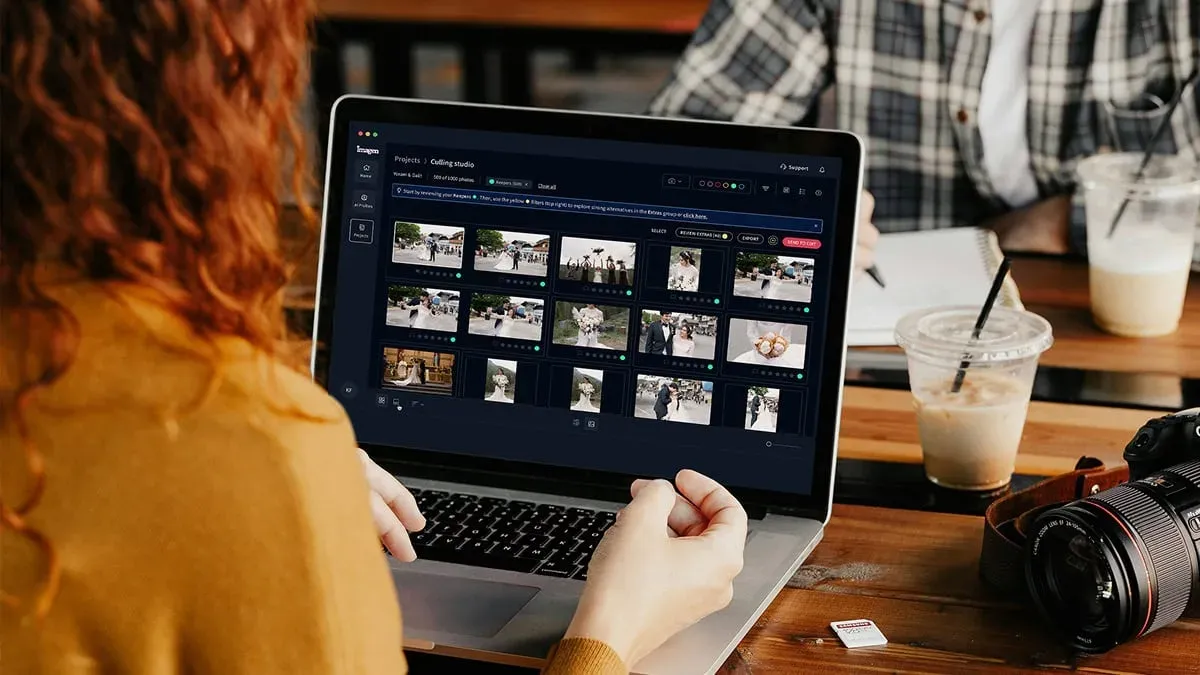
If you shoot wedding, portrait, or real estate photography, you already know that keeping a consistent look is the hardest part of the job. That’s where Imagen shines. This browser-based platform doesn’t apply generic presets. Its Image2Image model studies each photo you upload and returns a fully corrected, consistent edit, so an entire shoot comes back looking like one photographer took it.
The numbers are staggering. Imagen can process and edit 1,500 photos in under 10 minutes, holding a consistent style across high-volume batches. That’s a real win if you’d rather be behind the lens than staring at Lightroom sliders. Here’s how it slots into your workflow, and the features that set it apart.
“In 2026, the real differentiator for digital creators isn’t generating cool assets. It’s building a reliable, lightning-fast workflow around them. If your system can’t process batches consistently, you’re losing money every single day.”
Itamar Haim, SEO Expert and Digital Strategist specializing in search optimization and content marketing.
Key Features
- Image2Image: The core color-correction model. It takes a raw, unedited photo and returns a fully corrected, advertising-quality edit in one step, consistent across every photo in a batch.
- AI Assistant: A per-photo finishing layer you control with plain language, for tasks like object removal, virtual staging, and twilight conversion.
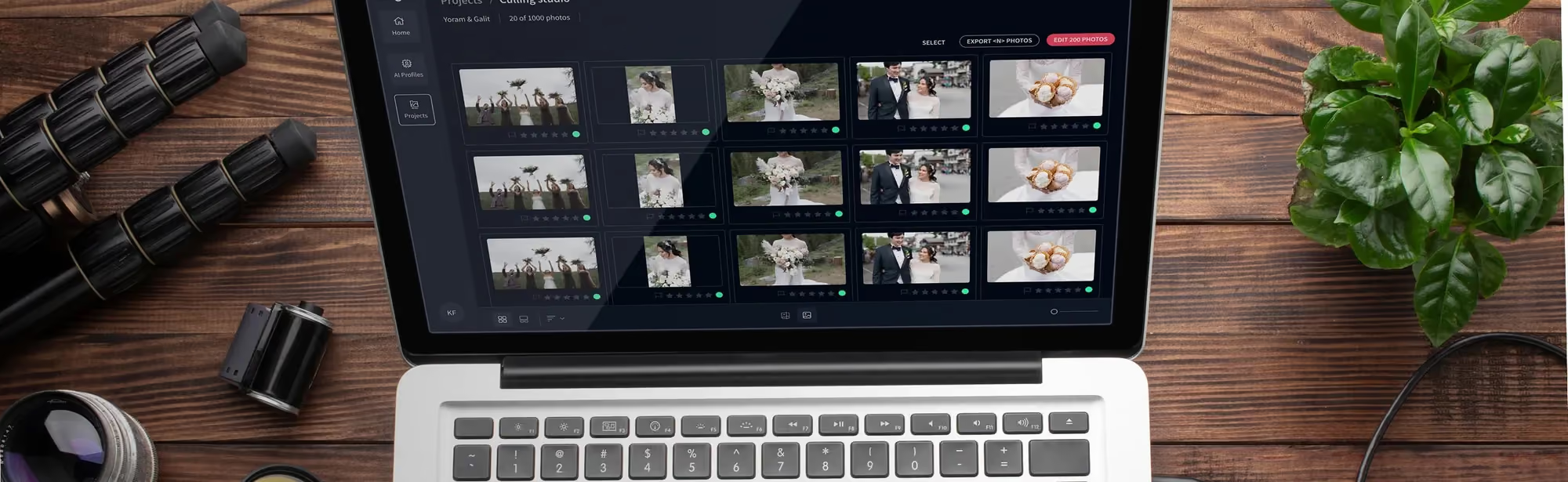
- AI photo culling: Automatically filters out blurry shots, duplicates, and closed eyes in a fraction of the time it takes manually.
- Cloud Storage Integration: Direct cloud backup solutions specifically optimized for high-resolution raw files.
Real estate photographers get an extra edge with Imagen’s real estate photo editing, a browser-based web app with no installation required. Image2Image batch-corrects an entire listing for matching color and exposure, and the AI Assistant handles finishing touches, like virtual staging, object removal, and twilight conversion, for photos that need something extra. New users can try it on 100 photos free, no credit card required.
Pricing
Imagen runs on a simple pay-as-you-go model:
- Pay-as-you-go: $0.32/photo, billed monthly for that month’s edited photos, cancel anytime.
- Free trial: Your first 100 photos are free, no credit card required.
- Teams plan: Volume pricing for studios processing 25,000+ photos a year, with a dedicated account manager and priority processing.
Pros
- Incredible batch speed (edits 1,500 raw images in less than 10 minutes).
- Exceptional accuracy that perfectly preserves your signature style.
- Runs entirely in the browser, so there’s no install and no Lightroom dependency.
- Built-in AI photo culling saves hours of painful sorting.
Cons
- Pricing is per photo, so extremely low-volume users might prefer a flat-rate tool instead.
- Advanced edits like virtual staging still route through the AI Assistant one photo at a time.
Verdict: Imagen is the strongest tool for high-volume professional photographers who need to scale their editing business without losing their artistic identity. For real estate photography specifically, it’s the best AI photo editor available, built around gallery-level consistency instead of single-photo edits.
2. Adobe Photoshop (Firefly AI)
For decades, Photoshop has been the industry standard, and its integration of the Firefly engine pushed it into a new era. This isn’t about simple crop tools anymore. Photoshop’s AI capabilities lean into deep creative manipulation, letting you add, remove, or expand elements with plain text prompts. Adobe reported that over 7 billion images have been generated using Firefly-powered tools in Photoshop and Express, cementing its place as an industry staple.
If you design complex commercial layouts or work on high-end beauty retouches, this is your playground. The generative brush tools offer pixel-level precision that most web-based platforms simply can’t match. It isn’t cheap, though, and the learning curve stays steep for beginners.
Key Features
- Generative Fill: Add or swap objects in your image using simple English text prompts.
- Generative Expand: smoothly extend the canvas of any photo, matching the original lighting and texture.
- AI Neural Filters: Instantly smooth skin, alter facial expressions, or colorize historic black-and-white photos.
- Object Selection Tool: One-click selection of complex subjects, including flyaway hair and translucent fabrics.
Pricing
- Photography Plan: $19.99/month (includes Photoshop, Lightroom, and 1TB cloud storage).
- Creative Cloud Pro: $69.99/month for access to Adobe’s entire software suite.
Pros
- Commercial safety is guaranteed as Firefly is trained on licensed or public-domain imagery.
- Unmatched local editing power combined with cloud-based generative features.
- Excellent compatibility with third-party plugins and hardware controllers.
Cons
- The subscription-only model can feel like an ongoing financial drain.
- Requires a high-end computer with a dedicated GPU to run without stuttering.
Verdict: The top pick for graphic designers and commercial compositors who need flawless, high-resolution generative editing inside a familiar workspace.
3. Canva Magic Studio
Picture a marketing manager running a multi-channel campaign, with no time to master complex layers or spend hours color grading. This is where Canva Magic Studio steps in. It’s built to put advanced machine-learning tools behind single-click buttons, opening up high-end design to anyone. Canva reaches over 170 million monthly active users, with over 15 million paying subscribers using its Magic Studio features.
The platform isn’t built for editing raw files straight from a professional camera. Instead, it takes existing images and optimizes them for social media, print, and corporate presentations. Need to resize one image for ten different platforms while the layout auto-adjusts? Canva’s your best bet.
Key Features
- Magic Grab: Isolate any element in a photo and move it around like a separate sticker.
- Magic Eraser: Brush over unwanted background clutter to watch it vanish instantly.
- Instant Brand Kits: Automatically apply your company’s logo, fonts, and color palettes to any edited image.
- Magic Expand: Intelligently stretches background details to fit vertical or horizontal layouts.
Pricing
- Canva Free: Basic features with limited AI credits.
- Canva Pro: $119.99/year (or $14.99/month) for complete access to Magic Studio tools.
Pros
- Incredibly easy to learn, requiring absolutely zero prior design experience.
- Runs smoothly in any modern web browser, avoiding heavy local installations.
- Massive library of templates, stock photos, and vector assets.
Cons
- Lacks advanced color grading tools like tone curves or selective HSL adjustments.
- Compressed output options aren’t suitable for large-format fine art printing.
Verdict: The strongest web-based platform for business owners, social media managers, and casual creators who need polished designs in minutes.
4. Midjourney (Web Editor)
Midjourney’s move from a quirky Discord-only bot to a dedicated, browser-based web editor ranks among the biggest stories of the last couple of years. It’s no longer just typing a prompt and hoping for the best. The web interface allows precise regional editing, letting you paint over specific areas to tweak textures, clothing, or entire background elements.
This is the tool you’ll reach for when you’re building whole worlds from scratch. Midjourney’s subscriptions range from $10/month to $120/month, with the top tier offering 60 hours of fast GPU time for heavy users. Are you a concept artist or creative director who just wants to see an idea come to life? The stylistic quality here is still unmatched in the generative space, honestly.
Key Features
- In-painting and Out-painting: With no fuss modify specific zones of a generated image or expand the canvas indefinitely.
- Style Reference (Sref): Paste an existing image to force Midjourney to mimic its exact artistic style and color palette.
- High-Resolution Upscaling: Built-in upscalers that can push images up to 4K resolution with realistic details.
- Character Consistency: Advanced parameters that let you keep the same character face across multiple scenes.
Pricing
- Basic Plan: $10/month (3.3 hours of fast GPU time).
- Standard Plan: $30/month (15 hours of fast GPU time + unlimited relaxed generation).
- Pro/Mega Plans: $60 to $120/month (optimized for commercial studios needing maximum speed).
Pros
- Produces the most photorealistic and artistically rich assets on the market today.
- Style matching is incredibly precise, saving hours of prompt tweaking.
- Web interface is clean and doesn’t require complex command-line prompts anymore.
Cons
- You can’t upload a raw camera file and perform basic edits like contrast or exposure.
- Images are public by default unless you subscribe to the more expensive tiers.
Verdict: Honestly, it’s a masterclass in generative art, perfect for conceptualizing, storyboarding, and building wildly stylized commercial graphics.
5. Luminar Neo
Love stunning landscapes but don’t want to learn the ins and outs of Photoshop layers? Luminar Neo might be exactly what you need. It’s built around one-click slider controls that handle complex tasks like sky replacement and 3D relighting, and it’s genuinely fun to play with. Skylum’s Luminar Neo runs $11.95/month, or you can grab a lifetime license for around $199.
It runs on your local hardware but hands off the heavy machine-learning work to optimized neural engines. Got a dramatic sunset shot with a pitch-dark foreground? Luminar Neo’s 3D depth mapping calculates the distance of objects and adds realistic light, without slapping ugly halos around your trees or buildings.
Key Features
- Sky AI: Instantly swap out dull, grey skies for dramatic sunsets or starry nights, with automatic water reflection matching.
- Relight AI: Map your scene in 3D to selectively adjust exposure and warmth based on physical distance from the lens.
- GenErase: Deep learning eraser tool that removes complex distractions while filling in the background texture smoothly.
- Face and Body AI: Sliders designed to shape features, whiten teeth, and brighten eyes naturally.
Pricing
- Monthly Subscription: $11.95/month.
- Lifetime License: Typically around $199 (one-time purchase, often bundled with expansion packs).
Pros
- The slider-based interface is incredibly intuitive for hobbyists and semi-pros alike.
- Stunning results for landscape and travel photographers with minimal effort.
- Works as both a standalone application and a plugin for Lightroom/Photoshop.
Cons
- Can feel incredibly sluggish on older laptops or computers without dedicated graphics cards.
- The continuous upselling of “Extensions” can be frustrating after buying a lifetime license.
Verdict: Perfect for hobbyists and landscape photographers who want quick, jaw-dropping results without burning hours on manual post-production.
6. Topaz Photo AI
Sometimes you don’t need creative filters. You need a technical rescue. Maybe you shot a low-light wedding at ISO 12,800, or a client handed you a tiny JPEG from 2012 that somehow needs to end up on a massive poster. Topaz Photo AI is the specialist you call for these jobs. It’s a powerhouse, supporting upscaling by up to 600% while keeping incredible crispness through deep learning.
It acts like a technical restoration lab sitting right on your desktop. Instead of painting new pixels, it studies the structure of your image and predicts what those details should look like. Let’s walk through the basic steps of a typical restoration workflow.
- Import the Image: Drag and drop your low-resolution or noisy raw file directly into the main window.
- Run Autopilot: Let the built-in diagnostic engine analyze the photo for blur, digital noise, and face distortion.
- Adjust Up-scaling: Select your target upscale factor (up to 6x) and toggle on Face Recovery if you’re dealing with portraits.
- Export High-Res: Save the processed file as a clean DNG raw, TIFF, or JPEG.
Key Features
- Autopilot: Automatically diagnoses your photo’s technical flaws and applies the exact dose of sharpening and denoising.
- Face Recovery AI: Reconstructs low-resolution faces, turning blurry pixel clusters into recognizable, detailed eyes and skin.
- De-noise and Sharpen AI: Removes heavy high-ISO noise while preserving actual image texture rather than smudging details.
Pricing
- One-Time Purchase: $199 (includes one full year of software updates).
Pros
- The absolute best noise reduction and sharpening engine on the market.
- Saves seemingly ruined, out-of-focus, or heavily pixelated images.
- No monthly subscription fees, which is a breath of fresh air.
Cons
- Very narrow focus; you can’t use it for color grading, cropping, or creative compositing.
- Processing high-resolution files takes substantial computing time.
Verdict: A must-have utility for photo restorers, wildlife photographers, and anyone prepping old files for large-format prints.
7. Photoroom
Selling products on Shopify, eBay, or Amazon? You probably don’t care about artistic sunsets or sky replacements. You care about clean white backgrounds, consistent shadows, and fast turnarounds. Photoroom has surpassed 100 million downloads globally, thanks to its industry-leading 98% accuracy rate in automated background removal.
It’s a fantastic mobile and web-based solution for commercial product shots. Instead of spending hours with a pen tool cutting out physical products, just drop in a photo taken on your phone. Photoroom instantly places it on a clean studio background with realistic, ray-traced shadows. That saves retail businesses thousands of dollars in studio fees.
Key Features
- Batch Background Removal: Upload 50 product shots at once and strip away backgrounds in seconds.
- AI Shadows and Lighting: Intelligently calculates the shape of your product to generate realistic cast shadows that match any background.
- Instant Product Backgrounds: Generates realistic studio scenes (like marble countertops or wooden shelves) based on your product category.
- E-commerce Export Templates: Pre-configured export options tailored specifically to Amazon, Shopify, and social marketplace guidelines.
Pricing
- Free Version: Basic background removal with Photoroom watermarks on exports.
- Photoroom Pro: $9.99/month (or billed annually) for high-resolution exports and batch processing.
Pros
- The absolute fastest and most accurate background removal engine available.
- Mobile-first app works incredibly well for on-the-go business owners.
- Generates surprisingly realistic studio lighting environments for physical goods.
Cons
- Utterly useless for landscape, event, or high-volume portrait editing.
- The free version’s watermarks make it unusable for professional businesses.
Verdict: The clear champion for e-commerce store owners and online resellers who need high-converting product shots in seconds.
8. Fotor
Not everyone needs a professional-tier engine or a high-end desktop app. If you’re a student, a blogger, or just a casual creator, you probably want something simple and budget-friendly. Fotor fits that bill nicely, serving over 500 million users worldwide across its web and mobile apps. It’s built for rapid, casual edits with basically no learning curve.
Fotor won’t replace Lightroom for wedding photographers, sure, but its quick portrait enhancers and avatar generators are hugely popular with social media users. It’s cheap, it’s fast, and it runs fine on any Chromebook or low-spec laptop.
Key Features
- AI Headshot Generator: Turn a few casual phone selfies into professional LinkedIn-style corporate portraits.
- One-Tap Skin Retouch: Instantly removes blemishes, whitens teeth, and evens out skin tones with a single click.
- Text-to-Image Creator: Simple built-in generator to create custom illustrations or social backgrounds.
- Batch Photo Resizer: Quickly resize and compress large folders of images for web deployment.
Pricing
- Fotor Free: Basic editing but heavily supported by intrusive pop-up ads.
- Fotor Pro: Only Competitive rates (billed annually) for ad-free access to all AI tools.
Pros
- Extremely affordable compared to Adobe or Topaz products.
- Dozens of fun filters and collage layouts are available instantly.
- No computer hardware requirements; everything runs in the cloud.
Cons
- The free version is almost unusable due to the aggressive number of ads.
- AI outputs can sometimes feel plasticky and less realistic than high-end tools.
Verdict: A low-cost, easy-to-reach option for casual social media editors and small business bloggers on a tight budget.
9. Pixelmator Pro
If you’re a Mac user, you probably care about beautiful, fast apps that don’t bog your system down. Pixelmator Pro is built from the ground up just for macOS, using Apple’s native hardware-acceleration systems like Core ML and Metal. It gives you a premium, professional-grade workspace for a flat, one-time price of $49.99, which makes it one of the best deals on the market.
It’s incredibly fast, too. Because it’s so deeply tied into Apple Silicon, tasks like upscaling and object removal happen almost instantly on an M-series Mac. And there’s no monthly subscription fee, which makes it a really appealing Photoshop alternative for freelancers.
Key Features
- ML Super Resolution: Upscale images while preserving sharpness and detail using Apple’s neural engine.
- Smart Deband: Instantly removes ugly color banding and compression artifacts from low-quality JPEGs.
- ML Match Colors: Drag and drop any reference photo to automatically balance colors and lighting to match its look.
- Full RAW Support: Full compatibility with over 600 raw camera formats, allowing for native high-fidelity editing.
Pricing
- One-Time Purchase: $49.99 via the Mac App Store (no subscriptions).
Pros
- Amazing value with no recurring subscription fees.
- Lightning-fast performance on Mac computers due to deep system-level optimization.
- Clean, gorgeous interface that aligns perfectly with macOS design principles.
Cons
- Exclusively available for Mac users; Windows or Linux are completely unsupported.
- The feature set, while strong, doesn’t grow as rapidly as Adobe’s subscription-funded models.
Verdict: For Mac owners who want to escape the subscription loop without giving up professional features, this is the best value on the market.
10. BeFunky
Look for a tool that balances traditional photo adjustments with playful, creative AI filters, and BeFunky stands out as a strong option. It suits anyone who finds Photoshop intimidating but still wants to build high-quality collages, crop graphics, and apply artistic filters. OpenAI’s DALL-E 3 is integrated into ChatGPT Plus for $20/month of conversational image generation, but BeFunky takes a different approach. It hands you direct control over your existing photos, and you never have to type a single complex prompt.
This web-based platform excels at building quick layouts and adding artistic flair. Want to turn a portrait into a watercolor painting, or put together a photo collage for a family project? BeFunky makes the process simple. Expect it to feel fun, straightforward, and ready for rapid-fire projects.
Key Features
- AI Portrait Enhancer: Intelligently smooths skin, brightens eyes, and corrects exposure with a single slider.
- Cartoonizer and Art Filters: Turn your standard digital photos into sketches, oil paintings, or cartoon art styles.
- Batch Processing: Apply crops, resizes, and creative filters to dozens of photos simultaneously.
- Graphic Designer and Collage Maker: An intuitive drag-and-drop tool for building flyers, cards, and photo collages.
Pricing
- BeFunky Plus: Competitive rates (billed annually) for full access to all premium AI tools.
Pros
- Highly intuitive interface that requires absolutely zero learning curve.
- Excellent pre-designed collage layouts and text-overlay tools.
- Runs smoothly on any web browser without needing a powerful computer.
Cons
- The creative filters can sometimes feel a bit dated or gimmicky for professional use.
- Lacks advanced professional tools like local mask adjustments or raw color grading.
Verdict: This is a budget-friendly entry-level app for hobbyists who want to add fun, creative flair and layouts to their personal photos.
Comparison Table: 2026 AI Image Editors
Choosing between these platforms doesn’t have to feel like guesswork. Use the table below: it maps out each tool’s core pricing structure, primary target user, and key strength, so you can find the right fit for your creative needs fast.
| Platform | Starting Price | Best Use Case | Primary AI Strength |
|---|---|---|---|
| Imagen | $0.32/photo (PAYG) | High-volume event, portrait & real estate photographers | Batch consistency via Image2Image |
| Adobe Photoshop | $19.99/mo | Commercial designers & complex compositing | Generative fill & object manipulation |
| Canva Magic Studio | $119.99/yr | Social media managers & marketers | Quick layouts & object repositioning |
| Midjourney | $10/mo | Concept artists & illustrators | Photorealistic asset generation |
| Luminar Neo | $11.95/mo (or $199 lifetime) | Landscape & travel enthusiasts | One-click sky & depth replacements |
| Topaz Photo AI | $199 (one-time) | Photo restoration & large prints | 600% upscaling & advanced sharpening |
| Photoroom | $9.99/mo | E-commerce store owners | 98% accurate background removal & shadows |
Recommendation: Which Tool Should You Choose?
Feeling overwhelmed by all these options? Take a deep breath first. Choosing the right tool comes down to one thing: your primary business or creative goal. You do not need to buy all ten. You need the one that fits your daily workflow like a glove.
Follow this step-by-step recommendation pathway to decide which tool to commit to today.
- If you’re a high-volume professional photographer: Go directly with Imagen. Its ability to process 1,500 photos in under 10 minutes with matching, gallery-ready color will shift your business overnight, saving you up to 96% of your editing time.
- If you’re a graphic artist or designer: Invest in the Adobe Photography Plan. The Firefly-powered Generative Fill inside Photoshop is irreplaceable when you’re compositing commercial art.
- If you’re selling products online: Grab Photoroom. It’s the fastest way to turn casual phone shots into professional, studio-grade commercial layouts that drive sales.
Pick the tool built for your specific workflow, and you’ll reclaim hours of your week while producing higher-quality work than ever before.
Frequently Asked Questions
Can AI image editors handle high-resolution RAW camera files?
Yes, professional-tier tools like Imagen, Adobe Lightroom, and Pixelmator Pro fully support native raw formats. They read the camera’s metadata and apply non-destructive adjustments straight to the exposure and color channels.
Are AI-generated images safe for commercial advertising use?
It depends on the tool’s training data. Adobe Firefly-powered tools are fully indemnified and safe for commercial use, since they’re trained on licensed Adobe Stock images, while other models may carry copyright risks.
Do I need an expensive graphics card (GPU) to run AI editors?
Not if you choose cloud-based options like Canva or Photoroom, since they handle all the computation on remote servers. Desktop apps like Topaz Photo AI and Adobe Photoshop are different: they need a strong local GPU for fast processing.
How does Imagen keep an entire real estate listing consistent?
Imagen’s Image2Image model corrects every photo in a batch in one step, so a full listing gallery comes back with matching color and exposure. Photos that need extra work, like virtual staging or object removal, go through the AI Assistant individually. There’s no manual profile training required.
Will AI tools eventually replace professional human photo editors?
No, they won’t replace human creativity. They act as capable assistants instead. The AI handles the repetitive grunt work, freeing human editors to focus on creative direction, styling, and final quality control.
Can I use multiple AI photo editing tools in a single workflow?
Absolutely, many professional photographers use Imagen to handle the bulk culling and color grading for an entire shoot, then export their best images to Photoshop for heavier generative cleanup work.
Are there any high-quality AI photo editors that don’t charge monthly fees?
Yes, Pixelmator Pro offers a flat $49.99 lifetime purchase for macOS users, and Topaz Photo AI costs $199. Both suit creators who want to avoid recurring subscription costs.

