

The Ultimate Guide to Automating Your Photo Editing Workflow in 2026
Table of contents
- Key Takeaways
- The Foundations of an Automated Workflow
- Setting Up Your 2026 Automation Infrastructure
- Phase 1: Automated Culling and Organization
- Phase 2: High-Volume Color Correction with Imagen
- Phase 3: Advanced Retouching and Image Enhancement
- Phase 4: Exporting, Delivery, and Archiving
- Future-Proofing and Scaling Your Business
- Frequently Asked Questions
- Will AI replace photographers?
- How much time does it take to set up a Personal AI Profile?
- Can I use Imagen if I don’t have 5,000 edited photos?
- Is cloud-based editing secure?
- Does automated editing work for all types of photography?
- What’s the difference between an Imagen AI Profile and a Lightroom preset?
- Can I try these tools before I buy?
- Do I need to be very technical to set this up?
You didn’t become a photographer to spend 80% of your time behind a computer screen, clicking through thousands of photos. Yet, that’s the reality for many. The endless cycle of culling, color correcting, and retouching eats away at time you could be spending shooting, marketing, or just living your life. It’s a major bottleneck.
But what if you could flip that ratio? By 2026, automating your photo editing workflow isn’t just a luxury; it’s a strategic necessity. This guide will show you exactly how to build a system that works for you, giving you back hundreds of hours a year while delivering even more consistent results to your clients.
Key Takeaways
- Time Savings are Massive – AI-powered tools can reduce photo editing time by up to 90%. A 10-hour wedding edit can be completed in as little as 10-20 minutes with the right setup.
- AI Adoption is Mainstream – As of 2026, over 74% of professional photographers have integrated at least one AI tool into their workflow, making it a competitive standard.
- Faster Delivery Boosts Business – Studios using automation report a 30% higher client retention rate, directly linked to quicker turnaround times and consistent quality.
- The Workflow is a 4-Phase System – A successful automated workflow breaks down into four key stages: AI Culling, AI Editing, Advanced Retouching, and Automated Delivery.
- Hardware Matters – The 2026 baseline for smooth AI performance is a machine with at least 32GB of Unified Memory (RAM) and a dedicated Neural Processing Unit (NPU) to handle complex tasks without lag.
- Imagen is a Central Hub – For the most time-consuming parts of the workflow (culling and editing), a platform like Imagen provides a cohesive ecosystem that learns your personal style, a feature other tools don’t offer in the same way.
- It’s Not About Replacement, It’s About Management – Your role shifts from a manual editor to an “Editor-in-Chief,” where you set the creative direction and let the AI handle the repetitive execution.
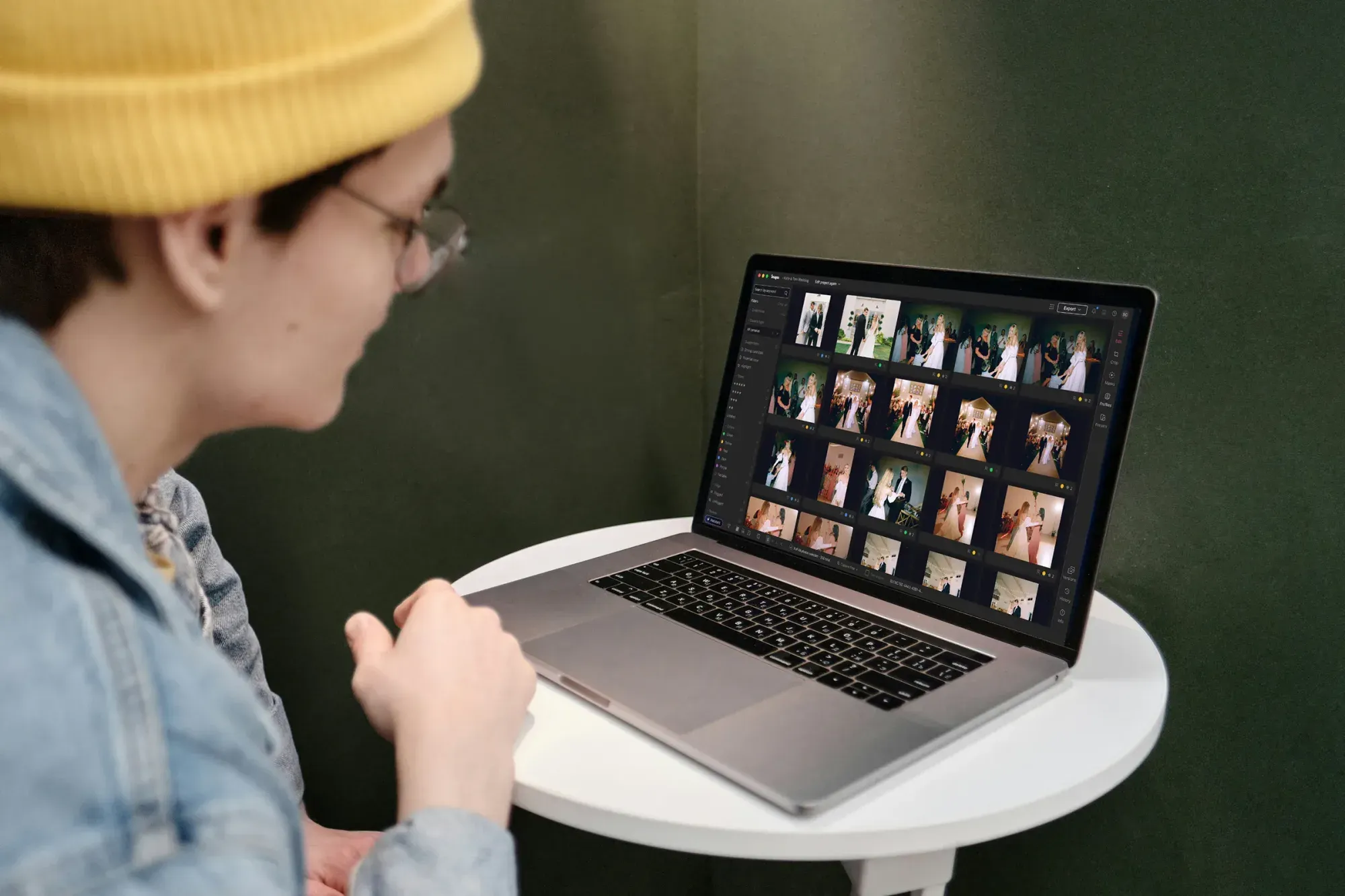
The Foundations of an Automated Workflow
Look, the conversation around AI in photography has changed. It’s no longer a futuristic concept; it’s a practical business tool. The global AI in photography market is set to hit $12.1 billion by 2030, and there’s a good reason for that explosive growth. It solves the single biggest problem photographers face: a lack of time.
Thinking about automation requires a mental shift. You’re not handing over your creativity to a machine. You’re promoting yourself. You move from being the person doing every single slider adjustment to the creative director who defines the final look. Your job is to build and perfect the system, not to perform the manual labor within it. This is how you scale.
Why Automation is No Longer Optional
In a competitive market, speed and consistency are everything. Clients don’t just want great photos; they want them quickly. And research backs this up. A 2024 report showed that photography businesses with automated workflows see a 30% higher client retention rate. Why? Because when you can deliver a full wedding gallery in a week instead of a month, you create an incredible client experience. They’re more likely to refer you and book you again.
And your peers are already on board. The PPA Trend Report notes that 74% of professional photographers now use AI tools. If you’re still doing everything manually, you’re not just working harder; you’re actively falling behind the industry standard.
The Core Components: Hardware vs. Cloud
Your automated workflow will rely on two types of processing: local and cloud-based. It’s not an either/or situation; they work together.
- Local Processing – This happens on your computer. Modern machines with Apple M-series chips or NVIDIA GPUs have dedicated hardware (NPUs) for AI tasks. This is ideal for things that need immediate feedback, like AI-powered masking in Lightroom or using a plugin like Topaz Photo AI. The key benefit is speed for single-photo tasks.
- Cloud-Based Processing – This is where services like Imagen come in. For massive jobs like editing a 3,000-photo wedding, uploading your photos to a powerful cloud server is far more efficient. It frees up your local machine so you can keep working on other things. The cloud can process thousands of photos in parallel, a task that would bring even a high-end local machine to its knees.
A smart workflow uses both. You’ll use your local machine for initial culling and final touch-ups, and the cloud for the heavy lifting of editing entire catalogs.
Setting Up Your 2026 Automation Infrastructure
Before you can automate anything, you need the right foundation. It’s like building a factory; you need the right building, machinery, and power source before you can start the assembly line. Here’s a checklist of the non-negotiables for a 2026 workflow.
The Software Foundation
Your entire workflow needs a central database to live in. This is your command center. For 99% of photographers, the choice comes down to two main platforms.
- Adobe Lightroom Classic: This is the industry standard for a reason. Its cataloging system is second to none, and nearly every automation tool on the market, including Imagen, is built to integrate directly with it. The Adobe Photography Plan is relatively inexpensive (around $9.99/month) and gives you the essential tools. This is the recommended starting point for most automated workflows.
- Capture One Pro: Known for its superior color rendering and tethered shooting capabilities, Capture One Pro is a strong choice, especially for studio photographers. While its automation integrations have improved, the ecosystem isn’t as broad as Lightroom’s. It’s also more expensive, with a perpetual license costing around $299 or a subscription at $14.92/month.
For our purposes, we’ll focus on a Lightroom-based workflow due to its widespread compatibility, but the principles remain the same regardless of your chosen software.
Hardware Benchmarks for AI
You can’t run a high-performance system on outdated hardware. AI photo editing is computationally intensive. Pushing your 2020 laptop to run these new tools will only lead to frustration, crashes, and a workflow that’s slower than your old manual one. Here’s what you need to look for in a 2026-ready machine:
- Memory (RAM) – 32GB of Unified Memory is the new baseline. 16GB might have been fine a few years ago, but with AI denoising, generative fill, and multiple apps running, it’s no longer enough. 32GB ensures you can run your editing software, an AI plugin, and a web browser without hitting a performance wall.
- Processor (CPU/NPU) – Look for chips with a dedicated Neural Processing Unit (NPU). Apple’s M-series (M3, M4, and beyond) have this built-in, and it makes a massive difference. It offloads AI-specific tasks from the main processor, so things like subject masking or AI upscaling are nearly instantaneous.
- Storage – A fast internal NVMe SSD is critical. Your catalog and active projects should live here. A minimum of 1TB internal storage is recommended, with a larger external RAID array for long-term archiving.
- Network Connection – For cloud-based editing, your internet upload speed is a crucial part of your hardware. With 2026 projections showing 5G-enabled speeds reaching 1GB/s, a fast fiber connection is essential to get photos to and from the cloud quickly.
Phase 1: Automated Culling and Organization
Let’s be honest: nobody enjoys culling. It’s the most tedious, time-consuming part of the job. Spending hours clicking through thousands of nearly identical photos to find the keepers is a massive drain on your creative energy. This is the first and easiest part of your workflow to automate.
-
Step 1: Import with Smart Previews Before you even think about culling, optimize your import process in Lightroom. Instead of generating full-sized 1:1 previews, which can take hours, generate Smart Previews. They’re smaller, lightweight DNG files that are much faster to work with. You can do all your culling and even basic editing using only the Smart Previews, which dramatically speeds up the entire process. Your computer will thank you.
-
Step 2: AI-Driven Selection This is where the powerful happens. Instead of manually reviewing every photo, you’ll use a dedicated AI culling tool. A platform like Imagen’s AI Photo Culling integrates directly into your workflow. You import your photos, and the AI gets to work. It analyzes every single frame for critical issues:
- Focus Quality – Is the subject sharp or slightly soft?
- Blinks & Expressions – Are the subjects’ eyes closed? Is someone making a strange face?
- Duplicates – It groups similar photos together so you can pick the single best one from a burst.
- Composition – It can even give a subjective quality score to help you identify the strongest images.
A process that used to take 2-3 hours can now be done in minutes. For example, sorting through 2,000 RAW images can take as little as 15 minutes with an AI tool, and it does so with over 95% accuracy.
-
Step 3: Review and Refine The AI isn’t meant to make the final decision for you; it’s meant to do the heavy lifting. Your job is to review its selections. Instead of looking at 3,000 photos, you’re now looking at the 500 best ones. You make the final creative choices, ensuring the story of the day is told perfectly. You’re still the director; you just have a very efficient assistant.
Phase 2: High-Volume Color Correction with Imagen
Once you’ve culled your photos, the next major time-sink is color correction and basic editing. Getting consistent exposure, white balance, and tone across thousands of photos from different lighting situations is a massive challenge. Doing it manually is a recipe for long nights and inconsistent results. This is where a personal AI editing model becomes invaluable.
Scenario: The 3,000-Image Wedding
Imagine you just finished shooting a wedding. You’ve 3,000 culled photos sitting in a Lightroom Classic collection. The old way would be to spend the next 10-15 hours editing them. Here’s the new way with Imagen’s Personal AI Profile:
First, you need to create your profile. This is the most important step. You provide Imagen with a catalog of at least 5,000 of your previously edited photos. The AI analyzes your unique style. It learns how you handle white balance in tungsten lighting, how you adjust exposure for backlit subjects, your preferred tone curve, and even your specific HSL adjustments. It creates a model of your aesthetic.
Now, with your new wedding photos, the process is simple:
- Select the collection in Lightroom.
- Send it to Imagen AI Photo Editing with a single click.
- Apply your Personal AI Profile.
- Go grab a coffee.
In about 20 minutes, Imagen will process all 3,000 photos fully edited in your style, delivering them in batches as they process so you can start reviewing early frames. You can send the AI edits back to your Lightroom Classic catalog or export finished files from Imagen. The results are startlingly accurate. Because it learned from you, it doesn’t look like a generic preset. It looks like you edited it. Professional photographers report this process reduces their active editing time by up to 90%.
Fine-Tuning Your AI Profile
What if the AI isn’t perfect on the first pass? That’s expected. Your job as the creative director is to refine it.
When you get the photos back from Imagen, you might make a few small tweaks to a handful of them. Maybe you want to warm up the skin tones a bit more on the reception photos. You make those final adjustments in Lightroom. Then, you tell Imagen to re-learn from your newly tweaked edits. The AI updates your profile based on this new feedback. Over time, your AI profile becomes more and more accurate, eventually reaching a point where it’s 99% perfect, requiring almost no changes from you. It’s a continuous learning process that gets better with every edit.
The goal of AI in a creative workflow isn’t to remove the artist. It’s to remove the friction between the artist’s vision and the final product. By automating repetitive tasks, photographers can spend more time on the things that truly define their style: composition, lighting, and connection with their subjects.
Itamar Haim, AI Photography Workflow Specialist.
Phase 3: Advanced Retouching and Image Enhancement
Basic color and tone are just one part of the editing process. What about skin smoothing, object removal, or sharpening? This is the third phase of our automated workflow, where you apply specialized tools to your hero shots. Not every photo needs this level of detail, but for key portraits and prints, automation can still save a ton of time.
Modular Plugins vs. All-in-One AI
When it comes to advanced retouching, you’ve two main approaches. You can use a suite of specialized plugins or a single, do-it-all application.
The Modular Approach: Retouch4me Tools like the Retouch4me suite offer individual plugins for specific tasks. You buy one for skin healing, one for dodging and burning, one for fabric textures, and so on. Each plugin costs between $100 and $150.
- Pros – You get highly specialized tools that do one thing extremely well. The results are often very clean and professional. You only pay for the specific tools you need for your workflow (e.g., a portrait photographer might only need the Skin and Heal plugins).
- Cons – The cost can add up quickly if you need multiple capabilities. It also creates a multi-step process, as you might need to run several different plugins on a single photo.
The All-in-One Approach: Topaz Photo AI A tool like Topaz Photo AI combines denoising, sharpening, and upscaling into a single interface for a one-time cost of around $199.
- Pros – It’s a cost-effective solution that covers the most common image enhancement needs. Its Autopilot feature can analyze a photo and suggest the best combination of adjustments, making it very fast to use.
- Cons – While it’s very good, it can sometimes be a jack-of-all-trades, master-of-none. The results might require more manual tweaking than a specialized plugin.
Your choice depends on your needs. For high-end portrait work, the modular approach might be better. For event and wedding photographers who just need to quickly sharpen and denoise a few key shots, an all-in-one tool is more efficient.
Generative AI in the Workflow
You can’t talk about 2026 workflows without mentioning generative AI. Tools like Adobe Firefly, now built directly into Photoshop, have become incredibly powerful for complex retouching tasks that were once impossible or took hours.
Here’s where it fits:
- Object Removal – Need to remove a distracting tourist from the background of a perfect ceremony shot? Circle them with the lasso tool, click “Generative Fill,” and they’re gone.
- Background Expansion – Cropped a photo too tightly? Use the crop tool to expand the canvas and let Generative Expand create a smooth extension of the background.
This isn’t for every photo, but for those few critical images, it’s a monumental time-saver. It’s the final layer of your automated process, used selectively for maximum impact.
Phase 4: Exporting, Delivery, and Archiving
Your photos are culled, edited, and retouched. You’re almost done. But the final mile, getting the photos to the client and backing them up securely, can still be a manual time-drain. This final phase connects all the previous steps and completes the automation loop.
Comparison Table: Automated Gallery Delivery Systems
Once you export your photos from Lightroom, you need a way to deliver them to your clients. A professional online gallery is a must. Most modern platforms integrate with Lightroom via a plugin, allowing you to publish and update galleries with a single click. This eliminates the tedious process of exporting JPEGs, uploading them via a web browser, and organizing them manually.
| Feature | Pixieset | Pic-Time | CloudSpot |
|---|---|---|---|
| Lightroom Integration | Yes (Publish Service) | Yes (Publish Service + Plugin) | Yes (Publish Service) |
| Key Feature | Clean, minimalist design and strong print store integration. | Advanced marketing tools and creative gallery layouts. | Focus on simplicity and fast, reliable performance. |
| Free Plan | 3GB Storage | 20GB Storage | 10GB Storage |
| Paid Plan Start Price | $8/month (billed annually) | $17/month (billed annually) | $22/month (billed annually) |
The API Advantage
This is where you can take your automation to the next level. Using a service like Zapier, you can connect your apps and create automated sequences without writing any code. Over 60% of high-end studios now use some form of API integration to connect their workflows.
Here are a few examples of what’s possible:
- When a gallery is published in Pic-Time, automatically send a personalized email to the client with the link.
- When you export a sneak peek photo to a specific Dropbox folder, automatically post it to your Instagram feed with a predefined caption.
- When a client favorites their photos for an album, automatically create a new card in your Trello or Asana project management board for the album design.
These small connections eliminate dozens of manual steps, reduce the chance of human error, and create a smooth, professional experience for both you and your clients. Imagen’s Cloud Storage is on the roadmap as a future backup option that could fit neatly into this ecosystem.
Future-Proofing and Scaling Your Business
Adopting an automated workflow in 2026 isn’t a one-time setup. It’s an ongoing process of refinement. The AI tools are getting smarter, faster, and more efficient every year. Staying ahead of the curve is what will allow you to not just survive, but thrive.
Maintaining Artistic Integrity
A common fear is that AI will make every photographer’s work look the same. This is only true if you rely on generic, pre-built styles. The key to maintaining your unique voice is to use tools that learn from you. This is the core philosophy behind Imagen’s Personal AI Profiles.
Here are some tips for keeping your work unique:
- Don’t Automate Everything – Decide which parts of your process are your creative signature. Maybe you automate 95% of the basic corrections but always do the final creative color grade manually on your top 50 images.
- Continuously Train Your AI – As your style evolves, make sure you’re feeding those new edits back into your AI profile. Your AI should grow with you.
- Focus on the Shoot – The best way to differentiate your work is in-camera. Use your freed-up time to experiment with lighting, composition, and posing. That’s something AI can’t replicate. Your vision is the most important part.
Cost-Benefit Analysis of Full Automation
Is all this software and technology worth the cost? Let’s break it down. Your biggest expense is your time. If you value your editing time at, say, $50/hour, a 10-hour wedding edit costs you $500 in time.
Now, let’s look at the automation costs. According to the current Imagen pricing, you pay on export for the photos you deliver and exploring the tools is free, so check the pricing page for current rates. You can cut your editing cost significantly compared to outsourcing, and you saved nearly 10 hours of your life. That’s time you can now spend shooting another session, marketing your business, or with your family.
And don’t forget the energy savings. AI tasks running on modern hardware with NPUs consume up to 60% less power than traditional GPU-heavy rendering. It’s not just cheaper and faster; it’s also more efficient. When you do the math, the return on investment isn’t just positive; it’s transformative for your business.
What’s new in Imagen: Imagen is now an intelligent, agentic Studio for professional photographers, which makes it a natural hub for an automated workflow. You cull, edit, review and export in one project, in any order, so there is less handing off between apps. Edit in your own style with a Personal AI Profile or a ready-made AI Profile, and let the assistant find photos and act on them when you ask in plain language, with you steering. The Studio is rolling out gradually as a beta.
Frequently Asked Questions
Will AI replace photographers?
No, it won’t. AI is a tool to handle repetitive post-production tasks. It doesn’t have creative vision, it can’t interact with clients, and it can’t capture a moment in-camera. It replaces the tedious work, freeing you up to focus on the artistic and human elements of photography.
How much time does it take to set up a Personal AI Profile?
The initial setup is fast. You just need to point Imagen to a Lightroom catalog with at least 5,000 of your previously edited photos. The AI training process then happens in the cloud and typically takes less than 24 hours to create your ready-to-use profile.
Can I use Imagen if I don’t have 5,000 edited photos?
Yes, you can. Imagen offers pre-built Talent AI Profiles created by top-tier photographers. You can start using these immediately to get professional-grade edits while you build up your own catalog to train a personal profile later.
Is cloud-based editing secure?
Yes. Reputable services like Imagen use secure, encrypted connections for all uploads and downloads. Your original photos are never modified, and the edited versions can be sent back to your local Lightroom Classic catalog or exported as JPG, TIFF or PNG from Imagen, giving you full control over your files.
Does automated editing work for all types of photography?
It works best for high-volume genres like wedding photography, events, portraits, and real estate. While a fine-art photographer might do more manual work, they can still use AI for culling and initial raw processing to speed up their workflow.
What’s the difference between an Imagen AI Profile and a Lightroom preset?
A preset applies the same static settings to every photo, regardless of its lighting or content. An AI Profile analyzes each photo individually and applies intelligent adjustments based on how it learned you would edit that specific scene. It adapts to each photo, which a preset can’t do.
Can I try these tools before I buy?
Absolutely. Many AI photography tools let you try them before you buy. With Imagen, exploring the tools is free and you pay on export, so you can test it on your own photos and see the results for yourself before committing.
Do I need to be very technical to set this up?
No, you don’t. Most modern AI tools are designed with user-friendly interfaces and deep integration with Lightroom. The setup usually involves installing a simple plugin and following a few on-screen instructions. You don’t need to know how to code or be a computer expert.
