

AI Video Editing Software for Event Recaps 2026
Table of contents
- The Best AI Video Editing Software for Event Recaps in 2026
- How to choose AI video editing software for event recaps
- 1. Imagen Video: the AI grading and clip-organization layer
- 2. Adobe Premiere Pro: the editing hub
- 3. DaVinci Resolve: grading and finishing power
- 4. CapCut: fast social recaps
- 5. Final Cut Pro: Mac-native speed
- 6. Descript: transcript-driven talk and interview recaps
- How the pieces fit into one event recap workflow
- Where AI genuinely helps, and where it does not
- Frequently asked questions
The Best AI Video Editing Software for Event Recaps in 2026
An event recap lives or dies on two things: it has to look consistent, and it has to land quickly while the event is still fresh. That is a hard combination when your footage comes from three cameras, a roaming gimbal, and a couple of phones, all shot under lighting that changed from a bright keynote stage to a dim evening reception. Before you can build a tight two-minute highlight, you have to sort a pile of clips, find the moments worth keeping, and pull every camera into one coherent look.
This is where the phrase AI video editing software for event recaps gets slippery. No single tool does the whole job well, and the ones that promise a finished recap at the push of a button rarely survive contact with real multi-camera footage. The honest approach is a stack: an editor where you build the cut, a grading and organization layer that removes the tedious prep, and a few specialists for the jobs nobody’s timeline should be without. Below is a practical rundown of the software worth knowing, what each one is genuinely good at, and how to fit them together for conference recaps, wedding films, festivals, product launches, and corporate events.
How to choose AI video editing software for event recaps
Before the list, it helps to name what actually slows an event recap down. It is almost never the creative cut. It is the setup work: sorting hundreds of clips to find the usable takes, matching color across mismatched cameras, and fixing skin tones so your host looks the same on stage as at the after-party. When you evaluate a tool, ask what part of that grunt work it removes and whether it plays nicely with the editor you already trust. A tool that saves an hour of grading but locks you out of your normal timeline is not a win. The strongest workflows keep your editor at the center and let AI absorb the repetitive volume around it.
1. Imagen Video: the AI grading and clip-organization layer
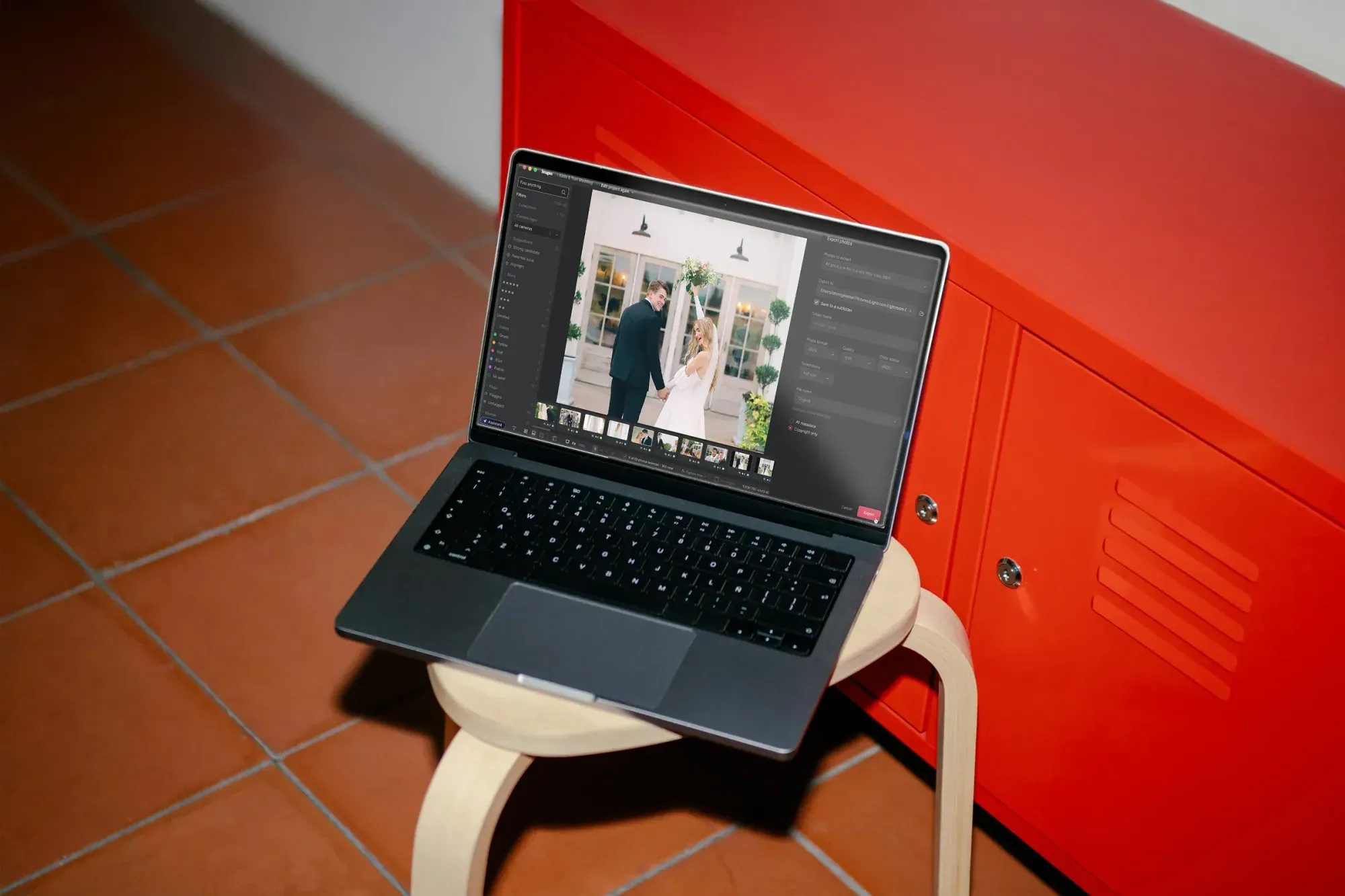
Imagen Video is not a full editor, and it does not pretend to be. It is built to solve the two prep problems that eat the front of every event recap: getting a consistent look across mixed cameras, and turning a wall of raw clips into an organized starting point. Its adaptive AI color grading works clip by clip. It matches every camera, fixes skin tones, and delivers a consistent cinematic grade across the whole timeline in one pass. That matters most for events, where a backlit keynote shot and a dim reception shot need different treatment to end up looking like the same film.
It is genuinely strong at blending mixed-camera footage, so a Log main camera and an auto-color second body stop looking like two separate shoots. You get a look two ways: AI Profiles, which are professionally trained grades applied clip by clip with options such as MOTION OF LIGHT, FRAME ONE, and TRUE TO LIFE, or your own LUTs when you sell a signature grade and want full creative control. The second job is organization. The Assistant Editor, now in beta, lets you pick a category and upload footage, then sorts every clip, surfaces the most recommended shots, and opens a structured, ready-to-work project in Premiere Pro. You start from an organized, already-graded timeline instead of a cold pile of files.
Be clear on the boundary: the actual cut happens in Premiere Pro. Imagen Video prepares the grade and the organized project, then hands it off so you finish the edit in your NLE. It also does not track subjects, retime for slow motion, stabilize shaky handheld, do motion graphics or VFX, remove objects inside a clip, or auto-generate a highlight reel. It is the color and clip-sorting layer, and it is honest about that. You can edit your first project free, which makes it easy to run on one real event and see how the grade holds across your own cameras. See what Imagen Video does here.
2. Adobe Premiere Pro: the editing hub
For most event recap editors, Premiere Pro is the room where the film gets built. It is a full non-linear editor, so this is where you assemble the sequence, cut to music, sync multi-camera angles, add titles and lower thirds, and export the final deliverable. Because Imagen Video hands off a structured Premiere Pro project, the two fit together naturally: the grade and the clip sorting arrive done, and you spend your time on pacing and storytelling rather than setup.
Premiere Pro also carries a deep set of native tools that cover the specialist jobs an event recap sometimes needs, from basic stabilization to speed changes to text and graphics. It is a strong default hub precisely because it does not force you to leave for the common tasks, and it accepts an organized, already-graded timeline without friction.
3. DaVinci Resolve: grading and finishing power
DaVinci Resolve is a well-known editor and color-finishing platform, and it is a common second seat in event post. Editors who want deep manual control over color, node-based grading, and finishing tools often reach for it, and it has a capable editing page in its own right. If your event recap calls for meticulous hand-grading on hero shots or advanced finishing, Resolve is a serious option.
The trade-off is time. Detailed manual grading across a full multi-camera event is slow and unforgiving, because your eye adapts as you work and the look drifts across a long timeline. That is exactly the pain an adaptive one-pass grade is meant to absorb. Many editors use both: let an AI layer pull the whole event into a consistent baseline, then reserve manual finishing for the handful of shots that truly deserve it.
4. CapCut: fast social recaps
When the deliverable is a quick vertical recap for social within hours of the event, CapCut is a popular choice. It is built for speed and for social formats, with templates, captions, and a mobile-friendly workflow that make it easy to turn a few strong moments into a shareable clip fast. For a same-day teaser or a short highlight aimed at Instagram or TikTok, it removes a lot of friction.
It is less suited to a polished, long-form multi-camera recap where color consistency across cameras is the priority. A sensible pattern is to grade and organize your footage first so every clip already matches, then pull selects into a fast social tool for the quick vertical version while your full recap comes together in your main editor.
5. Final Cut Pro: Mac-native speed
For editors on Apple hardware, Final Cut Pro is a fast, native full editor with a magnetic timeline that many event shooters find quick for assembly. It handles the same core job as Premiere Pro: this is where you build the cut, sync angles, and export. If your studio is Mac-based and you prefer its editing model, it is a strong hub for the creative work.
As with any editor, the grading and clip-sorting prep still has to happen somewhere. Pairing a native editor with an upstream grading and organization layer keeps the tedious matching off your plate, so you open Final Cut to an organized set of selects that already share one look.
6. Descript: transcript-driven talk and interview recaps
Events heavy on spoken content, such as conference talks, panels, and interviews, benefit from a transcript-first editor like Descript. Editing by cutting text rather than scrubbing a timeline is genuinely faster for pulling quotable moments out of a long keynote or a green-room interview. For recap videos where the story is carried by what people said, it is a smart specialist to keep in the stack.
It is not the tool for color-matching a five-camera festival shoot or building a music-driven highlight montage. Use it for what it is good at, lifting the best spoken moments quickly, and route the color and multi-camera consistency to a grading layer and the final assembly to your main editor.
How the pieces fit into one event recap workflow
The tools above are not competitors so much as stations on an assembly line. A clean order of operations looks like this. First, offload and organize your media on ingest, keeping each camera in a clearly labeled folder so you can repeat the same structure at every event. Second, run an AI organization pass so your clips get sorted and the strongest shots get surfaced, which is what Imagen Video’s Assistant Editor does before it opens a structured project in Premiere Pro. Third, apply the grade in one pass so every camera matches and skin tones are corrected across the whole timeline. Fourth, do the actual creative cut in your editor, whether that is Premiere Pro, Final Cut Pro, or DaVinci Resolve, and send the specialist jobs to the right specialist tool.
The logic is simple. Let the machine do the volume work of sorting and grading, and spend your own energy on the film. An event recap that starts from an organized, already-matched timeline comes together far faster than one that starts from a cold folder of mismatched clips, and it looks more professional because the color holds from the first frame to the last.
Where AI genuinely helps, and where it does not
It is worth being honest about the limits, because that is what keeps this workflow reliable. AI is excellent at two event-recap jobs today: grading every clip to a consistent look across all your cameras, and sorting your footage so you begin from an organized project. Those are the two tasks that reliably eat the front of every edit, and handing them off is the biggest time win available.
AI is not going to make the creative cut for you, and you would not want it to. The pacing, the music sync, the choice of which moment to open on, that is the craft clients pay for, and it stays with you in your editor. Specialist jobs also belong to specialist tools: subject tracking and autofocus fixes, slow-motion retiming, stabilization, motion graphics and VFX, and object removal inside a clip are all handled natively in editors like Premiere Pro and DaVinci Resolve, not by a color-grading layer. Point each task at the tool built for it, let the grading layer take the color and clip sorting off your plate, and your event recaps will be both faster to make and more consistent to watch. If you also shoot stills at your events, the same clip-first thinking applies to photo delivery, covered in our guides on AI facial recognition for event photography delivery and AI tools for removing objects from event photos.
What’s new in Imagen: Imagen is now an intelligent, agentic Studio for professional photographers: one project where you cull, edit, review and export in any order. For the still photos from the same event, the built-in editor (Beta) adds manual sliders, crop and presets, and you can export finished JPG, TIFF or PNG files straight from Imagen. The Studio is rolling out gradually as a beta, and Imagen Video continues to handle clip grading for your recap footage.
Frequently asked questions
What is the best AI video editing software for event recaps?
There is no single tool that does everything well. The strongest approach is a stack: a full editor such as Premiere Pro, Final Cut Pro, or DaVinci Resolve for the creative cut, an AI grading and clip-organization layer like Imagen Video to match your cameras and sort your footage, and specialists such as CapCut for fast social versions or Descript for talk-heavy recaps. Match the tool to the job rather than expecting one app to handle all of it.
Can AI edit my event recap automatically?
Not the creative cut. AI is very good at grading every clip to a consistent look across cameras and at sorting footage to surface the best shots, which is what Imagen Video does before it opens an organized project in Premiere Pro. The actual editing, pacing, and music sync still happen in your NLE, where you make the storytelling decisions.
How do I keep footage from multiple cameras looking consistent?
Use an adaptive grade that works clip by clip rather than one flat correction. Imagen Video matches every camera, fixes skin tones, and delivers a consistent cinematic grade across the whole timeline in one pass, which is why a mixed-camera event ends up looking like one coherent film. You can apply its AI Profiles or bring your own LUTs for full creative control.
Do I still need Premiere Pro or another editor?
Yes. Imagen Video is a color grading and clip-organization layer, not a full editor. It prepares the grade and hands you a structured, ready-to-work project, but the actual cut, titles, and final export are built in an editor such as Premiere Pro, Final Cut Pro, or DaVinci Resolve. The tools work together rather than replacing each other.
Is there a way to try an AI grading layer before paying?
Yes. Imagen Video lets you edit your first project free, so you can test the grade and the Assistant Editor on your own event footage first. For more on the full editing workflow, browse the library of valuable tips.

