

AI tools for wedding photo editing: A 2026 Guide and Top Picks
Table of contents
- 1. Best for High-Volume, Style-Consistent Batch Editing and Culling
- 2. Best for Detailed Skin Retouching on Portraits
- 3. Best for One-Click RAW Enhancement on Individual Files
- 4. Best for Sharpening, Noise Reduction, and Detail Recovery
- 5. Best for Merging Brackets in Difficult Light
- 6. Best for Classic Layer-Based Editing and Composites
- How to Choose the Right AI Wedding Editing Tool
- Frequently Asked Questions
A single wedding can leave you with 2,000 to 4,000 frames, shot across a getting-ready room in flat window light, a ceremony under harsh midday sun, and a reception lit by warm string bulbs and a DJ’s color wash. The best AI tools for wedding photo editing in 2026 are the ones that turn that chaos into one clean, consistent gallery without erasing the look your couples booked you for. This guide walks through the tool categories that matter for wedding work, from batch color grading and culling to skin retouching and heavy compositing, with a clear “best for” on each so you can match the pick to the part of your workflow that hurts most.
The list opens with Imagen, which earns the top spot for high-volume, style-consistent batch editing and culling, the two jobs that eat the most hours after a wedding. From there it moves through the categories that handle the exceptions: local skin retouching, single-file RAW enhancement, detail recovery and noise reduction, bracket merging for tough light, and classic layer work. No single tool wins every job, so read each entry for the task it does best.
1. Best for High-Volume, Style-Consistent Batch Editing and Culling
Imagen is a desktop app for Mac and Windows built for photographers who deliver whole weddings, not single hero frames. You download and install it, and you do not need Lightroom running underneath it. That matters on a Monday morning when a Saturday wedding is sitting on your cards and the couple is already asking for a sneak peek.
The core of Imagen is batch editing in your personal AI editing style. You point it at a full wedding, and it applies color correction, exposure balancing, and white balance in your own consistent style across every frame. The shaded getting-ready shots, the bright ceremony exit, and the tungsten-lit first dance come back looking like one coherent gallery instead of a patchwork of separate edits. AI culling runs in the same flow, so the burst of ten nearly identical bouquet-toss frames narrows down before you spend an evening scrolling. Imagen reports that the first batch finishes in under 10 minutes, which is the difference between delivering this week and editing every night for two. Edited photos arrive in batches as they process, so you can start reviewing early frames while the rest finish.
Where a frame needs individual attention, the assistant finds photos and acts on them when you ask in plain language, and AI filters such as blur and closed eyes help you narrow a wedding quickly. The framing is simple. Your personal editing style handles the whole set, and the assistant helps with the handful of frames that need extra care, with you making the final call. You build reusable style profiles once, so your signature look travels from one wedding to the next instead of being rebuilt by hand each time. You can read more about how that works, and about the new Studio where you cull, edit and export in one project, on the Imagen site.
Pricing is transparent and pay-as-you-go, so you pay for the photos you export, and exploring the tools is free. That lets you run a real wedding through it before you commit. Imagen works directly on your RAW files, so you are grading real capture data.
Two honest limits are worth stating plainly. Imagen does not generate images from scratch, and it does not sharpen or deblur a soft capture. If the ring shot missed focus, no editing here will rescue it. Imagen does include AI denoise and AI smooth-skin and face-retouch tools for consistent cleanup, but it does not do full background replacement or true HDR bracket merging, and it is not a proofing gallery. It grades, culls, and finishes what your camera actually recorded. Within that lane, for volume and consistency across a wedding, nothing on this list matches it.
Best for: Wedding and event photographers who shoot high volume and want one consistent style applied fast across the whole gallery, with per-photo finishing on the frames that need it.
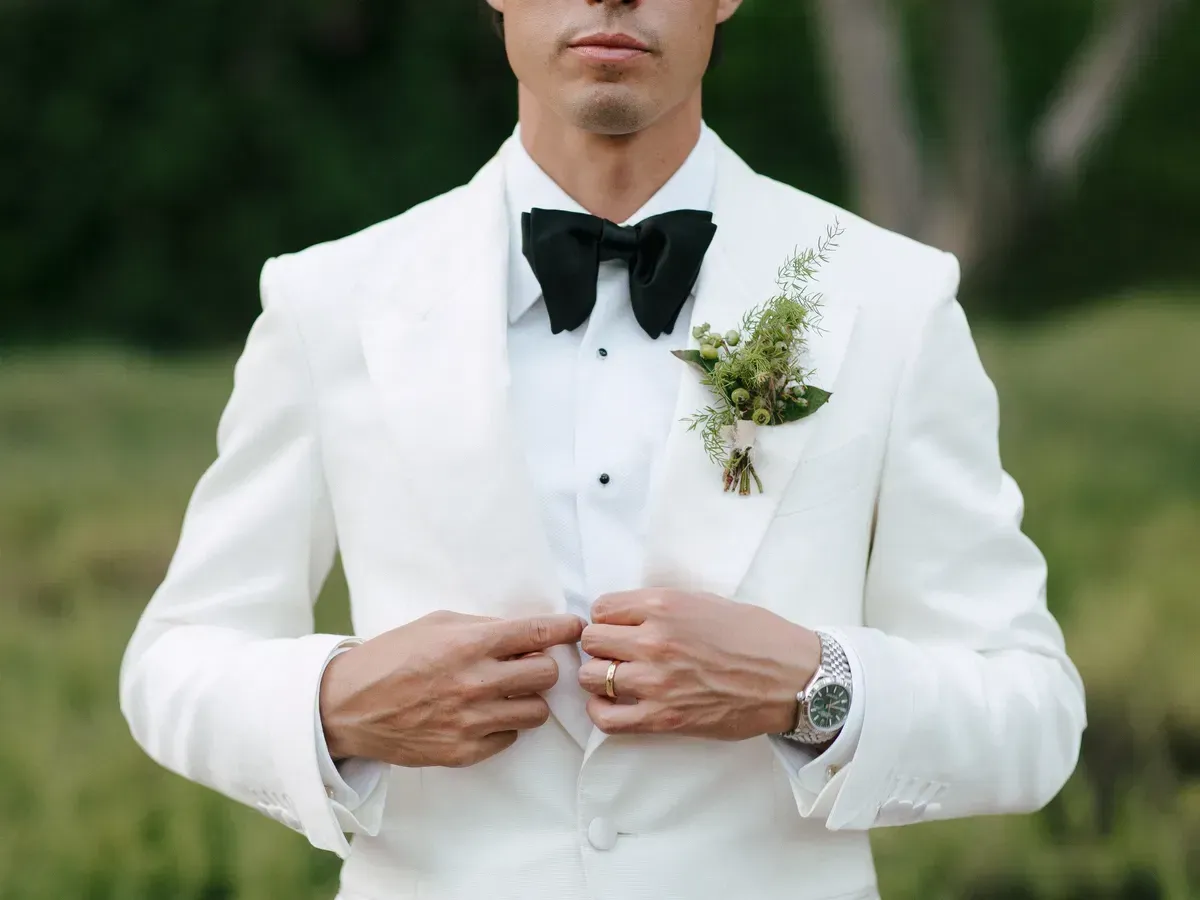
2. Best for Detailed Skin Retouching on Portraits
Wedding galleries always include a set of frames that get printed large and stared at up close: the portraits of the couple, the bridal party lineup, the close details of a face during vows. Those deserve careful, individual retouching. Beauty and portrait work often calls for frequency-separation skin edits, blemish cleanup, and dodge-and-burn done frame by frame. A dedicated skin-retouching tool that automates skin, eyes, and blemishes gives you a strong starting point you can refine by hand. These tools shine when the priority is one immaculate face rather than a thousand consistent frames, so most wedding photographers reach for them only on the hero portraits, not the full set.
Best for: Retouchers polishing the handful of couple and bridal-party portraits that need per-image skin and detail control.
3. Best for One-Click RAW Enhancement on Individual Files
Sometimes you just need one file to look finished fast: a favorite portrait for the couple’s thank-you card, or a single frame a venue asked to feature. RAW enhancement tools apply automatic tone, color, and detail adjustments to a file and hand you a polished result quickly. They work well when you are processing a modest set of standout images and value a fast, pleasing baseline over batch consistency across an entire wedding. For a full gallery they are the wrong shape, since they treat each file on its own rather than grading the whole day to one look, but for a one-off hero frame they are quick and satisfying.
Best for: Photographers finishing a small number of standout wedding frames who want a quick, attractive automatic starting point on individual files.
4. Best for Sharpening, Noise Reduction, and Detail Recovery
This is a category Imagen deliberately does not touch, so it deserves its own pick. Weddings are full of low-light moments: a candlelit ceremony, a dim reception hall, a dance floor lit by nothing but the DJ’s moving heads. When you push ISO to capture those, you get noise. When a frame is slightly soft, you want to recover what detail is there. Specialized detail-enhancement tools use trained models to sharpen, denoise, and recover fine texture. Keep expectations realistic, because these tools improve capture quality within limits and cannot invent focus that was never there. Used on the right frames, they rescue images that would otherwise be unusable.
Best for: Photographers cleaning up high-ISO reception and ceremony frames that need noise reduction or sharpening before delivery.
5. Best for Merging Brackets in Difficult Light
Wedding venues love to punish your dynamic range. A bright window behind the couple, a dark church interior with blown-out stained glass, a sunset ceremony where the sky and the faces cannot both be exposed at once. When you bracket those scenes to capture the full range, you need a tool that merges the exposures into one balanced, natural frame. True HDR bracket-merging tools align the frames, blend the highlights and shadows, and hand you a single file that holds detail in both the window and the room. This is precise, per-scene work rather than a batch you can walk away from, and it is the right call for the few venue shots where one exposure simply will not hold everything.
Best for: Photographers blending bracketed exposures on high-contrast venue and sunset scenes where a single frame cannot hold the full range.
6. Best for Classic Layer-Based Editing and Composites
Sometimes a wedding frame needs full manual control. Swapping a closed pair of eyes from one group shot into another, removing a guest who wandered into the background of the first kiss, or building a composite from several frames all call for hands-on work. Layer-based editors remain the standard for compositing, precise masking, and any job where you build an image element by element. Wedding photographers still reach for a layered editor on the rare frame that a client wants fixed to an exact brief, because it gives pixel-level command that no automated pass replaces. The trade-off is time, since this is craft on a single image rather than a pass you can run across the whole gallery.
Best for: Photographers doing manual head swaps, guest removal, or composite work on the occasional wedding frame that needs pixel-level control.
How to Choose the Right AI Wedding Editing Tool
Start with the shape of the job, because that points straight at the answer. The bulk of wedding editing is volume and consistency, getting a few thousand frames to one clean look on a deadline, and that is exactly where a batch-first tool like Imagen removes the bottleneck and finishes the first pass in under 10 minutes. The exceptions are where the specialist tools earn their place: a hero portrait that needs deep skin work, a noisy dance-floor frame that needs denoising, a backlit ceremony that needs its brackets merged, or a guest that needs compositing out of the background.
Most working wedding photographers run two tools rather than one. A common setup culls and batch-grades the entire wedding to a consistent style first, then hands the handful of frames that need deep retouching, heavy sharpening, bracket merging, or manual compositing to a dedicated specialist app. The point is not to crown a single winner. The point is to match each tool to the job it does best, and to stop paying with your evenings for the time your current workflow wastes.
If weddings are your core work, three related guides go deeper on the software choices behind this workflow. See professional photo editing software for the pro-grade landscape, photo editing software for Windows if that is your platform, and free photo editing software for Mac if you are building a starter kit. You can also browse the full library of photography workflow tips for more on batch editing, culling, and shoot-wide consistency.
What’s new in Imagen: Imagen is now an intelligent, agentic Studio for professional photographers, so a wedding becomes one project where you cull, edit, review and export in any order. Edited photos arrive in batches, which lets you start reviewing the getting-ready frames while the reception finishes processing, and AI filters such as blur and closed eyes help you narrow a big day. The Studio is rolling out gradually as a beta.
Frequently Asked Questions
What is the best AI tool for editing a full wedding gallery?
For a full wedding, the strongest pick is a batch-first tool like Imagen, because it applies your consistent style across every frame with your Personal AI Profile and AI culling in one flow. The getting-ready, ceremony, and reception shots come back looking like one coherent gallery, the first batch finishes in under 10 minutes, and an assistant that finds photos and acts on them in plain language helps with the frames that need extra work.
Can AI editing tools fix blurry or noisy wedding photos?
Some specialized detail-enhancement tools focus on sharpening, noise reduction, and detail recovery, and they can improve capture quality within limits, which is useful for dim ceremony and reception frames. They cannot fully restore focus that was never captured. Imagen includes AI denoise for noisy frames, but it does not sharpen or deblur, so a soft frame needs a dedicated detail-enhancement tool, and even that has boundaries.
How much does Imagen cost, and is there a free trial?
Imagen is pay-as-you-go, so you pay for the photos you export, and exploring the tools is free. That lets you run a real wedding through it before committing.
Do I need to install software or run Lightroom to use Imagen?
No Lightroom is needed to run Imagen. Imagen is a desktop app for Mac and Windows that you download and install, and it works without Lightroom running underneath it. You sign in, upload your wedding, and the batch begins, which is why the first pass can finish in under 10 minutes. It works directly on your RAW files, and a Personal AI Profile still learns from your past edited photos in Lightroom Classic.
Should I use one AI tool or several for wedding editing?
Most professionals use two. A batch-first tool handles the volume, culling the whole wedding and grading it to a consistent look, while a specialist tool takes on deep skin retouching, heavy sharpening, bracket merging, or complex compositing when a single frame needs it. Match each tool to the job it does best rather than forcing one app to do everything.
