

AI Photo Editing Tips for Wedding Photographers in 2026
Table of contents
- Start with a clean, consistent import and backup
- Cull thousands of frames down to your keepers
- Train the AI on your own editing style
- Batch your color and exposure before finishing frames
- Retouch skin and detail without slowing delivery
- Handle mixed lighting from ceremony to reception
- Export and deliver galleries on schedule
- What Imagen costs and how to try it
- Frequently asked questions
The fastest way to edit a full wedding in 2026 is to let AI cull the thousands of frames and apply your own editing style in one pass, then finish only the hero shots by hand. That workflow turns a two-week backlog into a two-day delivery without changing how your photos look. This guide walks through practical AI photo editing tips for wedding photographers, from the first import to the final gallery, so you spend your evenings shooting instead of sitting at a catalog. For a broader walkthrough of the full pipeline, see our complete AI editing guide for wedding photographers, and browse more tutorials on the Valuable Tips hub.
Start with a clean, consistent import and backup
A full wedding often lands somewhere between 3,000 and 8,000 raw frames across two or three cameras. Before you touch a single slider, get that volume organized so the AI has clean material to work with. Good ingest habits save hours later, and they protect the day you can never reshoot.
- Copy every card to two drives before you format anything, so you always hold a backup.
- Merge both shooters into one catalog and sort by capture time, so the day reads in order.
- Standardize your file naming with the date and couple, so galleries stay easy to find.
- Flag any obviously broken frames now, so they never reach the editing stage.
Once the shoot sits in a single, backed-up catalog, you can point an AI editor at it with confidence. Imagen is a desktop app for Mac and Windows that works alongside your Lightroom or Capture One catalog, so you keep the organized library you already trust rather than a separate silo of copies.
Cull thousands of frames down to your keepers
Culling is the slowest part of most wedding workflows, and it is the first place AI pays off. Instead of clicking through every frame, let AI culling group near-duplicates, flag closed eyes and soft focus, and surface the sharpest version of each moment. You review its picks rather than starting from a blank slate.
Imagen culls a full shoot and marks duplicates, blinks, and blurry frames, then hands you a shortlist to approve. On a 6,000-frame wedding, that can mean reviewing a few hundred strong candidates instead of scrolling past everything twice. You stay the final judge, because the tool suggests keepers and you confirm them. If you would rather cull by hand, you can skip AI culling and cull manually for free. Tools like Aftershoot also offer AI culling, and they can fit certain shooting styles well.
Train the AI on your own editing style
The tip that separates a wedding pro from a hobbyist is consistency. Your clients hired your look, so every frame in the gallery should carry it. The strongest AI editors learn your personal style instead of applying a generic preset that flattens your work into someone else’s taste.
Imagen builds a personal AI profile from your own past edits in Lightroom or Capture One. It studies how you set exposure, white balance, tone, and color across thousands of your finished images, then applies those same decisions to a new shoot. The result matches your hand, so a bright and airy editor stays bright and airy, and a dark and moody editor stays dark and moody. Feed it a few thousand of your best past photos, and the profile only gets more accurate over time.
One honesty note that matters for wedding work: Imagen edits, culls, and retouches the real photos you shot. It does not invent scenes, guests, dresses, venues, or moments, and it never generates people who were not there. Every frame it returns is your capture of the real day, adjusted to your style.
Batch your color and exposure before finishing frames
Weddings move through wildly different light in a single day. Morning prep near a window, a dim church, harsh midday portraits, and a dark reception can all live in one gallery. The efficient approach is to batch the base edit across the whole shoot first, then finish individual frames second.
- Let the AI apply your style profile to the entire catalog in one pass, so the day reads as one cohesive set.
- Group frames by scene, such as prep, ceremony, and reception, so each lighting situation stays consistent within itself.
- Review the batch result at full screen, so you catch any scene that needs a global nudge before you go deeper.
- Save your adjusted profile, so the next wedding starts from an even closer match.
Because Imagen applies your look consistently across the full shoot, the reception frames sit next to the ceremony frames without a jarring shift in tone. You spend your attention on the handful of images that need special care rather than dragging every slider by hand. Edited photos arrive in batches as they process, so you can start reviewing early frames while the rest finish.
Retouch skin and detail without slowing delivery
Portrait retouching is the second big time sink for wedding photographers. Couples want clean, natural skin, not heavy plastic edits, and they want it across dozens of portraits. AI retouching handles the repetitive base cleanup so your hand-work goes only where it counts.
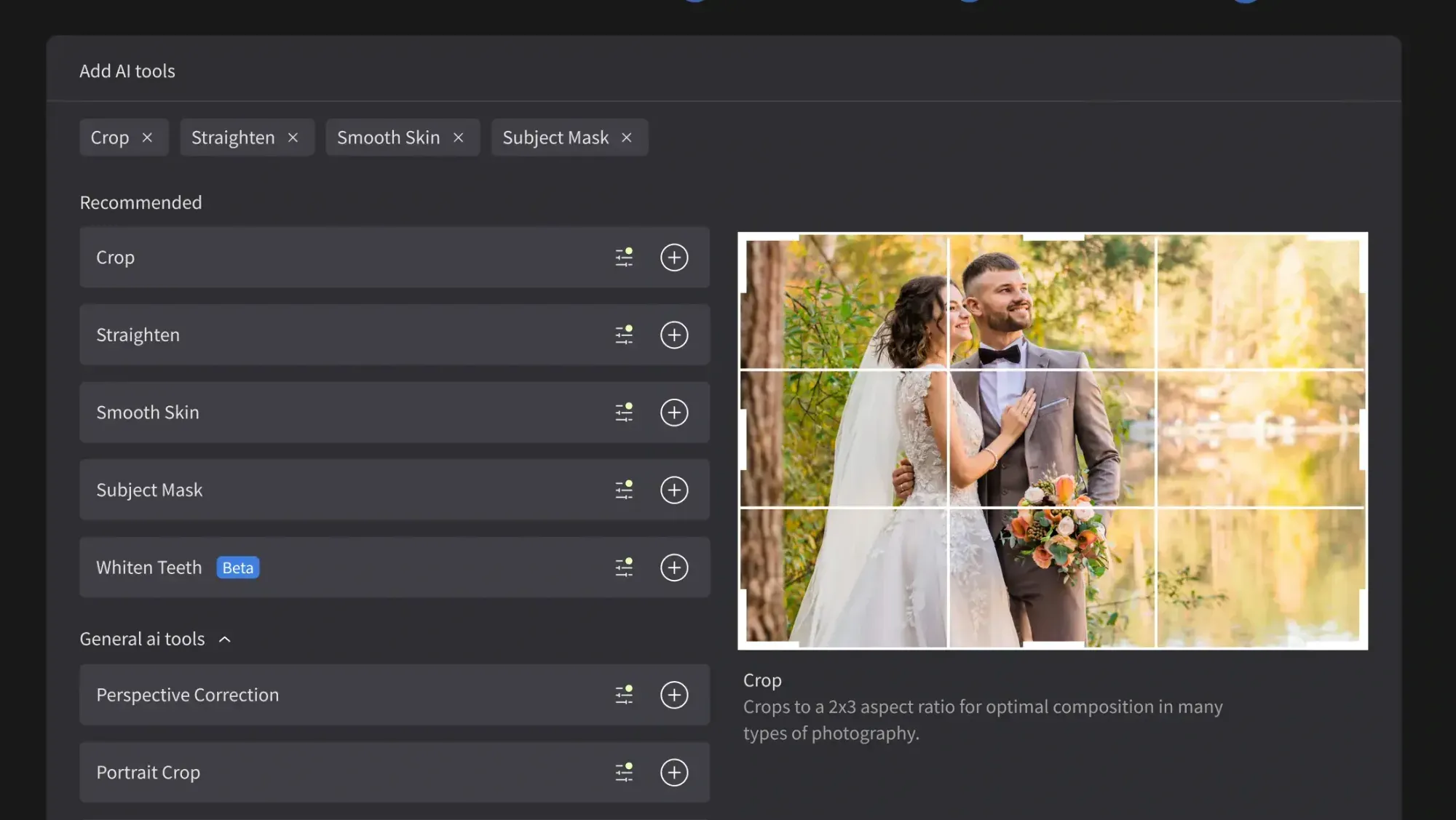
Imagen offers AI retouching in the same connected workflow, so it can smooth skin, reduce blemishes, and even out tone while keeping a real, natural texture. You set the strength once, and it carries across the portrait set at a steady level. That keeps the bride’s close-ups and the family formals looking like one consistent edit. Specialist retouching tools such as Retouch4Me focus on this step alone, and they suit photographers who prefer a plugin-based approach inside Photoshop.
The retouching still works on real photographed people. It refines the skin and detail already in your frame, and it does not swap faces, invent guests, or fabricate a moment that did not happen.
Handle mixed lighting from ceremony to reception
The trickiest galleries mix daylight, tungsten, and colored uplighting within an hour. A practical tip is to let the AI set a strong baseline per scene, then correct only the outliers. White balance is where mixed lighting usually breaks, so give that step a careful second look.
- Trust the style profile for exposure and tone across each scene, since those decisions stay consistent.
- Spot-check white balance on skin tones under colored reception lights, and correct any frame that drifts.
- Recover shadow detail on dark dance-floor shots, so faces stay readable in the final gallery.
- Keep highlight control on bright outdoor portraits, so the dress holds its texture instead of clipping.
Because the base edit is already done in batch, these targeted corrections take minutes rather than hours. You review, adjust the few frames that need it, and move on. If your work also includes hybrid coverage, our roundup of the best AI editing software for wedding videographers covers the video side of that same shoot.
Export and deliver galleries on schedule
Fast editing only matters if delivery keeps pace. Once your keepers are culled, styled, and retouched, the export step should be a routine you can repeat every week. Set up presets so you never rebuild your output settings from scratch.
- Export full-resolution files for print and web-sized files for the online gallery in one batch.
- Keep a sharpening and sizing preset per delivery type, so each gallery matches your standard.
- Send the retouched keepers to your client gallery host as soon as the batch finishes.
- Archive the catalog and both backups, so the wedding is safe long after delivery.
With culling, styling, and retouching handled in one connected workflow, many wedding photographers cut their post-production from days to hours. That speed is what lets a busy studio take on a full Saturday and still deliver within the week.
What Imagen costs and how to try it
Imagen runs on pay-as-you-go pricing, which fits the uneven schedule of wedding season: you pay for the photos you export, so your total still tracks what you actually shoot each month. You see every edit in the gallery before you export, so you can judge the style match for yourself before you commit.
Try Imagen’s new Studio and edit your next wedding in your own style, all in one project.
What’s new in Imagen: Imagen is now an intelligent, agentic Studio for professional photographers: one project where you cull, edit, review and export in any order. For wedding work, that means AI filters such as blur and closed eyes to narrow a big day, edits in your personal style from a Personal AI Profile, and photos that arrive in batches so you can review early frames while the rest finish. It is rolling out gradually as a beta.
Frequently asked questions
How much time can AI editing save on a full wedding?
It depends on your frame count and how much hand-finishing you like, but AI culling and batch styling remove the two slowest steps. Many wedding photographers cut a multi-day edit down to a few hours, because they review AI picks and finish only the hero shots instead of touching every frame.
Will AI editing make my galleries look generic?
Not when the tool learns your own style. Imagen builds a profile from your past edits and applies your exposure, color, and tone decisions across the shoot, so the gallery keeps your signature look. You are not borrowing a stock preset, you are scaling your own hand across thousands of frames.
Does Imagen change what actually happened at the wedding?
No, it edits the real photos you shot. Imagen culls, styles, and retouches your actual captures, and it does not invent scenes, guests, dresses, or moments. Every image in the final gallery is your photograph of the real day, adjusted to your editing style.
Do I still control the final edit?
Yes, you stay the editor. The AI suggests keepers, applies your style, and does the base retouching, and you approve, adjust, or override anything before delivery. Because it works inside your Lightroom or Capture One catalog, every frame stays fully editable in the tools you already use.

