

AI Photo Editing Tips for Ecommerce Brands in 2026
Table of contents
- AI Photo Editing Tips for Ecommerce Brands
- Start With a Consistent Shoot So Editing Stays Simple
- Cull the Raw Shoot Before You Edit Anything
- Train an AI Tool on Your Own Editing Style
- Batch Your Color and Exposure Corrections
- Handle Retouching and Backgrounds With Care
- Export Web-Ready Files for Every Channel
- Try Imagen on Your Own Catalog
- Frequently Asked Questions
AI Photo Editing Tips for Ecommerce Brands
The fastest way to keep a product catalog consistent is to build a repeatable editing workflow and let AI handle the slow, repetitive steps at scale. For ecommerce brands, that means training an AI tool on your own editing style, then applying it across every product shot so your storefront, ads, and marketplace listings all match. This guide walks through practical tips for editing product photos faster, from culling the raw shoot to exporting web-ready files, and it shows where a tool like Imagen fits into the process. Imagen edits, culls, and retouches the real photos you shot, so it works on your actual product images rather than generating anything new.
One honesty note before you start. Imagen edits and retouches real photographed products, and it does not invent products, labels, packaging, food, dishes, garments, models, or fake scenes. Every tip below assumes you shoot your own catalog and want those genuine photos edited well and edited consistently.
Start With a Consistent Shoot So Editing Stays Simple
Good editing starts on set. When you lock your lighting, white balance, and camera settings before the shoot, every frame lands in a similar place, and your edits carry across the whole batch. Ecommerce buyers scroll fast, so a catalog where colors and exposure drift from photo to photo reads as sloppy and lowers trust.
- Shoot in RAW so you keep the most detail for color and exposure adjustments later.
- Use a fixed lighting setup and a color checker card on the first frame of each product.
- Keep the same background, distance, and framing for a product family so the set feels unified.
- Bracket tricky products, such as glossy or reflective items, to give yourself editing options.
A disciplined shoot means your editing tool has less variance to correct, and an AI tool trained on your style produces cleaner results with fewer manual touch-ups. You can read a deeper walkthrough in our complete guide to AI photo editing for ecommerce brands.
Cull the Raw Shoot Before You Edit Anything
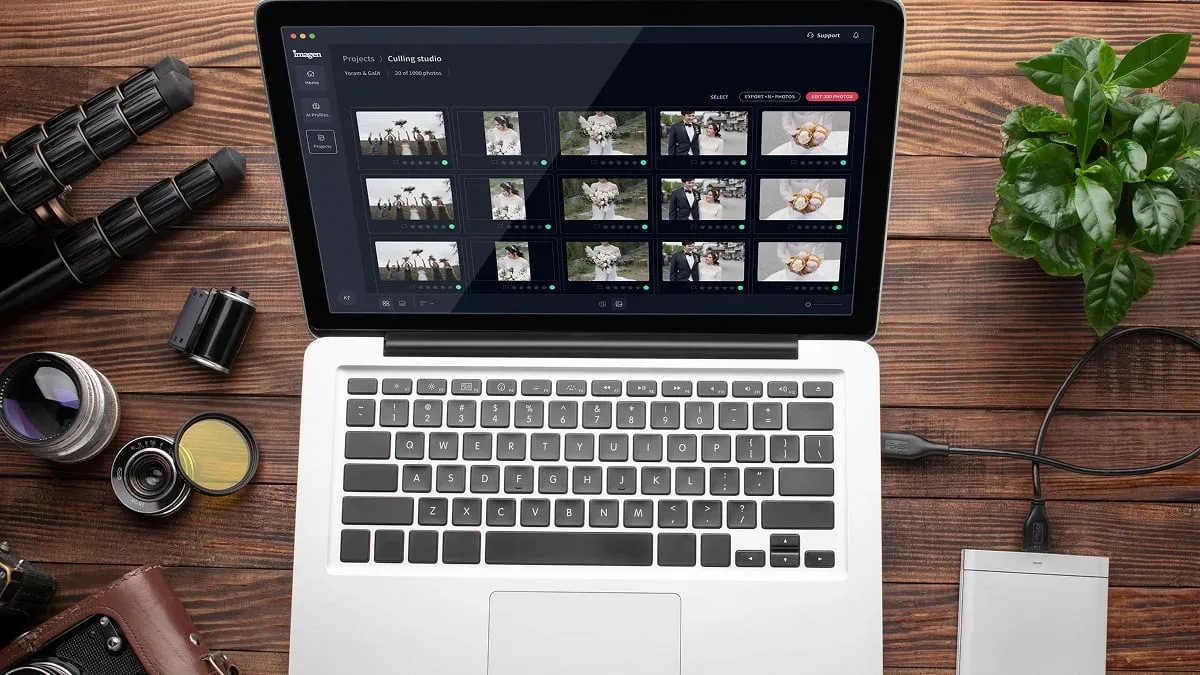
A single product shoot can produce hundreds of frames, and most of them never reach the store. Culling is the step where you pick the keepers and drop the blinks, blurs, and near-duplicates. Doing this first saves you from editing photos that were never going to ship.
Manual culling is slow, so this is one of the first places to bring in AI. Imagen includes AI culling that flags duplicates and technical rejects across the full shoot, which lets you approve a shortlist in minutes instead of clicking through every frame. AI culling is optional, and manual culling is free. You stay in control of the final selection, and the tool simply removes the obvious work of sorting.
- Group frames by product, then by angle, so you compare like with like.
- Let the AI mark technical rejects, then confirm or override each call quickly.
- Keep two or three angles per product for the listing, plus one detail shot.
- Move the final selects into an editing batch and leave the rest archived.
Train an AI Tool on Your Own Editing Style
The biggest time sink in catalog editing is applying the same look to every image by hand. This is where a personal-style AI editor changes the math. Imagen learns your personal editing style from your past edits in Lightroom Classic, then applies that look consistently across a full shoot. You are not picking a generic filter, you are teaching the tool the exact adjustments you already make.
For an ecommerce brand, consistency is the whole point. When every product photo carries the same tone, contrast, and color balance, your storefront looks like one brand instead of a patchwork. Because Imagen edits your real photos and does not generate new ones, the result is your product, shot by you, finished in your style.
- Feed the tool a catalog of images you have already edited to your standard.
- Build separate profiles if you shoot distinct product lines with different looks.
- Review the first batch closely, then refine the profile until the output matches your hand edits.
- Reuse that profile on every future shoot so new products match the old ones.
Batch Your Color and Exposure Corrections
Once your style profile is set, batch editing is where the hours come back. Instead of correcting white balance and exposure image by image, you apply your profile to the whole selection at once and then spot-check the outliers. A well-lit shoot needs only light corrections, so most frames pass with a glance.
Color accuracy matters more in ecommerce than almost anywhere else, because a returned order often traces back to a product that looked different on screen. Nail your white balance against a reference, keep skin tones and fabric colors true, and check your brightest and darkest products for clipping. Tools such as Lightroom and Capture One remain strong for hands-on color work, and an AI layer on top handles the repetitive pass so you focus on the few frames that need a human eye.
Handle Retouching and Backgrounds With Care
Product retouching is about honesty as much as polish. Remove dust, stray threads, fingerprints, and sensor spots, but keep the product true to what a buyer will receive. Over-retouched photos that hide real texture or flaws lead to disappointed customers and higher return rates.
Imagen offers AI retouching inside the same connected workflow as culling and style editing, so you clean up your real product photos without jumping between apps. It retouches the item you actually photographed, and it does not swap in invented packaging, garments, or scenes. For clean-edge background removal on white-sweep product shots, dedicated cutout tools and the background features in editors like Photoshop still do focused work, and you can mix them with your AI pass as needed.
- Retouch to remove distractions, not to misrepresent the product.
- Keep a consistent background treatment across a product family for a tidy grid.
- Save a master edited file, then export sized versions for each channel.
Export Web-Ready Files for Every Channel
Your storefront, marketplace listings, and ads each want different image sizes, and slow-loading photos hurt both conversions and search rankings. Set up export presets so every finished image ships at the right dimensions and file size without a manual resave.
- Export a large master for zoom views, plus lighter versions for grids and thumbnails.
- Use consistent file names that map to your product SKUs for easy uploads.
- Compress for the web so pages load fast on mobile connections.
- Keep an archive of full-resolution edited files for reprints and future channels.
When your culling, style editing, retouching, and export all live in one connected flow, a shoot that used to take a full day can move to the store in a fraction of the time. If you are still comparing platforms, our roundup of the best AI photo editing software for product photographers breaks down the options, and you can browse more workflow help on the Valuable Tips hub.
Try Imagen on Your Own Catalog
Imagen brings AI culling, personal-style editing, and AI retouching into one workflow built around your real product photos. Pricing is pay-as-you-go, so you pay for what you export; check the pricing page for current rates. Exploring the tools is free, so you can test the whole flow on a live shoot before you commit. Competitor tools price their work in other ways, such as subscriptions, one-time licenses, per-image credits, or quote-based plans, so weigh the model that fits your volume.
Start editing your product photos with Imagen. Try the new Studio, where you cull, edit and export in one project.
What’s new in Imagen: Imagen now works as an intelligent, agentic Studio for professional photographers, where culling, editing, review, and export sit together in one project and you choose the order. For catalog tips like these, a Personal AI Profile learned from your own past edits keeps product shots consistent, and export can go back to Lightroom Classic or out as JPG, TIFF, or PNG. It is rolling out gradually.
Frequently Asked Questions
Does Imagen generate product images or edit my real photos?
Imagen edits, culls, and retouches the real photos you shot. It does not invent products, labels, packaging, food, garments, models, or backgrounds, so the images you publish are your genuine products finished in your style.
How does AI keep my catalog consistent?
Imagen learns your personal editing style from your past edits in Lightroom Classic, then applies that look across a full shoot. Every product photo carries the same tone, contrast, and color balance, so your storefront reads as one cohesive brand.
How much does Imagen cost for an ecommerce brand?
Imagen is pay-as-you-go, so you pay for what you export; check the pricing page for current rates. Exploring the tools is free, so you can price out a real shoot before deciding.
Can AI editing replace my manual color work entirely?
AI handles the repetitive pass and matches your style across the batch, and it saves the most time on high-volume catalogs. You still review outliers and tricky products by hand, so the best workflow pairs AI speed with your final human check.
