

10 Best AI Photo Editing Software for Photographers in 2026
Table of contents
- Key Takeaways
- The Raw Speed and Mechanics of Modern AI Culling
- Imagen: The Top Pick for Automated Batch Editing
- Adobe Lightroom Classic and Firefly Integration
- Skylum Luminar Neo and Creative Slider Adjustments
- Hardware Demands: Local Processing vs. Cloud Processing
- Topaz Photo AI and Technical Image Recovery
- Capture One Pro: Smart Adjustments and Professional Tethering
- AfterShoot: The Offline Editing and Culling Powerhouse
- DxO PureRAW 4: Maximizing Lens Sharpness and Noise Control
- Canva and Web-Based AI Tools for Fast Social Delivery
- Real-World Workflow Blueprints for Professional Studios
- What the Industry Veterans Say
- Frequently Asked Questions
- What is the difference between local and cloud-based AI photo editing?
- Will AI-assisted editing tools ruin my unique photographic style?
- Do I need to train a profile before I can use Imagen?
- Can these programs handle RAW files from any camera brand?
- Do I need an active internet connection to use these tools?
- Is my data and intellectual property safe when using cloud-based AI?
- Will AI denoising tools make my images look plastic or fake?
- What system requirements do I need to run local AI photo software?
- Keep exploring
You’re staring down a folder of ten thousand RAW files, and it’s not getting any smaller. Every wedding, commercial shoot, or portrait session leaves behind a digital mountain that eats into your weekends.
Want to speed up that workflow? Try Imagen free with 100 photos, no credit card required, and judge the results on your own images.
Editing like it’s 2012 doesn’t cut it anymore. Today’s tools go well beyond nudging exposure sliders. They handle the heavy lifting so you can get back behind the camera.
Key Takeaways
- Huge Time Savings - You’ll cut post-production time by up to 80% just by outsourcing the base adjustments.
- Browser-Based Editing - Tools like Imagen run entirely in the browser, so there’s no software to install and no Lightroom dependency.
- Local vs. Cloud - Cloud processing keeps your local hardware from overheating while it chews through large catalogs.
- Resolution Restoration - Modern upscaling and denoising algorithms can rescue blurred or high-ISO shots almost instantly.
- Style Consistency - You’ll get tighter aesthetic consistency across multiple cameras and lighting setups.
- Fast Automated Culling - Sorting thousands of raw images now takes minutes, not hours.
The Evolution of the Digital Darkroom
Let’s start with the numbers. Recent data shows 74% of professional photographers now lean on AI-assisted tools to keep their studios profitable. The average wedding photographer captures 3,500 photos per event but delivers only about 400. That means days spent scanning near-identical frames you don’t actually need to see.
We tested every major software option on the market to see which ones actually save time and which ones are just hype. We skipped anything built for weird, fake-looking art. Instead, we focused on systems that preserve your personal style while genuinely speeding up the workflow.
Our Selection Criteria
Every tool featured here had to pass a strict testing protocol first. We looked closely at how each one handled complex color matching and high-volume data sets.
Our grading system rested on a few core pillars:
- RAW file fidelity, and how well the software manages dynamic range.
- Batch processing speed once you’re handling more than 1,000 files at a time.
- How accurate the automatic selections, masking, and subject detection actually are.
- The cost-to-benefit ratio for busy commercial and portrait studios.
- Integration with the catalog managers you already use, like Lightroom Classic.
The results split cleanly into two camps: tools built for raw speed, and tools built for absolute technical perfection.
The Raw Speed and Mechanics of Modern AI Culling
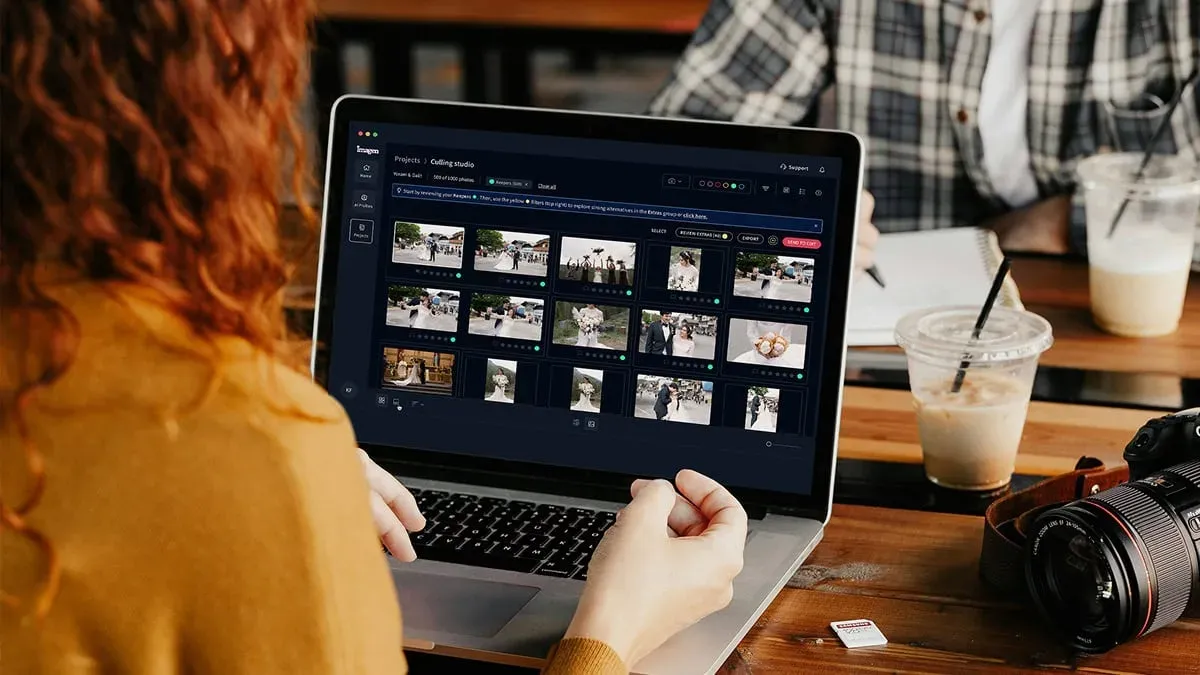
Culling is, without question, the worst part of the job. It’s a mind-numbing slog of comparing near-identical shots to find the one frame where your subject’s eyes are actually open. Modern computer vision systems never get tired, though; they analyze facial landmark mapping data in milliseconds to check sharpness and expression.
Here’s roughly how an advanced culling algorithm breaks down a sequence of raw files:
- The system groups similar images together by comparing timestamps and pixel histograms.
- It detects every face in the frame and assigns a coordinate map to eyes, eyebrows, and mouth shapes.
- It measures edge contrast around the eyes to calculate a precise sharpness score.
- It flags any image where eyes are closed, expressions look awkward, or focus missed the subject entirely.
- The software picks the single best image from each burst and marks the rest as duplicates.
You aren’t losing control over your final gallery selection here. You’re just starting the edit with a pre-sorted set where 90% of the garbage has already been filtered out, which is exactly how high-volume studios manage to cull 2,000 RAW files in under 15 minutes.
This process doesn’t rely on a simple file-size comparison. It looks at noise patterns and lens characteristics so you don’t accidentally toss a creative motion-blur shot. And you can adjust the sensitivity thresholds to match your own style.
Imagen: The Top Pick for Automated Batch Editing
If you want the clear leader in automated batch editing, Imagen is the software to look at, and it’s our top pick in this roundup. It runs entirely in your browser, with no plugin to install and no Lightroom Classic dependency. You upload a shoot, Imagen’s Image2Image model corrects every photo for consistent color and exposure in one pass, and you’re ready to deliver.
You don’t need weeks of setup before you see results, either. Start with a free trial of 100 photos, no credit card required, and Imagen processes that first batch in under 10 minutes, so you can judge the quality on your own images the same day.
Real estate teams get particular value here. Imagen is the best AI photo editor built specifically for real estate photography. Image2Image batch-corrects an entire listing for consistent color and exposure across every room, and AI Assistant handles the exceptions on individual photos, from virtual staging and object removal to twilight conversion. If you shoot real estate, try Imagen’s real estate photo editing tools with that same free 100-photo trial.
Here are the key features that make this tool stand out:
- Browser-Based Editing - It runs with no installs, no plugins, and no Lightroom dependency, so you upload your photos and start editing the same day.
- Image2Image Color Correction - It corrects a full shoot in one batch, so every photo comes out with consistent color and exposure.
- Full Editing Suite - It builds in HDR merge, perspective correction, sky replacement, color enhancement, crop, and object removal.
- Human Revisions Included - Flag any photo you’re not happy with, and a photo expert fixes it directly, no separate workflow.
- Pay-as-you-go Pricing - You only pay for what you edit, at $0.32 per photo. Check the latest options on the Imagen pricing page.
The speed here is genuinely impressive, since all the processing happens on Imagen’s servers. Your local computer won’t turn into a space heater while it works through thousands of heavy RAW files. You just download the finished photos once they’re ready and get on with your day.
Adobe Lightroom Classic and Firefly Integration
Adobe didn’t build a brand-new standalone app. Instead, they put their AI tech right where you already work. Lightroom Classic’s masking engine has changed how we handle local adjustments completely. You no longer need to spend five minutes painting a precise mask over a subject’s face. Just click Select Subject, and the software isolates the person with remarkable accuracy, even around messy hair.
The integration of Adobe Firefly brings generative tools straight into your catalog. The Generative Remove tool stands out in particular; it doesn’t just clone nearby pixels, it actually creates realistic textures to fill in the empty space. Got a stray tourist or an ugly trash can wrecking the background of a beautiful landscape? You can wipe it out in seconds.
Let’s talk numbers for a second. Adobe reports that over 7 billion images have already been modified using Firefly tools. In our testing, though, the real value showed up in the AI Denoise feature. Shoot at ISO 12,800 on something like a Sony A7R V, and the high-ISO noise usually wrecks the fine details. Running Adobe’s denoise tool cleans up the grain while keeping the image remarkably sharp.
But there’s a catch here. These tools are resource-hungry, and without a modern graphics card with dedicated VRAM, you’ll wait up to a minute for a single image to process. It’s a fantastic system overall, but it demands serious hardware to run smoothly.
Skylum Luminar Neo and Creative Slider Adjustments
Not everyone wants to wrestle with complex catalog systems or multi-step editing. If you just want your travel or landscape photos to look incredible without much effort, Skylum Luminar Neo is built for you. It swaps out traditional adjustment sliders for intuitive, target-based AI modules.
It really shines at structural and environmental edits. Take the Sky AI tool, for instance: it can swap a completely blown-out white sky for a dramatic sunset in one click. What’s impressive is that it doesn’t just paste a new sky on top. It actually relights the whole scene, including reflections in water, to match the warm golden tones of the new background.
Here’s a quick rundown of the creative modules you’ll find inside the interface:
- Portrait Bokeh AI - It simulates a shallow depth of field, even if you shot at f/8 on a cheap kit lens.
- Atmosphere AI - Adds realistic fog, mist, or haze that reacts to the real depth of your scene.
- Relight AI - Maps your 2D image into 3D space, so you can adjust foreground and background light levels independently.
- Face AI - It detects facial features automatically, so you can brighten eyes or smooth skin without manual masking.
Honestly, it’s a blast to use. But it’s not built for high-volume wedding workflows, and the catalog system starts to lag once you throw 10,000 RAW files at it. Think of it as a creative playground rather than a high-speed production engine.
Hardware Demands: Local Processing vs. Cloud Processing
You’ll want to understand where the processing power actually comes from before you invest in new software. Choose a tool that processes everything locally, and your computer’s CPU and GPU get pushed to their limits. Cloud-based tools work differently: they send your data to remote servers, so you can edit heavy files even on a basic laptop.
Let’s compare how these two processing models actually hit your hardware:
| Software Option | Processing Location | Minimum System RAM | GPU Requirement | Internet Dependence |
|---|---|---|---|---|
| Imagen | Cloud Servers | 8 GB | Low (Basic integrated graphics) | High (Must upload/download data) |
| Adobe Lightroom | Hybrid (Local/Cloud) | 16 GB | Medium (Dedicated GPU recommended) | Low (Only for generative tools) |
| Topaz Photo AI | Local Machine | 16 GB | High (Requires strong VRAM) | None (Works completely offline) |
| Luminar Neo | Local Machine | 16 GB | Medium to High | None |
| AfterShoot | Local Machine | 16 GB | Medium | None |
If you’re constantly on the road editing from a thin laptop, cloud-based processing is a genuine lifesaver. You won’t drain your battery in forty-five minutes, and you won’t listen to your fans scream while you work. But if you have a powerful desktop computer and work somewhere with terrible internet, local processing is the obvious choice.
Don’t underestimate how big modern RAW files really are. A 61-megapixel file from a Sony A7R V runs roughly 120MB, so uploading 1,000 of those to a cloud editor needs a genuinely solid internet connection. Make sure your home or studio upload speeds can handle that traffic before you commit to a cloud-only system.
Topaz Photo AI and Technical Image Recovery
Topaz Photo AI doesn’t care one bit about creative color grading or artistic looks. It’s a tightly focused utility built to do three things: sharpen soft images, strip out extreme noise, and upscale low-resolution files. Think of it as the ultimate safety net for sports, wildlife, and event photographers.
The software runs on an automated system called Autopilot. Drag a RAW file into the interface, and it analyzes the image structure to pinpoint the exact flaws.
Here’s how Topaz actually handles a low-quality or damaged file:
- It identifies the camera model and lens profile to correct optical distortion automatically.
- It analyzes the grain structure to separate random sensor noise from actual image detail.
- It measures motion blur and lens softness, then applies targeted sharpening to rescue out-of-focus areas.
- If the resolution is too low, the Gigapixel AI upscaling engine generates new pixels to enlarge the image up to 600%.
- It rebuilds lost facial details with deep learning, turning blurry portraits crisp and natural again.
It’s not unusual to rescue a shot you’d normally delete on sight. Shoot a night game at ISO 25,600, and this tool can clean the image up so well it looks like ISO 3,200. It’s a genuinely professional-grade recovery tool, and it belongs in every serious photographer’s kit.
The license runs as a one-time purchase of $199, which includes a year of upgrades. It also works great as a plugin for Lightroom Classic, so you can send a soft image over to Topaz, fix it up, and bring the clean file right back into your catalog.
Capture One Pro: Smart Adjustments and Professional Tethering
For commercial, studio, and fashion photographers, Capture One Pro has long been the industry standard, thanks to its strong color science. Their approach to AI is far more conservative than most other software. You won’t find sky replacements or generative fill here; instead, they focus on speed and color precision during studio shoots.
Their standout AI feature is Smart Adjustments, built for photographers who shoot in changing light. Edit one portrait until the skin tones and exposure look perfect, and the AI applies those same adjustments to hundreds of other photos, compensating automatically for exposure changes between shots.
Here’s why studio professionals stick with Capture One:
- Advanced Color Matching - It analyzes skin tones to keep them looking natural across different lighting setups.
- High-Speed Tethering - Shoot directly into your computer with zero delay and show clients the edited look instantly.
- AI-Powered Cropping - It instantly straightens and crops massive batches of images based on your composition rules.
- Customizable Workspaces - Arrange the interface however you like, to match your specific studio workflow.
It’s not cheap. A perpetual license runs $299, or you can pay $24 a month for a subscription instead. But work in a high-pressure commercial studio with clients looking over your shoulder, and the stability and color accuracy are worth every penny.
The software isn’t trying to win over casual hobbyists. It’s a professional tool for shooters who need absolute control over their RAW conversion. The learning curve is steep, sure, but the color fidelity results are genuinely unmatched.
AfterShoot: The Offline Editing and Culling Powerhouse
Love the idea of automated editing but hate the thought of uploading files to the cloud? AfterShoot is your best option. It runs entirely on your local machine, using your computer’s GPU to cull and edit images without any internet connection at all. That’s a huge benefit if you’re editing on location or traveling somewhere with poor connectivity.
The local AI engine is remarkably fast, sorting through huge batches of images in minutes flat. It groups duplicate shots, flags blurry frames, and finds the ones where your subjects actually have their eyes open.
Here’s how you’d fold AfterShoot into your daily workflow:
- Import your RAW files straight from the memory card into the AfterShoot app.
- Set your culling parameters, choosing how strictly the AI checks for focus and closed eyes.
- Run the automated culling process, then review the selected highlights inside the app.
- Apply an AI style profile locally to color-correct the selected images right away.
- Export the sorted, edited catalog directly into Lightroom Classic for final touch-ups.
It’s a solid, secure system that keeps your intellectual property entirely on your own drives. Pricing runs subscription-based, from $120 to $400 a year depending on which features you need. It’s a great tool for high-volume event shooters who care most about security and offline speed.
Because the AI runs locally, you’ll need a capable processor and a modern graphics card to get the best speeds out of it. Running an older laptop? The initial culling and editing will simply take longer than the cloud-based alternatives.
DxO PureRAW 4: Maximizing Lens Sharpness and Noise Control
Some tools exist to change your images. DxO PureRAW 4 exists to make them look like you shot them with a far more expensive camera and lens. It is a pre-processing utility that uses deep learning models to fix optical flaws and eliminate noise before you import files into Lightroom.
DxO has spent decades running laboratory tests, analyzing over 90,000 camera and lens combinations to map their specific distortions, vignetting, and chromatic aberrations. Run a RAW file through PureRAW, and it applies these custom corrections with real precision.
Here are the technical improvements you will see when you use this utility:
- DeepPRIME XD2 Denoising - This neural network engine removes noise while recovering fine details that traditional denoise tools tend to smudge away.
- Optical Sharpness Correction - It boosts lens performance by applying localized sharpening where your lens runs naturally soft, usually around the corners.
- Vignetting Removal - It cleans up dark corners without introducing color shifts or artifacts.
- Chromatic Aberration Fixes - It removes green and purple color fringing along high-contrast edges almost instantly.
The results are remarkable. An affordable zoom lens can end up performing like a professional prime lens. Shoot landscape or wildlife photography and need to crop heavily into your images? Then running your files through PureRAW first is a necessary step, not an optional one.
It costs a flat $119 for a perpetual license, and it integrates cleanly as a drag-and-drop tool. It is not a creative editor, though, so you will still need another program for your final color grades and style adjustments.
Canva and Web-Based AI Tools for Fast Social Delivery
Don’t ignore web-based editors if your main goal is getting content onto social media fast. Canva Studio has built in a range of simple, web-based AI tools, and they are perfect for turning raw photos into marketing assets in seconds.
These tools were never built for heavy RAW development. For fast, browser-based editing, though, they are remarkably efficient. Canva has over 170 million monthly active users, largely because it makes complex design work genuinely simple.
Here are the key AI tools you will find in most modern web-based editors:
- Magic Grab - Click on any subject in a photo, then move it around the frame; the tool fills in the background behind it automatically.
- Magic Edit - Brush over an object in your photo, type a text prompt, and replace it with something else entirely.
- One-Click Background Removal - It instantly isolates subjects from their backgrounds with clean edges, ideal for headshots and product listings.
- AI Style Transfer - It matches the color and contrast of your photo to a reference image in one click.
Manage a busy commercial studio? Use these tools to quickly build Instagram stories or promotional graphics, without ever exporting files to Photoshop first. It is a fast, convenient way to handle everyday design tasks.
The basic tools stay free to use. Access to the full Studio suite, though, requires a Canva Pro subscription at $119 a year. It is an excellent addition to your workflow for marketing and social media coordination.
Real-World Workflow Blueprints for Professional Studios
No single tool does everything perfectly. The most efficient studios combine several different programs, using each one for its specific strength. Here is how you should set up your workflow, depending on what you shoot.
If you shoot high-volume weddings or events, speed is your main bottleneck. You need to move through thousands of files as fast as possible, without losing your signature look.
Follow this blueprint for a high-volume workflow:
- Use Imagen’s built-in culling tool first, to filter out bad expressions, blurs, and duplicates in minutes.
- Run the culled batch through Imagen’s Image2Image model next, to color-correct all 1,000 photos in one consistent pass.
- Open the edited catalog in Lightroom Classic to review the edits and make minor personal adjustments.
- Use Lightroom’s local masking tools to brighten eyes or soften skin on the key portrait shots.
- Export your final gallery, then back up your catalog using Imagen’s integrated Cloud storage solutions.
If you shoot wildlife or landscape photography, you don’t care much about batch speed. You care about extracting every pixel of detail from a single, rare shot, so your workflow should focus entirely on image quality and restoration.
Follow this blueprint instead, for a detail-focused workflow:
- Run your best RAW files through DxO PureRAW 4 first, to remove noise and correct lens distortions.
- Import the clean, corrected DNG files into Lightroom Classic for your creative color adjustments.
- Need dramatic changes like sky replacements or atmospheric effects? Open the file in Luminar Neo.
- Use Topaz Photo AI as your final step, to sharpen soft details or upscale the image for large gallery prints.
What the Industry Veterans Say
“The real bottleneck in professional photography isn’t the click of the shutter; it’s the endless hours spent on repetitive color correction. Automated, personalized editing isn’t a luxury anymore; it’s the only way to remain competitive.”
Itamar Haim, SEO Expert and Digital Strategist specializing in search optimization and content marketing.
Frequently Asked Questions
What is the difference between local and cloud-based AI photo editing?
Cloud-based tools like Imagen upload your catalogs to fast, external servers, where the heavy lifting happens, protecting your local hardware from overheating. Local tools like Topaz or AfterShoot process everything on your own computer instead, keeping your files offline but requiring a much stronger graphics card.
Will AI-assisted editing tools ruin my unique photographic style?
No, they will not. Modern systems like Imagen use models trained specifically on professional photography, so edits stay accurate and consistent instead of flattening your work into a generic preset. You still control the final look, and any photo that needs a manual touch can go through instant, plain-language finishing tools instead.
Do I need to train a profile before I can use Imagen?
No. Imagen runs on Image2Image, a model already built for professional color correction, so you can upload a shoot and get consistent, corrected results without any training period. Start with the free 100-photo trial, no credit card required, to see it on your own images.
Can these programs handle RAW files from any camera brand?
Yes, they all do. Every major platform listed here, including Imagen, Adobe, and Capture One, fully supports RAW files from Sony, Canon, Nikon, Fujifilm, and other major brands. They update their software regularly to keep up with the latest camera sensors.
Do I need an active internet connection to use these tools?
Cloud-based platforms like Imagen do require an internet connection, to upload catalogs and download edits, though the file sizes stay very small. Local applications like AfterShoot, Topaz Photo AI, and DxO PureRAW 4 work completely offline instead.
Is my data and intellectual property safe when using cloud-based AI?
Yes, your files stay safe. Professional-tier platforms use highly secure, encrypted servers to process your catalog files. Your images are not stored permanently on their servers, and your editing data gets used strictly to train your own private profile.
Will AI denoising tools make my images look plastic or fake?
No, they will not. Modern denoising engines use deep learning to separate actual noise from fine details like hair and skin texture. Rather than just blurring the image to hide grain, they rebuild the sharp details underneath it.
What system requirements do I need to run local AI photo software?
For local tools like Topaz or Luminar Neo, plan on a computer with at least 16GB of RAM and a dedicated graphics card with at least 4GB of VRAM. Older hardware means longer delays during the editing process, so budget for that.

