

10 Best AI Image Editing Tools for Photographers in 2026
Table of contents
- Key Takeaways
- Imagen: The Professional Editing Standard
- Adobe Lightroom Classic
- Aftershoot
- Luminar Neo
- Topaz Photo AI
- Capture One Pro
- Evoto: High-Volume Portrait Retouching
- DxO PhotoLab
- FilterPixel & Narrative Select: Rapid Culling Tools
- Comparing the Top AI Editing Platforms
- Building Your Custom Hybrid AI Workflow
- Frequently Asked Questions
- Can AI image editing tools completely replace human photo editors?
- How many photos do I need to train a custom AI editing profile?
- Do these AI tools work with RAW files?
- Is my catalog data safe when using cloud-based AI editors?
- Can I use AI editing if I don’t have a consistent style yet?
- Do I need a supercomputer to run AI photo editors?
- How much time can I actually save by using AI in my post-production?
- Keep exploring
You’re drowning in RAW files, and you know it. In 2026, the pressure for fast turnaround times means professional photographers can’t spend 40 hours hunched over a single wedding shoot. You need a workflow that moves fast without erasing your creative fingerprint. The old model of manual, frame-by-frame editing simply doesn’t hold up under that kind of volume anymore.
Ready to reclaim hours of editing time? Try Imagen free with 100 photos and see the difference on your own photos.
But how do you pick the right tool when every software company insists it built the best artificial intelligence on the market? We looked closely at the leading platforms to find the AI image editing tools that actually deliver professional-grade results. These modern apps don’t stop at generic filters. They study your specific style and carry your heaviest workloads for you.
Key Takeaways
- Imagen cuts editing time significantly with Image2Image, which batch-corrects an entire shoot’s color and exposure in one pass.
- You typically need thousands of past edited photos to train a highly accurate custom AI profile.
- Over 63% of wedding photographers have transitioned to AI-assisted culling to meet tight client deadlines.
- Modern AI platforms can edit a full catalog of 1,000 photos in under 10 minutes.
- Top-tier tools offer 100GB of free cloud storage to help secure raw files immediately after a shoot.
- Hybrid workflows combining AI tools with Lightroom Classic remain the industry standard for 2026.
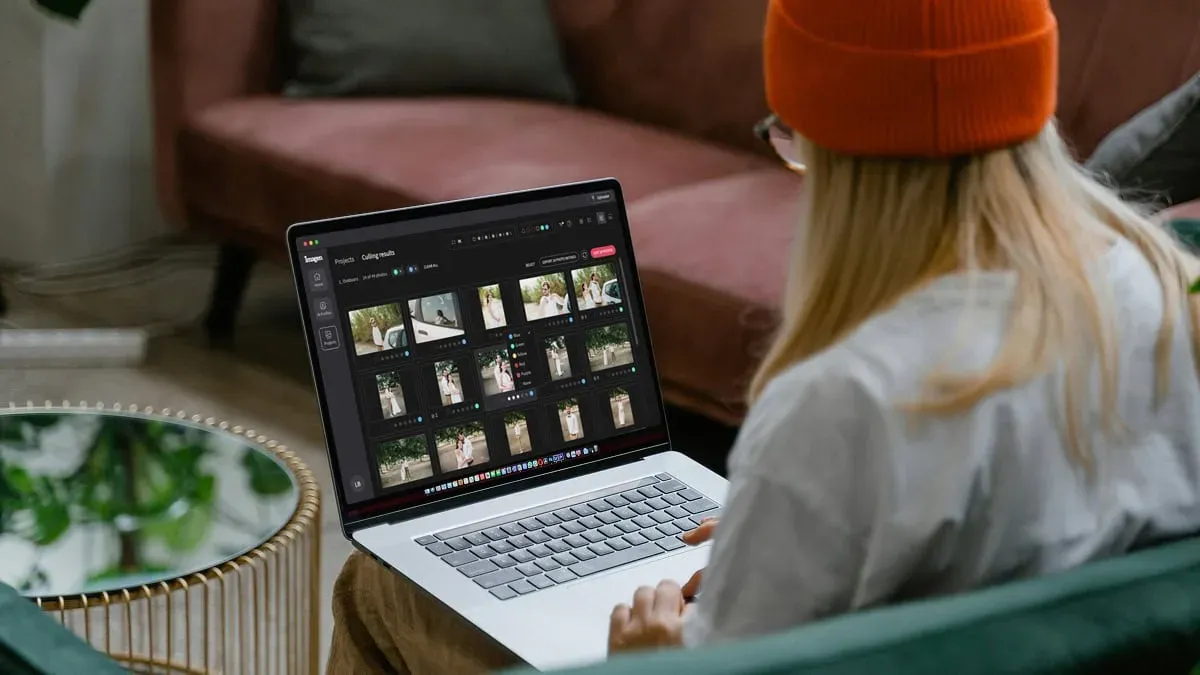
Imagen: The Professional Editing Standard
If you want a tool that truly understands your creative voice, Imagen stands out as the clear market leader. It isn’t a simple preset-flinging app. Instead, it runs as a browser-based web app, so you don’t install anything or depend on a separate editing program to get started. You upload your shoot, and the platform returns a fully corrected, advertising-quality edit in minutes. Imagen is built specifically for high-volume photographers who need both consistency and speed.
Here’s the clever part: two models work together. Image2Image takes your raw shoot and returns a fully corrected, advertising-quality edit in one step, consistent across every photo in the batch. AI Assistant then handles the finishing touches you describe in plain language, like adjusting a tricky exposure or cleaning up a distracting object. It handles the tedious, repetitive work while you keep final creative control over every image. For real estate photo editing, this pairing is a strong fit. Image2Image corrects color across an entire listing in one pass, and AI Assistant covers the exceptions a single photo might need, like virtual staging, object removal, or a twilight conversion. You can try it free on 100 photos, no credit card required.
Here’s a look at the actual steps for getting started:
- Sign up for a free account and start your 100-photo trial, no credit card required.
- Upload your raw, unedited photos directly in the browser, no plugin or installation needed.
- Let Image2Image batch-correct the whole set for consistent color and exposure.
- Use AI Assistant to fine-tune individual photos, then download the finished files.
Key Features
- Image2Image: Corrects a full raw batch into a consistent, advertising-quality edit in one pass.
- AI Assistant: Applies plain-language edits per photo, from object removal to virtual staging to twilight conversion.
- Full Editing Suite: HDR merge, window pull, perspective correction, sky replacement, color enhancement, crop, and object removal, all included.
- Human Revision: Flag any photo in the app, and a photo expert fixes it, no separate workflow needed.
- Privacy and Compliance Tools: Automatic face and license-plate blur, plus a transparency watermark for evolving AI-disclosure rules.
Pricing
- Pay-as-you-go: $0.32 per photo edited, billed monthly for that month’s photos, cancel anytime.
- Teams plan: Volume pricing for 25,000+ photos a year, with a dedicated account manager and priority processing.
Pros
- Cuts editing time significantly on high-volume real estate, wedding, and portrait shoots.
- Delivers real-estate-trained, gallery-level consistency instead of a generic one-size-fits-all filter.
- Runs entirely in the browser, so you skip the install and start editing right away.
- Includes a human revision layer, so tricky photos get a second pass from a real photo expert.
Cons
- Runs in the browser, so you need a stable internet connection to upload and process your photos.
- Doesn’t offer an offline editing mode for photographers who want to work without an internet connection.
Adobe Lightroom Classic
No conversation about AI photo editing is complete without mentioning the industry giant. Adobe has steadily built machine learning into Lightroom Classic, with particular focus on selective editing. Don’t expect it to learn your overall style automatically the way custom platforms do, though. Instead, it helps you make hyper-targeted manual adjustments much faster than before. That makes it an excellent tool for fine-tuning individual elements within a single image.
The star of the show is the local masking engine. It can instantly isolate subjects, skies, backgrounds, and even individual people down to their eyes and teeth. If you’ve ever spent hours brushing masks onto 300 reception photos by hand, you already know what a relief this is. And with the updated generative removal tool, distracting background objects vanish with a single click. It’s genuinely powerful, but it doesn’t solve the high-volume batch editing bottleneck on its own. You’ll still spend real time sync-editing large shoots manually unless you pair it with outside automation.
Here’s how you can build a quick subject mask:
- Open your raw photo in the Develop module.
- Click the Masking icon (the dotted circle) or press Shift+M.
- Select “Subject” from the AI-powered masking options.
- Adjust your exposure, contrast, and clarity sliders to make your subject stand out.
Key Features
- AI Masking: One-click selection of subjects, skies, skin, hair, and clothing.
- Generative Remove: Firefly-powered object removal that fills in missing areas realistically.
- Denoise: AI-powered noise reduction that preserves sharp details in high-ISO files.
- Smart Presets: Adaptive templates that adjust based on the specific content of your photo.
Pricing
- Lightroom Plan: $11.99 per month for Lightroom, Lightroom Classic and 1TB of storage.
- Creative Cloud Pro: Around $69.99 per month for access to all Adobe creative tools.
Pros
- Industry-standard file management and catalog organization.
- Incredibly accurate subject and background detection tools.
- No need to export files to third-party tools for local masking edits.
Cons
- Can be highly resource-intensive, dragging down older computer systems.
- Lacks the deep style-learning automation that lets you edit thousands of photos simultaneously.
Aftershoot
Aftershoot is a direct competitor in the high-speed post-production space. It takes a local-first approach to editing and culling, so you don’t always need to upload massive files to the cloud to finish the job. That makes it a solid option if you travel often or deal with slow home internet. But you’ll want a computer with a fairly modern processor, since every calculation runs right on your local machine.
“AI isn’t here to replace the artist’s eye; it’s here to clear the digital clutter so the artist can actually see again. The faster you cull, the sooner you create.”
Itamar Haim, SEO Expert and Digital Strategist specializing in search optimization and content marketing.
Their AI creator lets you build custom profiles, though the learning curve can feel a little disjointed at first. If you aren’t careful with your catalog selection, the AI can produce inconsistent exposure adjustments across a set. It excels at sorting through duplicates and keeping your hard drives tidy, but it lacks the polished cloud ecosystem that competitors have spent years refining. Still, if you’d rather skip per-image costs, its flat monthly rate remains a genuine draw.
Key Features
- Local Processing: Runs its AI algorithms directly on your local hardware.
- AI Culling: Groups duplicates, detects closed eyes, and flags blurry shots.
- Custom AI Profiles: Learns your editing choices from past lightroom catalog data.
- Aftershoot Selects: Rapid automated selection engine to find your hero shots.
Pricing
- Select Plan (Culling Only): $15 per month.
- Essentials (Editing Only): $20 per month.
- Max Plan (Culling + Editing): $40 per month.
Pros
- No internet connection is required for the actual culling and editing steps.
- Flat-rate pricing model means you don’t pay per-photo fees.
- Quickly handles large memory card dumps right on your laptop.
Cons
- Requires a powerful computer to run local AI operations efficiently.
- The color consistency on complex lighting scenarios isn’t as reliable as cloud-trained models.
Luminar Neo
Skylum’s Luminar Neo is built for creative photographers who want big, stylized changes without spending hours in Photoshop. Shoot documentary or photojournalism work? This probably isn’t your tool. But if you love portraits, landscapes, or composite fine art, its creative AI features can turn a flat frame into something stunning in moments. Honestly, it turns complex tasks like layer compositing and glow effects into simple slider controls anyone can use.
The platform leans on highly specialized, single-task AI tools. Need to swap a boring, grey sky for a dramatic sunset? You’ve got that in one click. Want volumetric light rays or realistic mist drifting through the scene? It’s done in seconds, too. It’s a fantastic sandbox for experimental editing, but it falls flat fast if you need quick, consistent color corrections across a 2,000-photo wedding. Think of it as a creative playground, not a high-volume assembly line. You’ll find it painfully slow if you try to batch-process a huge event.
Key Features
- Sky AI: Instantly replaces skies while automatically matching the scene’s color temperature.
- Portrait Portraiture Tools: Automated body, face, and skin retouching sliders.
- Relight AI: Maps your photo in 3D to allow realistic light adjustments.
- GenErase: Erases complex objects and fills the space with matching textures.
Pricing
- Monthly Subscription: $14.95 per month.
- Lifetime License: Around $199 one-time purchase with optional add-on packs.
Pros
- Incredibly easy to use for complex creative composites.
- Stunning sky replacement technology that handles fine hair and trees perfectly.
- Works as a standalone app or as a plugin for Photoshop and Lightroom.
Cons
- Very slow when importing or trying to apply edits to large batches of photos.
- Can easily lead to over-processed, unnatural-looking photos if you aren’t careful with the sliders.
Topaz Photo AI
Sometimes your photo is nearly perfect, except it’s a touch soft or wrecked by heavy digital noise. That’s exactly where Topaz Photo AI steps in. It’s a laser-focused utility built to rescue files you’d otherwise toss out. Under the hood, it combines three distinct AI models: denoise, sharpen, and upscale. It won’t touch stylistic color grading, but it can make your raw files look like they came off a camera twice the price. Honestly, it’s a lifesaver for tough shooting conditions.
The deep-learning algorithms study your photo pixel by pixel to tell image noise apart from natural texture. When you upsample a photo for a big gallery print, it doesn’t just stretch pixels; it actually generates believable detail. It’s a key rescue tool if you shoot wildlife, sports, or low-light events at high ISO on a regular basis. And the autopilot function is smart. It evaluates each image and applies just the right amount of correction without overdoing it.
Key Features
- Autopilot: Automatically analyzes your photo to apply the perfect blend of sharpening and noise reduction.
- DeNoise AI: Removes heavy digital noise while preserving skin texture and fine details.
- Sharpen AI: Corrects motion blur and missed focus with remarkable accuracy.
- Gigapixel AI: Upscales files up to 600% without losing sharpness or introducing artifacts.
Pricing
- Single Purchase: $199 for a lifetime license, which includes one year of free upgrades.
Pros
- Unrivaled ability to rescue blurry or noisy photos.
- Generates highly believable textures when upscaling low-resolution files.
- Simple autopilot mode saves you from constantly adjusting fine-tuning sliders.
Cons
- Doesn’t offer any color correction, cropping, or catalog management tools.
- Processing a single raw file can take up to 15 seconds depending on your graphics card.
Capture One Pro
Capture One Pro has long been the go-to for studio, fashion, and commercial photographers, thanks to its legendary color reproduction and tethering capabilities. By 2026, the team had folded several smart AI features into the core engine to speed up studio workflows. It doesn’t try to automate everything you do. Instead, it optimizes the small, repetitive tasks that slow commercial shooters down, keeping the focus on precision over mass automation.
Their Smart Adjustments tool is a genuine help for portrait and headshot photographers. Set a reference photo, and the AI matches exposure and white balance across every subsequent shot, even if lighting shifted a little during the session. Pair that with AI-driven keystoning and cropping, and commercial studios can turn out consistent, client-ready proofs in record time. It’s a seriously professional workspace, and it rewards photographers who like getting technical.
Key Features
- Smart Adjustments: Matches exposure and white balance across a series based on a reference shot.
- AI Crop: Automatically crops portraits to specific compositions or face-based alignments.
- Advanced Color Editor: Precise color control with specialized skin tone balancing tools.
- AI Masking: Fast subject and background masking optimized for commercial workflows.
Pricing
- Monthly Subscription: $29 per month.
- Perpetual License: $299 one-time cost (updates not included).
Pros
- The absolute best tethered shooting performance in the industry.
- Exceptional default color rendering, especially for skin tones.
- Smart Adjustments keep lighting uniform across different studio setups.
Cons
- Significantly more expensive than the Adobe Lightroom equivalent.
- Has a steeper learning curve for photographers transitioning from other tools.
Evoto: High-Volume Portrait Retouching
If you shoot high-volume portrait, school, or beauty work, you know exactly how soul-crushing manual retouching gets. Evoto exists to fix that. It uses specialized facial recognition and body-mapping AI to handle complex beauty retouching in a fraction of the usual time. You can smooth skin, remove blemishes, adjust facial features, and even digitally iron clothing, all with simple sliders. Honestly, it feels like having a master retoucher working at light speed beside you.
The speed here is genuinely impressive. Apply one retouching profile to 100 headshots at once, and the AI analyzes every single face to apply natural, individualized adjustments. It knows better than to erase defining features, like birthmarks, unless you tell it to. But it’s easy to overdo it, so you’ll want to watch those sliders carefully to keep your subjects looking like real people. It’s a specialized tool that can save you days of work in high-volume portrait sessions.
Here’s what a typical retouching workflow looks like inside Evoto:
- Import your portrait session into the Evoto workspace.
- Use the facial analysis tool to automatically detect age, gender, and expressions.
- Apply a preset retouching template for skin smoothing, blemish removal, and teeth whitening.
- Adjust the localized sliders to fine-tune eye brightness and stray hair removal.
Key Features
- Advanced Skin Retouching: Separates skin textures from blemishes for natural smoothing.
- Digital Iron: Detects creases in clothing and smooths them out automatically.
- Background Changer: Instantly replaces studio backdrops with clean digital textures.
Pricing
- Credit-Based System: Starts around $0.05 to $0.07 per exported photo, with packages starting at $89.
Pros
- Reduces professional portrait retouching time by up to 90%.
- Incredibly smart facial analysis handles diverse skin tones and ages beautifully.
- No need to manually brush out skin blemishes or stray hairs.
Cons
- The credit-based pricing means you’re constantly paying to export your work.
- Can easily produce artificial, plastic-looking results if overused.
DxO PhotoLab
DxO PhotoLab is built for technical purists who want to wring every last drop of dynamic range out of their RAW sensors. Rather than chase creative tricks, DxO relies on deep-learning models trained on millions of lab-tested camera and lens profiles. It automatically corrects optical flaws such as lens vignetting, chromatic aberration, and distortion with real mathematical precision. Choose this tool when image quality must come before everything else.
Their DeepPRIME XD technology is widely regarded as one of the best RAW demosaicing tools available today. It processes raw sensor data at the base level to recover lost detail in shadows and highlights while cutting out noise. The workflow is technical, but for scenic, architectural, and fine-art photographers, the quality gains are obvious once you see them side by side. It skips style-learning features entirely, yet it remains an unmatched first step for preparing raw files.
Key Features
- DeepPRIME XD2: Advanced AI demosaicing and noise reduction that recovers fine textures.
- U Point Technology: Precise local adjustments based on color and luminance values.
- DxO Optics Modules: Custom-tailored corrections for over 80,000 specific camera and lens combinations.
- Smart Lighting: Balances dynamic range automatically to preserve details in high-contrast scenes.
Pricing
- One-Time Purchase: $229 for the full Elite Edition.
Pros
- Industry-leading lens distortion and optical aberration correction.
- Exceptional RAW detail recovery in shadow areas.
- No subscription fee required.
Cons
- The interface is cluttered and has a steep learning curve.
- Lacks the rapid culling and batch-style automation tools of modern AI systems.
FilterPixel & Narrative Select: Rapid Culling Tools
These two tools zero in on the frontend bottleneck: that painful stretch where you have to look at 4,000 photos and decide which 400 make the cut. FilterPixel and Narrative Select act as dedicated gatekeepers for your hard drives. Neither one tries to be a full editing suite. Instead, they focus on finding your best shots fast so you can move straight into the creative phase of your work.
FilterPixel runs on both Windows and Mac, using its AI to check focus, closed eyes, and composition. Narrative Select, meanwhile, is built exclusively for Mac users and renders raw previews at real speed. It displays close-up crops of faces right along the sidebar, so you never have to zoom in manually to check focus. Use either tool to make your selections quickly, then export straight into Lightroom or Capture One.
Key Features
- Face Zoom Panel (Narrative Select): Displays instant, close-up crops of every face for fast expression checking.
- Focus Scoring (FilterPixel): Rates the sharpness of every photo so you can instantly find the crispest frame.
- Eye and Face Analysis: Automatically flags photos where the subject’s eyes are closed or squinting.
- Scene Grouping: Groups photos from similar setups together automatically to compare similar frames.
Pricing
- FilterPixel Standard: $11 per month.
- Narrative Select Pro: $18 per month or $150 billed annually.
Pros
- Saves hours of tedious manual zooming and key-pressing during the culling phase.
- Keeps your Lightroom catalogs clean by only importing the winners.
- Extremely fast image rendering speeds.
Cons
- Narrative Select is completely unavailable for Windows users.
- Neither tool offers deep color grading or professional editing capabilities.
Comparing the Top AI Editing Platforms
To help you decide which tool fits your budget and workflow, here’s a breakdown of the key specs for the top contenders. Check how these platforms compare on speed, price, and primary use case. The right mix for you depends heavily on your specific genre of photography.
| Tool Name | Primary Focus | Starting Price | Workflow Integration | Key Benefit |
|---|---|---|---|---|
| Imagen | Batch Editing for Real Estate | $0.32/photo PAYG | Browser Web App, No Install | Gallery-level consistency at scale |
| Adobe Lightroom | Cataloging & Local Masking | From $11.99/mo | Native Ecosystem | Industry standard organization |
| Aftershoot | Offline Editing & Culling | $15/mo | Lightroom Classic, Capture One | No internet required |
| Luminar Neo | Creative Stylization | $14.95/mo | Standalone / Plugin | One-click sky and light effects |
| Topaz Photo AI | Detail Rescue | $199 one-time | Standalone / Plugin | Unrivaled denoise and upscaling |
| Capture One Pro | Studio Tethering & Color | $29/mo | Native Ecosystem | Perfect tethering and studio color |
| Evoto | Portrait Retouching | ~$0.05 per export | Standalone | Automated skin and body work |
Building Your Custom Hybrid AI Workflow
No single tool does everything perfectly, and that’s fine. If you want to build a truly efficient workflow in 2026, combine tools that complement each other instead of hunting for one app to rule them all. If you shoot high volume, in weddings, portraits, or school sports, pair specialized apps with your main database for the best results. This approach protects your creative identity while it hands you back your free time.
We recommend a phased approach to post-production. Don’t try to make one tool handle every task. Instead, let each piece of software handle the specific step it was built to do best. Follow these steps to structure a modern, multi-tool workflow:
- Import your RAW files into a dedicated culling tool like FilterPixel or Narrative Select to quickly remove blurry shots and closed eyes.
- Export the selected “hero” images into Adobe Lightroom Classic to establish your catalog structure.
- Send your selected shoot to Imagen, where Image2Image batch-corrects exposure and color across every photo in one pass.
- Pull the catalog back into Lightroom to perform local AI masking, dynamic range balancing, and final stylistic touches.
- Use Topaz Photo AI as a final plugin step to clean up high-ISO noise or sharpen slightly soft images before delivery.
Delegate the repetitive, tedious tasks to AI, and you free yourself to focus on the creative decisions that define your business. Don’t let your editing backlog eat into your shooting time, or your personal life. Pick the tools that fit your specific needs, train them on your style, and get back to doing the work you love most.
Frequently Asked Questions
Can AI image editing tools completely replace human photo editors?
No, they don’t replace you. They handle repetitive, bulk adjustments like exposure, contrast, and white balance, but they still need your creative eye for final approval and any high-end artistic tweaks. You remain the director of your own art.
How many photos do I need to train a custom AI editing profile?
Plan on at least 5,000 edited photos from past Lightroom catalogs to train a highly accurate profile. The more photos you upload, the better the AI understands your style across different lighting conditions.
Do these AI tools work with RAW files?
Yes, every professional tool here is built to handle RAW formats from major camera brands. They preserve all of the sensor data, so you can make lossless adjustments just as you would by hand. You don’t need to worry about losing quality along the way.
Is my catalog data safe when using cloud-based AI editors?
Yes, reputable platforms rely on secure, encrypted cloud servers to process your files. Your raw files and catalogs get used only to train your private profile, and they’re never shared publicly or used for anything else.
Can I use AI editing if I don’t have a consistent style yet?
Absolutely, you can lean on tools with ready-made looks or presets to apply a professional style right away while you work out your own look. It’s a genuinely good way to learn which styles you prefer.
Do I need a supercomputer to run AI photo editors?
Not necessarily, because cloud-based options do the heavy lifting on remote servers, so you only need a basic computer and a decent internet connection. Offline tools, though, do require faster processors and graphics cards to keep pace.
How much time can I actually save by using AI in my post-production?
High-volume wedding and portrait photographers regularly report saving up to 96% of their usual editing time, turning days of computer work into just a few minutes of exporting and reviewing. That’s a massive shift in how studios manage their time.

